

In the dashboard: Contacts → Manage Brokerages
Manage Brokerages is your company’s list of real estate brokerages. You add each brokerage once, with its office address, phone and website. Then you pick it on each agent’s contact, and the agent can use the brokerage’s office address as their own.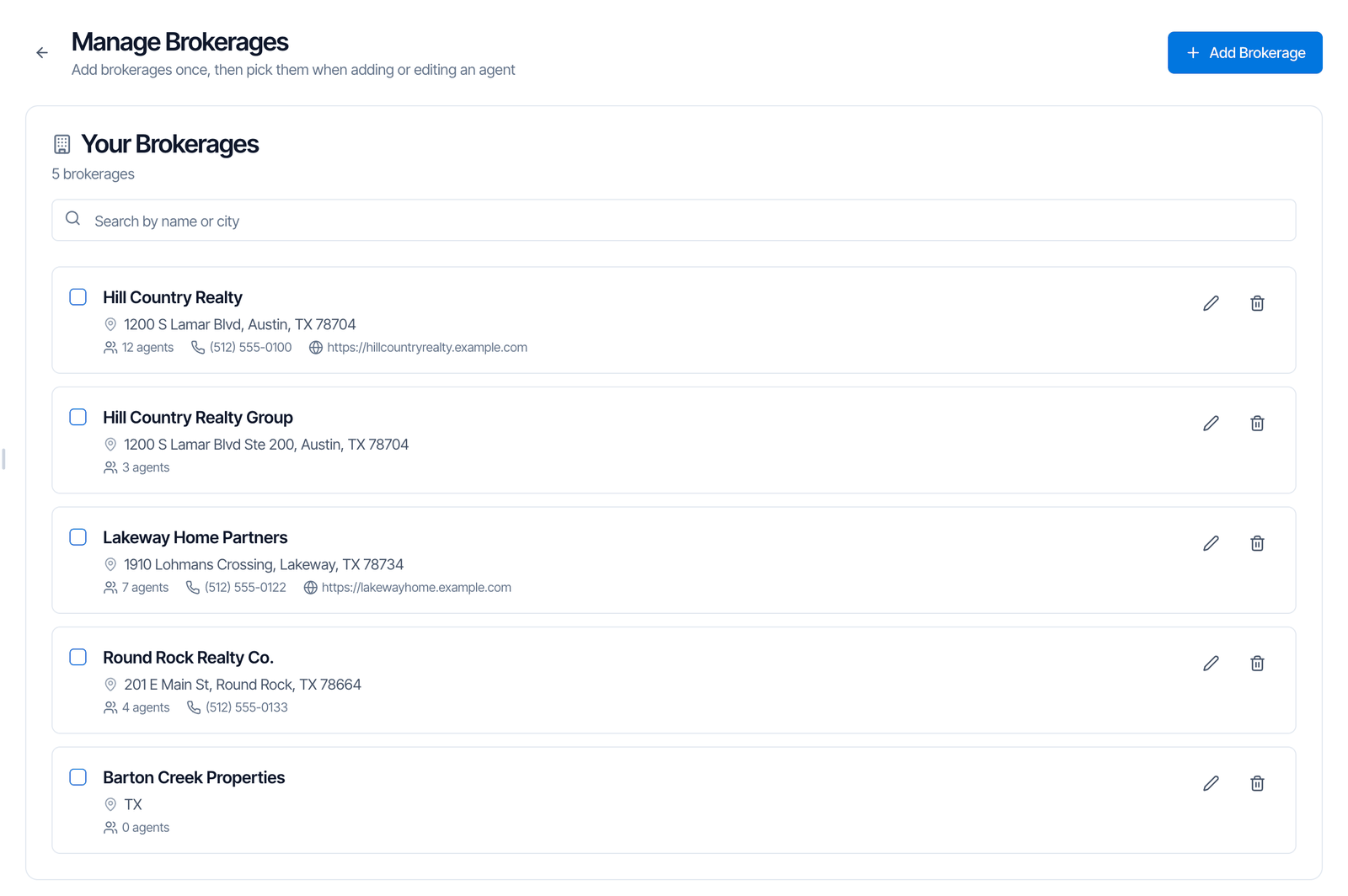
The list
- Your Brokerages shows how many brokerages you have, in name order.
- Search by name or city finds a brokerage.
- Each row shows the name, the office address (or No address), how many agents are linked to it, and the phone and website if you added them.
- The list shows 50 at a time. Click Load more for the rest.
Add a brokerage
Fill in the details
Only Brokerage Name is required. The rest is optional: Office Address, Address Line 2, City, State, Zip Code, Country, Phone, Website and Notes.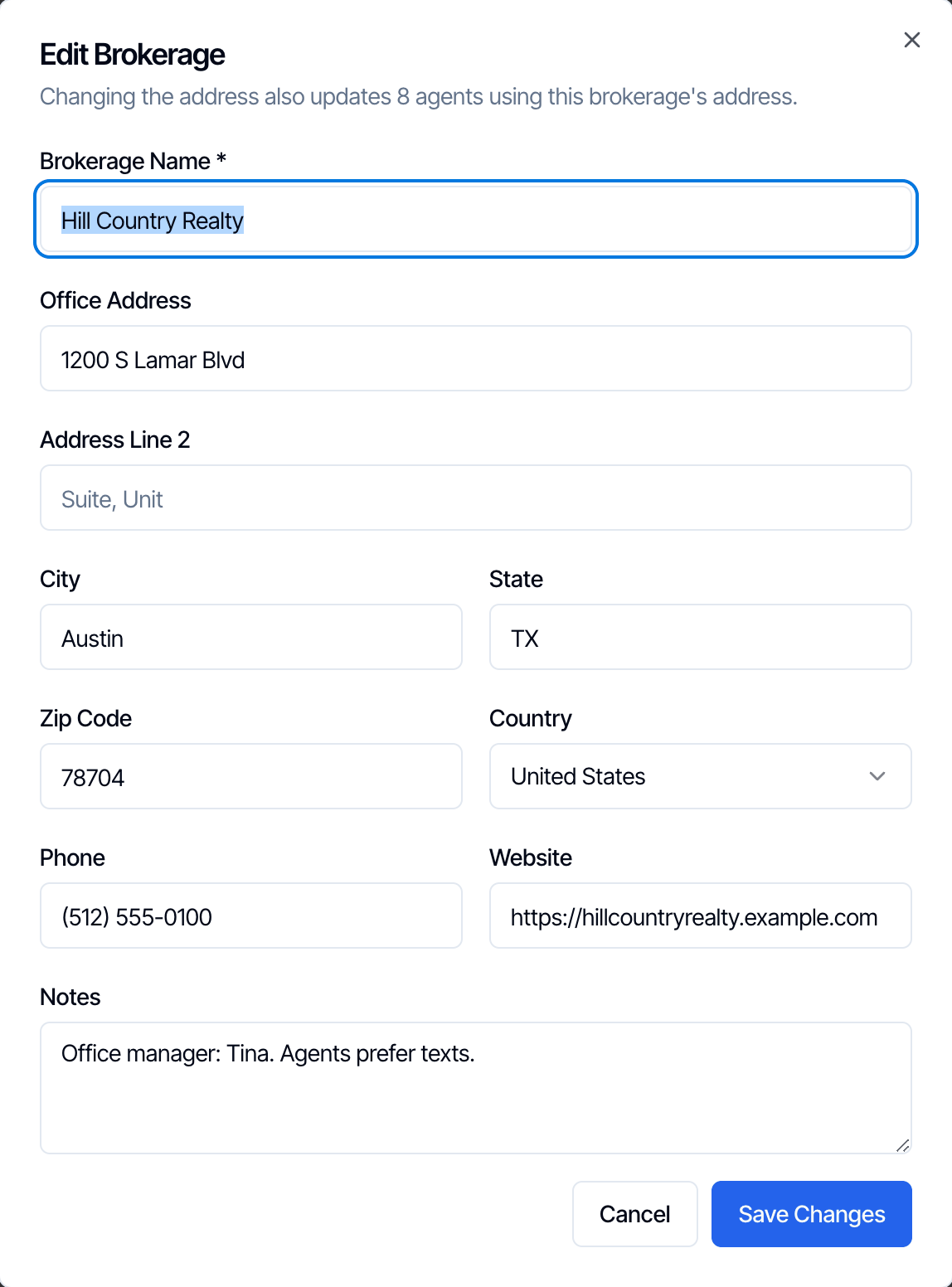
Edit a brokerage
Click the pencil (Edit brokerage) on its row, change what you need, and click Save Changes.- New address: every agent who uses the brokerage’s address gets the new one. The window tells you how many, for example “Changing the address also updates 8 agents using this brokerage’s address.” Agents with their own address aren’t changed.
- New name: every linked agent shows the new name. Hive also remembers the old name. A contact that comes in later with the old name (from a CSV import, for example) is still linked to this brokerage.
See a brokerage’s agents
Click the brokerage’s name (View this brokerage’s contacts). A window lists every contact linked to it, with their email and phone. Uses the brokerage address marks agents whose address follows the brokerage. Click a contact to open their contact page.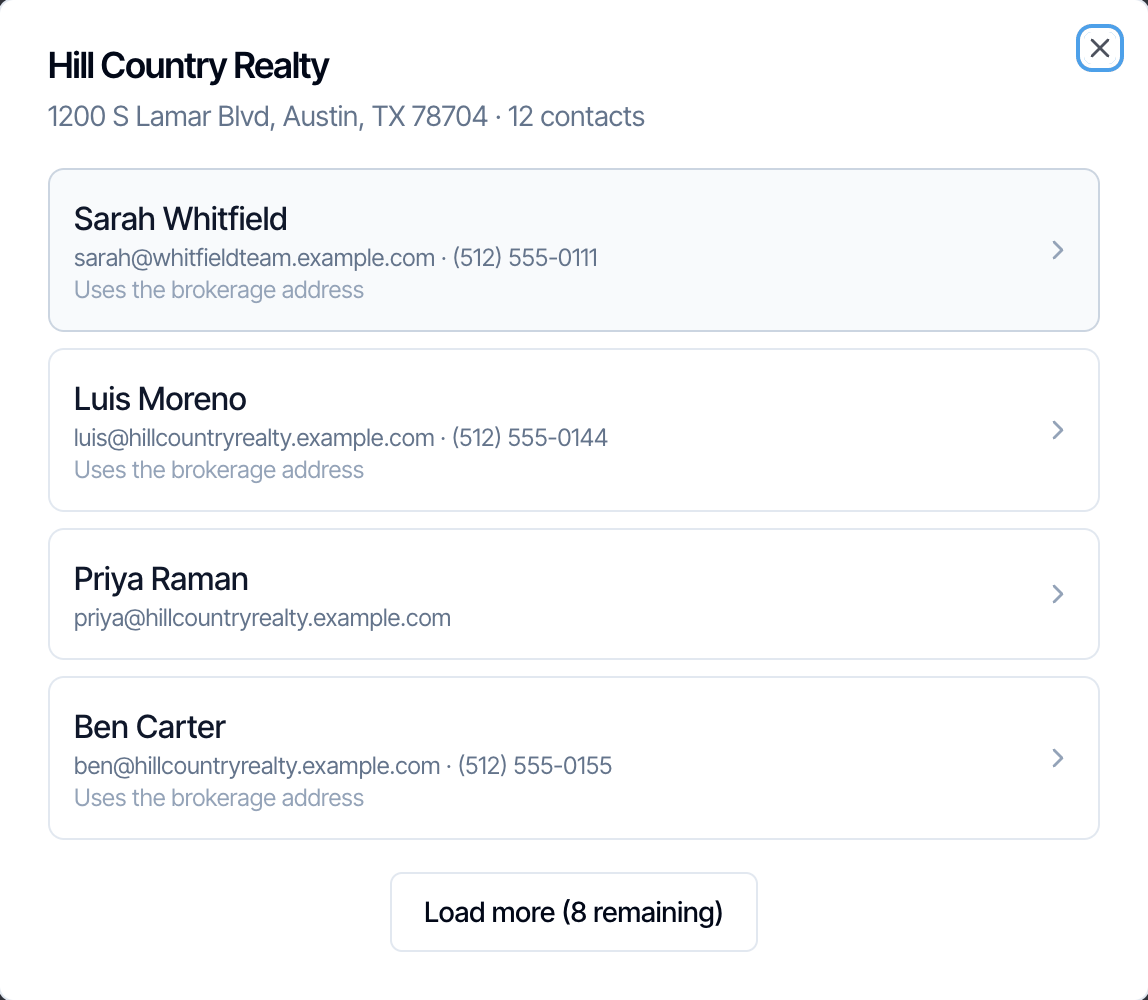
Link an agent to a brokerage
You link agents on their contact, not here:- Open the agent under Contacts.
- Under Professional Information, pick the brokerage in Brokerage. Type to search. Pick No brokerage to unlink them.
- To give the agent the brokerage’s office address, tick Use [brokerage]‘s address under the phone number. Untick it to type their own address.
- Save the contact.
Agents linked for you
Some contacts arrive with their brokerage typed as text: CSV imports from other software, and agents a client enters when booking online. Hive links them to a brokerage when the text matches one of your brokerages, or a name it used to have. Capital letters and extra spaces don’t matter. If nothing matches, Hive keeps the text on the contact and doesn’t create a brokerage. The contact page then shows Previously entered as ”…”. Select a brokerage to link this contact. Add the brokerage here, then pick it on the contact. An online booking never changes the brokerage of an agent you already linked.Merge duplicate brokerages
If the same office is in your list twice, for example “Hill Country Realty” and “Hill Country Realty Group”, merge them:Tick the duplicates
Tick the checkbox on two or more rows. A bar shows how many you’ve picked. Click Merge Selected.
Choose the one to keep
In Merge [number] Brokerages, click the brokerage to keep. Hive starts with the one that has the most agents. The others say Remove. Change Brokerage Name if you want the merged one called something else.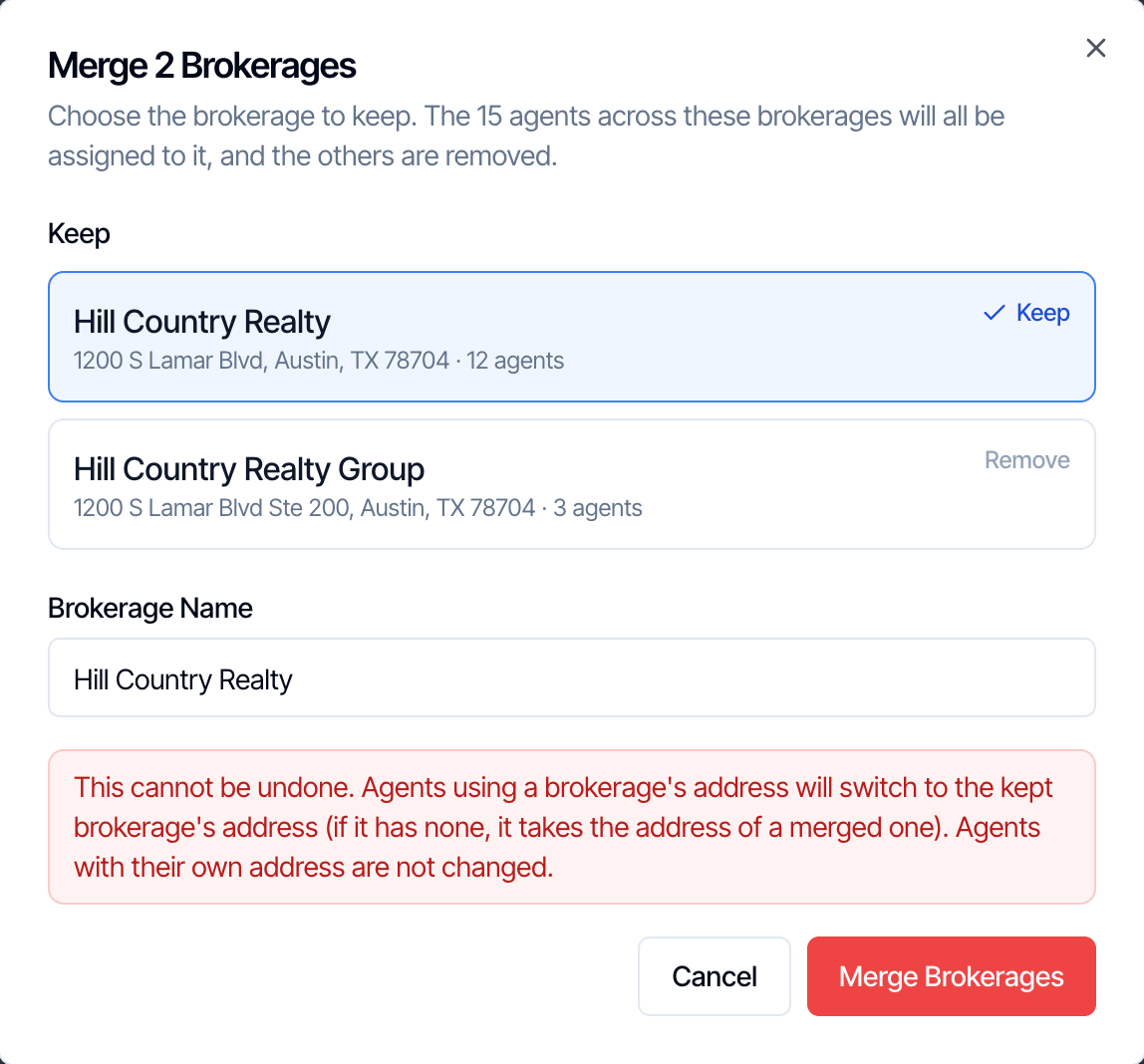
Delete a brokerage
Click the trash icon (Delete brokerage) on its row, then Delete Brokerage.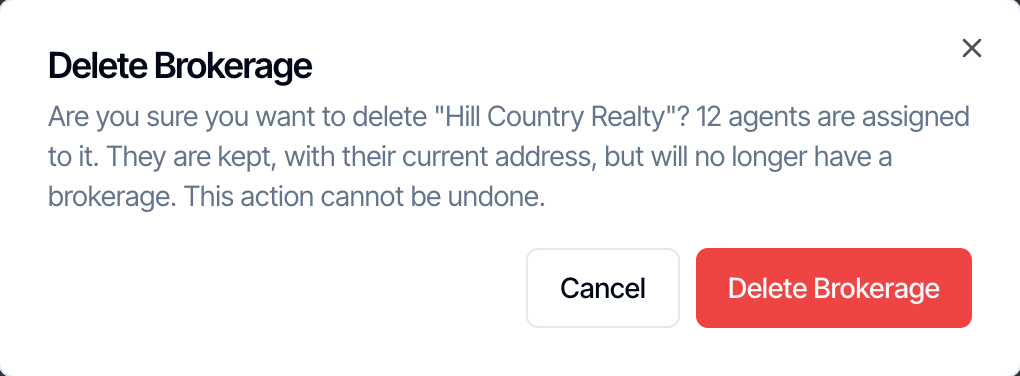
- The agents are kept. Each keeps the address they have now, including one that came from the brokerage.
- They no longer have a brokerage. The brokerage name is cleared from their contact.
- It can’t be undone. To bring the brokerage back, add it again and pick it on each agent.
Where the brokerage name shows
The Contacts list shows each contact’s Business Name, not their brokerage. The report doesn’t print the brokerage on the agent’s card.