

In the dashboard: Contacts in the sidebar.
Contacts holds everyone you work with: clients, buyer’s and listing agents, lenders, sub contractors and more. Contacts are added for you whenever you put someone on an inspection, when clients book online, and when you import them.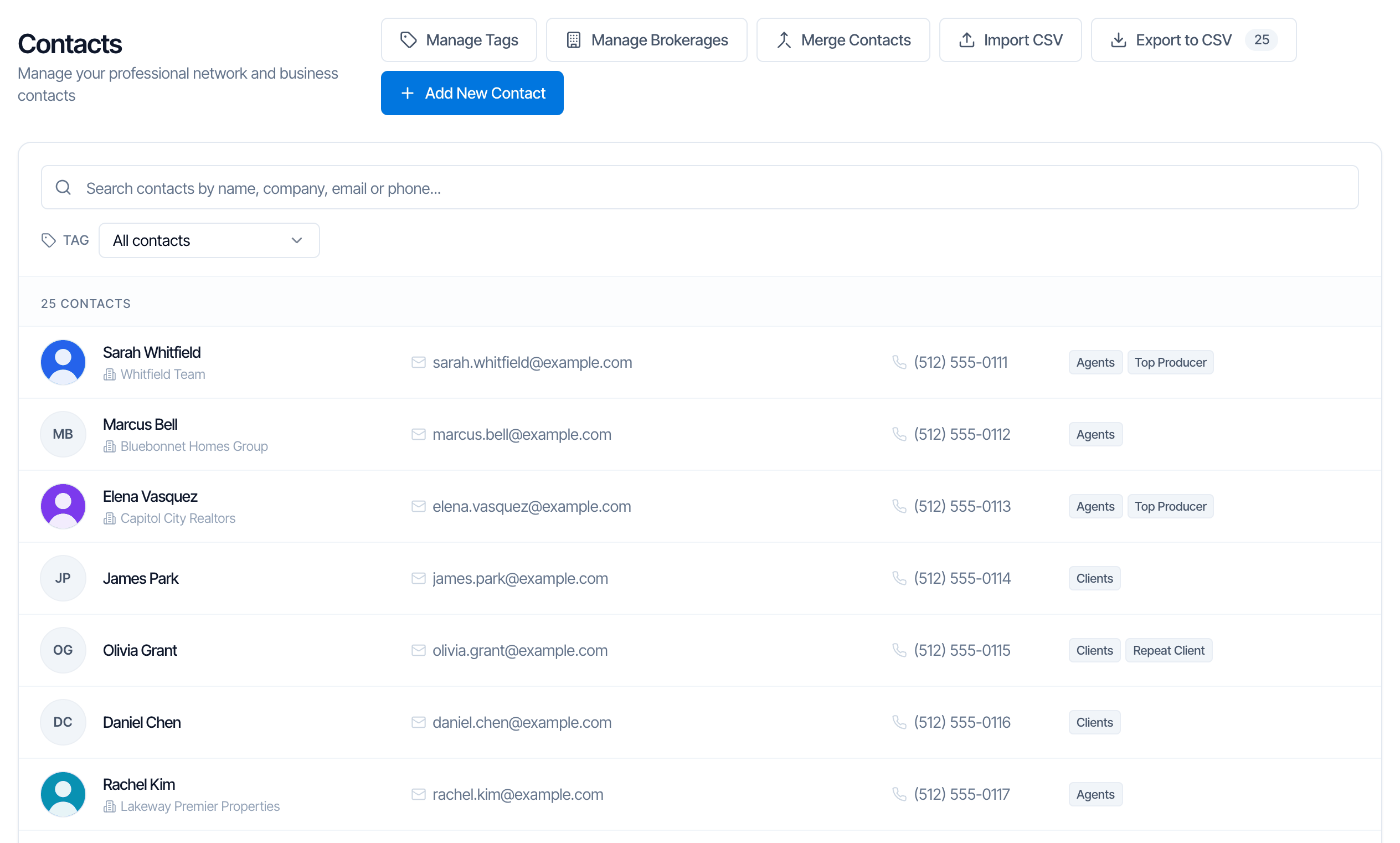
The Contacts page: buttons along the top, search and tag filter, then your contacts, newest first.
What’s on the page
The buttons along the top
Each contact row

- Photo or initials, name and business name
- Email and phone
- The first two tags, with +2 (or more) if the contact has more
- When you hover: ✏️ Edit and 🗑 Delete
On a narrow window, some columns hide to make room: tags first, then phone, then email. Widen the window to see them again.
Search contacts
Type in Search contacts by name, company, email or phone…. The list narrows as you type.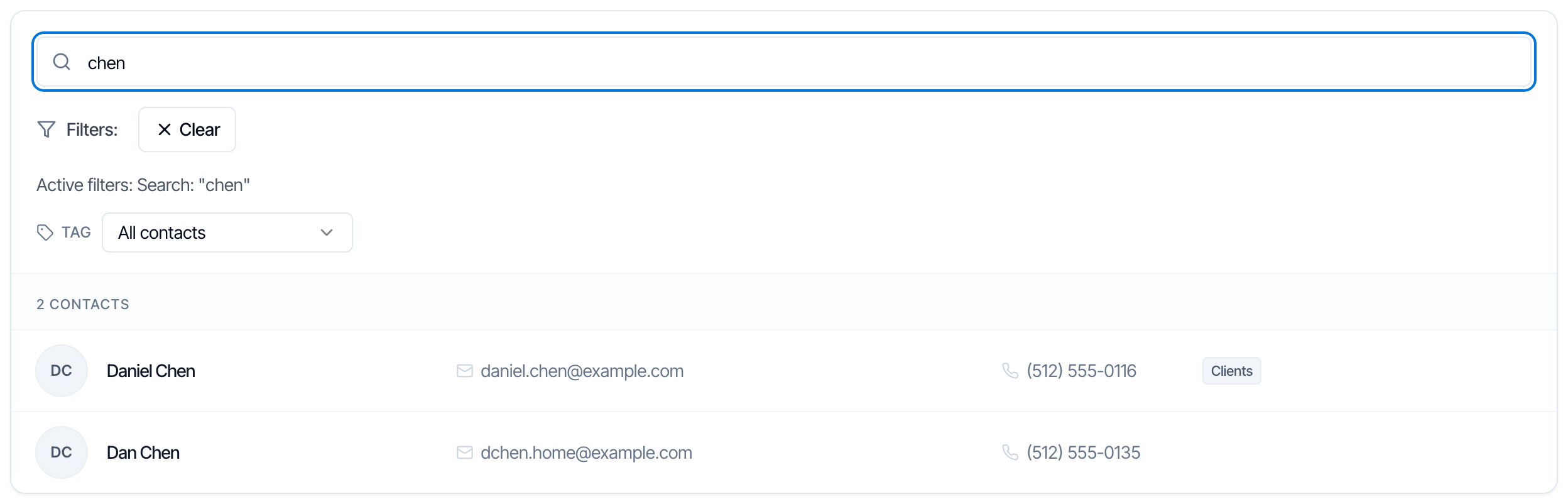
Searching chen finds both Daniel Chen and Dan Chen.
- First and last name, including the full name (for example sarah whit)
- Business name (for example realty)
- Email, or part of it (for example @kw.com finds everyone with that email domain)
- Phone number, typed any way you like: (512) 555-0111, 512-555-0111, 5125550111 and 1 512 555 0111 all find the same contact. Type at least 3 digits.
Filter by tag
Use the Tag menu under the search box to show only contacts with one tag, for example Agents.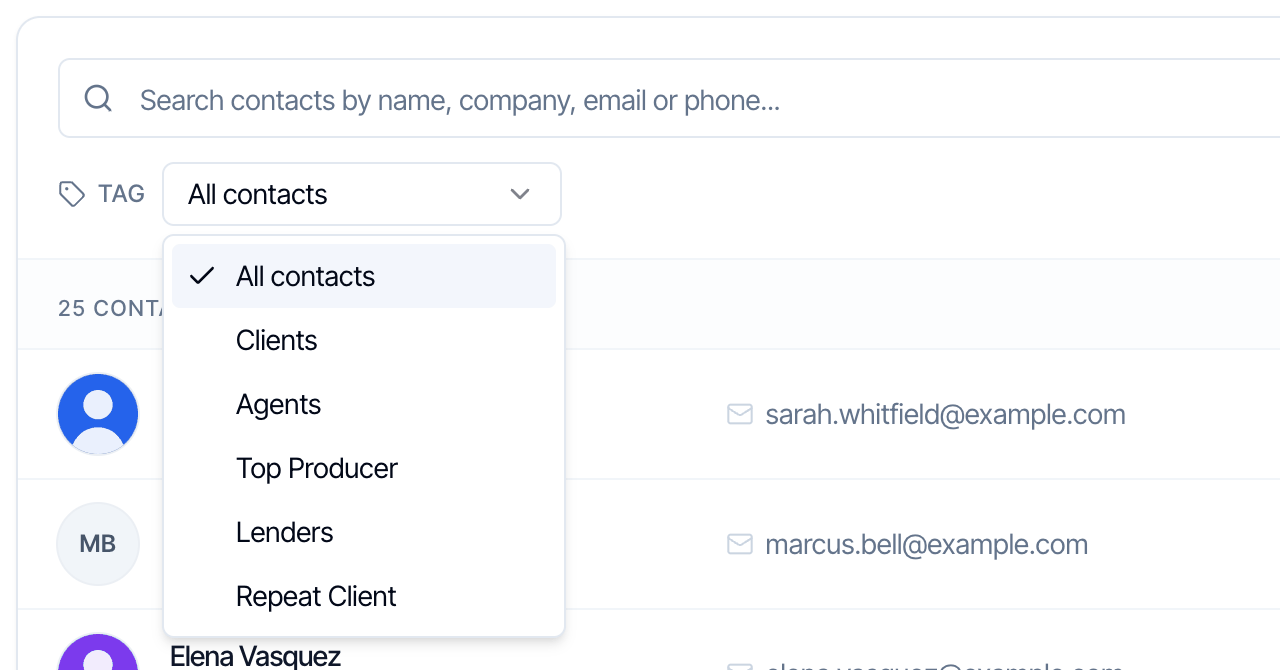
The Tag menu lists every tag you've created.
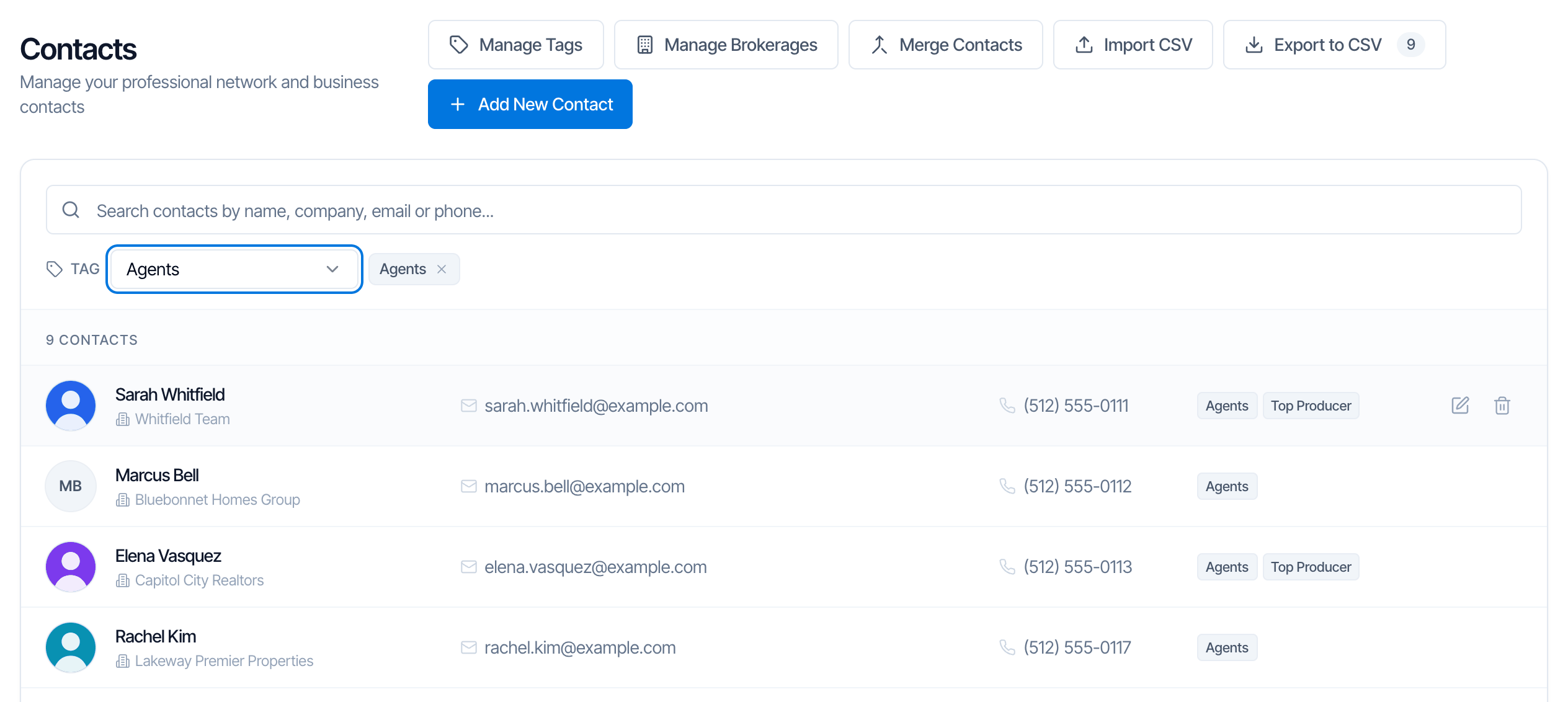
Filtered to Agents: 9 contacts, and Export to CSV now exports those 9.
- Pick All contacts or click the × on the tag chip to go back to everyone.
- You can search and filter at the same time, for example Agents plus sarah.
- You can also jump here from Manage Tags: click the 👥 button on a tag.
- The Tag menu only appears once you’ve created at least one tag.
Merge duplicate contacts
Sometimes one person ends up in Hive twice, for example with a work email and a home email. Merge Contacts combines them into one.Pick the contact to keep (Contact 1)
On the left, under Contact 1 — Keep, search by name, email or phone and pick the contact you want to keep. This one stays exactly as it is.
Pick the duplicate (Contact 2)
On the right, under Contact 2 — Merge & delete, pick the duplicate. Each side shows the contact’s details, tags and Linked inspections, so you can check you have the right people.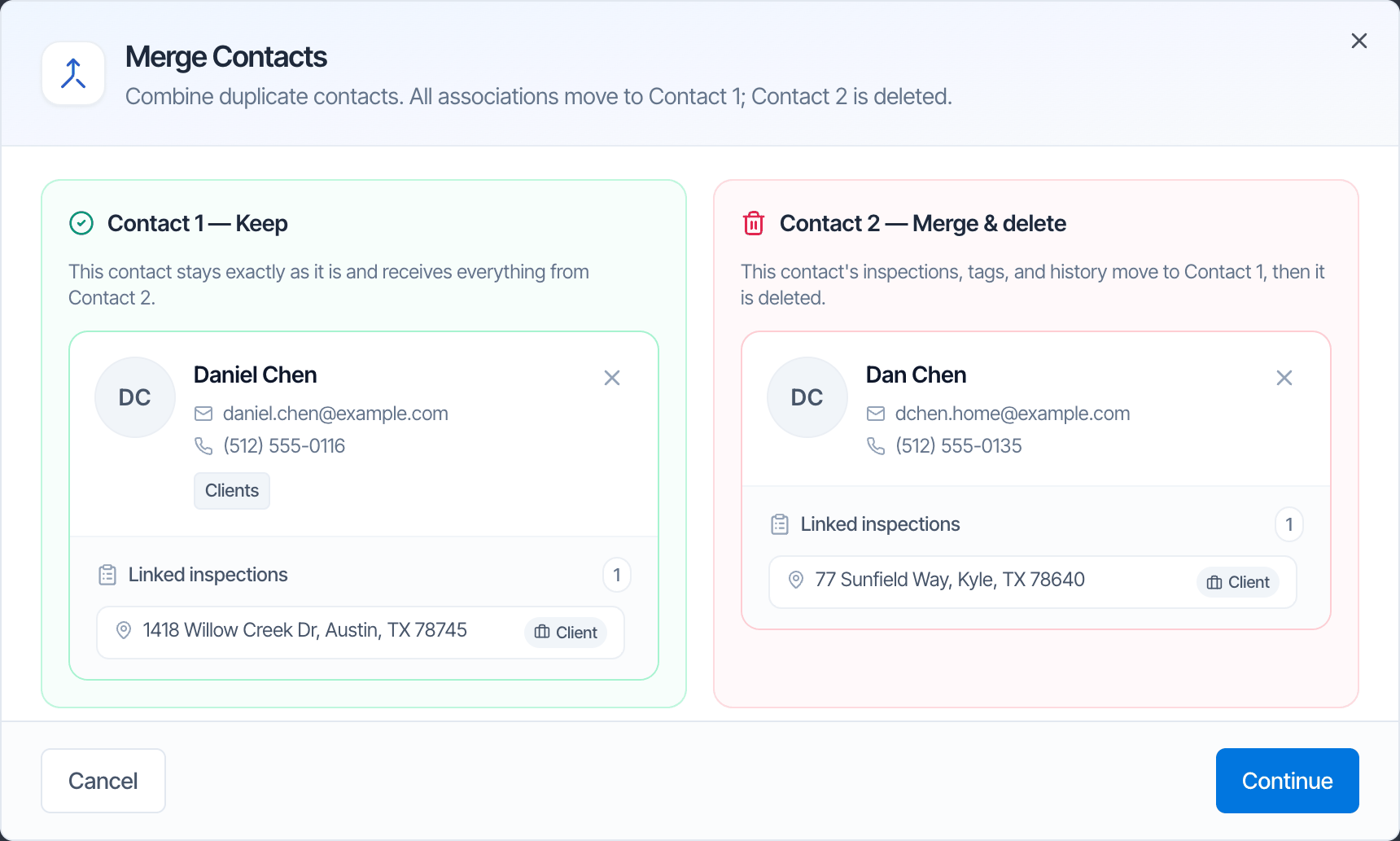
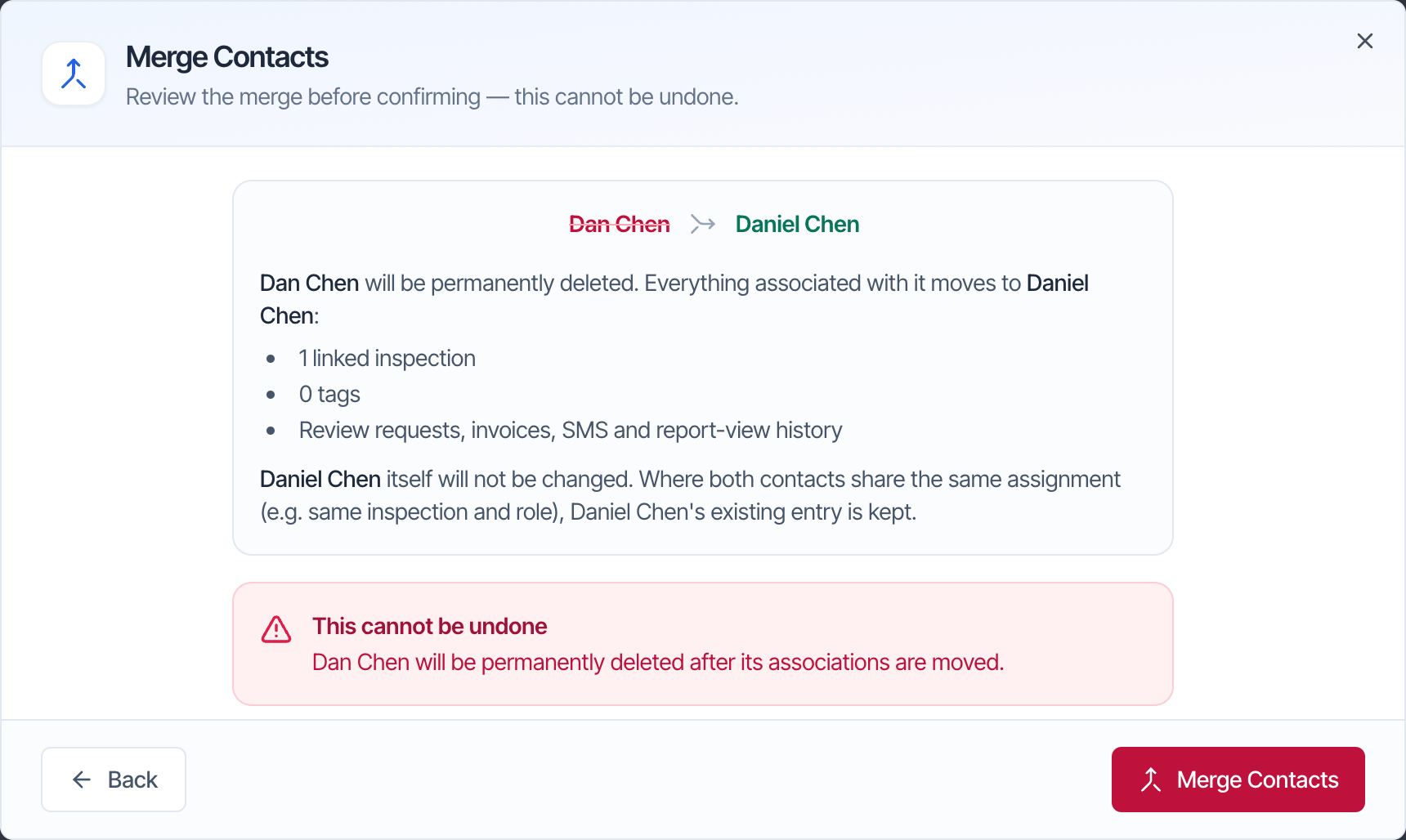
- Moves to Contact 1: Contact 2’s inspections, tags, review requests, invoices, text messages and report-view history.
- Contact 1 doesn’t change. Its name, email, phone and other details stay as they are. If Contact 2 has details you want to keep (a second phone, notes), copy them to Contact 1 first.
- No double entries. If both contacts are on the same inspection in the same role, Contact 1’s entry is kept.
- Contact 2 is deleted.
Export to CSV
Click Export to CSV to download the contacts you’re looking at as a spreadsheet. It exports exactly what’s in the list now: if you searched or filtered by a tag, only those contacts are exported. The number on the button shows how many. The file is named likecontacts-2026-10-21.csv and has these columns:
For large lists, the inspection columns can take a few seconds. If they can’t be loaded, the file still downloads without them and you see a message.
Delete a contact
Hover the contact’s row, click the 🗑 trash icon and confirm.Frequently asked questions
Where do contacts come from?
Where do contacts come from?
You add them when you put someone on an inspection, when clients book through your scheduling widget, when you import a file, or with Add New Contact. Contacts are matched by email, so the same email is always the same contact.
Why does editing a contact on one inspection change it on another?
Why does editing a contact on one inspection change it on another?
Because it’s the same contact. Each email is one contact in Hive, and that contact can be on many inspections. Changing their details changes them everywhere.
Can I export only my agents?
Can I export only my agents?
Yes. Choose your Agents tag in the Tag menu, then click Export to CSV.
Can I export more than one tag at once?
Can I export more than one tag at once?
Not in one file. Export each tag separately, or clear the filter to export everyone, then filter the Tags column in your spreadsheet.
Can I bulk-delete or bulk-tag contacts?
Can I bulk-delete or bulk-tag contacts?
Not from the list. To tag many contacts at once, use Auto Tagging, the Also add instantly option on a tag, or Assign Tags when you import.
Next step
Related