

In the dashboard: Contacts → click a contact.
Each contact has its own page with everything you know about them, plus a list of every inspection they’ve been on. Think of it as a light CRM: for an agent, you can see at a glance how many inspections they’ve sent you and how long it’s been since the last one. To open it, go to Contacts and click the contact’s row (or the ✏️ icon when you hover it). See Contacts list.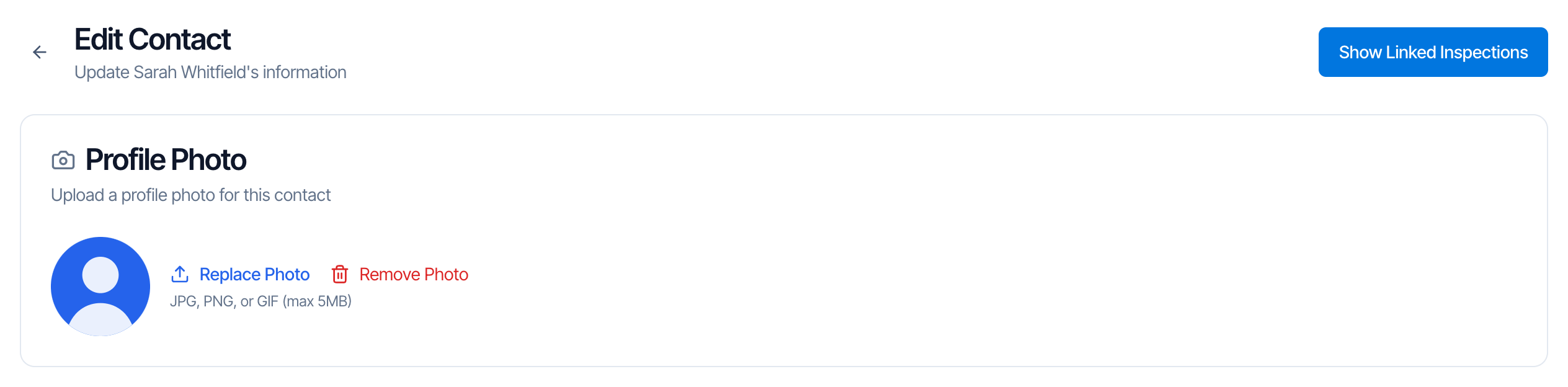
The top of a contact's page: Show Linked Inspections, then the profile photo.
And at the top right, Show Linked Inspections.
Save your changes
As soon as you change something, a bar appears at the bottom of the screen. Click Save to keep your changes.
- After saving, you go back to the Contacts list.
- If you try to close or reload the page with unsaved changes, your browser warns you first.
- Photos are different: uploading or removing a photo saves straight away, without the Save button.
- A contact is the same everywhere. Changes show on every inspection they’re on, past and future.
Profile Photo
Click Upload Photo (or Replace Photo) and pick an image: JPG, PNG or GIF, up to 5 MB. It’s saved right away. To remove it, click Remove Photo and confirm. It’s removed immediately. Where the photo shows:- Next to the contact’s name in your Contacts list
- On the contact cards of the inspection pages your clients see
- On report cover designs that show the agents
Basic Information
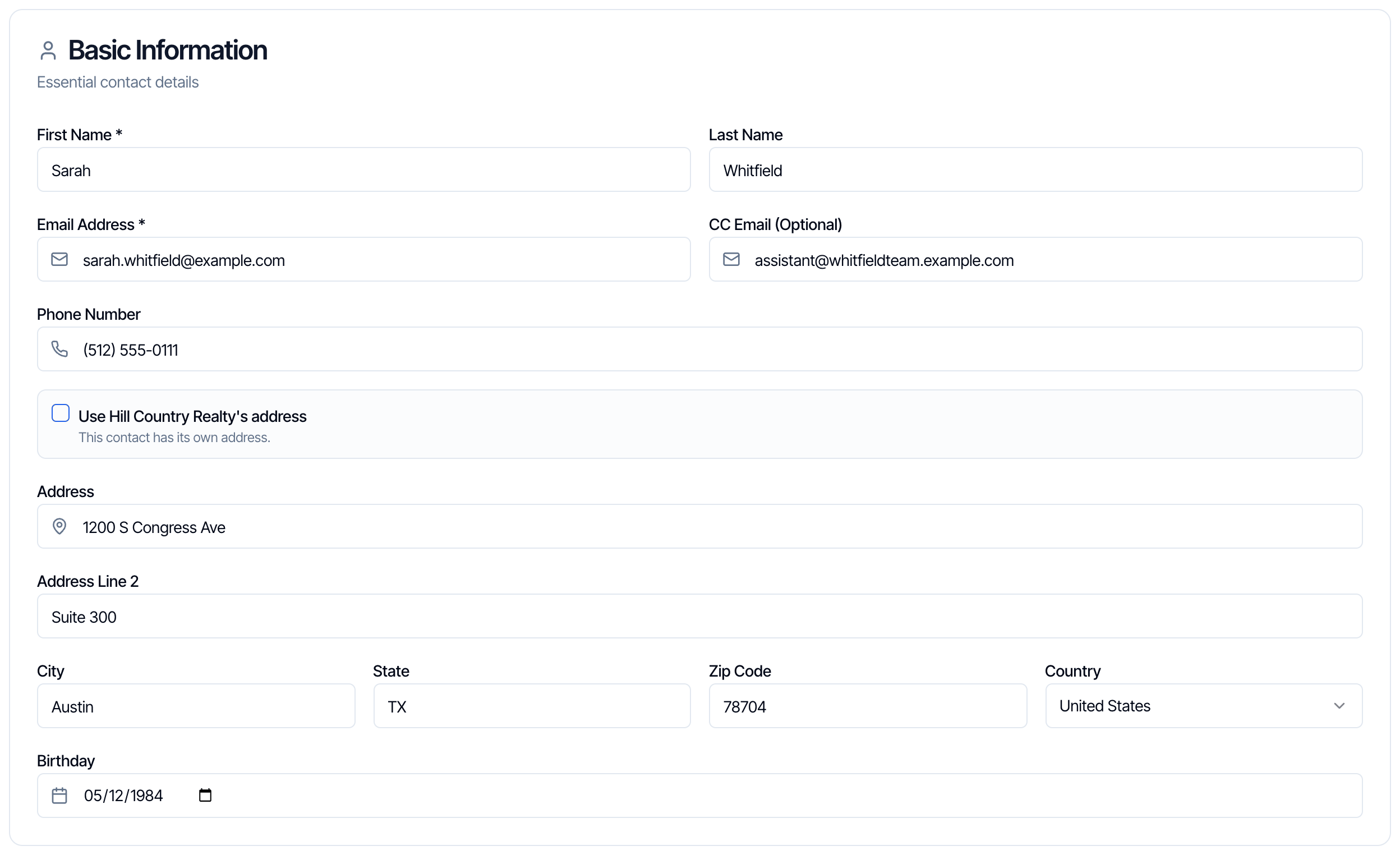
No email yet?
Clear the Email Address box and click Generate Dummy Email. Hive fills in a placeholder address and shows Using placeholder email. The placeholder is hidden from clients on reports. Replace it as soon as you know the real email: emails sent to the placeholder never reach anyone.Email already used by another contact?
If you change the email to one another contact already has, Hive won’t save it and shows Another contact with this email already exists in your organization. If it’s the same person, merge the two contacts instead.Use the brokerage’s address
When an agent is linked to a brokerage, you can tick Use [brokerage]‘s address. The contact’s address then follows the brokerage and greys out here. Untick it to type a different address for this contact.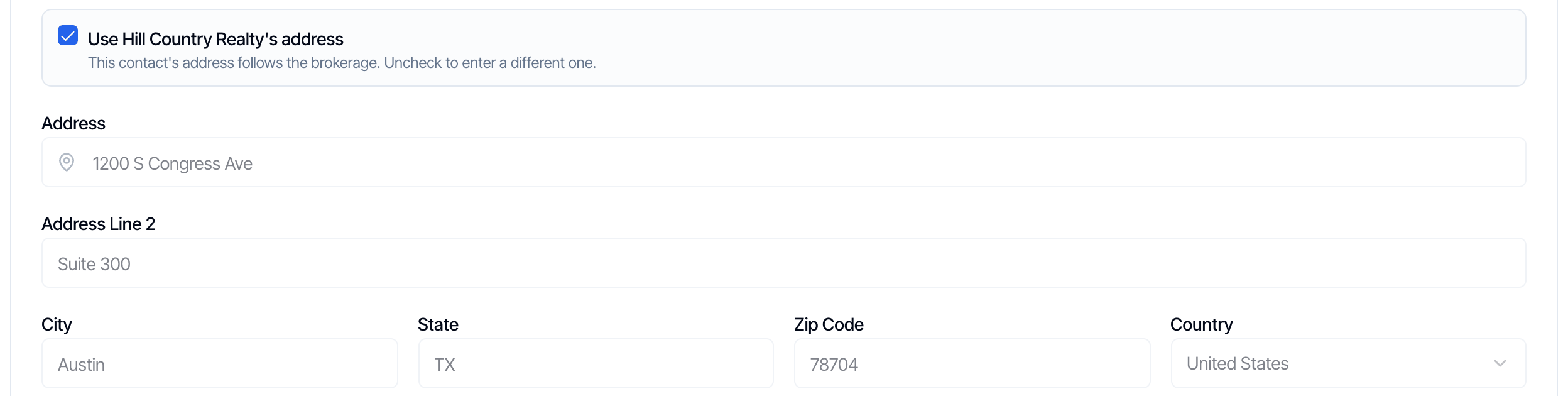
Professional Information
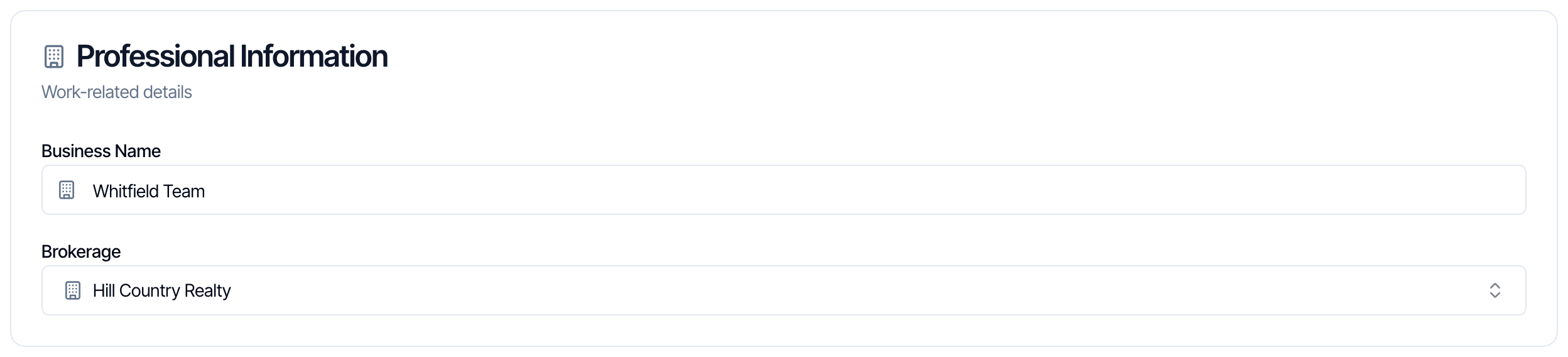
- Business Name: the contact’s company or team name. It shows under their name in the Contacts list.
- Brokerage: pick the agent’s brokerage from your directory. Type to search. Manage the directory from Contacts → Manage Brokerages.
Tags
Click a tag to add it (it turns blue with a ✓). Click it again to remove it. Then click Save.
Tags you remove by hand can come back: Also add instantly adds the tag again the next time the contact is added to an inspection in that role, and Auto Tagging adds it again overnight if they still match the rules.
Online Presence
Website, LinkedIn, Twitter, Facebook and Instagram. Paste the full web address, for examplehttps://linkedin.com/in/username. These are included when you export your contacts.
Notes
Anything you want to remember about this contact, for example “Prefers texts” or “Always attends the walkthrough”. Notes are for your team only: clients and agents never see them. Contacts imported from other software often have extra details here, such as a second phone number or their tags from the old software.Linked inspections
Click Show Linked Inspections at the top right to see every inspection this contact is on. It’s the quickest way to see an agent’s history with you.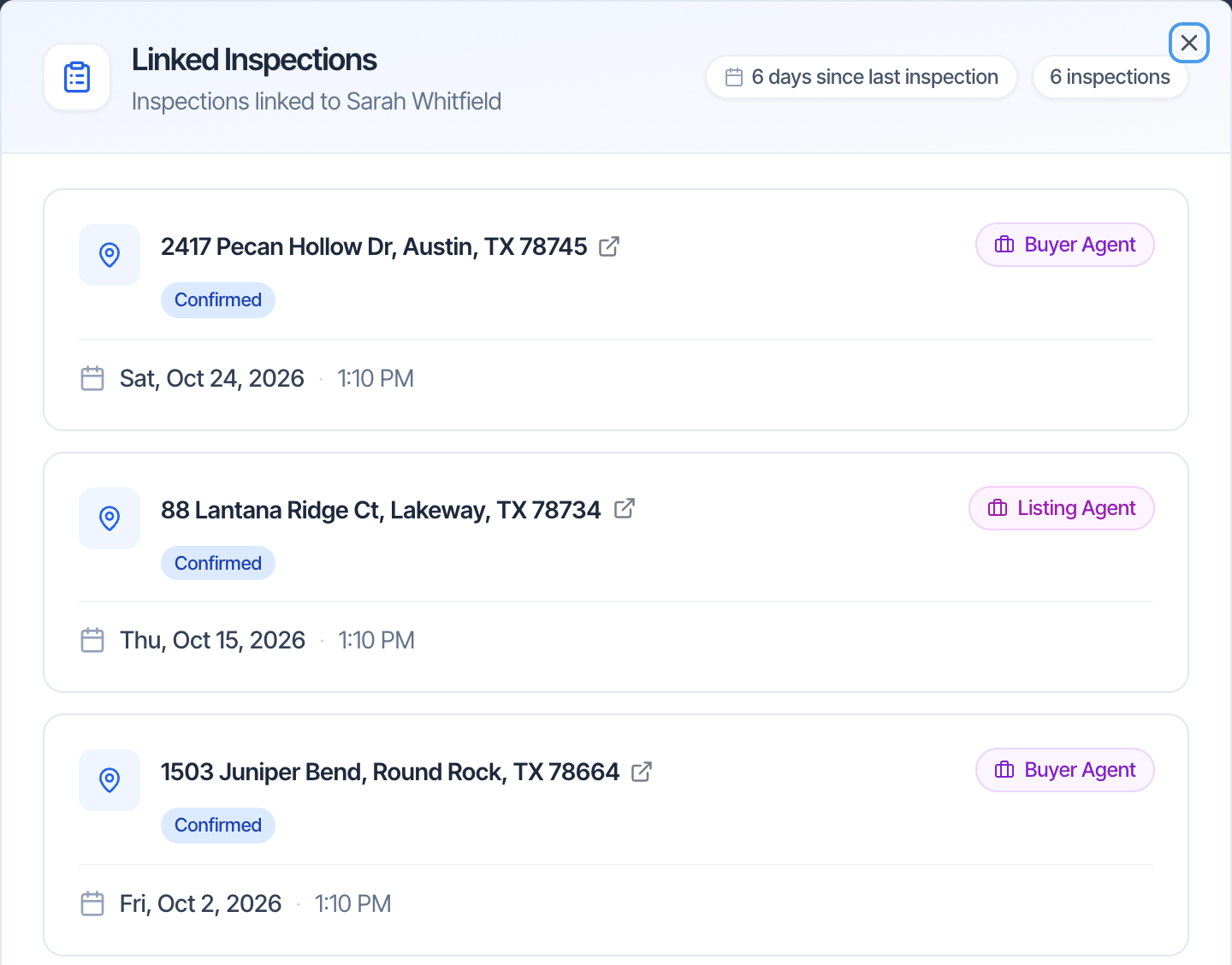
An agent's inspections, newest first, with their role on each one.
- Number of inspections: every inspection they’re linked to, in any role. Deleted inspections aren’t listed or counted.
- Days since last inspection: counted from their most recent inspection date that has already passed (upcoming ones don’t count)
- The address. Click it to open the inspection.
- The status: Draft, Review (a quote), Waiting, Confirmed or Canceled
- Their role, such as Client, Buyer Agent or Listing Agent. If they’re on the inspection in two roles, for example as both Buyer Agent and Listing Agent, the inspection is listed once with both roles.
- The date and time, or Not scheduled
Unsubscribed from automated emails
If the contact clicked unsubscribe in one of your emails, a yellow notice shows at the top of their page.
Add a new contact
Most contacts are added for you when you put someone on an inspection. To add someone who isn’t on an inspection yet, for example an agent you just met:- Go to Contacts and click Add New Contact.
- Fill in the same sections as above. First Name and Email Address are required.
- Click Create Contact in the bar at the bottom.
Frequently asked questions
I changed a contact's email. Do their inspections update?
I changed a contact's email. Do their inspections update?
Yes. The contact is the same on every inspection, so future automated emails go to the new address.
Why don't I see the contact's photo on reports?
Why don't I see the contact's photo on reports?
The photo shows on the inspection pages your clients see and on report covers that show agents. Check that the photo is saved on the contact (it saves as soon as you upload it), and that your report cover design includes agents.
Can clients or agents see my notes?
Can clients or agents see my notes?
No. Notes on a contact are only visible to your team in the dashboard.
Is the contact page on the mobile app?
Is the contact page on the mobile app?
No. The Contacts pages, including tags, merging, import and export, are in the web dashboard.
Related