

In the dashboard: Portal Activity in the left menu (all inspections), or open an inspection and click Quick Actions → Portal Activity (one inspection).
Portal Activity tells you whether your client or their agent has opened the client portal, and whether they have opened the report itself. Every time someone does either, Hive records who it was, which inspection it was for, what they opened and when. It’s your second check after the Automation History:The two kinds of activity
Every row in Portal Activity is one of two kinds, shown as a badge: Portal Access (grey) or Report View (blue).Portal Access: they opened the portal
A Portal Access row is added when someone opens this inspection in the client portal. That happens when they:- Sign in and open the inspection. Your client goes to the portal, enters the email they booked with, and clicks the inspection in their list. Buyer’s agents do the same with their own email to reach the agent portal.
- Arrive from a link. For example a client who is already signed in on that browser clicks a report link, or an agent clicks the Reports link in your email.

Portal Access with no text next to it: the client signed in to the portal and opened the inspection.
{{{agent_reports_portal_link}}} placeholder) in an email Hive sent them, without signing in. Each person’s email has their own copy of the link, so Hive knows who opened it. This works for emails from your automations and from Compose Email. See Placeholders.

Portal Access, Direct link: the buyer's agent opened the portal from the Reports link in your email.
- It does tell you they reached the portal for this inspection, and when.
- It doesn’t tell you they read the report. The portal also has the order details, agreements and invoices, and a client can visit before the report is published or while it’s locked.
- Moving around inside the portal doesn’t add more rows. Coming back from a link to the same inspection within 30 minutes in the same browser tab isn’t counted again.
Report View: they opened the report
A Report View row is added each time someone opens a report from the portal. The text next to the badge says what they opened:
Report View, View on Web: the client opened the online report.

Report View, View PDF: a few minutes later the same client opened the PDF.

Report View for an additional document attached to the inspection.
- The report really opened for them. A locked or unpublished report can’t be opened, so it never shows a Report View.
- Every open counts. If your client opens the PDF three times, you see three rows.
- It shows opening, not reading. Hive doesn’t track how long they spent or how far they scrolled.
A typical visit
A client who signs in and reads their report usually leaves rows like these, newest at the top:- Report View, View PDF: they downloaded the PDF.
- Report View, View on Web: they opened the online report.
- Portal Access: they signed in and opened the inspection.
Check one inspection
Use this to answer “has this client opened their report?”- From the inspection's page
- From the Inspections list
- In the mobile app
- Open the inspection from the Inspections page.
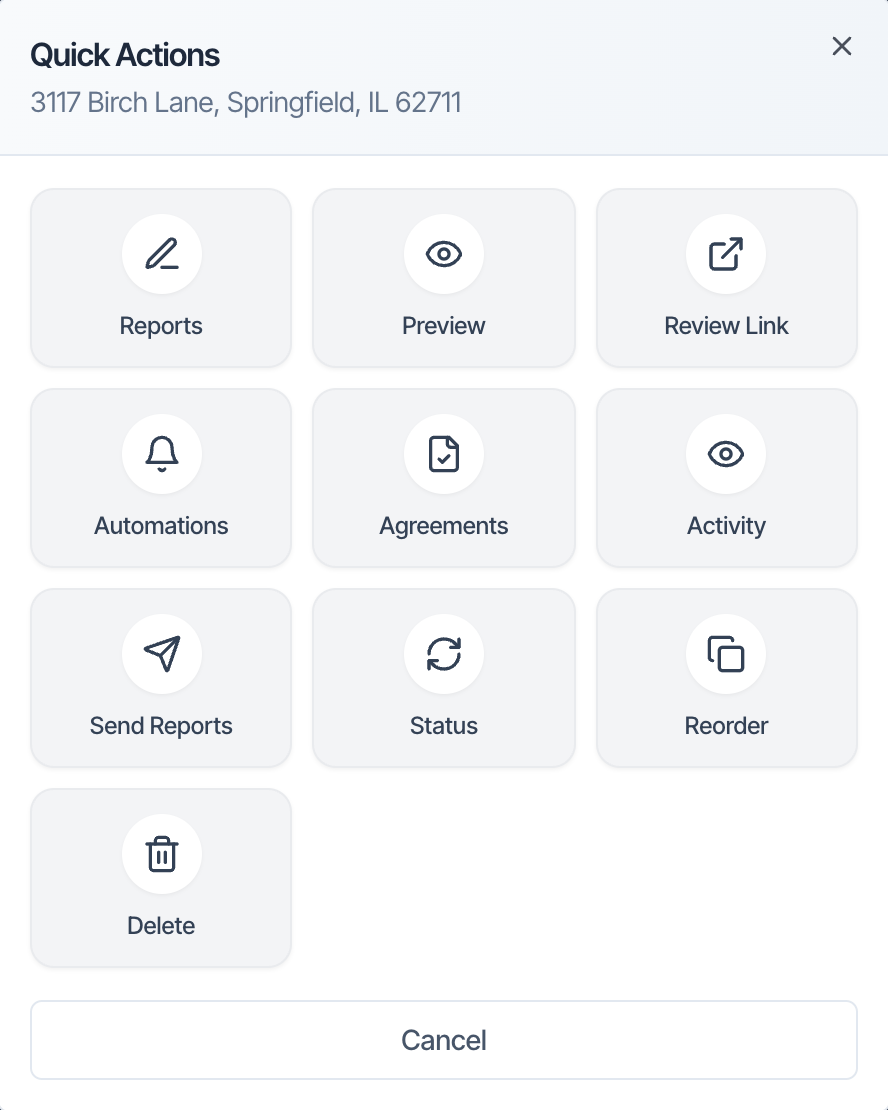
- In the Quick Actions card, click Portal Activity.

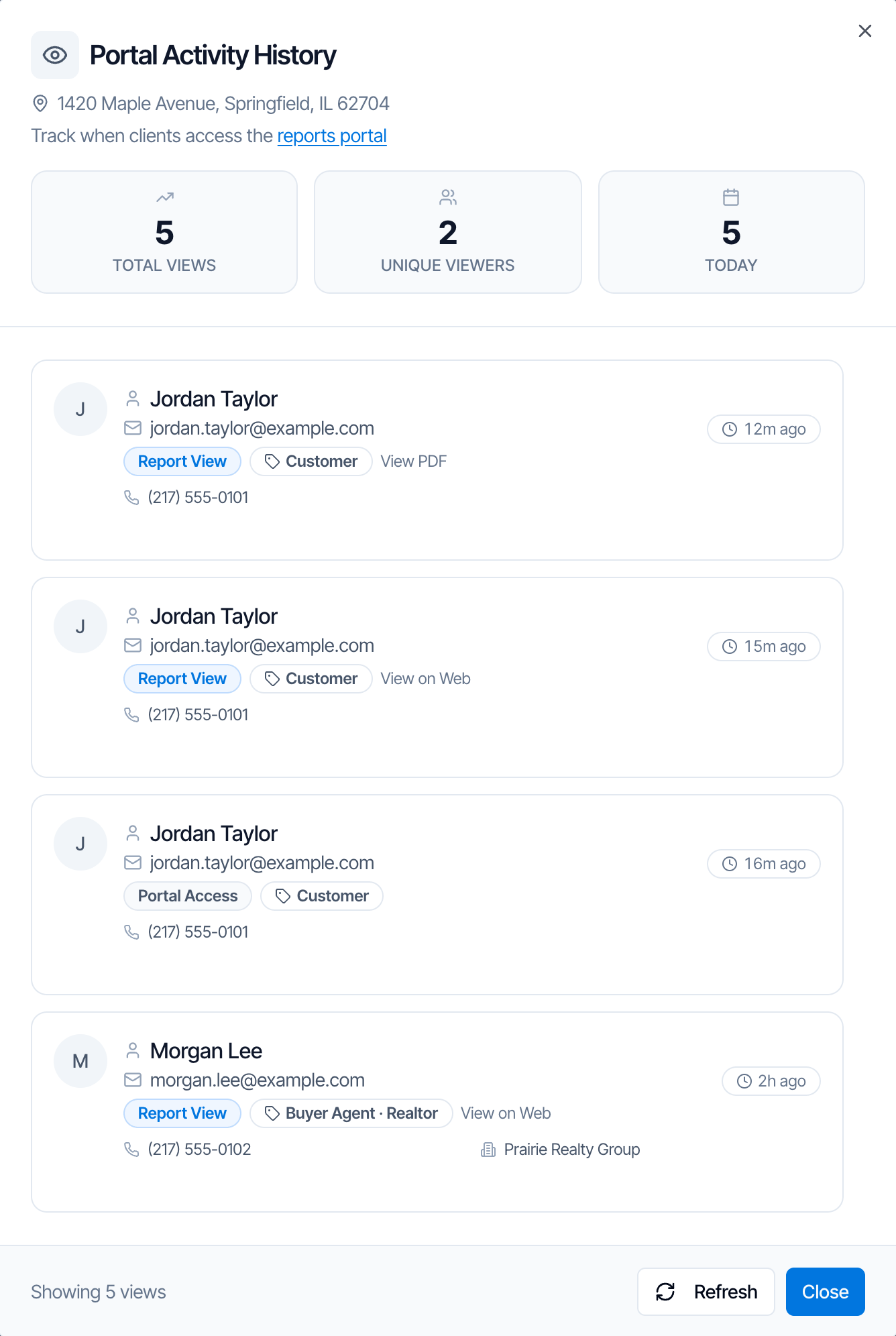
- It shows all the activity for this inspection, newest first, with no date limit.
- Total Views counts every row, both Portal Access and Report View. Unique Viewers counts different people (by email). Today counts the rows from today.
- Each row has the person’s name, email, role on the inspection, the badge, what they opened, and how long ago. Hover over a row to see the exact date and time.
- Click Refresh to load new activity without closing the window.
Check all inspections
Click Portal Activity in the left menu. It lists the activity on every inspection in your account.
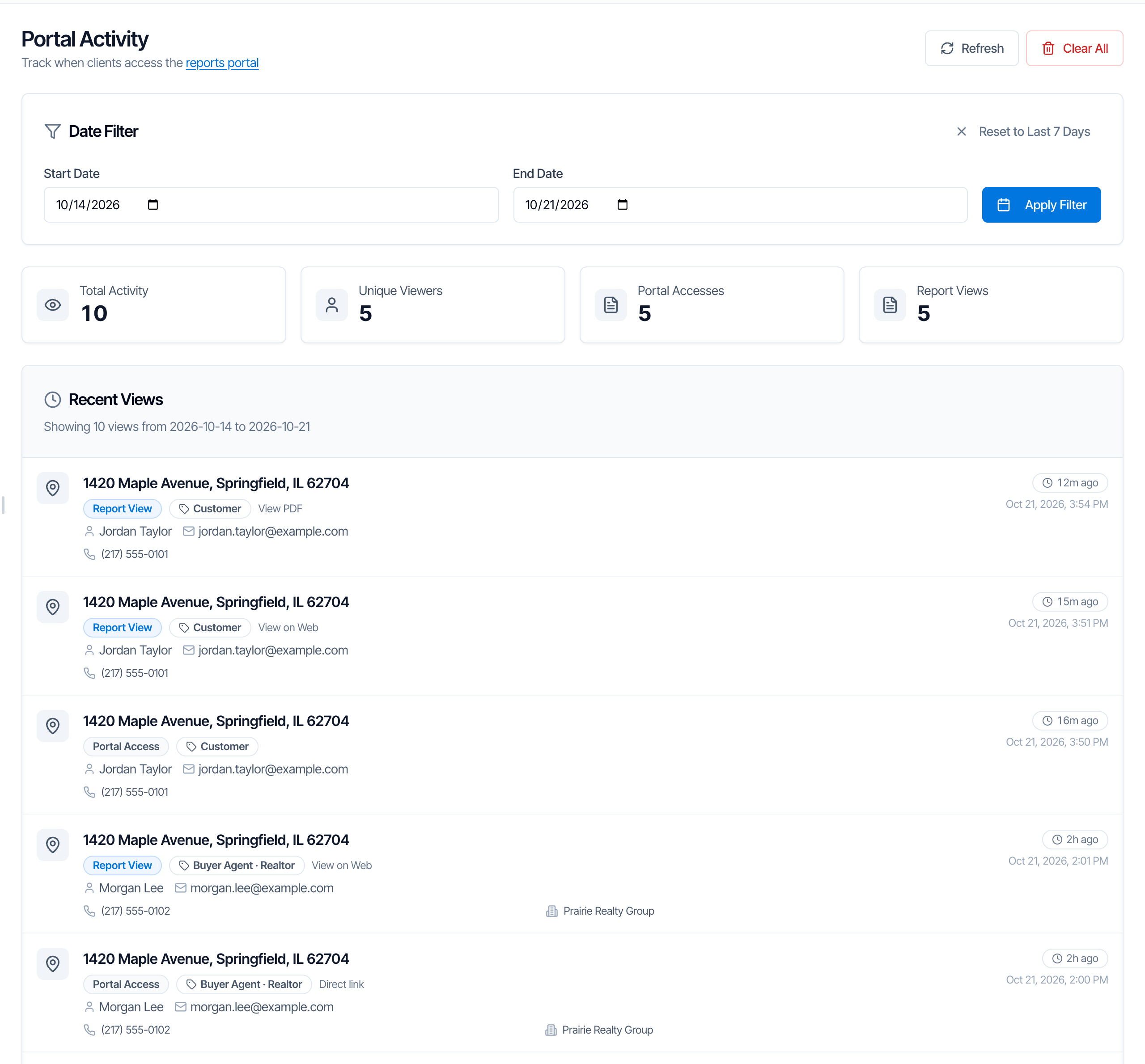
The Portal Activity page, showing the last 7 days.
Date Filter
The page opens on the last 7 days. To look further back:- Pick a Start Date and an End Date.
- Click Apply Filter.
The counts
The list
The Recent Views list shows 10 rows per page, newest first. Use the arrows and page numbers at the bottom to see more. Each row has:- The property address. Click it to open the inspection.
- The badge, Portal Access or Report View, and what they opened.
- Their role on the inspection, for example Customer (your client) or Buyer Agent · Realtor.
- Their contact details: name, email, phone, CC email, company, brokerage, address and notes, as saved on the contact.
- When: how long ago, and the exact date and time.
Clear All
Clear All permanently deletes the Portal Activity history. The confirmation shows how many records that is in total.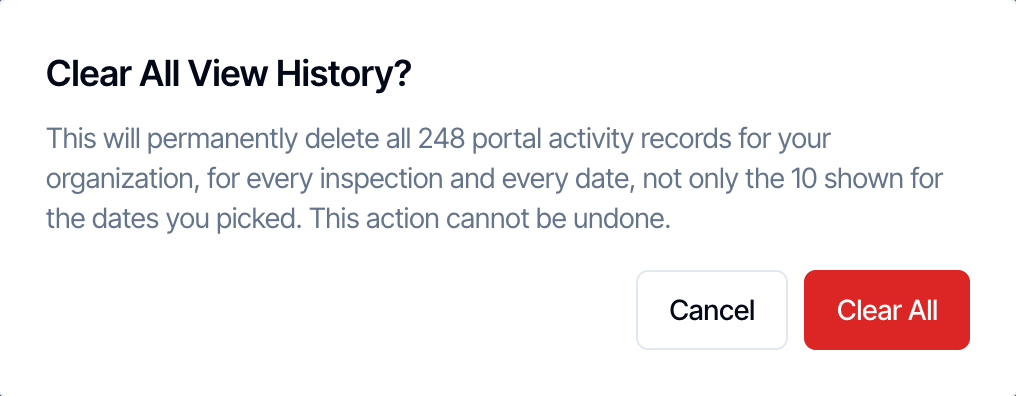
Get an email when someone opens the report
Turn on Org Settings → Business Management → Email me on report activity to get an email at your Company Email when a client or agent opens the portal, the online report, the PDF or an additional document. You get at most one email for each person on each inspection per hour. The activity still shows on the Portal Activity page whether or not this is on. See Report Activity Notifications.What isn’t recorded
Portal Activity only sees visits it can tie to a person. These don’t show up:- Your own previews. Preview Reports in Quick Actions, and anything you open from the dashboard, is never counted.
- Sample reports on your website.
- PDF links opened outside the portal, for example the PDF Link from Send Reports or a PDF link placeholder in an email. They open the PDF directly, without going through the portal.
- Someone who isn’t signed in and didn’t come from their own link. For example the Web Link from Send Reports is only recorded if the person is already signed in to the portal on that browser.
- Emails and texts. Whether an email was sent or opened is in the Automation History. Texts can’t be tracked.
Common questions
How do I know if my client opened the report?
How do I know if my client opened the report?
My client has Portal Access rows but no Report View. Why?
My client has Portal Access rows but no Report View. Why?
- The report is locked. Reports stay locked until the invoice is paid and the agreements are signed, unless you changed Manual Lock Override for Reports. See Why is my client’s report locked?
- The report isn’t published yet. They may have visited to sign the agreement or pay.
- They only opened the PDF from your email link. PDF links opened outside the portal aren’t recorded.
The automation shows Opened but there's no Portal Activity. Did they see the report?
The automation shows Opened but there's no Portal Activity. Did they see the report?
Can I see if the buyer's agent opened the report?
Can I see if the buyer's agent opened the report?
Why does it say Customer instead of Client?
Why does it say Customer instead of Client?
Why does the same person show up many times?
Why does the same person show up many times?
Why are there visits from the client after I signed in to the portal as them?
Why are there visits from the client after I signed in to the portal as them?
Can I remove one row?
Can I remove one row?
Related