

In the dashboard: Contacts → Manage Tags.
Tags group your contacts, for example Clients, Agents or Lenders. A contact can have as many tags as you like. You use tags to:- Filter the Contacts list and export just that group.
- Label a whole file when you import contacts.
- Target automations with the Contact Tag Filter, for example a thank-you email that only goes to agents. See Automation Settings: Advanced.
- Email a group with Add all contacts with tag in Compose Email.
- Sync to Mailchimp as Mailchimp tags. See Mailchimp.
Recommended: a Clients tag and an Agents tag
Most inspection companies start with two tags: one for clients and one for agents. With Also add instantly when linked to an inspection as…, Hive adds them for you every time someone is added to an inspection, so you never tag new people by hand.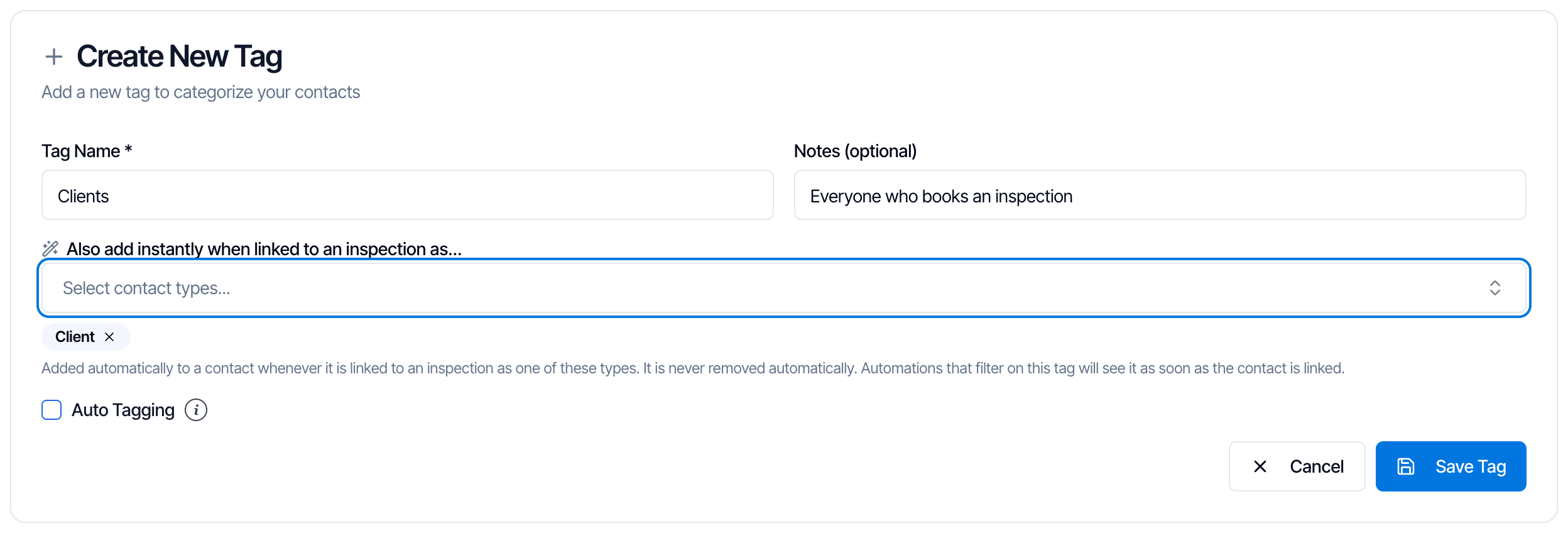
The Clients tag: every contact added to an inspection as the Client gets it automatically.
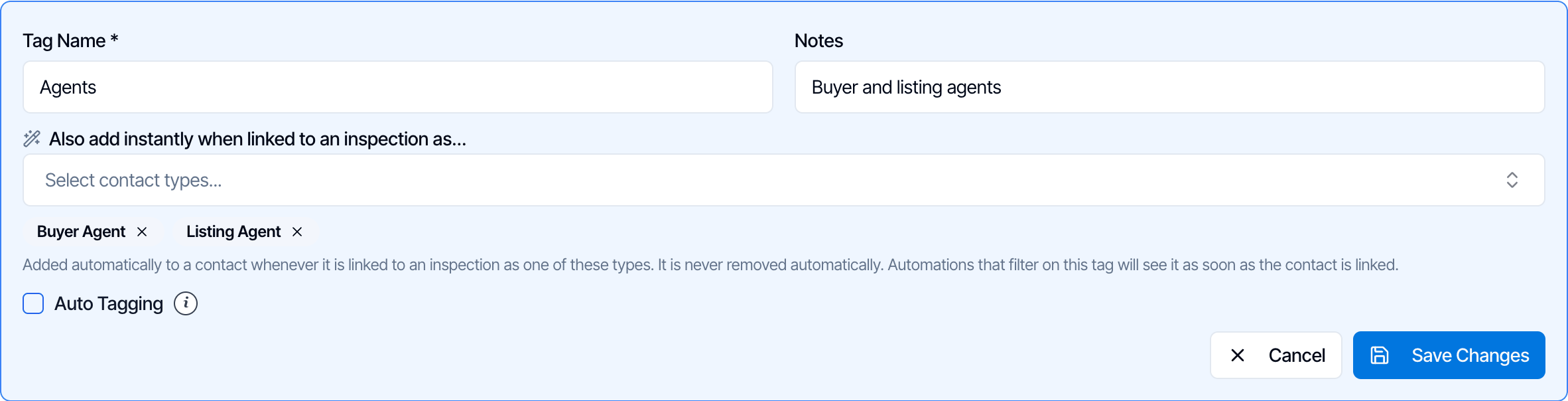
The Agents tag: both agent types are picked, so buyer's agents and listing agents both get it.
- Different messages for different people. Clients and agents need different emails. In each automation, use the Contact Tag Filter to send agent emails only to Agents and client emails only to Clients.
- Clean imports. When you move over from other software, import your clients file with the Clients tag and your agents file with the Agents tag. Everyone lands in the right group from day one. See Import contacts.
- One-click lists. Filter the Contacts list by Agents to see or export your whole agent list.
“Also add instantly” only works going forward. It tags people when they’re added to an inspection after you save the tag. It doesn’t go back and tag contacts who are already on your inspections. To catch those too:
- Tag them when you import them, or
- On the same tag, turn on Auto Tagging, set Auto Tag Person to Client (or Agent), add the rule Total Inspections Count · Greater Than · 0, save, and click Apply now. Everyone with at least one confirmed inspection gets the tag. Leave Remove Tag on Rule Fail off. See Auto-Tag Your Contacts.
Create a tag
- Go to Contacts and click Manage Tags.
- Click Add New Tag.
- Type a Tag Name, like Agents. Names must be unique: you can’t have both “VIP Agent” and “vip agent”.
- Optional: add Notes to remind your team what the tag is for. They show under the tag’s name.
- Optional: under Also add instantly when linked to an inspection as…, pick one or more contact types (see below).
- Optional: turn on Auto Tagging to tag agents or clients by rules such as inspection count or revenue. See Auto-Tag Your Contacts.
- Click Save Tag.
Also add instantly when linked to an inspection
Pick the contact types that should always get this tag. Whenever a contact is added to an inspection as one of those types, Hive adds the tag right away.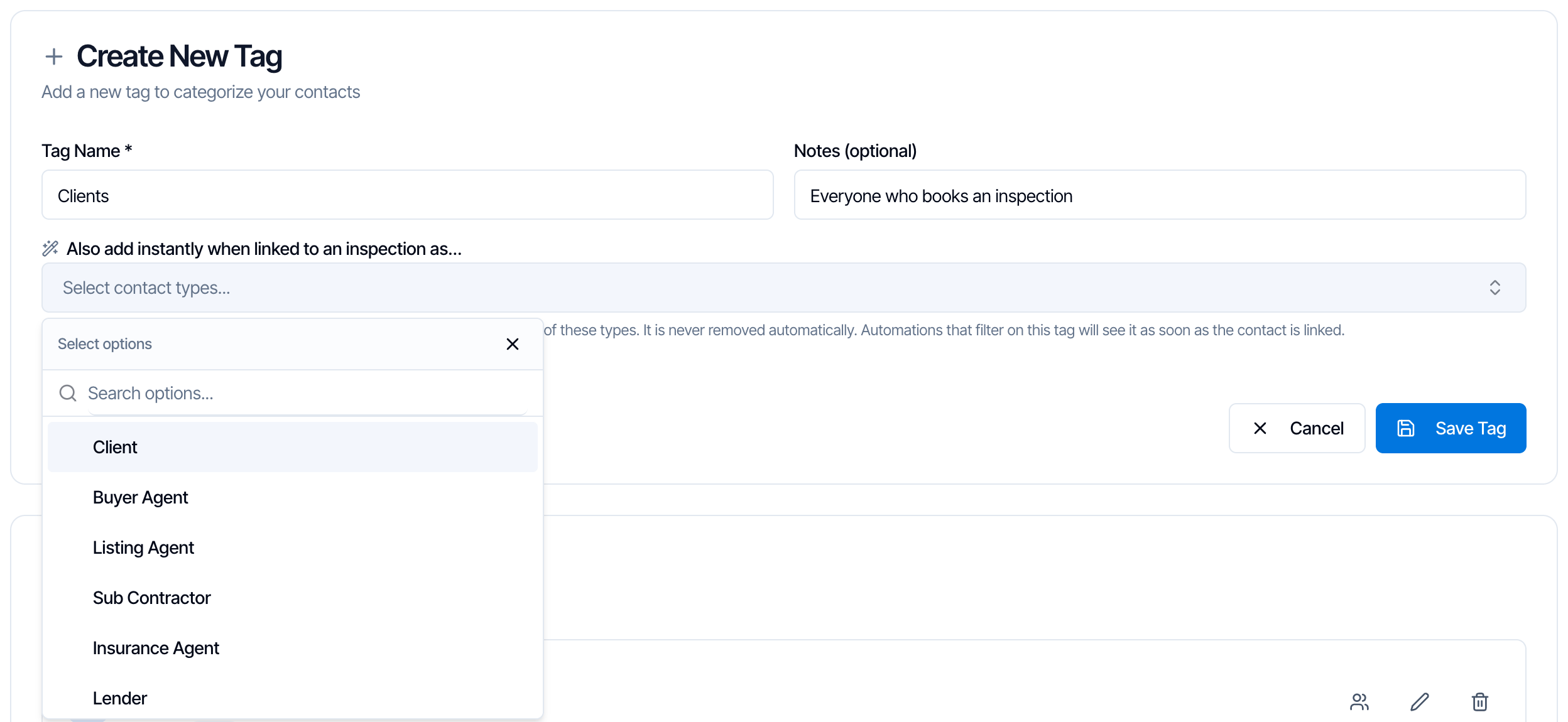
The contact types you can pick. Click one to add it; it shows as a chip below the box.
- Each type you pick shows as a chip under the box. Click the × on a chip to remove it.
- It works however the contact is added: on a new inspection, on an existing one, or when a client books through your scheduling widget.
- The tag is added before the inspection’s automations check their tag filters, so an automation filtered on this tag sees it straight away.
- It never removes a tag. If you take someone off an inspection, they keep the tag.
- It works for any contact type. Auto Tagging only covers agents and clients, but uses rules.
Your Tags list
Every tag is listed under Your Tags, with its notes and what adds it automatically.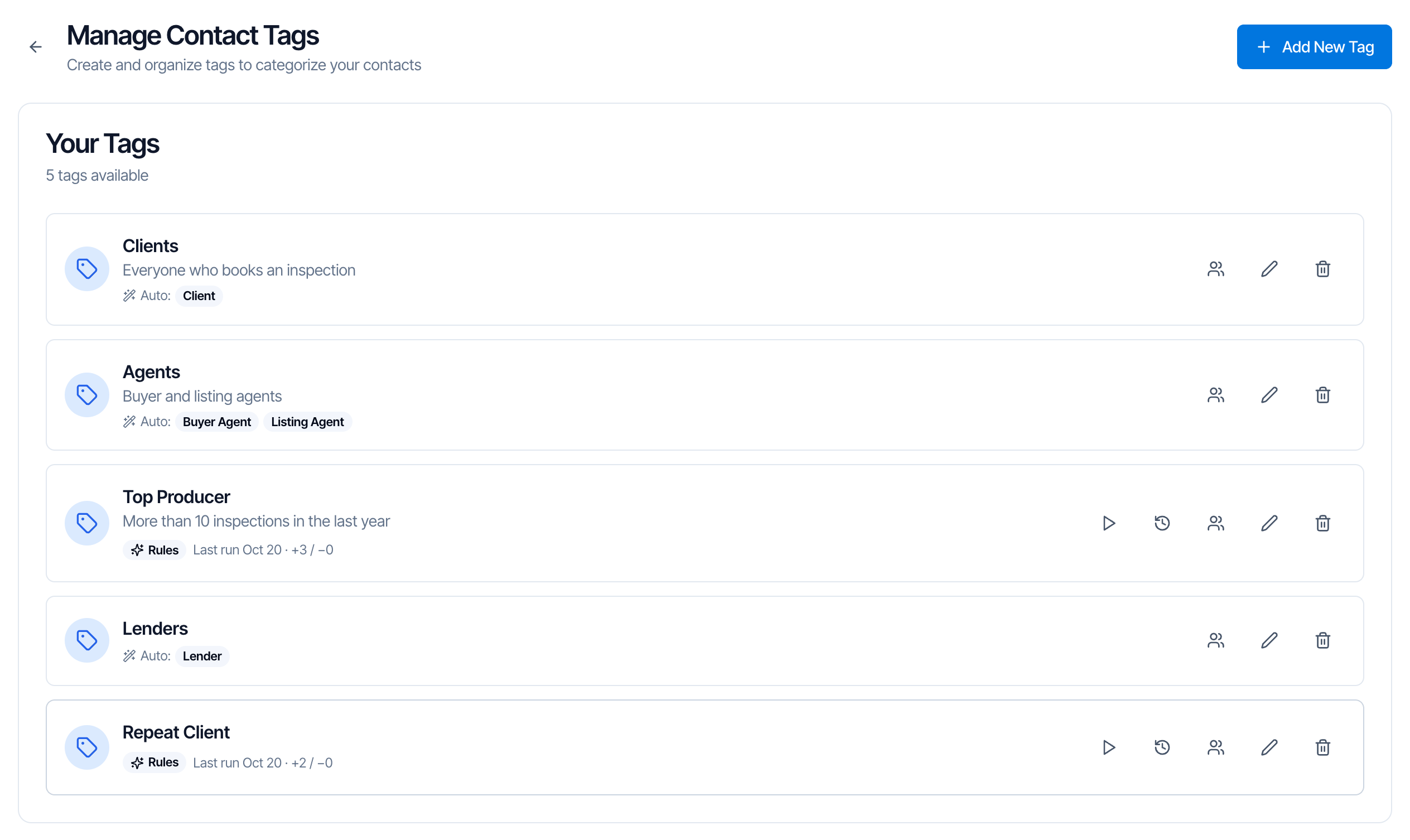
The tags list. Auto: shows the contact types added instantly; Rules shows the tag uses Auto Tagging.
- Auto: followed by contact types means Also add instantly is set.
- Rules means the tag uses Auto Tagging (it reads Rules off if the rules are saved but switched off). Hover it to read the rules. Last run shows the last time the rules ran and how many contacts gained (+) or lost (−) the tag.

Edit or rename a tag
Click the ✏️ pencil on the tag, make your changes and click Save Changes. Renaming a tag keeps it on every contact who has it. Automations that filter on the tag keep working, because they use the tag itself, not its name.Delete a tag
Click the 🗑 trash icon on the tag, then Delete Tag to confirm.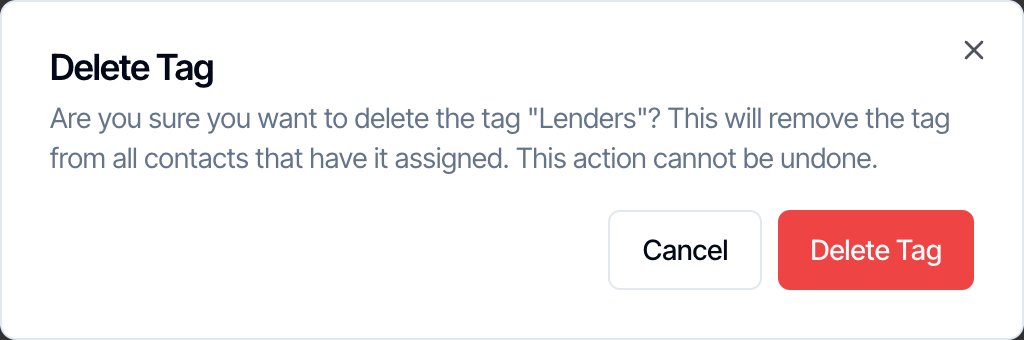
Add or remove a tag on one contact
Open the contact from Contacts and click tags in the Tags section to turn them on or off, then click Save. See Edit a contact.Frequently asked questions
I set up Also add instantly, but my existing clients don't have the tag. Why?
I set up Also add instantly, but my existing clients don't have the tag. Why?
It only tags people added to an inspection after you saved the tag. For people already on your inspections, use Auto Tagging on the same tag with Total Inspections Count · Greater Than · 0 and click Apply now, or tag them by hand. See the note above.
Does a contact lose the tag if I remove them from the inspection?
Does a contact lose the tag if I remove them from the inspection?
No. Also add instantly only ever adds tags. Remove it by hand on the contact if you need to.
Why do some screens say Customer instead of Client?
Why do some screens say Customer instead of Client?
They’re the same contact type. A few automation screens, such as the recipient list, still call the client Customer.
Next step
Related