

In the dashboard: Contacts → Import CSV.
Moving from other inspection software? Export your clients and agents from it, then import the files into Hive. Each contact keeps their name, email, phone, address and more, and you can tag everyone in a file as you import it.Where you can import from
Pick your old software under Select Company. Hive reads that software’s own export file, so you don’t need to change any columns.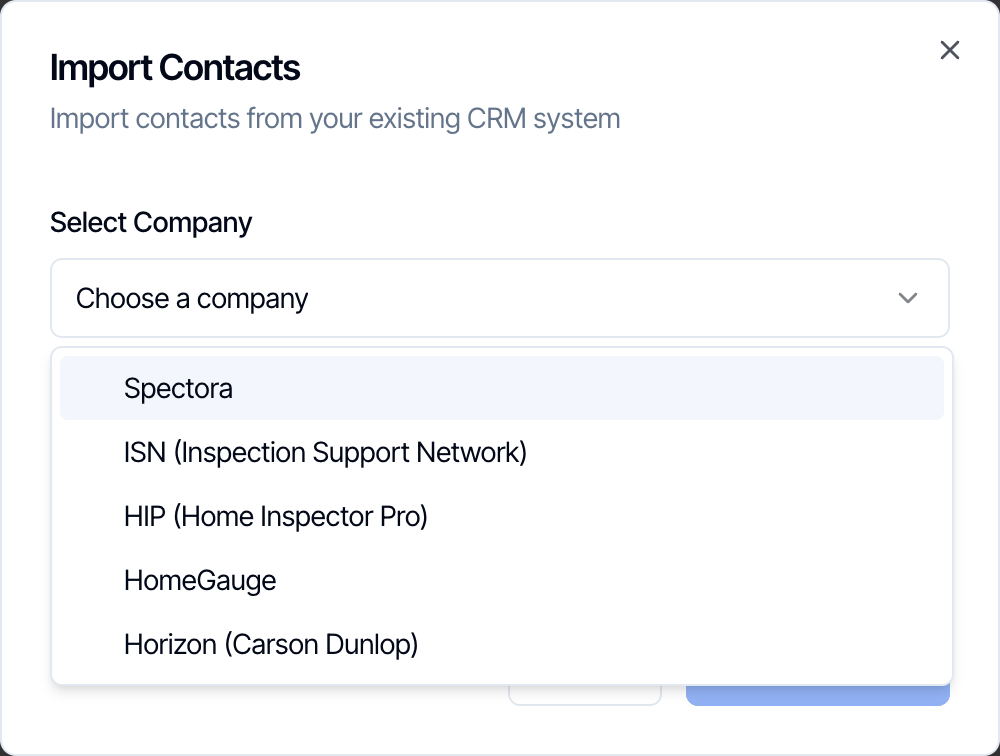
The five programs Hive can read contacts from.
Files can be CSV or Excel (.xls, .xlsx).
Have a different file? If your software isn’t listed, or you have your own spreadsheet or a custom CSV, reach out to us through the chat bubble in your dashboard or email support@hiveinspect.com with the file. We’ll import it for you.
Import a file
Pick your old software
Under Select Company, choose where the file came from: Spectora, ISN, HIP, HomeGauge or Horizon.
Tag the contacts in your file
Under Assign Tags (Optional), tick the tag for this file: Clients for your clients file, Agents for your agents file. Every contact in the file gets the tags you tick, including contacts who were already in Hive.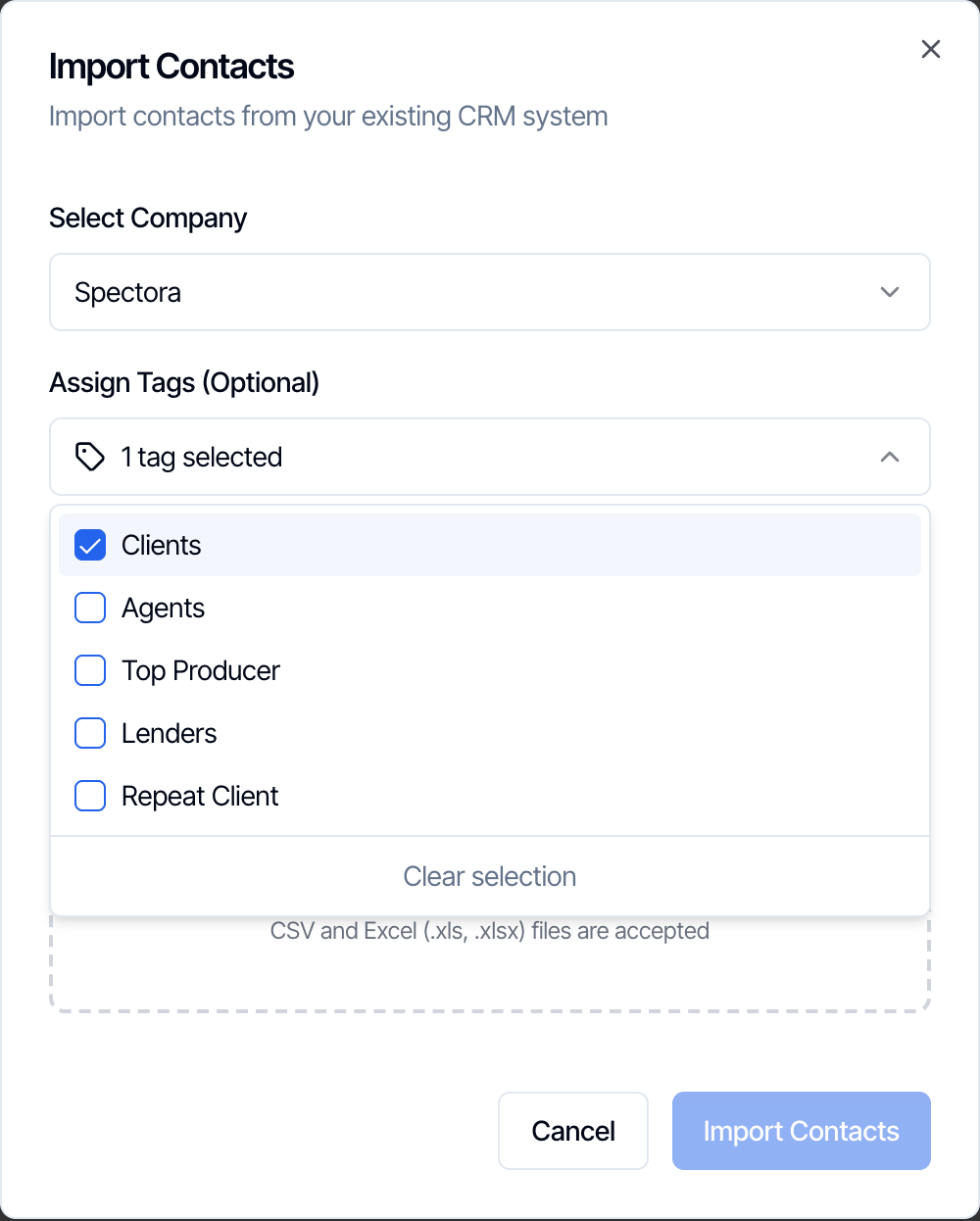
Add the file
Drag your file into the Upload File box, or click it to browse. The file name shows once it’s added; click × to swap it.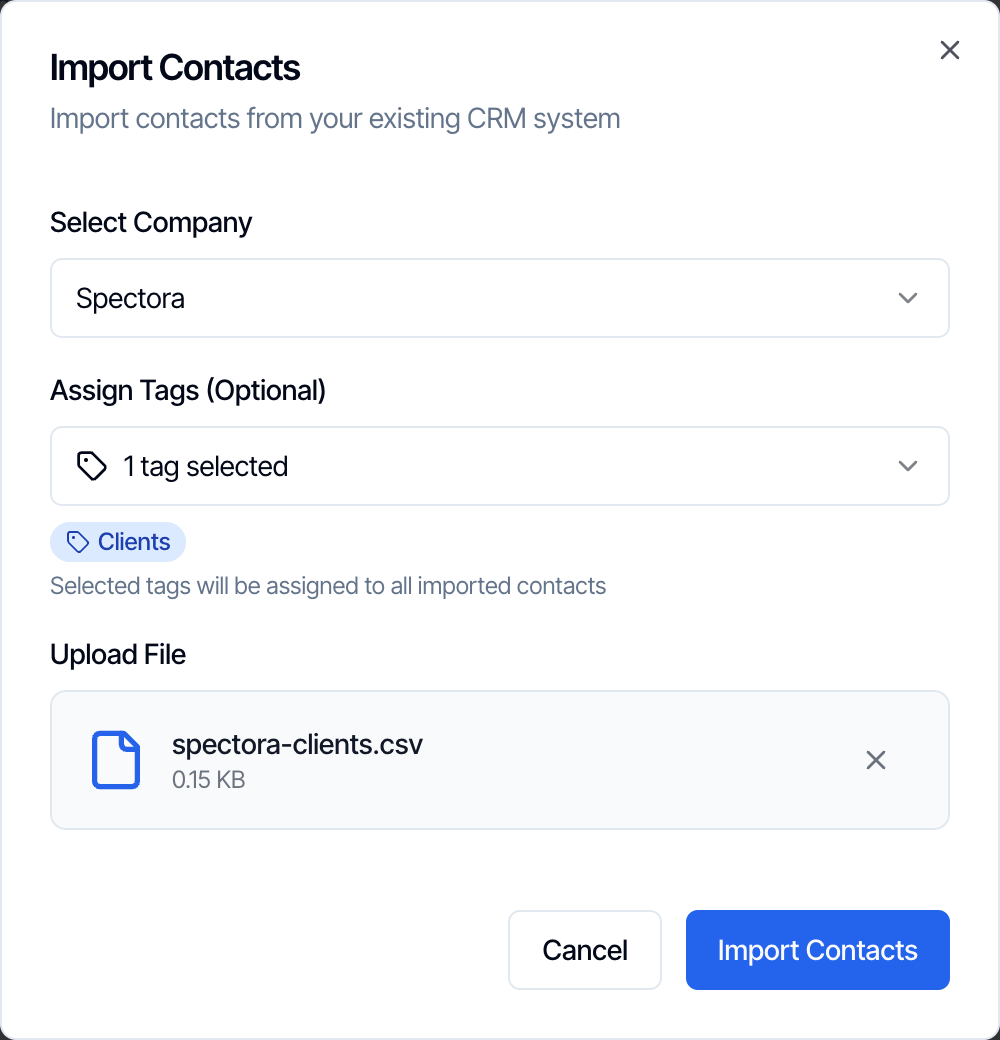
Click Import Contacts
The import runs on our servers. You can close the window and keep working.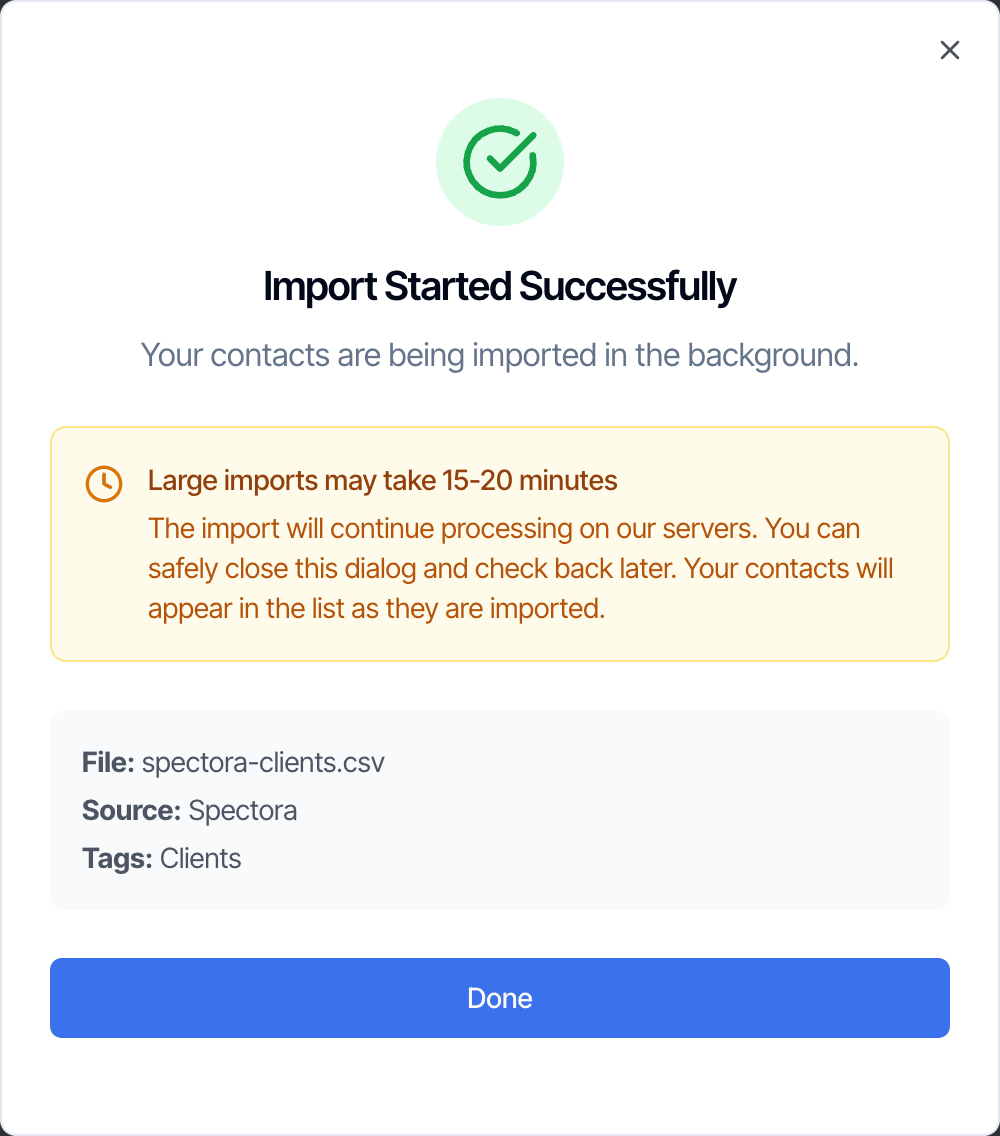
What happens to each row
- Email is required. Hive matches contacts by email. Rows with no email are skipped.
- Already in Hive? If a contact with the same email already exists, Hive updates it instead of creating a duplicate. Only fields that have a value in the file are changed; nothing in Hive is blanked out. The tags you picked are still added.
- Same email twice in one file? The first row creates the contact and later rows update it.
- Photos from Spectora, ISN and Horizon are copied into Hive, so they keep working after you cancel your old account.
- Agency names come across as text. To link an agent to a brokerage in your directory, open the contact and pick the Brokerage. See Edit a contact.
- Tags from your old software are kept in the contact’s Notes, not created as Hive tags. Use Assign Tags to tag the file, or ask our team to bring each contact’s own tags across.
- Nothing is sent. Importing never emails or texts your contacts. A contact only gets automated messages once they’re on an inspection.
After you import
- Go to Contacts and filter by your new tag to check the list. See Contacts list.
- If someone came in twice under two emails, use Merge Contacts. See Merge duplicate contacts.
- Add photos to your top agents. Their photo shows on the inspection pages your clients see. See Edit a contact.
Frequently asked questions
I imported but I don't see all my contacts yet.
I imported but I don't see all my contacts yet.
Large files keep importing in the background for up to 15 to 20 minutes. Refresh the Contacts page after a few minutes. Rows with no email address are always skipped.
Will importing the same file twice create duplicates?
Will importing the same file twice create duplicates?
No. Contacts are matched by email, so a second import updates the existing contacts instead of adding new ones.
Can I import a contact that has no email?
Can I import a contact that has no email?
Not through the import. Add them by hand with Add New Contact and click Generate Dummy Email, then replace it when you get the real email. See Edit a contact.
My software isn't listed, or my file has different columns.
My software isn't listed, or my file has different columns.
Send the file to us through the chat bubble or at support@hiveinspect.com and we’ll import it for you.
Can I import past inspections too?
Can I import past inspections too?
Yes, our team can bring over past inspections and reports. See Switching from other software.
Next step
Related