

In the dashboard: Business Tools → Subscriptions, the Plans link at the bottom of the sidebar, or Subscriptions in the menu under your profile photo.
The Subscription Management page is where you pick and pay for your Hive plan. It also shows how many reports you have left, the inspector seats you pay for, and the add-ons you can buy. Payments go through Stripe. Your card, receipts and cancelling are on your billing page on Stripe. Click Manage Subscription on the Subscriptions page to open it. See Your billing page on Stripe.Who can use this page
The account owner can always open it. Other team members need the Manage Subscriptions permission. Without it they see Access Denied: You don’t have permissions to manage subscriptions. Contact your organization owner for access. See What each permission does. You buy and change plans in the web dashboard. The mobile app doesn’t sell plans.What’s on the Subscriptions page
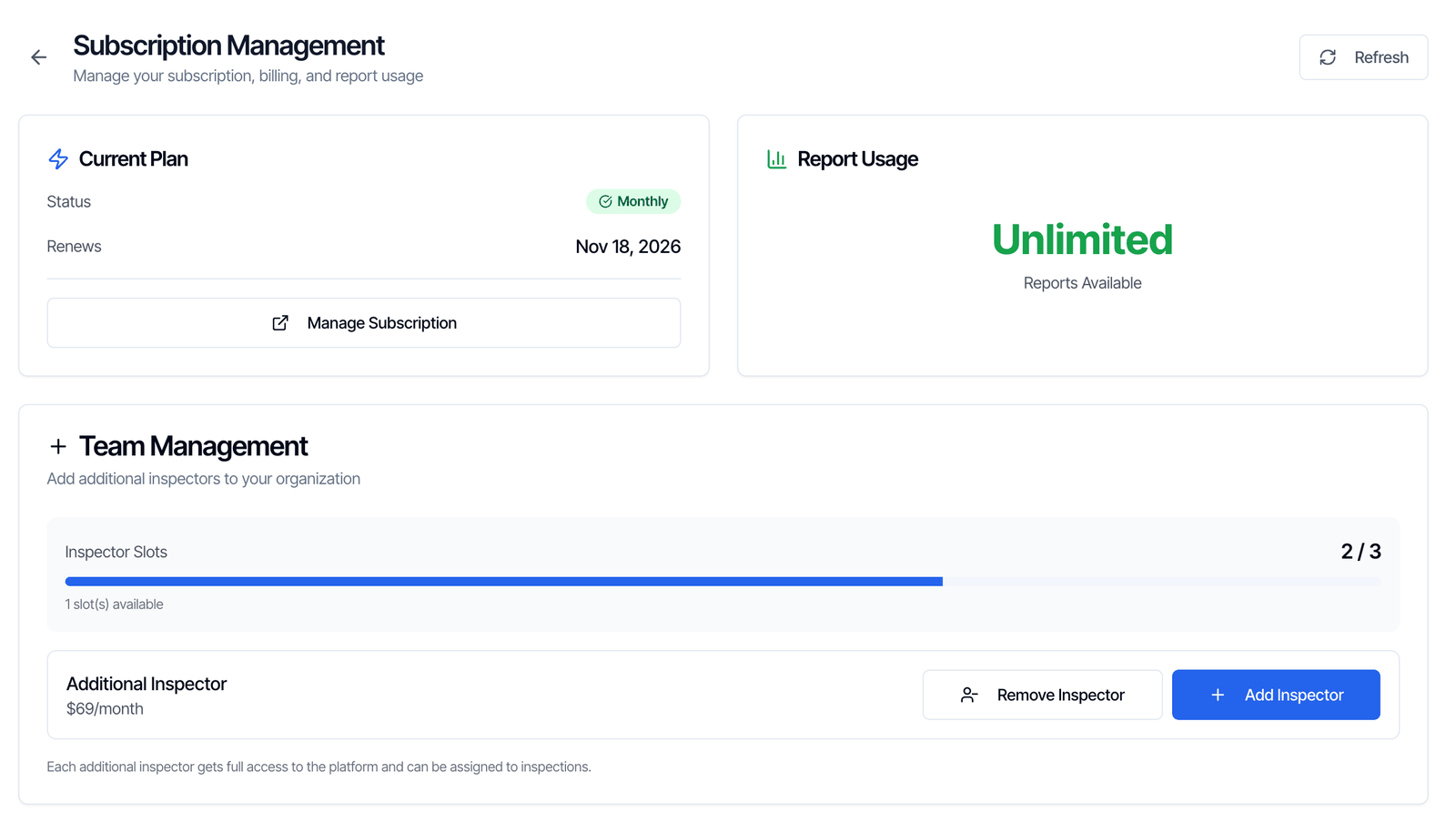
Click Refresh at the top right to load the latest status, for example right after you pay.
Plans and prices
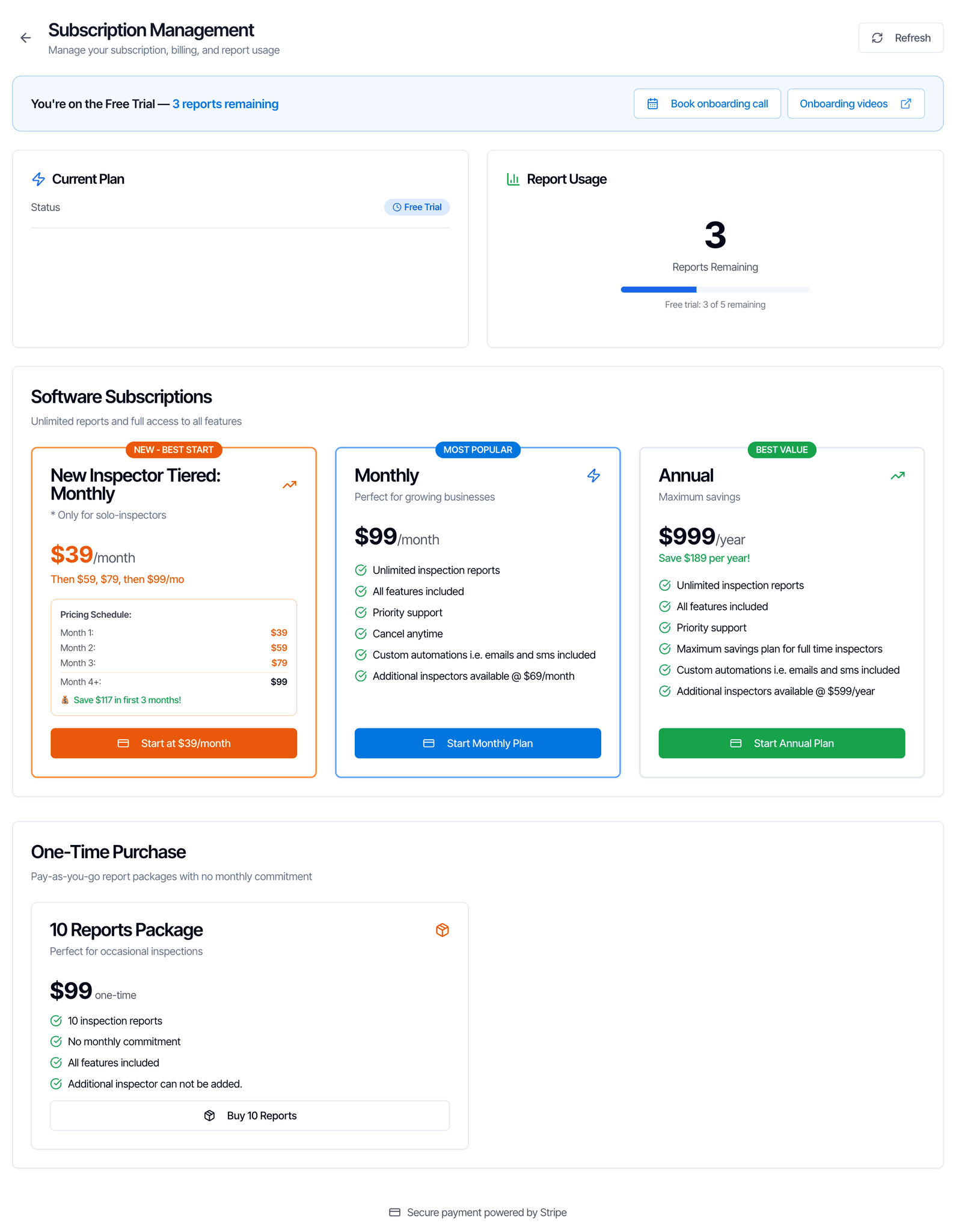
The Monthly and Annual cards list All features included, Priority support and Custom automations i.e. emails and sms included. Monthly also says Cancel anytime.
To buy a plan:
- Click Start Monthly Plan, Start Annual Plan, Start at $39/month or Buy 10 Reports.
- For New Inspector Tiered: Monthly, a New Inspector Plan Requirements window asks you to confirm that you’re a new home inspector (you started less than 3 months ago) and a solo home inspector. Tick I confirm that I meet all requirements above and click Start at $39/month.
- For the 10 Reports Package, a 10 Reports Package Limitations window says Additional inspector cannot be added to this package. Tick I understand and accept these limitations and click Buy 10 Reports.
- Pay on the Stripe checkout page.
Promo codes
There’s no box for a promo or discount code on the Subscriptions page or on the Stripe checkout page. You don’t need one: if you have a promo or discount, we apply it to your account for you.Your report balance
The Report Usage card shows one of these:
A report is used when the inspection is created, not when the report is published. If you cancel or delete an inspection whose report was never published, the report comes back to your balance. See When a free report counts.
Reports you buy are added to what you have. If you have 3 free trial reports left and buy a 10 Reports Package, you have 13.
When the balance reaches 0, you can’t create new inspections. Creating one shows Subscription Limit Reached and takes you to the Subscriptions page. Your online scheduler stops taking bookings too. Clients see Online Scheduling Temporarily Unavailable and are asked to call or email you.
Plan statuses
The Status badge on the Current Plan card can show:When a payment fails
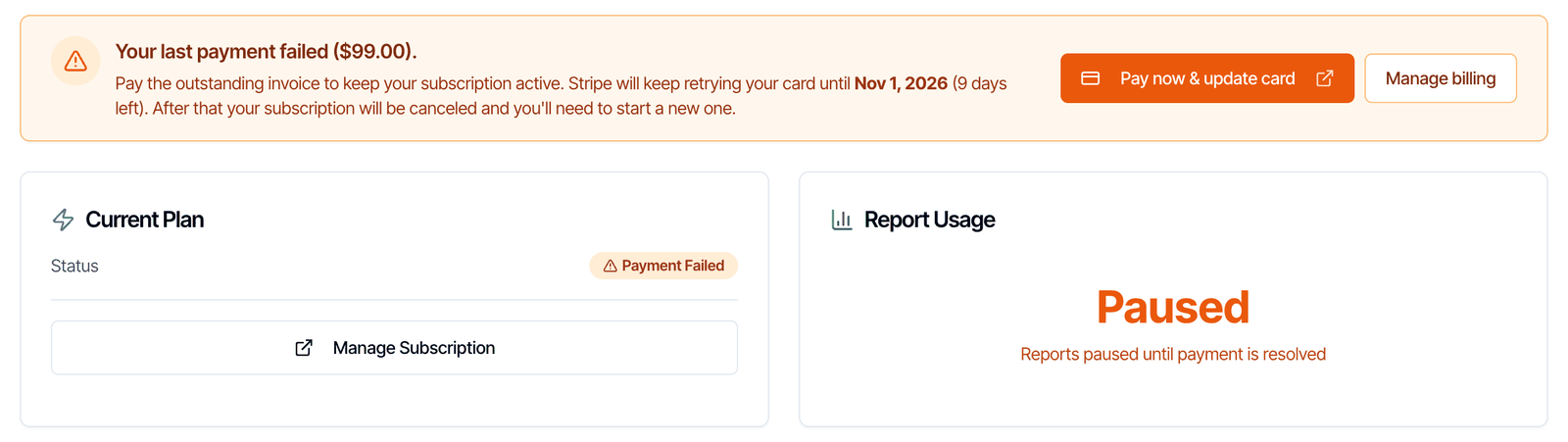
- A banner at the top of every dashboard page says Action required: Your last payment failed, with Pay now & update card and View details. You can close it with the X for the rest of your session.
- The Subscriptions page shows the amount due and the date until which Stripe keeps retrying your card.
- Report Usage shows Paused. You can’t create new inspections until the payment goes through.
Inspector seats
Every person who does inspections needs a paid seat. Office staff don’t. You can add seats on the Monthly and Annual plans, not on the New Inspector Tiered plan or the 10 Reports Package. See Seats and billing. The Team Management card shows Inspector Slots: seats in use out of the seats you have, and how many are free. An extra seat is $69/month, or $599/year on an Annual plan.Add a seat
- In the Team Management card, click Add Inspector.
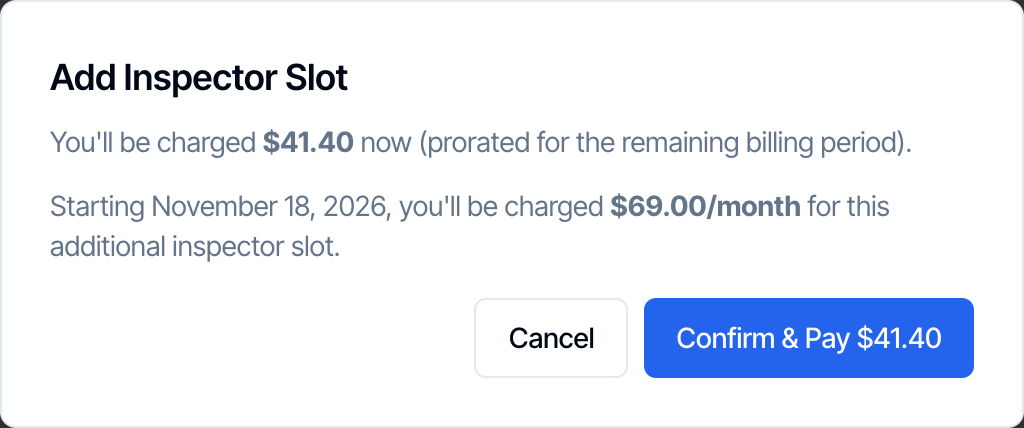
- The Add Inspector Slot window shows what you’re charged now, prorated for the rest of your billing period, and the full price from your next billing date.
- Click Confirm & Pay. The card on file is charged right away.
Remove a seat
Click Remove Inspector in the Team Management card. The button is greyed out when you have no extra seats.- If you have a seat nobody is using, the Remove Unfilled Inspector Seat window drops one seat from your subscription. No one is removed. Click Remove Seat.
- If every seat is in use, the Remove Inspector window asks which sub-inspector to remove. If they have open inspections, pick who they move to. Then click Remove Inspector. The person is deactivated, their history is kept, and their seat is removed.
Add-ons
Each add-on is its own subscription, paid on its own Stripe checkout page. Once it’s active, its card shows Active. If it’s set to cancel, the card says Subscription will end on and the date.
Website services
The Website Services card sells a website for your inspection business: a Professional Website Build for a one-time $299, then a maintenance plan. Basic Maintenance is $29/month or $249/year. SEO Boost + Maintenance is $99/month or $999/year. See our sample websites opens examples. Each one is paid on Stripe and billed apart from your Hive plan. The card hides once you own both a build and a maintenance plan. See Website services.Your billing page on Stripe
Click Manage Subscription in the Current Plan card. Your billing page on Stripe opens. It lists the subscriptions you pay for, including add-ons such as the Review Engine and your Dedicated SMS Number. There you can:- Download receipts and invoices from your invoice history.
- Change the card you pay with.
- Update your billing details: name, email, address and phone.
- Cancel a subscription. See Cancel a subscription.
Cancel a subscription
Cancel on your billing page on Stripe:- Go to Business Tools → Subscriptions and click Manage Subscription.
- On your billing page on Stripe, find the subscription and cancel it. Stripe may ask why you’re cancelling.
- Go back to Hive and click Refresh to see the change.
What happens when your plan ends
- Your account, templates, contacts and past inspections stay. You can still sign in.
- Status shows Expired.
- You can’t create new inspections, and your online scheduler stops taking bookings, until you start a plan or buy reports.
- Free trial or package reports you had before your Monthly or Annual plan started don’t come back. Your balance starts at 0, plus any 10 Reports Package you buy.
Switch between monthly and annual
There’s no switch button. You cancel the current plan, then start the new one.- Cancel your plan on your billing page on Stripe. See Cancel a subscription.
- Go back to Business Tools → Subscriptions and click Refresh. The plan cards show again because your plan is set to cancel.
- Click Start Annual Plan or Start Monthly Plan and pay on Stripe.
Common questions
Why don't I see the plan cards?
Why don't I see the plan cards?
The plan cards hide while you have an active Monthly or Annual plan that isn’t set to cancel. Cancel your plan first, then click Refresh. See Switch between monthly and annual.
I paid, but the page still shows my old plan. What do I do?
I paid, but the page still shows my old plan. What do I do?
Click Refresh at the top right of the Subscriptions page. If it still shows your old plan after a minute, ask in the chat bubble in your dashboard.
Can I get a refund for a seat I removed or a plan I cancelled?
Can I get a refund for a seat I removed or a plan I cancelled?
Removing a seat shows No refund will be issued for the current billing period. Cancelling keeps your plan running until the end of the period you paid for. For anything else, ask in the chat bubble in your dashboard.
Can a team member manage billing for me?
Can a team member manage billing for me?
Yes. Turn on Manage Subscriptions for them in Teams → Manage. See What each permission does.
Where to go next
Account, billing and team FAQShort answers on plans, receipts, seats and loginsWhen a free report countsHow the 5 free trial reports are used and given backSeats and billingWho needs a paid inspector seatTeam settingsInvite, deactivate and set permissions for your teamReferral programEarn Hive credit when inspectors you refer subscribe