

In the dashboard: Profile Settings (sidebar), or your profile photo at the top right → Profile Settings
Profile Settings is where you enter who you are and who your company is. What you type here is printed on your reports, invoices, emails and agreements, shown on your online scheduler, and used to decide which times clients can book. The page has two tabs:- Profile: company details, your personal details, your signature, your hours and your weekly start times.
- Security: change your password.
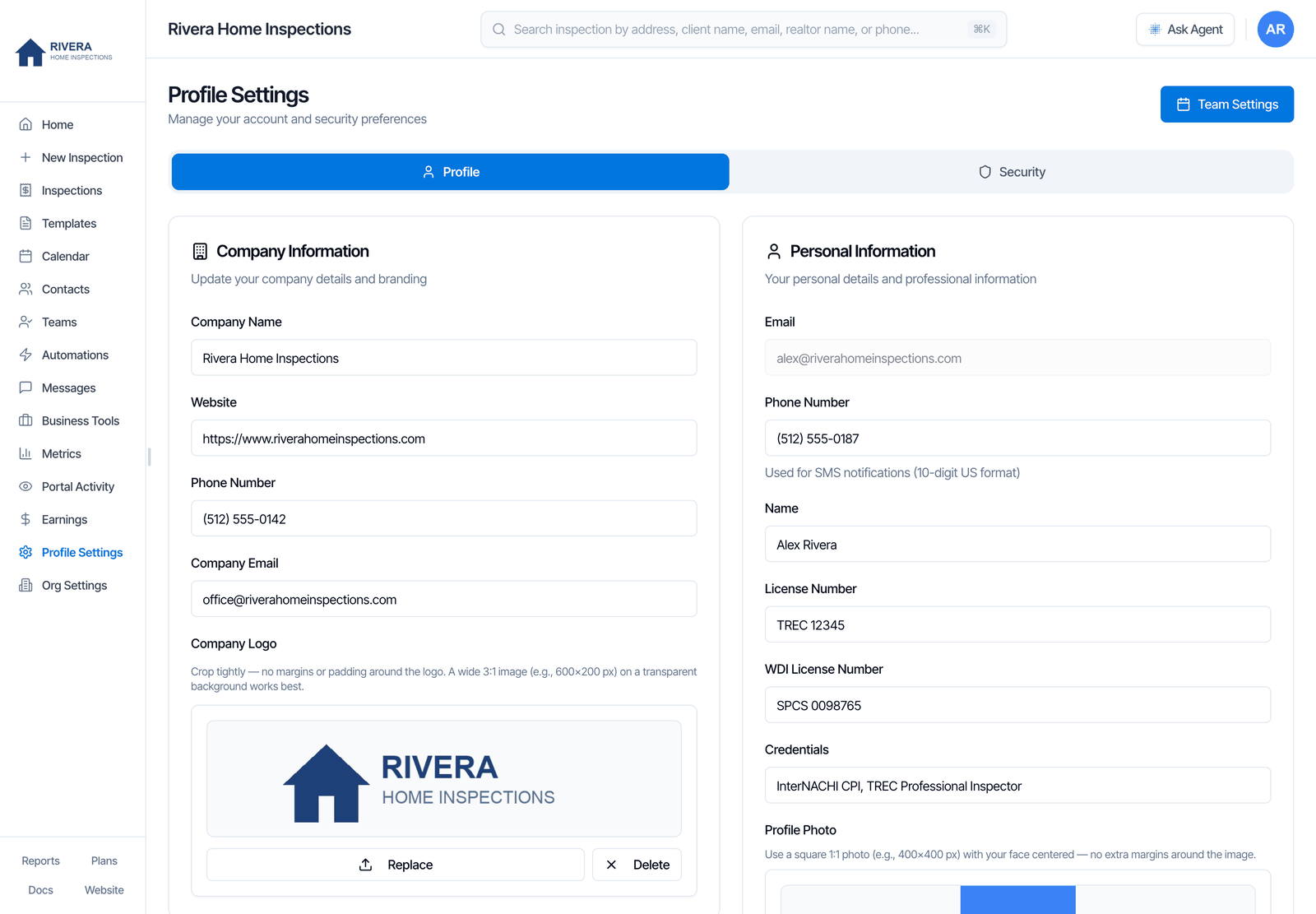
Company fields are shared by the whole company. The Company Information, Default Inspector and Address Information cards change your company’s details for everyone. They show for the owner and for team members with the Business Tools permission, which is on for new team members. To hide them from someone, turn off Business Tools for that person in Teams. Everything else on the page is personal and only changes your own profile.
Save your changes
- Text and switches: after you change something, a bar appears at the bottom of the page that reads You have unsaved changes. Click Save. You see Profile updated successfully.
- Pictures save straight away: the company logo, your profile photo and your signature save as soon as they upload. You don’t need to click Save for them.
- Leaving with unsaved changes: if you close or reload the tab, your browser asks if you want to leave. Clicking a link in the sidebar does not ask, so save first.
Company Information
Logo tips: crop it tightly, with no empty margin around it. A wide image, about 3 to 1 (for example 600 × 200 pixels), on a transparent background looks best. You can upload JPEG, PNG, WebP or SVG, up to 10 MB. SVG logos don’t show in emails, so use a PNG if your logo is missing from emails. If an SVG has text in it, Hive may ask you to check the preview, because the font can look different in PDFs.
Your company phone and email are separate from your personal phone and login email in Personal Information.
Default Inspector
Default Inspector is the person Hive assigns when nobody else is picked. The list shows the inspectors and sub-inspectors on your team.- New Inspection page: when support staff create an inspection, the default inspector is selected. When an inspector or sub-inspector creates one, they are selected themselves. You can change the inspector on every inspection.
- Online scheduler: when a client picks Any Available Inspector, Hive gives the job to the closest inspector who is free. The default inspector is used when no one else fits.
- Solo inspectors: you are the default inspector. If none was set, Hive selects you and shows the save bar; click Save.
- Deactivated default: if the default inspector leaves your team, the note under the list reads Current default is deactivated — choose another. Pick someone else and click Save.
Address Information
Country and your payment currency
The Country field decides which currency Stripe collects in. The note under the address shows the currency in use.
Upper and lower case don’t matter. If you type a country Hive doesn’t recognise, the note says payments default to USD. In Canadian dollars, ACH, Affirm and Pay at Close aren’t available. See Payment settings.
Personal Information
These fields are about you, the person signed in.Add your signature
You can add a signature three ways:- Upload: click the box and pick an image. Crop it tightly, with dark ink on a white or transparent background. A wide image, about 3 to 1, works best.
- Draw: click Draw (or Draw it), sign with your mouse, finger or stylus, then click Save Signature. Undo removes the last stroke, and Clear starts again.
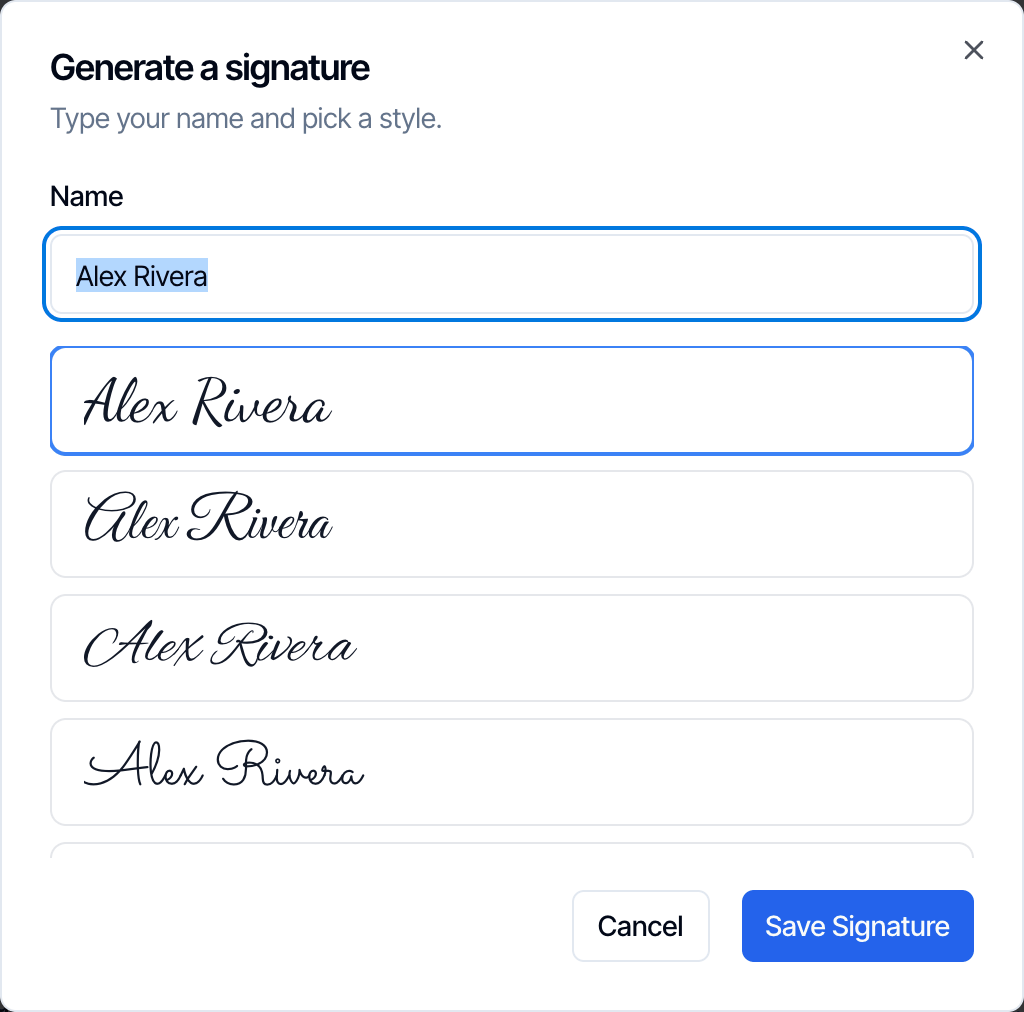
- Type: click Type (or Type it). Your name is filled in. Pick one of five handwriting styles and click Save Signature.
Professional Details
General Business Hours
Start Time and End Time are the earliest and latest times you work. The default is 7:00 AM to 7:00 PM. Business hours do three things:- The time list when you schedule: when you book or reschedule from the dashboard, the times you can pick are inside these hours.
- The latest online booking: a start time is only offered to clients if the whole inspection ends before your end time. For example, with an end time of 5:00 PM, a 3-hour inspection can’t start after 2:00 PM.
- Your public page: if you change them from 7:00 AM to 7:00 PM, your public page shows them as your hours.
Weekly Availability Schedule
These are the exact start times clients can choose on your online scheduler. If you add 8:00 AM, 11:30 AM and 2:30 PM on Monday, those are the only three times a client can book on a Monday.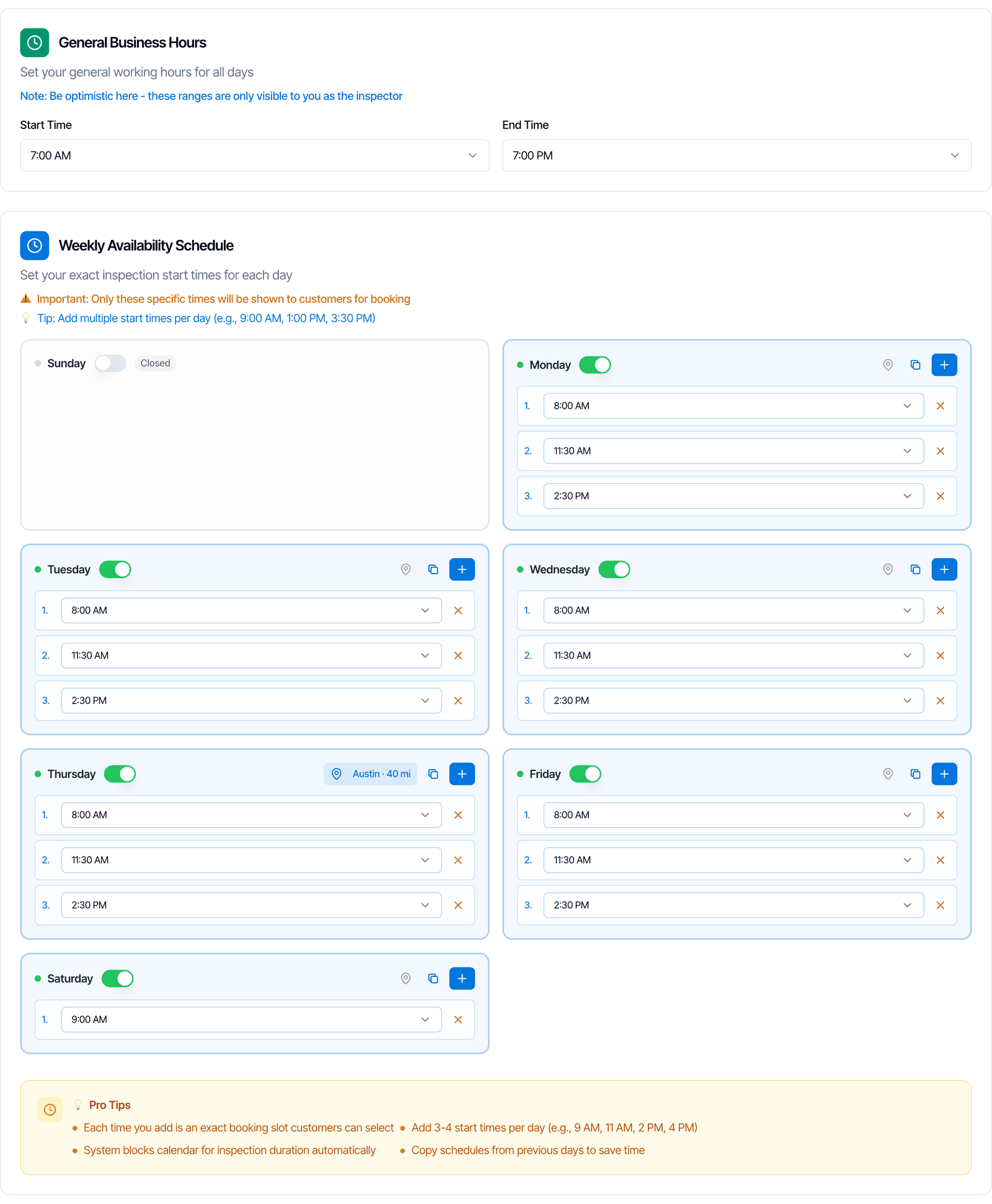
Turn on the days you work
Turn on the switch next to each day. A day that’s off is marked Closed, and clients can’t book on it.
Add start times
Click + on a day to add a start time, then pick the time from the list. The red X removes one. Add 3 or 4 start times a day, for example 9 AM, 11 AM, 2 PM and 4 PM.
- Hive blocks the inspection’s length automatically. You only add start times. If a 3-hour inspection is booked at 8:00 AM, you’re busy until 11:00 AM, so 11:30 AM can still be booked. A buffer adds free time after each inspection.
- Times are in your company’s time zone, set in Org Settings.
- Every inspector needs start times. Once anyone on your team has a weekly schedule, an inspector with no start times can’t be booked online.
- The dashboard isn’t limited. You and your team can book any time from the dashboard. Start times only apply to your online scheduler.
Work from a different address on some days
If you work from somewhere else on certain days, click the pin button on that day. Enter the address the scheduler should measure travel from, and a Max travel distance (miles) for that day. Leave a field blank to use your normal address or distance; enter 0 for no distance limit that day. Click Save in the box, then Save on the page. Use default address removes the day’s own location. The day then shows a blue badge, such as Austin · 40 mi.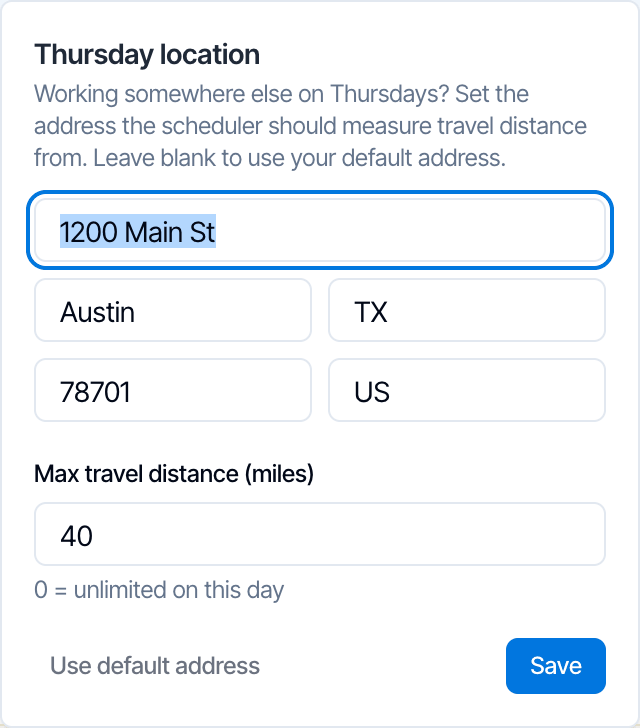
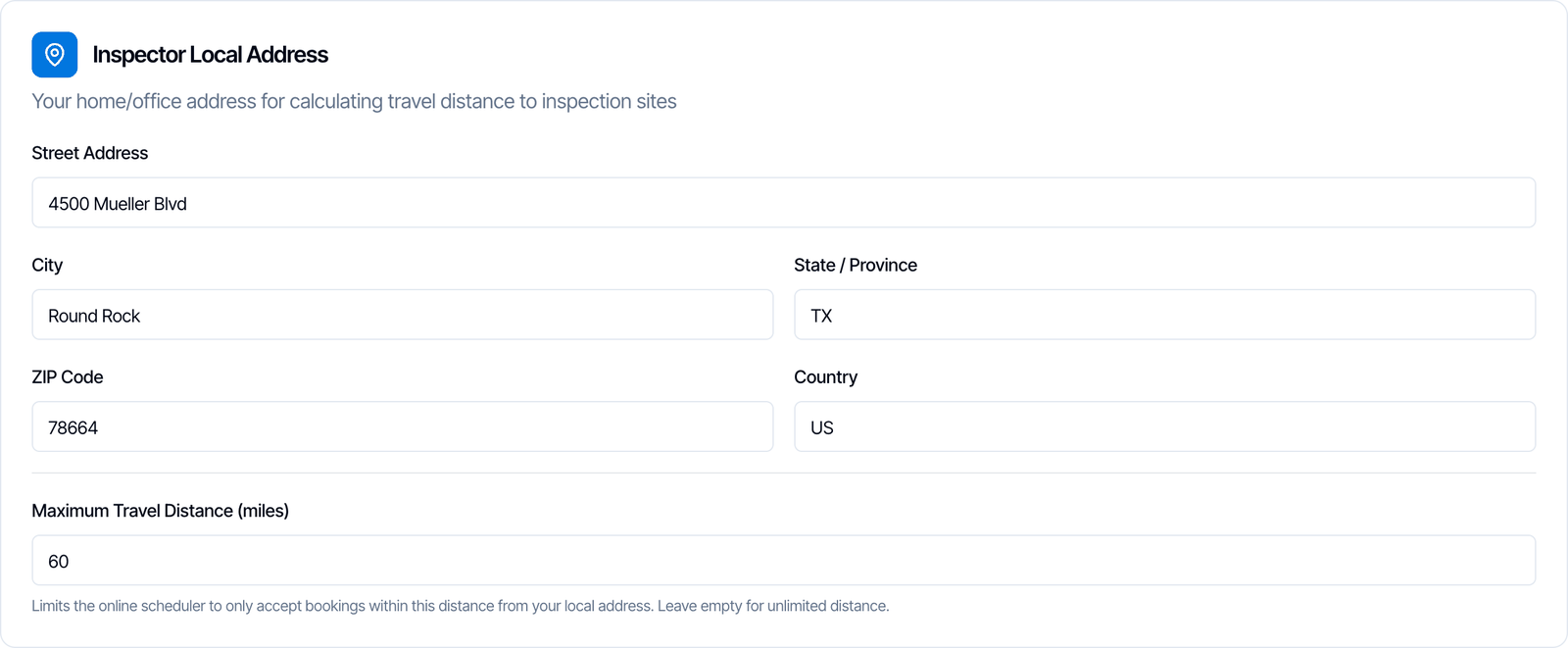
Inspector Local Address
Inspector Local Address is where you start your day, usually your home or office. Hive uses it to:- limit online bookings by distance, with Maximum Travel Distance (miles) below it
- work out distance-based prices, if your services have a distance modifier. See Price modifiers.
- To remove a limit, empty the box (or type 0) and click Save.
- If Hive can’t measure the distance, for example because the address can’t be found, you aren’t offered for that booking. Check your local address if clients say they can’t book you.
- It only applies to online booking. Your team can still book you for any address from the dashboard.
What support staff see
Support staff don’t do inspections, so General Business Hours and Weekly Availability Schedule are hidden for them. They still see Inspector Local Address, their personal details and, with the Business Tools permission, the company cards.Security tab
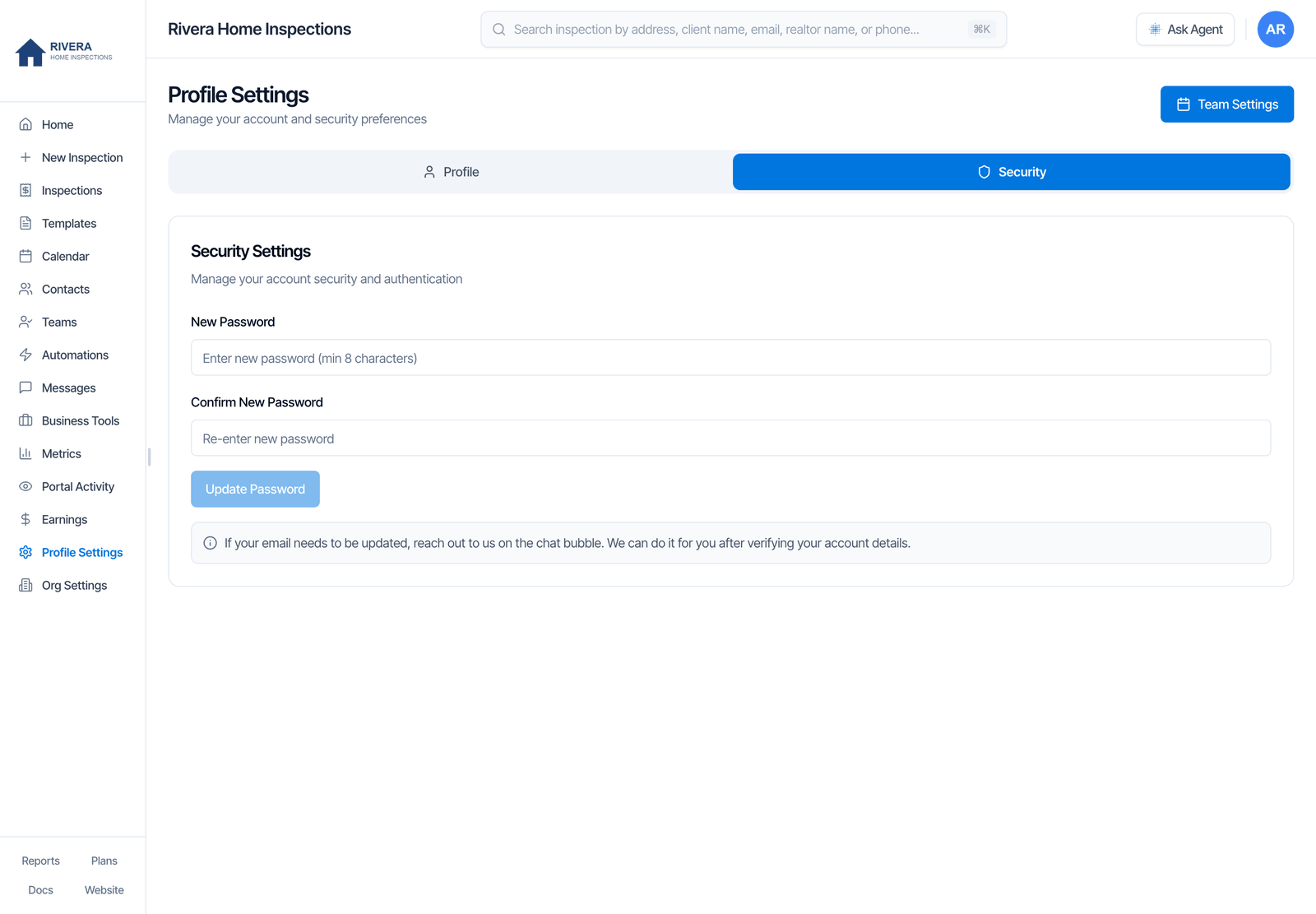
Change your password
- Open Profile Settings and click the Security tab.
- Type your new password in New Password and again in Confirm New Password. It must be at least 8 characters.
- Click Update Password. You see Password Updated.
Change your login email
You can’t change your login email yourself. Send your current email and your new email in the chat bubble in your dashboard. Our team changes it after checking your account. Then sign in with the new email and the same password. See How do I change the email I log in with?FAQ
Where do I change my company name, logo or phone on reports and emails?
Where do I change my company name, logo or phone on reports and emails?
In Profile Settings → Company Information. Change the field and click Save; the logo saves as soon as it uploads. New emails, invoices and reports use the new details. A PDF that was already created keeps the old details until it’s made again.
Why don't I see Company Information on my Profile Settings?
Why don't I see Company Information on my Profile Settings?
You’re a team member without the Business Tools permission. Ask the owner to turn it on for you in Teams → Manage, or to make the change for you.
What's the difference between the two phone numbers?
What's the difference between the two phone numbers?
Company Information → Phone Number is your business line. It’s on invoices, reports and your scheduler, and gets the texts about new online bookings. Personal Information → Phone Number is your own mobile. It gets texts that automations send to the inspector, and clients only see it if Show the inspector’s own phone and email is on in Org Settings.
Where do client replies go?
Where do client replies go?
To your Company Email. Emails go out from Hive, and when a client or agent clicks Reply, the reply goes to your company email.
Why are clients only offered a few times on my online scheduler?
Why are clients only offered a few times on my online scheduler?
Clients only see the start times in your Weekly Availability Schedule, and only if the inspection ends before your General Business Hours end time. Add more start times, or set a later end time. Scheduling Restriction and Buffer Between Inspections in Org Settings can hide times too.
A client says they can't book me for their address. Why?
A client says they can't book me for their address. Why?
The property is probably farther than your Maximum Travel Distance, or Hive couldn’t measure the distance. Check the distance and your Inspector Local Address, or enter 0 for no limit. You can always book the inspection yourself from the dashboard.
How do I take payments in Canadian dollars?
How do I take payments in Canadian dollars?
Type Canada in Address Information → Country and click Save. The note under the address then reads Currently collecting Stripe payments in CAD. See Payment settings.
Can I change my login email?
Can I change my login email?
Not yourself. Ask in the chat bubble in your dashboard with your current and new email, and our team changes it for you.
Is there two-step verification?
Is there two-step verification?
Not yet. Protect your account with a strong password that you don’t use anywhere else, and give each team member their own login.
Can I edit another inspector's profile, signature or hours?
Can I edit another inspector's profile, signature or hours?
Yes, if you’re the owner or have Schedule Management. Click Team Settings at the top of Profile Settings. See Team availability.
Related
- Organization Settings: settings for the whole company, such as time zone, booking rules and email branding
- Team Settings: invite your team and choose what each person can do
- Set up your business: video walkthrough of first-time setup
- Online scheduler