

In the dashboard: Org Settings (sidebar)
Org Settings holds the settings for your whole company. A change here applies to every inspector, every report and every booking, not just to you. For your own name, signature, hours and start times, use Profile Settings.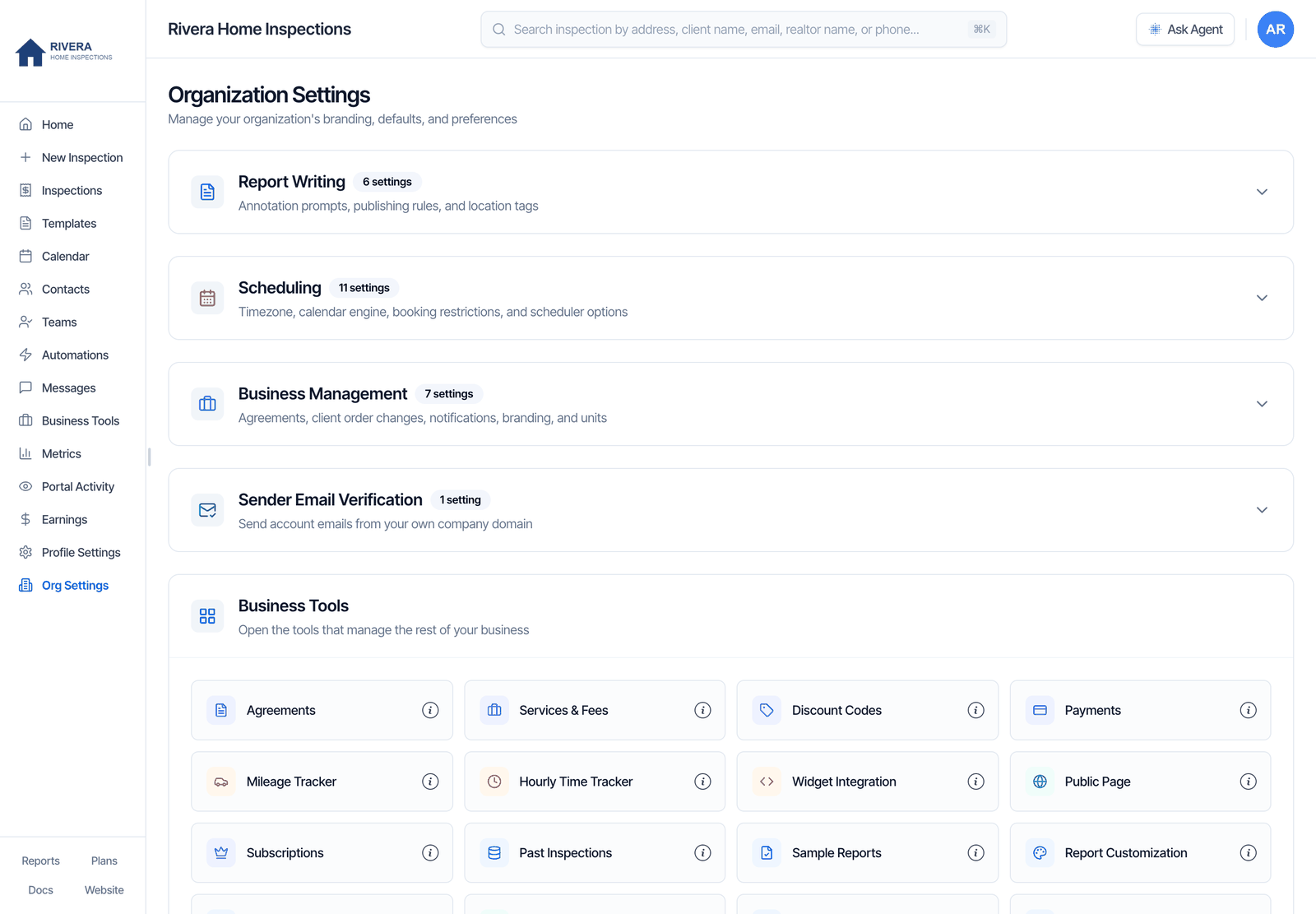
Under the sections, a Business Tools card has a shortcut to every business tool. See Business Tools shortcuts.
Save your changes
As soon as you change something, a bar appears at the bottom of the screen that reads You have unsaved changes. Click Save. You see Settings Updated.- Saves on its own: connecting or disconnecting Google Calendar, and everything in Sender Email Verification. You don’t need to click Save for these.
- Partially saved: location tags save separately from the other settings. If you see Partially saved, one of them didn’t save; click Save again.
- Leaving the page: your browser warns you if you close or reload the tab with unsaved changes. Clicking a link in the sidebar doesn’t warn you, so save first.
Report Writing
Annotation Prompts
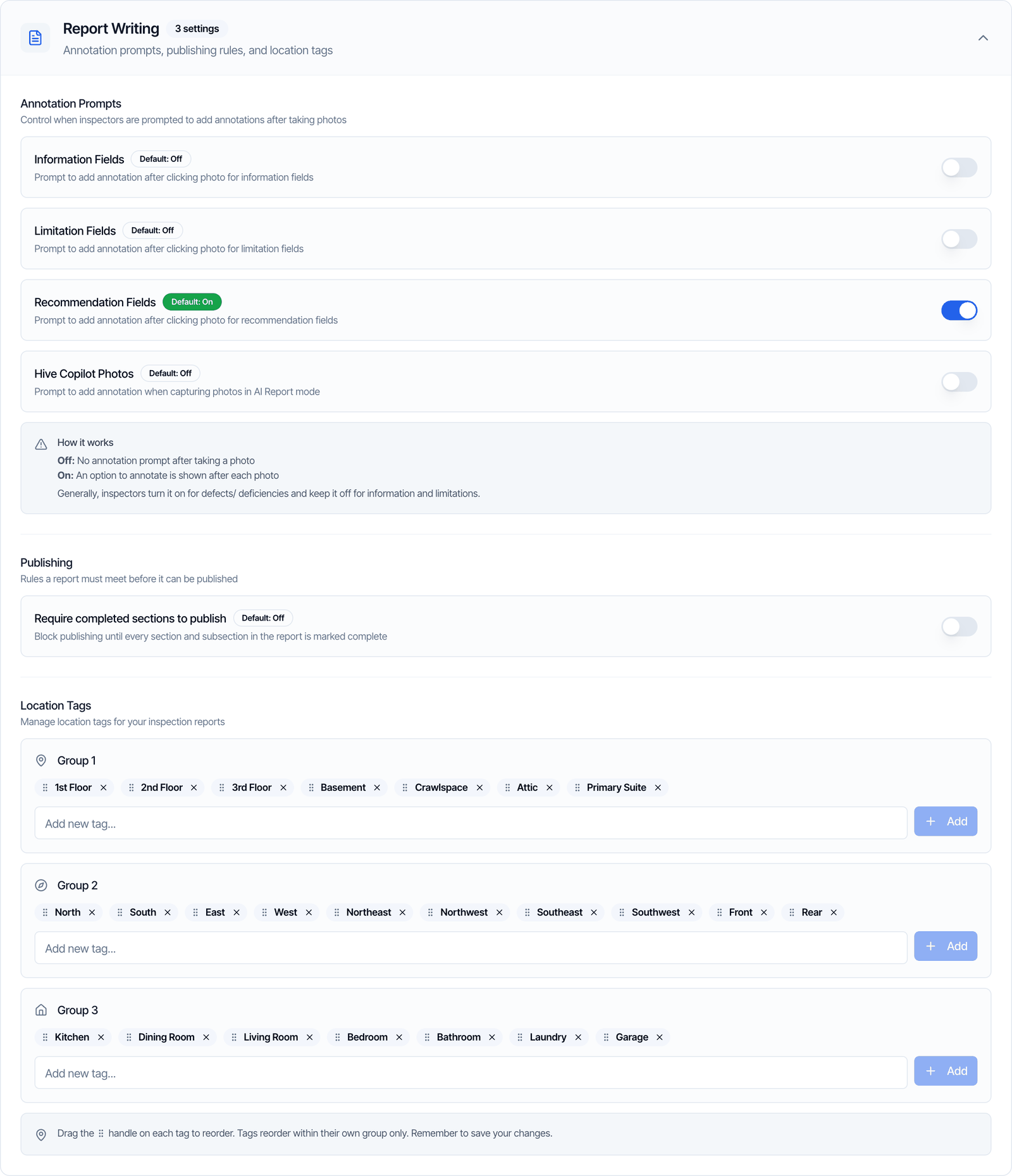
When a prompt is on, the mobile app offers to mark up each photo right after you take it, so you can draw an arrow or circle on the problem. When it’s off, the photo is saved straight away and you can still mark it up later.
Most inspectors keep it on for defects and off for information and limitations.
- They only change the mobile app. The Web Editor doesn’t prompt.
- They’re for the whole company. Every inspector gets the same prompts.
- You can also change them in the app: open the profile screen, then Organization Settings → Annotation Settings. There they’re called Annotate Information, Annotate Limitation, Annotate Defect and Annotate Hive Copilot. The app screen also has the default annotation shape and color. The app picks up changes made on the web the next time it opens.
Publishing: Require completed sections to publish
Off by default. When it’s on, a report can’t be published until every section and subsection has been visited, the green check in the report’s section list.- When a subsection counts as visited: when someone opens it and every text and multiple-choice field in its information part has an answer. A subsection with only checkboxes counts as soon as it’s opened. Limitations never hold it back. Hidden and deleted sections are skipped.
- Where publishing is blocked: the Publish button in the Web Editor, Publish All on the inspection page, and publishing from the mobile app. Hive lists the sections still to finish, with how many subsections are done in each, so you can open them.
- Unpublishing is never blocked.
Location Tags
Location tags are the short labels inspectors add to photos and comments to say where something is, such as 2nd Floor, North or Kitchen. Inspectors pick them in the mobile app and in the Web Editor. There are three groups. A new company starts with:- Add a tag: type it in Add new tag… and click Add. A tag can’t be empty or already in the group.
- Remove a tag: click the X on it.
- Reorder: drag a tag by its handle. Tags move within their own group only.
- Click Save when you’re done. The mobile app has the same list under Organization Settings → Location Tags on the profile screen.
Scheduling
Timezone
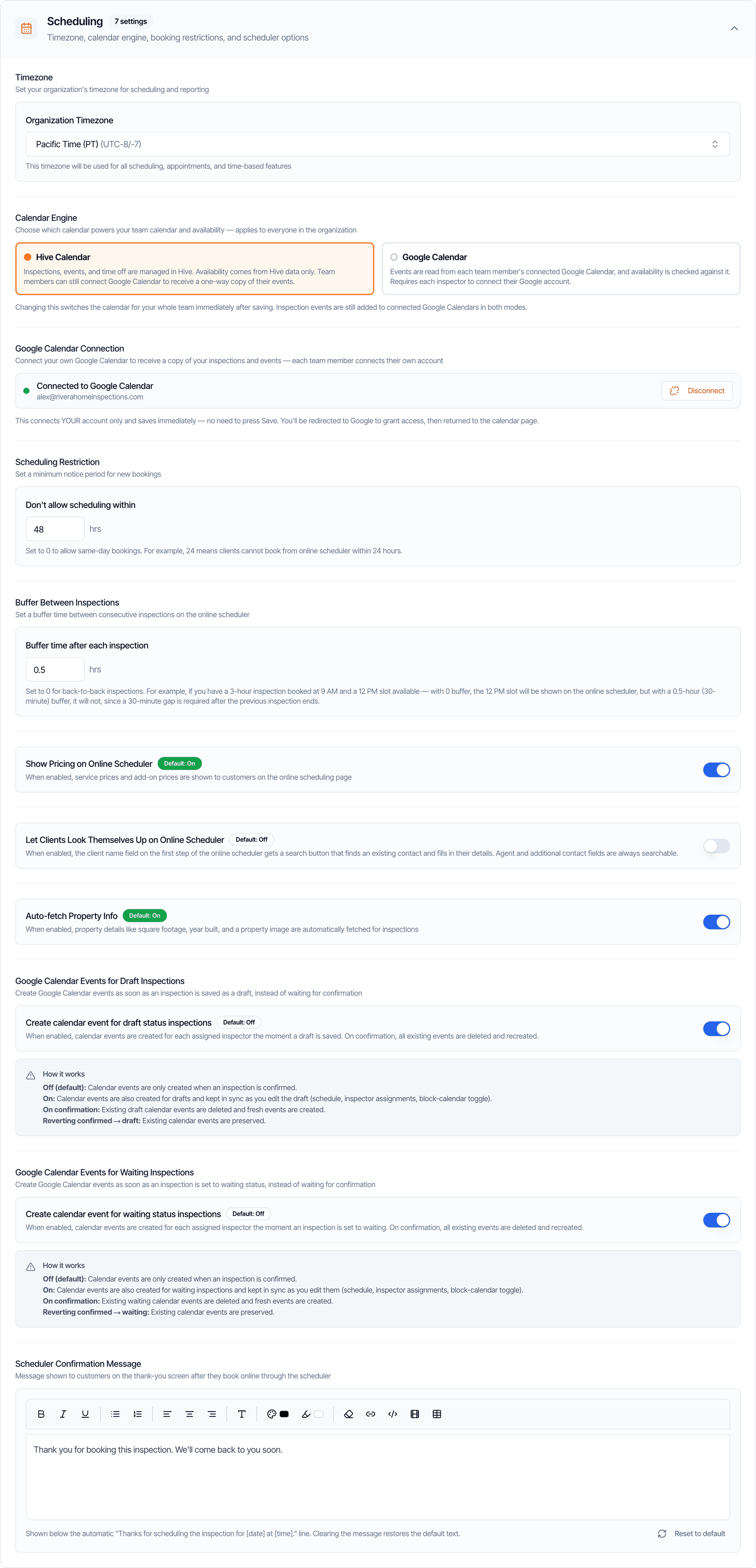
Pick your company’s time zone from Organization Timezone. Search by name, city or offset. US and Canadian zones are listed first. Hive uses it for the times clients can book online, the daily schedule email, automation sleep hours, dates and times in emails and agreements, the signing time on agreements, dates in reports, and your calendar. If times are off by an hour, check this first. See My times are off by an hour.Calendar Engine
Decides which calendar your team calendar and availability come from. It applies to everyone as soon as you click Save.- Hive Calendar: inspections, events and time off are kept in Hive. Availability comes from Hive only. Team members can still connect Google to get a copy of their events.
- Google Calendar: Hive reads each team member’s connected Google Calendar to check when they’re busy. Every inspector needs to connect Google. An inspector who hasn’t connected looks free all day.
Google Calendar Connection
This is personal: it connects the Google account of whoever is signed in, not the whole company. Click Connect Google Calendar, sign in to Google and allow access. You come back to the calendar page. To stop, click Disconnect. It saves on its own. See Connect Google Calendar.Scheduling Restriction
Don’t allow scheduling within ___ hrs is the minimum notice for online bookings. With 24, a client can’t book anything in the next 24 hours. 0 lets clients book later the same day. It only applies to the online scheduler. Your team can still book any time from the dashboard or the mobile app.Buffer Between Inspections
Buffer time after each inspection keeps free time after each busy block, for driving or writing up. It’s added after inspections, and after events and time off that block your calendar, but not before them. Use steps of 0.25 hours (15 minutes). It applies to the online scheduler and to the times offered when you reschedule. It doesn’t stop you from booking back-to-back on the New Inspection page. Example: you have a 3-hour inspection at 9 AM and a 12 PM start time. With no buffer, 12 PM is offered. With a 0.5-hour buffer it isn’t, because the first inspection ends at 12 PM.Show Pricing on Online Scheduler
On by default. Off hides service and add-on prices, the estimated total and the discount code box on your online scheduler, and prices on your public page. The quote widget always shows prices.Let Clients Look Themselves Up on Online Scheduler
Off by default. On adds a search button to the client’s name on the first step of the online scheduler. A returning client types their name, taps search and picks themselves to fill in their details. Agent and additional contact names are always searchable.Auto-fetch Property Info
On by default. When an address is picked from the suggestions, Hive fills in the property type, square footage, year built, bedrooms and bathrooms, and adds a street photo of the property to the top of the inspection and the report cover. It works on the online scheduler, the quote widget, the New Inspection page in the dashboard and inspections created in the mobile app. When it’s off, Hive looks nothing up: you or the client type in the property details, and no street photo is added. You can still upload your own property photo on the inspection.Google Calendar Events for Draft Inspections
Create calendar event for draft status inspections is off by default.- Off: calendar events are only created when an inspection is confirmed.
- On: an event is also created for each assigned inspector as soon as a draft is saved, and kept up to date while you edit the draft. With Hive Calendar, drafts also block that time.
- When you confirm: the draft’s events are deleted and new ones are created.
- Changing a confirmed inspection back to draft keeps its events.
Google Calendar Events for Waiting Inspections
Create calendar event for waiting status inspections works the same way for inspections in Waiting status, which is where online bookings land. Turn this on if you take online bookings. With it off, a waiting booking doesn’t hold its time, so another client can book the same slot before you confirm. See What happens after a client books.Scheduler Confirmation Message
The message clients see on the thank-you screen after they book online. It’s shown under the automatic line Thanks for scheduling the inspection for [date] at [time]. The default is You will hear back soon from the Inspector. Have a great rest of the day! Use the editor to write your own, with bold, lists and links. Reset to default puts the default back, and so does clearing the message. Click Save.Business Management
Agreement Signature Requirement
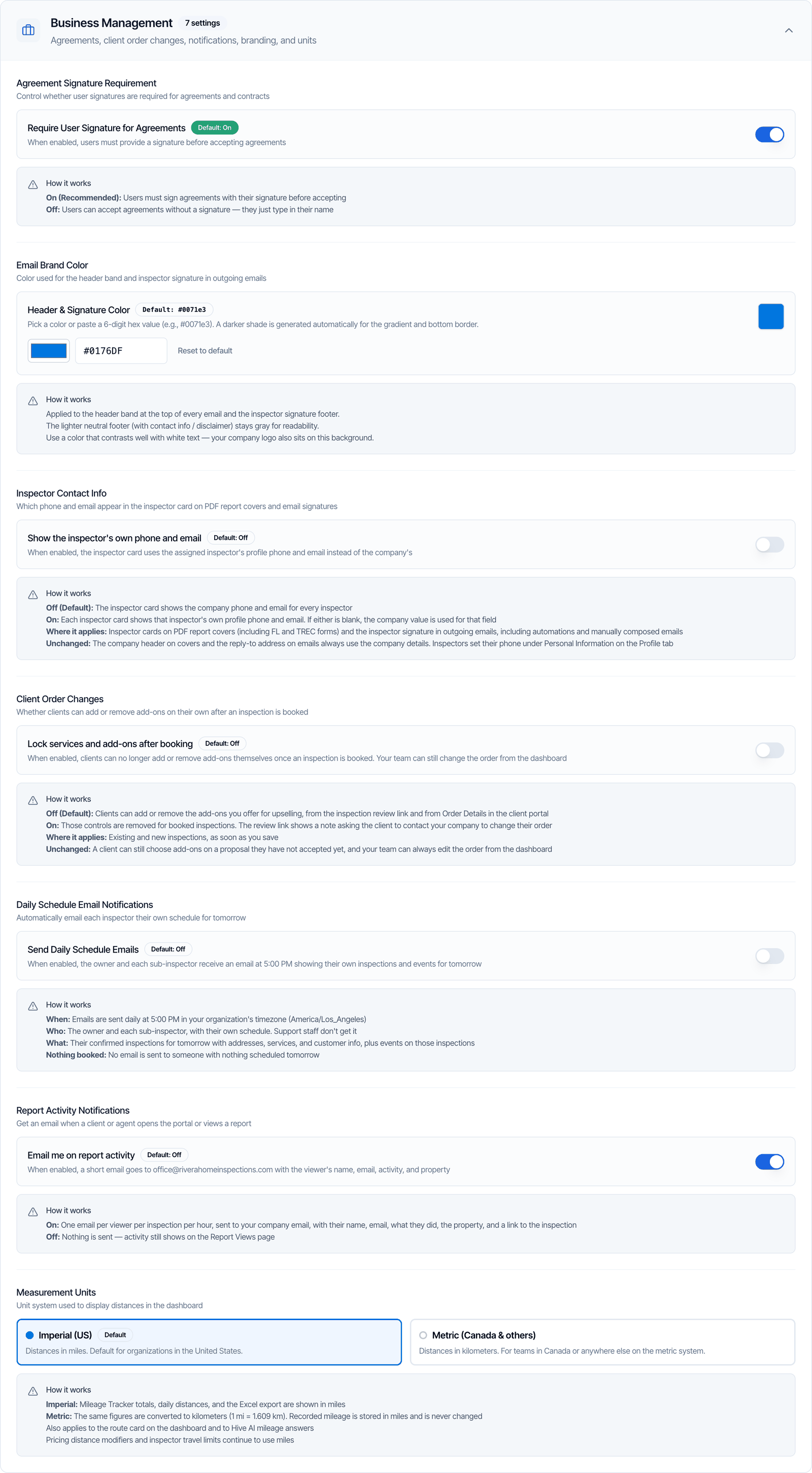
Require User Signature for Agreements is on by default and recommended.
Either way, the client must enter their full name and fill any initials boxes in the agreement. See Agreements.
Email Brand Color
Header & Signature Color colors the band at the top of your emails and the inspector signature at the bottom. Your logo sits on this color, so pick one that white text and your logo stand out on.- Pick a color, or paste a 6-digit hex code such as
#0071e3. Hive makes a darker shade for the gradient and bottom border. - Reset to default goes back to Hive blue,
#0071e3. - It applies to automations, emails you compose, contractor quote emails and report activity emails. Hive’s own emails to your team, such as invitations and the daily schedule, stay blue.
Inspector Contact Info
Show the inspector’s own phone and email is off by default.- Off: the inspector card on reports and emails shows your company phone and email for every inspector.
- On: each inspector card shows that inspector’s own phone and email from their Profile Settings. If either is blank, the company’s is used.
Client Order Changes
Lock services and add-ons after booking is off by default.- Off: clients can add or remove the add-ons you offer, from the inspection review link and from Order Details in the client portal.
- On: those buttons are removed once an inspection is booked. The review link asks the client to contact you to change their order.
Daily Schedule Email Notifications
Send Daily Schedule Emails is off by default. When on, each inspector gets an email shortly after 5:00 PM, in your company’s time zone, with the next day’s inspections (addresses, services and client details) and events.- Who gets it: the owner and sub-inspectors.
- Nothing booked tomorrow: that person gets no email.
- Once a day: each person gets it once for each day.
Report Activity Notifications
Email me on report activity is off by default. When on, your Company Email gets a short email when a client or agent:- opens the client portal
- clicks View on Web
- clicks View PDF
- opens an additional document
Measurement Units
Choose how distances are shown:- Imperial (US), the default: miles.
- Metric (Canada & others): kilometers (1 mile = 1.609 km).
Sender Email Verification
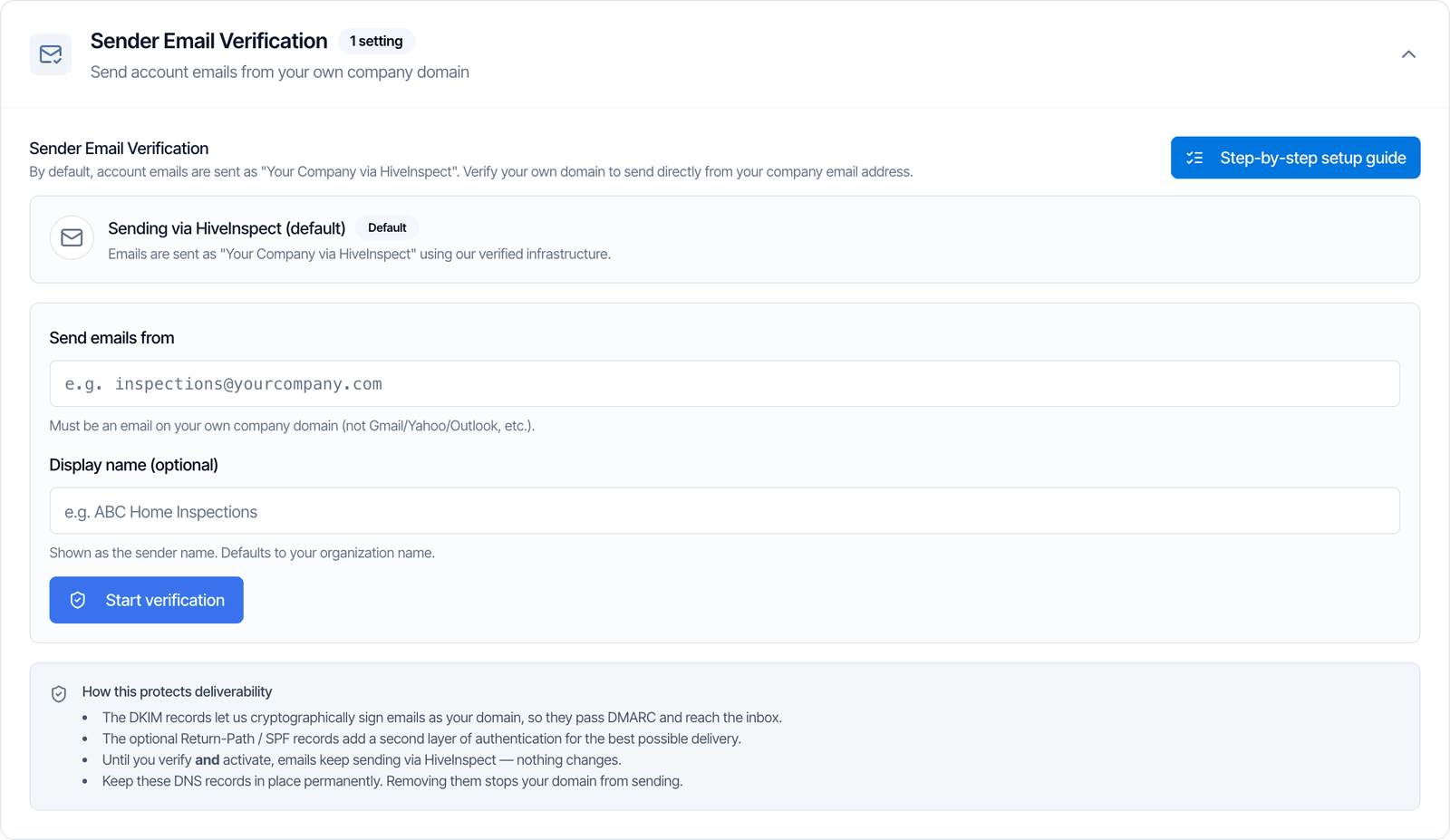
inspections@yourcompany.com. This shows your brand and helps your emails reach the inbox.
Everything in this section saves on its own.
Enter your sending email
In Send emails from, type an address on your company’s own domain. Gmail, Yahoo or Outlook addresses don’t work. Display name is optional; it’s usually your company name and defaults to it. Click Start verification.
Make sure replies reach you
Replies go to the address you entered. If you already have email at your domain (Google Workspace, Microsoft 365 or your web host), you’re set. If you only use a free inbox like Gmail, set up email forwarding from the new address to your inbox first. Your domain provider may include it, or use a free service such as Cloudflare Email Routing.
Add the DNS records
Hive shows the records to add at your domain provider (GoDaddy, Cloudflare, Namecheap and so on), with copy buttons. The 3 DKIM records (CNAME) are required. The Return-Path / SPF records (MX and TXT) are optional and add a little extra deliverability. Enter the Name / Host exactly as shown; most providers add your domain to it for you.
Check verification
DNS changes take from a few minutes to about 48 hours. Click Check verification. When DKIM changes from Pending to Verified, you see Domain verified!
- Keep the DNS records. Removing them stops your domain from sending.
- Switch back: turn off Activate sending from your domain, or click Remove custom domain to start over. Emails then go back to Your Company via HiveInspect.
- Need help? Click Step-by-step setup guide, then Request Hive staff setup to fill out a short form, and our team sets it up with you.
Business Tools shortcuts
The Business Tools card at the bottom links to every business tool, such as Agreements, Services & Fees, Discount Codes, Payments, Widget Integration, Custom Fields, Report Customization and Review Engine. Click the i on a tile to read what the tool does. You see the card if you’re the owner or have the Business Tools permission. It’s the same list as the Business Tools page in the sidebar.Settings found elsewhere
Some company-wide settings are elsewhere:FAQ
I changed a setting but nothing happened. Why?
I changed a setting but nothing happened. Why?
Check that you clicked Save on the You have unsaved changes bar at the bottom. If you leave the page by clicking the sidebar, unsaved changes are lost.
Can I stop inspectors publishing a report with sections not done?
Can I stop inspectors publishing a report with sections not done?
Yes. Open Report Writing and turn on Require completed sections to publish, then click Save. Reports can’t be published until every subsection has its green visited check.
How do I stop online bookings for tomorrow?
How do I stop online bookings for tomorrow?
Open Scheduling and set Don’t allow scheduling within to the hours of notice you need, such as 24 or 48, then Save.
How do I keep a gap between inspections?
How do I keep a gap between inspections?
Set Buffer Between Inspections in Scheduling, for example 0.5 for 30 minutes. Clients can then only book after the gap.
How do I hide prices on my online scheduler?
How do I hide prices on my online scheduler?
Turn off Show Pricing on Online Scheduler in Scheduling and click Save. The quote widget still shows prices.
How do I stop the street view photo being added to new inspections?
How do I stop the street view photo being added to new inspections?
Open Scheduling, turn off Auto-fetch Property Info and click Save. New inspections then get no Google Street View photo (the property image at the top of the inspection and on the report cover), and property details aren’t looked up. Inspections you already have keep their photo. You can still upload your own property photo on an inspection.
Can clients accept an agreement without signing?
Can clients accept an agreement without signing?
Yes. Turn off Require User Signature for Agreements in Business Management. Clients then type their name and click Submit Agreement.
Can my emails come from my own email address?
Can my emails come from my own email address?
Yes. Use Sender Email Verification to verify your company domain, then turn on Activate sending from your domain. It needs an address on your own domain, not Gmail or Outlook.
Why can't I turn on report activity emails?
Why can't I turn on report activity emails?
You don’t have a Company Email yet. Add one in Profile Settings → Company Information, save, then come back.
How do I get each inspector's own phone on their reports?
How do I get each inspector's own phone on their reports?
Turn on Show the inspector’s own phone and email in Business Management. Each inspector adds their phone under Personal Information in their Profile Settings.