

In the dashboard: Business Tools → Calendar Description
When Hive adds an inspection to an inspector’s Google Calendar, the event’s description lists the inspection’s details: a link back to Hive, the property, the contacts, services and prices, and your notes. Calendar Description lets you choose which of those details appear, and in what order. For example, put the lockbox code and the client’s phone at the top, and leave the prices out. It’s one setting for your whole company.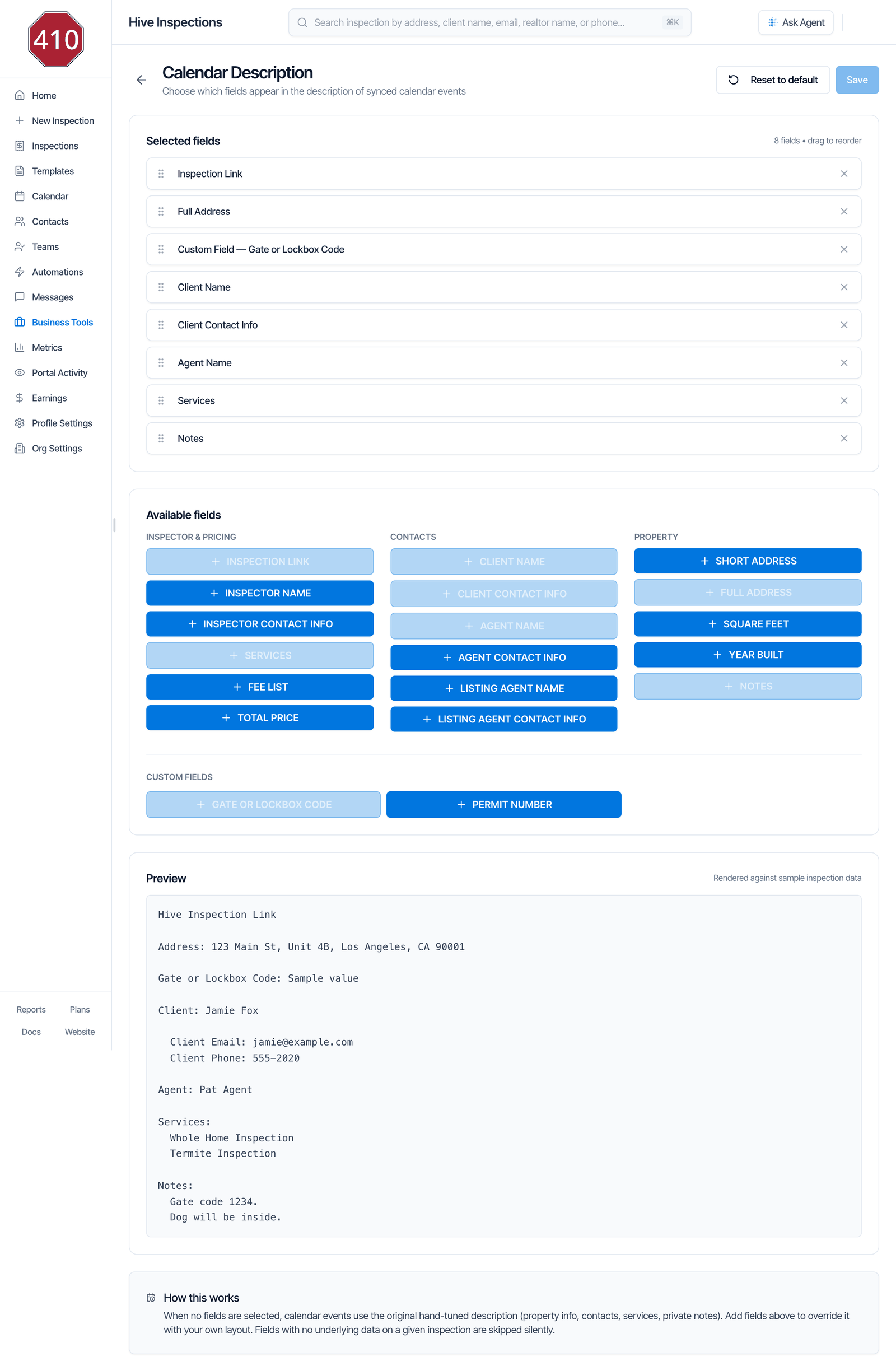
Where the description shows
It works the same with either Calendar Engine, because inspections are added to connected Google Calendars in both. Inspectors who haven’t connected Google don’t get an event, so they don’t see a description. See Connect Google Calendar.
The event title can’t be changed. It’s always the address followed by Inspection, such as
123 Main St - Inspection. Draft and waiting inspections start with Draft: or Waiting:.
The default layout
With no fields selected, every event uses Hive’s standard description:Build your own description
- Open Business Tools → Calendar Description.
- Under Available fields, click each field you want. It’s added to the bottom of Selected fields, and its button greys out, because each field can only be used once.
- Drag a field by its handle on the left to move it up or down. The description follows this order.
- Click the X on a field to take it out.
- Check the Preview. It shows your layout filled in with sample inspection data.
- Click Save. You see Calendar description saved.
Available fields
- Empty fields are skipped. If an inspection has no listing agent, or a custom field is blank, that line is simply left out.
- Contact info shows N/A for a missing email or phone. For example, a client with no phone shows
Client Phone: N/A. - More than one client or agent? Each one gets a line.
- No custom fields yet? The Custom Fields area links to the Custom Fields page, where you create them.
The Hive Inspection Link
Inspection Link adds a Hive Inspection Link that opens the inspection’s page in your dashboard. It’s in the default layout at the top, but in your own layout it’s only there if you add it. We recommend keeping it first, so inspectors can jump from the calendar to the job.Go back to the default layout
Click Reset to default, then Save. Selected fields empties and reads Empty — events will use the default layout, and you see Reset to default — calendar events will use the original layout.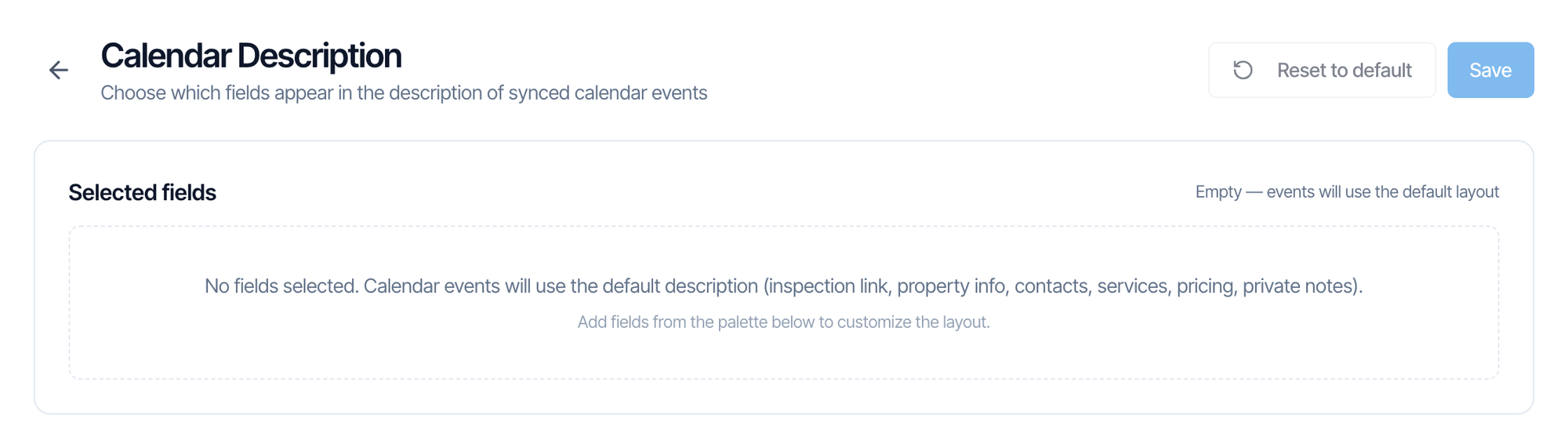
When events update
Saving doesn’t rewrite the events already on your calendars. An event picks up your new layout the next time Hive updates it:- when you save any change to the inspection, such as its time, address, contacts, services or notes, or
- when you click Regenerate calendar event on the inspection.
Common questions
How do I put a lockbox or gate code on the calendar event?
How do I put a lockbox or gate code on the calendar event?
Create a custom field for it under Business Tools → Custom Fields, fill it in on the inspection, then add it here from Custom Fields and click Save. See Custom inspection fields.
Can I change the event title?
Can I change the event title?
No. The title is always the address followed by Inspection. Calendar Description only changes the description.
I saved a new layout, but my events look the same.
I saved a new layout, but my events look the same.
Existing events update the next time the inspection is saved. Open the inspection and click Regenerate calendar event, or make any change and save it.
Can I hide prices from my inspectors' calendars?
Can I hide prices from my inspectors' calendars?
Yes. Build your own layout without Fee List and Total Price. The default layout always includes prices.
Can each inspector have a different layout?
Can each inspector have a different layout?
No. There’s one layout for the whole company. Inspector Name and Inspector Contact Info do fill in each inspector’s own details on their own calendar.
Why don't my radon pickups or other inspection events use it?
Why don't my radon pickups or other inspection events use it?
Inspection events always get a short description with a link to the inspection. Calendar Description only applies to the main inspection event.
Does it change the Hive Calendar page?
Does it change the Hive Calendar page?
No. It only changes the description of the inspection events Hive adds to Google Calendar.
Does the description show in the mobile app?
Does the description show in the mobile app?
Yes. The mobile app’s calendar shows the same event description.
Related
Connect Google CalendarGet your inspections on your Google Calendar, and fix a broken connectionCustom inspection fieldsTrack lockbox codes, permit numbers and more on each inspectionPlaceholdersFill inspection details into emails, texts and agreementsScheduling and calendar FAQGoogle Calendar sync, availability and blocking time