

In the dashboard: Business Tools → Placeholders. In editors: the Insert Placeholder button.
A placeholder is a short code that Hive swaps for real details when it sends a message. You write{{{client_first_name}}} once in an email, and every client gets their own name. The same works for the property address, the inspection date, the price, your company details, and links to pay, sign or view the report.
For example, this automation email:
Hireaches the client as:{{{client_first_name}}}, your inspection at{{{property_address}}}is booked for{{{inspection_date}}}at{{{inspection_time}}}. Please sign your agreement here:{{{customer_agreement_link}}}
Hi Jordan, your inspection at 1420 Maple Ave, Austin, TX 78745 is booked for October 22, 2026 at 09:00 AM CDT. Please sign your agreement here: View AgreementEvery placeholder has three curly braces on each side, is written in lowercase, and uses underscores instead of spaces.
The Placeholders page
Go to Business Tools and click the Placeholders card. The page lists every placeholder you can use, with a short description and a copy button.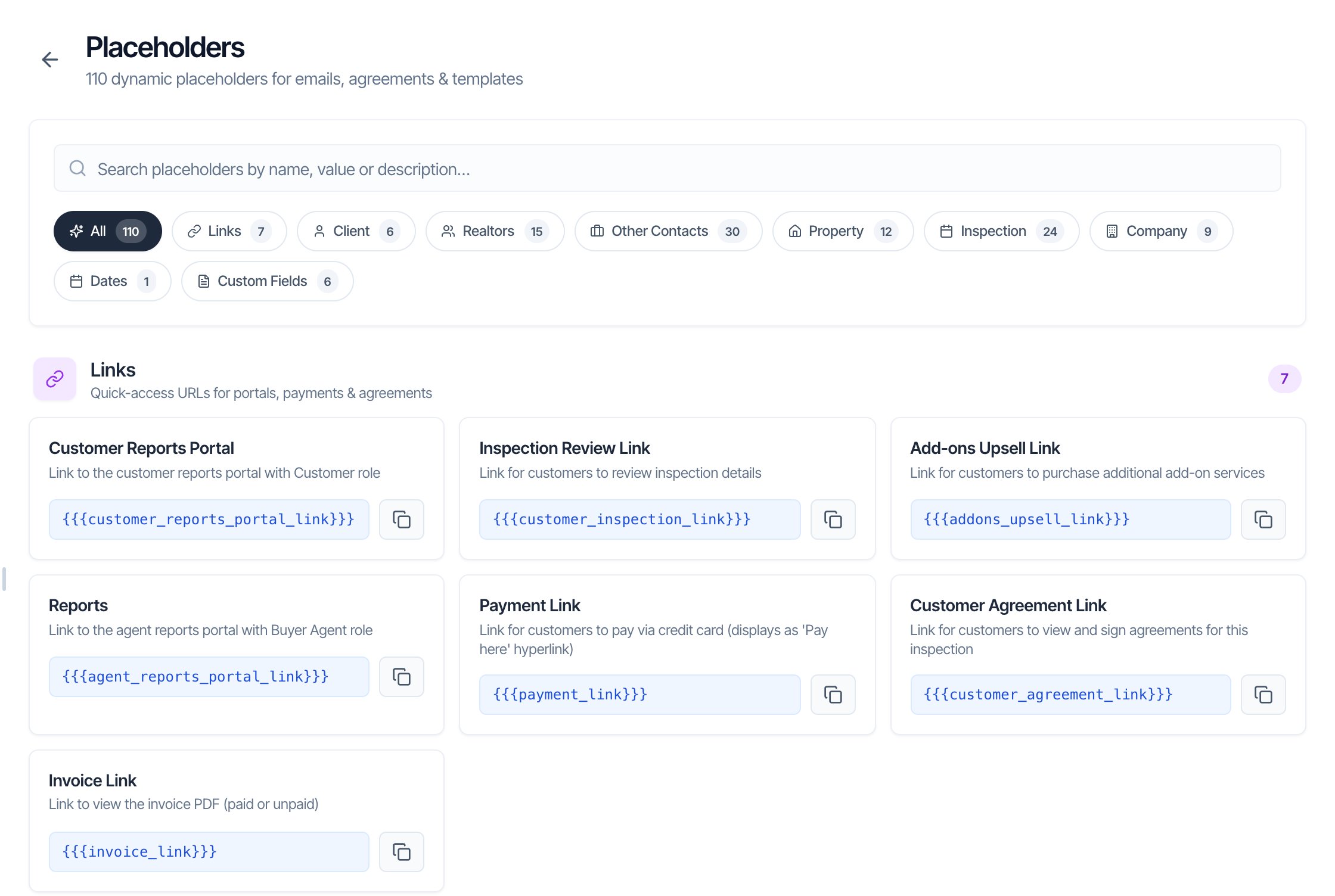
- The number at the top is how many placeholders you have: 104 built-in ones plus one for each of your custom fields.
- Category buttons show one group at a time: Links, Client, Realtors (agents and transaction coordinators), Other Contacts, Property, Inspection, Company, Dates and Custom Fields. All shows everything.
- Search looks through names, placeholders and descriptions. It shows Showing 16 of 110 placeholders, for example. Click the X to clear it.
- The copy button copies the placeholder. You see Copied to clipboard, and the button turns into a check mark for a moment. Paste it where you want the detail to appear.
- Image marks the three placeholders that insert a picture: the company logo, the inspector’s signature and the inspector’s photo.
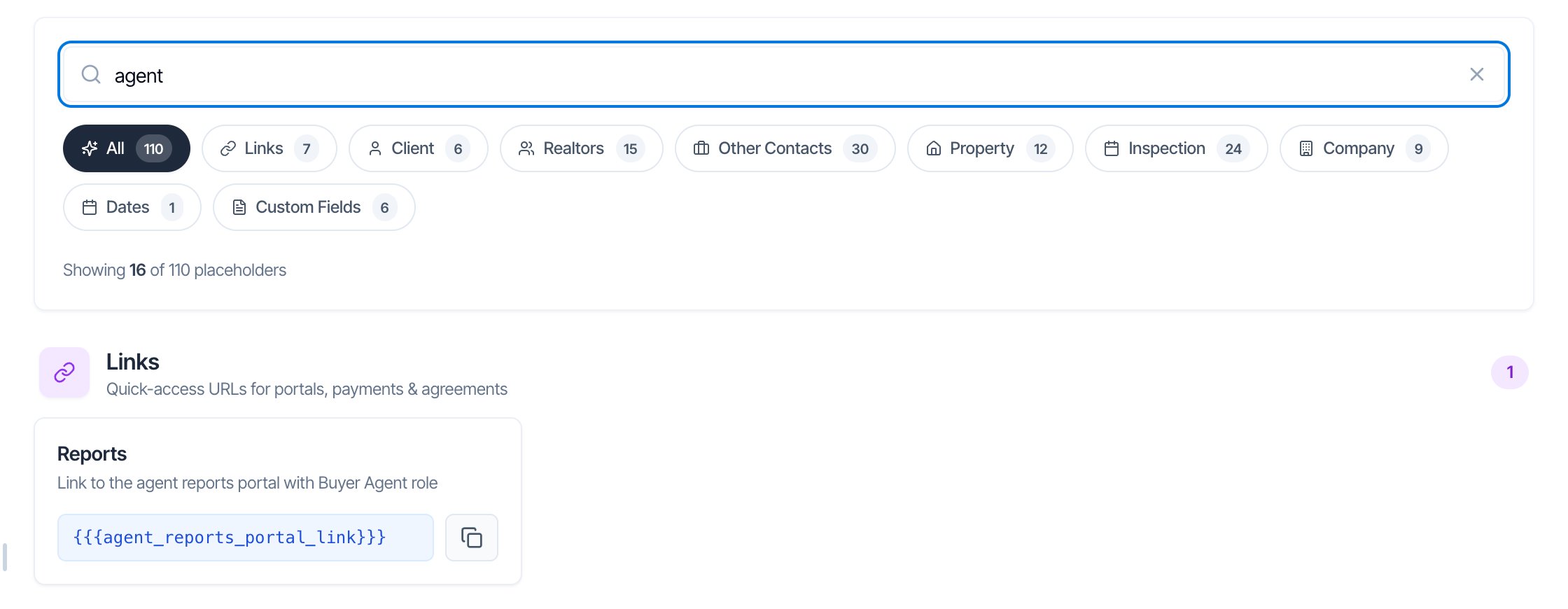
The 7 links
The Links category holds the placeholders that send people somewhere: to the client portal, a payment page, an agreement or the invoice. Each one builds a link for that inspection, so one automation works for every job. How a link looks depends on where you put it:- In an email, it becomes clickable text, such as Pay here or View Agreement. You can’t change the words, so write your sentence around them, for example “To pay now, click
{{{payment_link}}}.” - In a text message, it becomes the full web address, because texts can’t show clickable words.
- In an agreement, it becomes clickable text, the same as in an email.
One more link sits in the Inspection category:
{{{report_pdf_links}}}, a link to each report PDF. See Report PDF Links.
Which link should I use?
When reports open
Most links lead to the report sooner or later, and the same rule decides when a report opens. A report opens only when all three are true:- The report is published.
- The inspection is paid. An inspection with nothing to pay ($0.00 due) counts as paid. If you billed part of the price to someone else with Add Invoice, every part must be paid.
- Every agreement on the inspection is signed. An inspection with no agreements passes this step.
Customer Reports Portal ({{{customer_reports_portal_link}}})
Shows as: Customer Reports Portal. Opens: reports.hiveinspect.com, the client portal’s sign-in page.
This link isn’t tied to one inspection. It opens the portal’s front page, where the client signs in with their email:
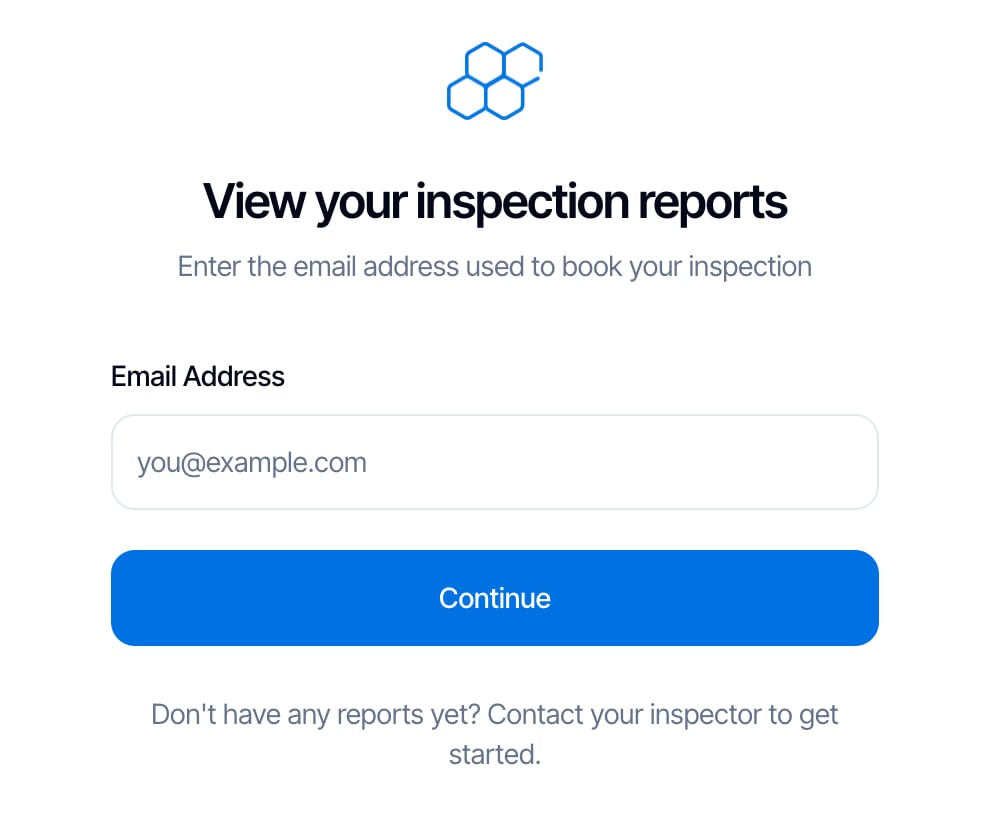
- The client types the email address you have on the inspection and clicks Continue. There’s no password and no code.
- They see Your Inspections: every inspection booked with that email, grouped by inspection company. It shows the last 30 days first, with Show older inspections below.
- Each inspection has buttons for what’s left to do: Sign Agreements and Make Payment while those are outstanding, then View Details and Report.
- Good for: clients, every time. It’s the most complete link, and it stays valid forever.
- If the email doesn’t match: they see We couldn’t find any inspection reports for…. They must use the email that’s on the inspection. Fix the contact’s email if it’s wrong.
- Who sees inspections here: contacts on the inspection as Customer, Buyer Agent, Transaction Coordinator, Insurance Agent or Sub Contractor. A contact who is only the listing agent sees no inspections. Send listing agents
{{{agent_reports_portal_link}}}instead.
Inspection Review Link ({{{customer_inspection_link}}})
Shows as: Inspection Review Link. Opens: dashboard.hiveinspect.com/inspection/… for this inspection. No sign-in.
This is the client’s page for the order itself. It’s the link in your quote emails, and the same page Client Review opens under Quick Actions. What the client sees depends on the inspection’s status:
On the Review and Confirmed pages the client can:
- add or remove add-ons with Add / Remove, then Save changes. Only add-ons with Allow Upselling turned on are listed. The price updates straight away, with no approval from you.
- edit contact details with Edit Details, and add a customer, buyer agent or listing agent.
- see the property details, but not change them.
{{{customer_agreement_link}}} and {{{payment_link}}} for those.
To stop clients changing add-ons after booking, turn on Lock services and add-ons after booking in Org Settings. Clients then see To change your order, please contact your company.
Add-ons Upsell Link ({{{addons_upsell_link}}})
Shows as: Add Additional Services. Opens: the same inspection review page as {{{customer_inspection_link}}}.
The two links go to the same place. Only the words in the email are different, so use this one when the email is about adding services. The client clicks Add / Remove, picks the add-ons and clicks Save changes.
- Only add-ons with Allow Upselling turned on are offered. You set it on each add-on in Services & Fees.
- Pair it with
{{{remaining_add_ons_services}}}, which lists the add-ons the client hasn’t added yet. - With Lock services and add-ons after booking on, the link still works, but a confirmed inspection’s add-ons can’t be changed. Turn the lock off if you send upsell emails.
Reports ({{{agent_reports_portal_link}}})
Shows as: Reports. Opens: the Reports page for this inspection on reports.hiveinspect.com. No sign-in.
This is the agent’s link. It goes straight to this inspection’s reports without asking for an email.
- Each published report has View on Web (the interactive report) and View PDF (full or summary PDF). Agents can build a repair request from the web report. See Agent portal.
- Additional documents you added show here too.
- Reports still follow the rule above. If the client hasn’t paid or signed yet, the agent sees Payment Required or Agreement Pending on the report, and can’t pay or sign from this page.
- Hive records who opened it. In automations and in Compose Email, each recipient gets their own copy of the link, so Portal Activity shows which agent viewed the report. It never signs anyone in.
Payment Link ({{{payment_link}}})
Shows as: Pay here. Opens: reports.hiveinspect.com/pay/… for this inspection.
The link works out the amount due at the moment it’s clicked. If you change the price after the email goes out, the client still pays the right amount.
- The client sees Preparing your payment for a moment.
- The payment page shows Amount Due (or Balance Due and the amount already paid) and View Invoice if there’s an invoice.
- They pick a way to pay from the methods you turned on: Pay by Card, Bank Transfer, Buy Now, Pay Later (Affirm), Pay at Closing or Pay Another Way.
- Card, bank and Affirm payments go through Stripe’s secure checkout. Afterwards they see Payment Successful!.
- Nothing is owed: the page says This inspection has already been paid in full. It also says this on an inspection that costs $0.00.
- The rest is billed to someone else with Add Invoice: the client sees Nothing is due from you right now. The other person pays with the link in their own invoice email.
- Stripe isn’t connected: card, bank and Affirm show as not available. Connect Stripe in payment settings.
Customer Agreement Link ({{{customer_agreement_link}}})
Shows as: View Agreement. Opens: the Agreements page for this inspection on reports.hiveinspect.com. No sign-in.
The page lists each agreement with Pending or Signed:
- The client clicks Sign Agreement.
- A Review Details box shows the property, the client names, the services and the total price. They click Continue to Agreement.
- They read the agreement, type their Full Name, fill in any initials boxes, and draw their signature with a finger, mouse or trackpad.
- They click Sign Agreement. If you turned off Require User Signature for Agreements, they don’t draw anything and click Submit Agreement.
- One signature covers the inspection. When any client signs, the agreement is marked signed for everyone. If two buyers must both sign, check the signed PDF, or ask them to sign at the inspection.
- No agreements on the inspection: the page says No Agreements Available. The link does no harm, and reports aren’t held back by agreements.
- If money is due, the page also shows a Payment Required banner.
Invoice Link ({{{invoice_link}}})
Shows as: View Invoice. Opens: the invoice PDF.
- It always opens the current invoice. Each click fetches the latest version, so after the client pays, the same link shows the paid invoice. Old emails never show an out-of-date invoice, and the link doesn’t expire.
- It’s blank until the inspection has an invoice. Hive creates the invoice when the inspection is confirmed, so in a quote or a booking-request email this placeholder prints nothing.
- Anyone with the link can open it, so it’s handy for agents and lenders too.
Report PDF Links ({{{report_pdf_links}}})
This link is in the Inspection category, not Links.
Shows as: Report PDF 1, Report PDF 2… one link per report on the inspection. In a text message, each one is on its own line with its web address. It’s blank if the inspection has no reports.
Each link checks the rule above when it’s clicked:
The link itself never expires.
Every other placeholder
The value comes from the inspection the message is about. If the detail is empty, the placeholder prints nothing, so you never see blank braces. A few have a fallback, listed below.Client
“Client” means the contacts with the Customer role on the inspection. It never changes with the person the email is sent to.
Realtors and Other Contacts
Each contact role on the inspection has five placeholders: first name, last name, full name, phone number and email. The pattern is the role, then the detail:- Two people with the same role are joined: “Morgan Lee & Casey Diaz”.
- The Others contact role has no placeholders.
- If a contact has a stand-in email that Hive made because you didn’t have their real one, the email placeholder prints nothing.
Property
Inspection
More than one inspector? The inspector placeholders show only one of them. For a team job, write the names yourself or check the preview before you send.
Company
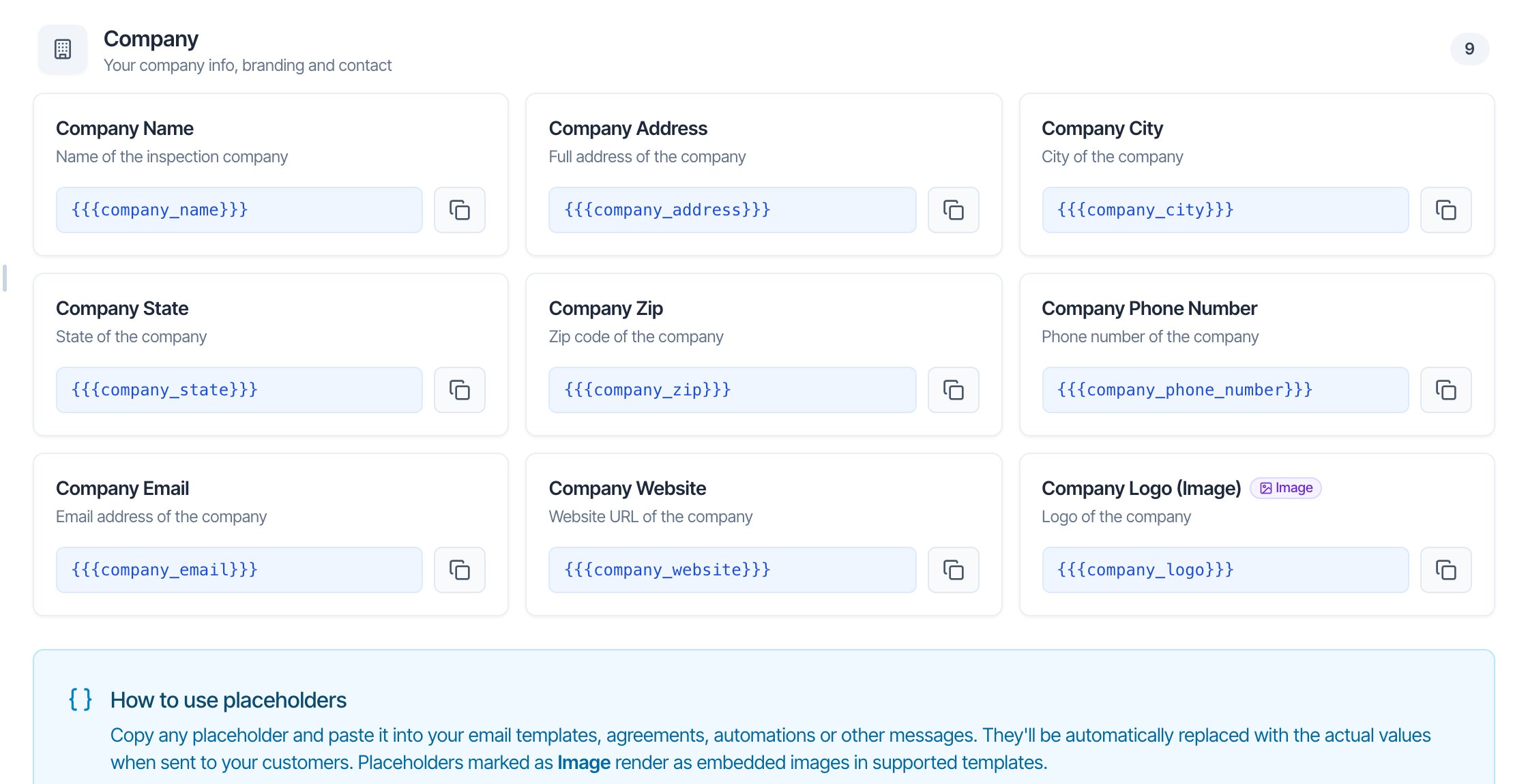
Dates
Custom Fields
Each custom field you create gets its own placeholder, such as{{{custom_gate_or_lockbox_code}}}. It prints that inspection’s answer. A checkbox prints true or false, and an empty answer prints nothing. See Print answers in emails, agreements and reports.
Image placeholders
{{{company_logo}}}, {{{inspector_signature}}} and {{{inspector_profile_photo}}} insert a picture in emails and agreements. In a text message they print the picture’s web address, so leave them out of texts.
Service prices in agreements
The agreement editor has a Service Price button next to Insert Placeholder. It adds a placeholder for one service or add-on, such as{{{price_of_radon_testing}}}, which prints what the client pays for it, with modifiers, discounts and tax. If that item isn’t on the order, it prints $0.00. These placeholders aren’t on the Placeholders page. See Agreements.
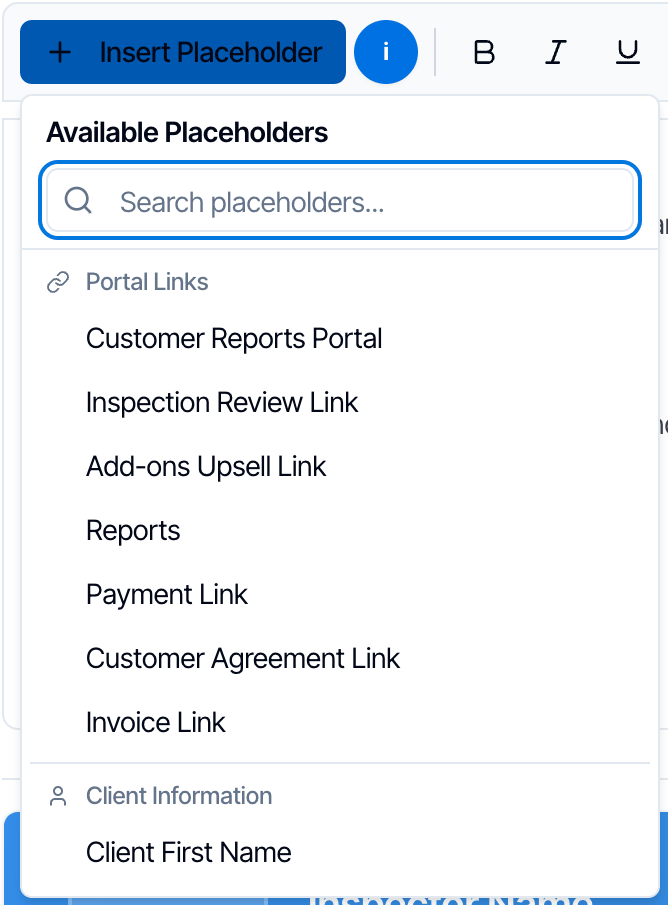
Add a placeholder to a message
- Click in the message where the detail should go.
- Click Insert Placeholder.
- Search, or scroll to the group, and click the placeholder.
Where placeholders work
Placeholders don’t work in:
- invoices, which are built from the inspection for you;
- review request messages, which use their own wording;
- the Scheduler Confirmation Message in Org Settings, which shows exactly what you typed;
- calendar event descriptions, which use their own field list under Business Tools → Calendar Description.
{{{company_website}}}, {{{property_unit}}} and {{{report_pdf_links}}} print nothing. Links in report text use the same words as in an email.
Rules for writing placeholders
- Three braces on each side:
{{{client_first_name}}}. Two braces, such as{{client_first_name}}, don’t work. - Exact spelling, lowercase, no spaces:
{{{ client_first_name }}}or{{{Client_First_Name}}}won’t fill in (in reports, capital letters still work). - A misspelled placeholder: in the body of an automation email, it’s removed, so nothing prints. In email subjects, text messages and Compose Email, it’s sent as you typed it, braces and all. Copy placeholders from the list to avoid typos.
- No links in the subject line. A link placeholder in an email subject shows as code, not a link. Put links in the message.
- Your editor can split a placeholder. If you make part of a placeholder bold or a different color, it may stop working. Delete it and insert it again.
Common questions
What is a placeholder?
What is a placeholder?
A code in triple braces, such as
{{{client_first_name}}}, that Hive swaps for that inspection’s real details when it sends an email, text or agreement. Find them all under Business Tools → Placeholders, or with the Insert Placeholder button.Which link do I send clients to see their report?
Which link do I send clients to see their report?
{{{customer_reports_portal_link}}}. The client signs in with their email and can view the report, sign and pay in one place. Send agents {{{agent_reports_portal_link}}}, which opens the reports without signing in.What's the difference between Customer Reports Portal and Reports?
What's the difference between Customer Reports Portal and Reports?
Customer Reports Portal (
{{{customer_reports_portal_link}}}) opens the portal’s sign-in page. The client enters their email and sees all their inspections, with buttons to sign and pay. Reports ({{{agent_reports_portal_link}}}) opens this inspection’s reports with no sign-in and no sign or pay buttons. It’s meant for agents.What's the difference between Inspection Review Link and Add-ons Upsell Link?
What's the difference between Inspection Review Link and Add-ons Upsell Link?
Nothing but the words. Both open the client’s inspection review page. In an email, the first shows as Inspection Review Link and the second as Add Additional Services.
Why is my invoice link blank?
Why is my invoice link blank?
The inspection has no invoice yet. Hive creates it when the inspection is confirmed, so
{{{invoice_link}}} prints nothing in quote and booking-request emails. Use it in confirmation, payment and report emails.Does the payment link show the new price if I change it after sending?
Does the payment link show the new price if I change it after sending?
Yes.
{{{payment_link}}} works out the amount when the client clicks it, so they always pay what’s due right now.My client clicked the report link but can't open the report. Why?
My client clicked the report link but can't open the report. Why?
The report isn’t published yet, or the client still has to pay or sign. Send
{{{payment_link}}} and {{{customer_agreement_link}}}, or release it with Manual Lock Override for Reports on the inspection. See When reports open.Do both buyers have to sign the agreement?
Do both buyers have to sign the agreement?
No. The agreement link lets one person sign for the inspection. Once anyone signs, the agreement is marked signed.
Why does my email show {{{client_first_name}}} instead of the name?
Why does my email show {{{client_first_name}}} instead of the name?
The placeholder is misspelled, has spaces inside the braces, uses two braces instead of three, or was split by formatting. Delete it and insert it again with Insert Placeholder. If the spelling is right but the detail is empty, such as no buyer’s agent on the inspection, the placeholder prints nothing.
Can I change the words a link shows, like Pay here?
Can I change the words a link shows, like Pay here?
No. Each link has fixed words in emails. Write your sentence around them, for example “Click
{{{payment_link}}} to pay online.”Do placeholders work in text messages?
Do placeholders work in text messages?
Yes. Links become full web addresses, and image placeholders print the picture’s web address, so leave images out of texts.
Is there a placeholder for the referral source or the inspection notes?
Is there a placeholder for the referral source or the inspection notes?
No. Only the placeholders on the Placeholders page work. For your own detail, create a custom field and use its placeholder.