

In the dashboard: Business Tools → Widget Integration → Quote Widget
The quote widget gives clients an instant price for their inspection. They enter the property, pick a service and add-ons, and see an Estimated Total. When they’re ready, Ready to Schedule? takes them into your scheduling widget with everything they entered already filled in.A quote on its own isn’t saved, and you aren’t told about it. The quote widget doesn’t ask for the client’s name or email, so nothing appears in Hive when someone only checks a price. You hear about the client once they continue to book and get past the property step of the scheduling widget. To follow up on quotes, use your scheduling widget or send quotes from the dashboard.
Quote widget or scheduling widget?
You can use both. A common setup is a Get a Quote button and a Book Now button on your website.
Get your quote link or embed code
Open Business Tools → Widget Integration
Click Business Tools in the left menu, then the Widget Integration card.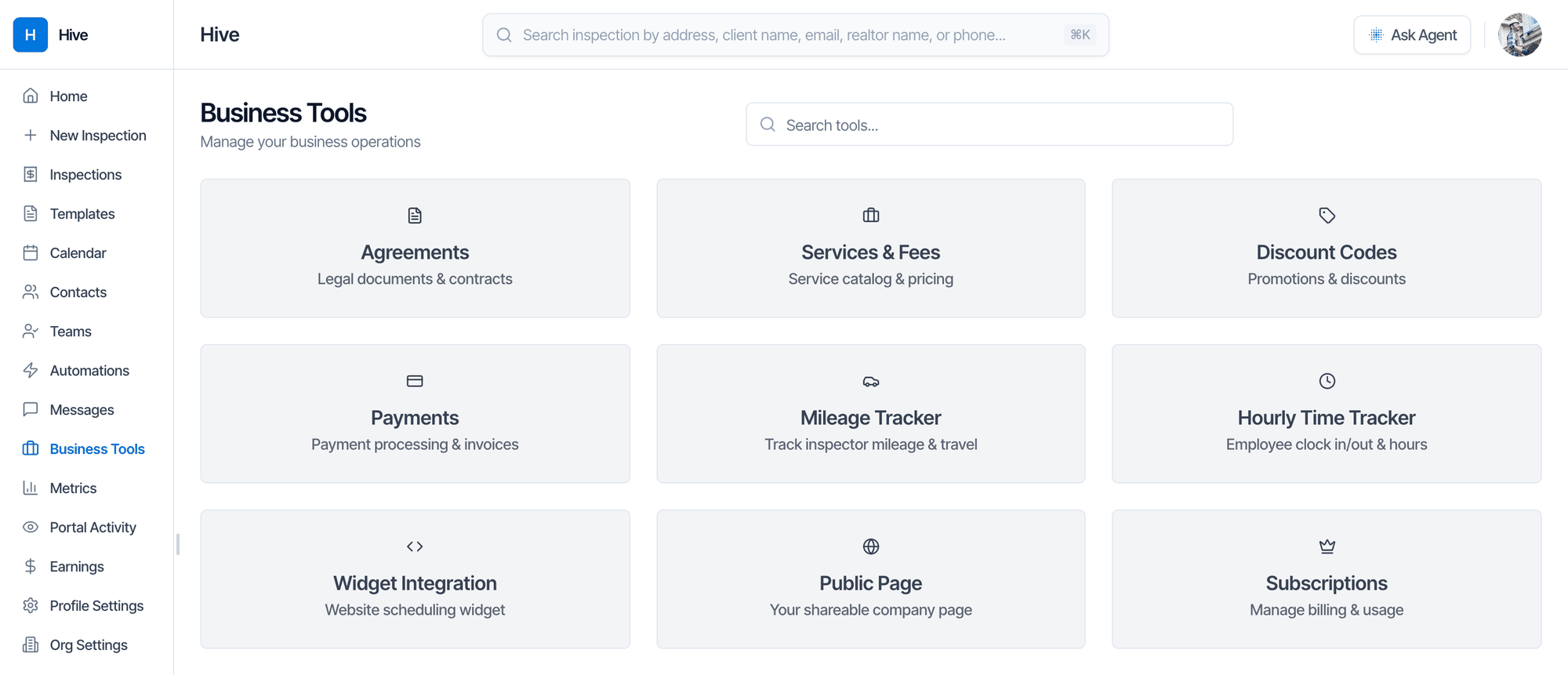
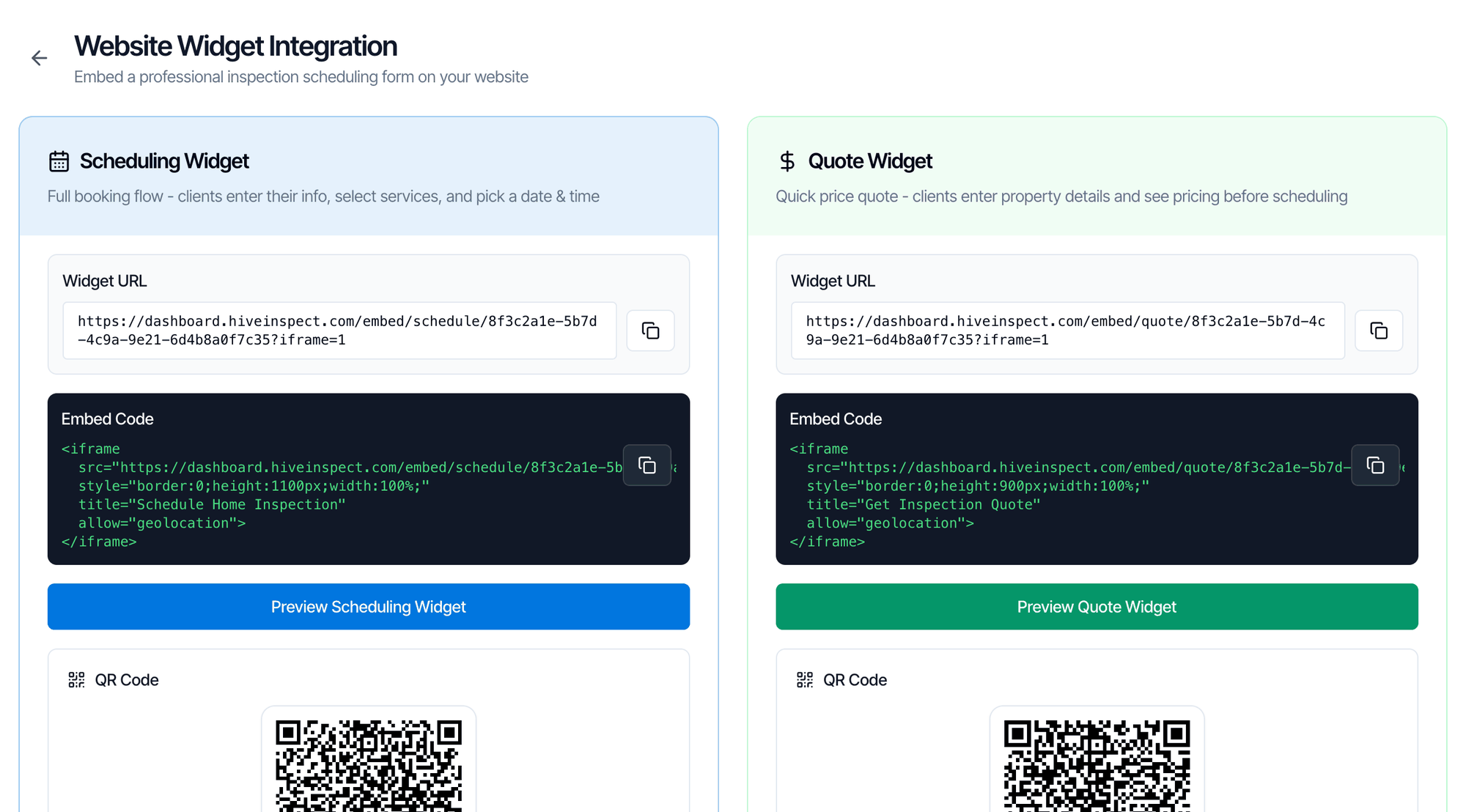
Pick what you need from the Quote Widget card
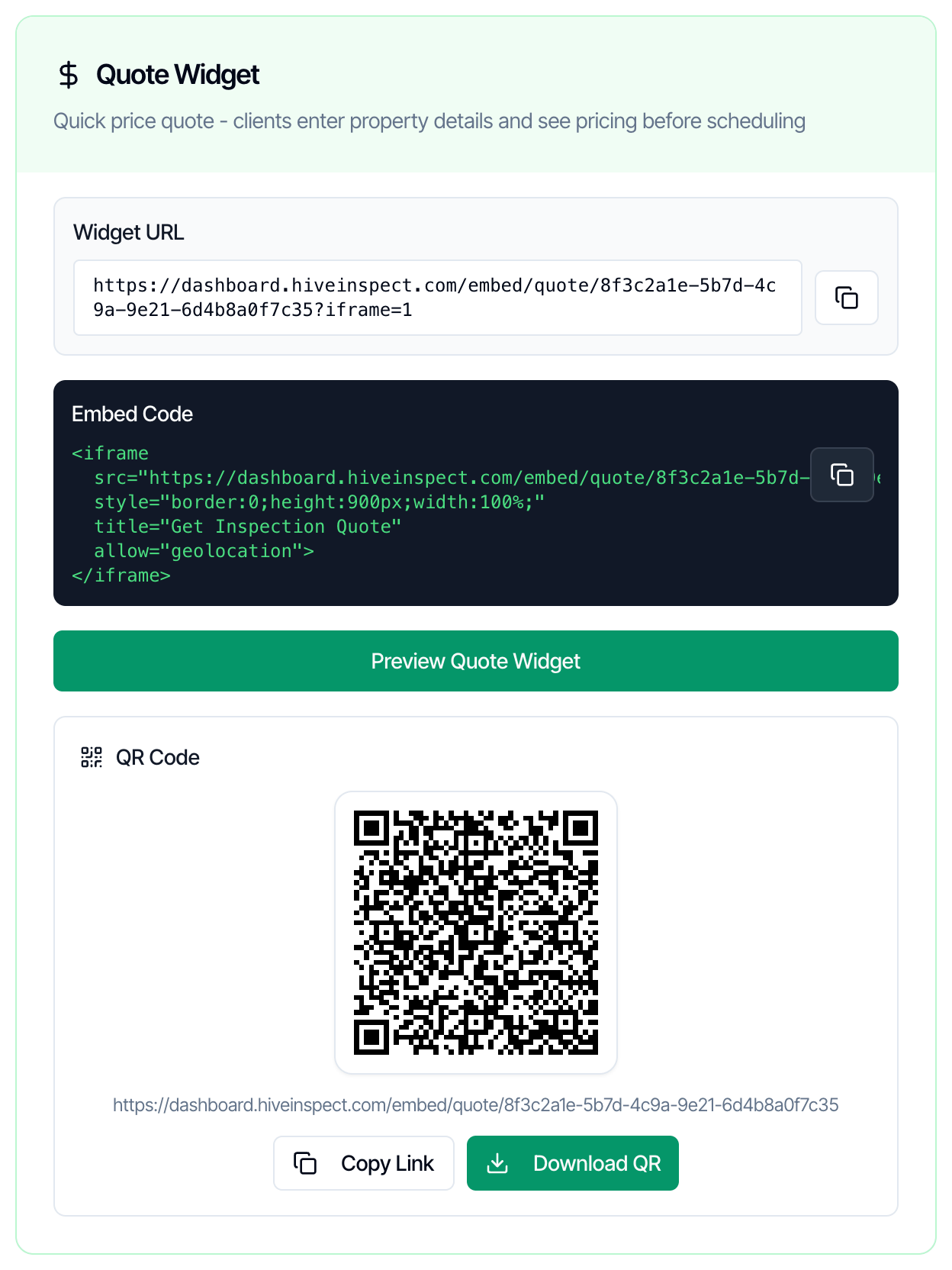
Your quote link looks like
https://dashboard.hiveinspect.com/embed/quote/ followed by your organization ID. It never changes, and it always shows your current services and prices.Add the quote widget to your website
Paste the Embed Code into an HTML, embed or custom code block, the same way as the scheduling widget.What your clients see
The company panel on the right shows your company name, logo, phone and website, then the property and a Pricing summary as the client goes. On a phone it moves behind a View Quote Summary button.Step 1: Property Details
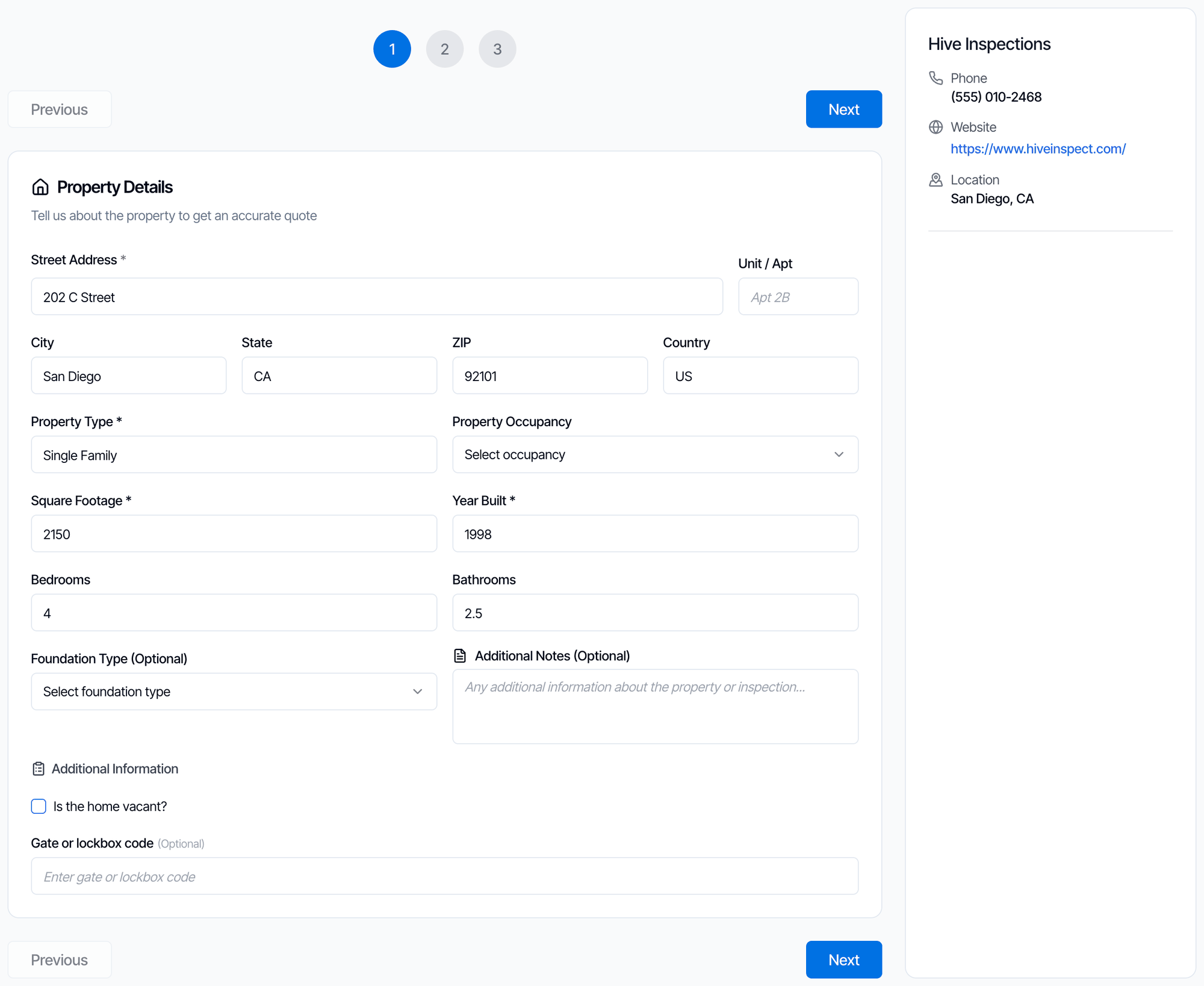
- The client starts typing the address and picks it from the suggestions, or clicks Can’t find your address? Enter it manually.
- Picking a suggested address fills in property type, square footage, year built, bedrooms and bathrooms, if Auto-fetch Property Info is on. The client can change them.
- Property Type, Square Footage and Year Built are required, because your price modifiers use them.
- Additional Information shows your custom fields with Show on online scheduler on. Answers here can change the price through custom field modifiers.
- If no inspector covers the address, the client sees Address is outside our coverage area and can’t continue. See Set inspector service areas.
Step 2: Service Selection
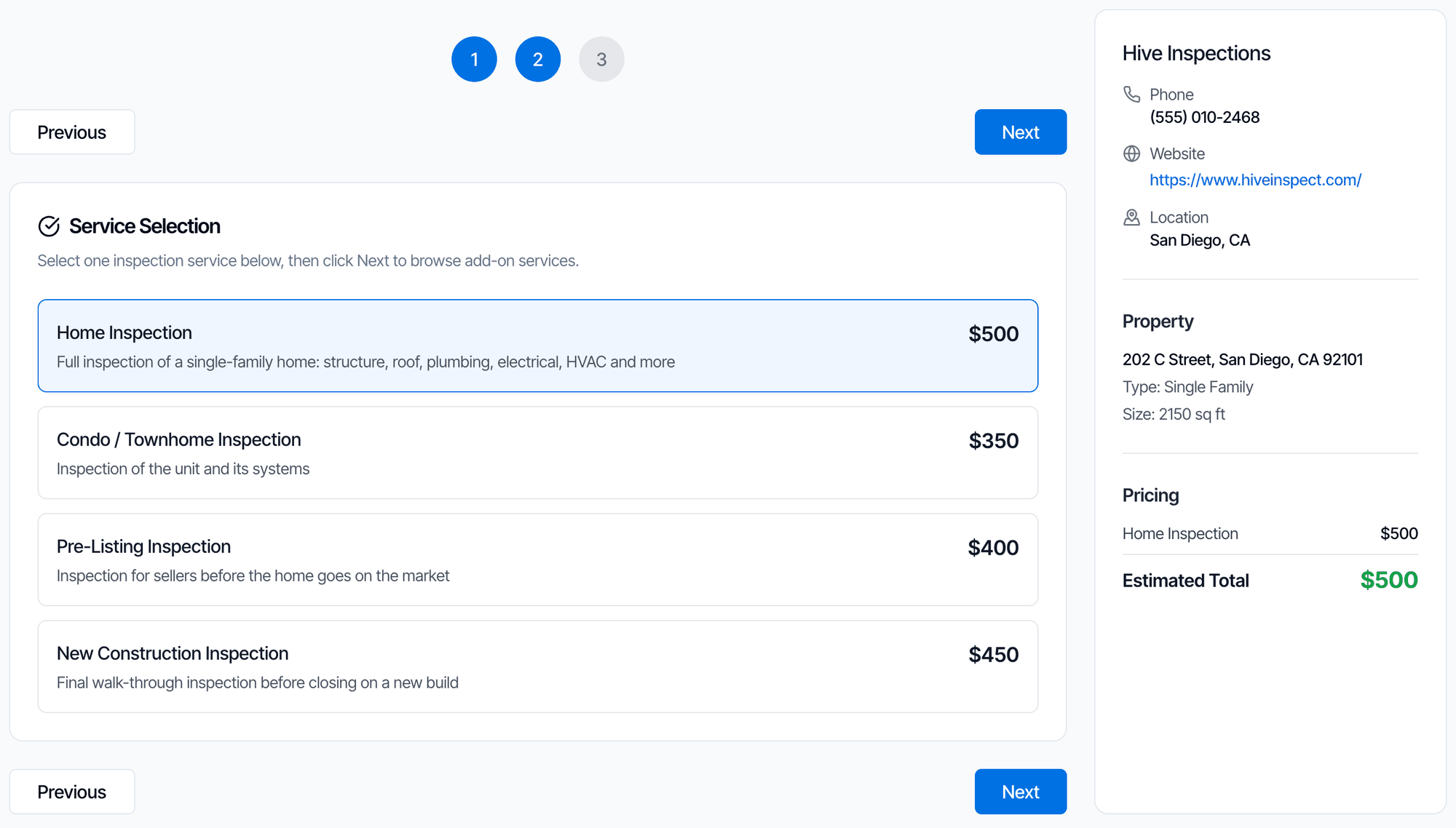
- The client picks one service. Each price already includes your price modifiers for this property. In the example, the base price is $425 and a square footage modifier adds $75 for 2,150 sq ft.
- Services with Hidden on scheduler turned on aren’t listed.
- If the service has no add-ons to offer, this is the last step.
Step 3: Add-on Services
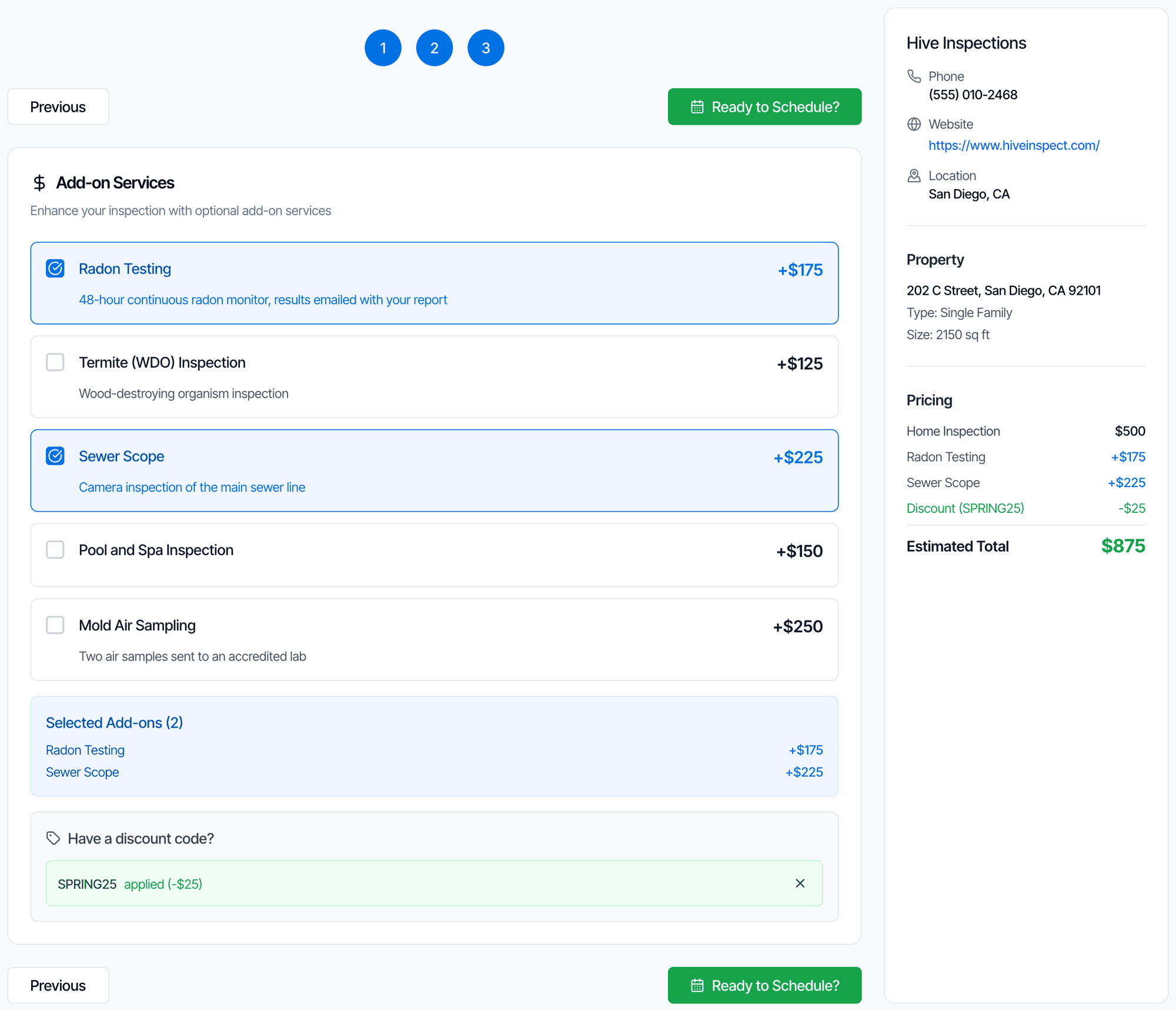
- The client ticks any add-ons. Add-ons with Hide from Scheduler turned on aren’t listed.
- Have a discount code? appears when you have a discount code that could apply to the chosen service. Choosing a different service removes the code.
- The Pricing summary lists the service, each add-on, any discount and the Estimated Total, each rounded to the whole dollar.
Ready to Schedule?
The client clicks Ready to Schedule? to book. Your scheduling widget opens with the address, property details, service, add-ons, discount code and custom field answers already filled in.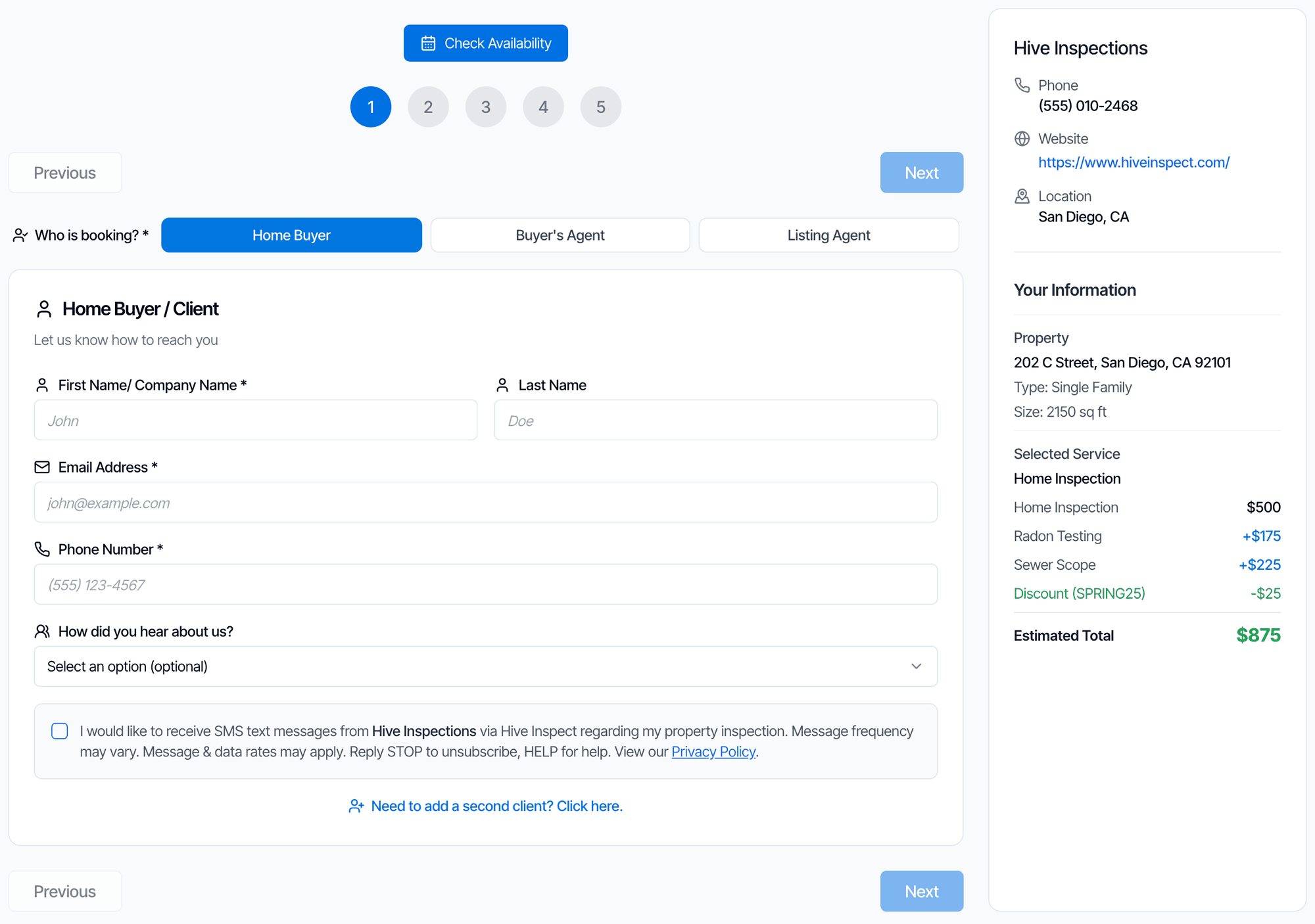
How the quote price is worked out
The quote uses the same prices and rules as your scheduling widget:- Service price: the base price plus the service’s price modifiers for square footage, year built, distance, foundation and custom field answers. Only a foundation modifier gets its own line in the summary. The others are folded into the service price.
- Add-ons: each add-on’s price, including its own modifiers.
- Discount code: taken off if it applies to what the client picked.
- Sales tax. See Sales tax.
- Modifiers that depend on the date or time, like weekend or after-hours fees. The client hasn’t picked a time yet.
Settings that apply to the quote widget
The quote widget has no settings page of its own. It uses your services and a few of the settings in Org Settings → Scheduling. See Open the Scheduling settings for how to change them.Common questions
Where do I see the quotes clients asked for? You don’t. A quote on its own isn’t saved. You see the client once they click Ready to Schedule? and get past the property step of the scheduling widget. Then you get a New Booking Started email and text. The client’s invoice is higher than the quote. The quote leaves out sales tax and date or time modifiers. See How the quote price is worked out. A service shows $0. It has no base price. Set one in Business Tools → Services & Fees, or turn on Hidden on scheduler for it. Step 2 has no services to pick. Every service is set to Hidden on scheduler, or you haven’t added any yet. Add or unhide a service in Business Tools → Services & Fees. A client typed the address by hand and the price is lower than expected. Distance modifiers need the address picked from the suggestions. Ask the client to pick their address from the list. The quote widget says “Online Quoting Temporarily Unavailable”. Your account can’t take new inspections right now, usually because the free trial reports are used up or the subscription has ended. See I used up my free trial reports.Where to go next
- Add the online scheduling widget: the booking form, the date and time page and every scheduling setting.
- Price modifiers: change prices by size, age, distance and more.
- Add-on services: what clients can add to a service.
- Discount codes: create codes clients can enter.