

In the dashboard: Org Settings → Sender Email Verification
By default, Hive sends your emails as “Your Company via HiveInspect” from a Hive address, and client replies go to your company email. Once you verify your domain, your emails come straight from your own address instead, such asinspections@yourcompany.com.
This page walks through the setup and, most of all, what to do when your DNS records won’t verify. For the short version of the steps, see Sender Email Verification in Org Settings.
What changes when you send from your domain
Hive uses your domain for the emails it sends for your company, including:
- automated emails from your automations,
- emails you write with Compose,
- reports you email to clients and agents,
- invoice and balance-due emails,
- review requests and agreement emails,
- team notifications and the daily schedule email.
Nothing changes until your domain is verified and you turn on Activate sending from your domain. Your emails keep going out via HiveInspect while you wait, so you can’t break anything by starting.
Before you start
- You need an email address on a domain you own, such as
yourcompany.com. Gmail, Yahoo, Outlook.com, iCloud, AOL and other free addresses can’t be verified, because you can’t change their DNS. - You need to sign in where your domain’s DNS is managed. That’s usually where you bought the domain (GoDaddy, Namecheap, Squarespace) or where your website lives, or Cloudflare. If someone else built your website, they may need to add the records for you.
- Make sure replies can reach you. Once you activate, replies go to the address you send from. If you already have a mailbox at your domain (Google Workspace, Microsoft 365 or your web host), use that address. If you only use Gmail or another free inbox, set up email forwarding from the new address to your inbox first. Your domain provider may include forwarding, or use a free service such as Cloudflare Email Routing. You don’t need a mailbox to verify, only to receive replies.
Step 1: Enter your sending address
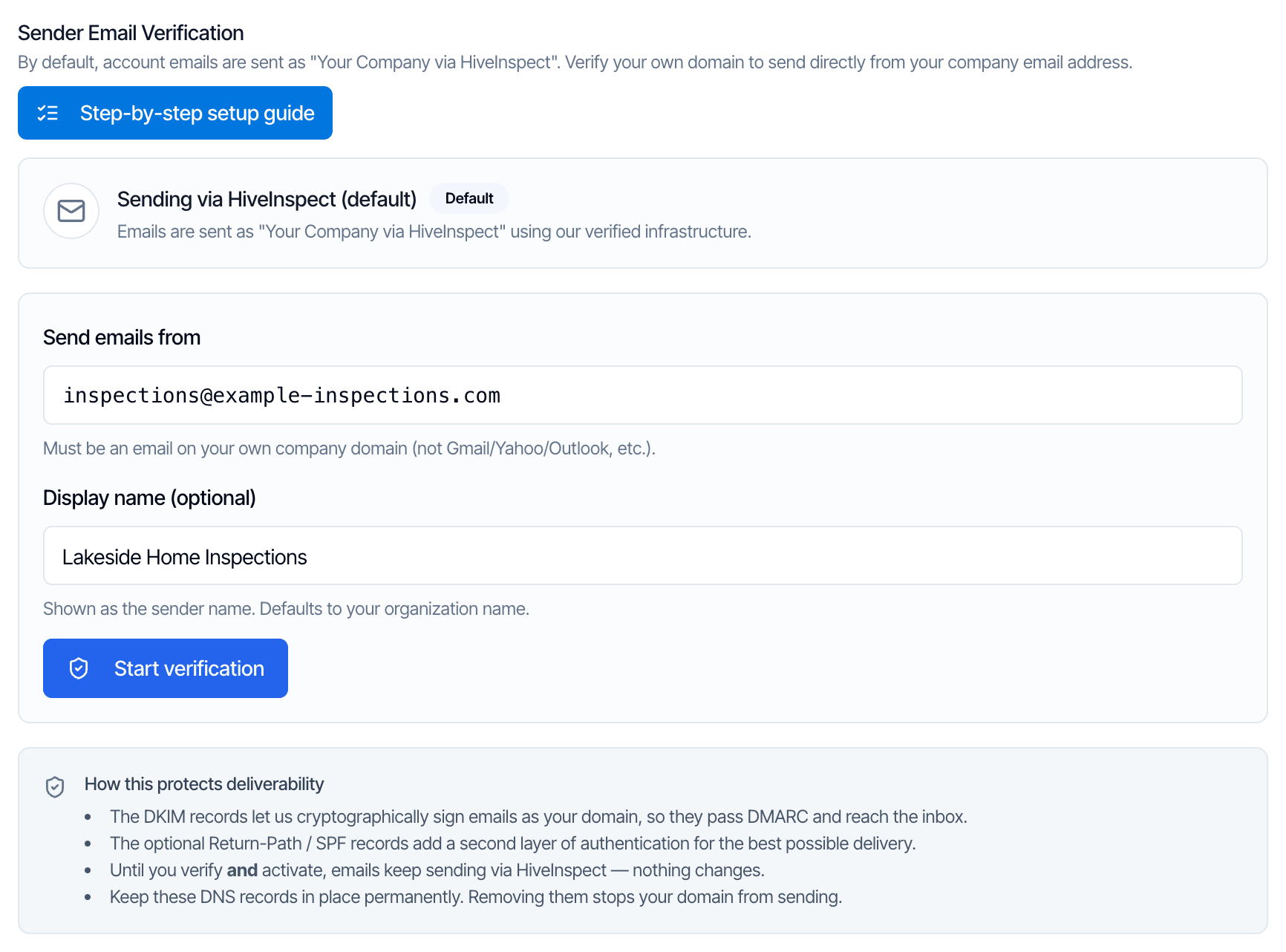
- Go to Org Settings and click Sender Email Verification to open the section.
- In Send emails from, type the address you want your emails to come from.
- In Display name (optional), type the name clients see as the sender, usually your company name. Leave it empty to use your organization name.
- Click Start verification.
Step 2: Add the DNS records
Hive shows the records under DNS records for your domain. Each one has a Name / Host, a Value and a copy button. Add every record at your DNS provider, using the copy buttons so nothing is mistyped.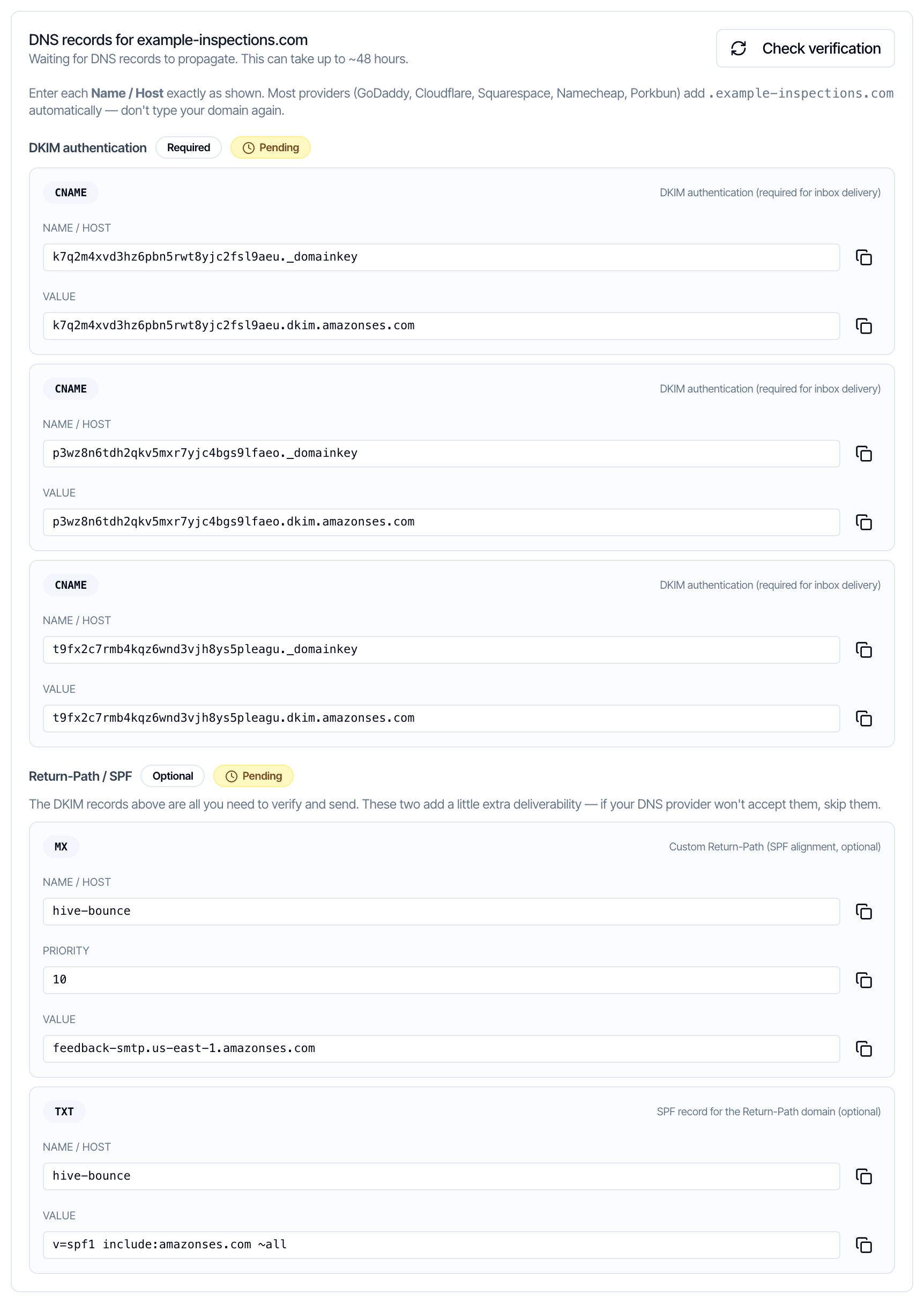
The codes in the DKIM records are unique to your domain. Always copy the records from your own screen, not from this page.
- The 3 DKIM records are all you need to verify and send. The Return-Path / SPF records add a little extra deliverability. If your provider won’t accept them, skip them.
- Type the Name / Host exactly as shown. Most providers add
.yourcompany.comto the end on their own, so don’t type your domain again. See The host has your domain twice. - These records don’t touch your inbox. The MX and TXT records sit on
hive-bounce, a separate name under your domain, so they don’t change where your own email is delivered or your main SPF record. - Keep the records in place for good. Removing them stops your domain from sending.
Set up before October 2026? Your Return-Path records may show
mail instead of hive-bounce as the host. Add them exactly as your screen shows.Where to add records at common providers
Provider screens change often, so these are only pointers. Look for DNS, DNS records or Advanced DNS, then add a record of the type shown.GoDaddy
GoDaddy
Open your domain, go to DNS, and click Add New Record. Pick the Type, paste the Name / Host into Name and the Value into Value (for the MX record, also set Priority to 10). GoDaddy adds your domain to the name on its own.
Squarespace (including domains moved from Google Domains)
Squarespace (including domains moved from Google Domains)
Open the domain in Domains, go to DNS (DNS Settings), and add a custom record. Paste the Name / Host into Host and the Value into Data. Squarespace adds your domain to the host on its own.
Cloudflare
Cloudflare
Open your domain, go to DNS → Records, and click Add record. Paste the Name / Host into Name and the Value into Target (CNAME), Mail server (MX) or Content (TXT).For the 3 CNAME records, set Proxy status to DNS only (grey cloud). A proxied (orange cloud) CNAME doesn’t show its value to the outside world, so the DKIM check can’t find it.
Namecheap
Namecheap
Go to Domain List, click Manage next to the domain, then open Advanced DNS and click Add New Record. Paste the Name / Host into Host and the Value into Value or Target. If Namecheap won’t let you add the MX record without changing your own mail settings, skip it: it’s optional.
Someone else (website builder, IT person, other host)
Someone else (website builder, IT person, other host)
Add the records wherever your domain’s nameservers point. If your domain is registered at one company but your website host manages its DNS, the records go at the website host. Records added at the wrong company are never seen.
Step 3: Check verification
DNS changes take anywhere from a few minutes to about 48 hours to show up. Come back and click Check verification to refresh the status.
Each group has its own status chip:
Only DKIM decides whether your domain is verified. The line under DNS records for your domain also tells you where you are, for example Verified! You can activate sending now.
Step 4: Activate and send a test email
Once DKIM shows Verified, a green box appears.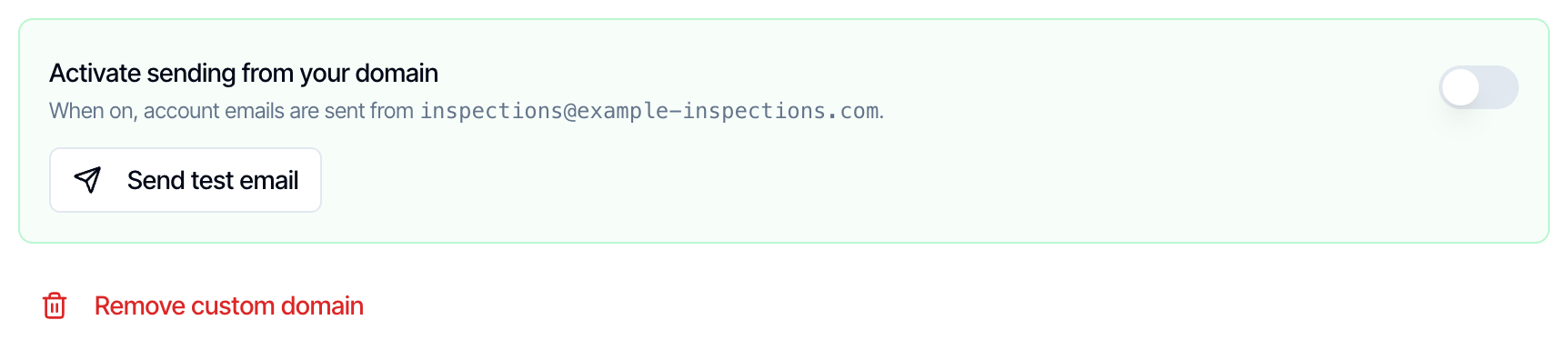
- Click Send test email. Hive sends a test email from your address to that same address, with the subject Test email from your company name. Check that it reaches the inbox, not spam, and shows your address as the sender. The test works even before you activate.
- Turn on Activate sending from your domain. You see Now sending from your domain.

Troubleshooting
Records not found
Most domains that won’t verify have one of these problems:- The host has your domain twice. See the next section.
- The records were added at the wrong company. Check where your nameservers point (see Someone else).
- A CNAME value was mistyped or cut short. Delete it and add it again with the copy button. Each of the 3 records has a different code.
- Cloudflare is proxying the CNAMEs. Set them to DNS only.
- The record type is wrong. The DKIM records must be CNAME, not TXT.
.yourcompany.com) as a CNAME with a public DNS lookup tool, such as Google’s Admin Toolbox Dig. It should answer with the matching Value.
The host has your domain twice
Most providers add your domain to whatever you type in the name box, without telling you. If you pasteabc._domainkey.yourcompany.com, the record ends up as abc._domainkey.yourcompany.com.yourcompany.com, and Hive never finds it. The same goes for hive-bounce.yourcompany.com.yourcompany.com.
Hive already shows the short name, like abc._domainkey or hive-bounce. Paste only that. If your provider shows the full name after saving, check that your domain appears once at the end.
Waiting for DNS to update
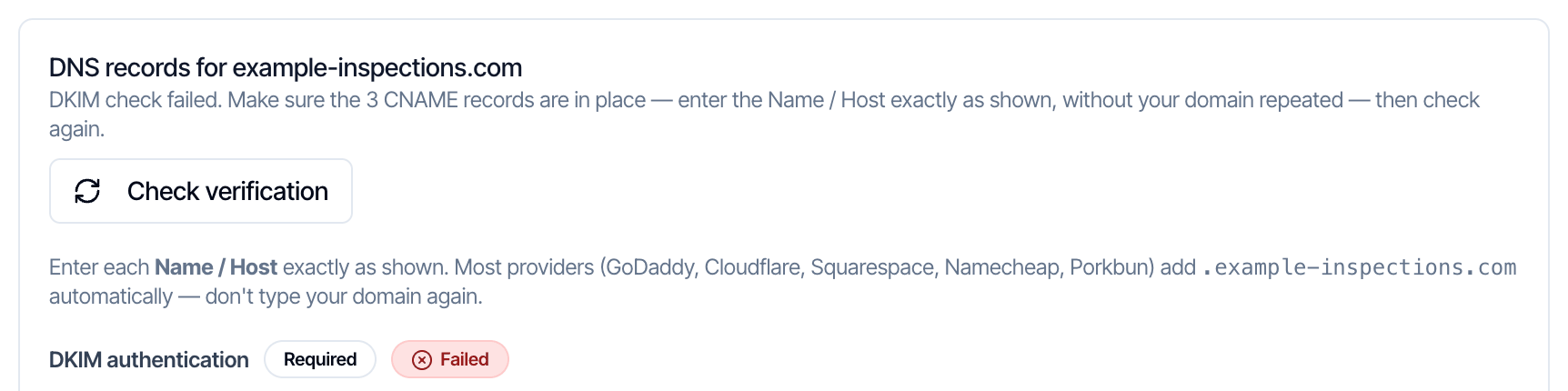
New records usually show up within an hour, but can take up to about 48 hours. Clicking Check verification more often doesn’t speed it up. If DKIM still shows Pending after 48 hours, the records probably aren’t right: go through Records not found.DKIM shows Failed even though I fixed the records
I already have an SPF record
Keep it as it is. You don’t need to change the SPF record on your main domain, and don’t add a second one there. Hive’s optional TXT record goes onhive-bounce, which is a separate name, so it doesn’t clash with your existing SPF. If your provider still refuses it, skip the optional records.
I already have a DMARC record
Keep it. Hive never asks you to add or change a DMARC record. Once you activate, your emails are signed with your domain’s DKIM key, which is what DMARC checks for. Before you activate, your emails come from Hive’s domain, so your DMARC policy doesn’t apply to them.My provider won’t accept the MX or TXT record
Those are the optional Return-Path / SPF records. Skip them. The DKIM records alone verify your domain and let you activate.Errors when you click Start verification
Emails went back to “via HiveInspect”
If your DKIM records are removed or stop working, Hive switches you back to sending via HiveInspect the next time it checks your status, so your emails keep going out. Put the records back, click Check verification, and turn Activate sending from your domain on again once DKIM shows Verified.Turn it off or go back
- Pause it: turn off Activate sending from your domain. You see Reverted to HiveInspect, and your emails go out as “Your Company via HiveInspect” again. Your domain stays verified, so you can turn it back on at any time.
- Remove it: click Remove custom domain and confirm. Hive forgets the domain, and your emails go back to “via HiveInspect”. After that, you can delete the DNS records.
Change the address or start over
The Send emails from and Display name fields are locked once verification starts. To use a different address or domain, click Remove custom domain, then enter the new address and click Start verification again. Starting again gives you a new set of records, even on the same domain. Delete the old DKIM records at your DNS provider and add the new ones, then verify as before.Common questions
Will this stop my emails from going to spam?
Will this stop my emails from going to spam?
It helps. Your emails are then signed by your own domain and pass DMARC checks for it, which is what inbox providers look for. It can’t promise the inbox on its own. See Why are my emails going to spam?.
Do I need to do this?
Do I need to do this?
No. Without it, Hive still sends all your emails as “Your Company via HiveInspect”, and replies still reach your company email. Do it if you want your own address on every email, or if clients say your emails land in spam.
Can I use my Gmail address?
Can I use my Gmail address?
No. Only an address on a domain you own can be verified. You can still keep Gmail as your inbox: send from your domain and forward that address to Gmail, as described in Before you start.
Will adding these records break my website or my email?
Will adding these records break my website or my email?
No. The DKIM records sit under
_domainkey, and the optional ones under hive-bounce. Neither touches your website, your main SPF record or the MX records that deliver your own email.Where do replies go?
Where do replies go?
Once you activate, to the address you send from. Before that, to your company email. Make sure that address has a mailbox or forwarding before you activate.
Does each inspector need their own domain?
Does each inspector need their own domain?
No. It’s one setting for the whole company, and all your company’s emails use the same sending address.
I followed every step and it still won't verify.
I followed every step and it still won't verify.
Message us from the chat bubble in the dashboard with your domain and where its DNS is managed, or click Step-by-step setup guide and then Request Hive staff setup. Our team will help you finish it.
Related