

In the dashboard: Business Tools → Public Page.
Your public page is a mini-website for your company that Hive hosts for you. It pulls in your logo, contact details, services, team, sample reports and FAQs from your account, and has buttons for clients to book or ask for a quote. Share it anywhere you need one link: your Facebook bio, your email signature, a yard sign or a business card. If you’re just starting out and don’t have a website yet, it can stand in for one.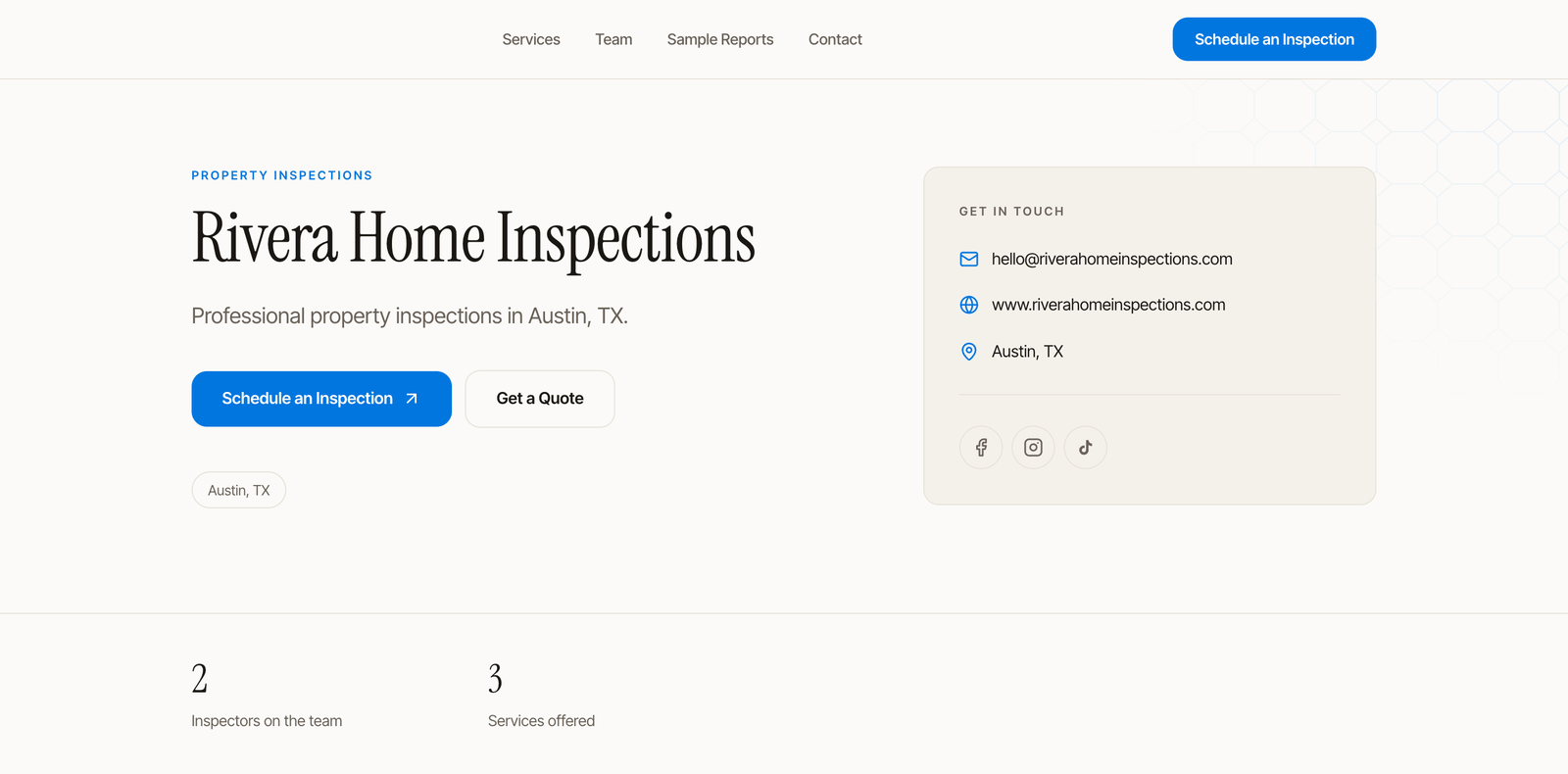
Your page is off until you turn it on. Until then, anyone who opens the link sees This page isn’t available. You can set it up and preview it first.
Who can edit it
Anyone on your team with the Business Tools permission. See What each permission does.How the editor works
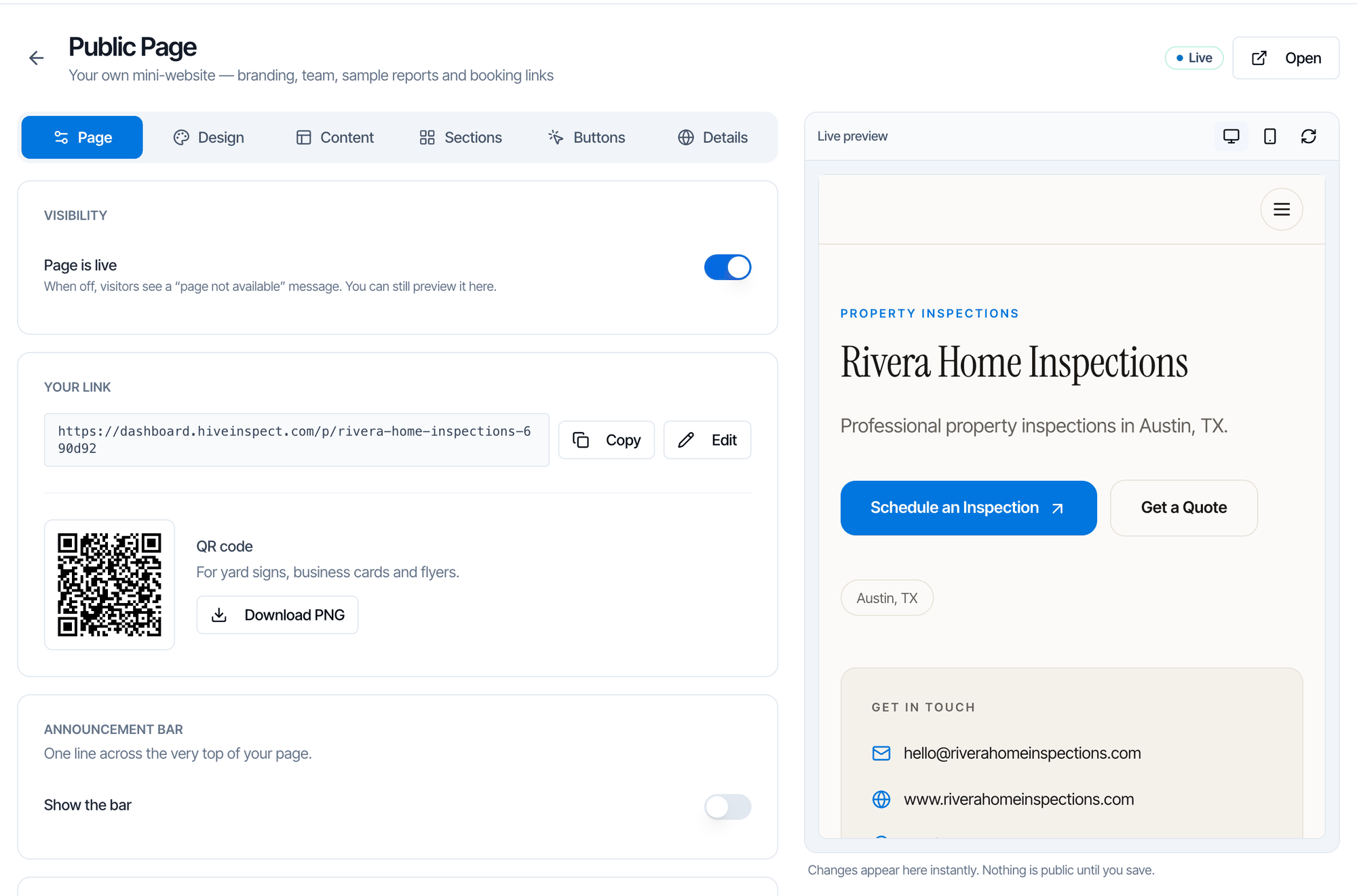
- The settings are split into six tabs: Page, Design, Content, Sections, Buttons and Details.
- The Live preview on the right updates as you change things. Switch between desktop and phone with the two icons above it, or click the reload icon.
- Nothing is public until you save. When you have unsaved changes, a bar appears at the bottom with You have unsaved changes and a Save button. You see Public page updated when it’s saved.
- The badge at the top right shows Live or Hidden. Next to it, Open opens your live page in a new tab. While the page is hidden, the button reads Preview and opens a preview that only you and your team can see, while signed in to Hive.
Turn your page on
- Open Business Tools → Public Page.
- Set up the page the way you want it.
- On the Page tab, under Visibility, switch on Page is live.
- Click Save.
Your link and QR code
Your page lives athttps://dashboard.hiveinspect.com/p/your-link. Hive makes the link from your company name plus a few characters, for example rivera-home-inspections-690d92.
Under Your link on the Page tab:
- Copy copies the full address (Link copied).
- Edit lets you change the part after
/p/. Use 3 to 60 lowercase letters, numbers and dashes. Hive checks it as you type and tells you if That link is already taken. or That link is reserved. Please choose another. Click the check mark to save it (Link updated). - QR code: “For yard signs, business cards and flyers.” Click Download PNG to save it as an image.
/p/ followed by your organization ID) always works, and forwards to your current link.
Page tab
Announcement bar
One line across the very top of your page, for example “Now booking for October — same-week availability”. Switch on Show the bar, type up to 120 characters, and add an optional Link.Search & sharing
“How your page appears in Google results and link previews.”
When someone pastes your link into Facebook, a text message or an email, the preview card shows your logo, company name and city.
Can people find the page on Google? Search engines may list your page once it has some real content. Hive only lets them index it when it has at least two of these: your logo, a service on the page, a sample report on the page, a team member with a photo, an About your company intro, or a website in your profile. Until then, the page still works for anyone with the link. Hive doesn’t submit your page to Google for you, and we can’t promise how it ranks. Share the link to help it get found.
Design tab
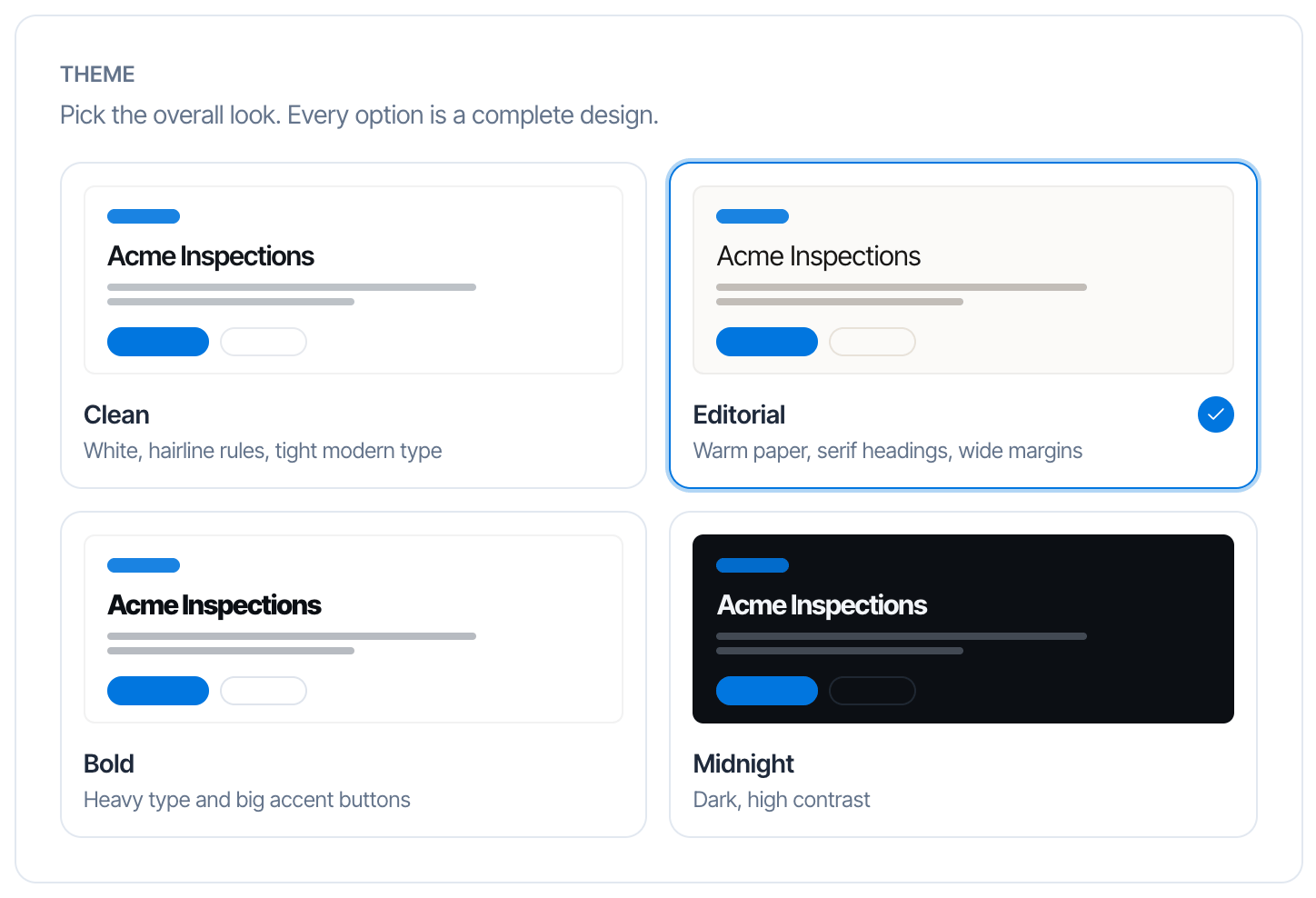
- Theme: “Pick the overall look. Every option is a complete design.” Clean (white, hairline rules, tight modern type), Editorial (warm paper, serif headings, wide margins), Bold (heavy type and big accent buttons) or Midnight (dark, high contrast).
- Brand color: the Accent color for buttons, links and highlights. Pick a swatch or your own color. Button text turns dark on its own if you pick a pale color.
- Alternate section backgrounds: tints every other section.
- Corners: Square, Rounded or Pill.
- Header: the layout of the top of the page. Split (intro on the left, contact card on the right), Centered, or Cover photo (a full-width photo behind the intro). Cover photo needs a cover image first. With a cover photo, use Photo darkening until your text is easy to read.
- Eyebrow text: the small line above your name. Blank shows “Property Inspections”.
- Show your logo: turn off if your logo already contains your company name.
- Cover image: JPG, PNG or WEBP, up to 10MB. Wide shots work best. It saves as soon as it uploads.
Content tab
Use the arrows on each item to move it up or down.
Sections tab
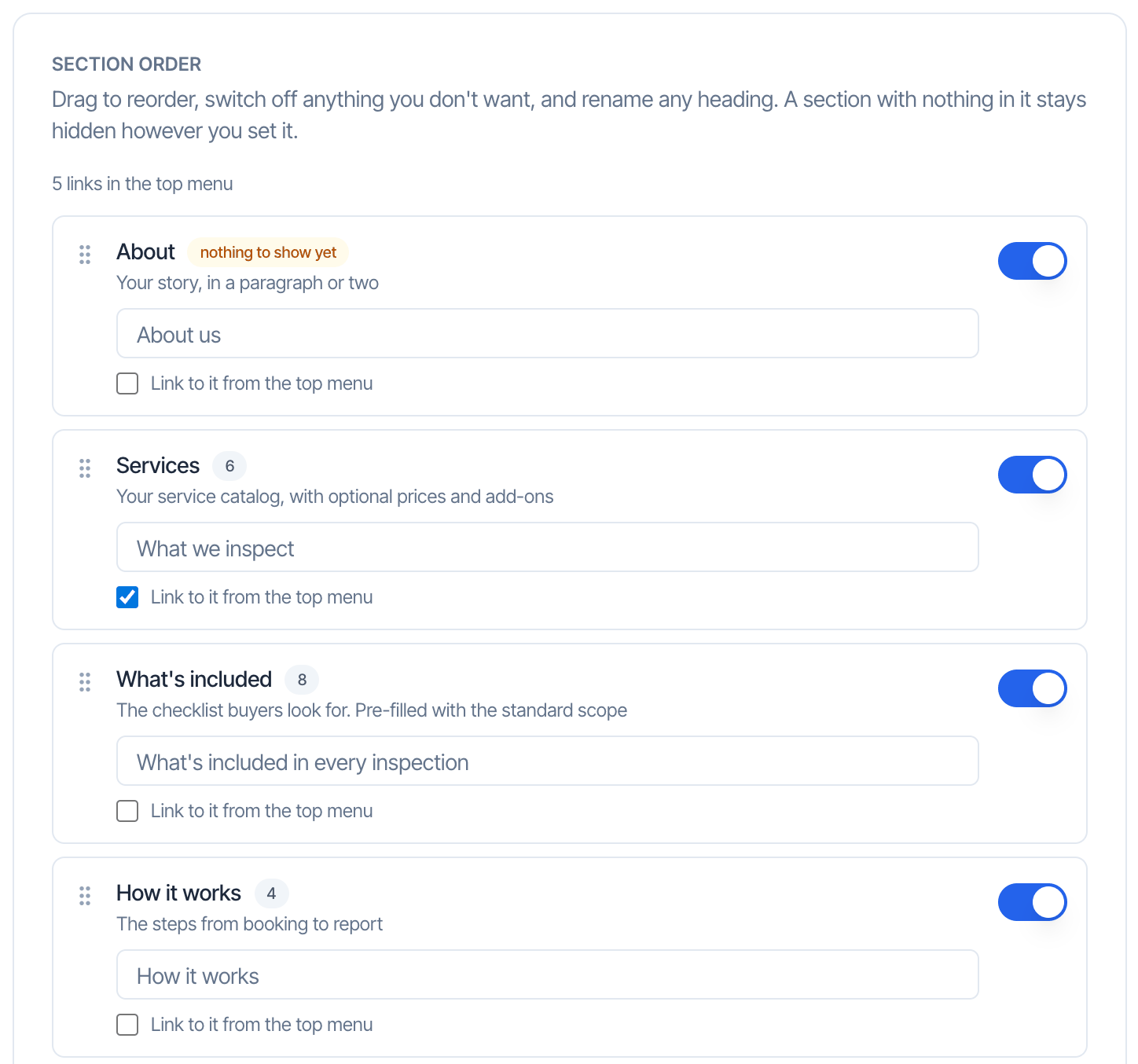
Section order lists every section on the page. For each one you can:- Drag it by the handle to move it up or down the page.
- Switch it off to hide it.
- Rename its heading. Leave the box blank to keep the built-in heading.
- Tick Link to it from the top menu to add it to the menu at the top of the page.
Buttons tab
Action buttons are “Shown in the header, the introduction and the contact section. The first one you turn on becomes the main button.”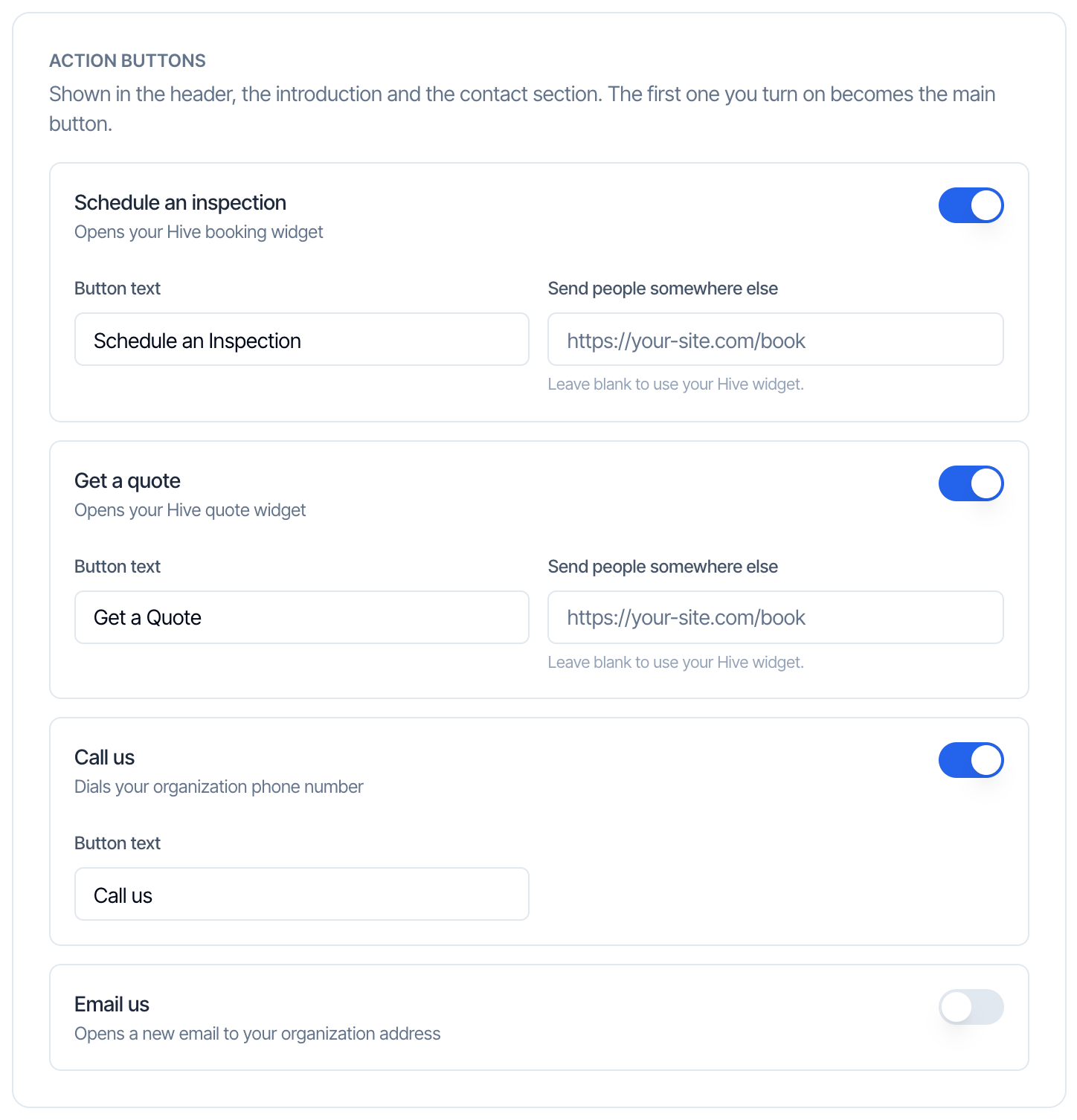
- Button text changes the label, up to 40 characters.
- Send people somewhere else, on the schedule and quote buttons: paste a link if you book through your own website. Leave it blank to use your Hive widget.
- A button that can’t work doesn’t show. Call us needs a phone number and Email us an email address in your Profile Settings. The schedule button is hidden when your account can’t take bookings (no reports left on your plan), unless you’ve set your own link.
Details tab
Team
Shows each inspector on your account with their photo, name and credentials. Switches: Show credentials, Show short bios and Black & white photos (photos turn full color when someone hovers them). Under Who appears, switch off anyone you want to leave out. People with no photo show as initials until they add one in Profile Settings.Services
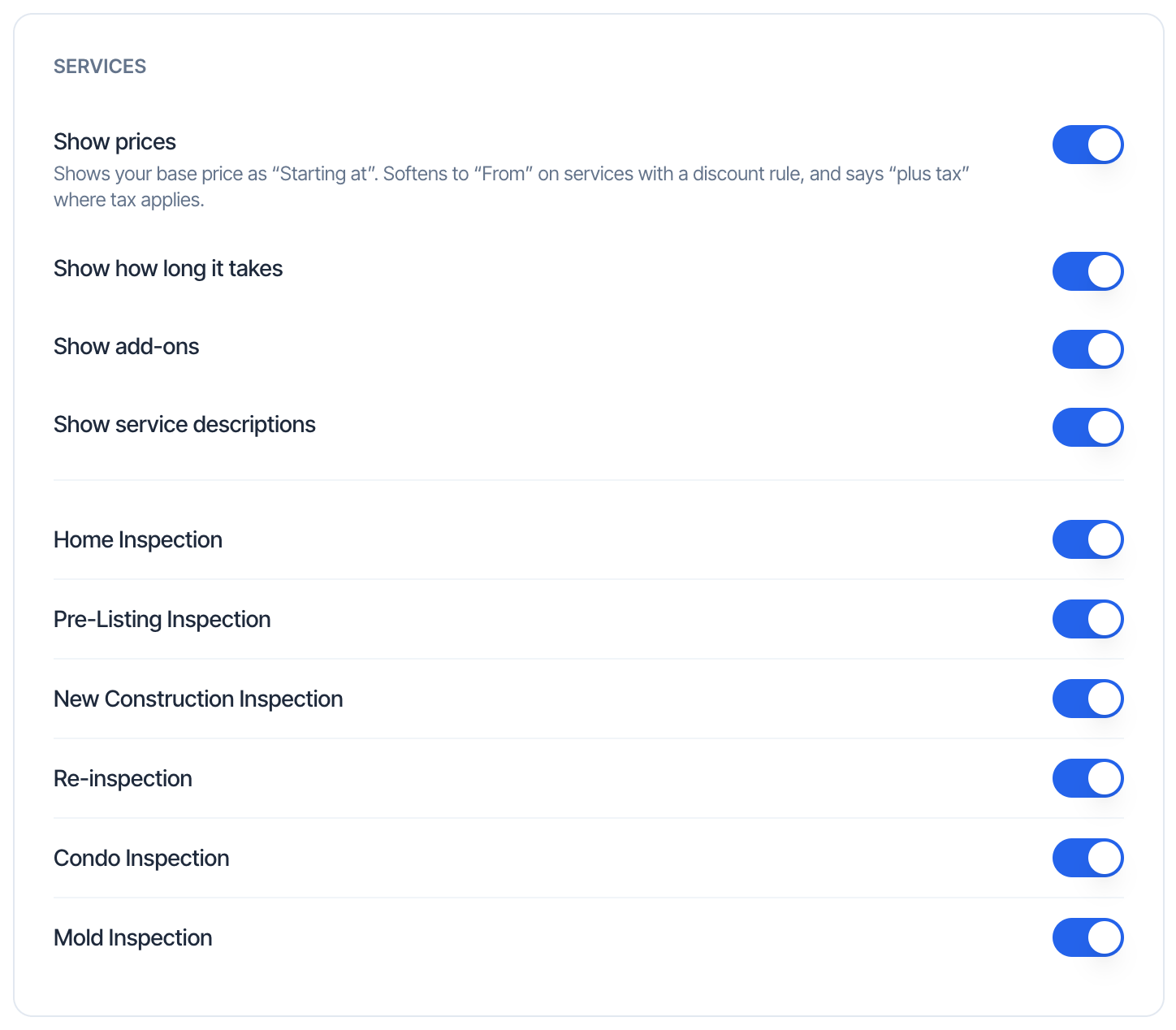
- Show prices: “Shows your base price as “Starting at”. Softens to “From” on services with a discount rule, and says “plus tax” where tax applies.” A service priced at $0 shows no price.
- Show how long it takes: shows “Typically” and the service length.
- Show add-ons and Show service descriptions.
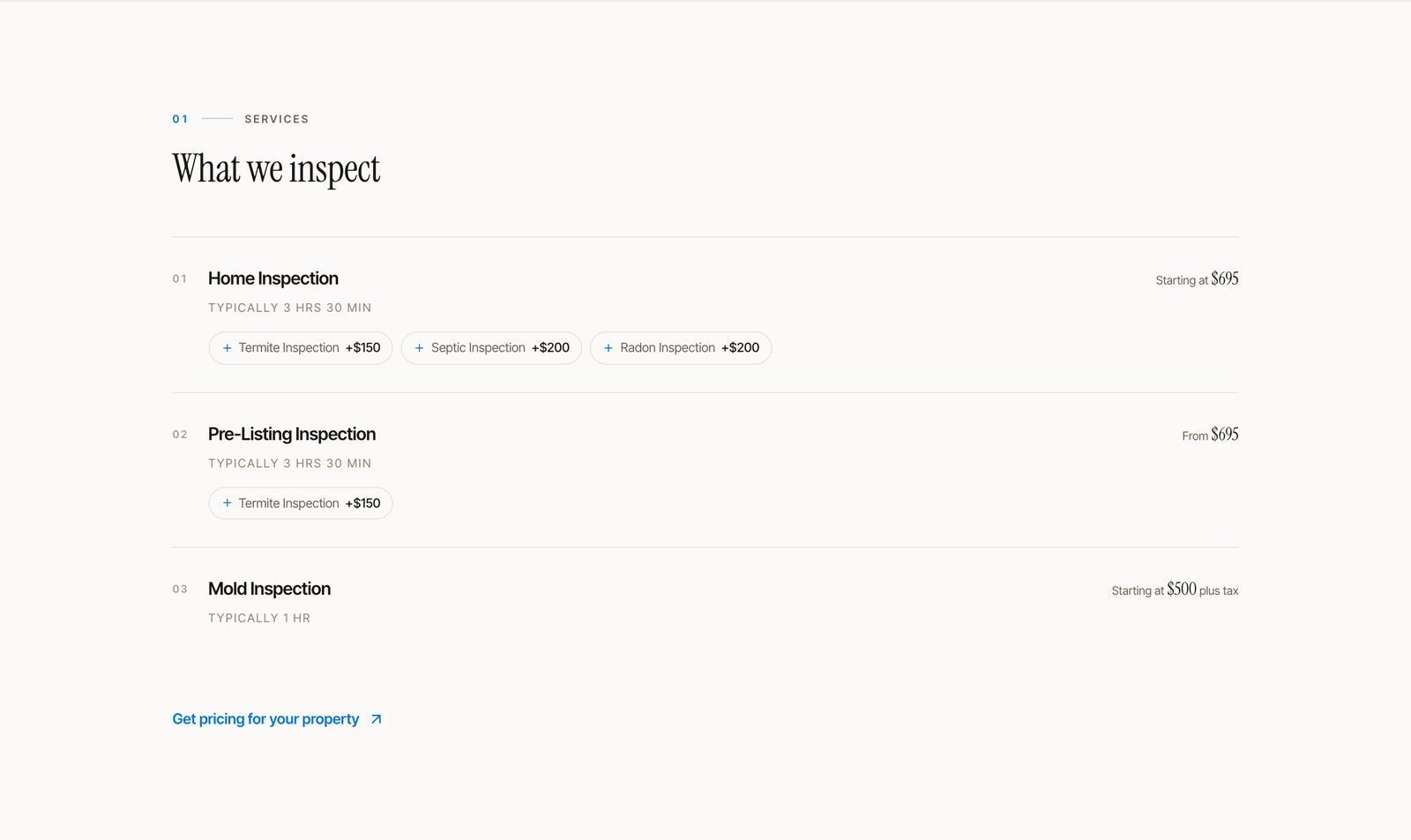
If you turned off Show Pricing on Online Scheduler in Org Settings, prices are hidden on your public page too, whatever Show prices says.
Sample reports
Lists your completed sample reports, newest first. Switch off any you don’t want to show. Each one opens the sample in the online report viewer. If you have none yet, create one from a report’s Tools menu.Licences & certifications
“Pulled from the licence numbers and credentials on your team’s profiles.” Switches: Show licence numbers and Show certifications. Under Anything else to add, list up to 12 more, such as insurance or association memberships.Guarantees
“Only shown when true.”- Show pay at close shows a Pay at close promise, only if you accept Pay at Close.
- Show InterNACHI Buy-Back Guarantee shows the Buy-Back badge, only if your InterNACHI connection is active and enrolled.
- Your own promises: add up to 6, each with a title and a line of text, for example “Report within 24 hours”.
Service area
Show the towns I work in lists the towns you’ve inspected in, most frequent first. To list them yourself, add towns under Or list them yourself; your list then replaces the automatic one. Add an optional Note, such as how far you travel. Each inspector’s Service Area from their profile shows here too.Hours
Taken from General Business Hours in your profile, and only shown if you’ve changed them from the default 7:00 AM to 7:00 PM. Add an optional Note, such as “Evening and weekend inspections available on request.”Contact details
Choose which details appear: Phone number, Email address, Website, Address and Social links. They come from your company details in Profile Settings and your links in Socials. Your street address only shows if Display Address on Profile is also on; otherwise the page shows your city and state.Numbers band
The row of numbers under your introduction. Show the numbers band turns it on or off. Hive fills it from your years of experience, the number of inspectors on the page and the number of services on the page (each only when it’s more than one). Under Add your own, add numbers such as “500+ Inspections completed”. The band shows up to four.Footer
A Footer note under your copyright, up to 200 characters, for example “Licensed and insured in the State of Montana · Lic #12345”.What the page pulls in for you
Change these in their own settings and the page updates on its own.
The “Powered by Hive” footer
Every public page ends with your copyright and a small Powered by Hive link. It’s the one place clients see Hive’s name: the booking and quote widgets stay fully branded as you.
Common questions
I shared my link but people see This page isn't available
I shared my link but people see This page isn't available
Your page is off. Open Page, switch on Page is live and click Save. If it’s already on, check you shared the current link: changing it under Your link breaks the old one.
How do I hide my prices?
How do I hide my prices?
Switch off Show prices on the Details tab and click Save. Turning off Show Pricing on Online Scheduler in Org Settings hides them on the scheduler and the public page together.
Why is a section missing from my page?
Why is a section missing from my page?
A section with nothing in it is hidden, for example About before you write anything, or FAQs before you add your own in FAQ Management. On the Sections tab, these show nothing to show yet. Also check its switch is on.
Can I use my own domain?
Can I use my own domain?
No. The page lives at
dashboard.hiveinspect.com/p/ plus your link. You can change the part after /p/. If you want your own website, see Website Services.Can I send people to my own booking page instead?
Can I send people to my own booking page instead?
Yes. On the Buttons tab, paste your link into Send people somewhere else under Schedule an inspection or Get a quote.
Can I remove Powered by Hive?
Can I remove Powered by Hive?
No. There’s no setting for it.
Where else can I find the page?
Where else can I find the page?
Business Tools → Widget Integration has a Your public page card with a Manage page button that opens the same editor.