

In the dashboard: Business Tools → Services & Fees, then Automations
If you send work to a subcontractor for termite, septic, radon or any other add-on, Hive Inspect can email them the moment an inspection carrying that add-on is booked. Set it up once per subcontractor and you never have to forward another job by hand. The same automation can tell them when a job moves or gets cancelled.Automating subcontractor emails
How the matching works
The automation does not look at which subcontractor you picked. It looks at the text of the service or add-on name on the inspection. So the name you give the add-on is what connects the job to the right subcontractor, and it has to contain something unique to that company. Give one subcontractor’s add-on a name like “XYZ Termite Inspection” and another’s “ABC Termite Inspection”, then build one automation per company that fires on that company’s text.Set it up
Name your subcontractor add-ons
0:23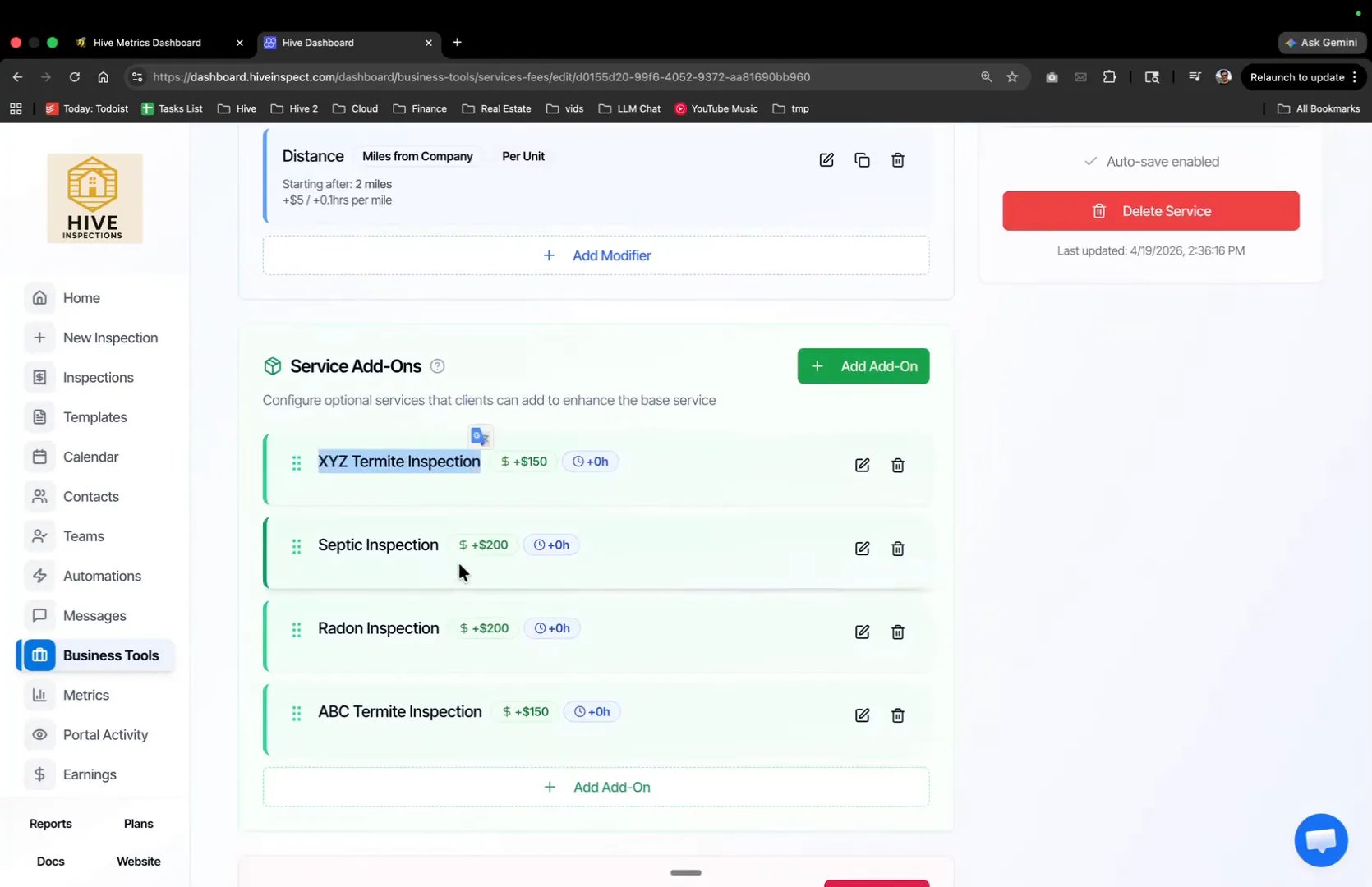
- Go to Business Tools → Services & Fees and click Edit on the service you want, for example Duplex
- Under Service Add-Ons, name each subcontractor’s add-on so it contains that company’s name
- Two subcontractors covering the same work get two separate add-ons, such as XYZ Termite Inspection and ABC Termite Inspection
Start the automation and set the trigger
0:57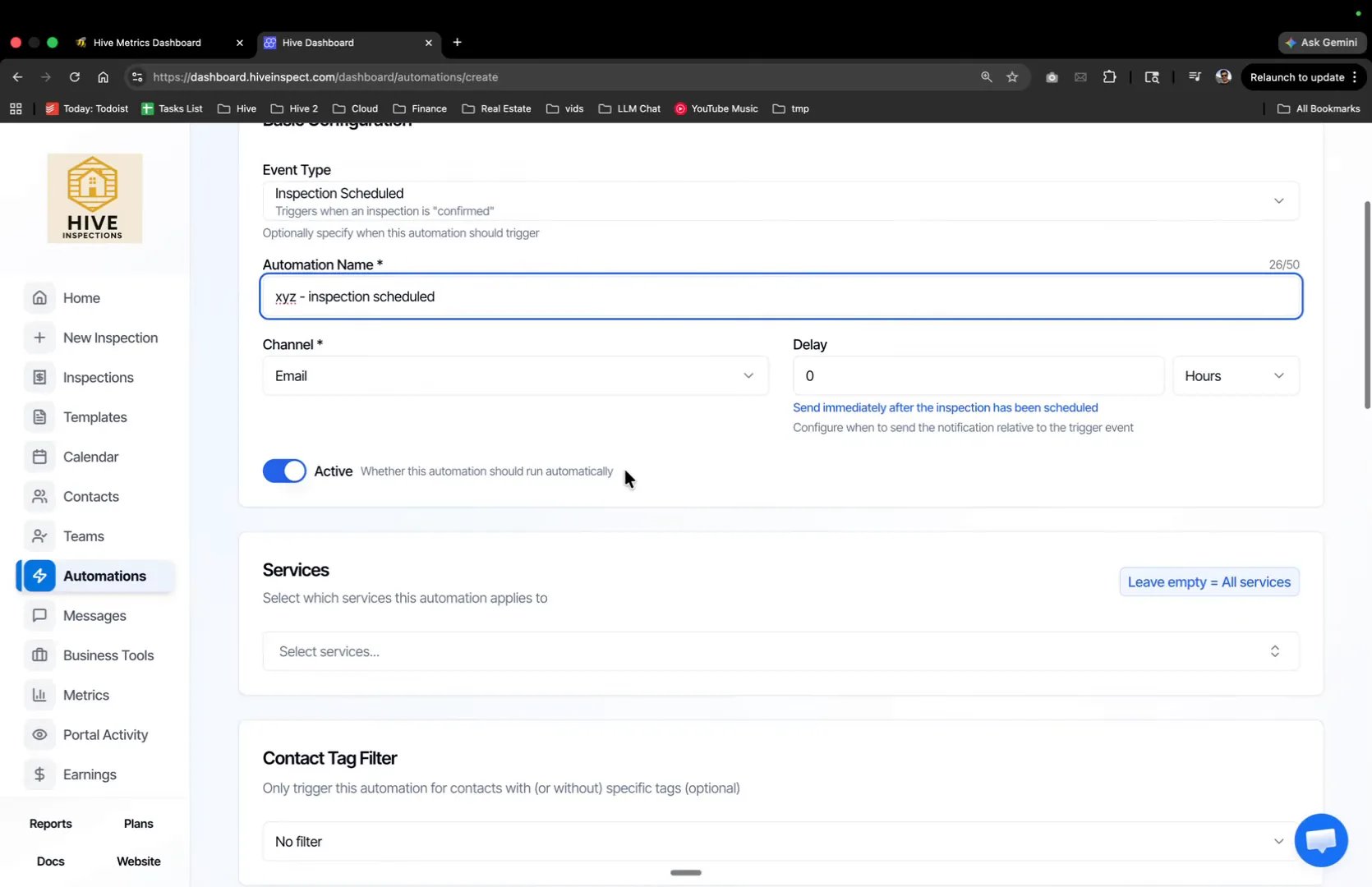
- Go to Automations and click Create
- Set Event Type to Inspection Scheduled
- Give it a name you will recognise later, such as “xyz - inspection scheduled”
- Set Channel to Email and Delay to 0 hours so it sends as soon as the inspection is confirmed
- Leave Services empty, which applies the automation to every service that carries the add-on, and leave Contact Tag Filter on No filter
Filter on the add-on name
1:33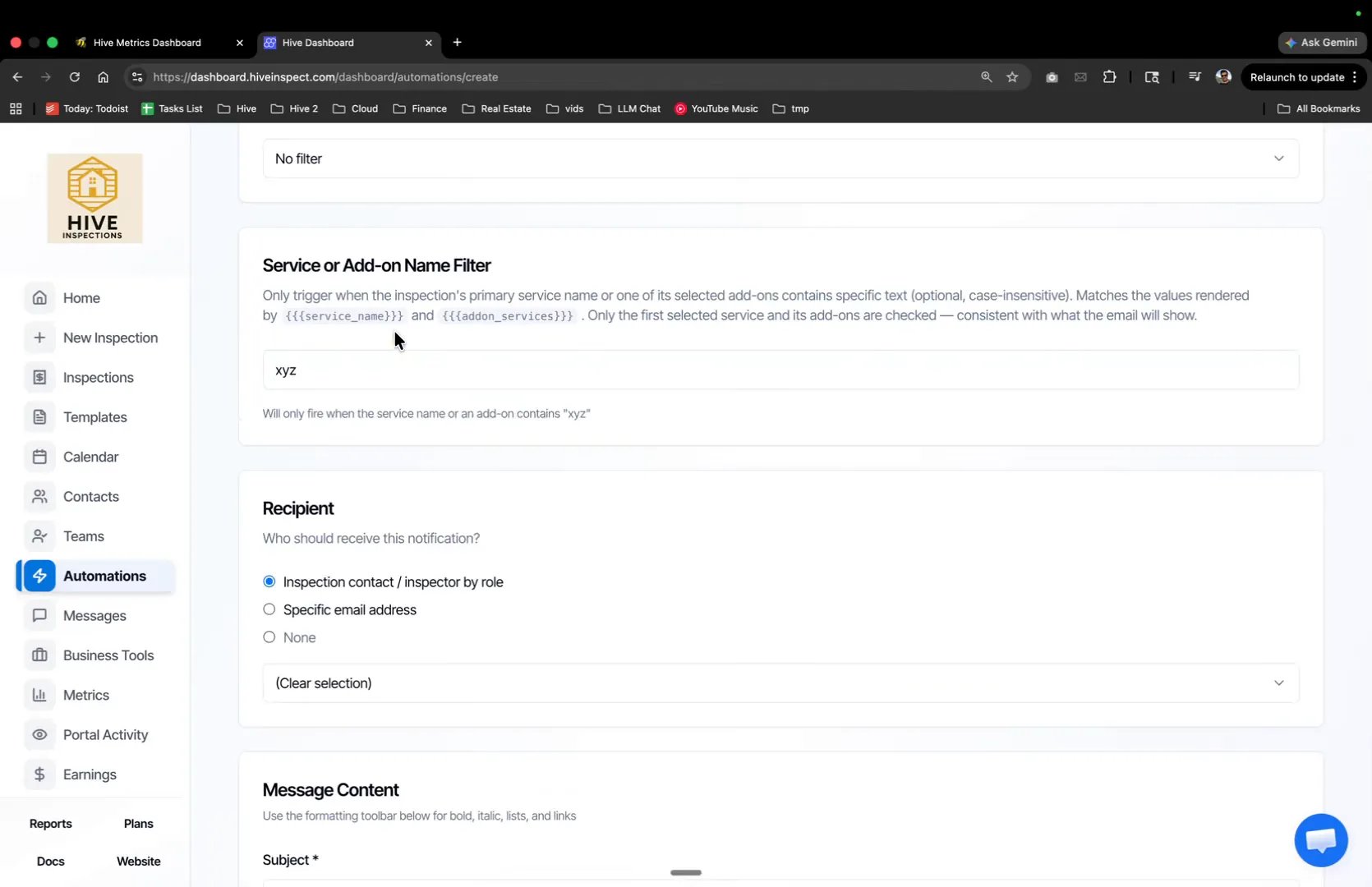
- In Service or Add-on Name Filter, type the text that identifies this subcontractor, for example
xyz - The match is case-insensitive and checks both the main service name and its add-ons
- Add more text entries here if several of your services carry that company’s name
Choose who receives it
2:00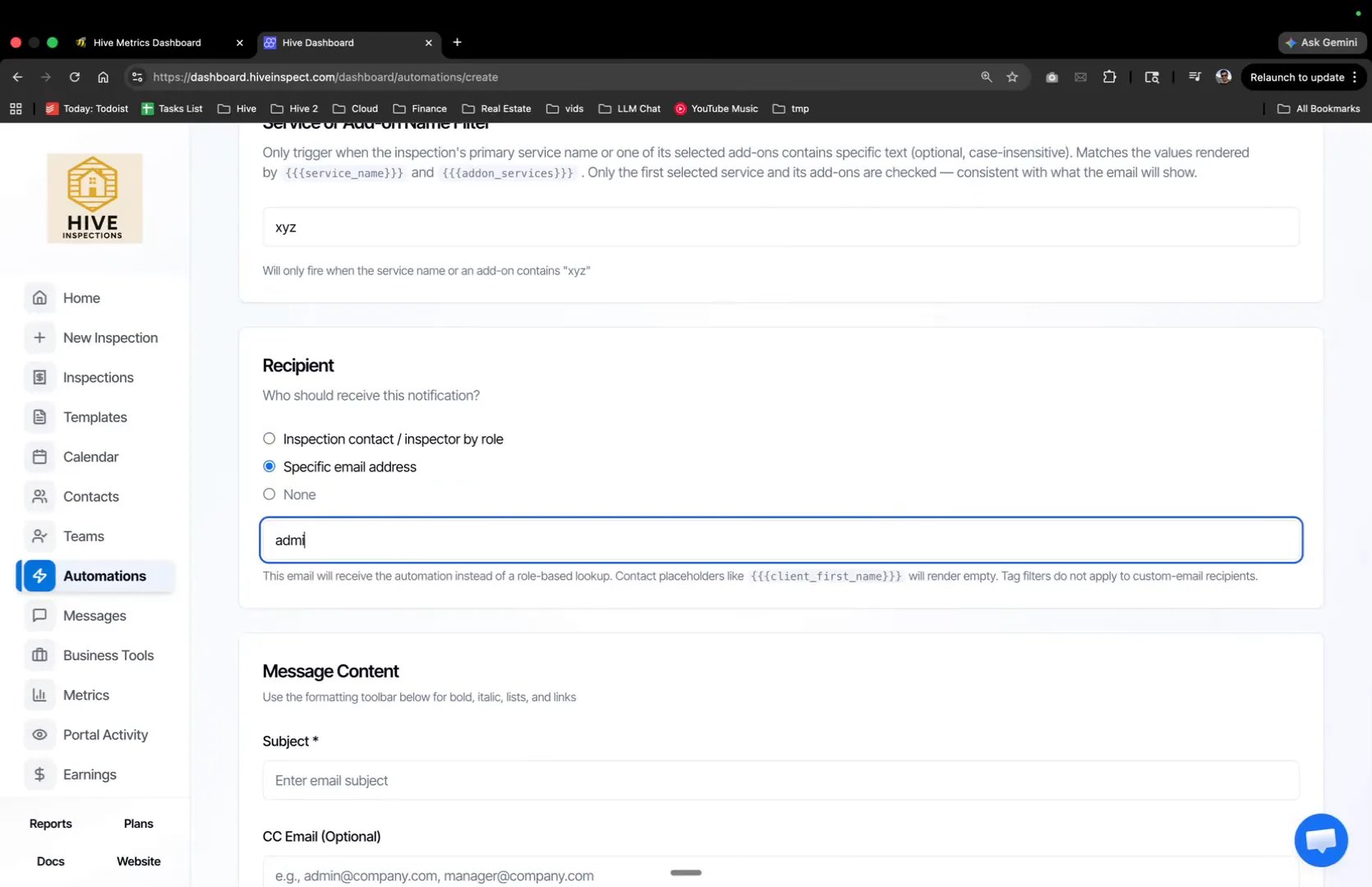
- Under Recipient, select Specific email address
- Enter your subcontractor’s address, for example
admin@xyz.com
Write the message
2:11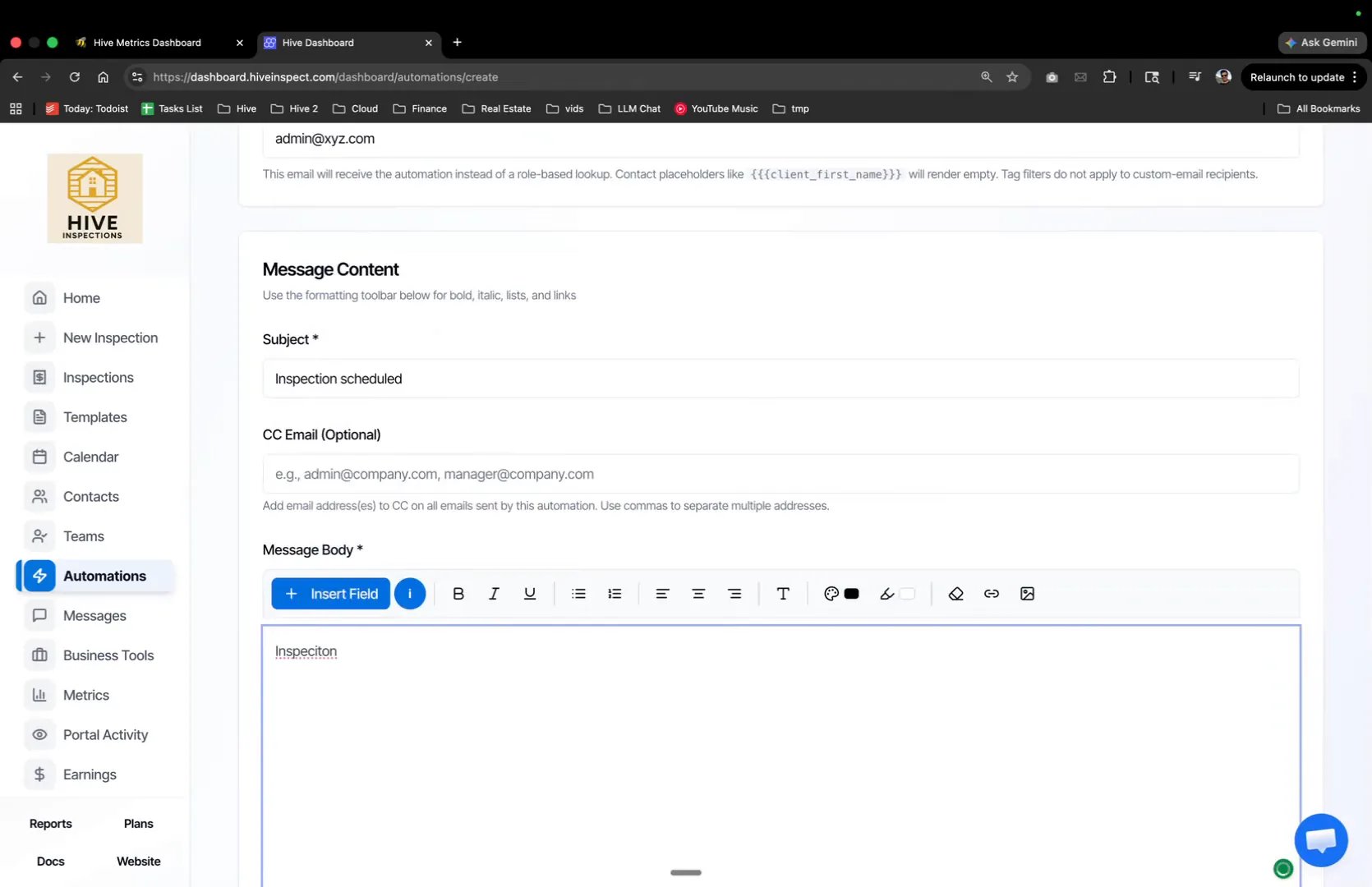
- Fill in the Subject and Message Body with whatever the subcontractor needs to see
- Click Create automation
Duplicate it for rescheduled and cancelled
2:54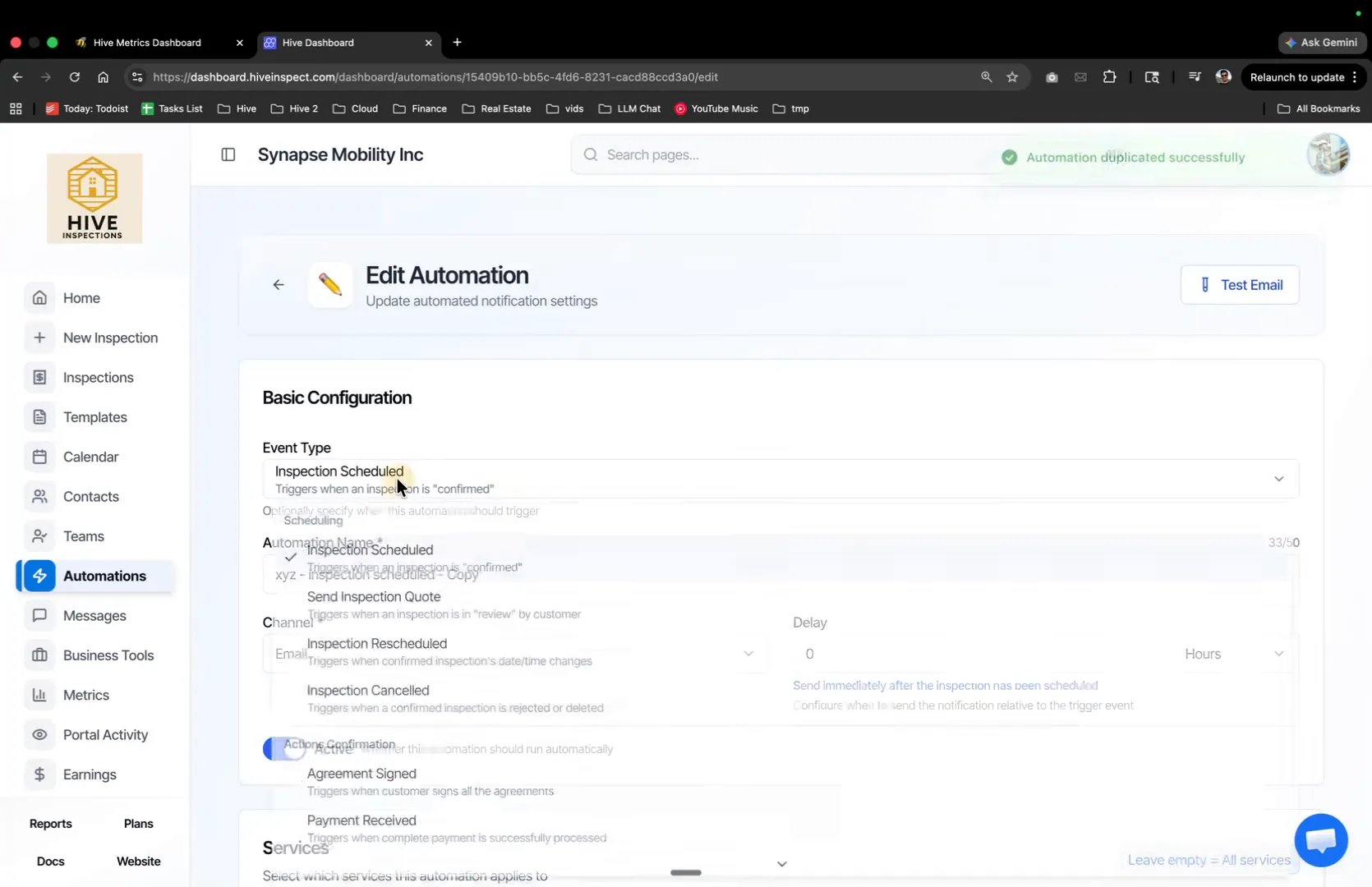
- On the automation you just made, click Duplicate
- Change Event Type to Inspection Rescheduled, update the message body, and re-select the recipient email address
- Repeat once more for Inspection Cancelled
Next step
Related