

In the dashboard: Templates → Template Hub → Special PDF Only → Florida 4-Point Inspection Form V2 · Watch the video walkthrough
The Florida 4-Point is the roof, electrical, HVAC and plumbing inspection that Florida insurance companies often ask for on older homes. In Hive it’s a special PDF template: you inspect and write the report as usual, and Hive prints your answers on the official 4-Point form, with your signature and your photos.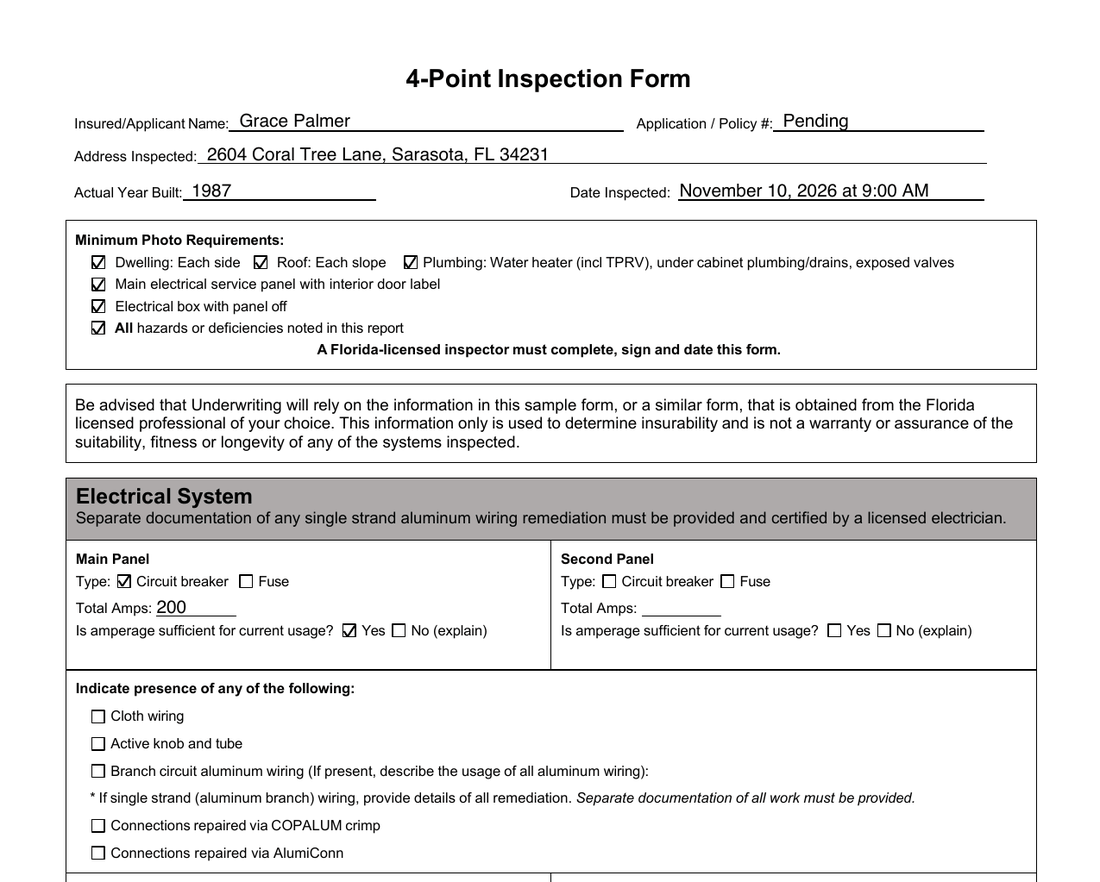
Import the form from the Template Hub
Only the Hub version prints on the official form. A 4-Point template copied from other software, such as a Spectora export, prints as a regular Hive report.Import the 4-Point
Find Florida 4-Point Inspection Form V2 and click Import Template. It appears in your Templates list with a Special tag.
Add it to your service
In Business Tools → Services and Fees, add the template to your 4-Point service, or to a 4-Point add-on on your home inspection. Every inspection booked with that service gets a 4-Point report.
How the report is laid out
The sections follow the form: General, Electrical System, HVAC System, Plumbing System, Roof and Additional. Most of them end with a Photos subsection. You can fill it in on the web or in the mobile app.What fills in for you
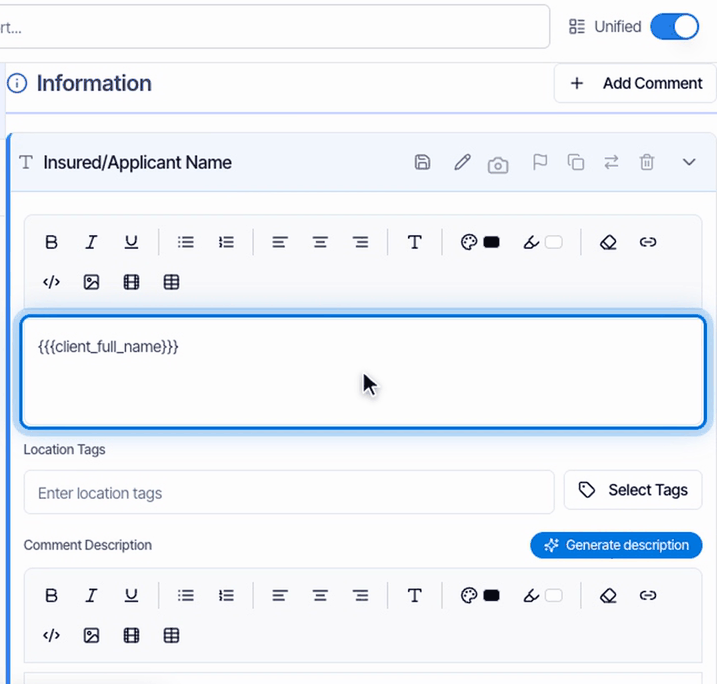
Answer the questions
Answer everything else like any other report: pick the choices that apply. Anything you leave blank stays blank on the form.- Electrical system condition: the form prints Satisfactory unless you write something in Electrical system condition is unsatisfactory. Anything you write there marks it Unsatisfactory and prints your explanation. There’s no separate Unsatisfactory checkbox to look for.
- Yes or no questions: a checked box prints Yes and an unchecked one prints No.
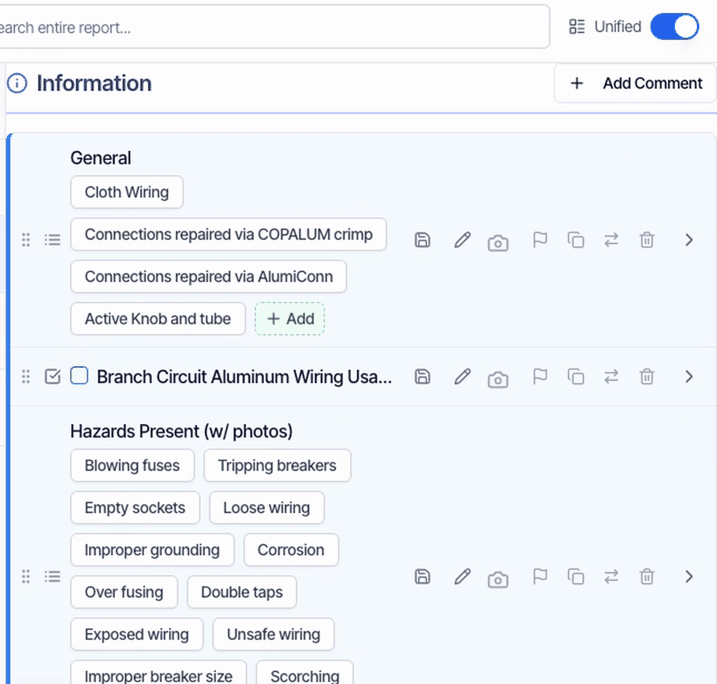
- HVAC hazards: select each hazard that applies. The rest print as No.
Add photos
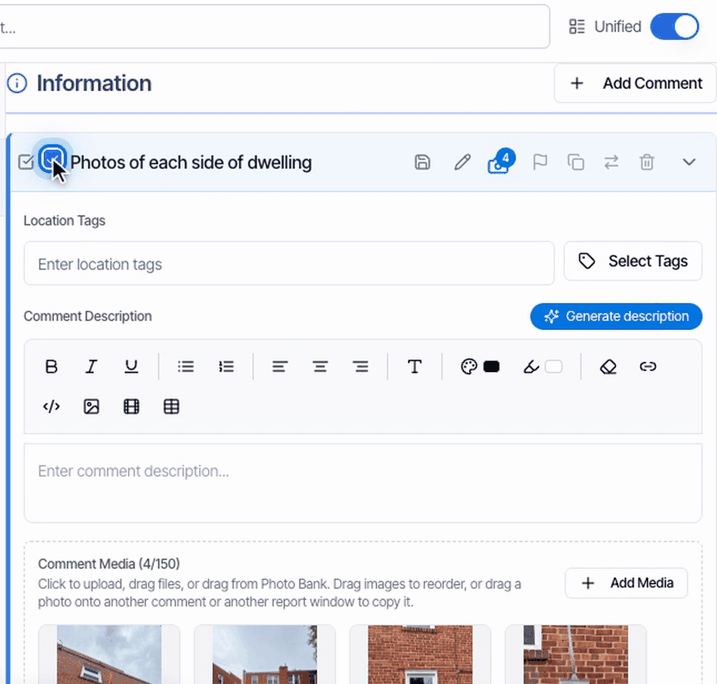
Put photos in each section’s Photos subsection, such as Photos of each side of dwelling. Keep that comment checked: if you uncheck it, its photos are left out.- Photos on other questions don’t print, except Hazards Present.
- Captions print under each photo.
- Photos follow the form, four to a page.
The signature block
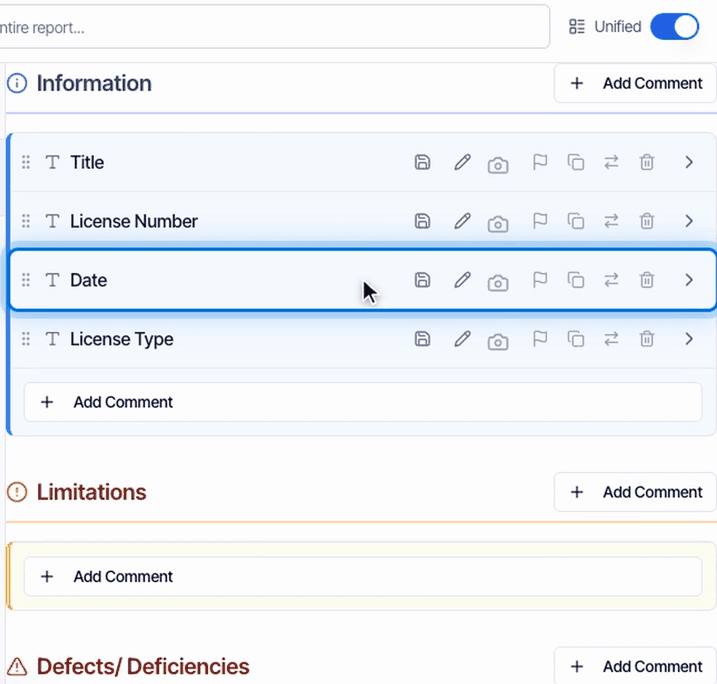
The inspector part of the form is under Additional → Inspector Info.- License Number comes from the inspector’s profile, and Date is the day the PDF is made.
- Type Title and License Type here. Put them in your template once so every report starts with them.
- Your signature, company name and phone are added for you.
Keep the template’s structure
The form has no place for ratings, so IN, NI, NP and D never print on it. If your copy of the template shows rating buttons, you can turn ratings off for it.Check the PDF before you publish
In the Web Editor, click PDF, then View PDF. The Preview button shows the online report, not the form. The 4-Point is English only.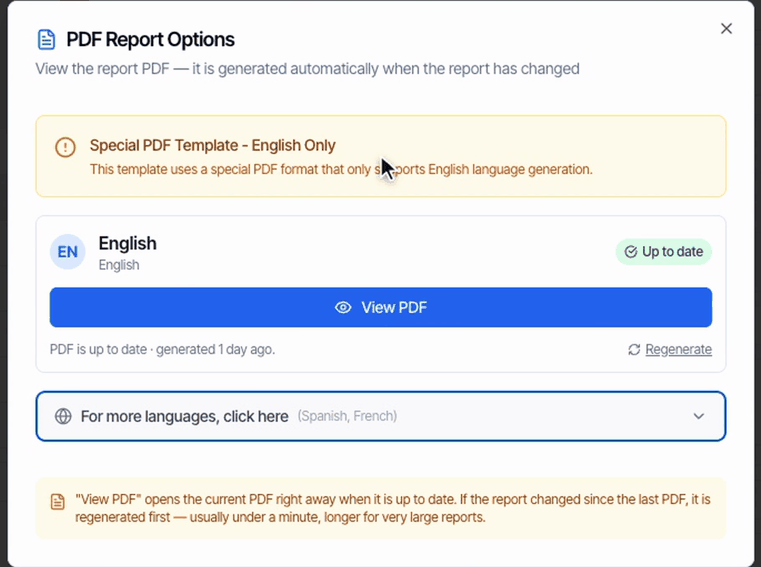
- Your cover page.
- The four pages of the official form, with your answers, comments and signature.
- Your photo pages.
What your client gets
When you publish, your client’s portal leads with View PDF for this report, and the report email links straight to the PDF.Common questions
There's no checkbox for Unsatisfactory on the electrical system.
There's no checkbox for Unsatisfactory on the electrical system.
Write your explanation in Electrical system condition is unsatisfactory. Any text there marks the system Unsatisfactory on the form and prints what you wrote. Leave it empty and the form prints Satisfactory.
Where do I add the deficiency photos?
Where do I add the deficiency photos?
In the Photos subsection at the end of each section. Photos on other questions don’t print on the 4-Point, except Hazards Present. Keep the photo comment checked, or its photos are left out.
Can I preview the 4-Point before I publish?
Can I preview the 4-Point before I publish?
Yes. Click PDF, then View PDF in the report editor. Preview opens the online report your client sees, not the form.
I changed the client's name but the form still shows the old one.
I changed the client's name but the form still shows the old one.
The insured name comes from the client on the inspection. Change the client on the inspection, then click PDF and Regenerate.
Where does my signature and license number come from?
Where does my signature and license number come from?
From the primary inspector’s Profile Settings: License Number and the signature under Personal Information. Type Title and License Type in the report, or once in the template.
The form isn't filling in correctly.
The form isn't filling in correctly.
Check that the template came from the Template Hub and that no questions were renamed, added or deleted. Hive matches answers by name. If it was edited, delete it and import Florida 4-Point Inspection Form V2 again.
Can I use the 4-Point template outside Florida, or change it for my own four-point format?
Can I use the 4-Point template outside Florida, or change it for my own four-point format?
The template is built for the official Florida form, so its structure can’t change. For a different format, build a regular template and copy the sections you need into it. That template prints as a regular Hive report.
How do I do a wind mitigation and a 4-Point on the same job?
How do I do a wind mitigation and a 4-Point on the same job?
Add both templates to the inspection. Each becomes its own report with its own PDF, and you switch between them in the report editor.
Related
- Florida Wind Mitigation form: the 2026 wind mitigation form.
- Florida Citizens Roof Inspection Form: the roof form insurers ask for.
- Import a template: every official form in the Template Hub.