

In the dashboard: Templates → Template Hub → Special PDF Only → Texas WDI 2020 · Watch the video walkthrough
The Texas Official Wood Destroying Insect Report (form SPCS/T-5, Rev. 9/1/2020) is the WDI report Texas requires for real estate transactions. In Hive it’s a special PDF template: you fill it in like any report, and Hive prints it on the state’s official form, with your diagram and photos.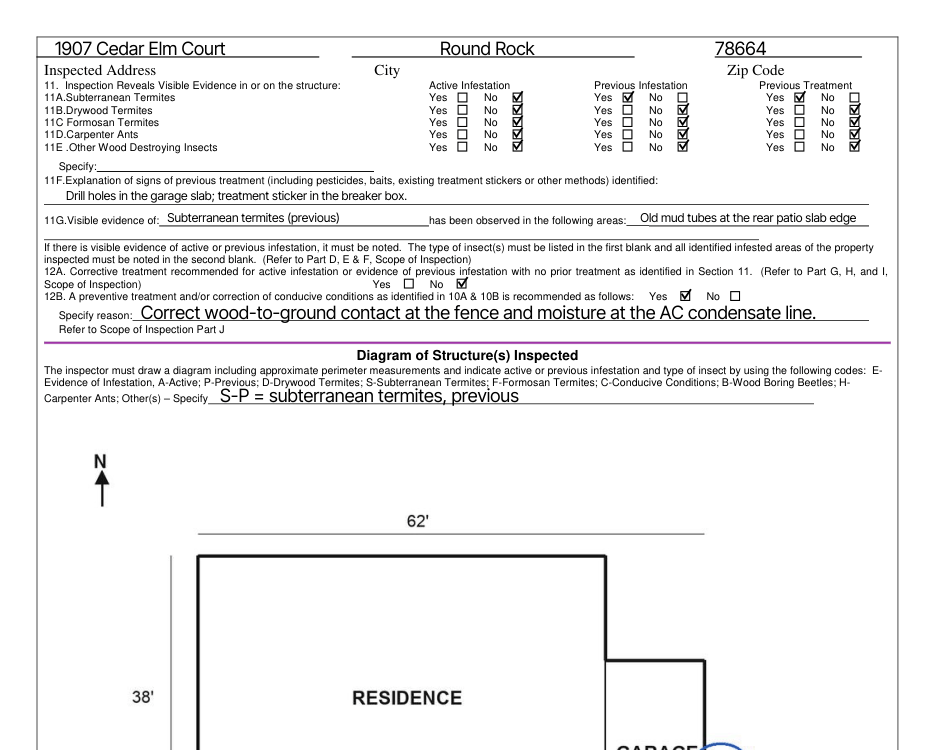
Import the form from the Template Hub
Only the Hub version prints on the form. A WDI form copied from other software prints as a regular Hive report.Add it to your service
In Business Tools → Services and Fees, add the template to your termite or WDI service or add-on.
How the report is laid out
The template follows the form, one subsection per part: company, purchaser, owner, forward report, structures, treatment, signatures, notice, inaccessible areas, conducive conditions, the diagram, infestation evidence, recommendations, the purchaser’s statement, and additional photos.Part 1: what fills in for you
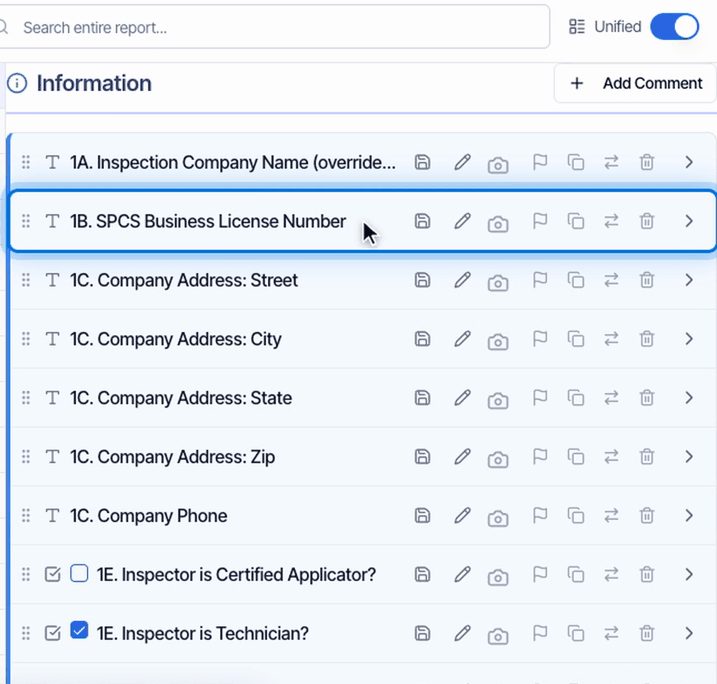
Type your 1B. SPCS Business License Number once in the template so every report starts with it. Under 1E, check Inspector is Certified Applicator? or Inspector is Technician?.
Parts 2 to 6: purchaser, owner and structures
- 2. Purchaser Information: starts with your client’s name as the person purchasing the inspection. Pick whether they’re the buyer, seller, agent or someone else.
- 3. Owner/Seller: type the owner or seller.
- 4. Forward Report: pick who the report is forwarded to.
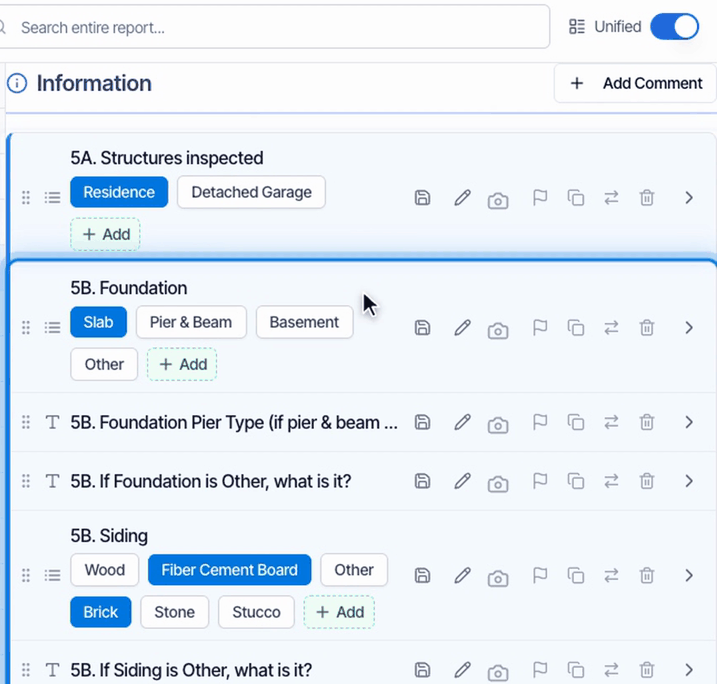
- 5. Structures Inspected: pick the structures, then the foundation, siding and roof. Each one checks its box. The form has no box for Other: pick Other and type it in the line below.
- 6. Treatment Details: fill in only when your company treated the structure. Left blank, the warranty question prints No.
Part 7: signatures and your WDI License Number
Hive prints your signature, and each assigned inspector’s name with their WDI License Number from Profile Settings, so add that number there. Type any apprentices, technicians or certified applicators who were present in 7B.Parts 8 to 10: notice, inaccessible areas, conducive conditions
- 8. Notice of Inspection: pick where you posted the notice and type the date.
- 9. Inaccessible Areas: check 9A for Yes; unchecked prints No. Then pick the areas. For anything else, pick Other and add it under specify.
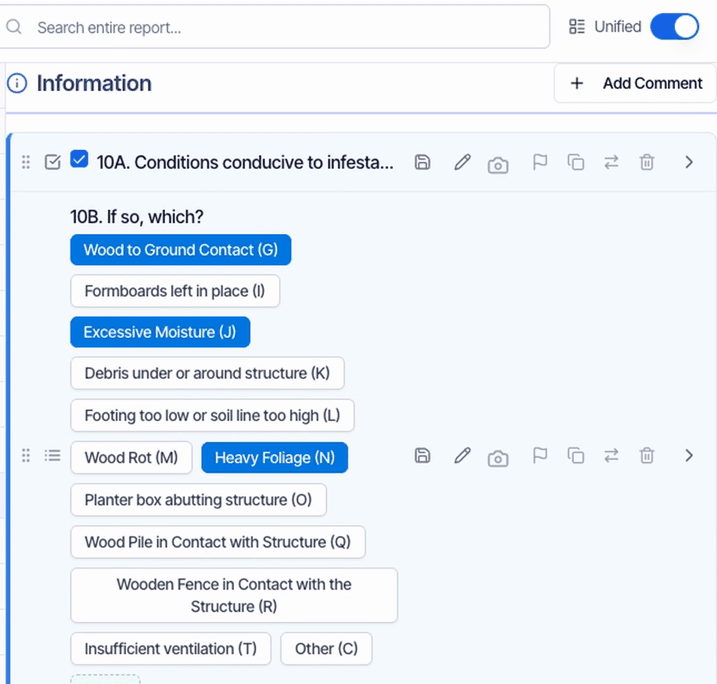
- 10. Conducive Conditions: works the same way. Check 10A, then pick each condition. Each one checks its box on the form, next to its letter code.
Part 11: infestation evidence
For each insect, pick Active Infestation, Previous Infestation or Previous Treatment. What you pick prints Yes and everything else prints No, so an insect you leave blank prints No in all three columns. Explain any previous treatment in 11F. In 11G, type the insect and the areas where you saw it. Visible evidence of doesn’t fill itself in, even though its label says it does, so type it. Keep both short.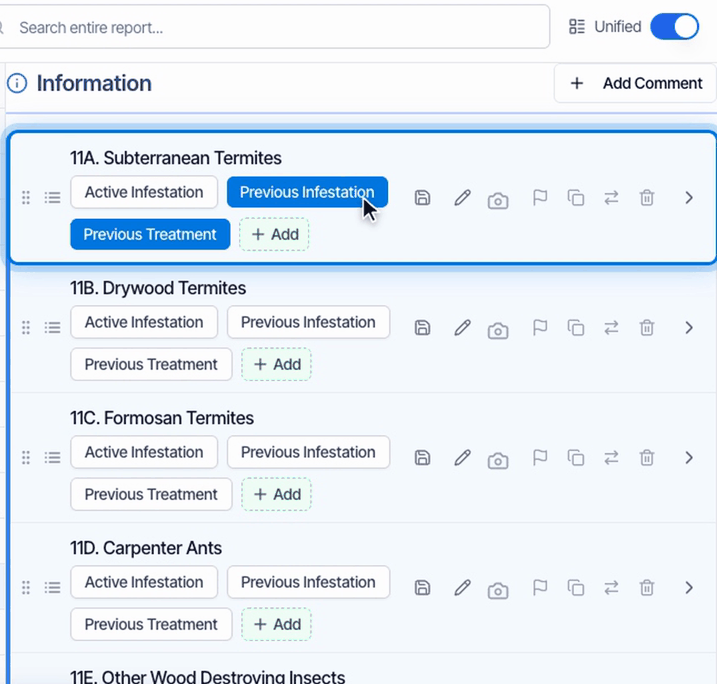
Part 12: recommendations
Check 12A for corrective treatment, or 12B for a preventive treatment or correction, and type the reason in Specify reason. Unchecked prints No. The two questions above them, about mechanical correction, have no spot on this version of the form, so they don’t print.The diagram and additional comments
The form needs a diagram of the structure. Add it as a photo on Upload Diagram, marked up with the form’s codes, and Hive fits it into the grid. Explain any other codes in Other Legend Definitions. Additional Comments prints on the lines below the diagram.Part 13: statement of purchaser
Hive doesn’t collect the purchaser’s signature or initials, so those lines print blank for signing on paper. If the customer or their designee wasn’t there, check Customer or Designee Not Present.Additional photos
Photos on Additional Photos print after the form, four across, with your captions. Keep the captions short, because long ones are cut off. Photos on other comments don’t print, except the diagram.Keep the template’s structure
The form has no place for ratings, so turn them off for this template if you see IN, NI, NP and D buttons (how).Check the PDF before you publish
Click PDF, then View PDF. Preview shows the online report, not the form. This form is English only.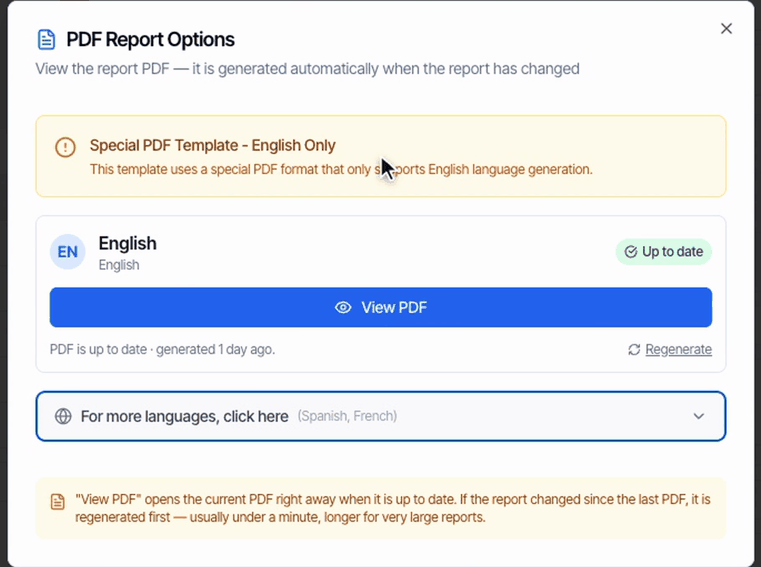
What your client gets
When you publish, your client’s portal leads with View PDF, and the report email links straight to the PDF.Common questions
Part 11 shows No in all three columns for an insect.
Part 11 shows No in all three columns for an insect.
That insect has nothing picked. Pick Active Infestation, Previous Infestation or Previous Treatment for it; whatever you pick prints Yes.
How do I check Technician or Certified Applicator?
How do I check Technician or Certified Applicator?
Check 1E. Inspector is Technician? or 1E. Inspector is Certified Applicator? in 1. Company Information. Each prints in its own box on the form.
How do I make my diagram fill the box?
How do I make my diagram fill the box?
Add the diagram as the first photo on Upload Diagram. Hive fits it into the form’s grid, including any markup. A diagram on another comment doesn’t print there.
Where does the license number next to my name come from?
Where does the license number next to my name come from?
From the WDI License Number in each assigned inspector’s Profile Settings. Your SPCS business license goes in 1B in the report or template.
The company address prints twice on the street line.
The company address prints twice on the street line.
1C. Company Address: Street holds your full company address by default. Replace it with just your street, once in the template.
Can I preview the PDF before I publish?
Can I preview the PDF before I publish?
Yes. Click PDF, then View PDF in the report editor. Preview opens the online report, not the form.
I imported my WDI form from other software and it prints as a regular report.
I imported my WDI form from other software and it prints as a regular report.
Only the Template Hub version prints on the official form. Import Texas WDI 2020 from the Template Hub and add it to your WDI service instead.
Can I edit the template?
Can I edit the template?
Fill in default answers, such as your SPCS license number, but don’t rename, add or remove comments. Each answer is matched to a spot on the form.
Related
- TREC REI 7-6: the Texas property inspection report.
- NPMA-33 report: the wood destroying insect report used in many other states.
- Import a template: every official form in the Template Hub.