

In the dashboard: Templates → Template Hub → Special PDF Only → Florida Citizens Roof Inspection Form · Watch the video walkthrough
The Roof Inspection Form is the roof condition form that Citizens and other Florida insurers ask for. In Hive it’s a special PDF template: you fill it in like any report, and Hive prints your answers on the form, with your slope photos and signature.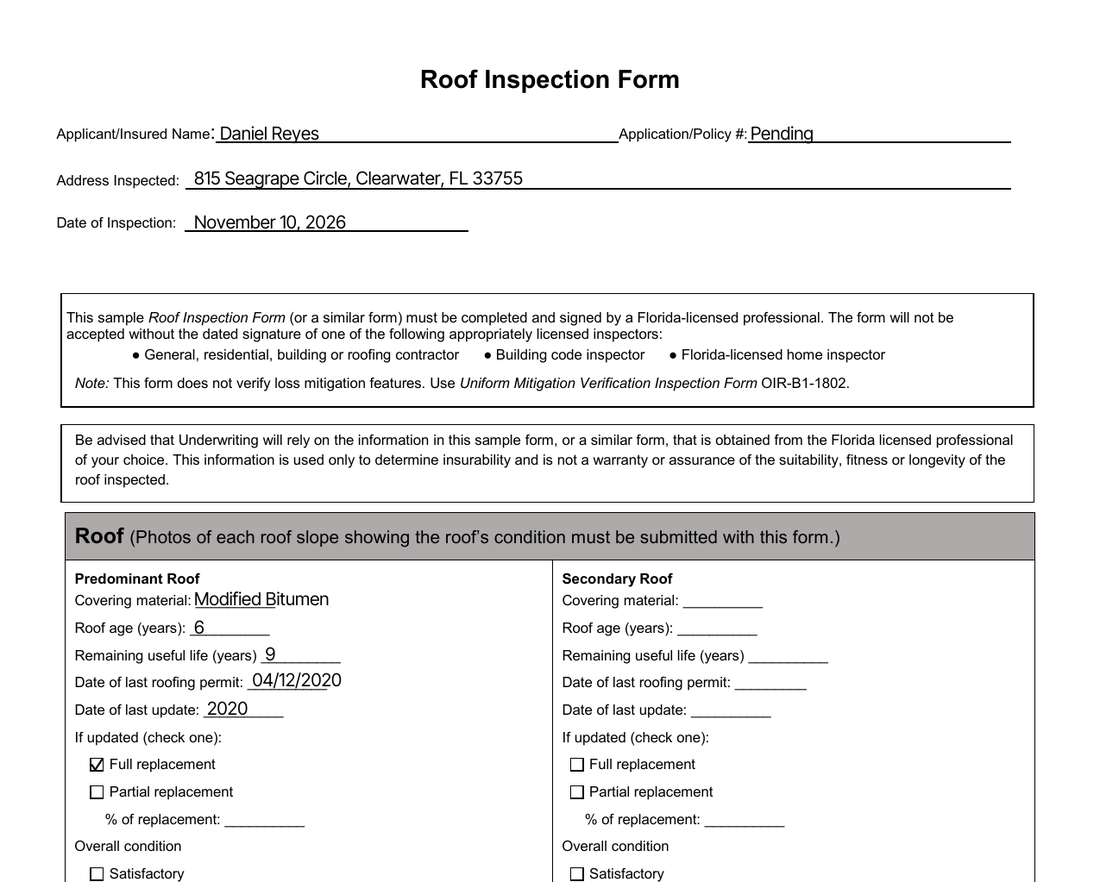
Import the form from the Template Hub
Only the Hub version prints on the form. A roof form copied from other software prints as a regular Hive report.Add it to your service
In Business Tools → Services and Fees, add the template to your roof inspection service or add-on.
How the report is laid out
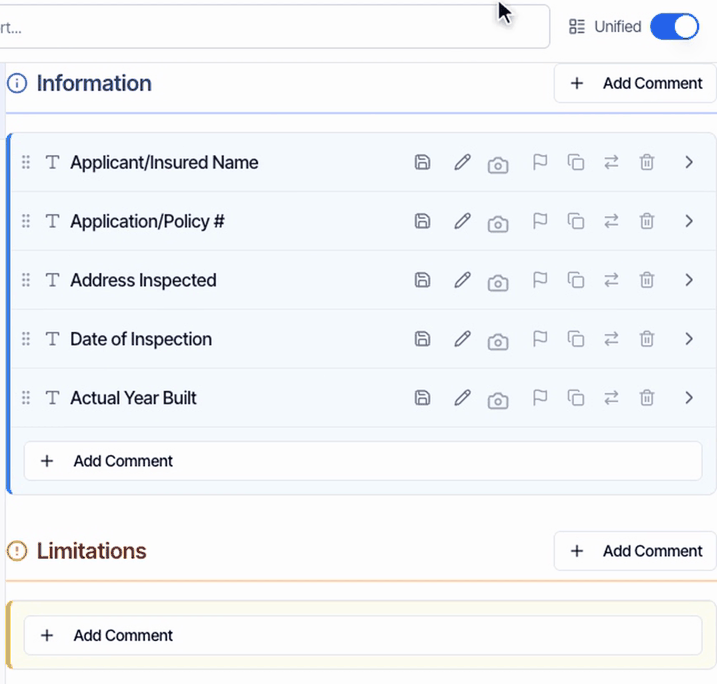
The template follows the form:- General: the insured, policy, address, date and year built.
- Roof: Predominant Roof, Secondary Roof and Photos.
- Additional: Additional Comments/Observations and Inspector Info.
What fills in at the top of the form
Actual Year Built stays in your report. The form has no line for it.
The predominant roof
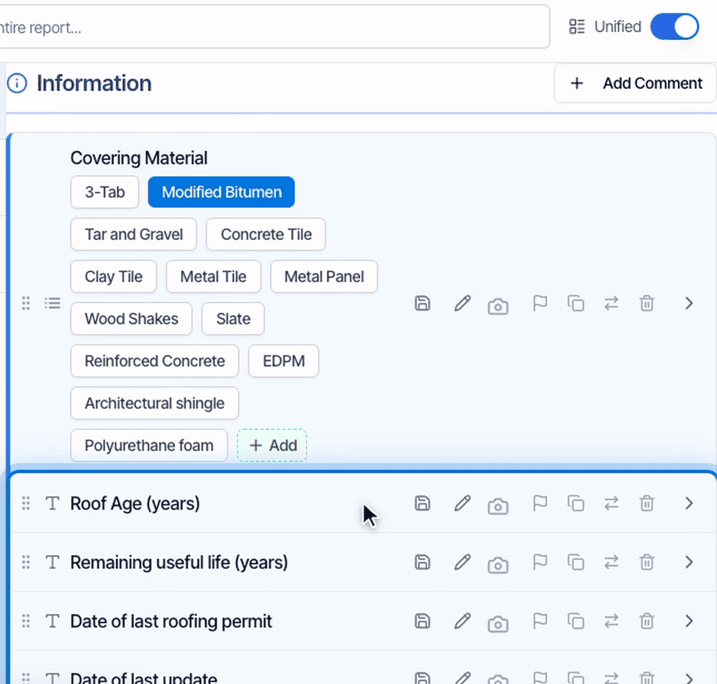
Under Predominant Roof:- Pick the Covering Material.
- Type the Roof Age (years), the Remaining useful life (years), the Date of last roofing permit and the Date of last update.
- Choose Full or Partial replacement. For a partial one, type the % of roof replacement if partially updated.
Satisfactory or Unsatisfactory
Pick Satisfactory or Unsatisfactory under Condition. The unsatisfactory explanation prints on one line under the box, so keep it short and put the details in Additional Comments.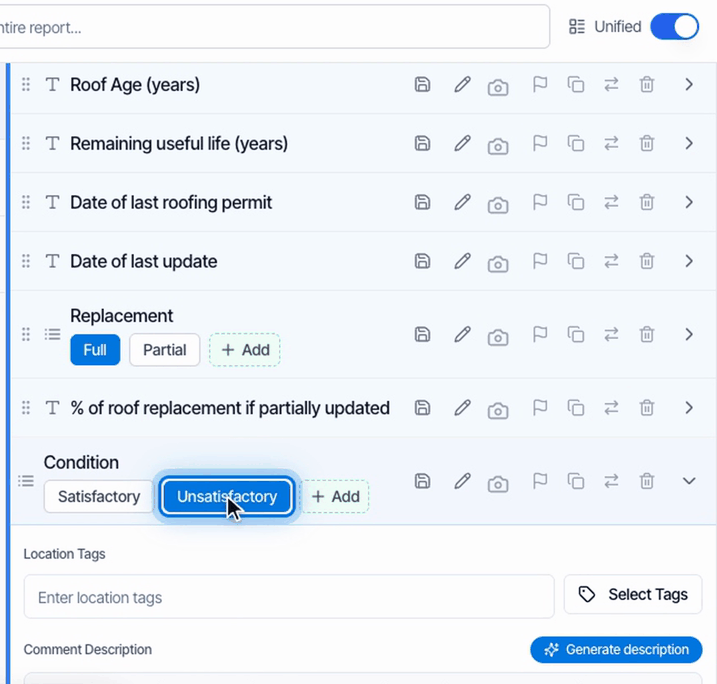
Signs of damage
Pick every sign of damage you see under Visible signs of damage/deterioration. Each one checks its box on the form. The form has no line for the damage explanation. Hive prints Explanation of visible damage/deterioration on the separate comments page at the end, so describe the damage in Additional Comments too.Leaks
The leak questions are checkboxes: checked prints Yes, unchecked prints No. That goes for the secondary roof as well, so its leak boxes print No even when there’s no second roof. Fill in Secondary Roof only when the home has a second covering.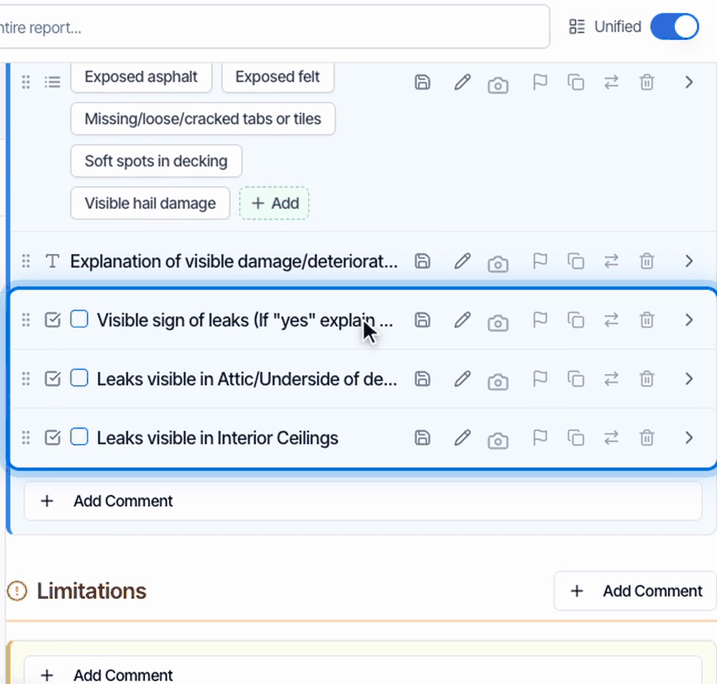
Photos of each slope
Add your roof photos to Photos of each slope under Roof → Photos. The form asks for every slope, and all hazards or deficiencies. They print after the form, two across, with your captions. Photos on other comments don’t print.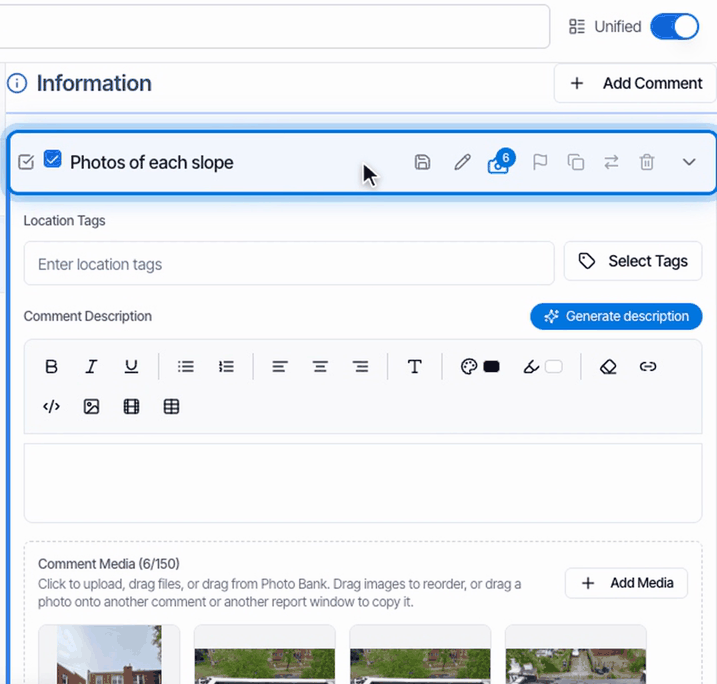
Additional comments
Under Additional → Additional Comments/Observations there are two comments:The signature block
Your signature, License Number, company name and work phone fill in from your Profile Settings (the primary inspector’s profile) and company details. Type your Title and License Type once in the template. The Date is the day the PDF is made, so it changes if you regenerate later.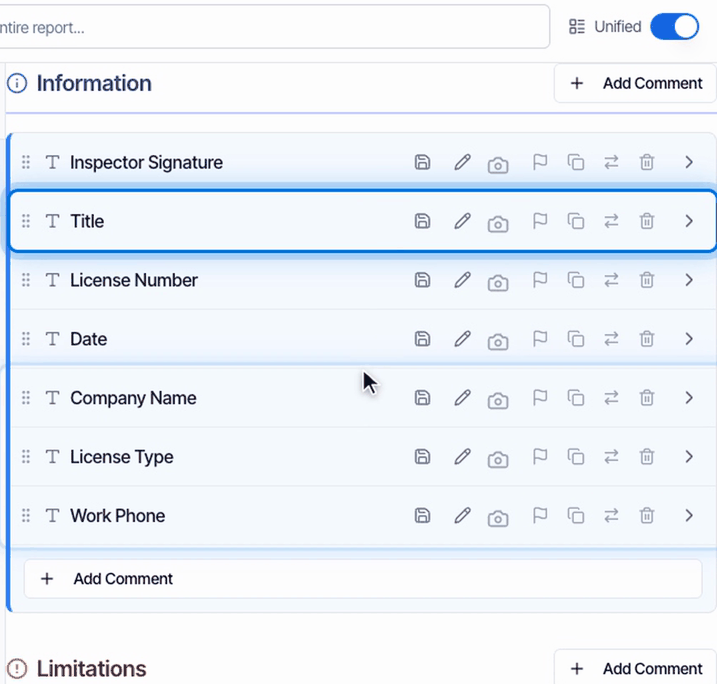
Keep the template’s structure
The form has no place for ratings, so IN, NI, NP and D never print on it. If your copy of the template shows rating buttons, you can turn ratings off for it.Check the PDF before you publish
Click PDF, then View PDF. Preview shows the online report, not the form. This form is English only.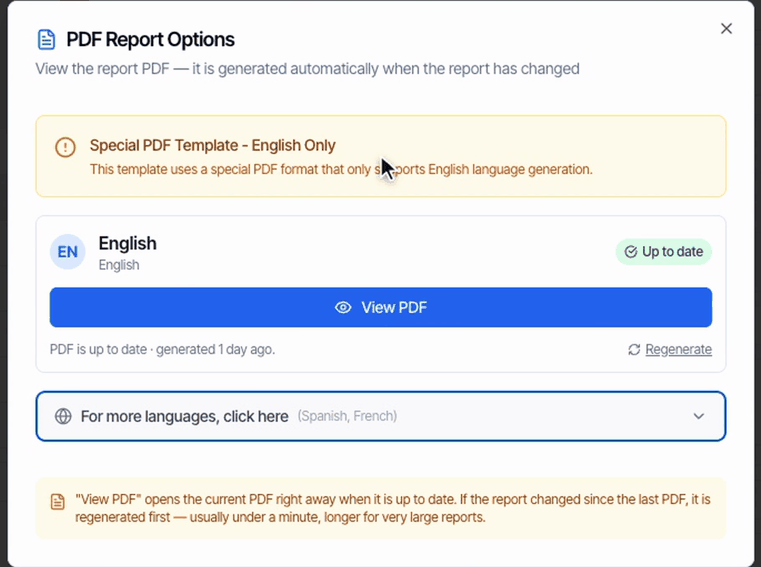
What your client gets
When you publish, your client’s portal leads with View PDF, and the report email links straight to the PDF.Common questions
Where does my damage explanation print?
Where does my damage explanation print?
On the separate comments page at the end of the PDF. The form itself has no line for it, so describe the damage in Additional Comments as well.
The secondary roof leak questions print No when there's no second roof.
The secondary roof leak questions print No when there's no second roof.
The leak questions are checkboxes, and an unchecked box prints No. Fill in Secondary Roof only when the home has a second covering.
I need more room for comments.
I need more room for comments.
Check Additional Comments/Observations (separate page) and type there. It prints on its own page at the end. Keep the in-form comment to a few lines.
Which photos print on the roof form?
Which photos print on the roof form?
Only the photos on Photos of each slope, after the form, two across with captions. Add every slope and any hazards or deficiencies there.
Why did the date next to my signature change?
Why did the date next to my signature change?
The date is the day the PDF is made. Regenerating the PDF later updates it.
Related
- Florida 4-Point form: the 4-Point insurance inspection.
- Florida Wind Mitigation form: the 2026 wind mitigation form.
- Import a template: every official form in the Template Hub.