

In the dashboard: Templates → Template Hub → Special PDF Only → NPMA-33 2021 · Watch the video walkthrough
The NPMA-33 is the Wood Destroying Insect Inspection Report used for real estate transactions in many states. In Hive it’s a special PDF template: you fill it in like any report, and Hive prints it on the official NPMA-33 form.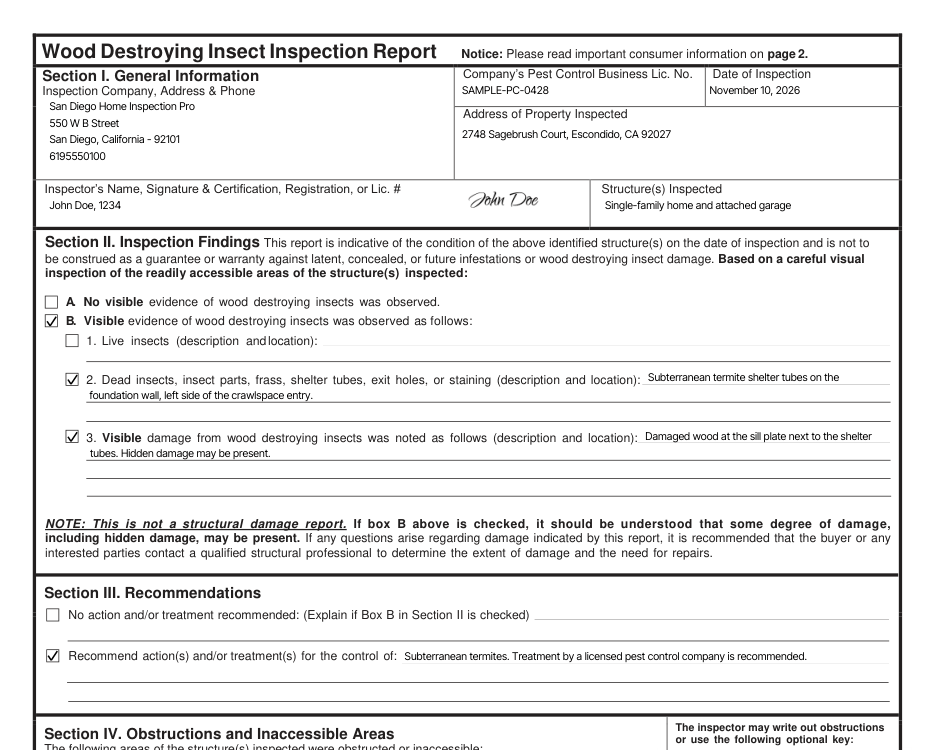
Import the form from the Template Hub
Only the Hub version prints on the form. An NPMA template copied from other software, such as Spectora, prints as a regular Hive report.Add it to your service
In Business Tools → Services and Fees, add the template to your termite or WDI service or add-on.
How the report is laid out
The template follows the form, section by section: Section I. General Information, Section II. Inspection Findings, Section III. Recommendations, Section IV. Obstructions and Inaccessible Areas, Section V. Additional Comments and Attachments, and Signatures.What fills in for you
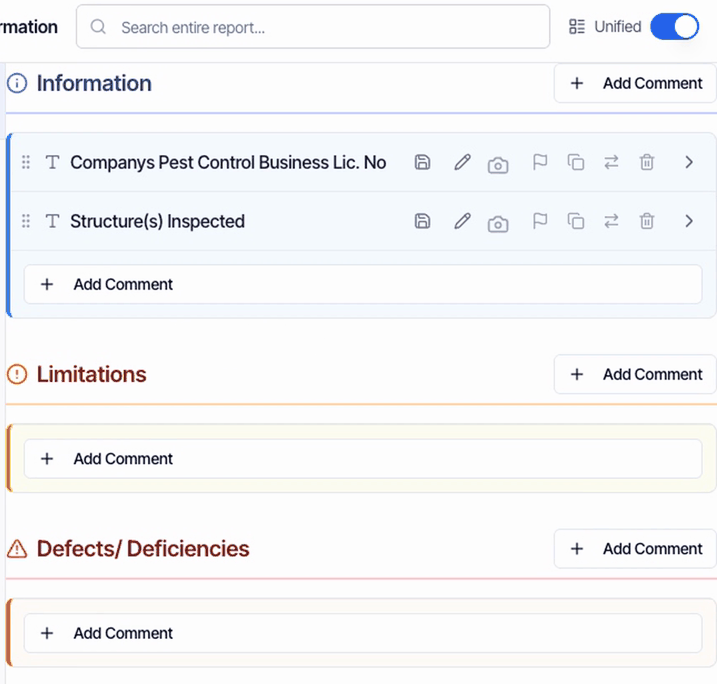
Type your Company’s Pest Control Business Lic. No and the Structure(s) Inspected. Put the license number in your template once and every new report starts with it.
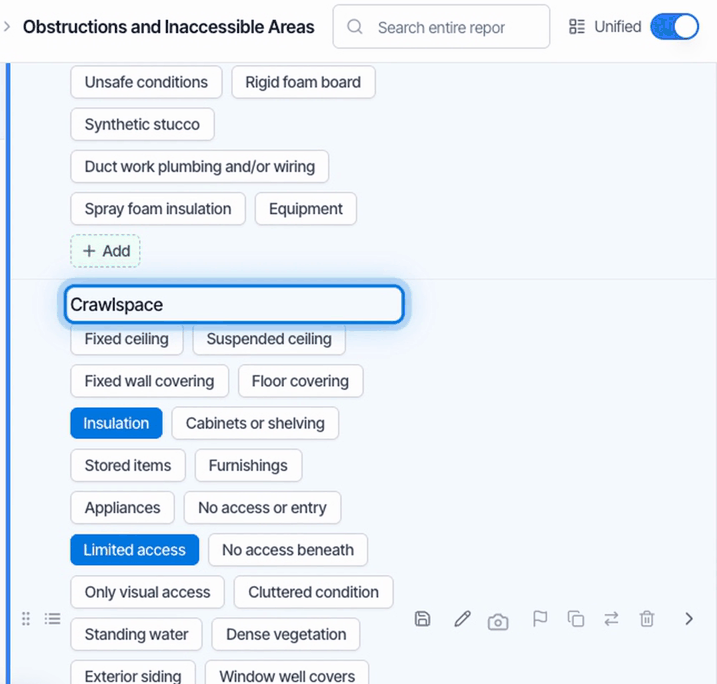
Fill in each section
Photos
Add your photos to Attachments in Section V. They print after the form, two across, with their captions. Photos on other comments don’t print.Seller and buyer signatures
The seller and buyer sign too:- In the mobile app, go to My Profile → Tools → Get Signature and have them sign. The signature is saved to your photos.
- Add each signature as the first photo on Signature, under Signature of Seller(s) or Signature of Buyer.
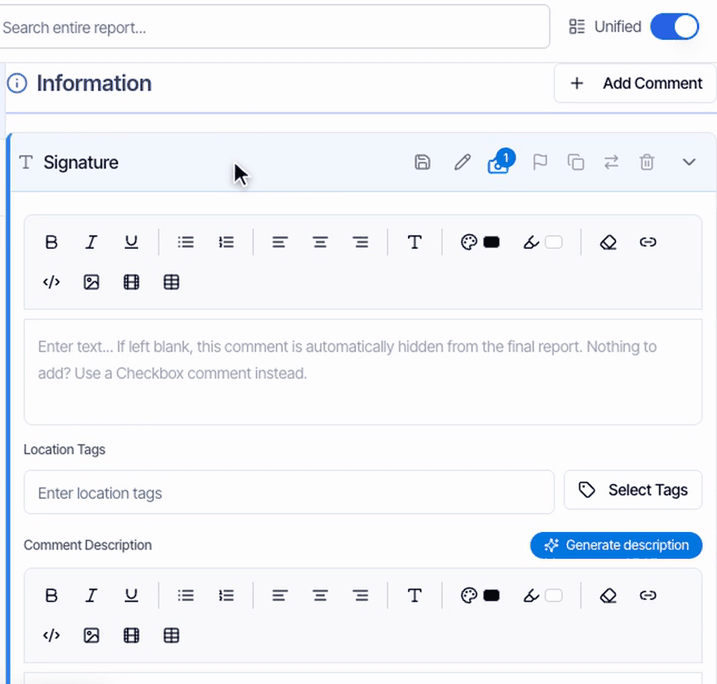
Long text, and keep the structure
Long text follows the form’s own lines. Whatever doesn’t fit continues on an additional page at the end. The form has no place for ratings, so IN, NI, NP and D never print on it. If your copy of the template shows rating buttons, you can turn ratings off for it.Check the PDF before you publish
Click PDF, then View PDF. Preview shows the online report, not the form. NPMA-33 is English only.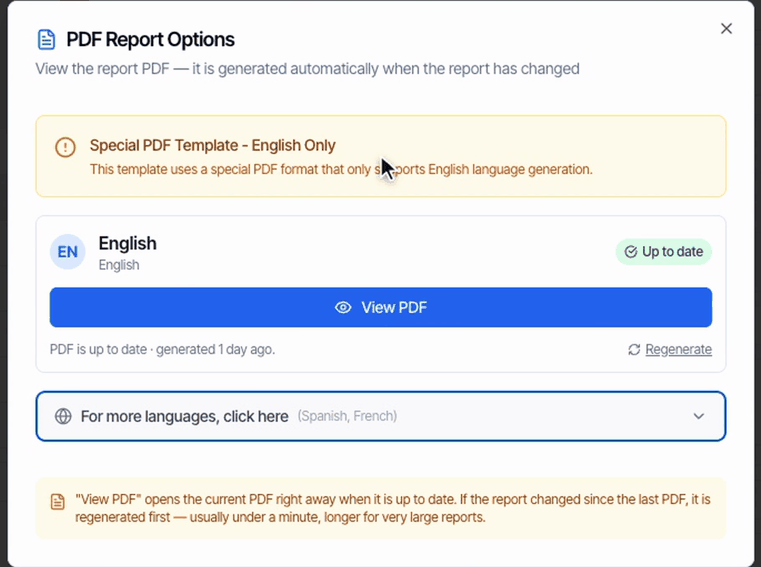
- Page 1: your filled-in form.
- Page 2: the form’s consumer information.
- Your photos, and an additional page when text didn’t fit.
Publishing is blocked
An NPMA-33 report often leaves sections empty on purpose. If Hive won’t publish it because sections aren’t complete, turn off Require completed sections to publish in Org Settings → Report Writing.What your client gets
When you publish, your client’s portal leads with View PDF for this report, and the report email links straight to the PDF.Common questions
Where do I enter evidence of a previous treatment?
Where do I enter evidence of a previous treatment?
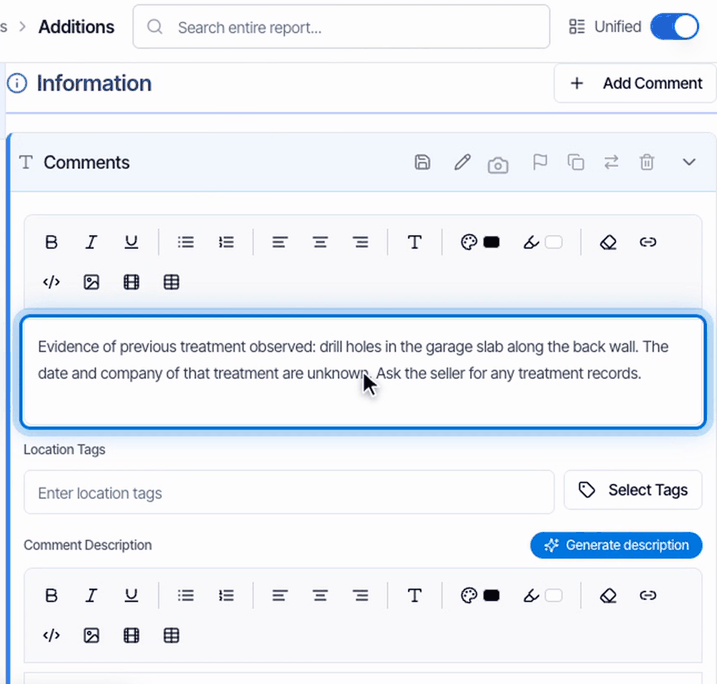
In Section V → Comments. The NPMA-33 form has no separate box for previous treatment, so Hive prints it with your other additional comments.
How do I get my license number on the form?
How do I get my license number on the form?
Add it as WDI License Number under Personal Information in Profile Settings. Hive prints the primary inspector’s WDI License Number, name and signature. Then click Regenerate on reports you already made.
Two inspectors went out. Whose name prints?
Two inspectors went out. Whose name prints?
The primary inspector’s: the first inspector assigned to the inspection. To print someone else, make them the primary inspector on the inspection, then regenerate the PDF.
How do I add the seller's or buyer's signature?
How do I add the seller's or buyer's signature?
Capture it in the mobile app with My Profile → Tools → Get Signature, then add the image as the first photo on Signature under Signature of Seller(s) or Signature of Buyer.
My PDF looks like a regular report, not the NPMA-33.
My PDF looks like a regular report, not the NPMA-33.
Check two things. Preview shows the online report; click PDF, then View PDF for the form. And the template has to come from the Template Hub: an NPMA template imported from other software prints as a regular report. Import NPMA-33 2021 and use it instead.
It won't let me publish because sections aren't complete.
It won't let me publish because sections aren't complete.
Turn off Require completed sections to publish in Org Settings → Report Writing.
My text doesn't line up with the form.
My text doesn't line up with the form.
Long text follows the form’s printed lines, and anything that doesn’t fit continues on an additional page at the end. Keep each answer to the point and put the details in Section V.
Related
- Texas WDI report: the Texas Official Wood Destroying Insect Report.
- Florida WDO report: the Florida Wood-Destroying Organisms report.
- Import a template: every official form in the Template Hub.