

In the dashboard: Templates → Template Hub → Special PDF Only → TREC REI 7-6 · Watch the video walkthrough
TREC REI 7-6 is the Property Inspection Report form the Texas Real Estate Commission requires for Texas home inspections. In Hive it’s a special PDF template: you write the report as usual, and Hive prints it in the promulgated TREC format, with the I, NI, NP and D boxes checked for each item you rate.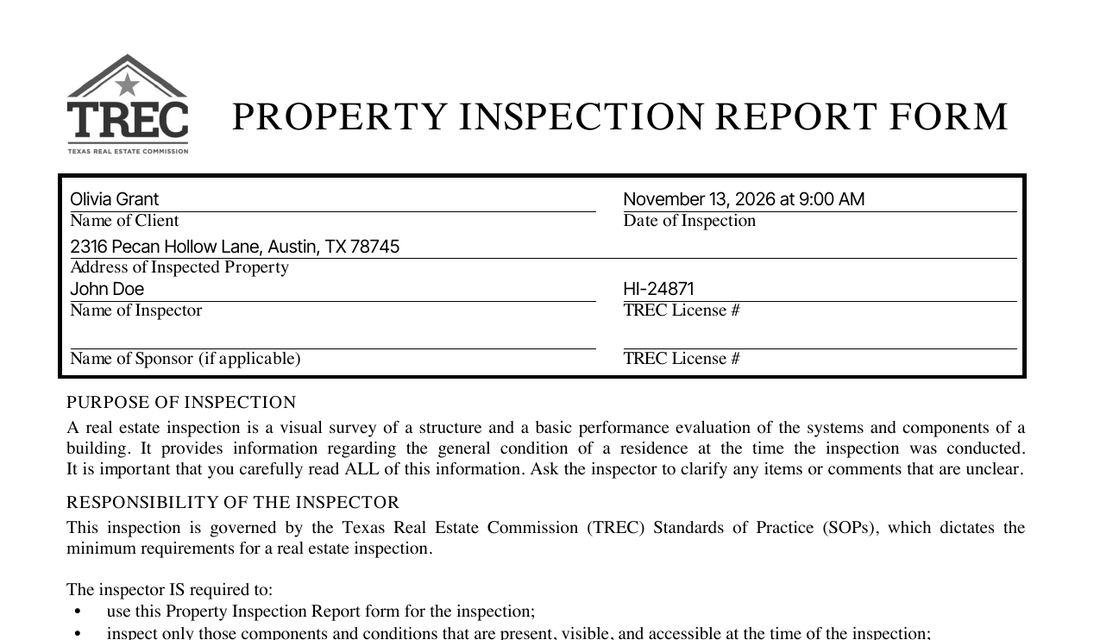
Get a TREC template
Start from the Template Hub. Go to Templates → Template Hub, click Special PDF Only, find TREC REI 7-6 and click Import Template. It comes with the TREC ratings turned on: IN, NI, NP and D. Already have TREC comments in other software? Import that template into Hive, then send us its name in the chat. We switch it to the TREC format for you, and from then on new inspections with it print as TREC reports. Then add the template to your inspection service in Business Tools → Services and Fees.How the report is laid out
The template follows the form: an Information section, then I. Structural Systems, II. Electrical Systems, III. Heating, Ventilation and Air Conditioning Systems, IV. Plumbing Systems, V. Appliances and VI. Optional Systems. Every item has the four rating buttons.What fills in on the form page
The Information section
The Information section isn’t an item on the form. Its answers, such as who attended, occupancy and the weather, print under Additional Information Provided by Inspector, after the form’s notice. Leave this section in place.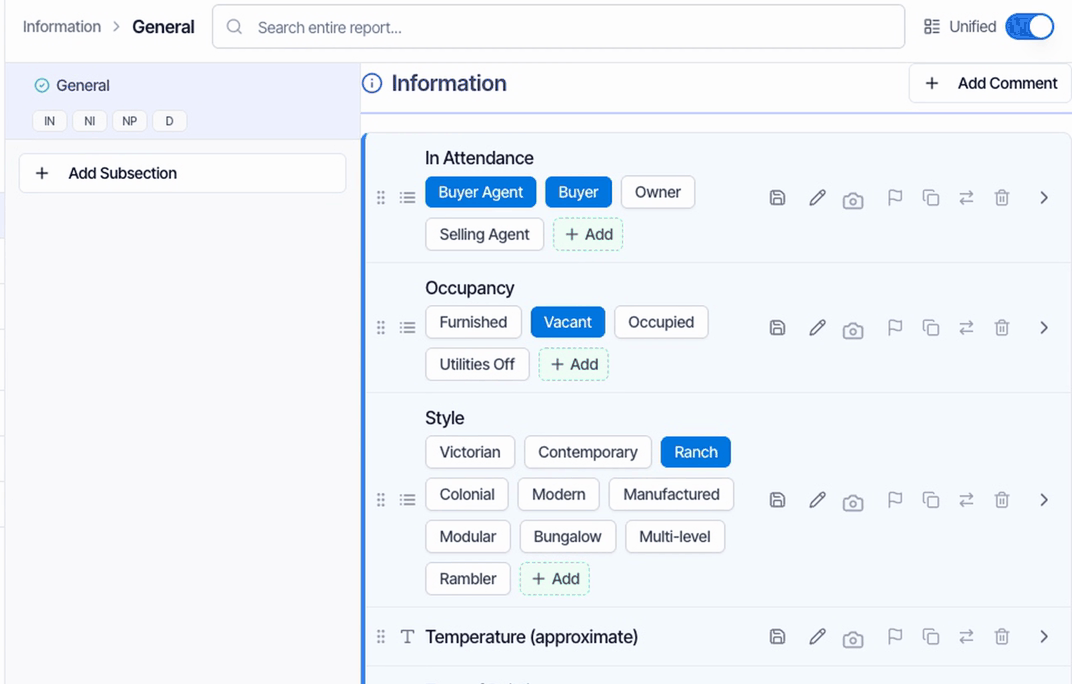
Rate every item
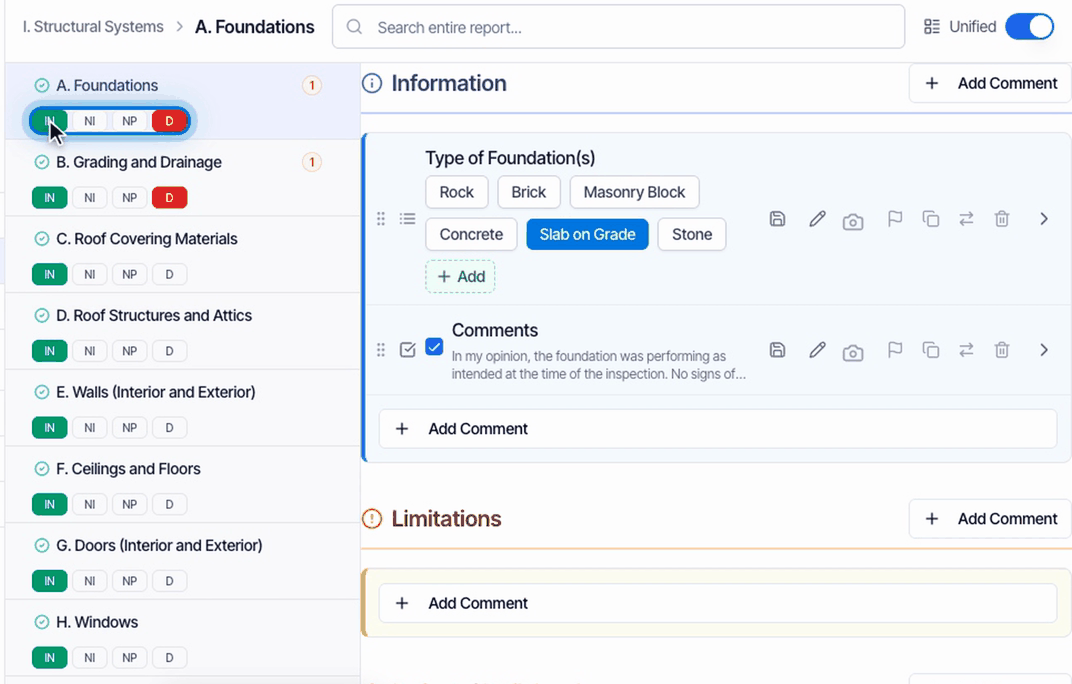
Rate every item you report on:- IN checks the I (Inspected) box. NI, NP and D check their own boxes.
- You can pick more than one, such as IN and D.
- An item with no rating doesn’t print at all. If your PDF looks nearly empty, check your ratings.
What prints inside an item
- The Comments box prints your notes and photos.
- Choices, such as the type of foundation, print next to their name.
- Limitations and deficiencies print as one numbered list, with the category, the recommended service, the location and photos, three across with captions.
Turn on a deficiency, click D
When you turn on a deficiency, click D on that item as well. To have Hive check D for you, open the template’s Overview, and under Ratings, tick Auto-select on Defects/Observations for D. New reports pick it up.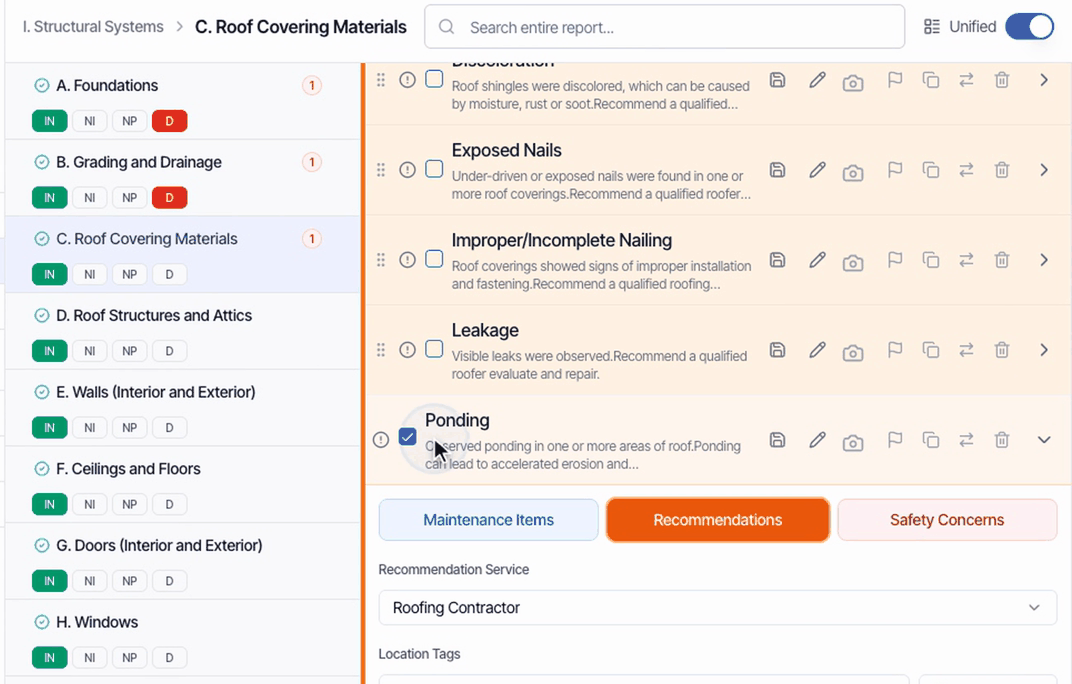
IN or I
Prefer the form’s I over IN? In the template’s Overview → Ratings, rename the abbreviation. Either one checks the Inspected box. Keep NI, NP and D as they are.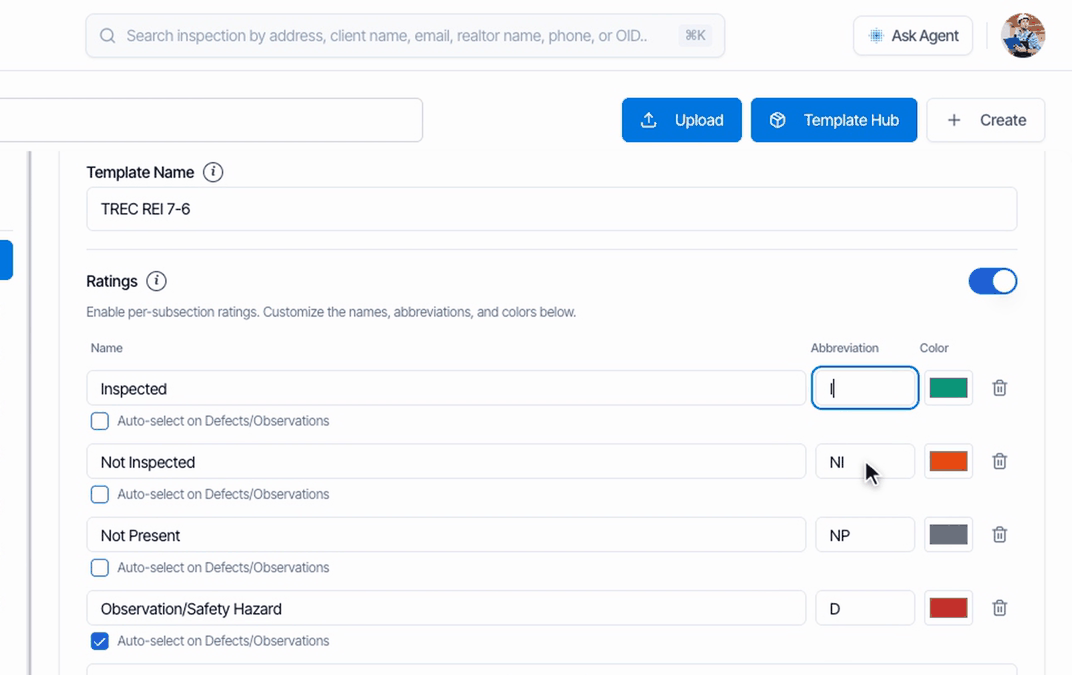
Add, reorder and keep the Information section
Unlike the other state forms, TREC isn’t matched spot by spot. You can add your own comments and items, and reorder them. Hive prints what you rate, in your order. Just leave the Information section in place.Check the PDF before you publish
Click PDF, then View PDF. TREC reports also get a separate Summary PDF.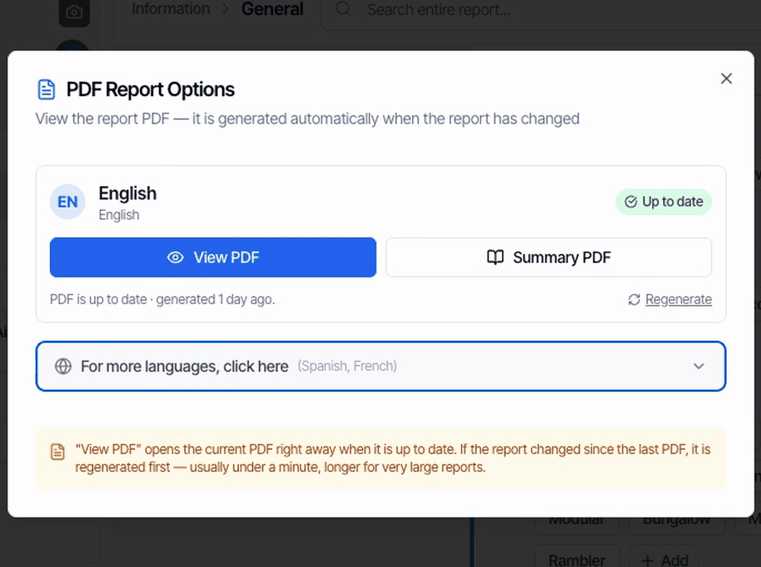
- Your cover page.
- The TREC form page.
- The notice, with your additional information.
- Every item you rated, with its boxes checked.
Spanish PDF
Under For more languages, a TREC report can be made as a Spanish PDF for a fee. Your item names, comments and captions are translated, and the TREC form text stays in English. French isn’t available for TREC.What your client gets
When you publish, your client’s portal leads with View PDF for this report, and the report email links straight to the PDF.Common questions
Only the first page of the TREC form filled in.
Only the first page of the TREC form filled in.
Items without a rating don’t print. Rate every item you report on with IN, NI, NP or D, then click PDF and Regenerate.
I imported my template from Spectora and it isn't in the TREC format.
I imported my template from Spectora and it isn't in the TREC format.
The TREC format is switched on per template by our team. Send us the template’s name in the chat and we’ll convert it. New inspections with that template then print as TREC reports.
The official form uses I, but the Hive template uses IN.
The official form uses I, but the Hive template uses IN.
Rename the abbreviation in the template’s Overview → Ratings. I and IN both check the Inspected box.
Can I add my own comments and reorder items?
Can I add my own comments and reorder items?
Yes. TREC prints what you rate, in your order, so you can add comments and items and move them around. Keep the Information section, because its answers print under Additional Information Provided by Inspector.
Do I have to click D every time I add a deficiency?
Do I have to click D every time I add a deficiency?
Not if you turn on Auto-select on Defects/Observations for D in the template’s Overview → Ratings. New reports created from the template pick it up.
Whose license numbers print on the form?
Whose license numbers print on the form?
Every inspector assigned to the inspection, each with the License Number from their Profile Settings. The sponsor lines are left blank.
Can I give my client a Spanish TREC report?
Can I give my client a Spanish TREC report?
Yes, as a paid Spanish PDF under For more languages in the PDF window. The form text stays in English, and your item names, comments and captions are translated.
Related
- Texas WDI report: the Texas Official Wood Destroying Insect Report.
- Turn ratings on or off: ratings for your other templates.
- Import a template: every official form in the Template Hub.