

Setting up templates and agreements for service creation
Add templates and agreements
0:01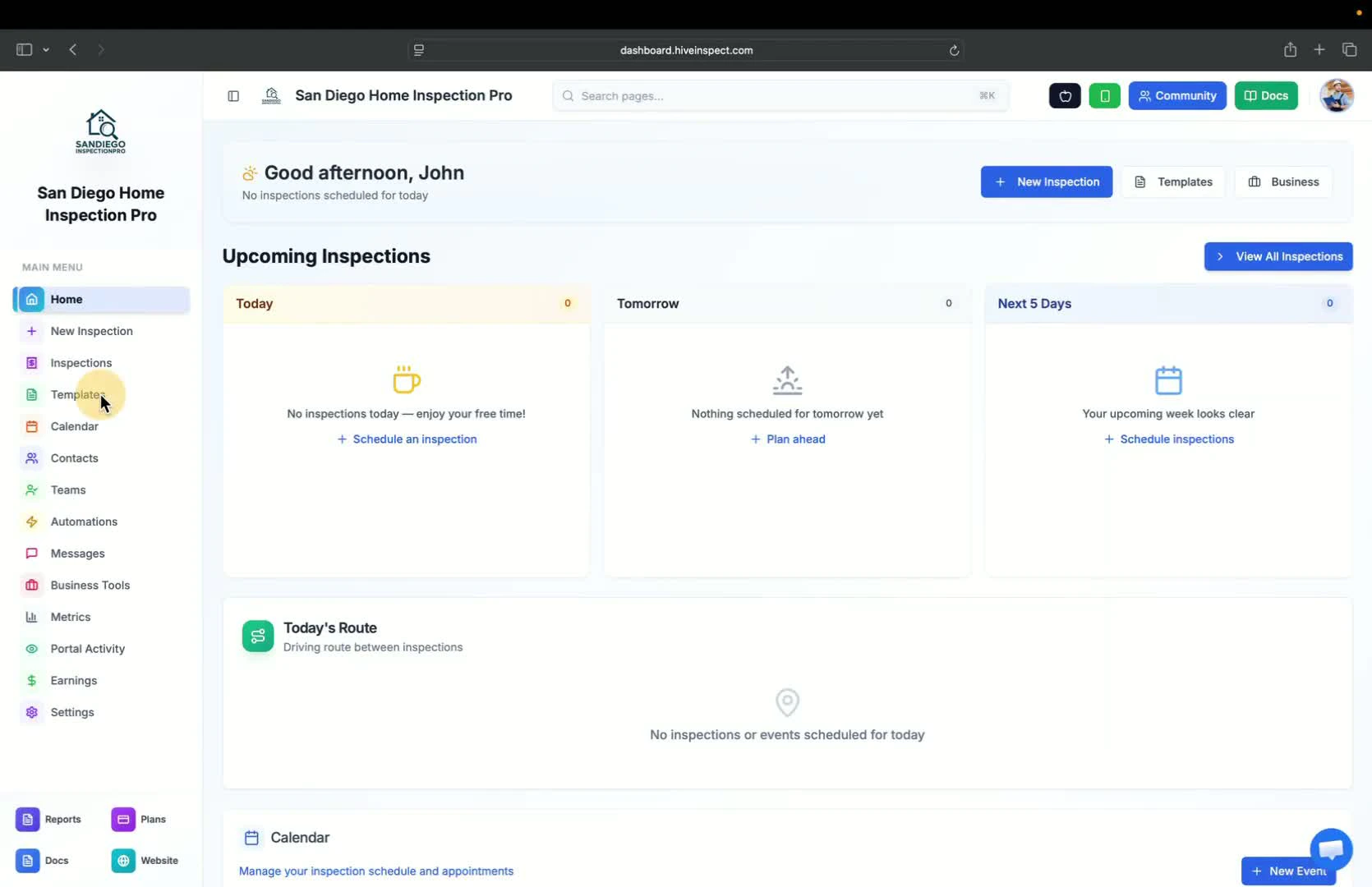
- Begin by adding all necessary templates
- Templates and agreements are the primary components needed before creating a service and inspection
Clear formatting (if necessary)
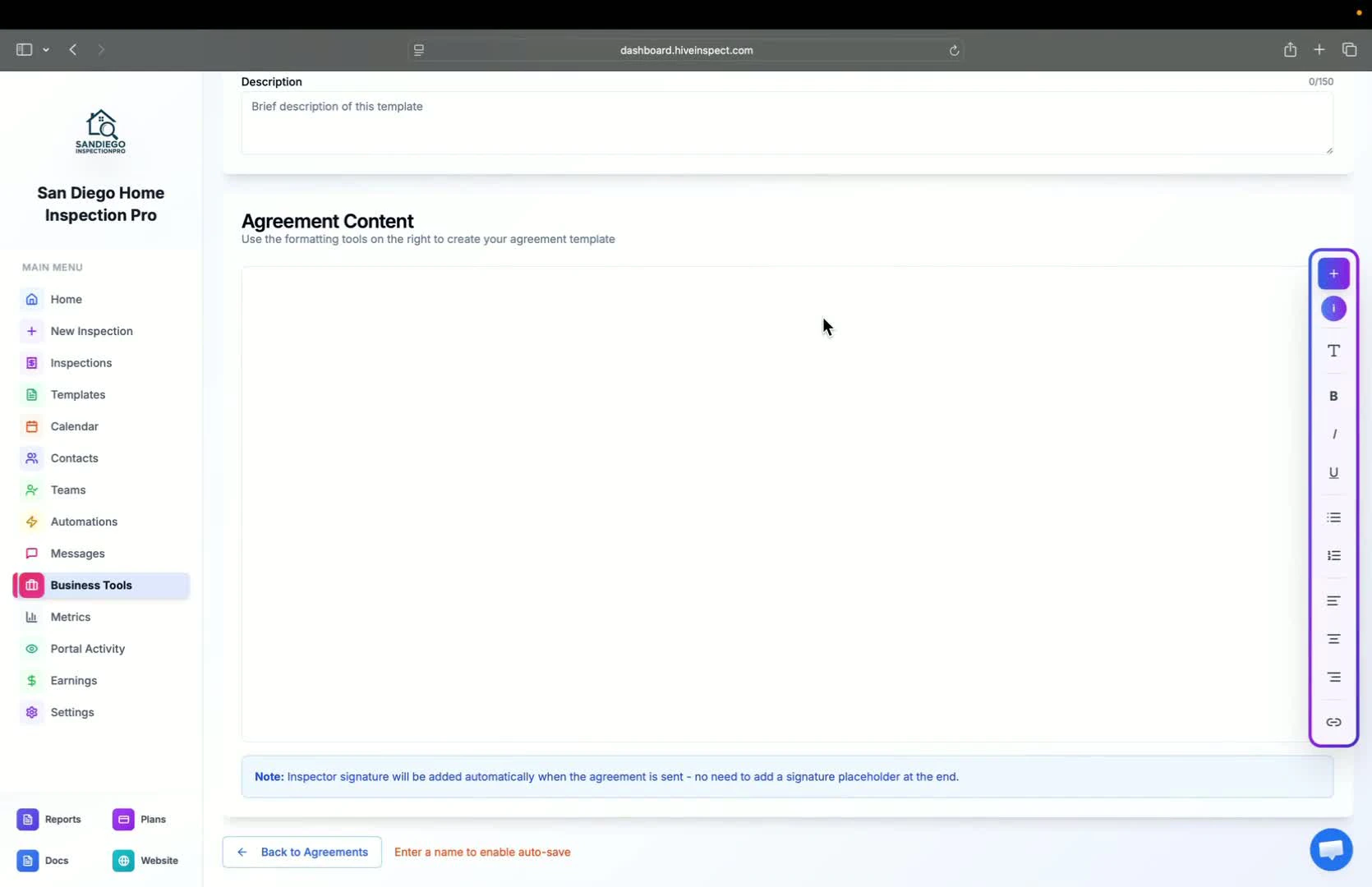
Use existing agreements
0:38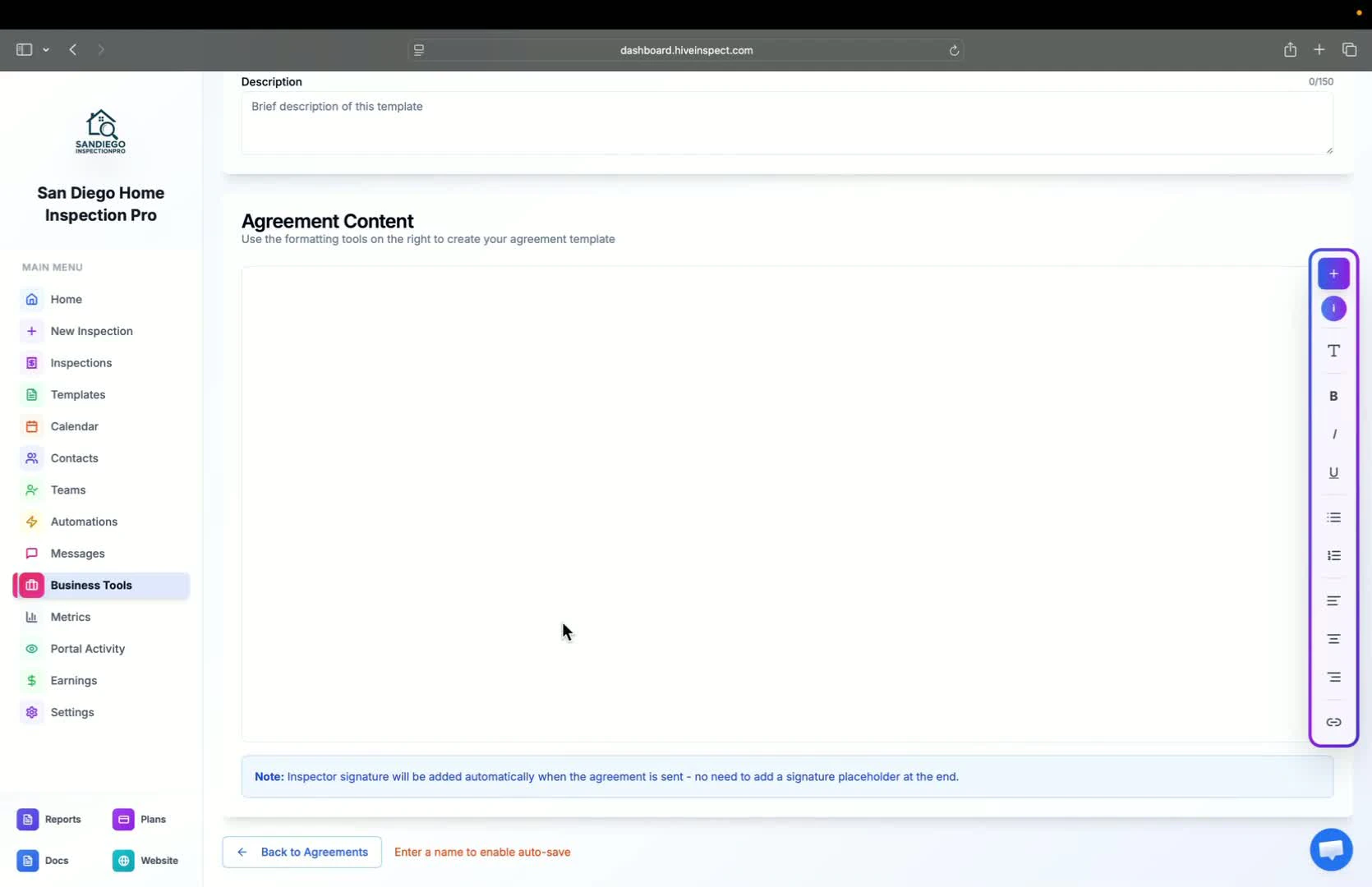
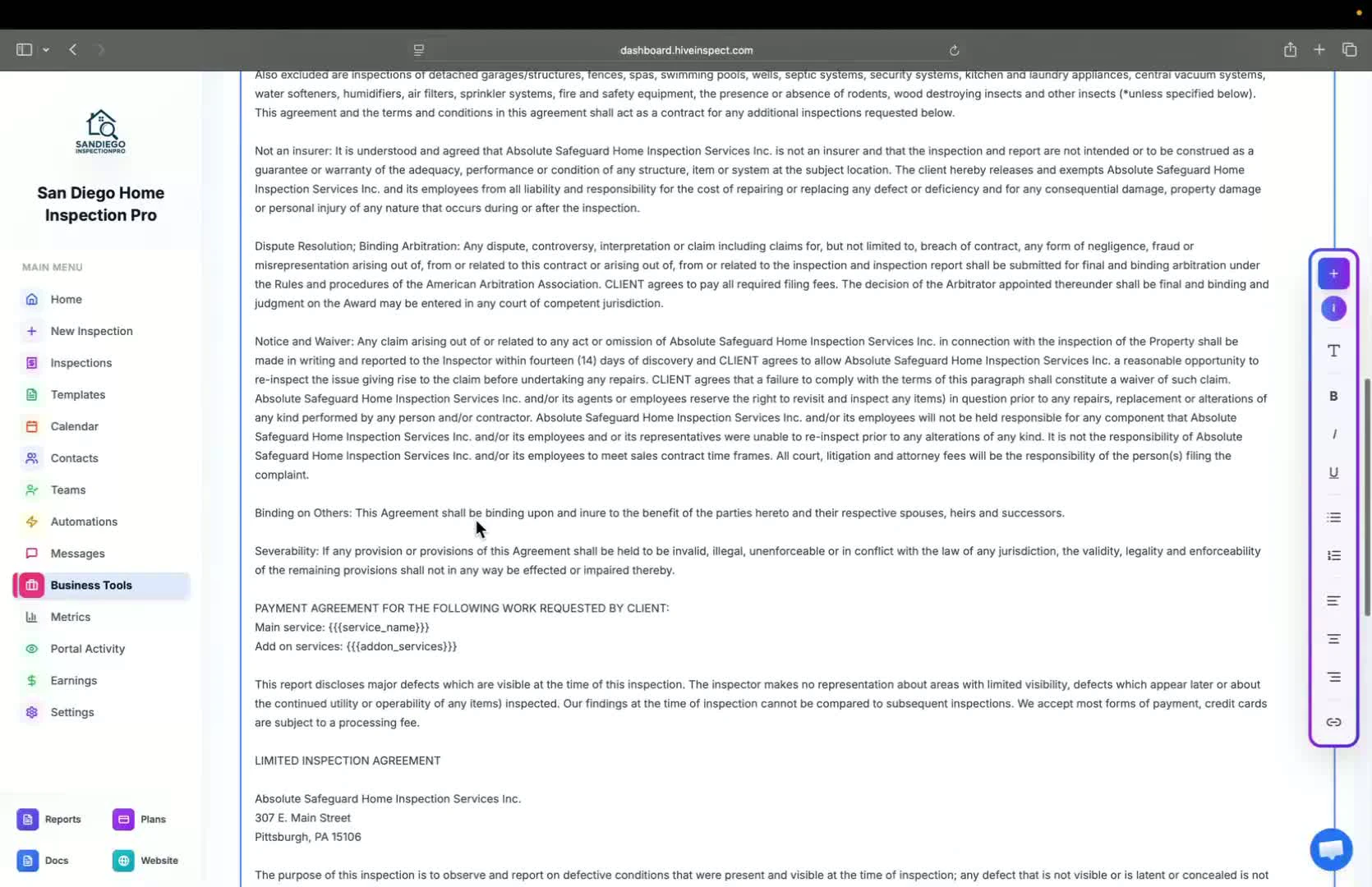
- If transitioning from Spectora, note that placeholders may differ (e.g., number of parentheses)
- Replace Spectora placeholders by clicking the plus button and selecting the appropriate option
Replace placeholders in agreements
1:05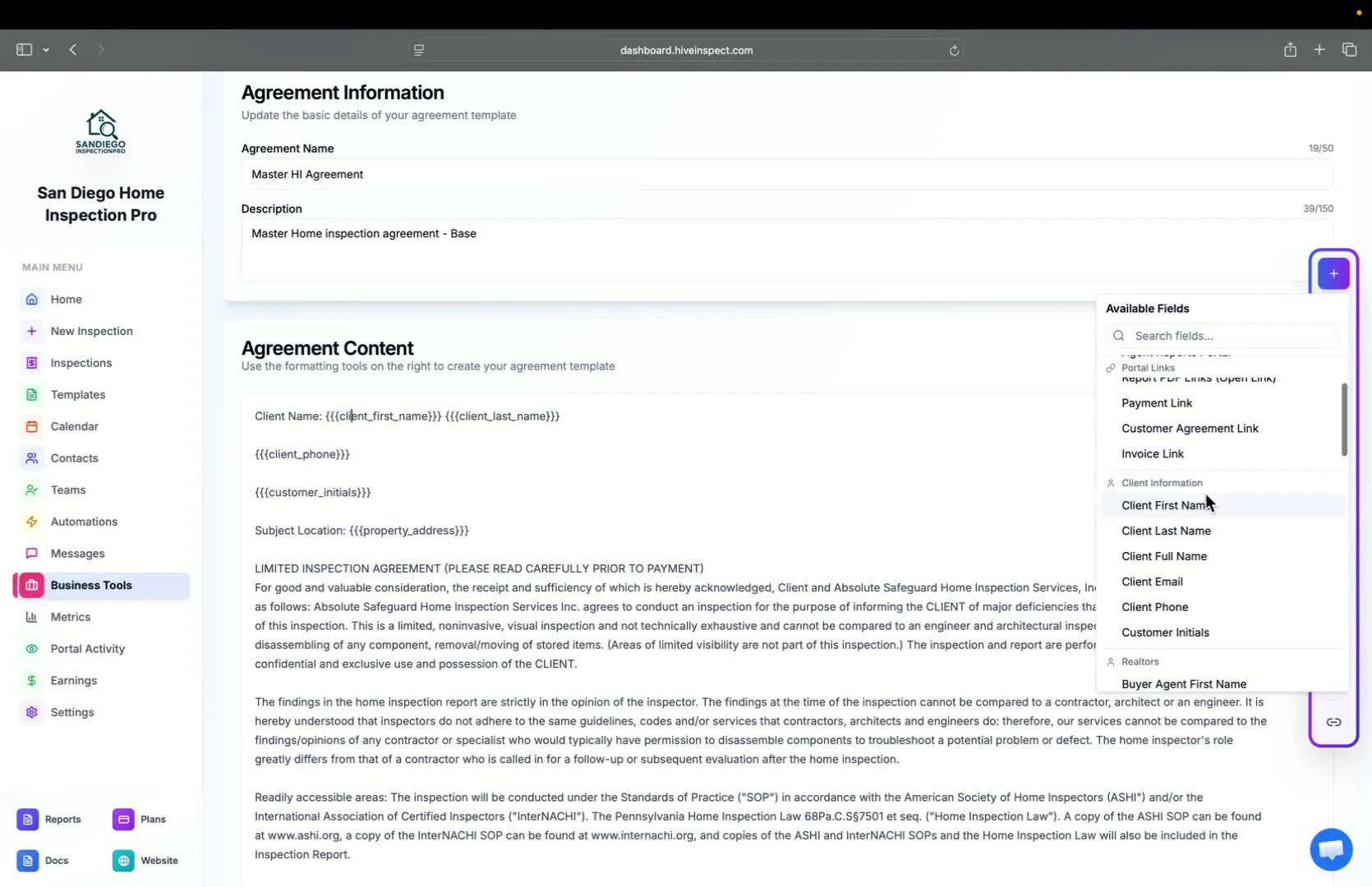
- For example, to add the client’s first name:
- Click the plus button
- Select client first name and place it in the desired location
- Repeat this for all placeholders in the agreement
Optional placeholder usage
Signature automation
1:29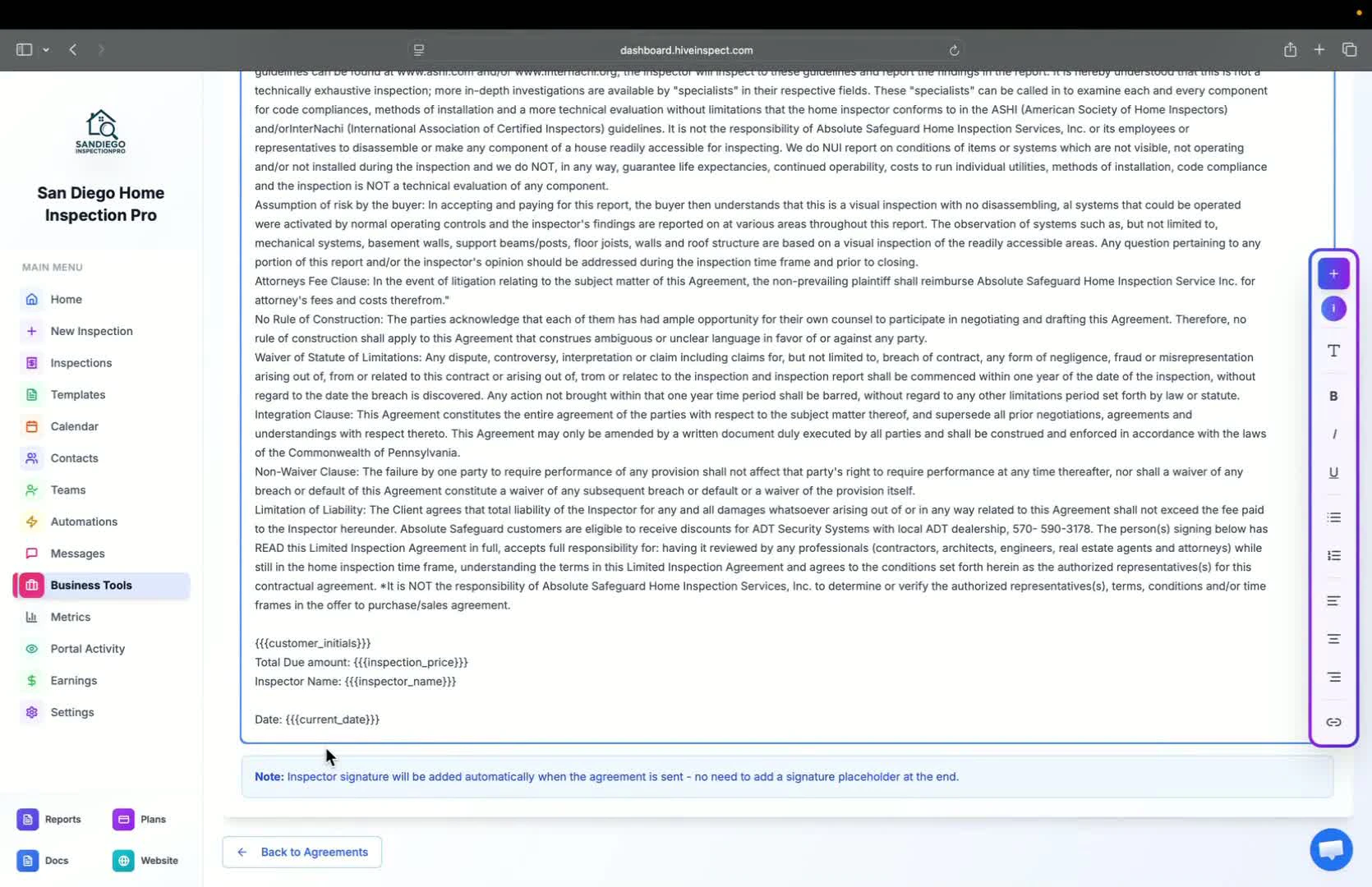
- No need to manually add your signature; it will be automatically included when the agreement is shown or when creating a PDF after customer signing
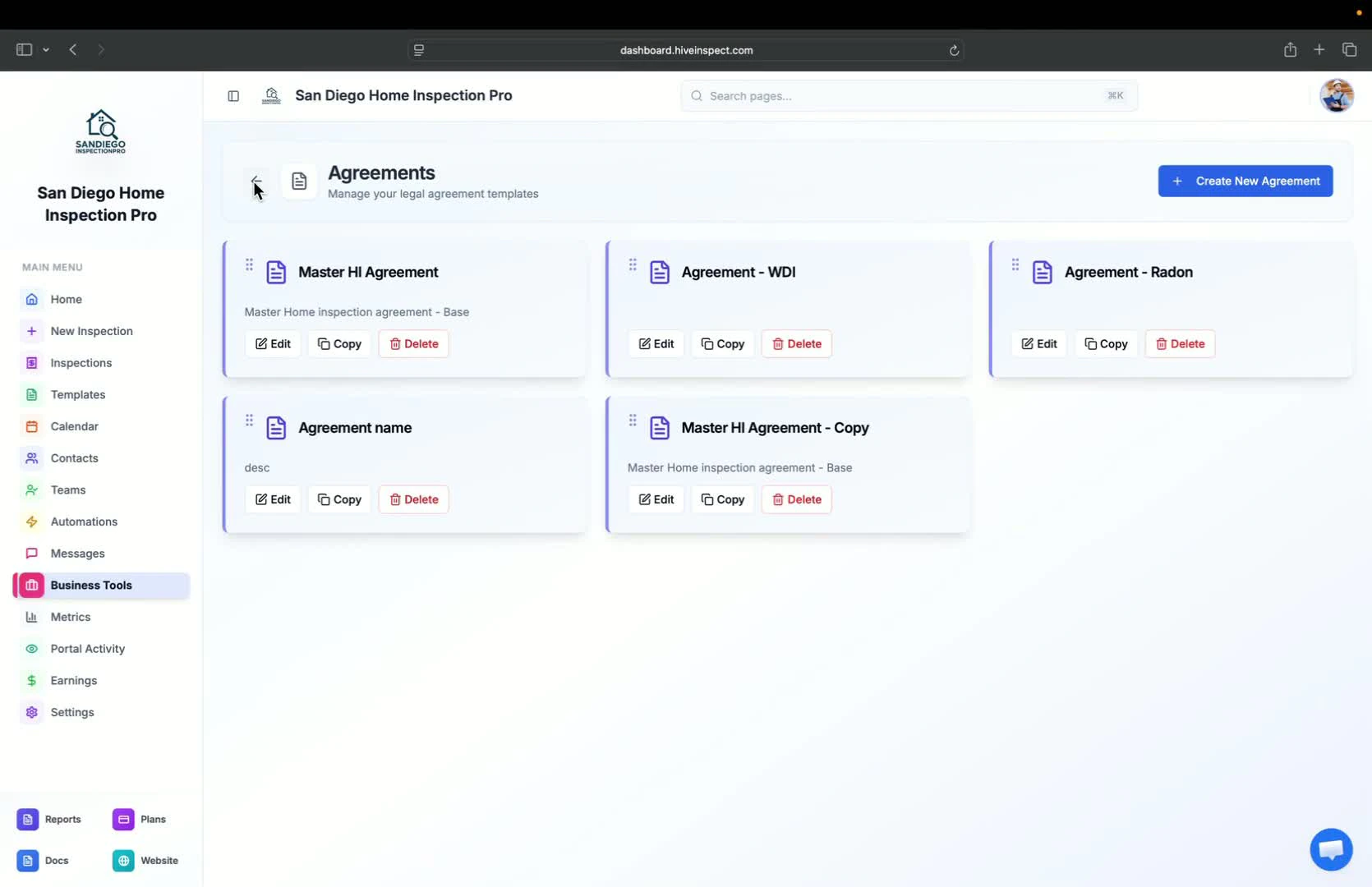
Create multiple agreements (if needed)
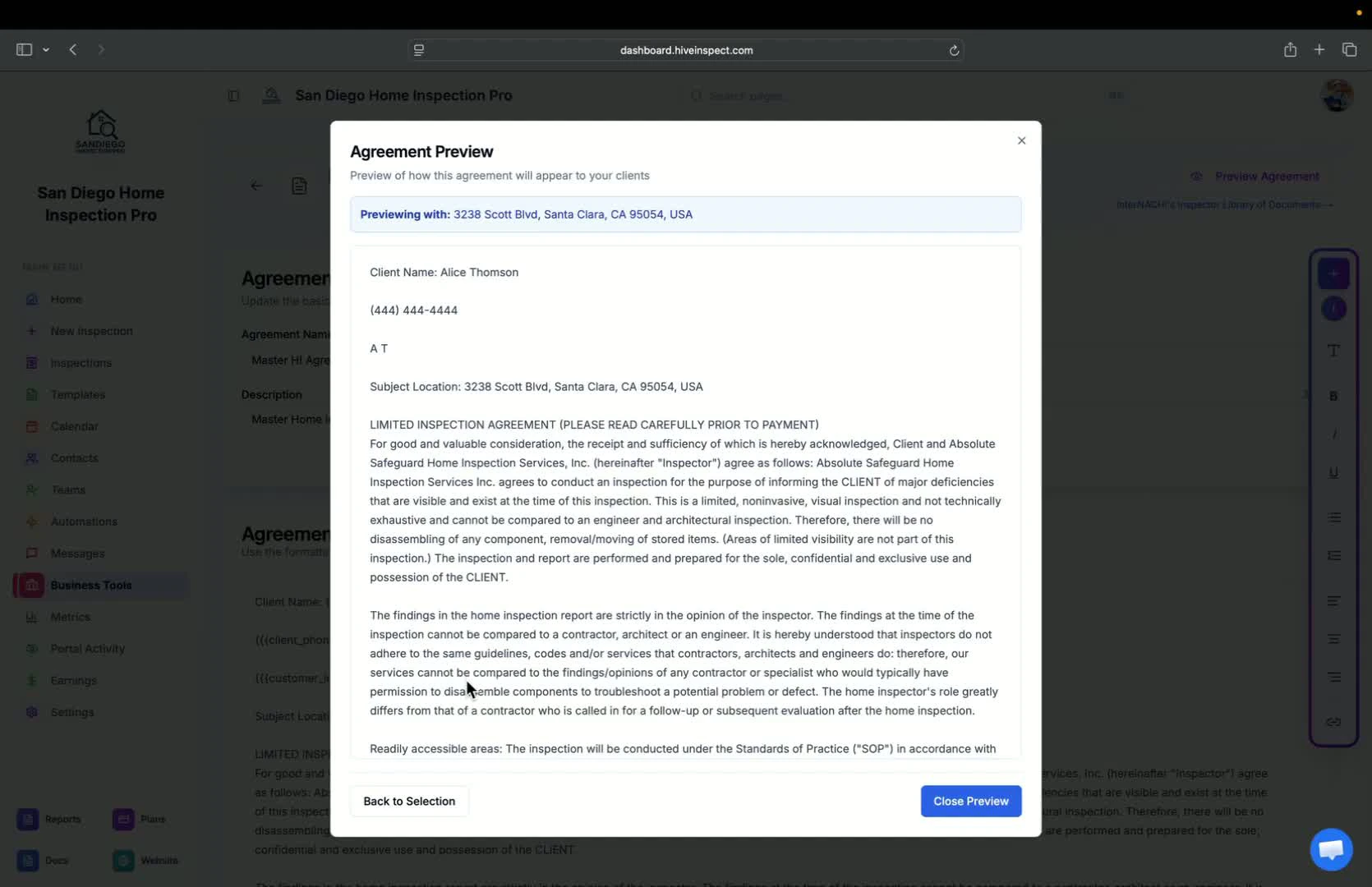
Preview agreements
1:53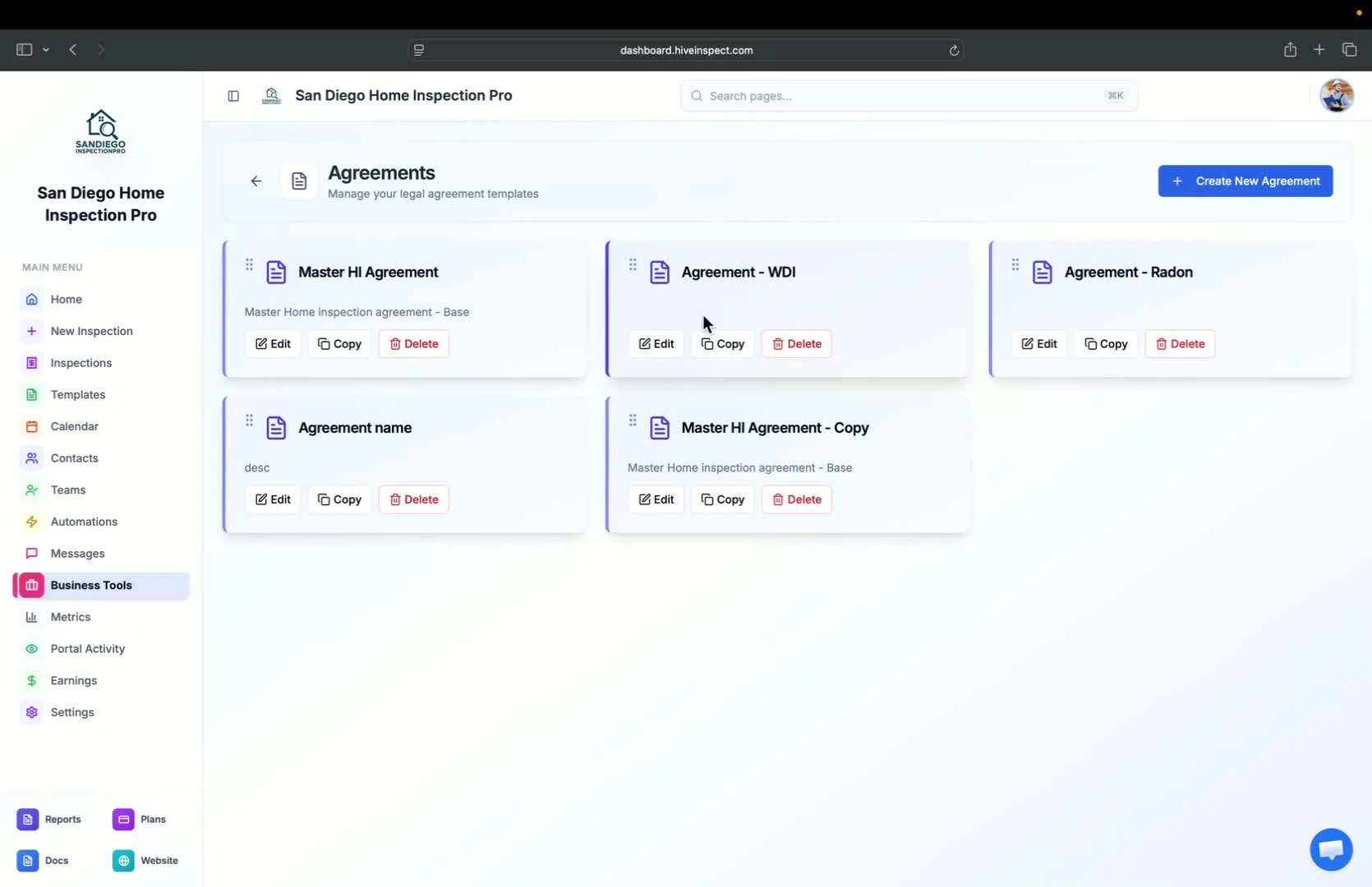
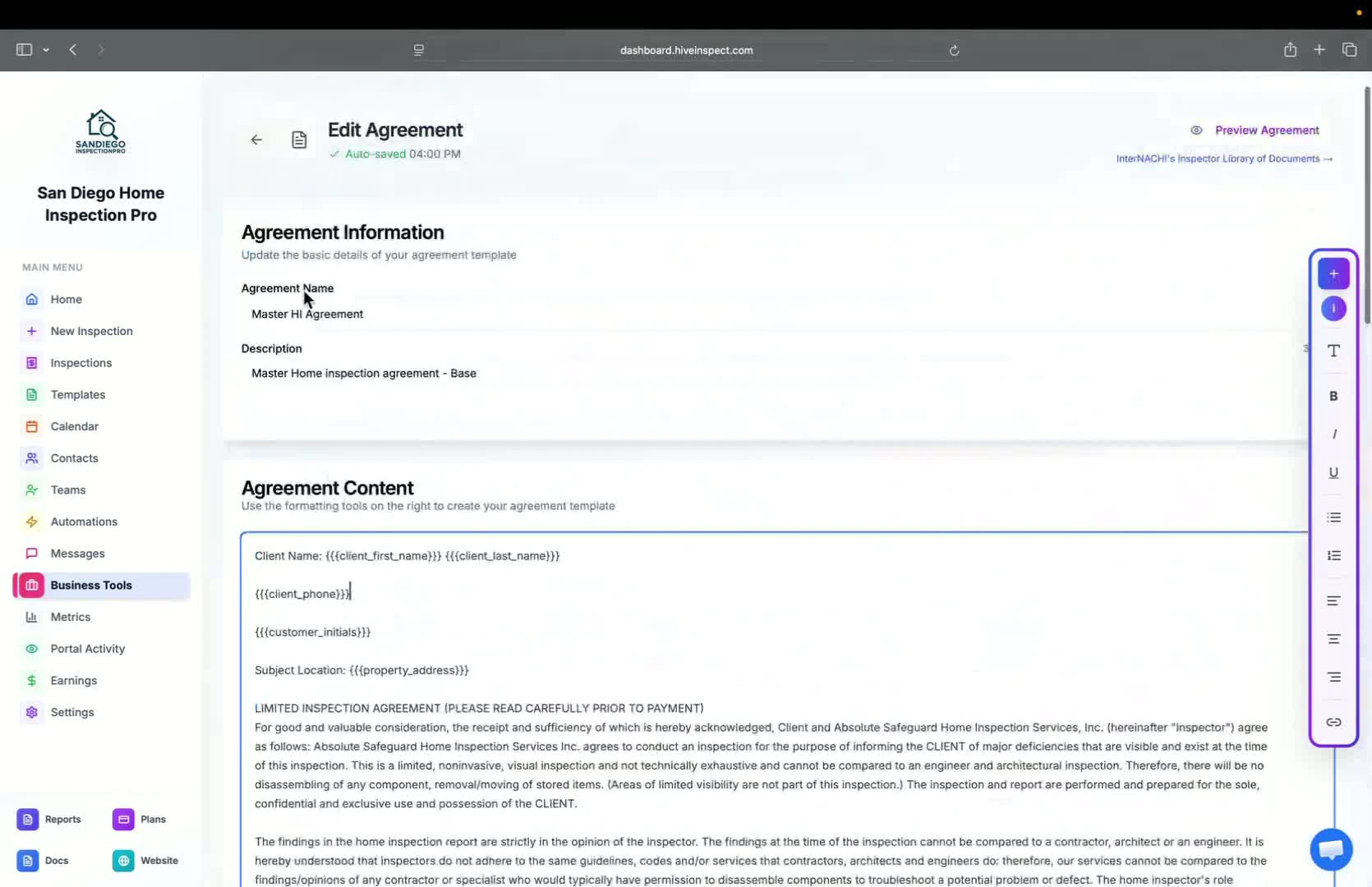
- In edit mode, you can preview agreements to see how placeholders will look
- Select an address to see auto-filled information (e.g., name, amount due, customer details)
Check placeholders after inspection creation
Conclusion
Next step
Related