

Setting up payment options for customers
Access payment settings
0:01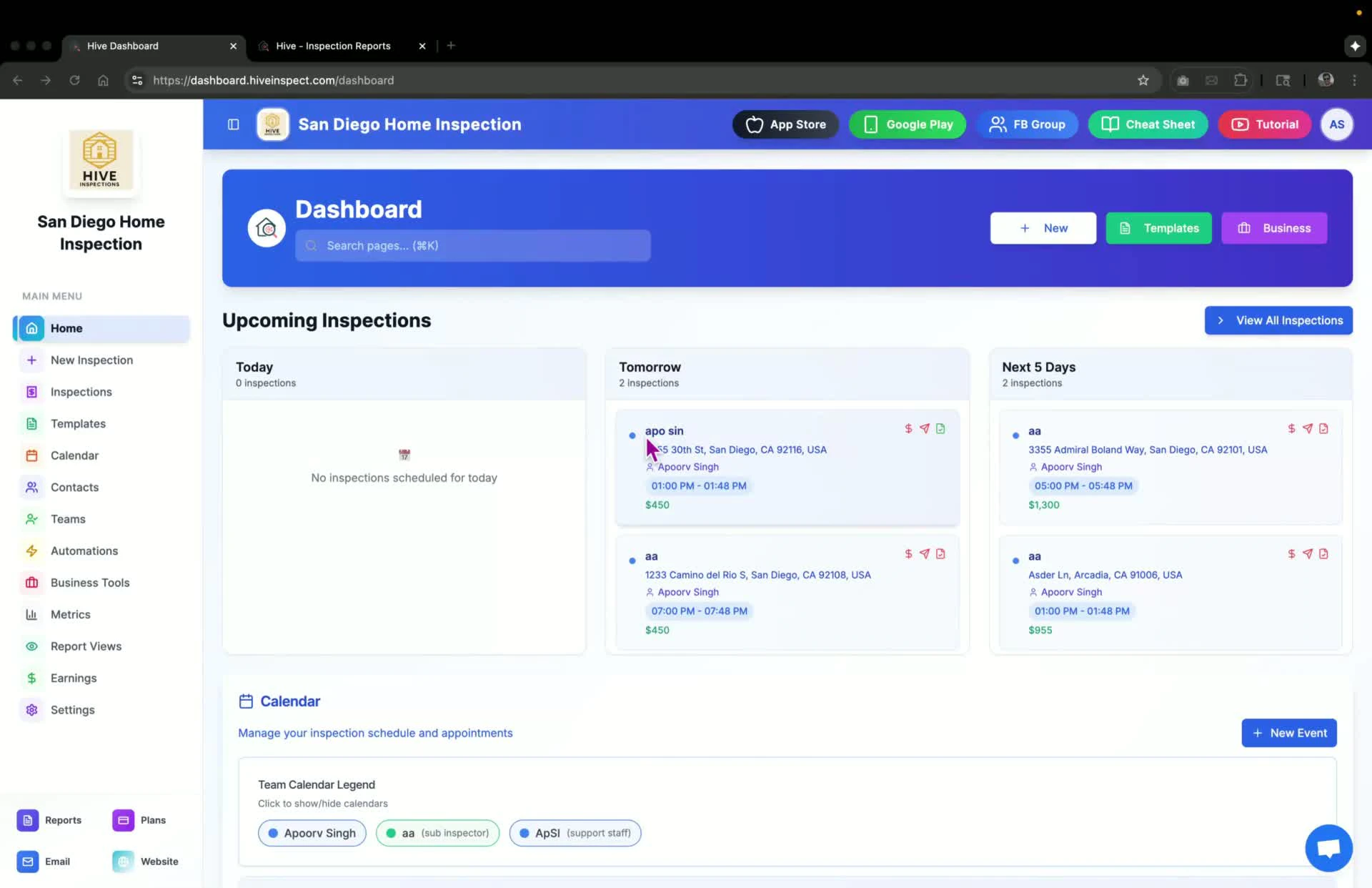
- Navigate to Business Tools
- Select Payments
- If this is your first time, click the Connect your Stripe button to link your Stripe account
Connect your Stripe account
0:10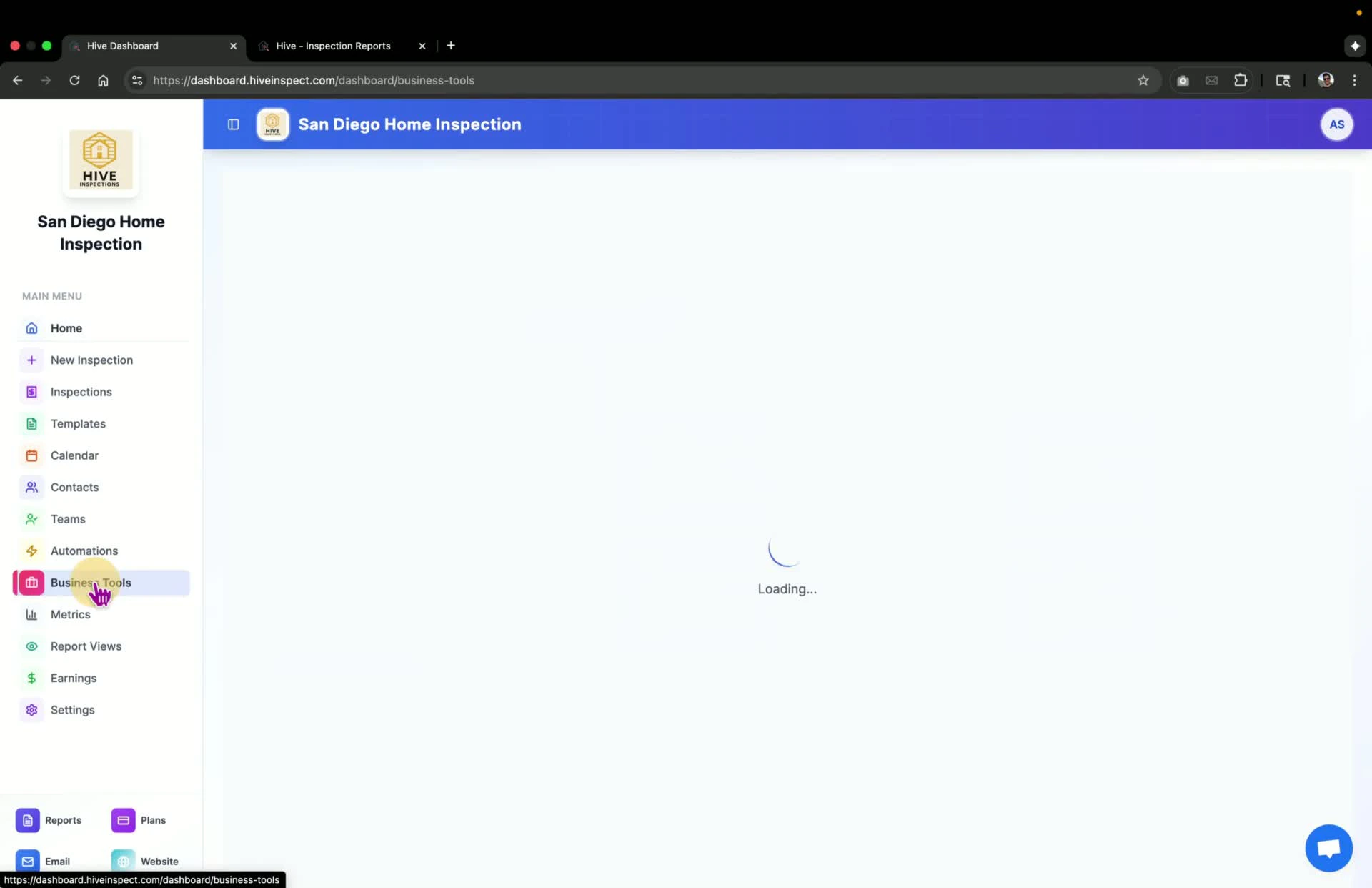
- Log in to your Stripe account or sign up if you don’t have one
- Once connected, you will see various payment options available
Enable credit and debit card payments
0:47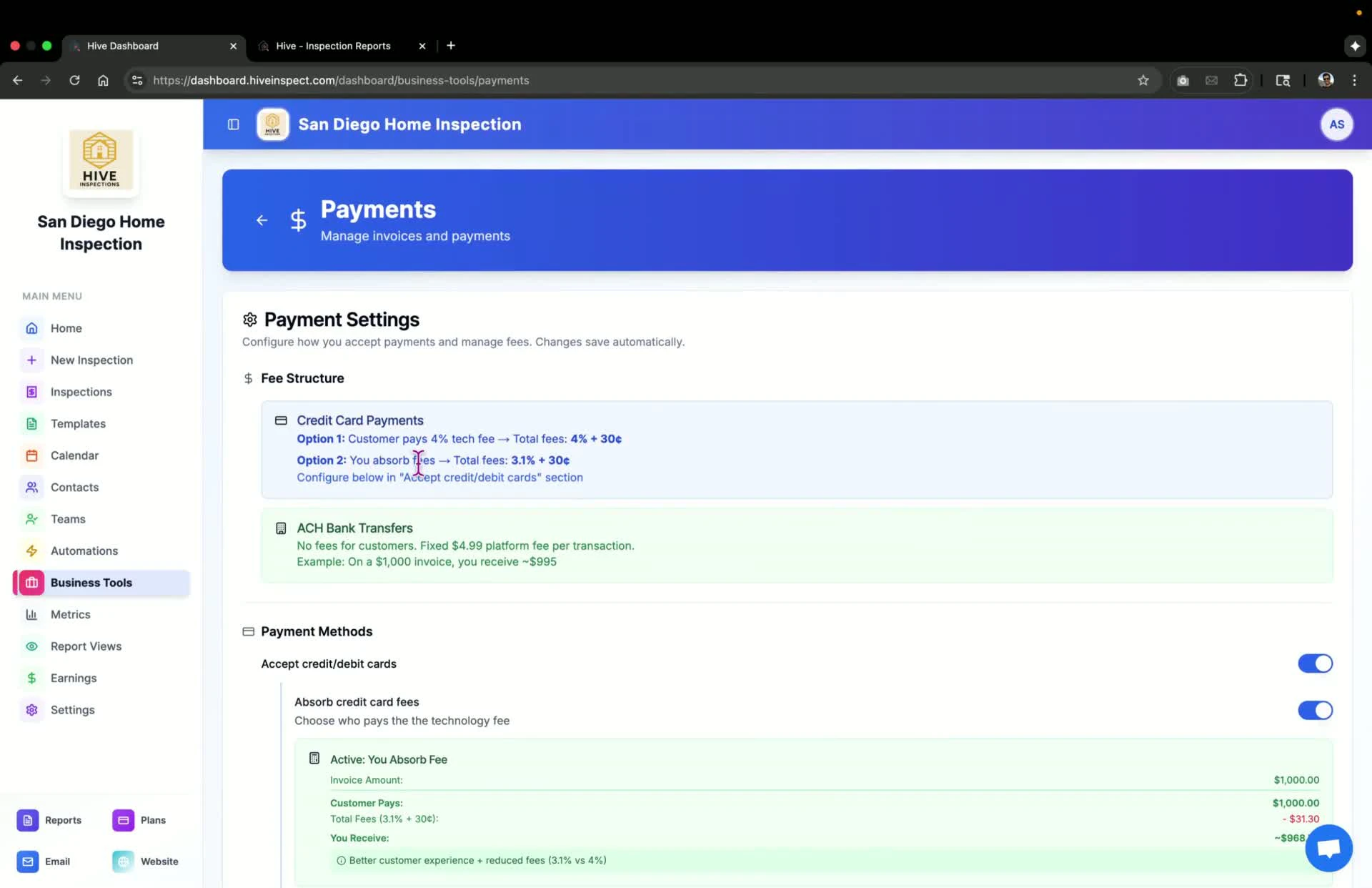
- Toggle the option to accept credit and debit cards on or off
- This is the most common payment method for customers
- Enabling this option allows customers to pay via Apple Pay and Google Pay
Decide on credit card fee absorption
1:15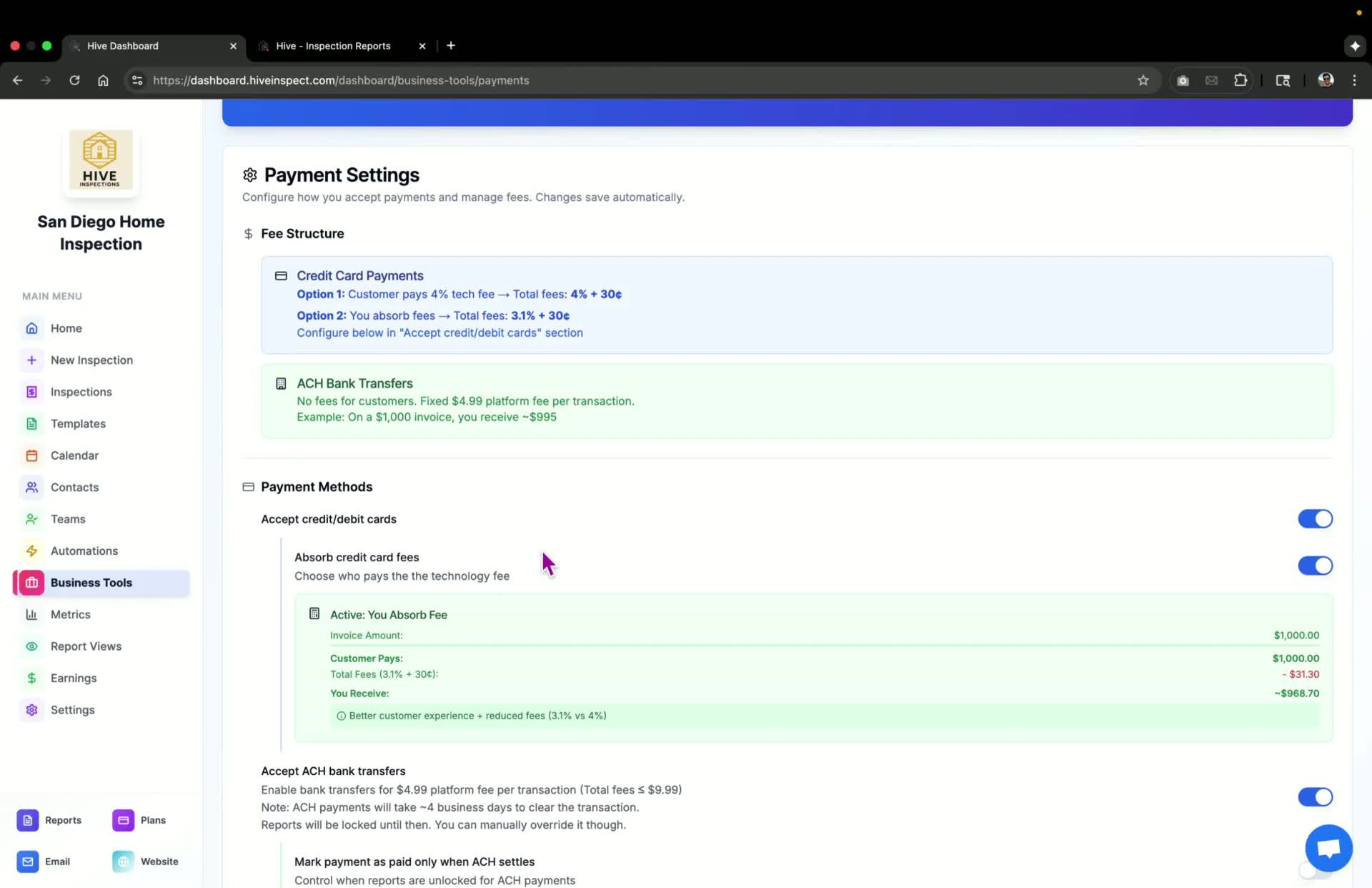
- Choose whether to absorb credit card fees or pass them on to customers
- If fees are passed on, your regular price includes a 4% Technology Fee, and clients who pay by bank transfer, cash, or check get a matching discount
- If you absorb fees, you pay 3.1% + 30¢ per card payment
- See how the Technology Fee works before you quote prices to clients
Enable ACH payments
2:14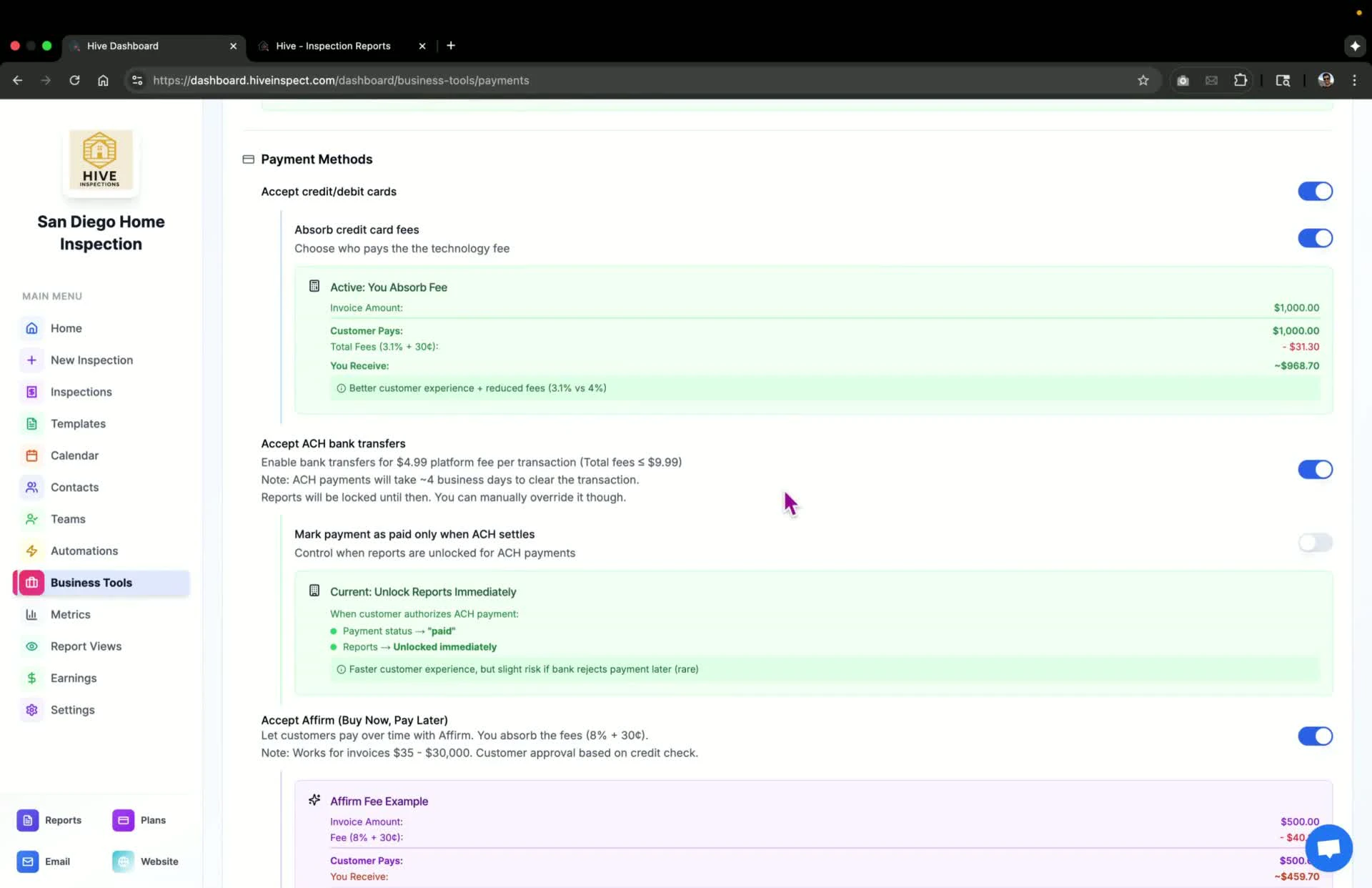
- Toggle the option for ACH payments on or off
- Bank transfers take 1 to 4 business days to clear. By default the payment is marked as paid and the report unlocks as soon as the client authorizes the transfer, once any agreements are signed
- To keep the report locked until the bank confirms, turn on Mark payment as paid only when ACH settles. The payment then shows as processing until it clears. See Payment settings
Offer a buy now, pay later option
3:10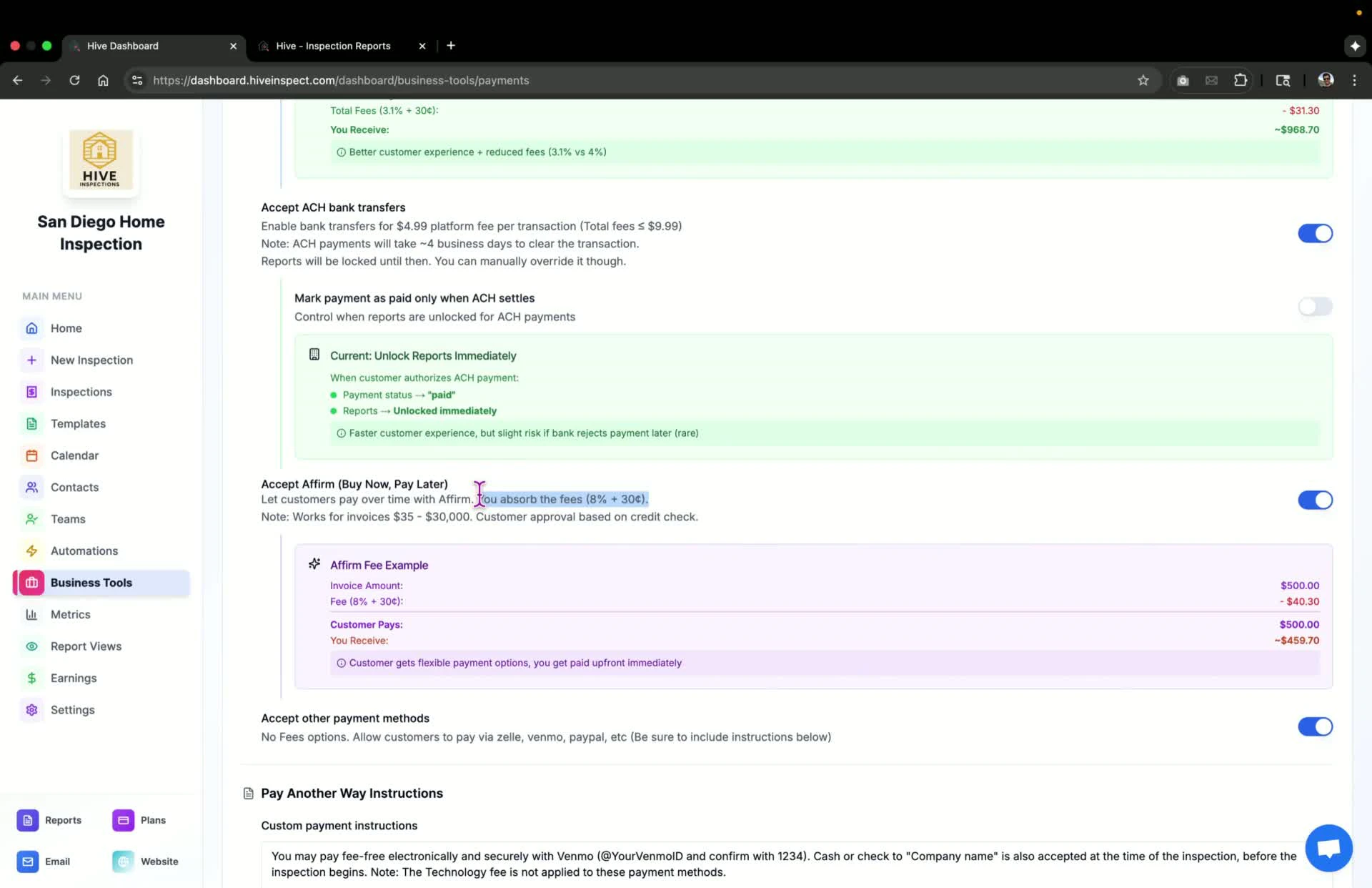
- Toggle the Buy Now Pay Later option on or off
- Note that you must absorb the fee of 8% + $0.30 as passing it on would classify you as a lender
Enable other payment methods
3:29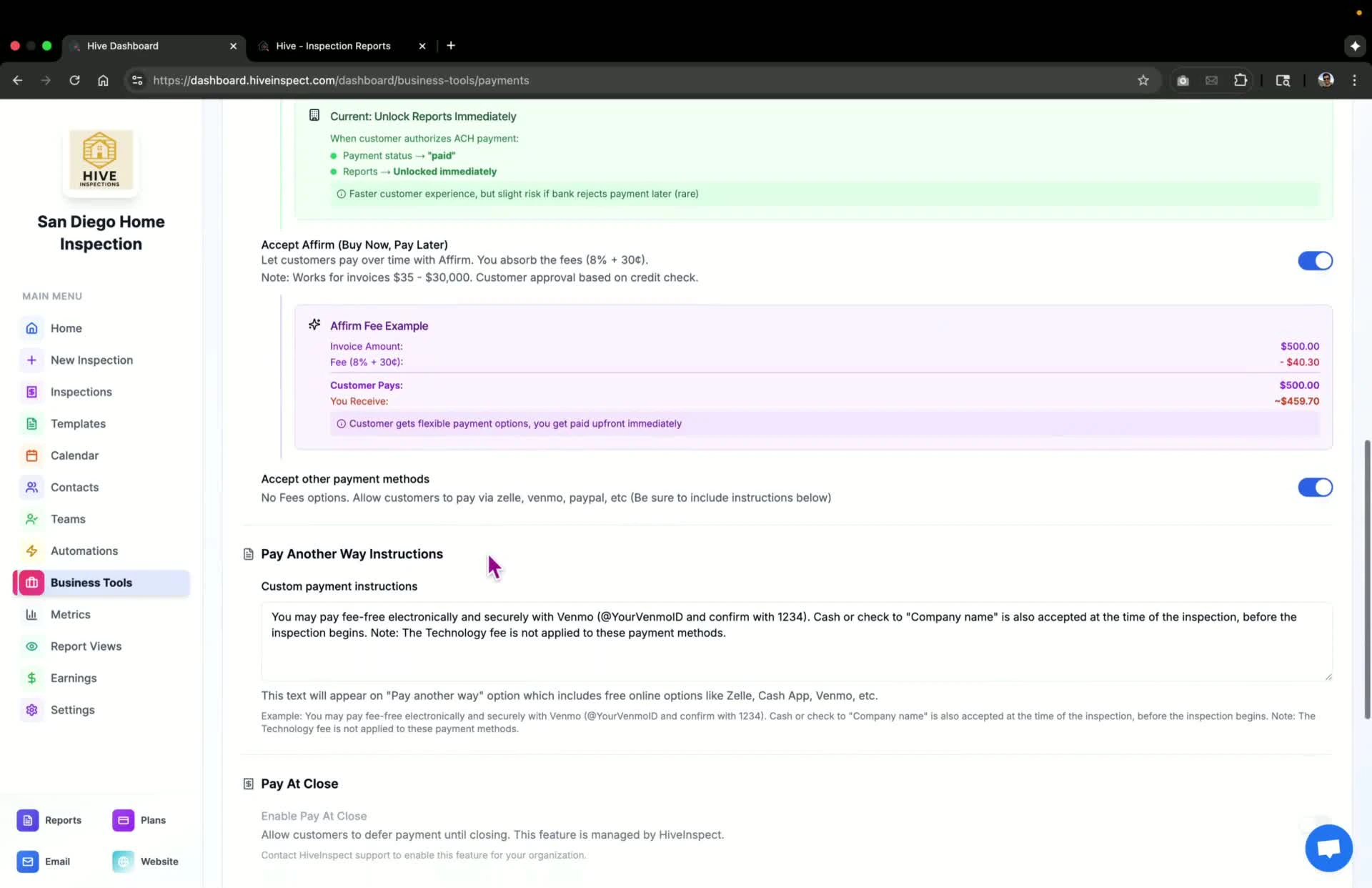
- Toggle the Other Payment Methods option on or off
- This method is less preferred due to tracking issues; manual payment marking is required
Add payment instructions
3:48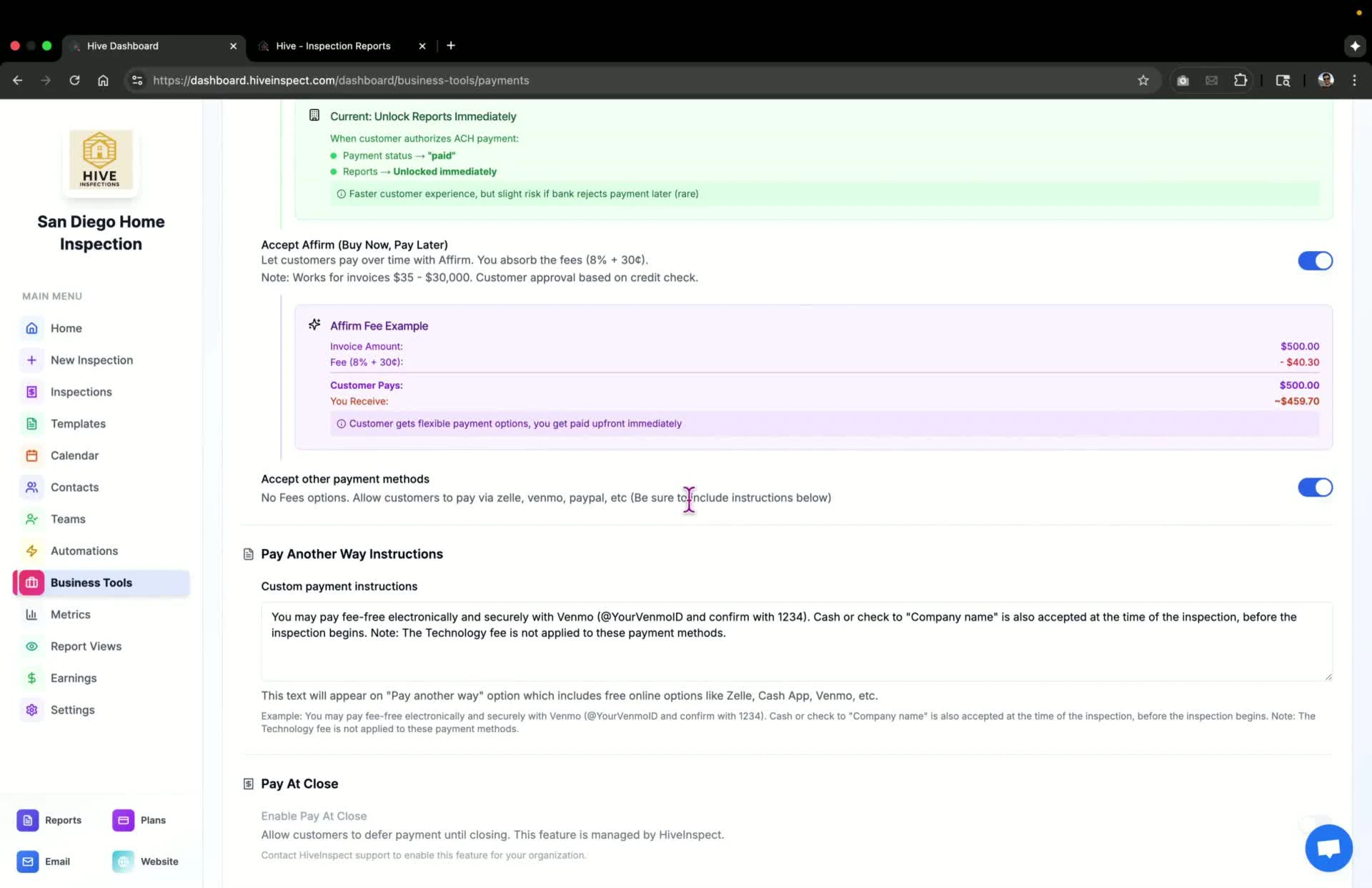
- If enabling other payment methods, include payment instructions (e.g., Venmo ID, Zelle details) for customers
Understand the Pay at Close feature
4:08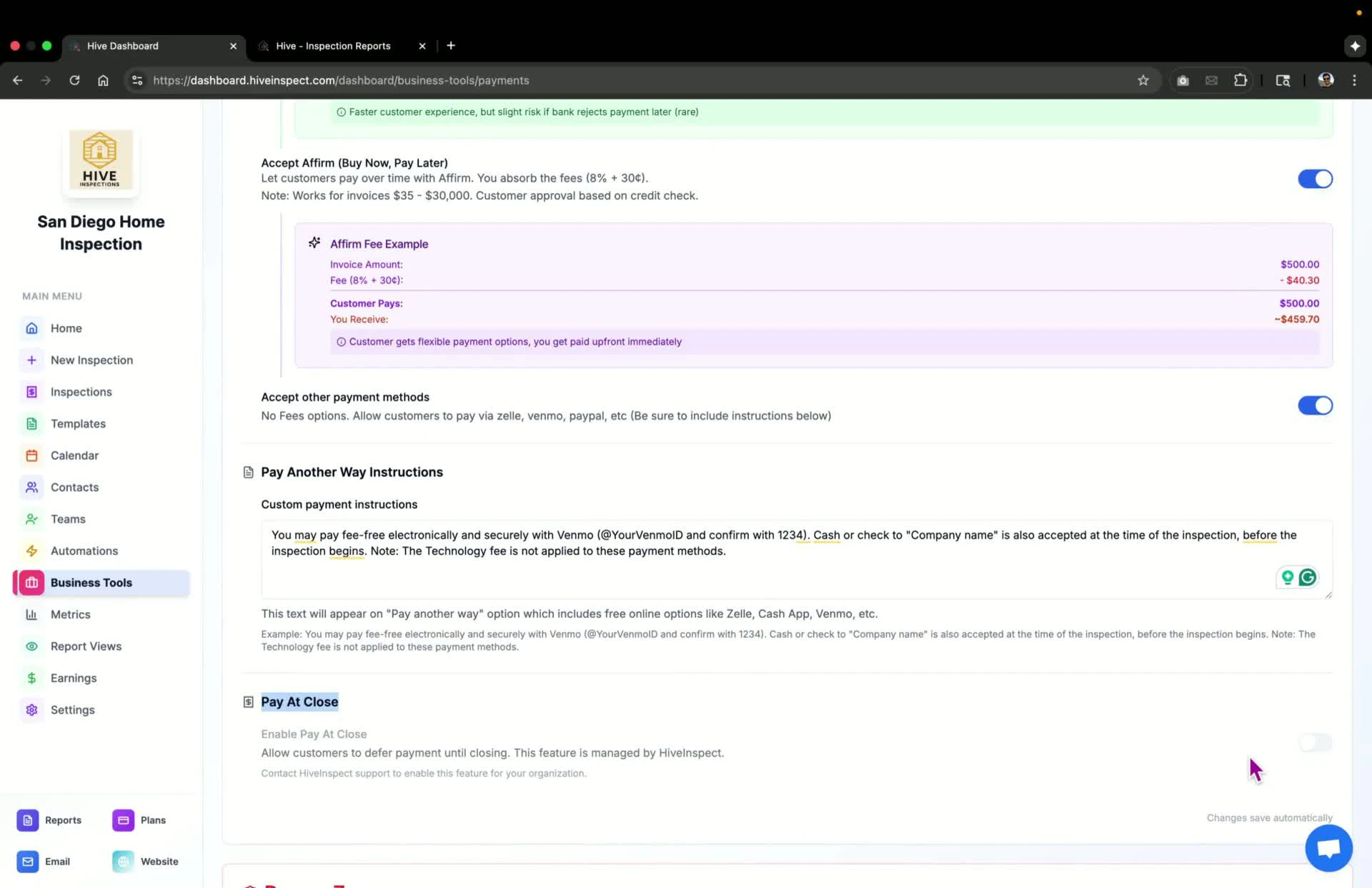
- This feature can only be enabled by the service provider
- Contact support to request this feature if needed
View payment options as a customer
4:24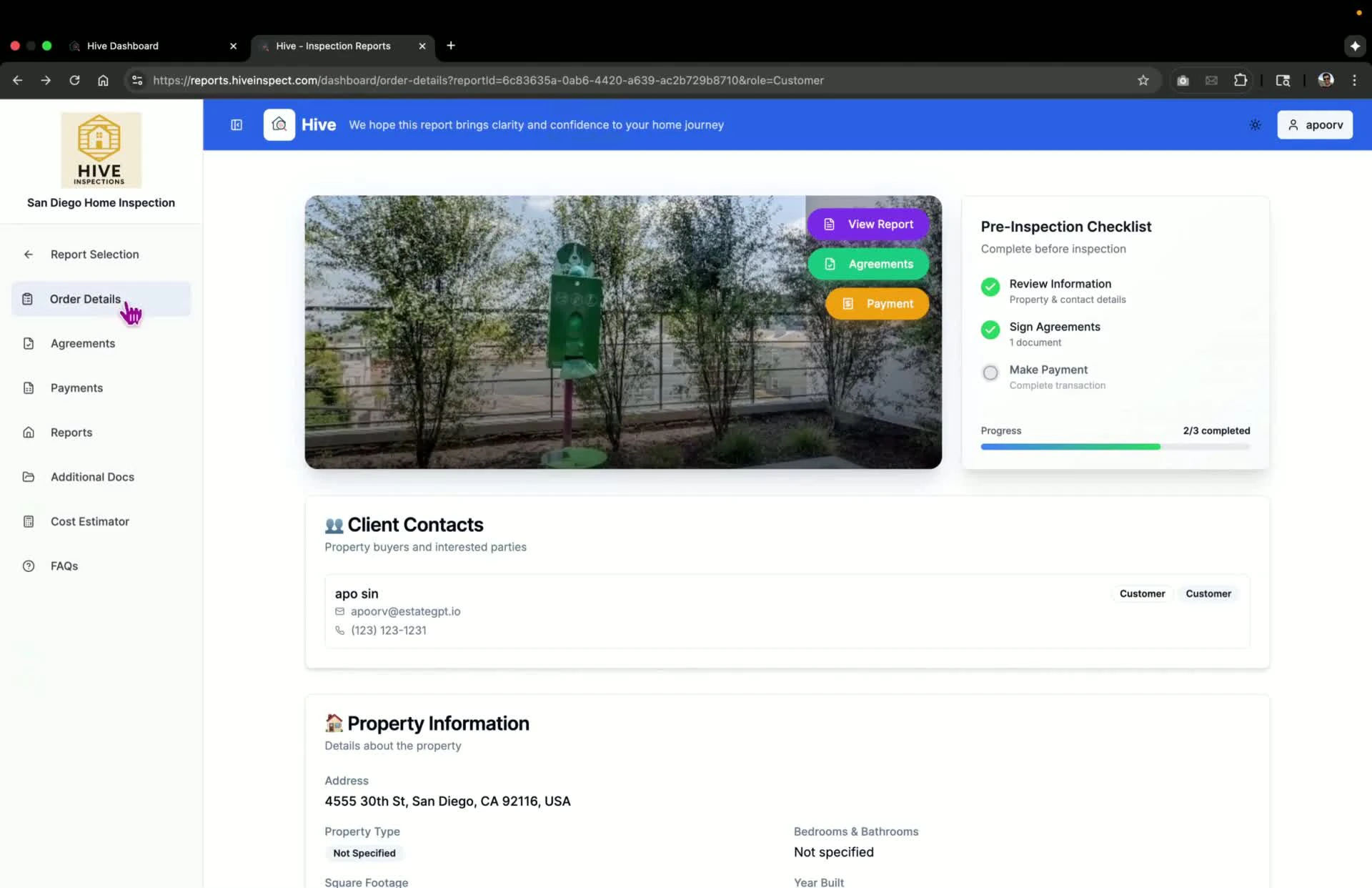
- Customers can view payment options in the reports portal under Payments
- They can choose to pay by card, ACH, buy now pay later, or other methods
Create custom invoices
5:00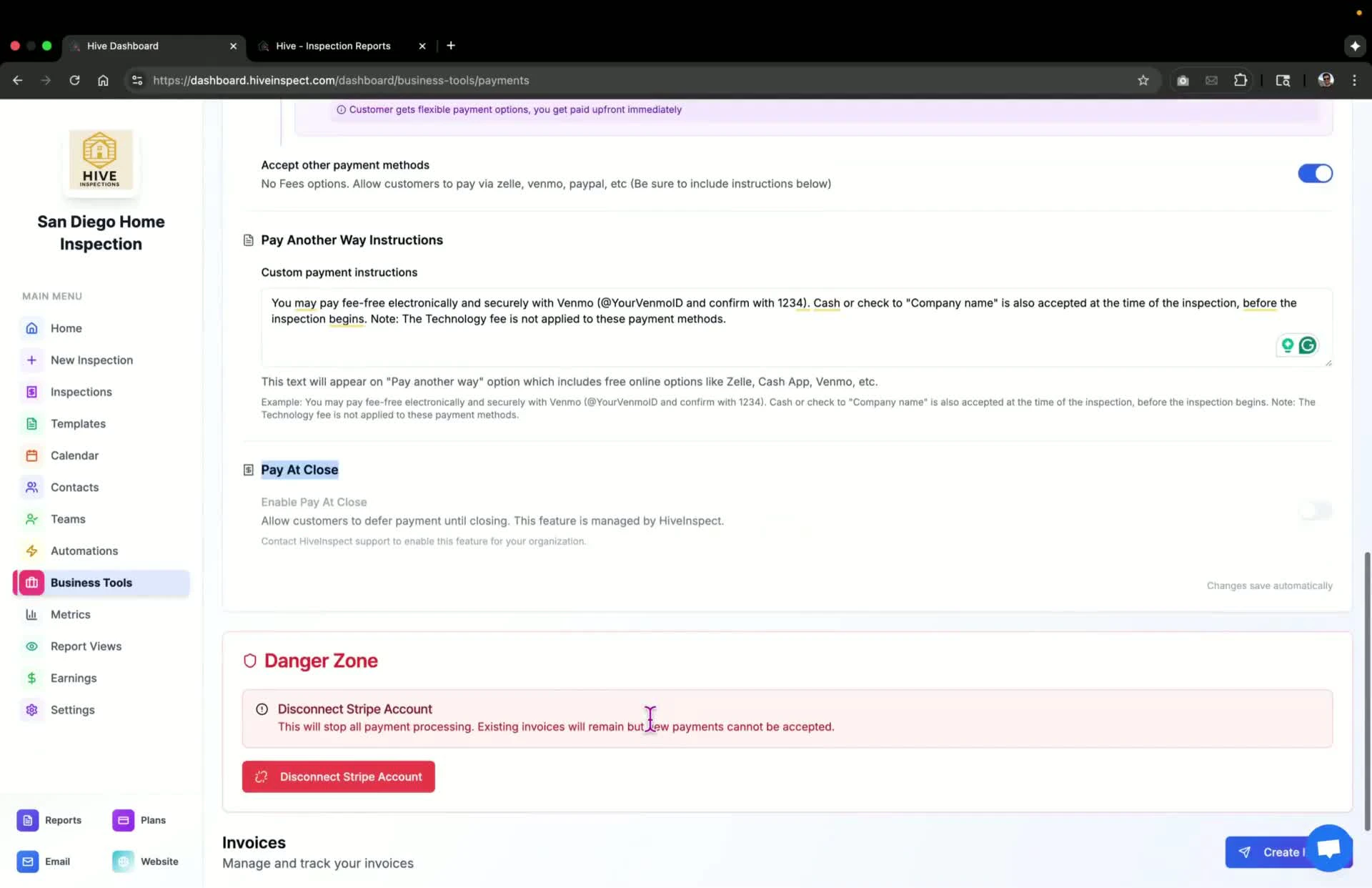
- To create a custom invoice, click Create Invoice
- This will generate a Stripe invoice and send it directly to the customer
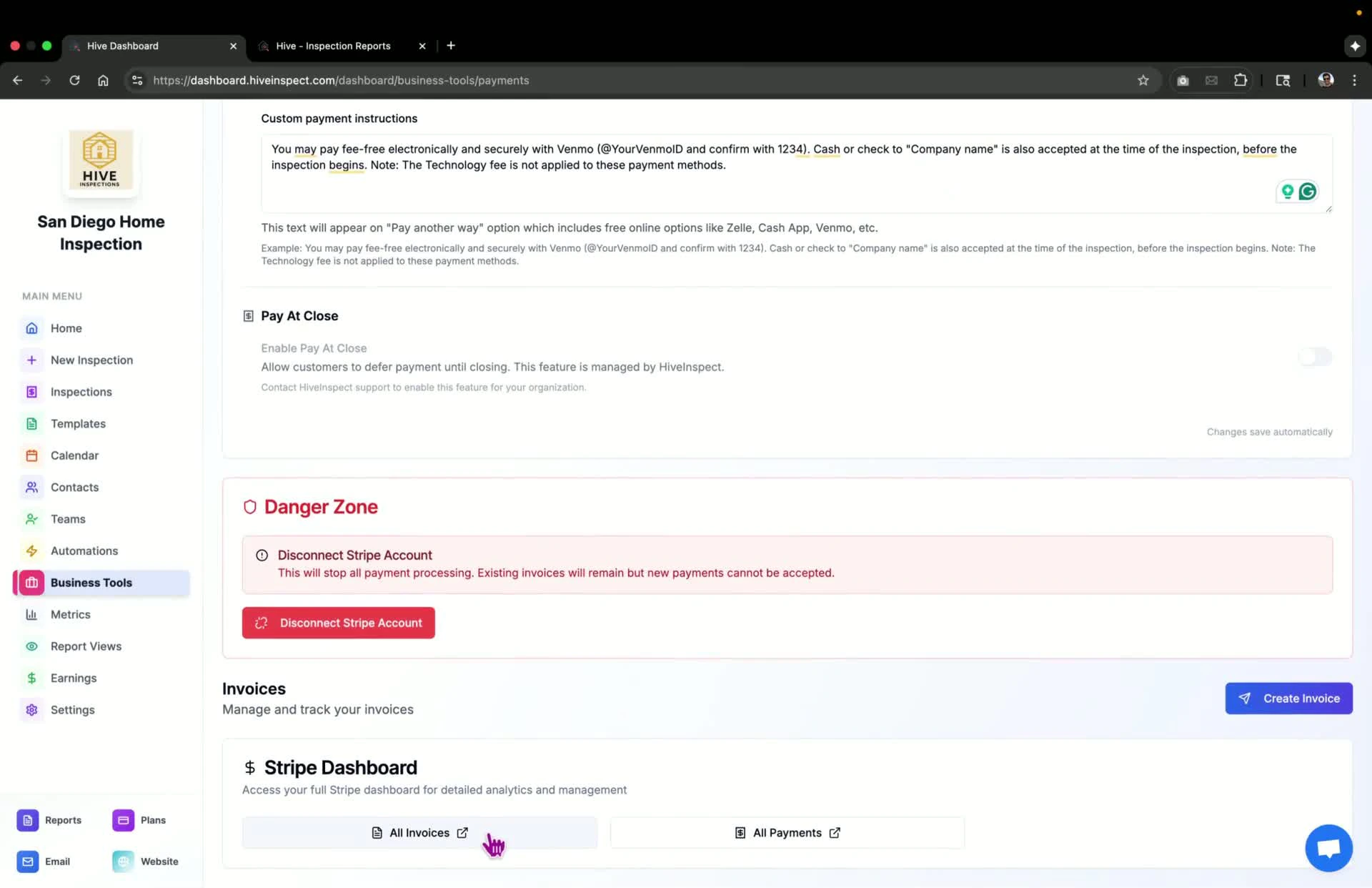
Review all invoices
Next step
Related