

In the dashboard: open the inspection, then Sub Contractors (next to Listing Agent, below the client and buyer’s agent).
A sub contractor is an outside company or person who does part of the job for you, such as a radon tester, a sewer scope company or a pool inspector. In Hive, a sub contractor is a contact you put on an inspection in the Sub Contractors role, with the fee you owe them for that job. Hive uses the fee on the Earnings page, where it’s taken off the revenue. The client never sees the fee.Add a sub contractor
Open the Sub Contractors section
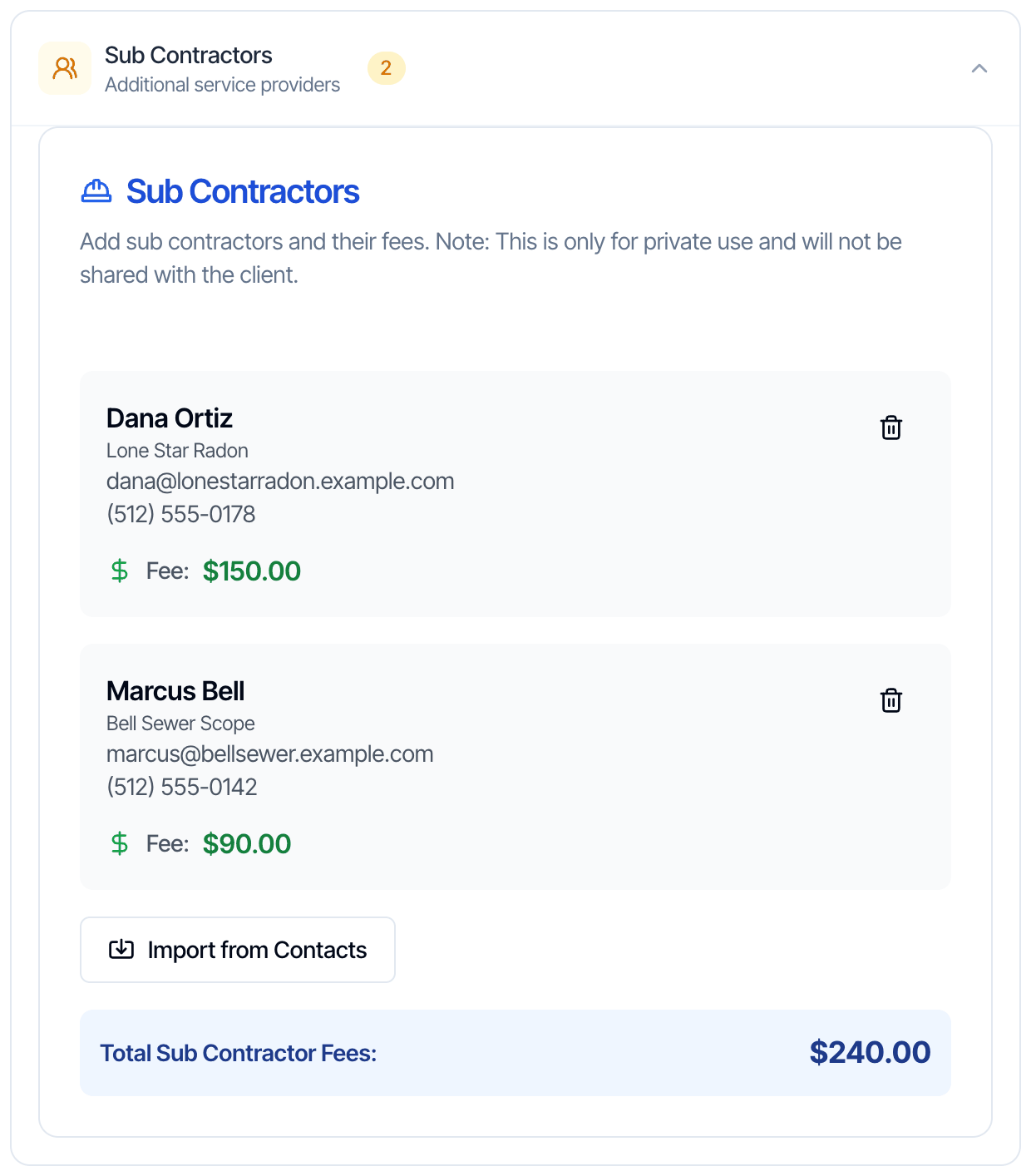
On the inspection’s order page, click Sub Contractors (“Additional service providers”) to open it. It starts closed. When the inspection has sub contractors, a count shows next to the title.
Click Import from Contacts
The Select Sub Contractor window lists your contacts. Search by name, business or email, click the person, then click Select Contact.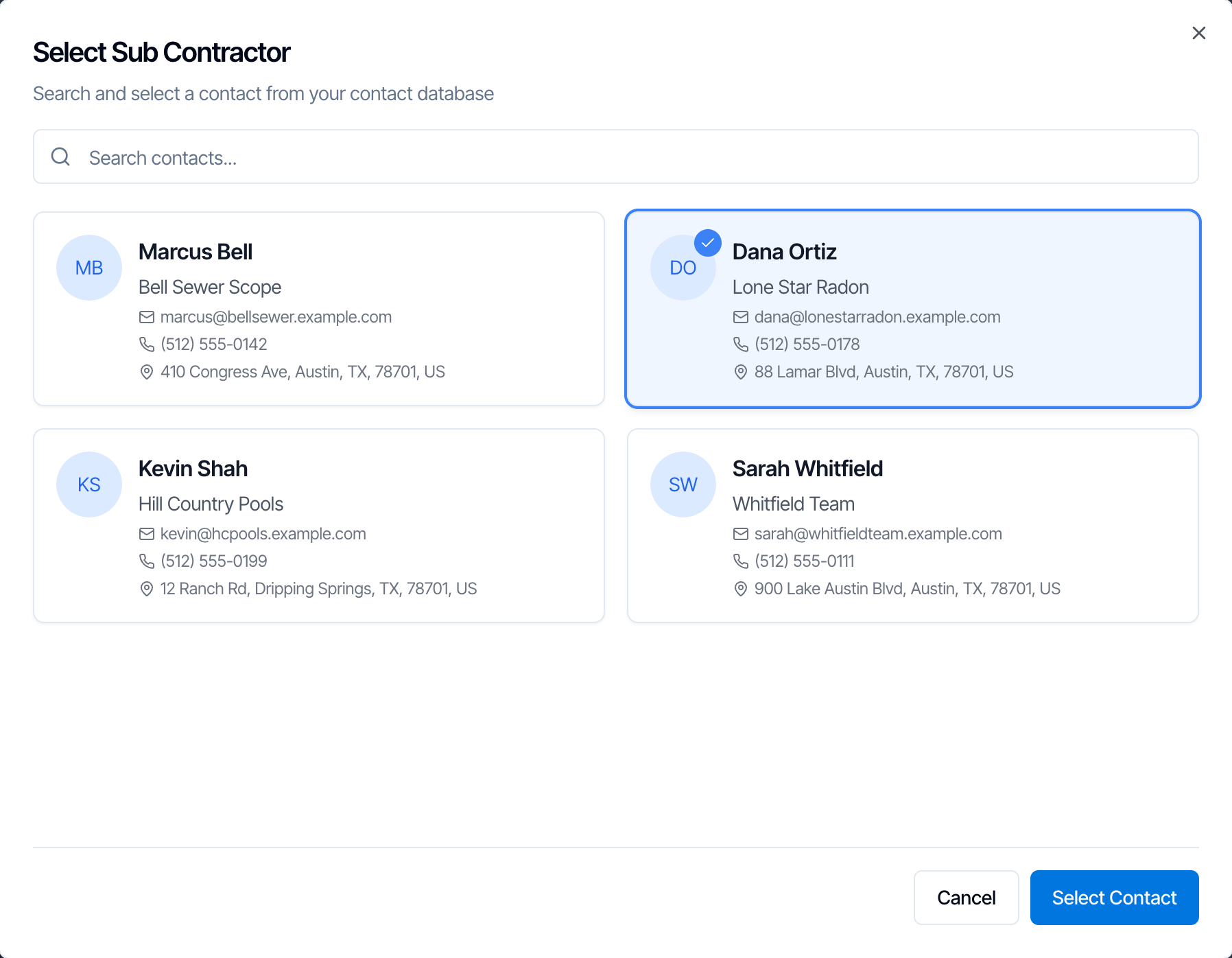
Enter the fee
In Enter Sub Contractor Fee, type what you pay them for this job in Sub Contractor Fee, then click Add Sub Contractor. Leave it blank for $0. Back takes you to the contact list.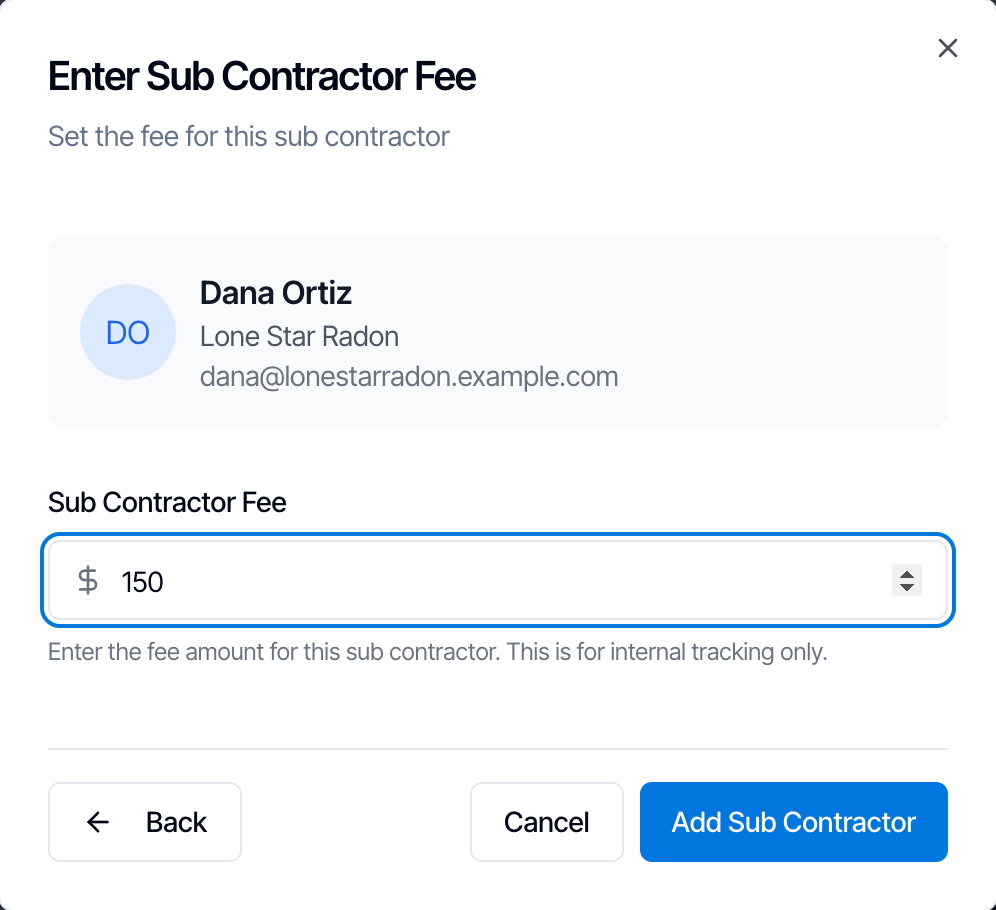
Change or remove a sub contractor
- Remove: click the trash icon on their card. They come off this inspection only. They stay in your Contacts.
- Change the fee or the person: there’s no edit button. Remove the card, then click Import from Contacts and add them again with the new fee.
Where sub contractor fees show
Sub contractor fees aren’t part of pay splits, the Payout Report or the Metrics page. Revenue on Metrics doesn’t take them off.
Sub contractors vs your team
The Select Sub Contractor window lists your contacts, not your team. Use it for outside partners. For inspectors on your team, add them to the inspection under Inspectors instead. See Change or add the inspector. What you pay them is set with pay splits and shows on the Payout Report, not as a sub contractor fee.Emails to sub contractors
Hive emails sub contractors only through automations. There are two ways to set them up:- Recipient set to Sub Contractor: the automation goes to every sub contractor on the inspection. The starter pack has Inspection Scheduled - Sub-Contractor and Inspection Cancelled - Sub-Contractor.
- A specific email address plus an add-on name filter: emails one partner whenever an inspection has their add-on, even if you don’t add them to the Sub Contractors section. See Automate subcontractor emails.
{{{sub_contractor_full_name}}}, {{{sub_contractor_first_name}}}, {{{sub_contractor_last_name}}}, {{{sub_contractor_email}}} and {{{sub_contractor_phone_number}}} fill in their details. See Placeholders.
What clients and agents see
Sub contractors are hidden from clients and agents:- Inspection review link (the page the client opens to review and confirm the order): only clients, buyer’s agents and listing agents are shown.
- Client portal, Order Details: shows Client Contacts, Realtor Contacts, Inspector Contacts and Other Contacts. Sub contractors aren’t in any of them.
- The report, on the web and in the PDF: only agents are shown, on the cover and the Agent Information page.
- The fee is never sent to the client portal or any client page.
{{{sub_contractor_ placeholders.
What the sub contractor can see
A sub contractor is a contact on the inspection, so they can sign in to the client portal with their email. They see this inspection there, including its order details and its invoices. They can’t see or sign the agreement.In the mobile app
The inspection’s summary screen in the app lists sub contractors under Sub Contractor Contacts. Add, remove or change them on the web.Common questions
The client says they can see our sub contractor. Can we hide them? They’re already hidden on the inspection review link, in the client portal and in the report. Check whether a message or agreement the client got uses a{{{sub_contractor_ placeholder, and remove it.
Does the client see what I pay the sub contractor? No. The fee is for your own tracking. It’s left out of everything the client and agents can open.
Can I add a sub contractor who isn’t in my contacts? Not from this section. Add them under Contacts first, then click Import from Contacts.
Can one of my inspectors be a sub contractor? This section is for contacts. Put team members on the inspection under Inspectors, and pay them with pay splits.
Why don’t Earnings and the fee on the inspection match? Earnings adds up every sub contractor on the inspection. Check Total Sub Contractor Fees on the inspection.
Is the sub contractor fee taken off the price the client pays? No. The client pays the inspection price as usual. The fee only lowers the Total on Earnings.