

In the dashboard: New Inspection → Send a quote → Send for Review. Quote emails: Automations → Browse.
A quote lets the client see the price before anything is booked. They open a link, check the details, add or remove add-ons, accept and pick a time from your availability. You then confirm the time, and the inspection is booked. This page covers the whole quote flow: the one-time email setup, sending the quote, what the client sees and does, and what you do afterwards. To decide between a quote and booking straight away, see Schedule or send a quote.How a quote moves through Hive
If you already set the date before sending, step 2 confirms the inspection at once and steps 3 and 4 are skipped. See A quote that already has a date.
Before you start: set up the quote email (one time)
Hive has three ready-made quote automations. Import them once and every quote you send uses them.
Search for quote
Type 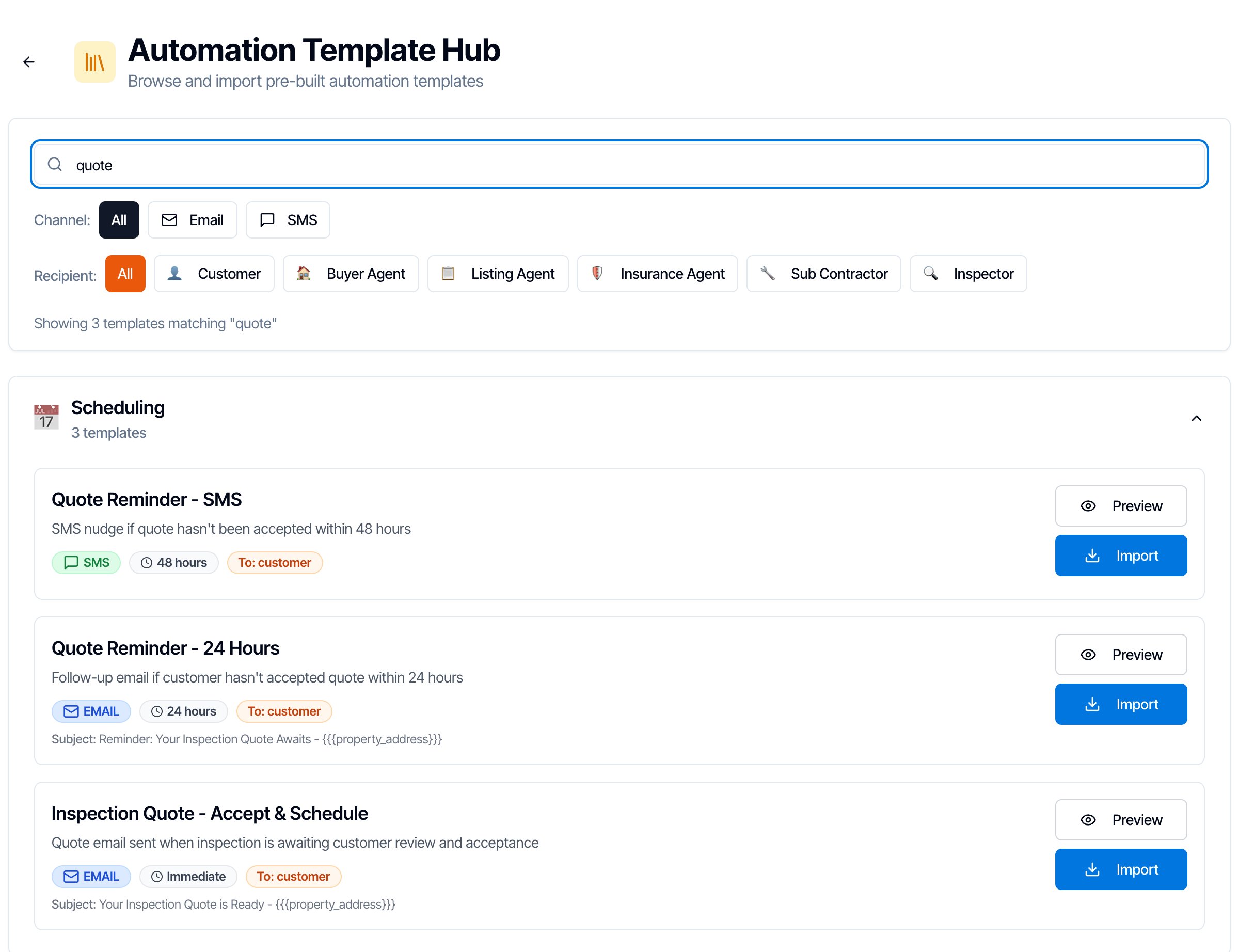
quote in Search templates…. Three templates show under Scheduling:Preview it
Click Preview to read the message. The link to the quote is the 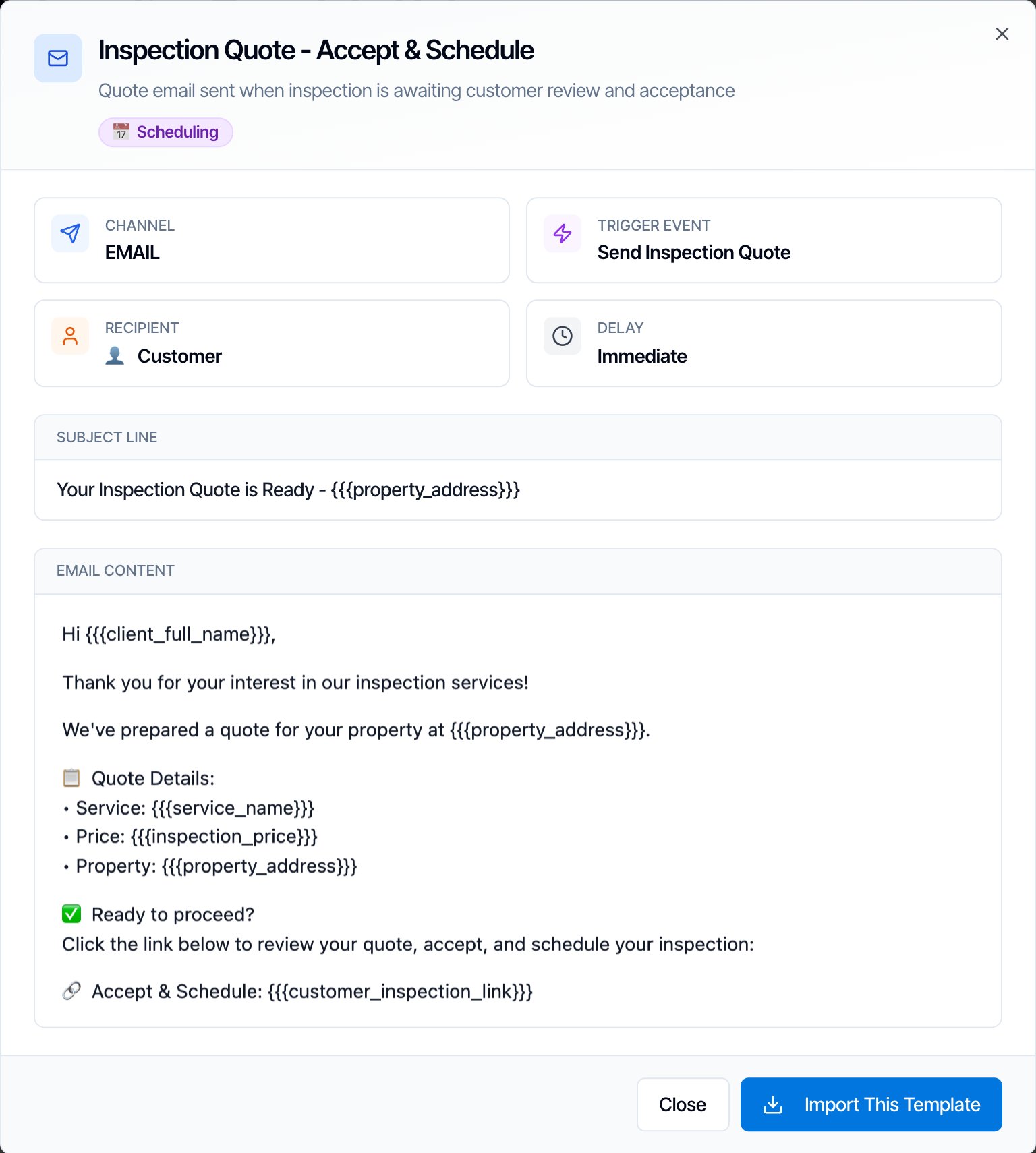
{{{customer_inspection_link}}} placeholder, called Inspection Review Link in the placeholder list. In an email it shows as a link; in a text it’s the web address.Import it
Click Import This Template (or Import on the card).
- Select Services for Import: leave every service unticked so it covers all your services, then click Import Template.
- Apply Automation: choose New inspections only.
Adjust the wording (optional)
Open the automation on the Automations page to edit it. Things worth checking:
- The email also lists your agreement and payment links (
{{{customer_agreement_link}}}and{{{payment_link}}}) as next steps. Keep them, or delete those lines if you’d rather the client signs and pays after booking. - If you send quotes that already have a date, add
{{{inspection_date}}}and{{{inspection_time}}}. The quote page itself doesn’t show the date.
Send a quote
Start a new inspection and choose Send a quote
Click New Inspection, then Send a quote (“Customer picks from your availability”). The top button changes to Send for Review.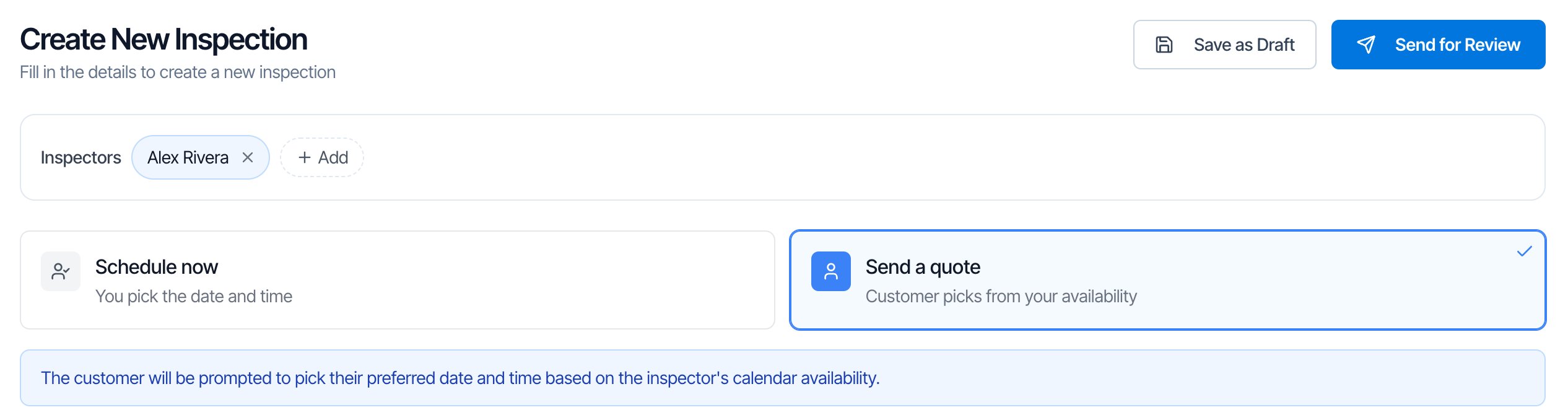
Fill in the quote
- Inspectors: the inspector the client will see first on the booking page. The client can pick another, or Any Available Inspector.
- Property address: required.
- Client: add the client with their email. The quote email goes to the client (the Customer role). Add the buyer’s agent too if you have one.
- Service and add-ons: at least one service is required. Add-ons you tick here are in the quote. The client can also add add-ons that have Allow Upselling on.
- Price: check the Pricing Summary. Edit or add lines here: the client sees exactly these lines and this total.
Share the quote link yourself
While a quote is in Review, its page shows a green box with the link. Click the copy button to copy it, or Preview Client View to see what the client sees.
https://dashboard.hiveinspect.com/inspection/ followed by the inspection’s ID.
You can also open the client’s page from Quick Actions → Client Review on the inspection’s page, or ⋮ → Quick Actions → Review Link on the Inspections page. Both open it in a new tab; copy the address from your browser.
To send the quote email again, open Quick Actions → Automations on the inspection and click Send Again on the quote message.
What the client sees
The link opens Your Inspection Proposal. It works on a phone or a computer, and the client doesn’t need to log in.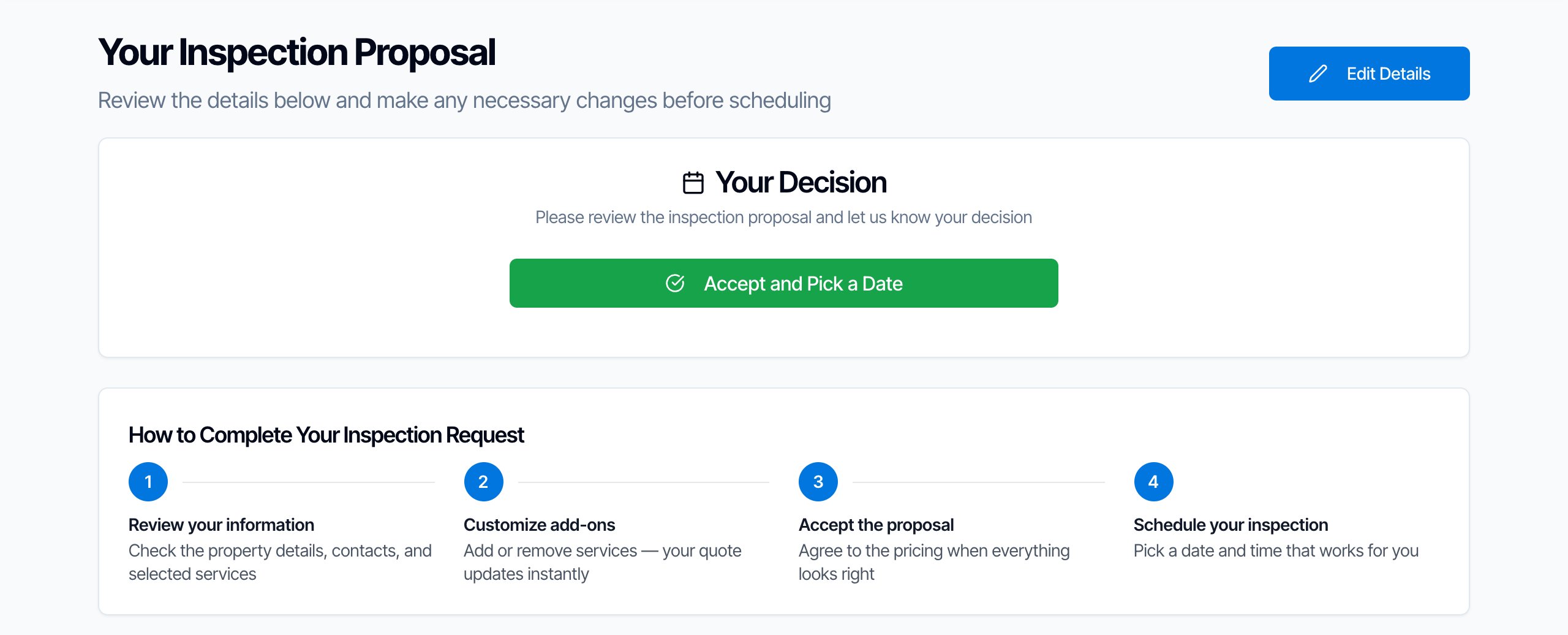
- Your Decision: the green Accept and Pick a Date button. It’s repeated at the bottom of the page, and stays pinned to the top of the screen while the client scrolls.
- How to Complete Your Inspection Request: the four steps.
- Add-on Services and the Pricing Summary: the add-ons they can add, and every price line with the Total.
- Property Information: the address and property details, which the client can view but not change.
- Contact Information: the client, buyer’s agent and listing agent on the inspection.
The client changes add-ons
Add / Remove
The client clicks Add / Remove in Add-on Services and ticks or unticks add-ons. The Pricing Summary and Total update as they go.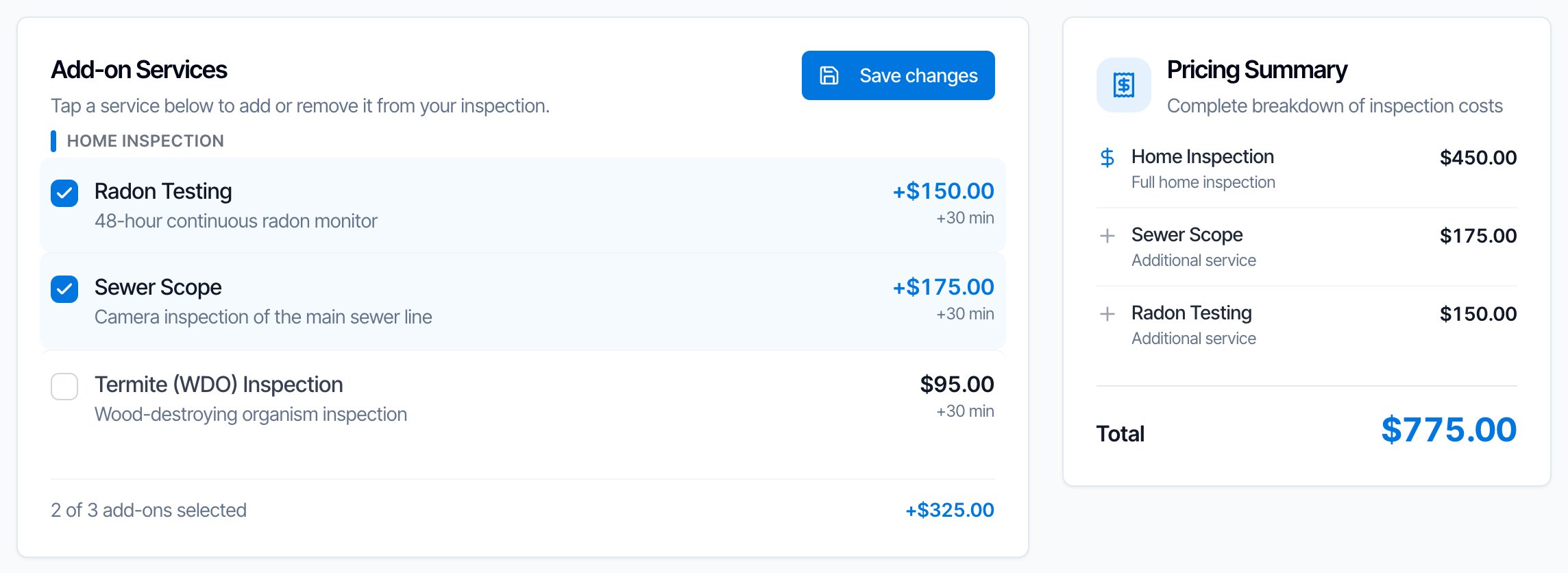
The client accepts and picks a time
Accept and Pick a Date
The client clicks Accept and Pick a Date. Hive shows “Inspection Accepted!” and opens the booking page.
Pick an inspector, a date and a time
The booking page is the same date and time page as your scheduling widget. The Inspector box starts on the first inspector you assigned. The client can switch to another inspector or Any Available Inspector.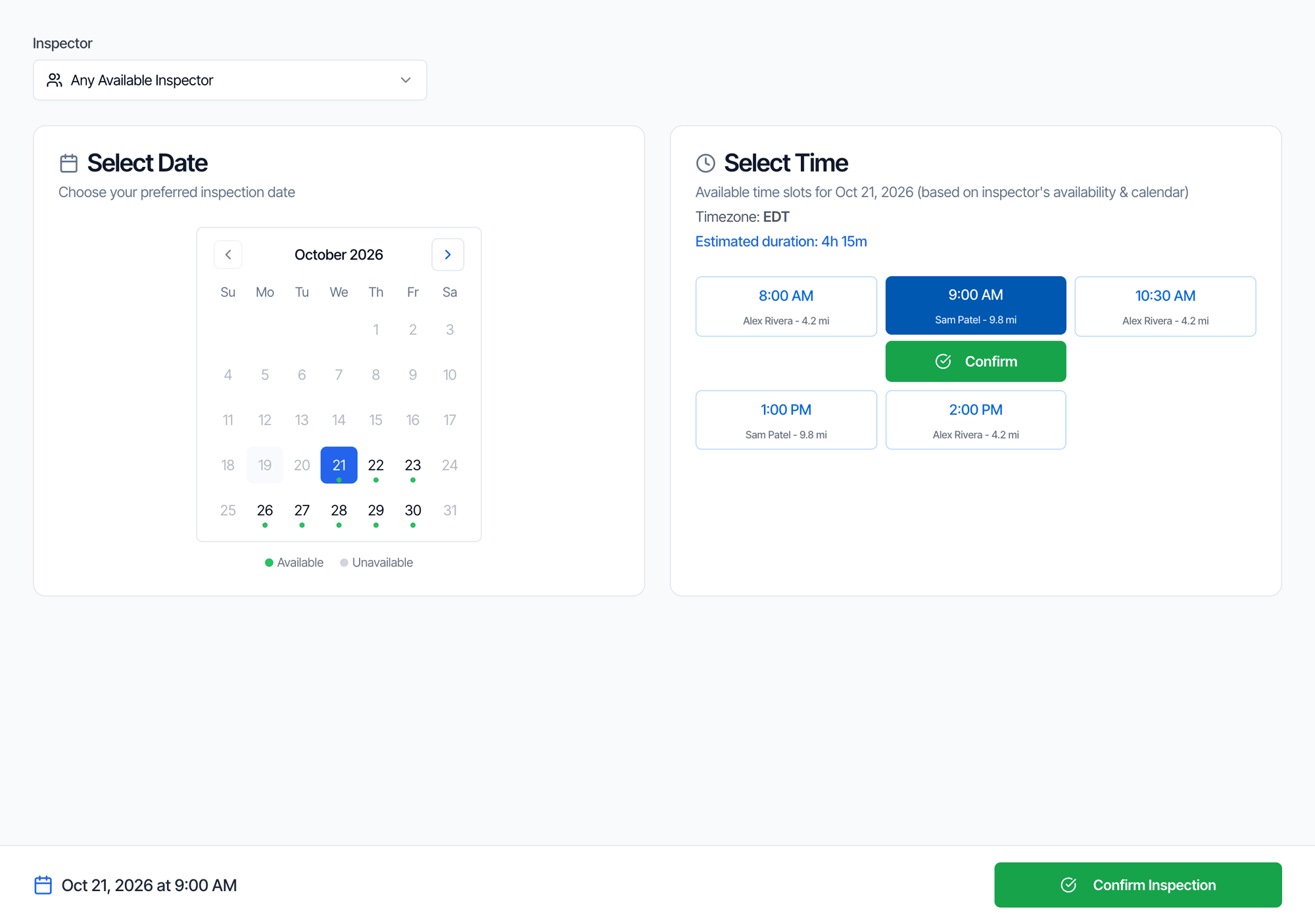
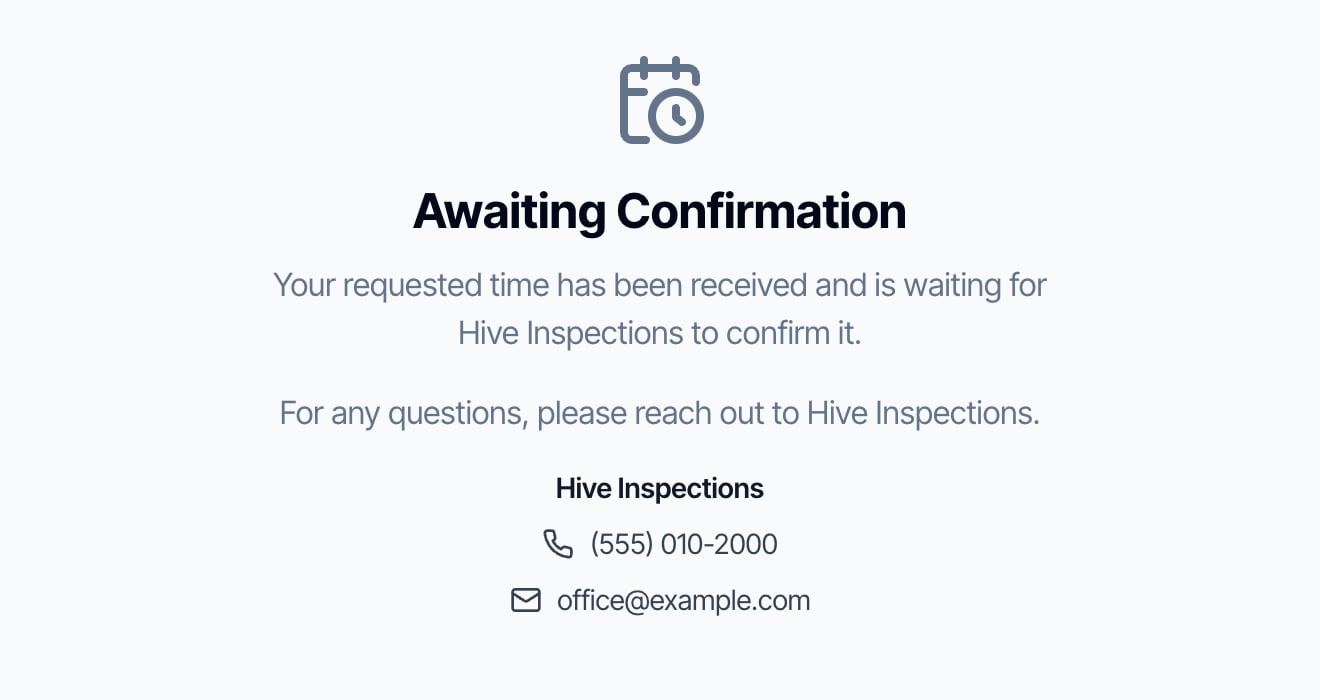
Accepted but no time picked yet. If the client accepts and closes the booking page, the inspection goes back to Draft. You aren’t told. Their link takes them straight back to the booking page, so you can resend it. On the Inspections page, Show all Drafts finds these.
Confirm the time the client picked
When the client picks a time:- The inspection becomes Waiting, with the date and the inspector they chose.
- You get an email, “Action Required: Inspection Awaiting Approval”, at your company email, and a text at your company phone number.
- The invoice is created. Any Specific Day or After/Before Working Hours charge for the time they picked is added to the price now, so the total can be higher than the quote.
- The inspector they picked takes the place of your first inspector. Any other inspectors you added stay on the job. If they picked someone who’s already on it, nothing changes.
A quote that already has a date
To quote a time you’ve already agreed, choose Schedule now, pick the time, click Save as Draft, then Send for Review on the draft’s page. See Send a quote that already has a date. When the client clicks Accept and Pick a Date, Hive shows “Inspection Confirmed!” and the inspection is Confirmed for your date, with no time to pick and nothing for you to approve. Your booking confirmation automations send, the invoice is created, and the inspection goes on each assigned inspector’s Google Calendar. You don’t get an Action Required email for it.Change or withdraw a quote
- Change the price, services or details: edit the inspection while it’s in Review. Changes save automatically, and the client sees them the next time they open or refresh the link. No new email is sent; use Send Again on the inspection’s Automations page if you want one.
- Take it back for now: change the status to Draft. The client’s link shows “Inspection Not Available Yet”. Click Send for Review when it’s ready again.
- The client doesn’t want it: change the status to Canceled. Your Inspection Cancelled automations send, if you have them. The client’s link shows “Inspection Canceled”.
Find your quotes
On the Inspections page, use the Status filter:- Review: quotes waiting for the client to accept.
- Draft: accepted quotes still waiting for the client to pick a time, along with your other drafts.
- Waiting: clients who picked a time you haven’t confirmed yet.
Common questions
The client says they never got the quote. Check that you have a Send Inspection Quote automation switched on that covers this service, and that the client on the inspection has the right email. Open Quick Actions → Automations on the inspection to see whether it was sent, and click Send Again. Or copy the link from the green box and send it yourself. Can the client decline the quote? Not on the page. They just don’t accept it. Cancel the inspection, or delete it if you’d rather not keep a record. Does a quote expire? No. There’s no expiry date. Withdraw it by changing the status to Draft or Canceled. Can the client sign the agreement or pay on the quote page? No. The quote page is for checking, choosing add-ons and accepting. Agreements and payment work as usual after booking, through your automations and the client portal. The client added an add-on. Do I need to do anything? No. The add-on and the new price are saved to the inspection. Check them before you confirm. Will the quote email go to the agent? Only if you add an automation for them. The ready-made quote templates go to the client only. I moved a quote back to Review. Did the client get the email again? No. A quote email is sent once per client per inspection. Use Send Again on the inspection’s Automations page. Can the client change the time after booking? No. Once they’ve picked a time, they contact you to change it. See Reschedule an inspection.Where to go next
- Schedule or send a quote: the difference, and the minimum each needs
- Inspection statuses
- Automation starter pack
- Scheduling widget: the same booking page, for clients who book from your website