In the dashboard: New Inspection, or open an inspection, then scroll to Select Service and Pricing Summary.

Every inspection has one main service. When you pick it, Hive fills in a lot for you:
  • the report template;
  • the agreement;
  • the price and the length of the inspection;
  • any price modifiers that apply;
  • tax.
From there you can add add-ons, apply a discount code, change any price or duration, and add your own line items. This page walks through each step and shows which lines end up on the client’s invoice. The services section works the same on a new inspection and on an inspection you open from the Inspections page. On a saved inspection, changes save on their own after a couple of seconds.

The services section at a glance

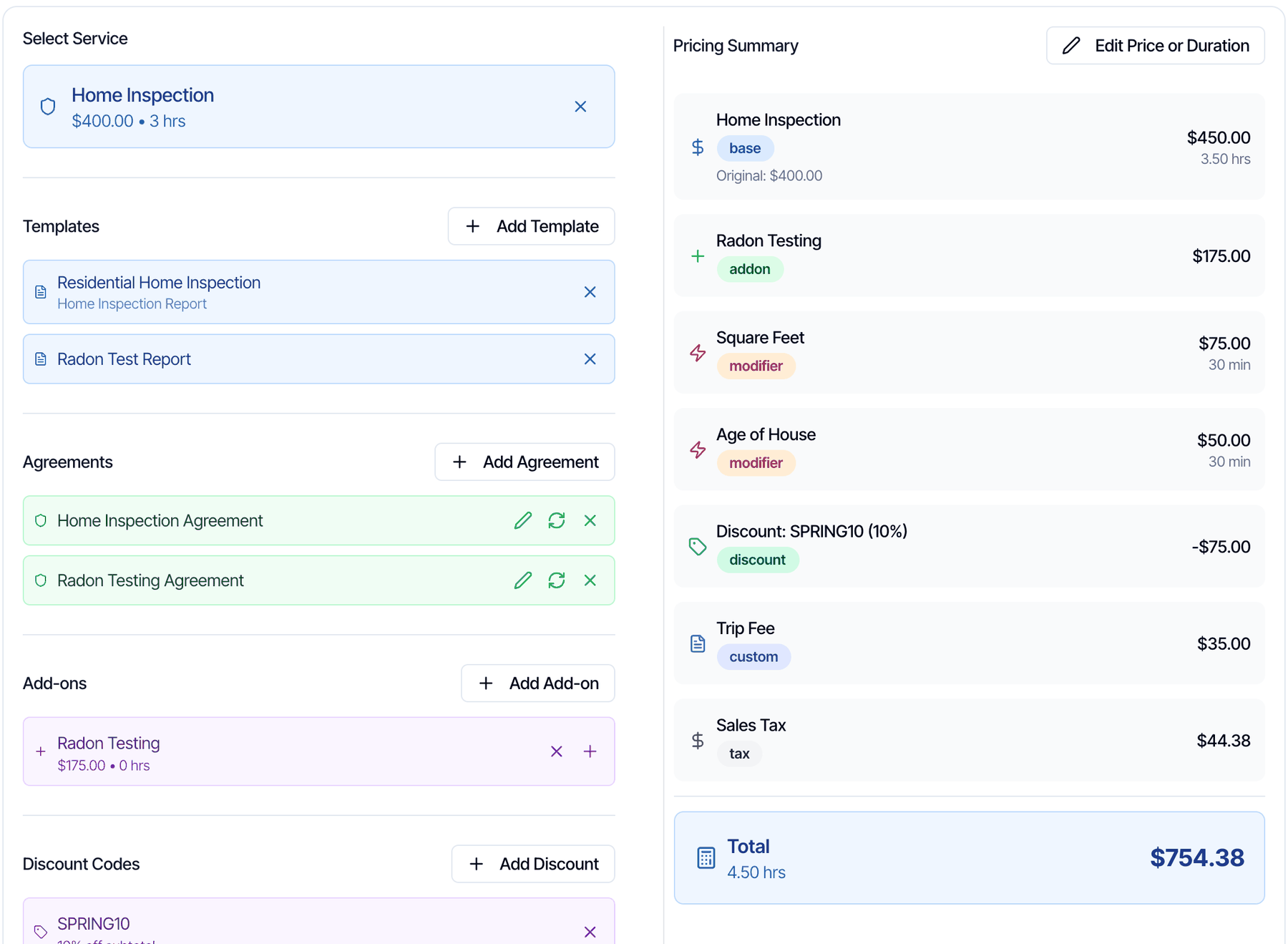
The services section of an inspection. On the left: Select Service with Home Inspection, 400.00 dollars, 3 hrs; Templates with Residential Home Inspection and Radon Test Report; Agreements with Home Inspection Agreement and Radon Testing Agreement; Add-ons with Radon Testing; Discount Codes with SPRING10, 10% off subtotal. On the right, the Pricing Summary: Home Inspection base, Original 400.00 dollars, 450.00 dollars, 3.50 hrs; Radon Testing addon 175.00 dollars; Square Feet modifier 75.00 dollars, 30 min; Age of House modifier 50.00 dollars, 30 min; Discount SPRING10 (10%) minus 75.00 dollars; Trip Fee custom 35.00 dollars; Sales Tax 44.38 dollars; Total 754.38 dollars and 4.50 hrs

Pick the main service

1

Fill in the property details first

Enter the Square Footage, Year Built, Foundation and any custom fields higher up the page. Price modifiers use them, so the price comes out right the first time. You can also fill them in later. See Price modifiers.
2

Choose the service

Click Choose an inspection service and pick one. Each service shows its starting price.The Select Service list open with Home Inspection 400.00 dollars, Pre-Listing Inspection 350.00 dollars and Re-Inspection 175.00 dollars. The Pricing Summary on the right says Select a service to see pricing

3

Check what Hive added

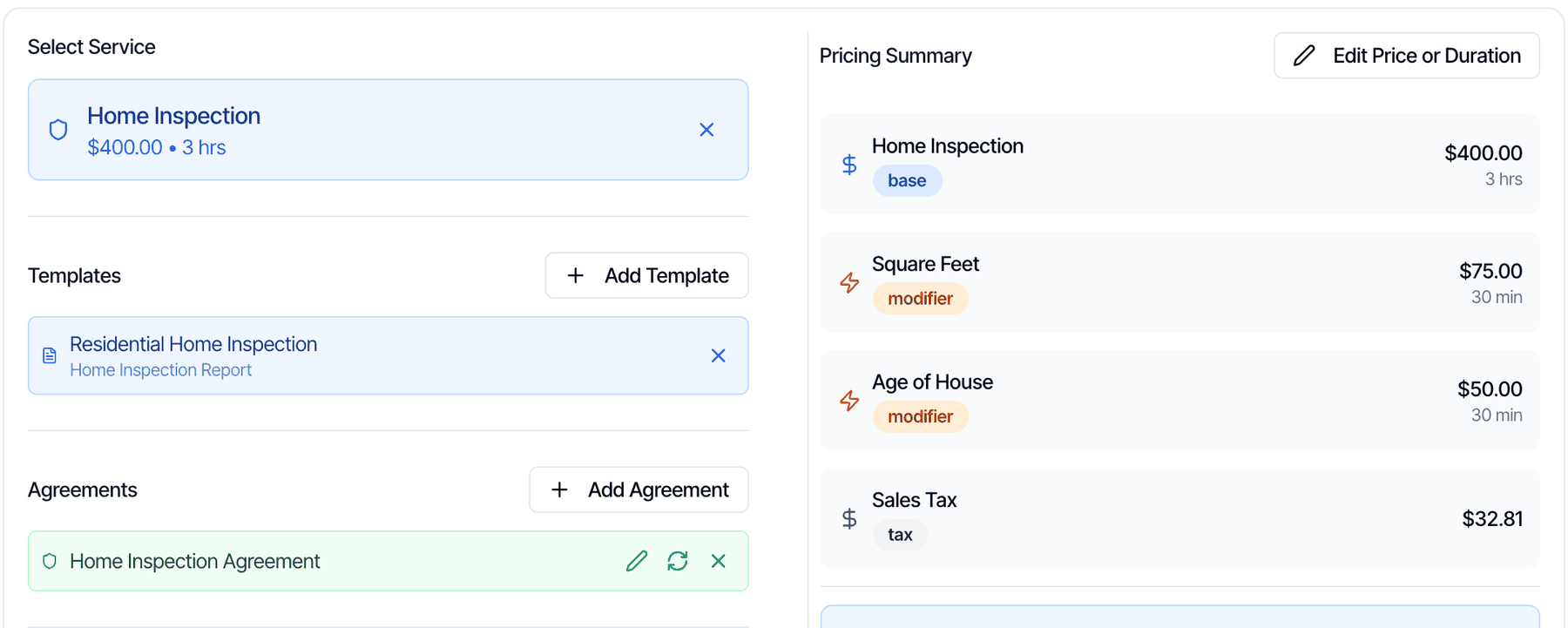
After picking Home Inspection: the service card shows 400.00 dollars and 3 hrs. Templates lists Residential Home Inspection, shown to the client as Home Inspection Report. Agreements lists Home Inspection Agreement with edit, reset and remove buttons. Add-ons says No add-ons selected and Discount Codes says No discount codes selected. The Pricing Summary lists Home Inspection base 400.00 dollars 3 hrs, Square Feet modifier 75.00 dollars 30 min, Age of House modifier 50.00 dollars 30 min, Sales Tax 32.81 dollars, and a Total of 557.81 dollars and 4 hrs
Picking the service fills in: You choose which templates and agreements belong to a service in Business Tools → Services & Fees. See Set up services and fees. The list shows all your services, including ones hidden from your online scheduler. Need two services on one inspection? Sell the second one as an add-on. See Main services vs add-ons.

Add add-ons

1

Click Add Add-on

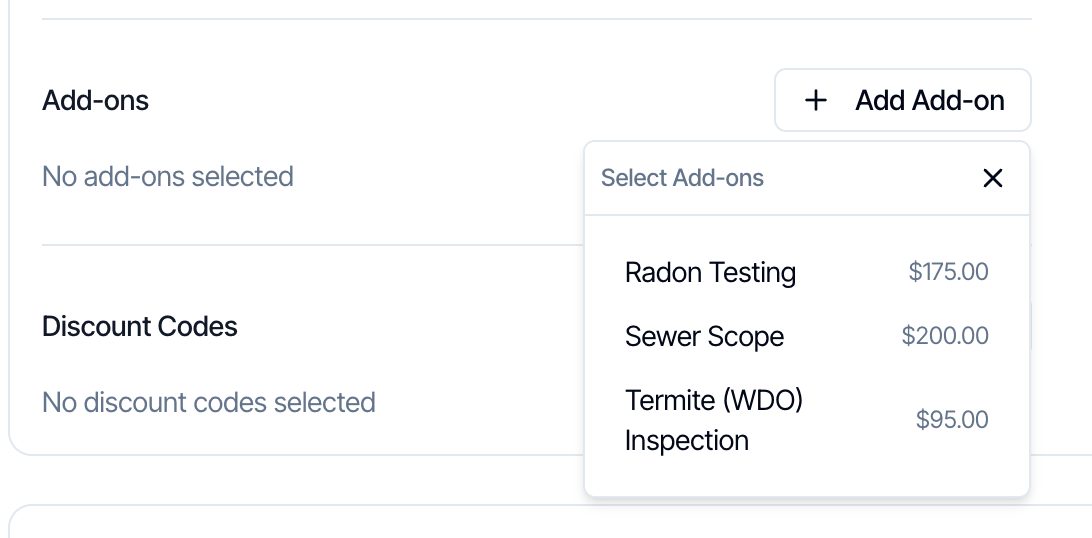
The Select Add-ons list shows the add-ons of the main service you picked, with their prices.The Select Add-ons list: Radon Testing 175.00 dollars, Sewer Scope 200.00 dollars and Termite (WDO) Inspection 95.00 dollars
2

Pick an add-on

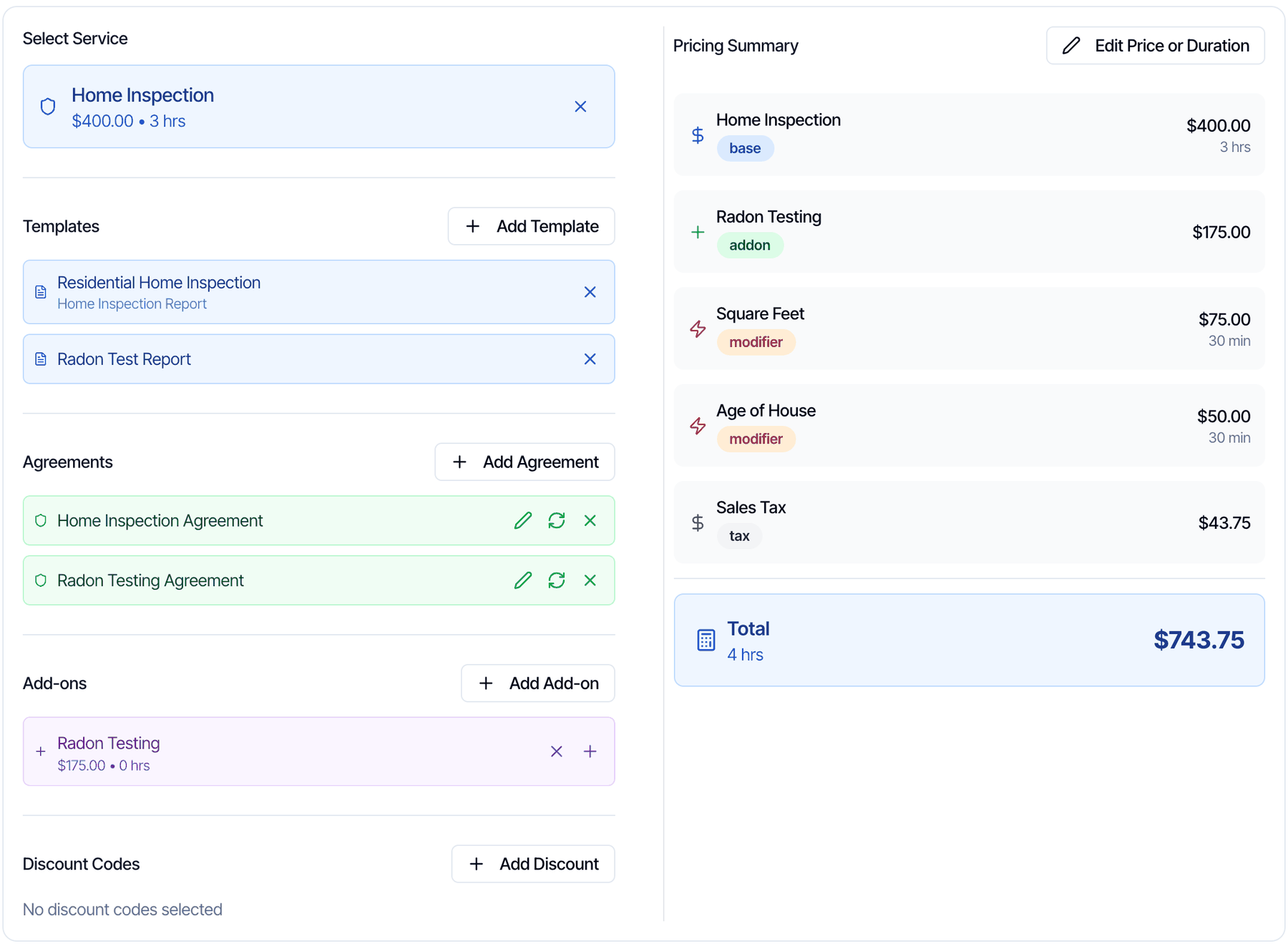
It’s added under Add-ons and as an addon line in the Pricing Summary. Its own templates and agreements are added too, unless the inspection already has them.After adding Radon Testing: Templates now also lists Radon Test Report, Agreements also lists Radon Testing Agreement, Add-ons shows Radon Testing 175.00 dollars and 0 hrs with remove and plus buttons, and the Pricing Summary has a new line Radon Testing addon 175.00 dollars. The Total is 743.75 dollars and 4 hrs
  • More than one: click + on the add-on, or pick it again, to raise the quantity, for example two radon monitors. The line is named “Radon Testing × 2”. − lowers the quantity.
  • Remove: click the × on the add-on. It doesn’t ask first.
  • Templates and agreements stay when you remove an add-on. Remove them yourself with the × next to each one.
  • Changing the quantity clears any price, name or time you typed for that add-on’s lines.
The list shows every add-on of the main service, including ones hidden from your scheduler or not offered as upsells. See Add-on services.

Add or remove templates and agreements by hand

  • Add Template and Add Agreement add any of your templates or agreements to this inspection, even ones not linked to the service.
  • The × next to a template removes that report. Hive asks you to confirm, because a removed report can’t be brought back.
  • Next to each agreement:
    • The pencil changes the agreement’s wording for this inspection only, while it’s unsigned. The original stays the same.
    • The reset button removes any signed copy and your edits, so the client signs a fresh one.
    • The × removes it from the inspection.

Apply a discount code

Click Add Discount and pick a code. It’s added as a discount line.
  • A percentage code takes its percentage off the service, add-ons and modifiers.
  • A code limited to certain services only discounts those.
  • Custom items aren’t discounted, and tax is worked out after the discount.
To take a code off, click the × next to it. A percentage code is worked out from the prices at the moment you add it. If you change a price afterwards, remove the code and add it again so the discount matches. To create codes, see Discount codes.

Edit a price or duration

Change the price, name or time of any line on this inspection, without changing the service in Services & Fees.
1

Click Edit Price or Duration

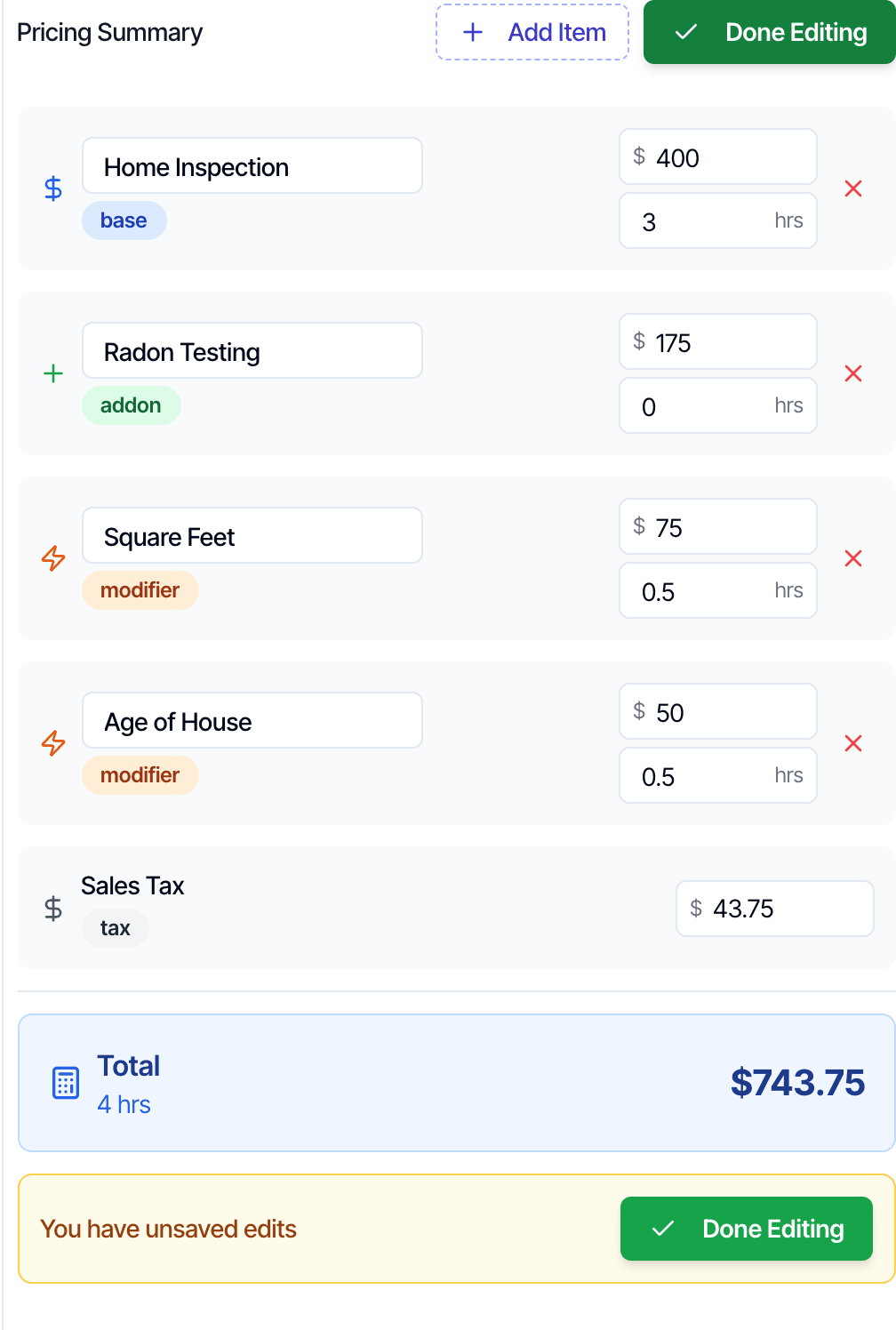
It’s at the top of the Pricing Summary. Each line turns into boxes: name, price ($) and hours (hrs).The Pricing Summary in edit mode with Add Item and Done Editing buttons at the top. Each line has a name box, a price box and an hours box, and a red X: Home Inspection 400 and 3 hrs, Radon Testing 175 and 0 hrs, Square Feet 75 and 0.5 hrs, Age of House 50 and 0.5 hrs. Sales Tax shows its amount with no X. At the bottom: You have unsaved edits and a Done Editing button
2

Change what you need

  • Price: type the new amount, for example 450 for the main service.
  • Time: type hours in quarter hours, for example 3.5 for three and a half hours.
  • Name: rename the line, for example “Home Inspection – Large Home”. The new name is what the client sees.
3

Click Done Editing

The Total and the total hours update, and tax is worked out again. A changed price shows the old one above it, for example Original: $400.00.
Things to know:
  • Your changes stay when other things change, such as the property details or the add-ons. The exception: changing an add-on’s quantity clears your changes to that add-on.
  • Tax is always worked out for you. To change it, change the tax on the service. See Sales tax.
  • The urgent fee (added when a client asks for an urgent inspection) can’t be edited here.
  • Time sets the calendar. The total hours set how long the inspection blocks on calendars and when it ends. They also set the time range at the top of the inspection page.
  • A name can’t be empty, and Technology Fee is a reserved name.

Add a custom line item

Add a fee or credit that isn’t a service, such as a trip fee, a re-visit charge or a goodwill credit.
1

Click Edit Price or Duration, then Add Item

Add Item is at the top of the Pricing Summary while you’re editing.
2

Fill in the item

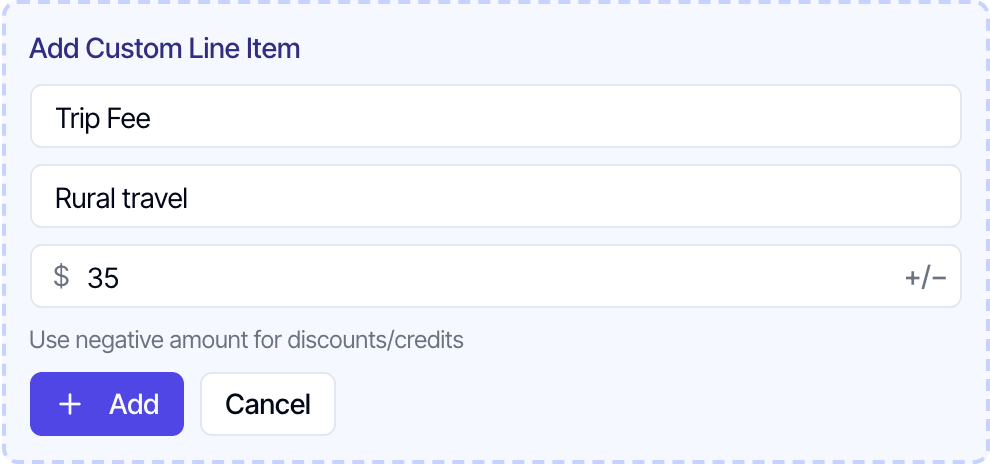
Enter a name (required), a description (optional) and the amount. For a credit, click +/− or type a minus sign, for example -50.The Add Custom Line Item form: name Trip Fee, description Rural travel, amount 35 with a plus/minus button, the hint Use negative amount for discounts/credits, and Add and Cancel buttons
3

Click Add, then Done Editing

The item shows as a custom line.
Custom items are taxed like everything else, and percentage discount codes don’t apply to them. They don’t add time to the inspection. To make the inspection longer, change the hours on the main service line instead.

Remove a line from the price

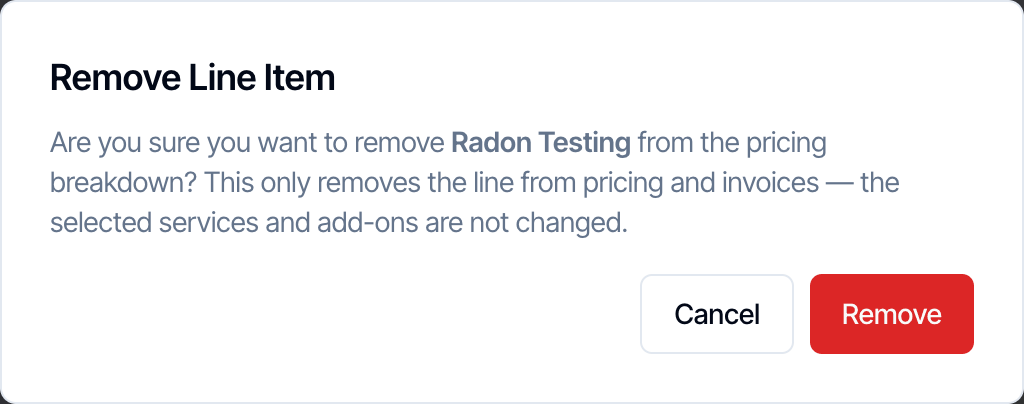
In edit mode, click the red × on a line, then Remove. The Remove Line Item dialog: Are you sure you want to remove Radon Testing from the pricing breakdown? This only removes the line from pricing and invoices, the selected services and add-ons are not changed. Cancel and Remove buttons This only takes the line off the price and the invoice. The service or add-on stays selected, with its templates and agreements. To drop an add-on completely, remove it under Add-ons instead. Removing a discount line also takes the code off the inspection. Tax lines can’t be removed.
Change the main service

There’s no direct switch. You remove the service, then pick the new one.
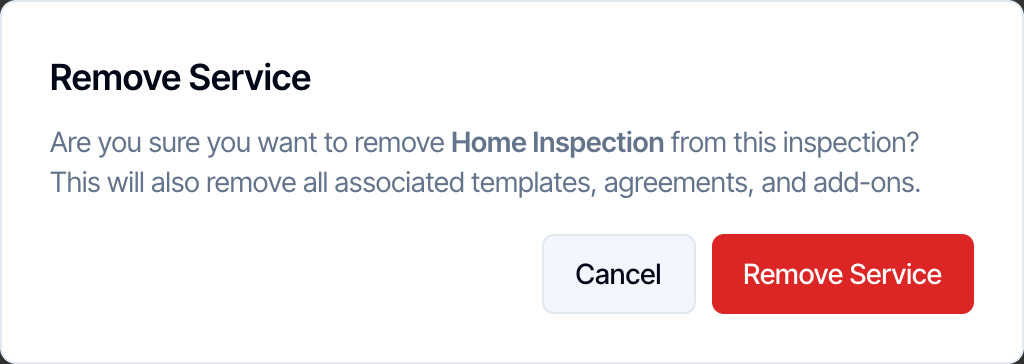
  • New inspection: click the × on the service. Remove Service asks you to confirm and also removes its templates, agreements and add-ons. The Remove Service dialog: Are you sure you want to remove Home Inspection from this inspection? This will also remove all associated templates, agreements, and add-ons. Cancel and Remove Service buttons
  • Saved inspection: the × reads Change service. The Change Service dialog lists what will be removed: all reports, all agreements, messages that haven’t been sent yet, and your custom pricing lines. The Change Service dialog: Are you sure you want to change Home Inspection for this inspection? If you delete this service, the following will be permanently deleted: All reports, All agreements, All automations that haven't been sent yet, Any custom pricing line items. You must select a new service before you can save. Its reports, agreements, and automations will be created from scratch. Messages that were already sent stay in the history. Signed agreements and published reports stay accessible from the records they were uploaded to, but are removed from this inspection. Cancel and Change Service buttons
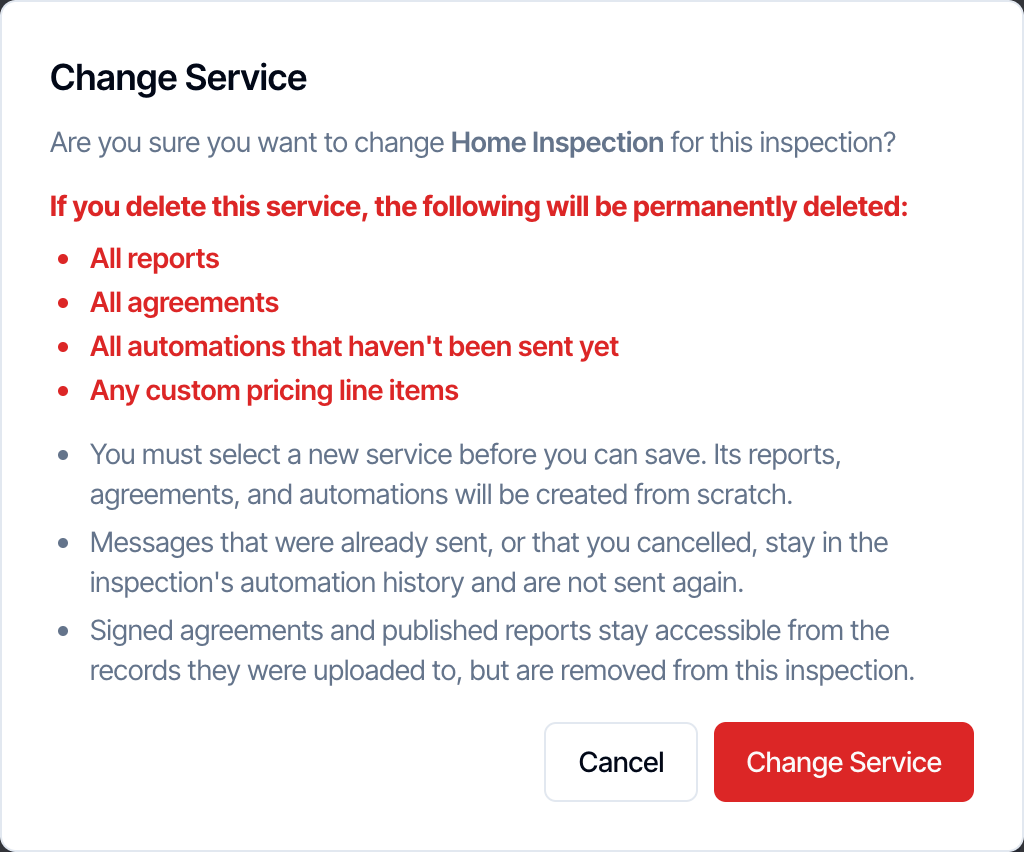
After you confirm, a banner reads Pick a new service to continue. Pick the new service right away, because the inspection can’t save until you do. See Change the main service of an inspection.

What goes on the invoice

The invoice is built from the Pricing Summary, but not line for line. Price modifiers don’t get their own line. Each modifier’s amount is added to the service or add-on it belongs to, so the client sees one price per service and the total is the same. Here is the inspection above, side by side with its invoice:

Pricing Summary

  • Home Inspection $450.00
  • Radon Testing $175.00
  • Square Feet (modifier) $75.00
  • Age of House (modifier) $50.00
  • Discount SPRING10 (10%) −$75.00
  • Trip Fee $35.00
  • Sales Tax $44.38
  • Total $754.38

Invoice

  • Home Inspection $575.00 ($450 + $75 + $50)
  • Radon Testing $175.00
  • Discount SPRING10 (10%) −$75.00
  • Trip Fee $35.00
  • Sales Tax $44.38
  • Total $754.38
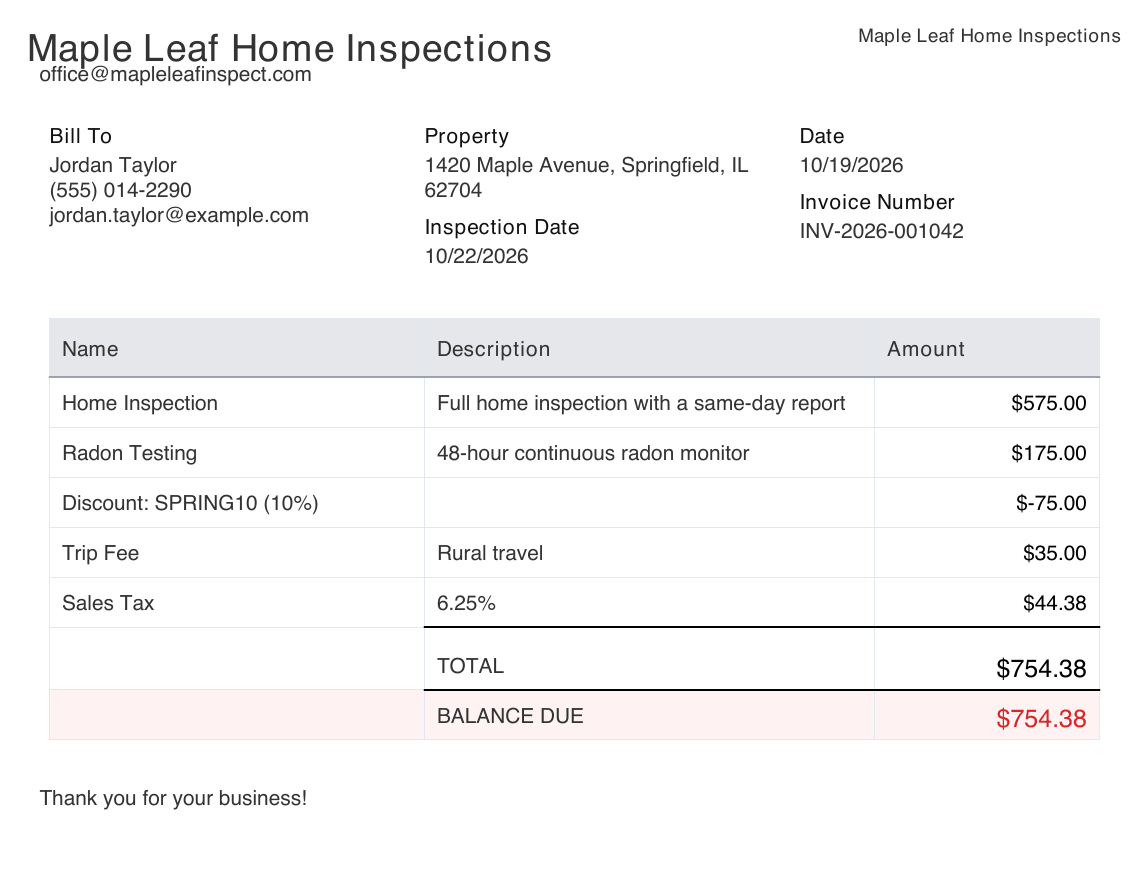
The invoice for the same inspection, from Maple Leaf Home Inspections to Jordan Taylor for 1420 Maple Avenue: Home Inspection, Full home inspection with a same-day report, 575.00 dollars; Radon Testing, 48-hour continuous radon monitor, 175.00 dollars; Discount SPRING10 (10%) minus 75.00 dollars; Trip Fee, Rural travel, 35.00 dollars; Sales Tax 6.25% 44.38 dollars; TOTAL 754.38 dollars and BALANCE DUE 754.38 dollars The Payments section of the client portal groups the lines the same way, with a quantity column for add-ons. If you pass the card fee on, the invoice also shows a Technology Fee line. That fee is never in the Pricing Summary. See Technology Fee. The invoice updates on its own when you change the price. See Fees and payments.

Confirmed inspections keep their price

Once an inspection is Confirmed, its price is locked to what was booked:
  • Changing the property details, such as the square footage or year built, never changes the price.
  • The modifier lines stay as they were booked, even if you’ve since changed or deleted that modifier.
  • Changing a service’s price in Services & Fees never changes saved inspections, at any status.
To change a confirmed inspection’s price, use Edit Price or Duration. An add-on you add later is priced at today’s price. Before an inspection is confirmed, changing the property details updates the modifier lines. Lines you edited by hand keep your price. See What happens to inspections you already booked.

Who can change services and prices

Anyone on your team who can open the inspection can change its services and prices. Clients can change add-ons from their review link or portal, unless you turn on Lock services and add-ons after booking. That setting only affects clients; your team can still change the order. See Lock client order changes.

Common questions

Why doesn’t the square-footage charge show on the invoice? Modifiers are added into the service line. The invoice total is the same as the Total in the Pricing Summary. I picked a service but no template was added. No template is linked to that service. Link one in Business Tools → Services & Fees, or click Add Template on this inspection. I removed an add-on, but its report and agreement are still there. That’s on purpose, so you don’t lose work. Remove them with the × next to each one. How do I give one client a lower price? Click Edit Price or Duration and change the price, or add a custom item with a negative amount, such as -50. You can also apply a discount code. How do I charge a trip fee on one inspection? Add a custom line item. To charge it on every far-away inspection, set up a distance price modifier instead. Can I make the inspection longer without changing the price? Yes. Change only the hours on the main service line. The calendar event gets longer. Can I add two main services? No. Each inspection has one main service. See Main services vs add-ons. The client already paid, and I added a service. On the Fees and Payments card, click Request balance from customer. See Fees and payments.

Where to go next

Last modified on October 20, 2026