

In the dashboard: New Inspection, then choose Schedule now or Send a quote. In the mobile app: the Schedule tab.
When you create an inspection, Hive asks how it will be booked:- Schedule now: you pick the date and time, and the inspection is booked as soon as you click Confirm Inspection.
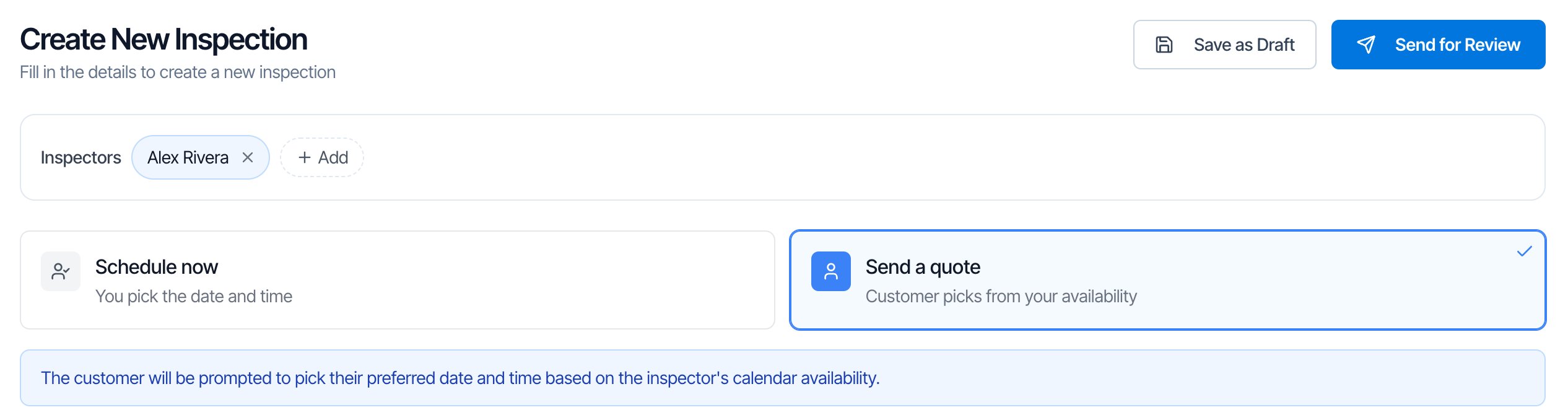
- Send a quote: the client gets a link to review the price, add or remove add-ons, accept and pick a time from your availability. You confirm the time they pick.
Schedule now or Send a quote?
Both choices create the same kind of inspection. Only the way it gets booked is different, and you can switch while it isn’t confirmed yet.
The minimum you need for each
Hive checks a few things when you click a button. Everything else can be added later.
What Hive tells you when something is missing:
- No address: “Property address is required”.
- No service: “Please select at least one service before saving”.
- No date with Schedule now: the button stays grey until you pick a time. On a saved draft it reads Select Date & Time First.
- A contact without a valid email: “Contact “[name]” requires a valid email address. Please provide an email or remove the contact.” Every client or agent you add needs an email, even though a client isn’t required.
- No reports left on your plan: “Subscription Limit Reached” when you create a new inspection.
Choose on the order page
Check the inspector
Inspectors at the top shows who will do the job. If you’re an inspector, it’s you. Otherwise it’s your company’s Default Inspector. Click + Add to add someone, or the × on a name to remove them. See Change the inspector.
Pick Schedule now or Send a quote
Schedule now is selected for every new inspection. With it selected, pick a date and a time in the calendar below.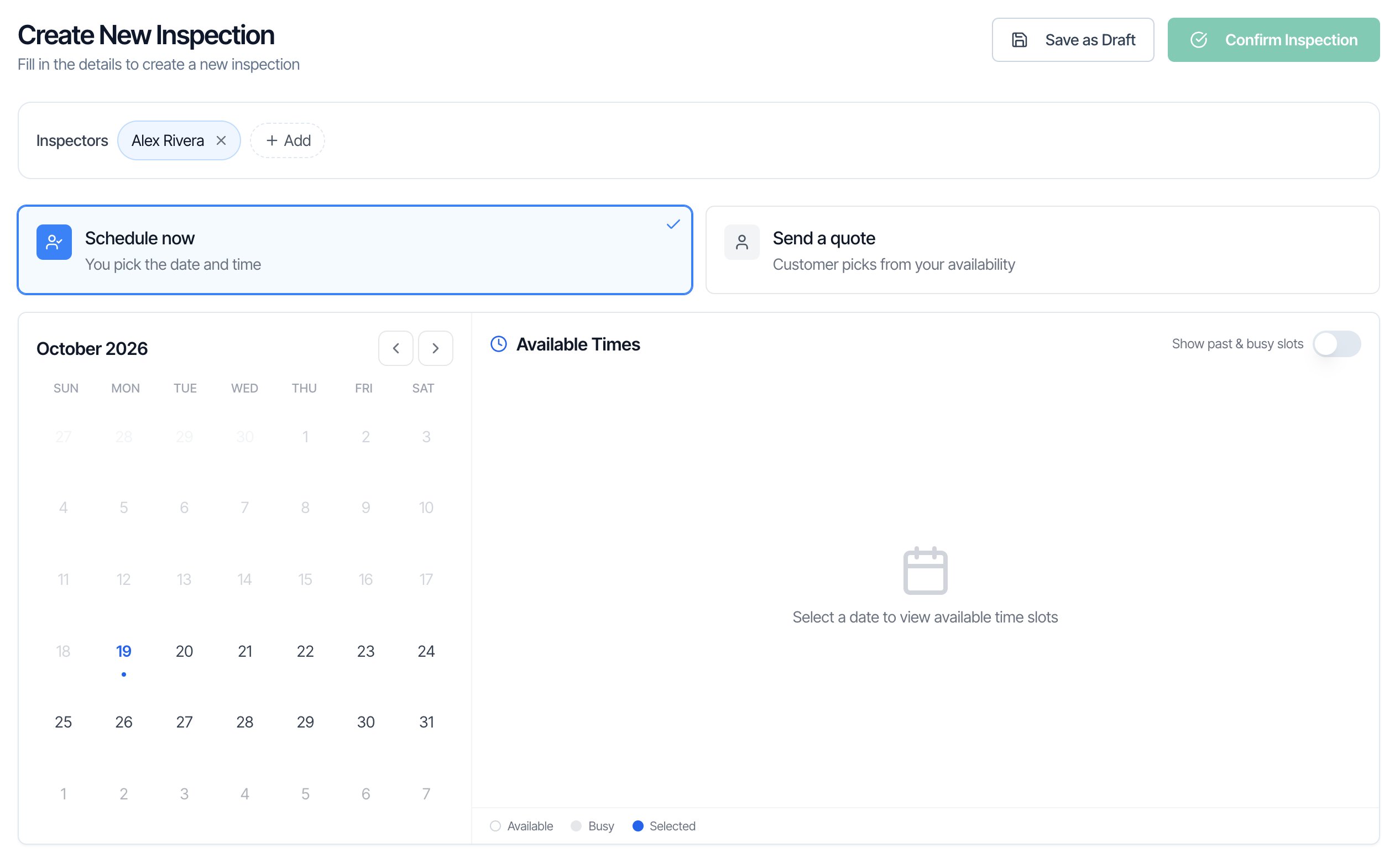
What happens after you click
Confirm Inspection (Schedule now)
- The inspection is Confirmed, gets its invoice and order ID, and goes on each assigned inspector’s Google Calendar.
- Your Inspection Scheduled automations send, such as the client’s booking confirmation, and reminders are set for the inspection date.
- It shows in the mobile app and in the inspector’s 5 PM schedule email the day before.
Send for Review (Send a quote)
- The inspection is Review. It isn’t on Google Calendar and doesn’t block the time.
- Your Send Inspection Quote automations send the client a link to the quote. With no quote automation, nothing is sent.
- The client accepts, picks a time, and the inspection becomes Waiting until you confirm it.
Save as Draft
- Nothing is sent and nothing is booked. The client’s link shows “Inspection Not Available Yet”.
- Open the draft later from Inspections (use Show all Drafts) and click Confirm Inspection or Send for Review at the top of its page.
Send a quote that already has a date
Sometimes you’ve agreed on a time but want the client to see the price and accept before you book. You can send a quote with your date already in it:- Choose Schedule now and pick the date and time.
- Click Save as Draft, not Confirm Inspection.
- On the draft’s page, click Send for Review.
The client’s quote page doesn’t show the date. Put
{{{inspection_date}}} and {{{inspection_time}}} in your quote email so they know which time they’re accepting. On a quote without a date, {{{inspection_date}}} reads “To be scheduled”.Switch between them
While an inspection isn’t confirmed, open it and click the other choice:- Draft to quote: click Send a quote, then Send for Review at the top.
- Quote back to Schedule now: click Schedule now. Hive shows “Inspection moved to draft status. You can now schedule and confirm the inspection.” The client’s link stops showing the quote. Pick a time and click Confirm Inspection.