

In the mobile app: My Profile → Time Clock. In the dashboard: Business Tools → Hourly Time Tracker.
The time clock tracks the hours your team works. Inspectors clock in and out on their phone in the Hive mobile app. You review, correct and export those hours in the web dashboard, for example to run payroll.Clock in and out in the mobile app
Open the Time Clock
- Tap My Profile at the bottom right of the app.
- The Time Clock card sits below Clear Cache & Data. It shows whether you’re clocked in, with a Clock In or Clock Out button.
Clock in
On the Time Clock screen, tap the green Clock In button. It says You’re clocked out before you start, with your last shift’s length underneath. Once you’re clocked in:- A timer counts up (for example 02:14:37) with Clocked in at 8:02 AM under it.
- The Time Clock card on My Profile reads On the clock with the time so far.
- The timer keeps running if you close the app, lock your phone or restart it.
Clock out
Tap the red Clock Out button. A Clock Out window shows the Shift length. Add a Note (optional) if you like, for example “covered for Dave”, and tap Clock Out. The Clock Out button on the My Profile card clocks you out straight away, without the note window. You can clock in and out as often as you like in a day. Each clock in to clock out is one shift, so a lunch break means clocking out and back in.No signal? It still works
Clocking in and out always works, even with no internet. Your time is saved on the phone straight away and sent to Hive when you’re back online. A small note on the Time Clock tells you what’s happening:- Offline — saved on this device
- Saved offline — 1 pending
- Syncing 1 entry…
Location
When you clock in and out, Hive saves your phone’s location at that moment, so managers can see where each shift started and ended. It doesn’t track you during the shift.- The app asks once, on your first clock in. Choose Allow While Using App.
- If you say no, the time clock still works, just without a location, and the app won’t ask again. To turn it on later, allow location for Hive in your phone’s Settings.
- If your phone can’t get a location within a few seconds, the shift is saved without one.
Forgot to clock out?
If you’re still clocked in 16 hours after you clocked in, the app closes the shift at the 16-hour mark the next time you open it. It’s marked Auto-closed (your last shift shows “(auto-closed)”). Tell your manager the real time so they can correct it.Review hours in the dashboard
Open Business Tools in the left menu and click the Hourly Time Tracker card.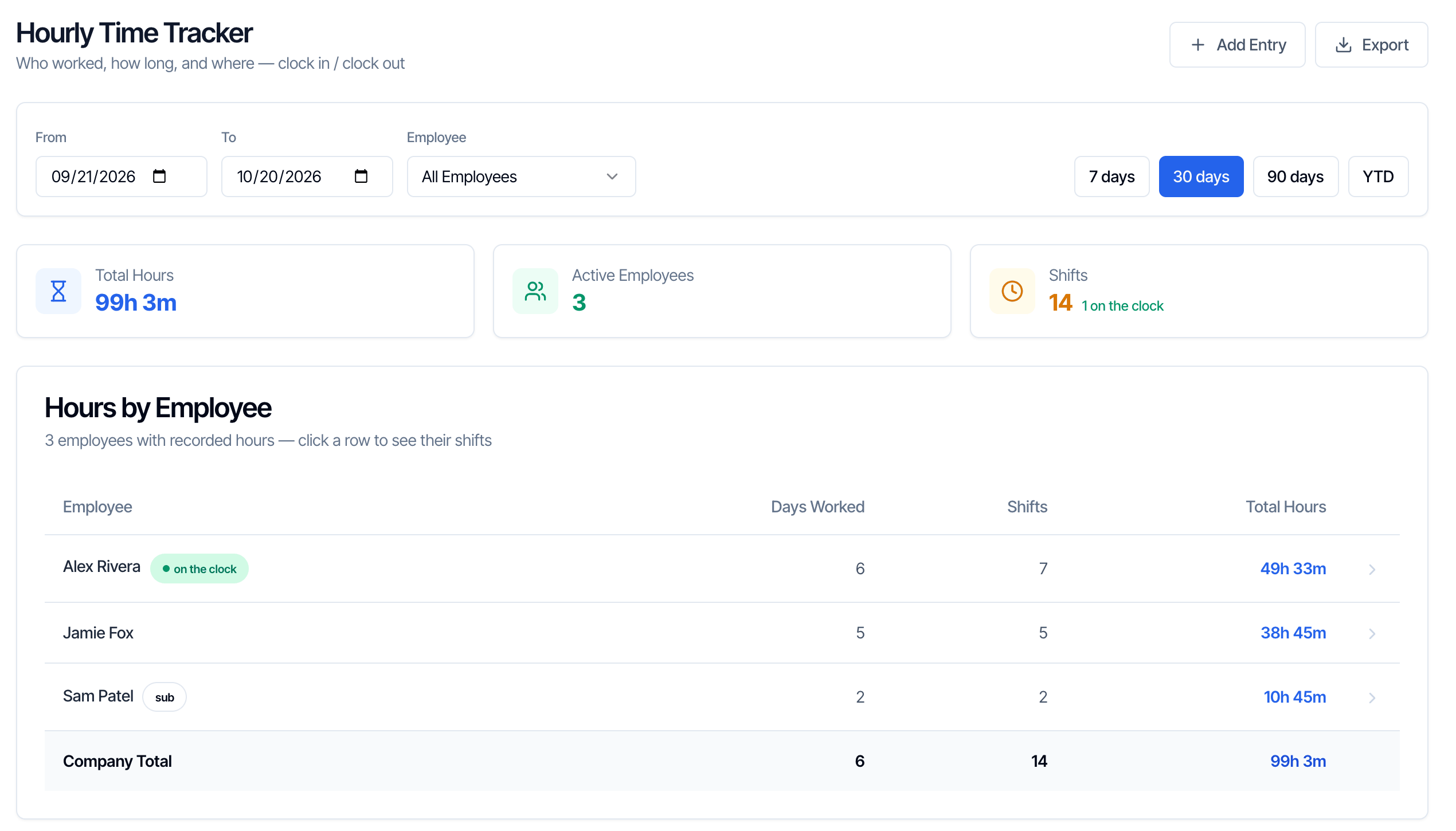
Pick the dates and the employee
- Dates: click 7 days, 30 days (the default), 90 days or YTD, or set From and To. The page updates by itself. There’s no Apply button.
- Employee: pick a name to see their shifts, or All Employees for everyone. Deactivated team members stay in the list, marked (deactivated).
Everyone at a glance
- Total Hours: hours from finished shifts, shown as hours and minutes.
- Active Employees: how many people have shifts in the dates you picked.
- Shifts: how many shifts, and how many people are on the clock right now.
A shift that’s still running counts towards Shifts but adds no hours until the person clocks out.
Shifts for one employee
Click a row, or pick the person under Employee. Their shifts are grouped by day, newest first, with each day’s total: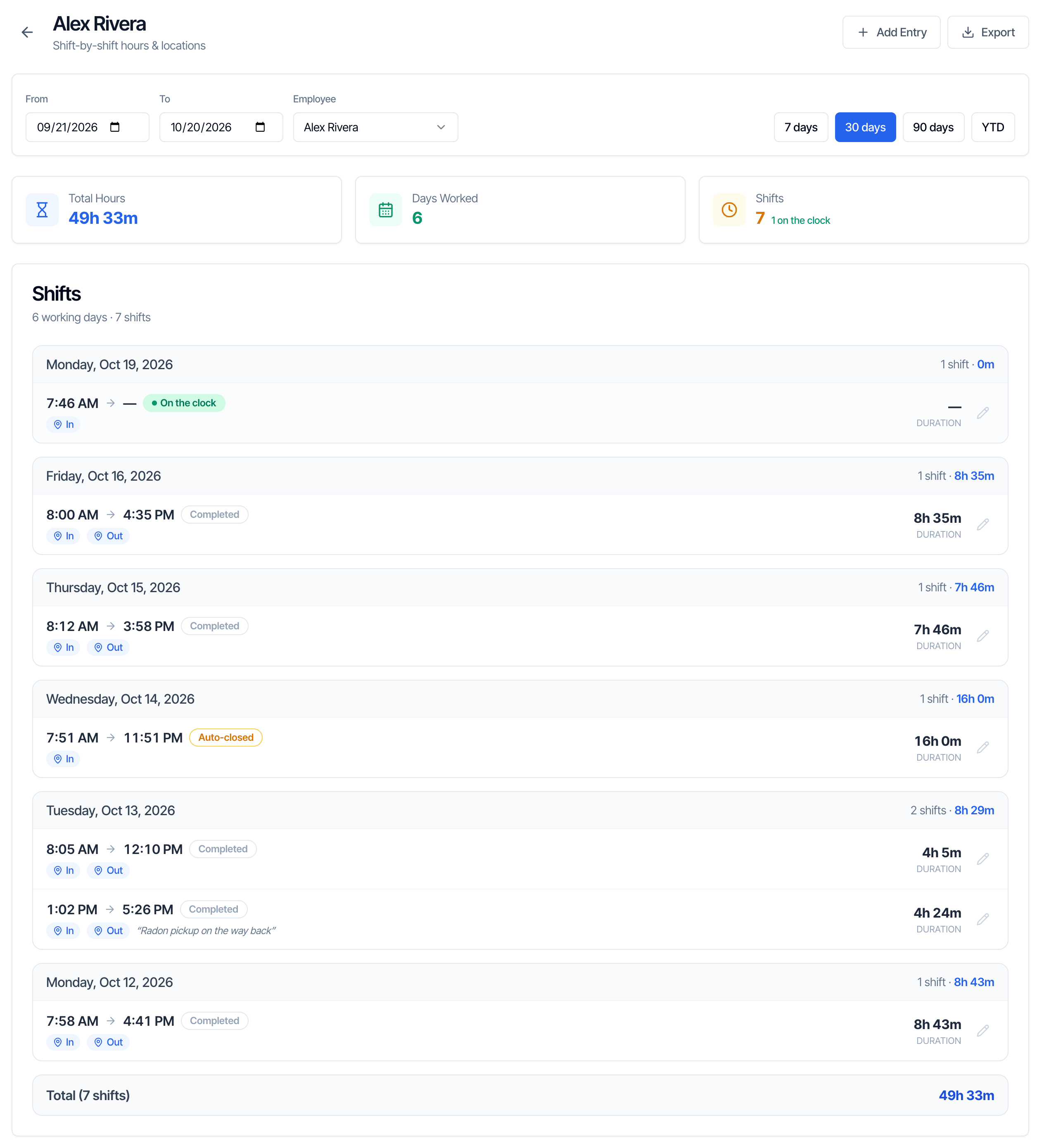
- Clock-in and clock-out time. A dash means they haven’t clocked out.
- Status: On the clock, Completed or Auto-closed.
- Location: click In or Out to open where they clocked in or out in Google Maps. No location means the phone didn’t share one (or the entry was added by hand).
- The note, if they added one.
- Duration.
Fix or add a shift
Correct a shift
Click the pencil on the shift. In Edit Time Entry, change Clock In, Clock Out or the Note, then click Save. The duration is worked out again.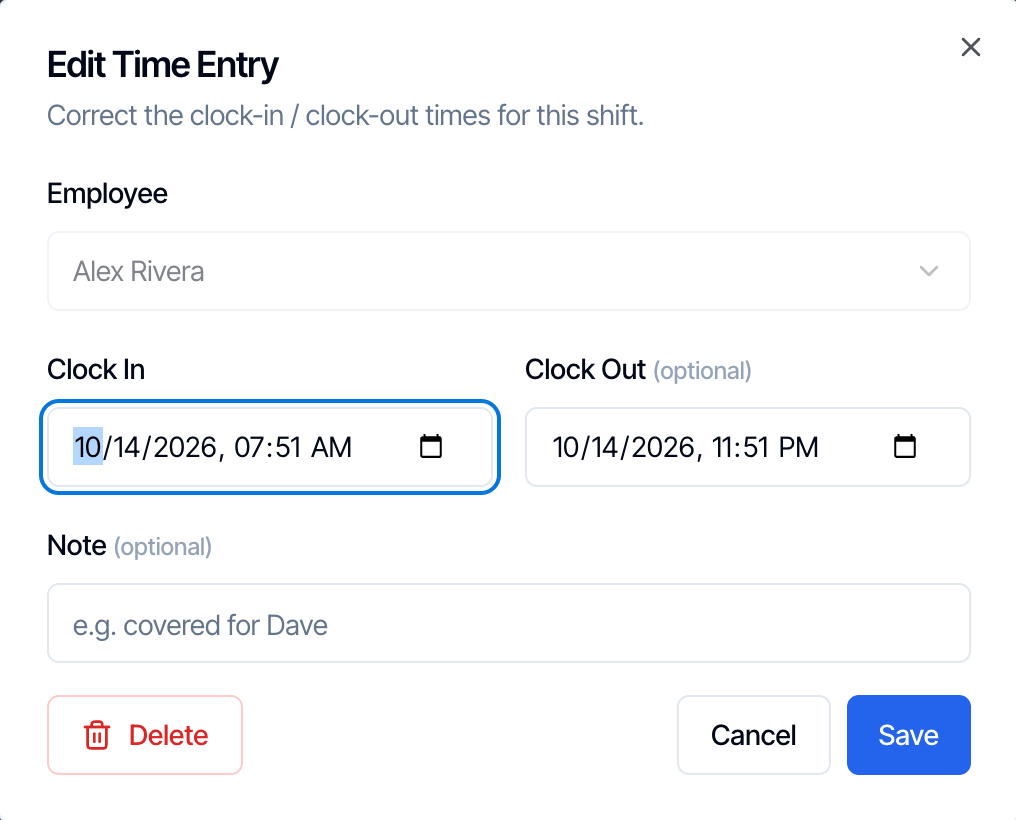
- An auto-closed shift: put in the real clock-out time.
- Someone still on the clock who forgot to clock out: ask them to tap Clock Out in the app first, then correct the time here. If they no longer have that phone, add the clock-out time here, which also clears the stuck shift so their next clock-in works.
- A wrong time: for example they clocked in late.
Add a shift by hand
Click Add Entry at the top. Choose the Employee, set Clock In and Clock Out, add a Note and click Save.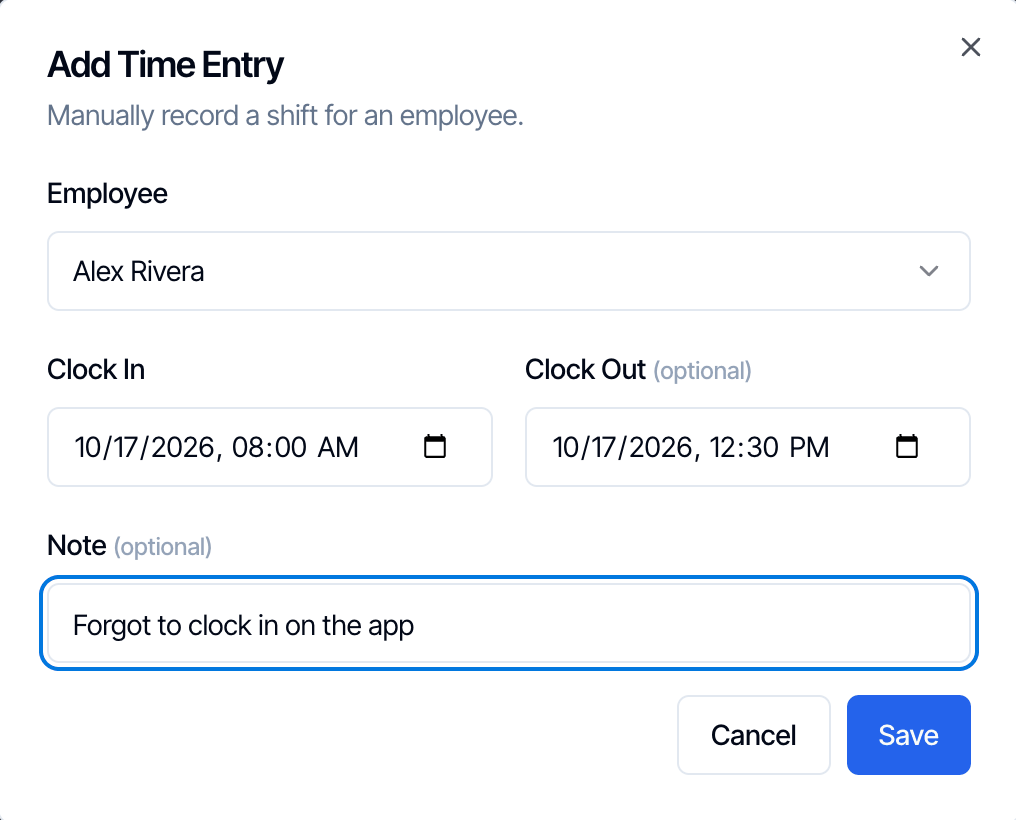
- Leave Clock Out empty to start a shift that’s still running. It shows as On the clock. A person can only have one running shift at a time.
- Clock Out must be after Clock In.
- Times are in your computer’s time zone.
Delete a shift
Open the shift with the pencil, click Delete and confirm. It can’t be undone.Export hours to Excel
Click Export. Hive downloads a spreadsheet (for examplehours-company-2026-10-19.xlsx) with two sheets:
- Summary: each employee’s Days Worked, Shifts and Total Hours in decimal hours (for example 8.58), plus a Total.
- Shifts: every shift with Employee, Date, Clock In, Clock Out, Hours, Status (Completed, Auto-closed or In progress), Note, and Google Maps links for the Clock-In Location and Clock-Out Location.
Who can do what
- Clock in and out: everyone who signs in to the mobile app, for themselves only.
- Open the Hourly Time Tracker and see everyone’s hours, edit, add, delete and export: team members with the Inspector or Admin role, and anyone with the Business Metrics permission. Everyone else sees Access Denied.
Common questions
Where is the time clock in the app?
Where is the time clock in the app?
Tap My Profile at the bottom of the app. The Time Clock card is below Clear Cache & Data. If you don’t see it, update the app from the App Store or Google Play.
Someone forgot to clock out. How do I fix it?
Someone forgot to clock out. How do I fix it?
If the shift still shows On the clock, ask them to tap Clock Out in the app first. Otherwise their phone can overwrite your correction later, when it closes the shift itself.Then open the Hourly Time Tracker, click their name, then the pencil on the shift. Set the real Clock Out time and click Save.
Someone forgot to clock in. How do I add the hours?
Someone forgot to clock in. How do I add the hours?
Click Add Entry, choose them, set Clock In and Clock Out, and add a note such as “Forgot to clock in”. Click Save.
I clocked in but the dashboard doesn't show it.
I clocked in but the dashboard doesn't show it.
The phone may be offline. Open the app with internet: the Time Clock shows Syncing… and then the shift appears. If you’re still listed as On the clock from an earlier shift (for example from an old phone), a manager needs to close that shift first.
Can I see where an inspector clocked in?
Can I see where an inspector clocked in?
Yes, if their phone allowed location. Click In or Out on the shift to open the spot in Google Maps. The export has the same links.
Does the time clock know which inspections someone worked on?
Does the time clock know which inspections someone worked on?
No. It records shifts only. For driving distance to inspections, see the Mileage Tracker.
Can I clock in from the web dashboard?
Can I clock in from the web dashboard?
Not with a button. Use the mobile app, or a manager can use Add Entry and leave Clock Out empty.