

In the dashboard: Business Tools → Referral Sources. Results: Metrics → Referral Sources.
Referral sources tell you how each client found you, for example from a real estate agent, Google or a past client. You make a short list of sources, each inspection gets one, and Metrics shows which sources bring in the most inspections. That tells you where your marketing is working. It works in three steps:- Add your referral sources in Business Tools.
- Each inspection gets a source: the client picks it when they book online, or your team sets it on the inspection.
- See the results in Metrics.
Add your referral sources
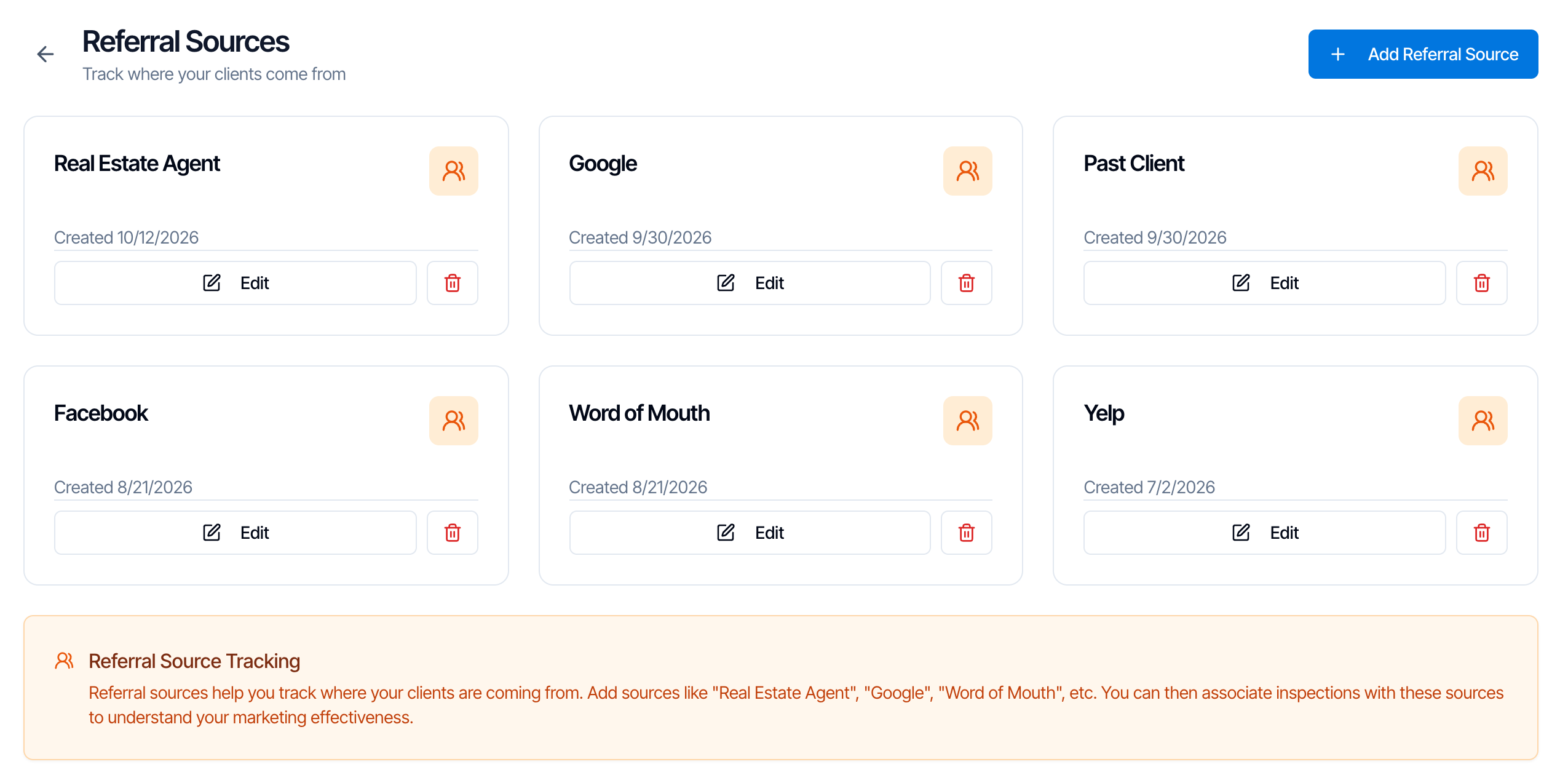
- Go to Business Tools in the left menu and click the Referral Sources card.
- Click Add Referral Source at the top right (or Add Your First Referral Source if you have none yet).
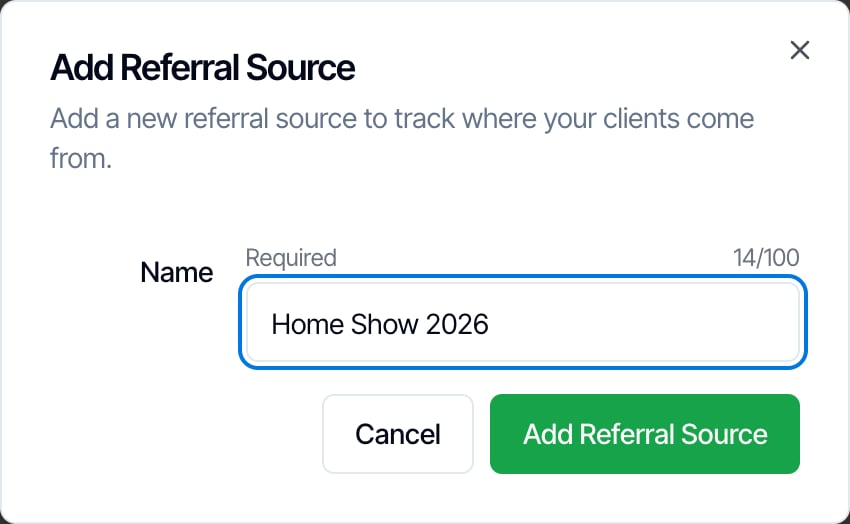
- Type the Name, for example Google, and click Add Referral Source.
Clients pick a source when they book online
Once you have at least one source, your scheduling widget asks How did you hear about us? on its first step, under the phone number. It shows on every booking, whether the home buyer or an agent is booking.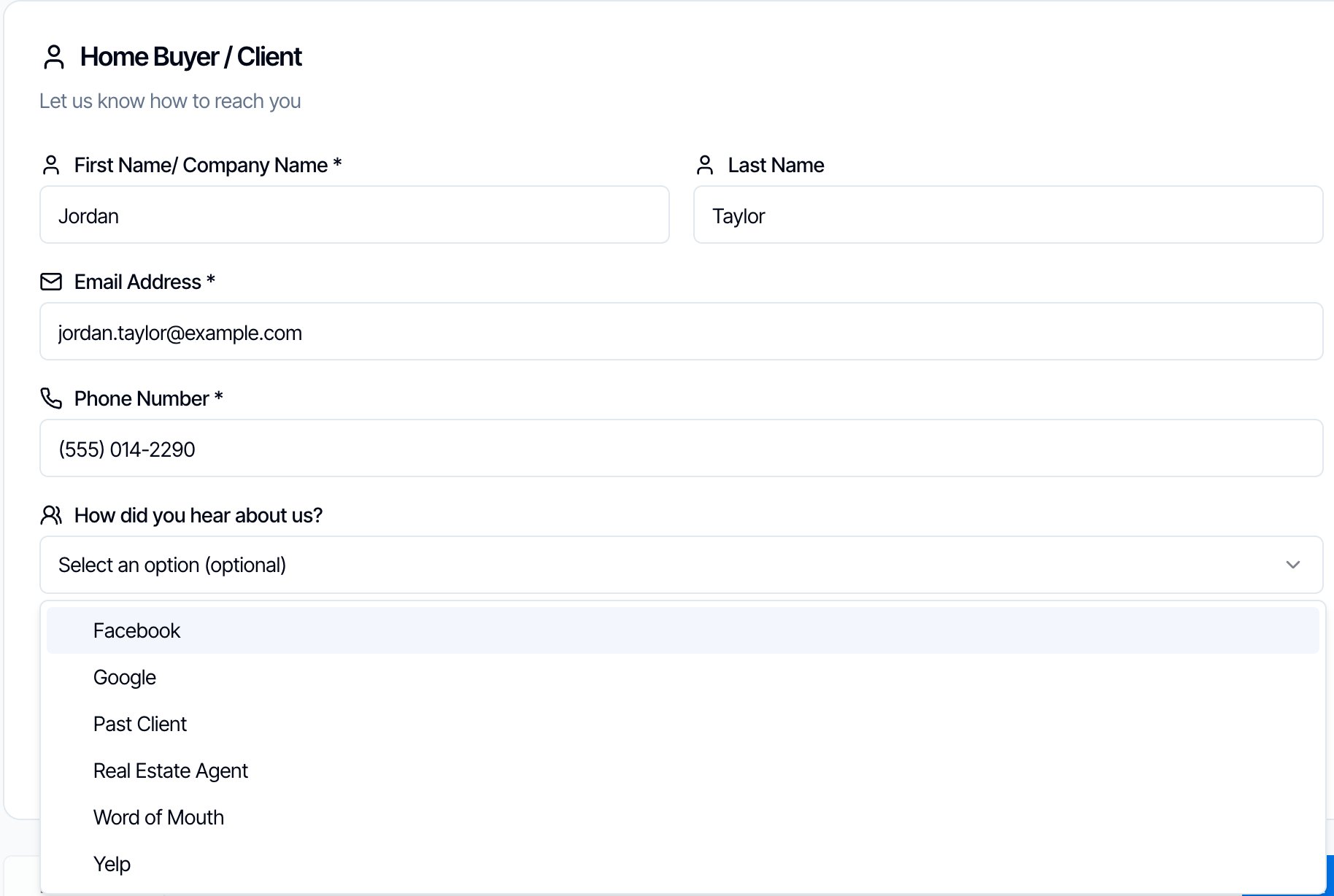
- The client picks one source from the list. They can’t type their own answer.
- It’s optional. A client can skip it.
- On the widget the list is in alphabetical order.
- The source is saved on the new inspection, and you see it on the inspection’s page.
If you have no referral sources, the widget doesn’t ask the question at all. Add a source in Business Tools to turn it on.
Set the source on an inspection
You can set or change the source for any inspection, including ones booked online.- Open the inspection, or click New Inspection.
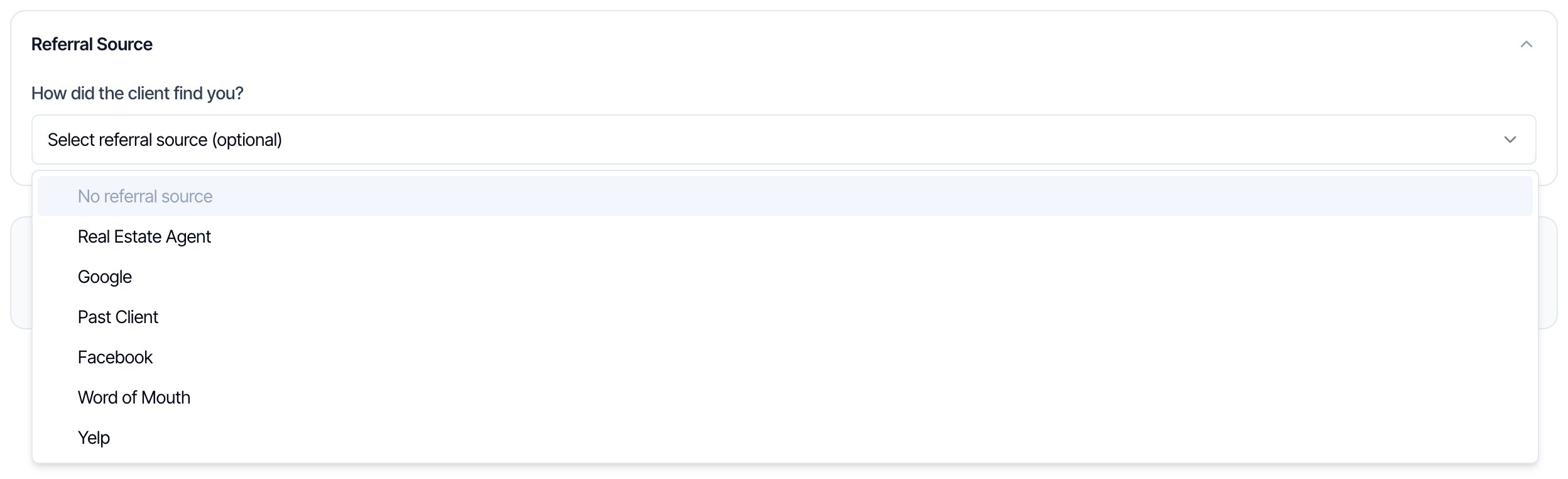
- Near the bottom of the page, click Referral Source to open the section.
- Under How did the client find you?, pick the source.
- On an inspection you already saved, the change saves straight away. You see Referral source updated.
- On a new inspection, the source is saved when you click Save as Draft or Confirm Inspection.
- Choose No referral source to clear it.
- Each inspection has one source.
- The section is closed when the page opens, even if a source is set. Click Referral Source to see it.
See which sources bring in inspections
Go to Metrics in the left menu and find the Referral Sources card.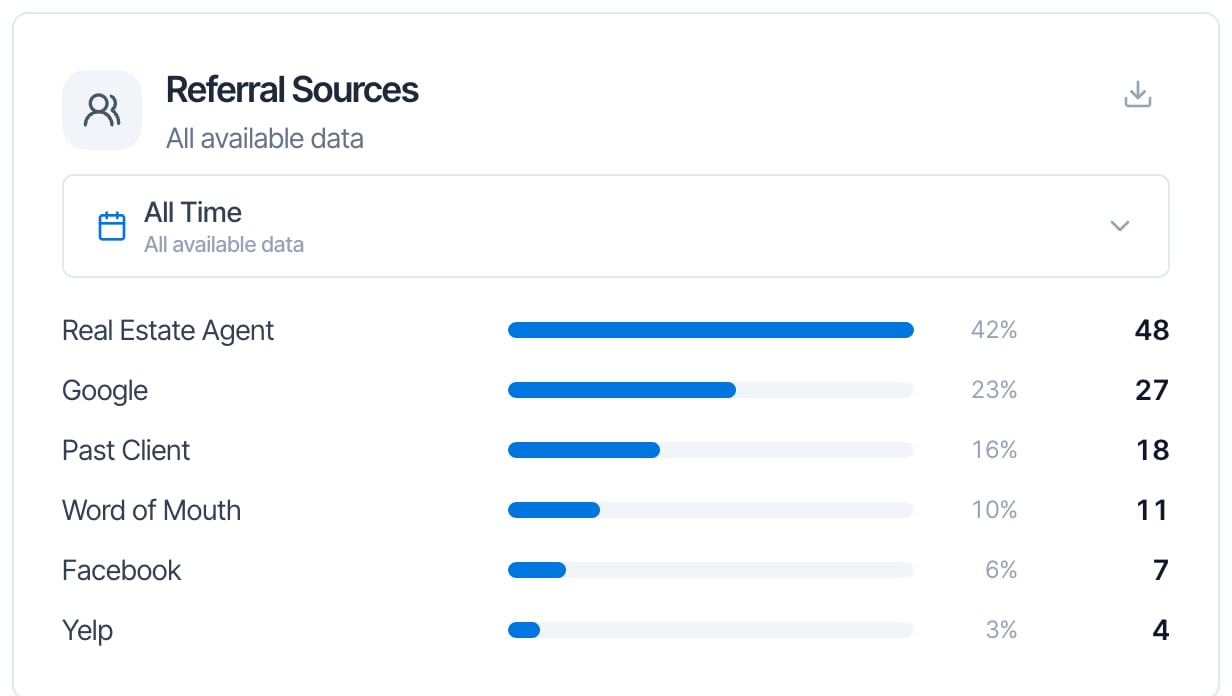
- Each bar shows how many inspections came from that source, and its share as a percentage.
- Pick the dates in the menu on the card: All Time (the default), Year to date, Last month, Last 30 days and more.
- If you have many sources, the smaller ones are grouped as Other.
- Click the download button at the top right of the card to export a spreadsheet (CSV) with Referral Source, Inspections and Share.
How the numbers are counted
- Only Confirmed inspections count. Drafts, quotes waiting for the client, inspections in review and canceled inspections are left out.
- The date is the inspection date, not the day it was booked. “Last month” means inspections that took place last month.
- The percentage is out of inspections that have a source. Inspections with no source aren’t in the card at all.
- It counts inspections, not money. For revenue, see the other cards in Metrics.
Rename or delete a source
Rename: click Edit on the source, change the name and click Update Referral Source. The new name shows everywhere, including on past inspections and in Metrics. Use this to fix a typo or tidy a name. Delete: click the red trash button and confirm Delete.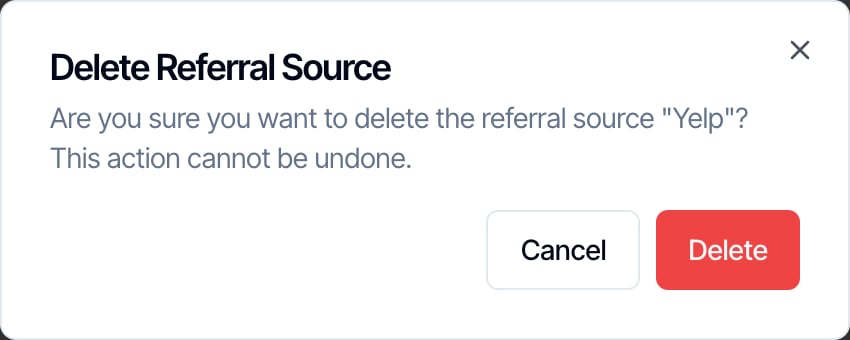
Who can manage referral sources
- Add, rename and delete sources: team members who can open Business Tools.
- Set the source on an inspection: anyone who can edit the inspection.
- See the Metrics card: Inspectors, and team members with the Business Metrics permission.
Common questions
Why doesn't my online scheduler ask How did you hear about us?
Why doesn't my online scheduler ask How did you hear about us?
You haven’t added any referral sources yet. Add at least one under Business Tools → Referral Sources and the question appears on the first step. It doesn’t appear on the quote widget.
Can clients type their own answer, or pick Other?
Can clients type their own answer, or pick Other?
No. They choose from your list or skip the question. If you want an Other choice, add a source called Other.
Why is an inspection missing from the Referral Sources card?
Why is an inspection missing from the Referral Sources card?
It isn’t Confirmed yet, it has no source, or its inspection date is outside the dates you picked on the card. Confirmed inspections count by their inspection date.
Can I filter my inspection list by referral source?
Can I filter my inspection list by referral source?
No. The inspection list doesn’t filter or show referral sources. Use the Referral Sources card in Metrics for totals, or ask Ask Agent, for example “How many inspections came from Google this year?”
Can I put the referral source in an email or automation?
Can I put the referral source in an email or automation?
No. There’s no placeholder for it.
Is this the same as the agents who send me clients?
Is this the same as the agents who send me clients?
No. A referral source is a category you pick, such as Real Estate Agent. Which agent sent a job is tracked separately, by the agents you add to each inspection.
I chose the wrong source. How do I fix it?
I chose the wrong source. How do I fix it?
Open the inspection, click Referral Source and pick the right one. It saves straight away.