

In the dashboard: Metrics in the left sidebar.
The Metrics page (titled Business Metrics) turns your inspections into charts and numbers: how many inspections you do each month, how much they bring in, which services and add-ons sell, how clients pay, which agents send you the most work, where your inspections are, and where your clients come from. Each metric is a card. Most cards have their own date range, and many have an inspector filter. Every card has a download button that saves exactly what the card is showing as a CSV file. You can hide cards you don’t need and drag the rest into any order.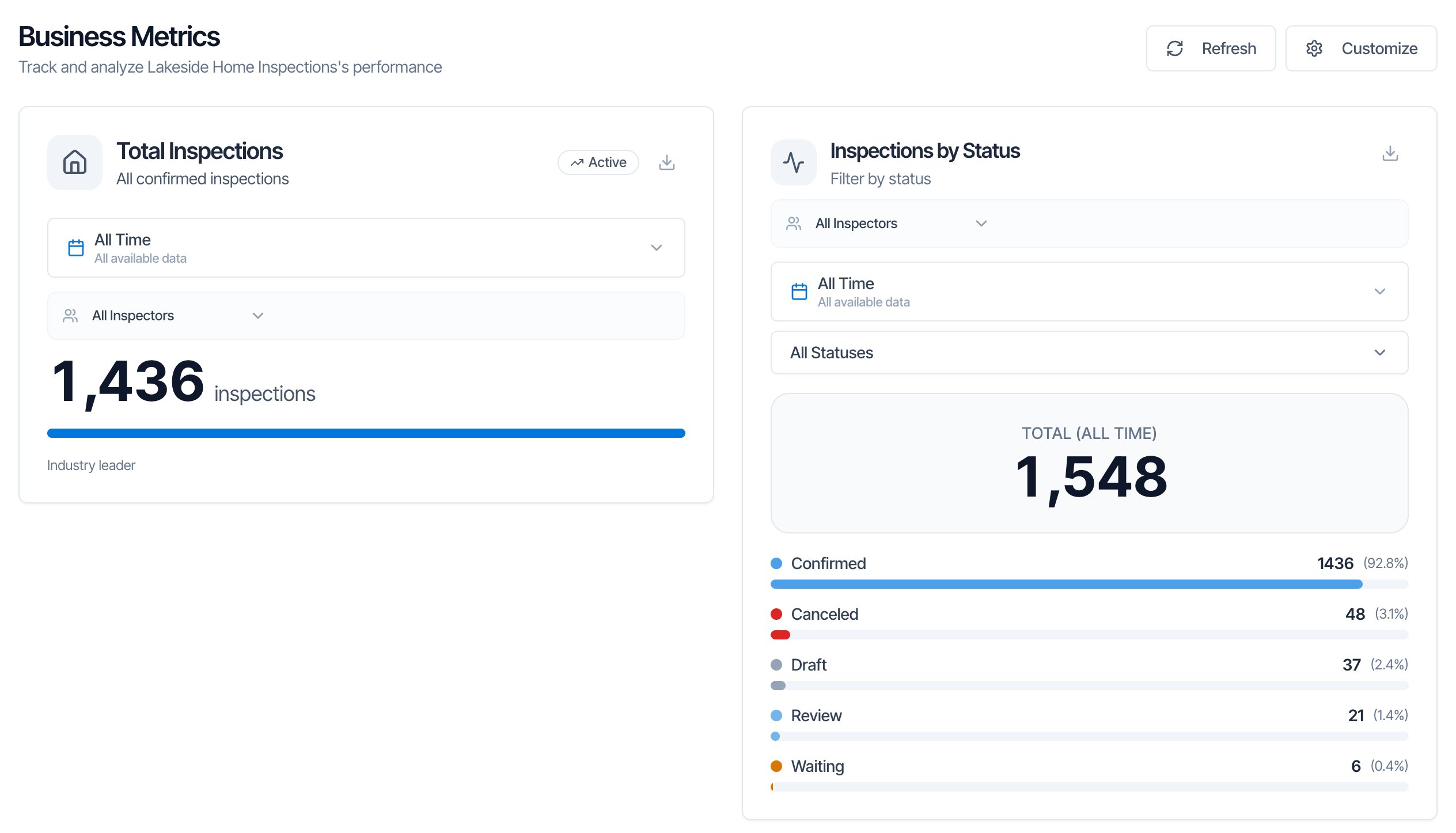
Who can see Metrics
- The account owner always can.
- Anyone else needs the Business Metrics permission. The owner turns it on under Teams → Manage. See What each permission does.
How Metrics counts
Read this first. It explains most “why doesn’t this number match” questions.- Confirmed inspections only. Drafts, quotes (Review), Waiting bookings and canceled inspections are left out of every card except Inspections by Status, which shows every status (see Inspections by Status). Deleted inspections are never counted.
- By inspection date. An inspection counts on the day it is scheduled for, not the day it was booked, in your company’s time zone (Org Settings). Upcoming inspections already count in their month, so the current month and the Next 7 days and Next 30 days ranges include jobs that haven’t happened yet.
- Revenue is the inspection price. Revenue cards add up the price of each Confirmed inspection, paid or not. It isn’t the money you have collected, and it doesn’t include the card technology fee. For money actually paid, use Earnings.
- An inspection with no date only appears under All Time.
- Monthly and yearly charts start on January 1 two years ago. In 2026, they cover 2024, 2025 and 2026. The weekly charts cover the last 52 weeks. Cards with a date range menu can go back further with All Time, Last 5 years or Last 10 years.
- Choices reset when you leave. The date range, inspector, year and Month/Quarter/Year you pick on a card last until you leave or reload the page. Only the card layout is saved (see Customize the page).
- Refresh at the top loads the latest numbers without reloading the page.
Every metric at a glance
There are 19 metrics. All of them are on the page until you hide some.Pick a date range
Cards with a date range have a box showing the range name with the actual dates under it, such as Year to date / Jan 1 – Oct 20, 2026. Click it to open the list of ranges. Every option shows the dates it covers, worked out in your company’s time zone.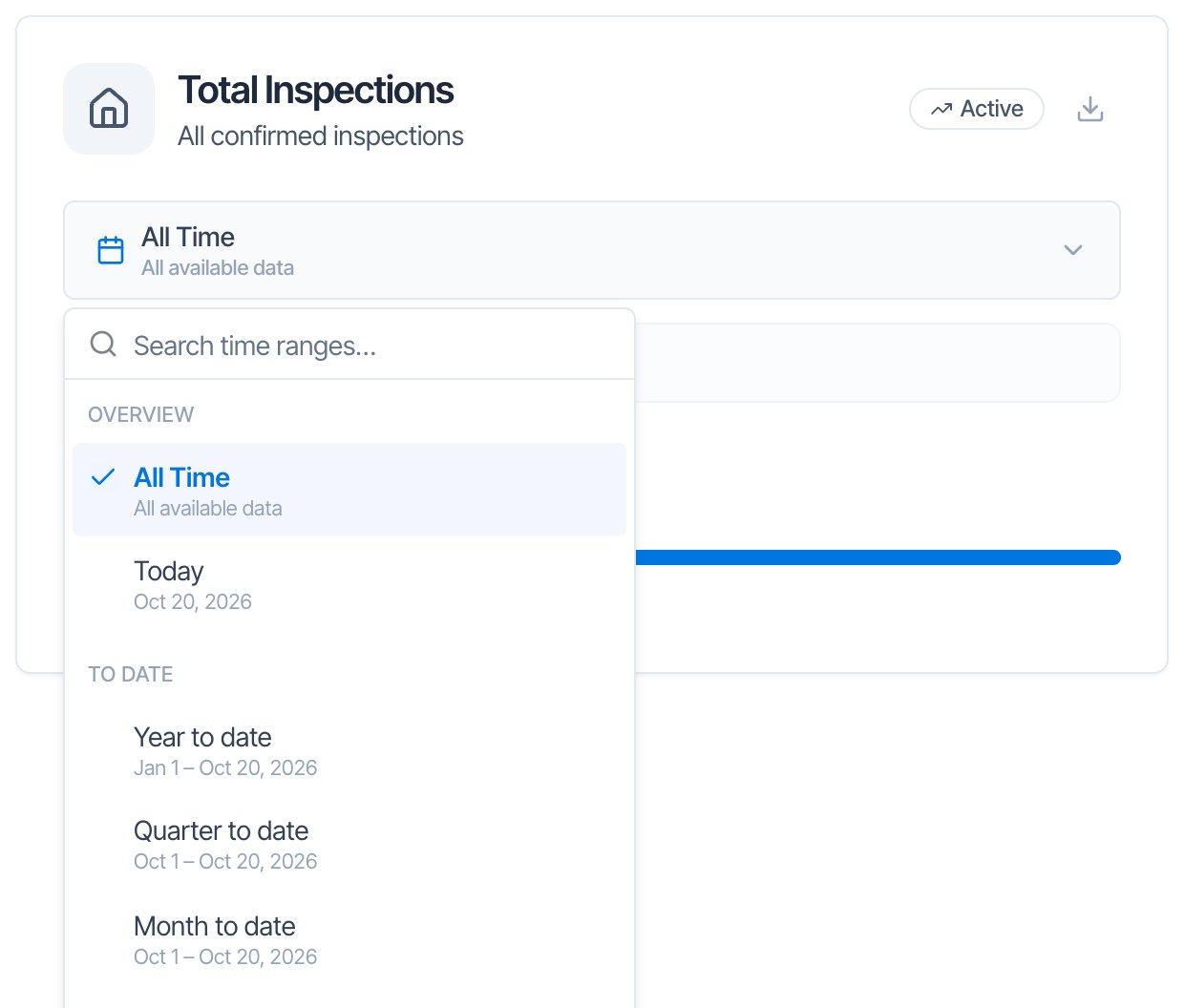
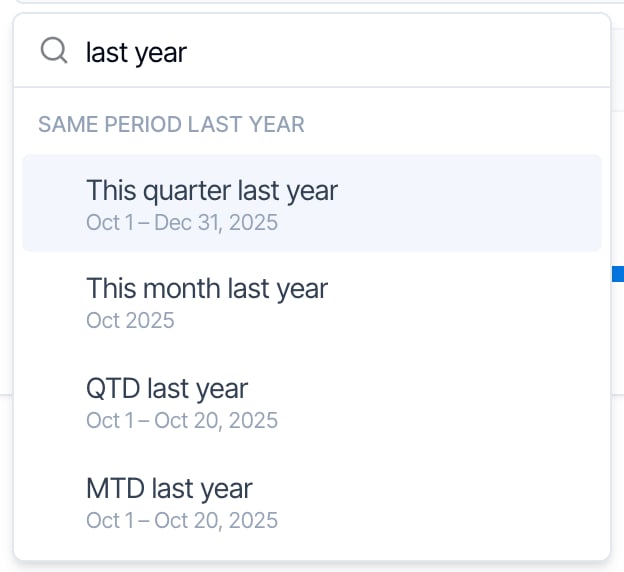
Type in the search box to find a range fast. It matches names and short forms, such as ytd, mtd or monday.
Filter by inspector
If your company has more than one inspector, four cards show an All Inspectors menu: Total Inspections, Inspections by Status, Inspections Per Month and Inspections Per Week. Pick a name to count only the inspections that person is assigned to.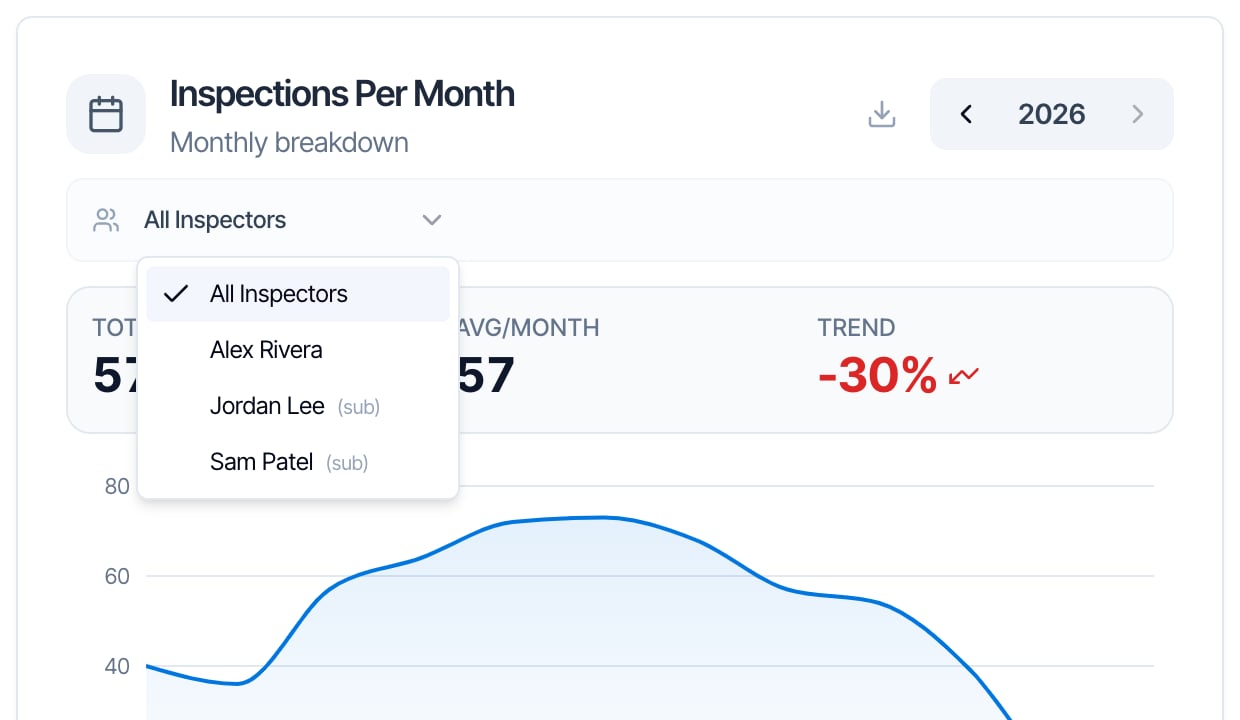
- Sub-inspectors have (sub) after their name.
- Team members you deactivated stay in the list, marked (deactivated), so their past inspections still count.
- An inspection with two inspectors counts for both of them.
- Support staff aren’t listed, because they can’t be assigned to inspections.
Download a card as CSV
Every card has a download button (the arrow pointing into a tray) in its top-right corner. Click it to download what the card is showing right now as a CSV file you can open in Excel, Google Sheets or Numbers. You see Exported to CSV when it’s done.- It follows your choices. The file matches the card’s current date range, inspector, year and Month/Quarter/Year.
- The file name is the card name and today’s date, such as
revenue-by-service-2026-10-20.csv. The Inspections Per Month file includes the year shown, such asinspections-per-month-2026-2026-10-20.csv. - The button is grey when the card has nothing to export for the range you picked.
- The button is hidden while you customize. Click Done to get it back.
- Lists export every row. The service, add-on, payment type and referral cards show the top 5 or 8 on screen and group the rest as Other. The file has every row. The agent and client leaderboards export the 10 people shown.
- One card at a time. There is no button to download the whole page. Download each card you need.
For a full list of inspections with prices, clients and payment details, use Export to CSV on the Earnings page instead.
What each metric shows
Total Inspections
A single big number: how many Confirmed inspections you have, with the date range and inspector menus.- With All Time, it counts all your Confirmed inspections. The card says All confirmed inspections.
- With any other range, it counts the Confirmed inspections scheduled in that range.
- With an inspector picked, it counts only the Confirmed inspections assigned to that person.
Inspections by Status
Your inspections grouped by status: Confirmed, Canceled, Draft, Review (quotes sent to the client) and Waiting (bookings for you to confirm). It is the only card that counts every status, not just Confirmed. Deleted inspections aren’t counted. See Inspection statuses for what each status means. It has a date range, an inspector menu and an All Statuses menu. In that menu, tick the statuses to add up, or use Select All and Clear All. The big number is the total for the ticked statuses, and each status shows its count, share and a bar.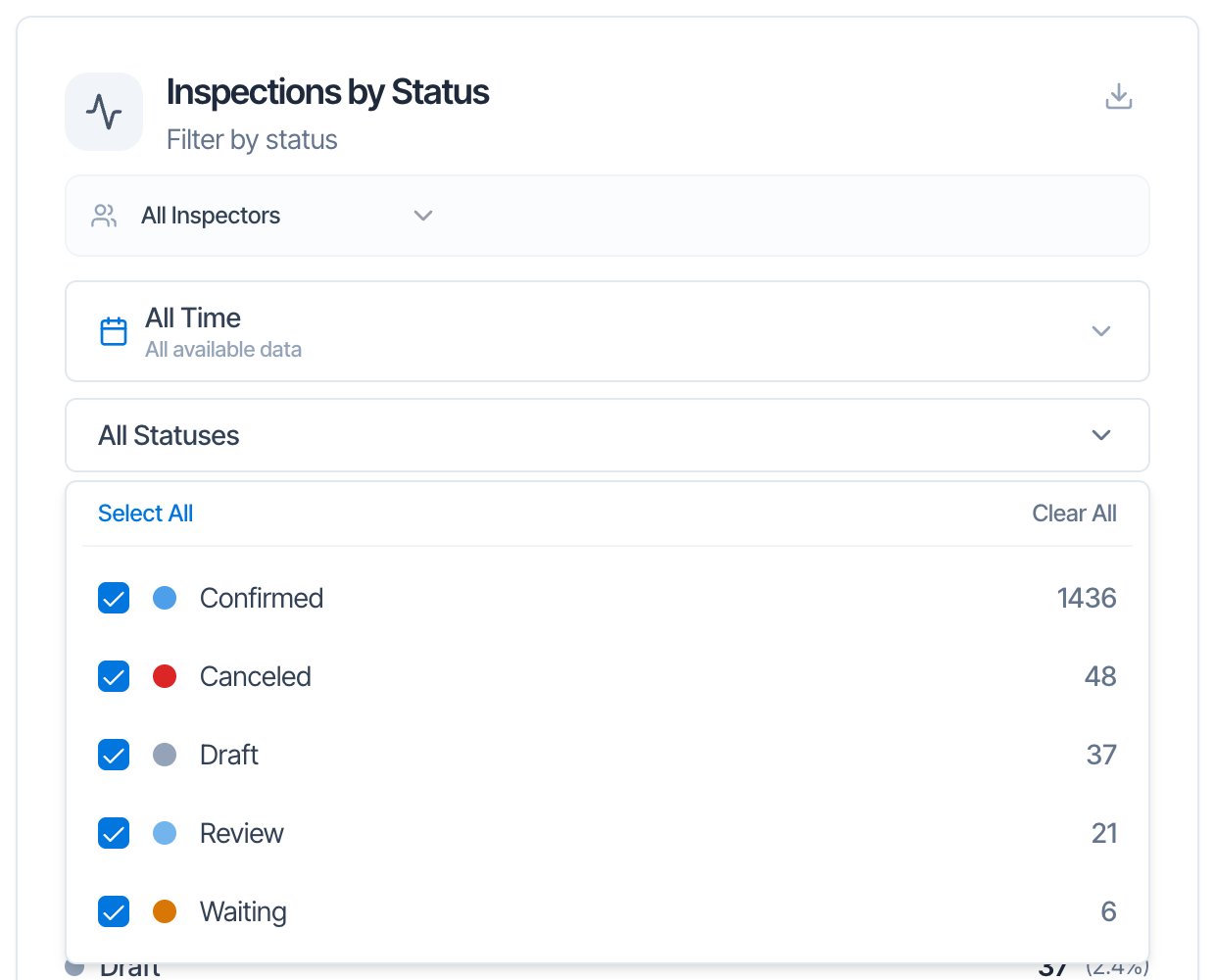
- Untick Canceled to see only the inspections that are still on, or tick only Review and Waiting to see how many quotes and bookings are open.
- The date range uses the inspection date. Drafts and quotes often have no date yet, so they only show under All Time.
- The CSV has the statuses shown, with their counts and shares.
Inspections Per Month
A chart of Confirmed inspections for each month of one year.- The year arrows at the top right move one year back or forward. You can’t go past this year, or before the earliest year with data.
- Total is the year’s total. Avg/Month is the average of the months that had inspections, up to this month. Trend compares the last 3 months, this month included, with the 3 months before.
- Best Month shows the month with the most inspections.
- Hover over the chart to see one month’s number.
Inspections Per Week
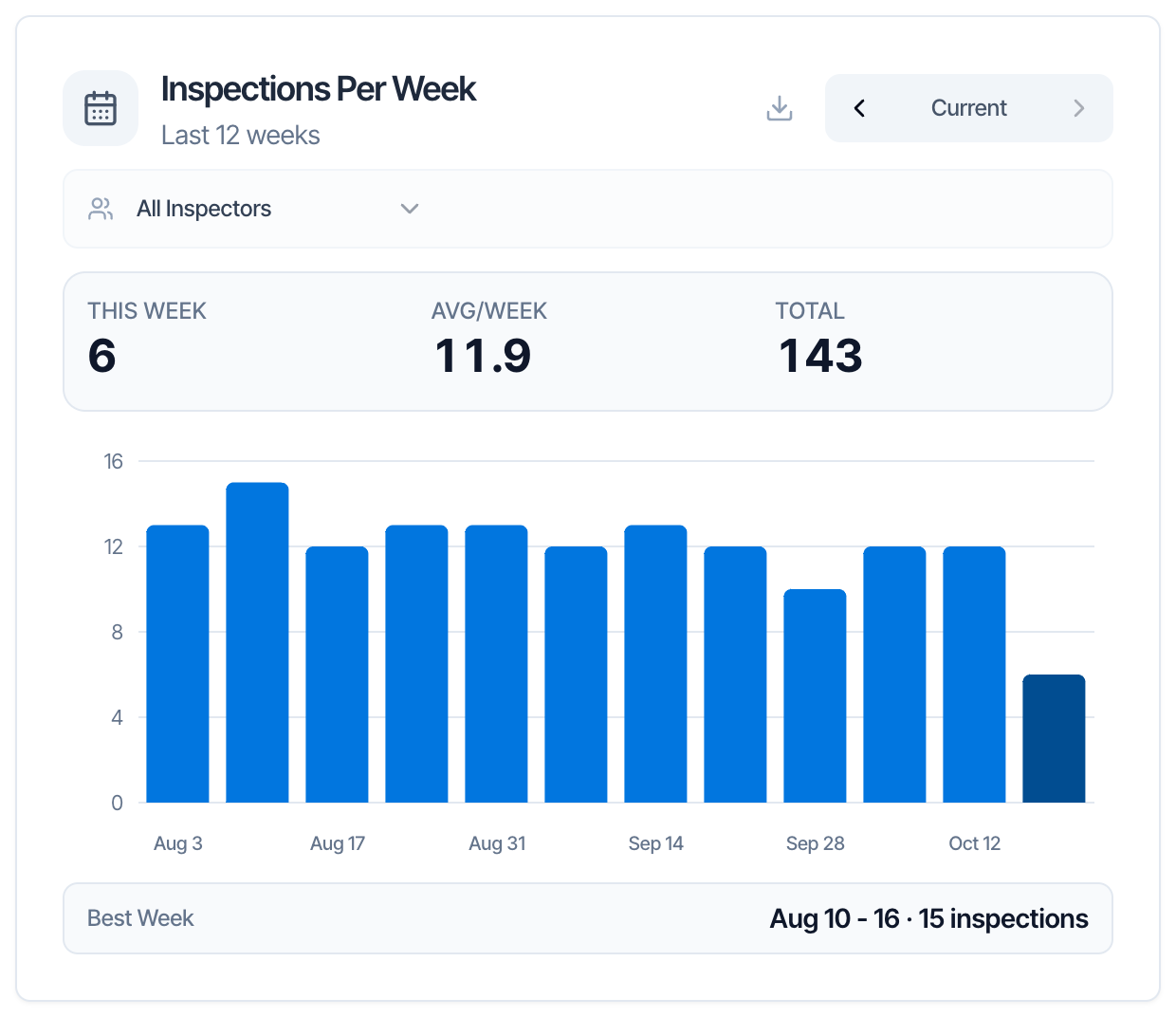
A chart of Confirmed inspections for 12 weeks, Monday to Sunday.- The arrows move 12 weeks back or forward. The label shows Current for the latest 12 weeks, then 12w ago, 24w ago and so on, back to one year.
- This Week, Avg/Week (the average of weeks that had inspections) and Total for the 12 weeks shown.
- Best Week shows the busiest week.
Revenue Per Month, Quarter or Year
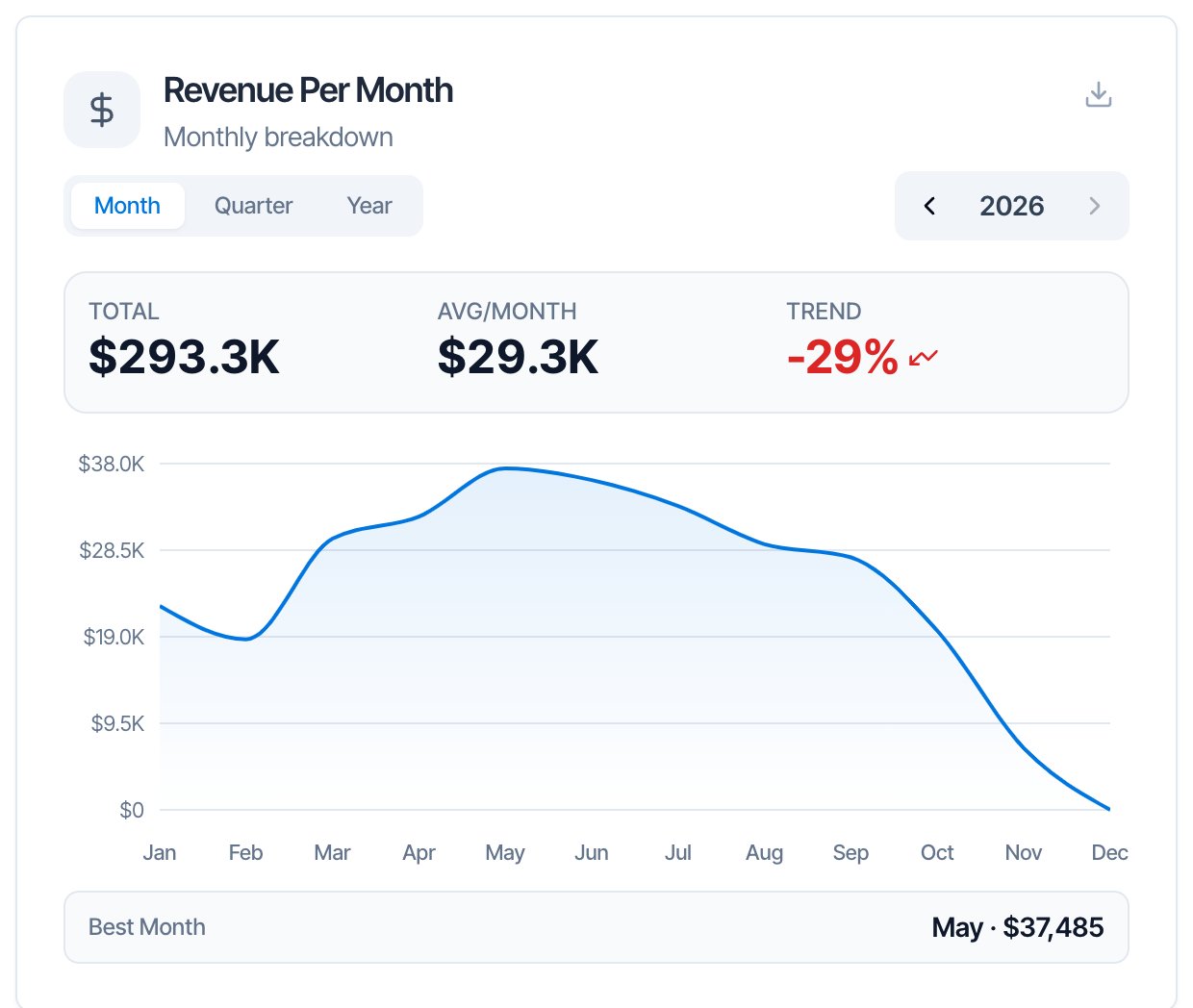
Revenue from Confirmed inspections, with a Month / Quarter / Year switch.- Month shows 12 months of one year. The title is Revenue Per Month.
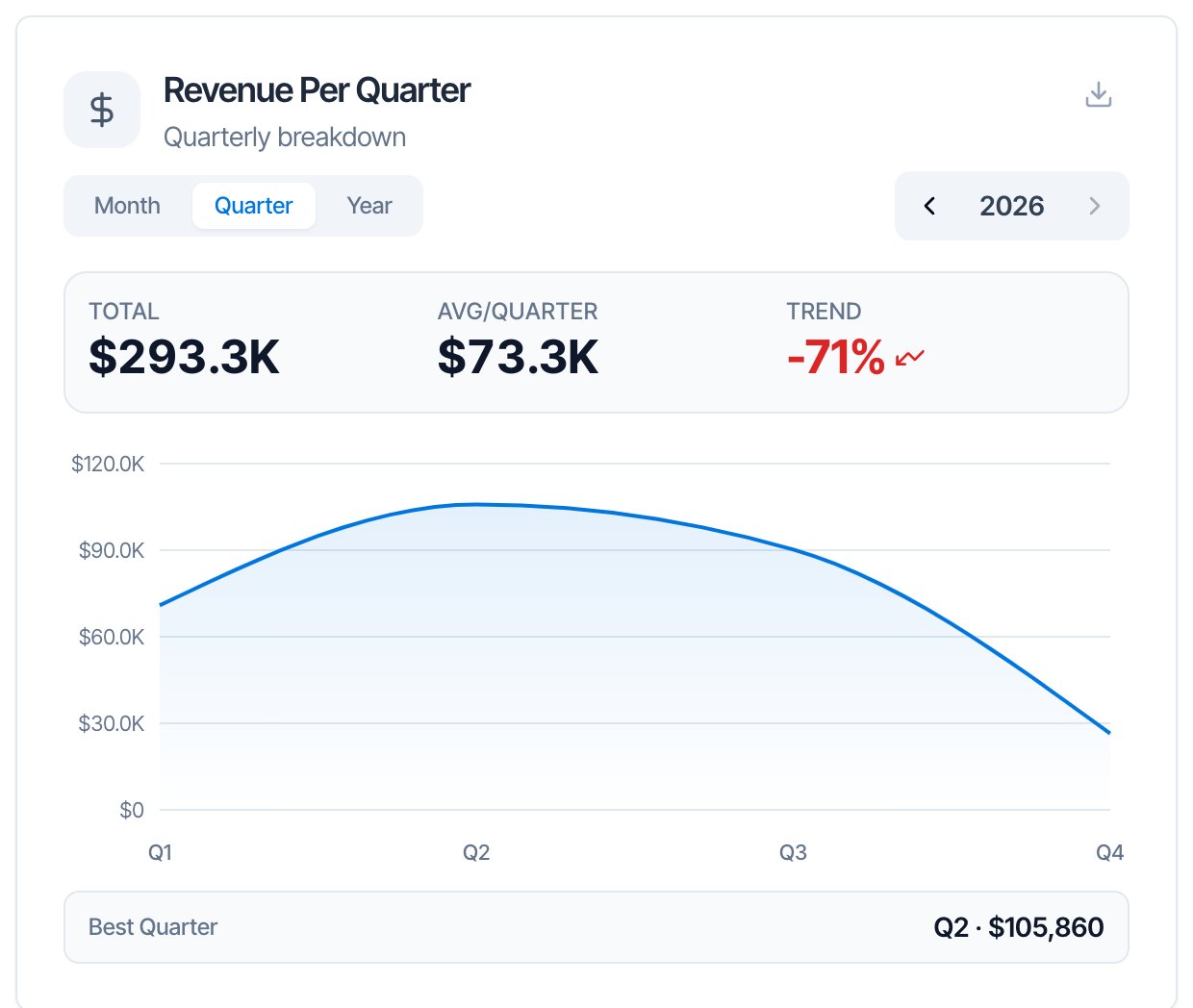
- Quarter adds the months up into Q1 to Q4. The title changes to Revenue Per Quarter.
- Year shows one bar for each year: this year and the two before. The title changes to Revenue Per Year, and the year arrows go away.
- The year arrows pick the year in Month and Quarter view.
Revenue Per Week
Weekly revenue for 12 weeks, Monday to Sunday, with the same arrows as Inspections Per Week. It shows This Week, Avg/Week, Total and the Best Week.Average Inspection Price
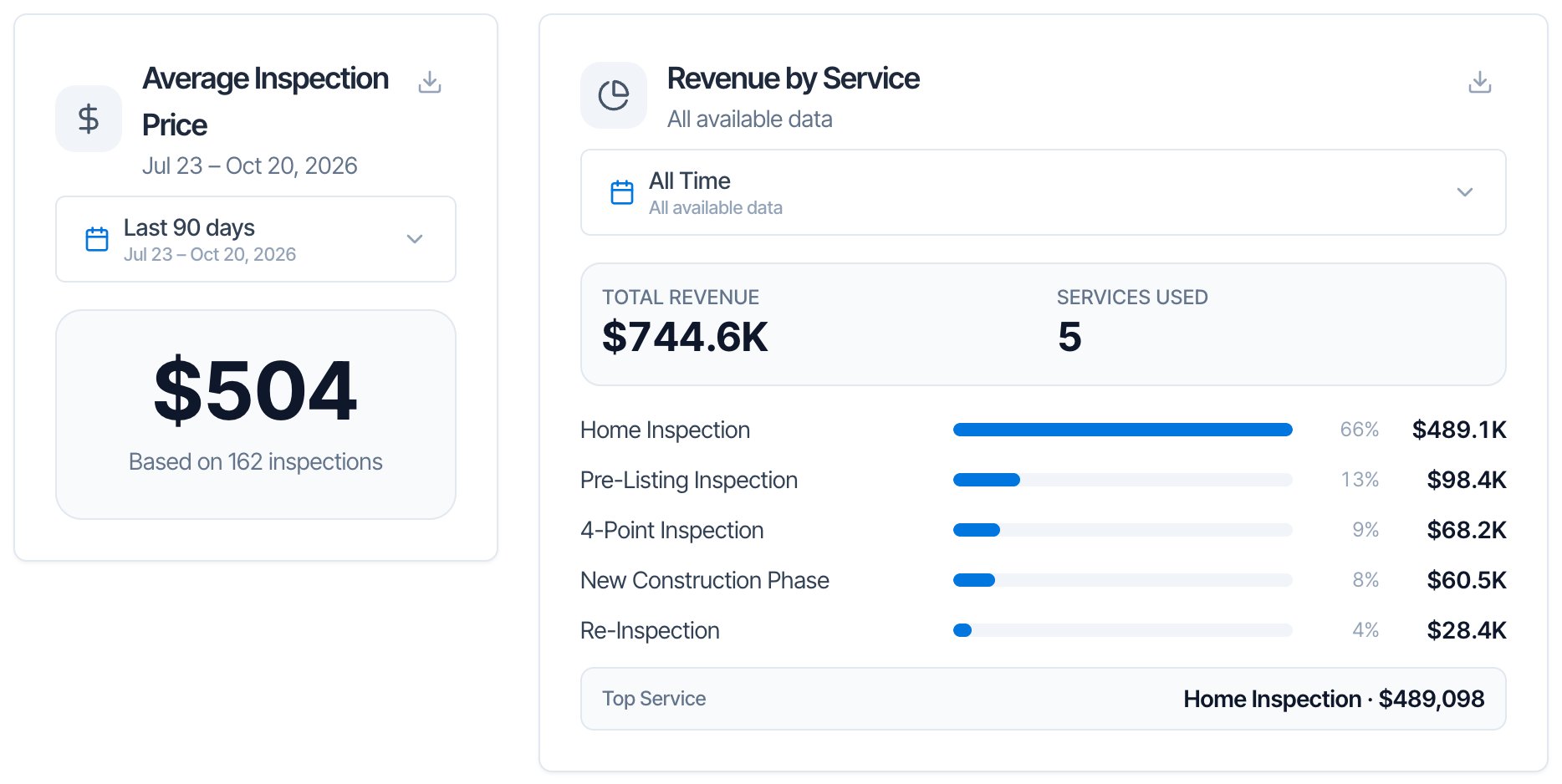
The average price of the Confirmed inspections scheduled in the date range, with Based on 162 inspections, for example, under it. It starts on Last 90 days. If no inspections fall in the range, you see No data.Revenue by Service and Inspections by Service
Two cards that look at your services from both sides.- Revenue by Service ranks services by revenue, with Total Revenue, Services Used and the Top Service.
- Inspections by Service ranks services by how many inspections included them, with Total Uses, Avg per Service and the Most Used service.
- An inspection with two services counts once for each, so Total Uses can be higher than your number of inspections.
- Revenue is split evenly between the services on an inspection. A $600 inspection with two services gives $300 to each, whatever each service costs. Add-on prices are part of the inspection price, so they’re split the same way.
- On screen, you see the top 8 services (5 on a small card). The rest are grouped as Other. The CSV has every service.
Inspections by Add-on
How many Confirmed inspections included each add-on, with the service it belongs to. It shows Total Uses, Unique Add-ons and the Most Used add-on. Add-ons you have deleted no longer appear. Use it to see which upsells sell, together with Add-on services.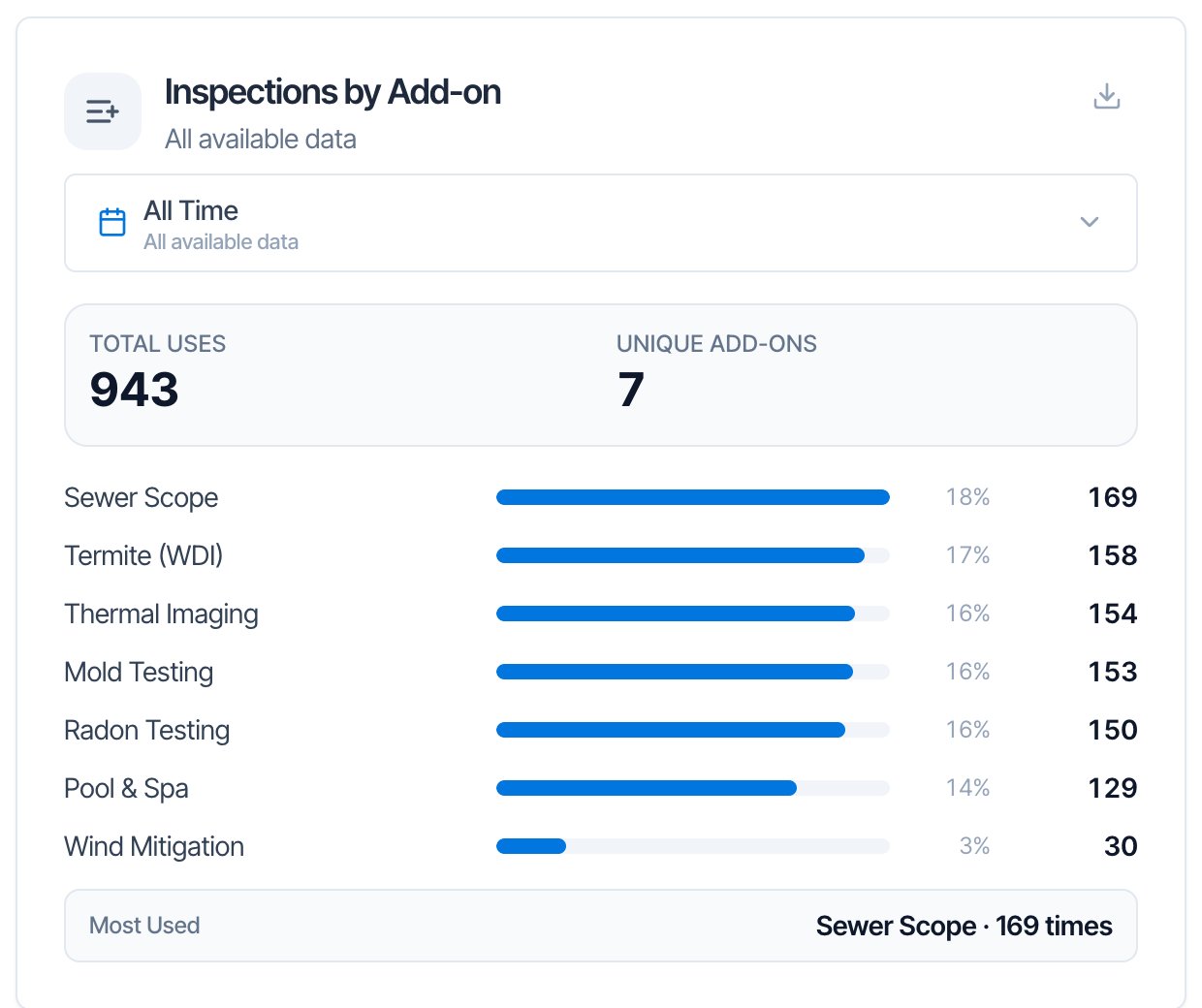
Inspections and Revenue by Payment Type
Two cards that break down how clients paid. They use the payment method saved on each Confirmed inspection, the same one the Earnings page shows.- Inspections by Payment Type counts inspections for each method, with Payments Recorded, Methods Used and the Most Common method.
- Revenue by Payment Type adds up the inspection price for each method, with Revenue Recorded, Methods Used and the Top Method.
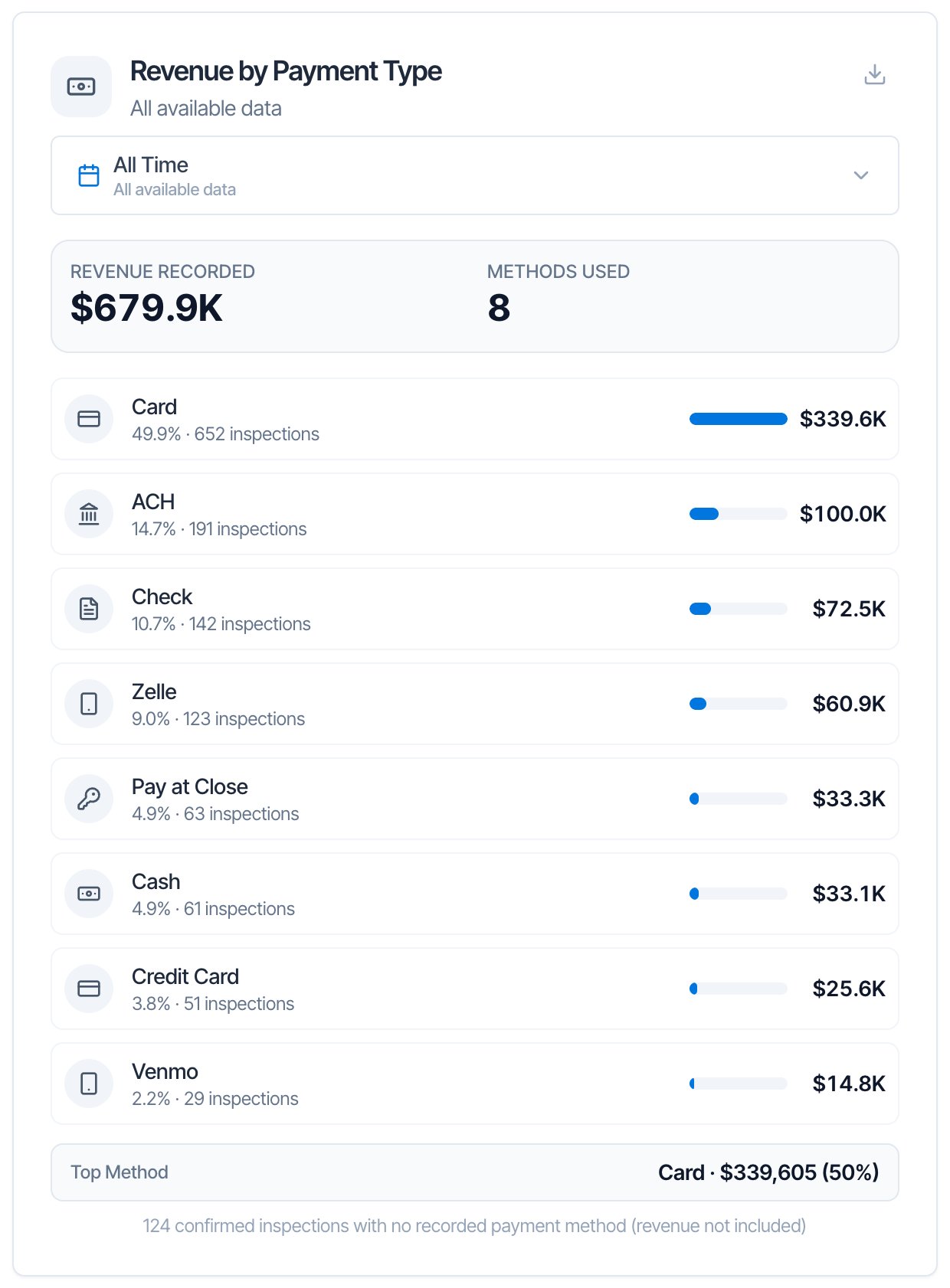
- Card is a payment made online through Stripe. Credit Card and Debit Card are payments you recorded by hand with Record Payment. They’re kept separate on purpose.
- Inspections with no payment yet, such as unpaid or upcoming jobs, aren’t counted. A note at the bottom says how many, for example 124 confirmed inspections with no recorded payment method.
- The method shown is the latest one. If a client paid part by check and the rest by card, the inspection counts under the last method used.
Top Buyer Agents, Top Listing Agents and Top Clients
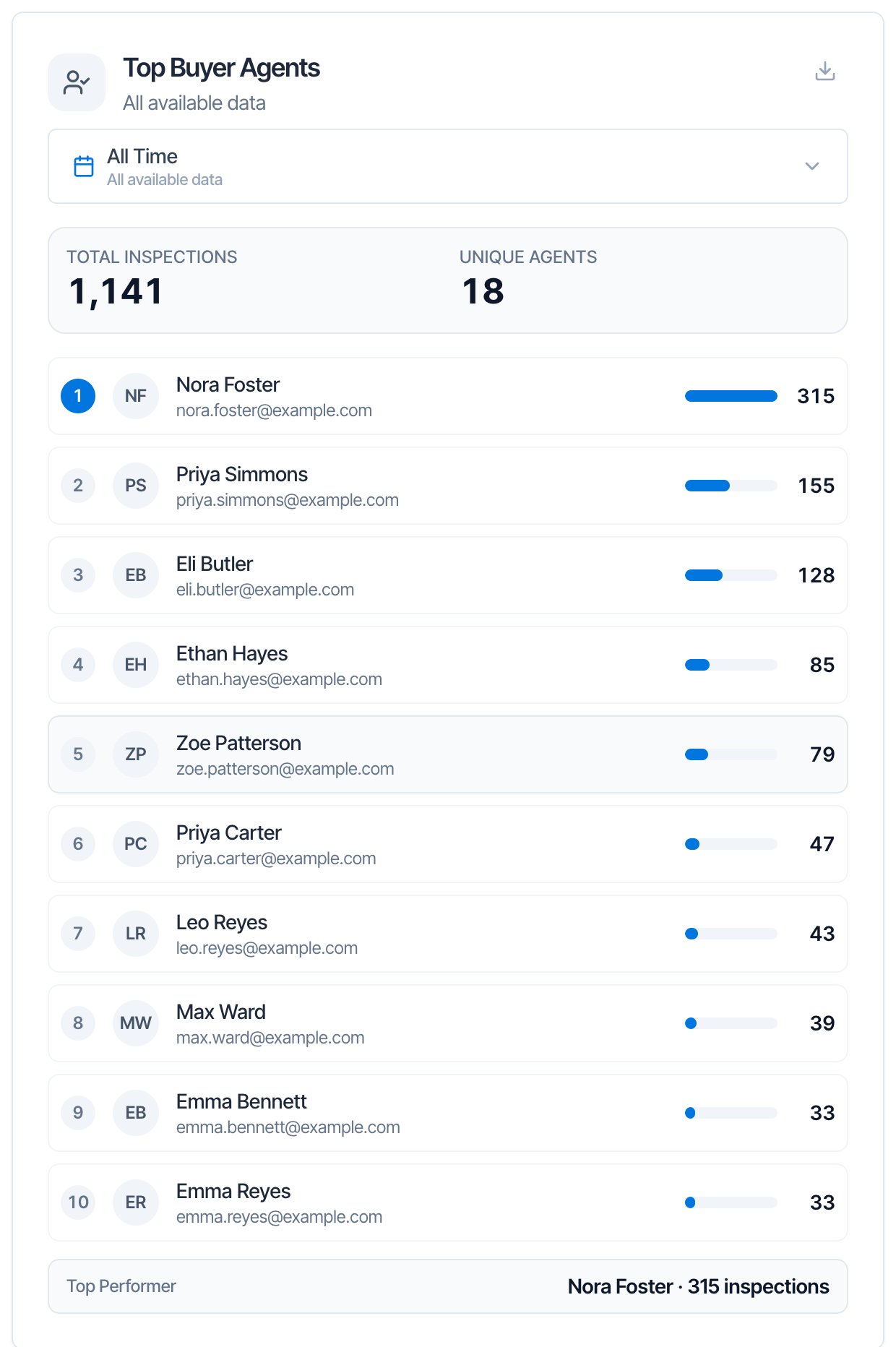
Three leaderboards of the people on your Confirmed inspections, each with a date range.- Top Buyer Agents ranks contacts added as Buyer Agent.
- Top Listing Agents ranks contacts added as Listing Agent.
- Top Clients ranks contacts added as Customer.
Inspection Locations
A map with a pin for each Confirmed inspection, with a date range.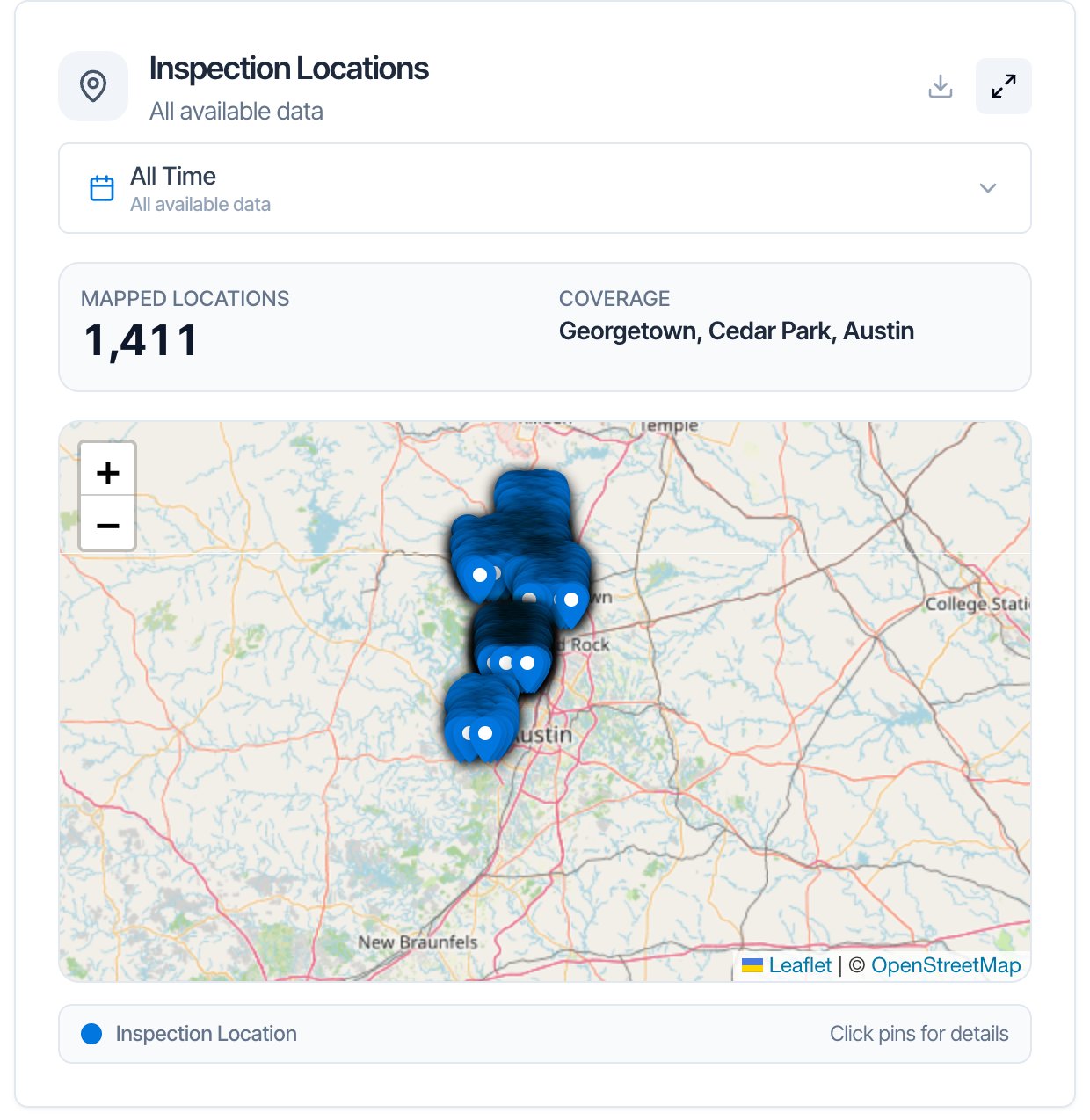
- Click a pin to see the address, status, inspection date and client.
- Zoom with the + and - buttons or your mouse. The map zooms to fit the pins in the range you picked.
- The expand button next to the download button makes the map taller. Click it again to shrink it.
- Mapped Locations is the number of pins. Coverage names up to three of the cities.
Current Inspectors and Available Slots
Two small cards about your plan’s inspector seats.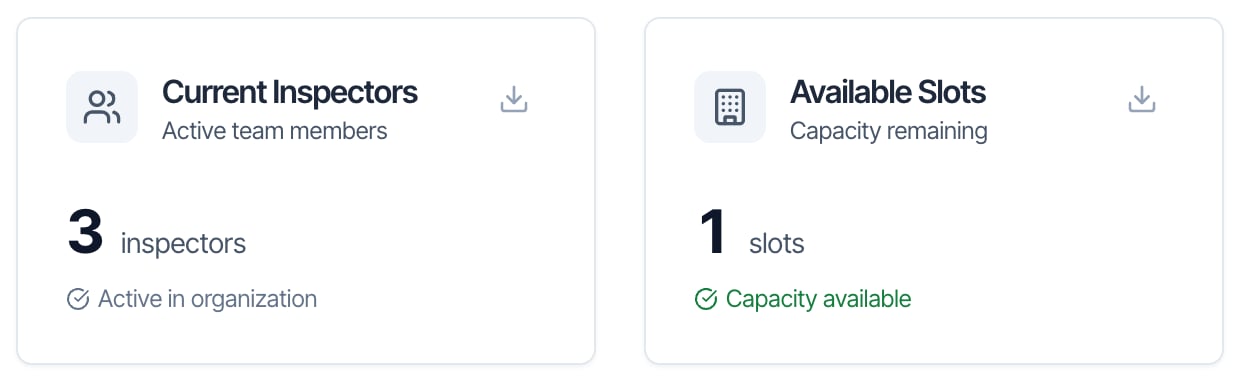
- Current Inspectors is how many inspector seats are in use: you plus your active sub-inspectors. Support staff are free and aren’t counted. Its CSV lists every inspector and sub-inspector with their role, including deactivated ones.
- Available Slots is how many seats you pay for that nobody uses yet. It says Capacity available when you can invite another inspector, or No capacity when you need to add a seat first. See Team settings.
Referral Sources
How many Confirmed inspections came from each referral source, such as Google search or Past client, with each source’s share. The top 8 show on screen and the rest are grouped as Other. See Referral Sources to set them up.Customize the page
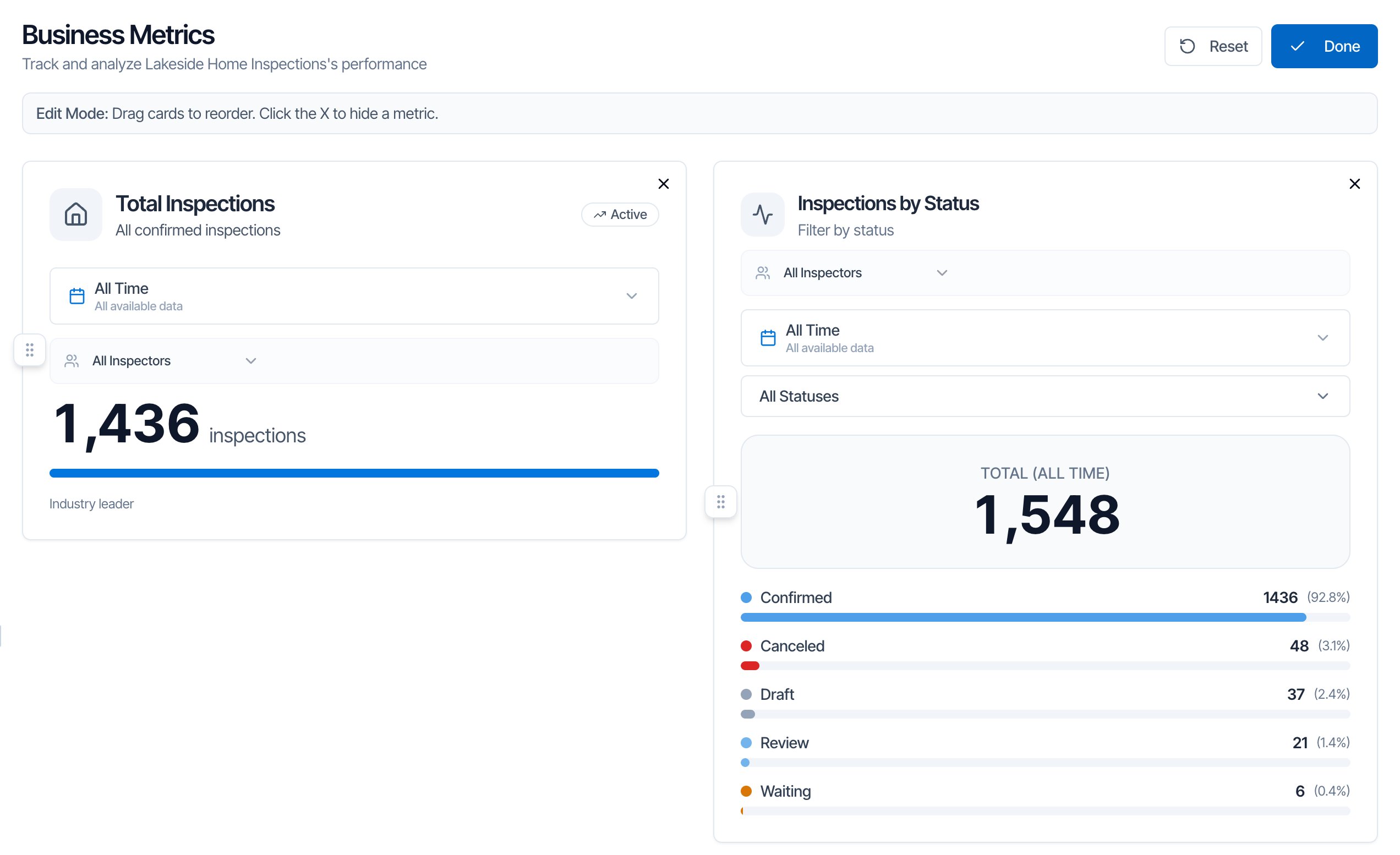
You can hide cards you don’t use, bring them back and change their order. The layout is saved for your whole company, so everyone who opens Metrics sees the same cards in the same order.- Click Customize at the top right. The page switches to Edit Mode: Drag cards to reorder. Click the X to hide a metric.
- To move a card, drag it by the handle (six dots) on its left edge and drop it where you want it.
- To hide a card, click the X in its top-right corner. It disappears at once.
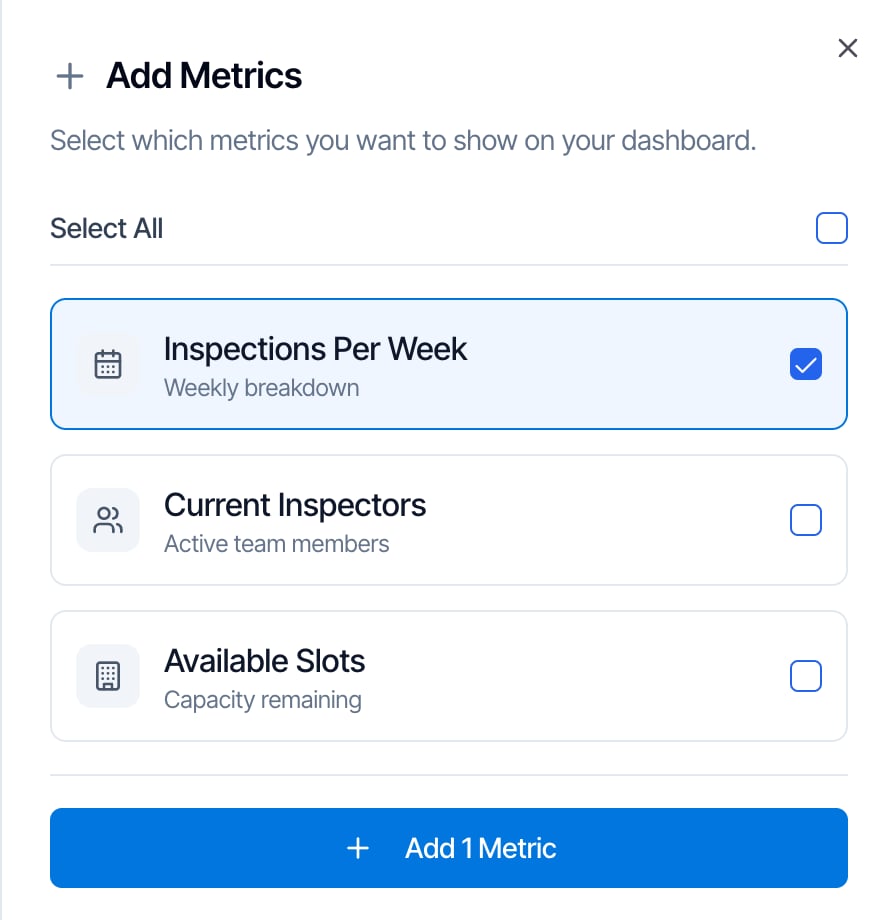
- To bring cards back, click Add Metrics, tick the cards you want (or Select All) and click Add 1 Metric (or Add 3 Metrics, and so on). This button only shows when at least one card is hidden.
- To start over, click Reset. All 19 cards come back in the original order.
- Click Done to leave edit mode.
Common questions
Who can see the Metrics page?
Who can see the Metrics page?
The account owner, and team members with the Business Metrics permission (Teams → Manage). Everyone else sees Access Denied. The same permission opens Earnings.
Why is the Inspections by Status total higher than Total Inspections?
Why is the Inspections by Status total higher than Total Inspections?
Inspections by Status counts every status: drafts, quotes, waiting bookings and canceled inspections as well as Confirmed ones. Total Inspections, like every other card, counts only Confirmed inspections. Untick everything but Confirmed in the status menu and the two numbers match.
Why don't my Metrics revenue and Earnings revenue match?
Why don't my Metrics revenue and Earnings revenue match?
They measure different things. Metrics adds up the price of Confirmed inspections by inspection date, paid or not, without the card fee. Earnings shows each inspection’s invoice, and for a paid inspection, the amount actually paid, which includes the 4% technology fee when the client paid by card and you pass the fee on.
Why is an inspection missing from Metrics?
Why is an inspection missing from Metrics?
It isn’t Confirmed (drafts, quotes, waiting and canceled inspections aren’t counted), it was deleted, it has no inspection date (it then only shows under All Time), or it’s scheduled outside the range you picked. On the map, new inspections appear after the weekly update early on Sunday.
Does revenue include upcoming inspections?
Does revenue include upcoming inspections?
Yes. A Confirmed inspection counts in the month it’s scheduled for, even if it hasn’t happened or been paid yet. Pick Month to date or Year to date to stop at today.
Why is the Trend negative?
Why is the Trend negative?
Trend includes the current month, quarter or year, which isn’t over yet. Early in a month it usually looks down, then catches up. Compare full periods with the year arrows, or use the date range menus, such as Last month against This month last year.
Can I see revenue for one inspector?
Can I see revenue for one inspector?
Not on Metrics. The inspector menu is on the inspection count cards only. For what each inspector earns, use Pay Splits and the Payout Report.
Can I download all my metrics at once?
Can I download all my metrics at once?
No. Each card has its own download button and saves what that card shows. For a full spreadsheet of inspections with prices and payments, use Export to CSV on the Earnings page.
Does hiding a card hide it for my team too?
Does hiding a card hide it for my team too?
Yes. The layout is saved for the whole company. Bring a card back with Customize → Add Metrics, or click Reset to show all 19.
Will my date range be remembered next time?
Will my date range be remembered next time?
No. Date ranges, inspectors, years and Month/Quarter/Year go back to their starting choices when you leave or reload the page. Only the card layout is saved.
Why are Card and Credit Card listed separately?
Why are Card and Credit Card listed separately?
Card is a payment the client made online through Stripe. Credit Card is a payment you recorded by hand with Record Payment, for example from your own card reader.
Do numbers from my old software show up in Metrics?
Do numbers from my old software show up in Metrics?
No. Business metrics from your old software, such as revenue or inspections per agent, don’t come over. Metrics starts counting with the inspections you book in Hive.