

Set them up: Business Tools → Inspection Event Presets. Use them: New Inspection or the inspection’s page → Inspection Events.
An inspection event is an extra visit or task that belongs to an inspection, on its own date and time: dropping off a radon monitor, picking it up two days later, a walkthrough with the buyer, or a follow-up visit. It goes on the inspector’s calendar and can send its own reminders. A preset is an event you’ve saved so you don’t retype it. Click the preset while you book and Hive fills in the event’s name, length and description. You pick the date and click Add Event.Create your presets
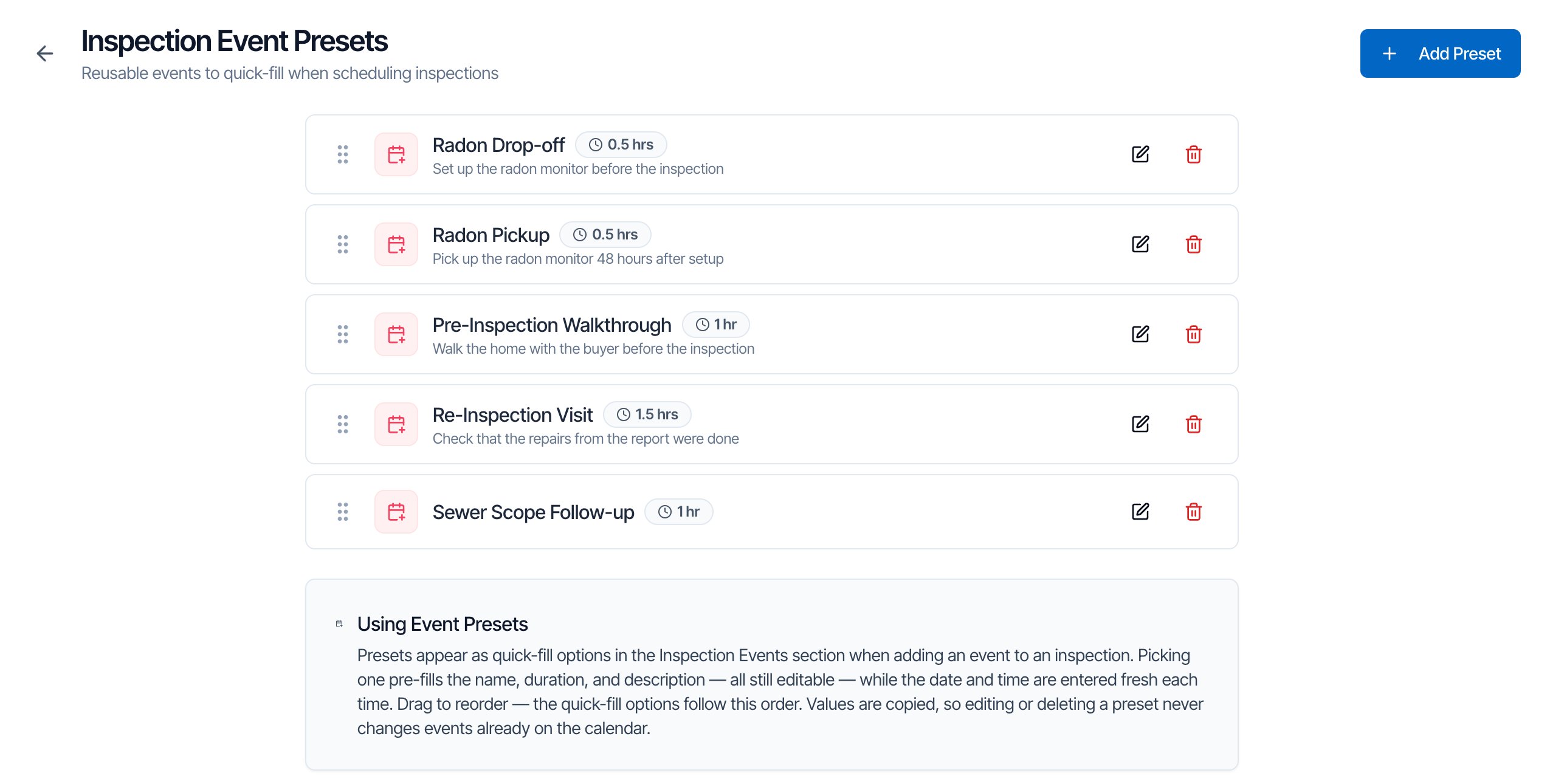
- Go to Business Tools in the left menu and click the Inspection Event Presets card.
- Click Add Preset at the top right (or Add Your First Preset if you have none yet).
- Fill in the preset and click Add Preset.
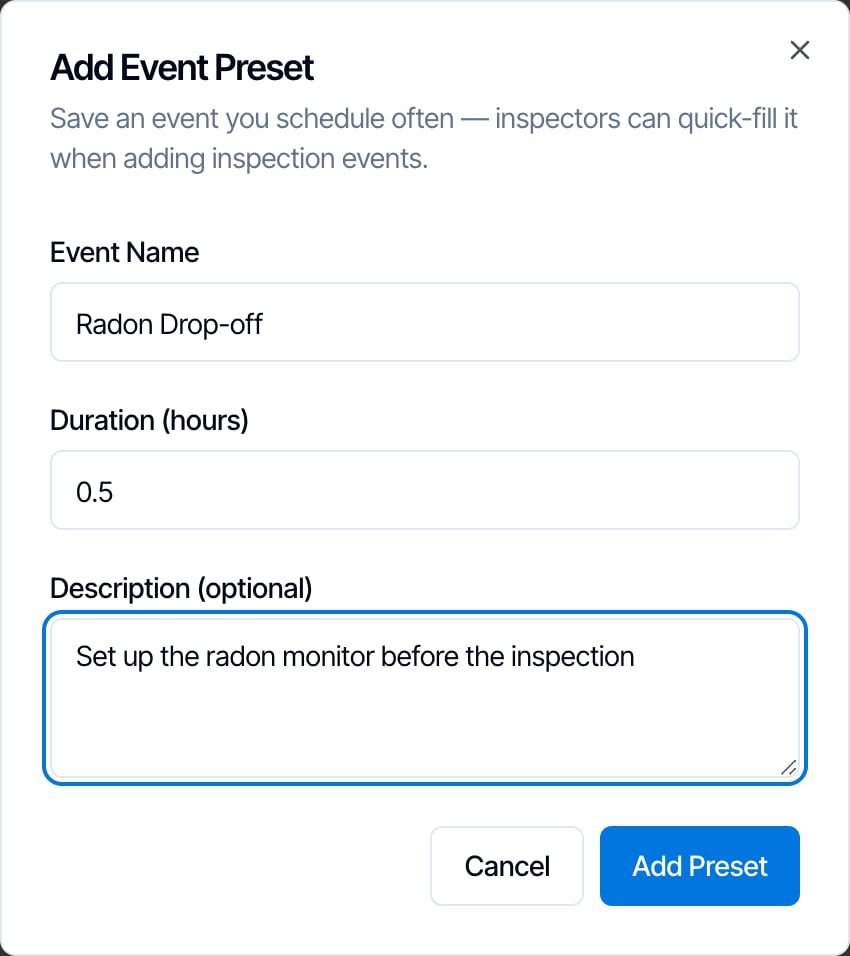
The preset doesn’t store a date, time or person. You choose those for each inspection.
Add an event from a preset while you book
Presets show up in the Inspection Events section of the inspection page. It’s the same on New Inspection and on an inspection you’ve already booked, and in the mobile app’s Schedule tab.Open Inspection Events
Scroll down to Inspection Events, below the services, and click it to open it.If the inspection has no events yet, your presets are right there, under or start from a preset: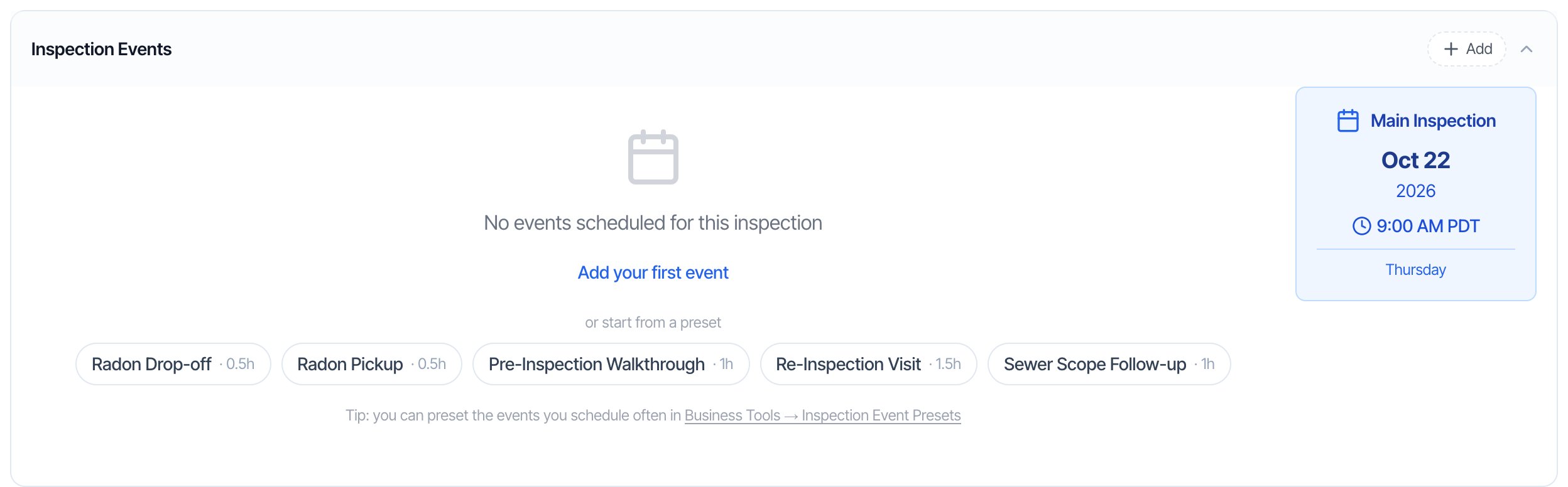
Click a preset
Click the preset you want, for example Radon Pickup. It turns red with a tick, and Hive fills in Event Name, Duration (hours) and Event Description. You can still change any of them for this inspection. Changing them here doesn’t change the preset.Clicked the wrong one? Click another preset and it replaces the details.
Pick the date and time
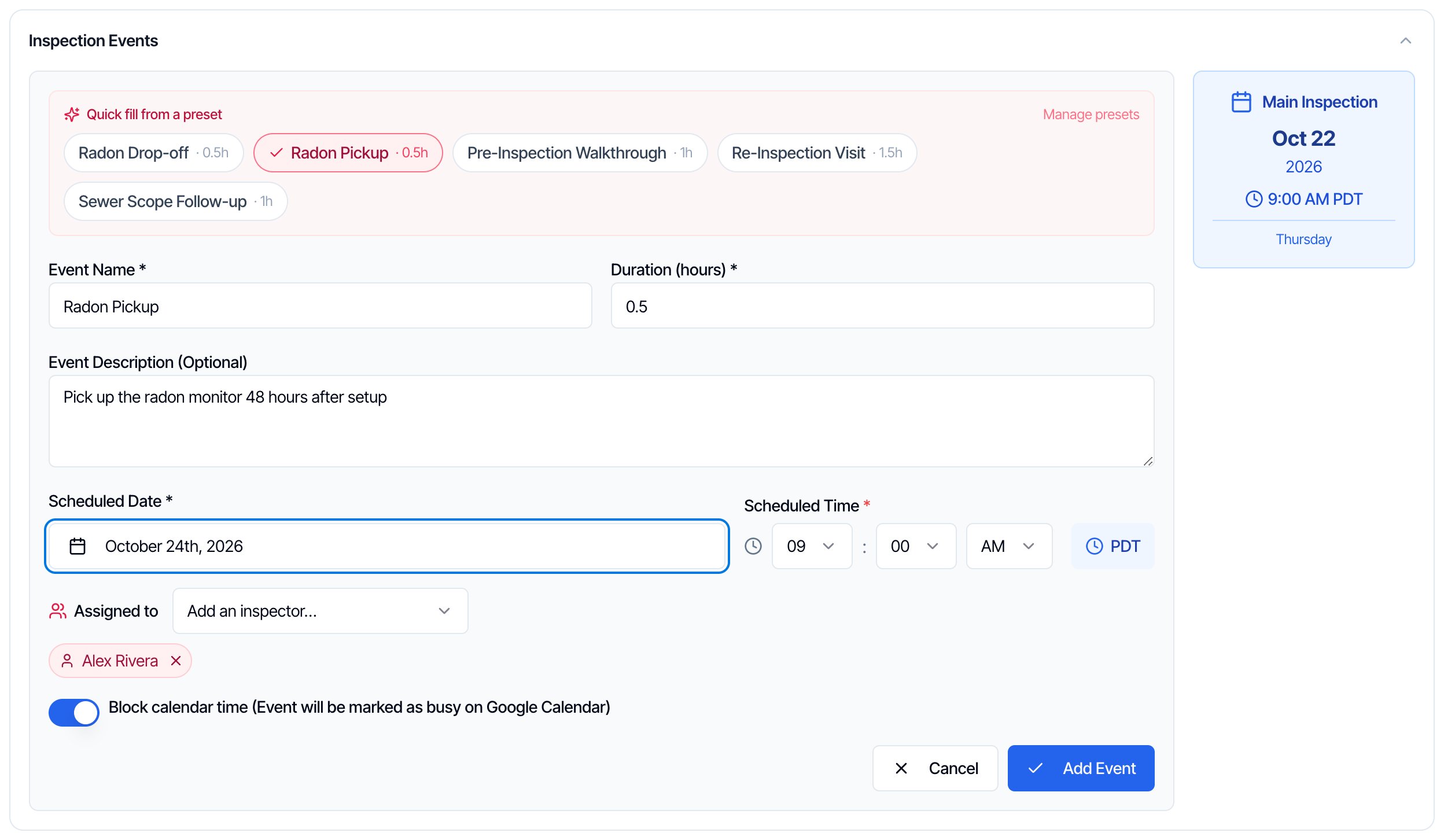
- Scheduled Date is empty every time, so pick the day. The Main Inspection card on the right shows the inspection’s own date to help you, for example two days later for a radon pickup.
- Scheduled Time starts at 9:00 AM. Change it if you need to. Times are in your company’s time zone, shown next to it (for example PDT).
- Assigned to starts with the inspection’s inspector. Add or remove people with Add an inspector…. Everyone assigned gets the event on their calendar.
- Block calendar time is on, so the event shows as busy. See What happens next.
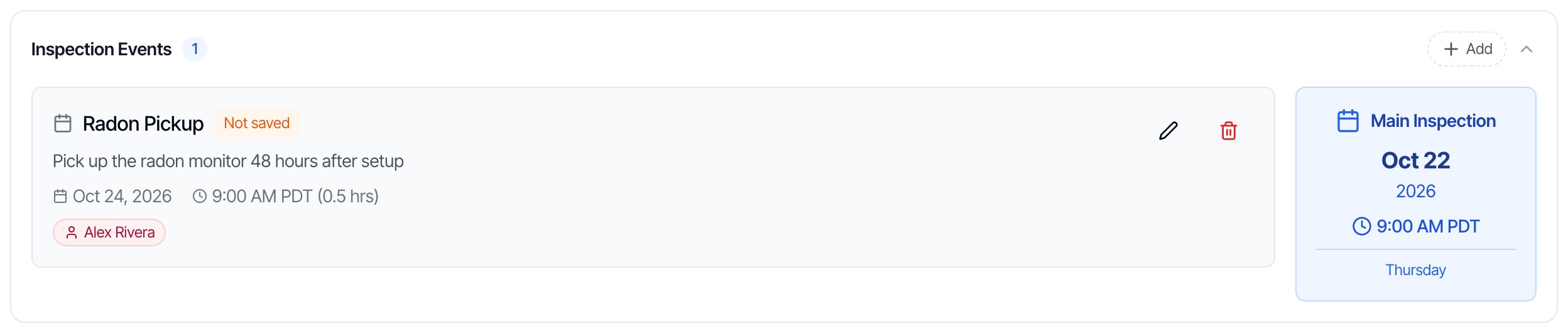
Book the inspection’s date and inspector first. Then the event starts with the right person assigned, and the Main Inspection card shows the date to plan around. An event with nobody assigned isn’t added to anyone’s calendar.
What happens after you add the event
- Calendars. The event goes on the calendar of everyone assigned, in the Hive Calendar and in Google Calendar if they’ve connected it. In Google Calendar it’s titled with the address and event name, for example “1420 Maple Avenue, Springfield, IL - Radon Pickup - Inspection”. Events go on Google Calendar once the inspection is Confirmed (or, if you turned it on in your calendar settings, while it’s a draft or waiting).
- Block calendar time. When it’s on, the inspector is busy during the event, so online bookings can’t take that slot. Turn it off for something that doesn’t need the inspector’s time. With it off, the event isn’t added to Google Calendar.
- Mobile app. The event shows in the inspector’s Inspections list as an Event card, if Show Inspection Events is on in the app’s settings.
- Automations. To message the client about events, create automations with the Event Scheduled trigger (sent when an event is added to a Confirmed inspection, or when the inspection is confirmed) or the Pre-Event Reminder trigger (sent before each event). Use the placeholders
{{{event_name}}},{{{event_date}}},{{{event_time}}}and{{{event_description}}}. See Automations. - Mileage and daily schedule. Events count as stops at the inspection’s address in the Mileage Tracker, and they’re listed in the daily schedule email.
Edit, reorder or delete presets
- Edit: click the pencil on the preset, change it and click Save Changes.
- Reorder: drag the preset by its handle.
- Delete: click the red trash button and confirm Delete.
Who can use presets
Everyone who books inspections sees the presets in Inspection Events. Team members who can open Business Tools can add, edit, reorder and delete them. See Team permissions. There’s no limit on how many presets you can have.Common questions
I don't see any presets in Inspection Events.
I don't see any presets in Inspection Events.
You haven’t created any yet. The add form shows No saved presets yet — create reusable event presets. Click the link, or go to Business Tools → Inspection Event Presets, and add one.
Can a preset set the date automatically, like two days after the inspection?
Can a preset set the date automatically, like two days after the inspection?
No. You pick the date each time, and the time starts at 9:00 AM. The Main Inspection card next to the form shows the inspection’s date so you can count from it.
Can a preset assign a different inspector, like a radon technician?
Can a preset assign a different inspector, like a radon technician?
No. The event starts with the inspection’s inspector. Change Assigned to when you add the event.
I added an event to a new inspection but it disappeared.
I added an event to a new inspection but it disappeared.
Events on a new inspection are saved with it. If you leave the page before you click Save as Draft or Confirm Inspection, the event (marked Not saved) is lost. Add it again.
Can clients add events or presets when they book online?
Can clients add events or presets when they book online?
No. Presets are for your team, on the inspection page. Clients book add-on services, such as radon testing, and you add the matching events.
How is an inspection event different from a calendar event?
How is an inspection event different from a calendar event?
An inspection event belongs to one inspection and uses its address. A calendar event, such as a team meeting, is made under Calendar and isn’t tied to a job.