

In the mobile app: the Sync button at the top right of a report, and My Profile → Auto Sync, Offline Download, Gallery Save Settings and Clear Cache & Data.
The Hive Inspect mobile app is built to work without signal. Everything you do in a report is saved on your phone first, then sent to Hive when the app syncs. Until a report shows Synced, some of your work exists only on that phone.Where your work is saved
- On your phone, right away. Each change you make in a report (text, ratings, checked comments, photos, videos, markup and CYA photos) is saved on the phone a moment after you make it. It stays there if the app closes, crashes, or restarts for an update, and if the phone restarts.
- In Hive, after a sync. Nobody else sees your changes until they sync: not the Web Editor, not your teammates, and not your client.
- In your phone’s gallery, as a backup. With Save Captured Photos on, photos you take with the in-app camera are also saved to your phone’s gallery, in an album named with the date and street, like
2026-10-24 123 Main St. It’s on by default under My Profile → Gallery Save Settings, and the app warns you before you turn it off. Save Annotated Photos saves the marked-up versions too. It starts off.
How syncing works
Auto Sync
Auto Sync is on by default. While a report is open and the app is on screen, it tries about 30 seconds after you open the report, then every 60 seconds whenever there’s something to send.- It only syncs the report that’s open. Changes in other reports wait on the phone until you open those reports. If any are waiting when you start the app, it shows Unsynced Changes Detected with the addresses and the number of changes. Open each one to sync it.
- It doesn’t run in the background. Nothing syncs while the app is closed or in the background.
- It pauses while the camera is open and picks up again after you close it.
- It needs signal. When the phone gets its connection back, it tries again right away.
- It slows down when it keeps failing. After failed tries it waits longer between attempts. Tap Sync to try again right away.
- It runs quietly. There’s no window. The button at the top right shows Syncing… while it works.
Sync by hand
- Get good Wi-Fi or cell signal.
- Open the report and tap Sync at the top right.
- The Syncing Your Data window shows how long it has been running and says Please keep the app open. Keep the app open and on screen until it finishes.
- When the window closes or you tap OK, check that the button reads Synced.
What the Sync button shows
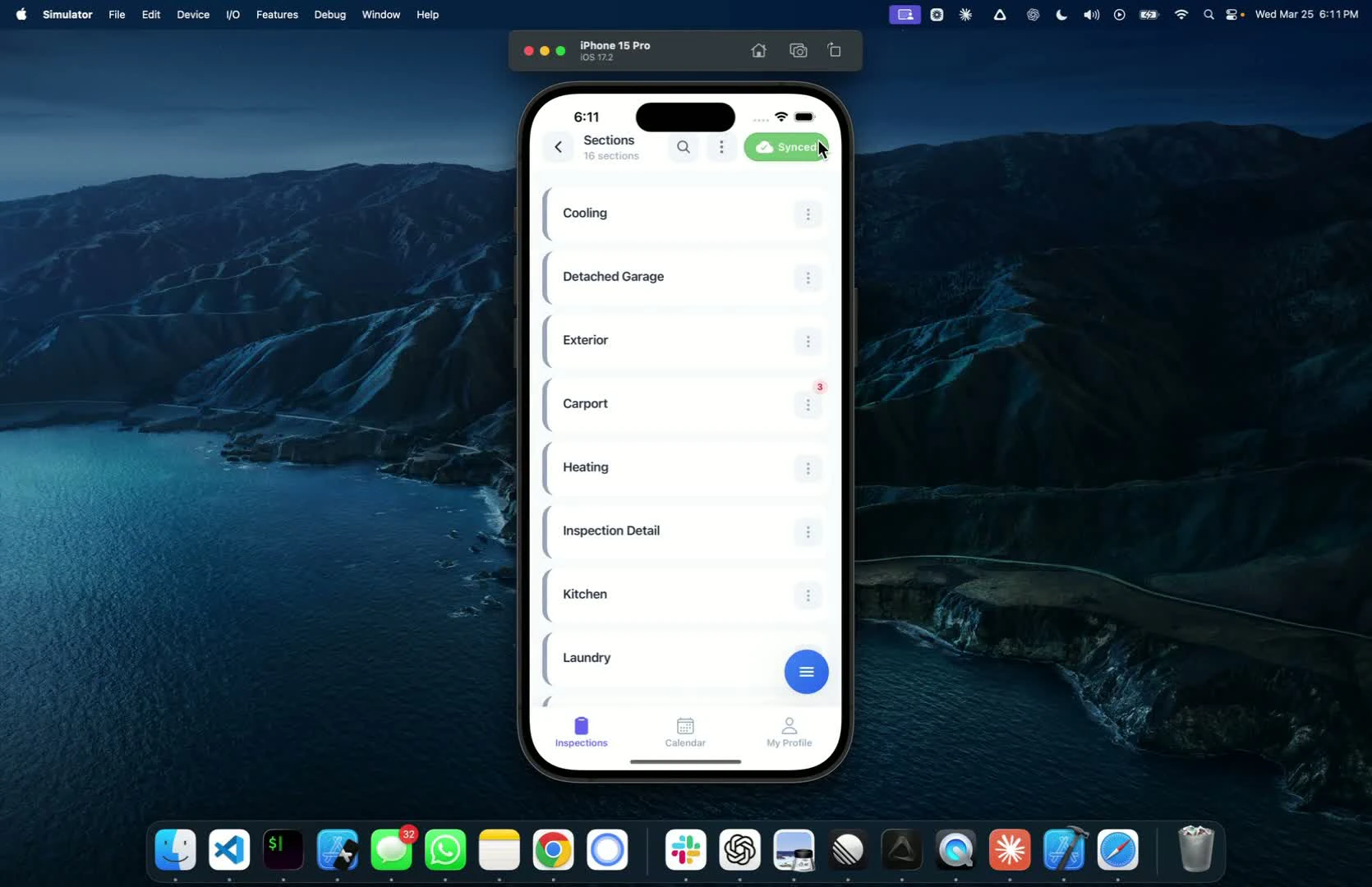
Sync results
When you tap Sync, the window shows one of these:
The message under Sync Failed tells you what went wrong:
Check that everything reached Hive
- In the app: open each report you worked on. The button should be green and read Synced. It stays on Sync until every photo and video has uploaded, CYA photos included.
- At app start: if Unsynced Changes Detected appears, the addresses it lists still have work on the phone.
- On a computer: open the report in the Web Editor and refresh the page. You see what reached Hive.
- When you view the PDF in the app: if the open report has unsynced changes, the app syncs it first. For a report that isn’t open, it warns you that N changes in this report have not been synced yet and won’t be in the PDF. Viewing the PDF needs an internet connection.
Photos and videos
Photos and videos upload when the report syncs, not when you take them. Until then they’re saved in the app on your phone.- Speed. On Wi-Fi the app uploads three photos at a time. On cell data it uploads one at a time, and videos always go one at a time. Many photos or long videos on a slow connection can take several minutes.
- The rest of the report doesn’t wait. Text and other comments sync in the same run. A comment whose photos are still uploading waits for them, and the window shows N waiting for media uploads to finish. If a photo fails to upload, its comment syncs without it, and the photo is tried again on the next sync.
- Bad signal. A failed upload never deletes the photo from your phone. It stays on the comment and the button stays on Sync. A photo that keeps failing is tried less often (after an hour, after 6 hours, then once a day), plus every time you tap Sync and the first time the report syncs after the app restarts. Videos get more tries than photos before they slow down.
- Low storage. When your phone is low on space, the camera warns you with Storage Almost Full or Low storage: …MB free. Free up space before you keep shooting. If the phone couldn’t save a photo, it doesn’t appear on the comment, so take it again.
Working offline
Download reports before you go
Download the reports while you still have signal. The app can’t open a report it has never downloaded without internet: it shows You’re offline and no cached templates are available.- Today’s inspections, in one tap. On the inspection list, tap the cloud button at the top right. The app downloads every report for your inspections today and shows N inspections ready for offline use. The cloud turns green when all of today’s inspections are on the phone.
- One inspection. Today’s inspection cards show Download (tap it), Downloading or Downloaded.
- Automatically. While the app is open, Auto-download fetches today’s inspections on its own, about 10 seconds after you open the app and again every 10 minutes. It pauses while you have a report open.
- Any other day. Today means your company’s time zone. For tomorrow’s jobs or older ones, open the inspection while you have signal. If you stay online, the app downloads its reports in the background about 15 seconds after you open it. Opening a report also saves it on the phone.
Downloading never replaces a report that’s already on your phone, so it can’t overwrite work you haven’t synced. To get the latest version of a report that’s already on the phone, sync it, then go back out and open it again while you have signal.
A download saves the report’s text, comments and choices, not its photos and videos. Photos and videos already in the report, for example ones added on the web or on an earlier visit, don’t show while you’re offline. Photos and videos you take on the phone always show.
What works offline
Offline, the app keeps everything on the phone. When you’re back online, open each report you worked on and sync it.
Team inspections
When two inspectors work on the same inspection, each phone sends only what changed, one comment at a time. Hive applies those changes to the shared report instead of replacing it.- Different comments or sections: everyone’s work is kept.
- The same comment on two phones: for the text and choices, the edit made most recently wins. Hive uses the time the edit was made on the phone, not the time it synced. Photos are different: each inspector’s photos are kept on that comment. The phone whose edit lost may see Sync Complete with N changes were already updated by another inspector.
- Seeing each other’s work: changes don’t appear live. The app doesn’t load teammates’ changes while you’re in the report, or right after it syncs. It loads the latest copy when you open the report, and only if your phone has nothing left to sync. While your phone still has unsynced changes, it keeps showing your own copy, so sync first, then go back out and open the report again.
- One login per person. Hive tells inspectors apart by their account. If two phones share one login, Hive treats them as one inspector, and an older change from one phone can be dropped, photos included, when the other phone already synced a newer edit to the same comment.
The Web Editor and the phone
You can work on the same report in the Web Editor and the app. When the app syncs, the Web Editor merges those changes into the report open in the browser. The app doesn’t pick up web edits while you’re in the report. Go back out of the report and open it again. The safe order:- In the app, tap Sync and wait for Synced.
- Edit on the web. If the browser was already open, refresh it first.
- Back on the phone, go back out of the report and open it again.
What can delete unsynced work
Synced work is safe in all of these cases. Synced reports download again when you open them with signal. Photos saved to your phone’s gallery by Save Captured Photos stay in the gallery even if the app’s copy is deleted, so you can add them to the report again.
A report was removed
If a report was removed from the inspection (usually from the web dashboard) while your phone still had changes for it, the app shows Report Removed and asks whether to keep them or discard them.- Keep leaves them on the phone. They can’t sync to a removed report. Ask in the chat bubble in your dashboard before you do anything else.
- Discard… asks again with Delete unsynced changes? and then permanently deletes them, photos included.
If sync fails or gets stuck
- Don’t clear the cache, sign out to “reset”, or delete the app. Your work is safe on the phone while you sort it out.
- Get on good Wi-Fi. Cell data uploads photos one at a time, so large reports are much faster on Wi-Fi.
- Open the report and tap Sync. Keep the app open and on screen until the window shows a result. The timer shows it’s still working. Long videos take the longest.
- Read the message and follow the Sync results table.
- Fully close the app and open it again, then open the report and tap Sync. A restart gives photos that kept failing another try.
- Check your phone’s storage and permissions. Free up space if the camera warned about storage.
- Still stuck? Keep the app on the phone and ask in the chat bubble in your dashboard, or tap My Profile → Contact Support in the app. Include the inspection address and the report name.
Common questions
I cleared the cache and my report lost its photos. Can you get them back?
I cleared the cache and my report lost its photos. Can you get them back?
Only what synced before you cleared it. Clear All Cache & Data deletes everything on the phone that hadn’t reached Hive, and Hive can’t restore work it never received. Open the report with signal to download the synced copy. If Save Captured Photos was on, your in-app photos are also in your phone’s gallery, in an album named with the date and street. Add them to the comments again from the gallery icon.
Does the app sync in the background or when it's closed?
Does the app sync in the background or when it's closed?
No. Auto Sync only runs while a report is open and the app is on screen. Changes made offline sync the next time you open that report with signal.
The report says Sync but I already synced. Why?
The report says Sync but I already synced. Why?
Something on the phone hasn’t reached Hive yet, usually a photo or video that’s still uploading or failed on a weak connection. Get on good Wi-Fi and tap Sync again. A manual sync always retries photos that kept failing.
Is it safe to sign out with unsynced changes?
Is it safe to sign out with unsynced changes?
Signing out doesn’t delete them, but nothing syncs until you sign back in. Sign back in on the same phone with the same account, open the report and tap Sync. It’s simplest to sync before you sign out.
Can I work a whole inspection offline?
Can I work a whole inspection offline?
Yes. Download the reports before you go (the cloud button on the inspection list does today’s in one tap), then write the report and take photos at the site. Sync each report when you’re back on good signal.
I'm getting a new phone. What do I do first?
I'm getting a new phone. What do I do first?
On the old phone, open every report you worked on and wait for Synced. If the app shows Unsynced Changes Detected, open each address it lists and sync it. Then log in on the new phone and open your reports with signal to download them.
Why did my teammate's edit replace mine?
Why did my teammate's edit replace mine?
You both changed the same comment. Hive keeps the edit that was made most recently on a phone, and keeps both inspectors’ photos. Edits to different comments never replace each other. See Team inspections.