

Guide to accessing miscellaneous functions for inspections
Accessing the inspection functions
0:00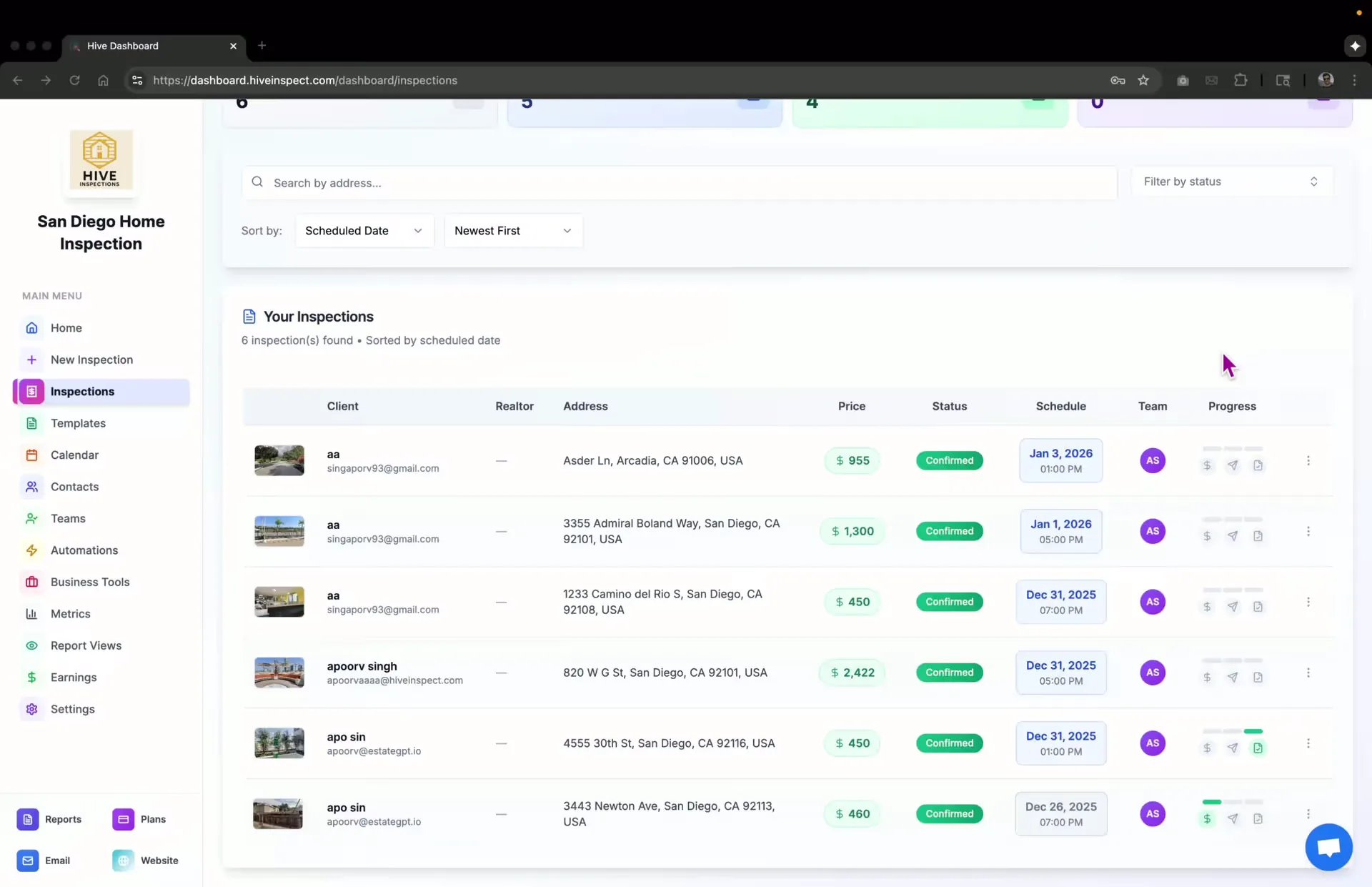
- Locate the three dots for the inspection
- Click to reveal miscellaneous functions related to the inspection
Report editing
0:11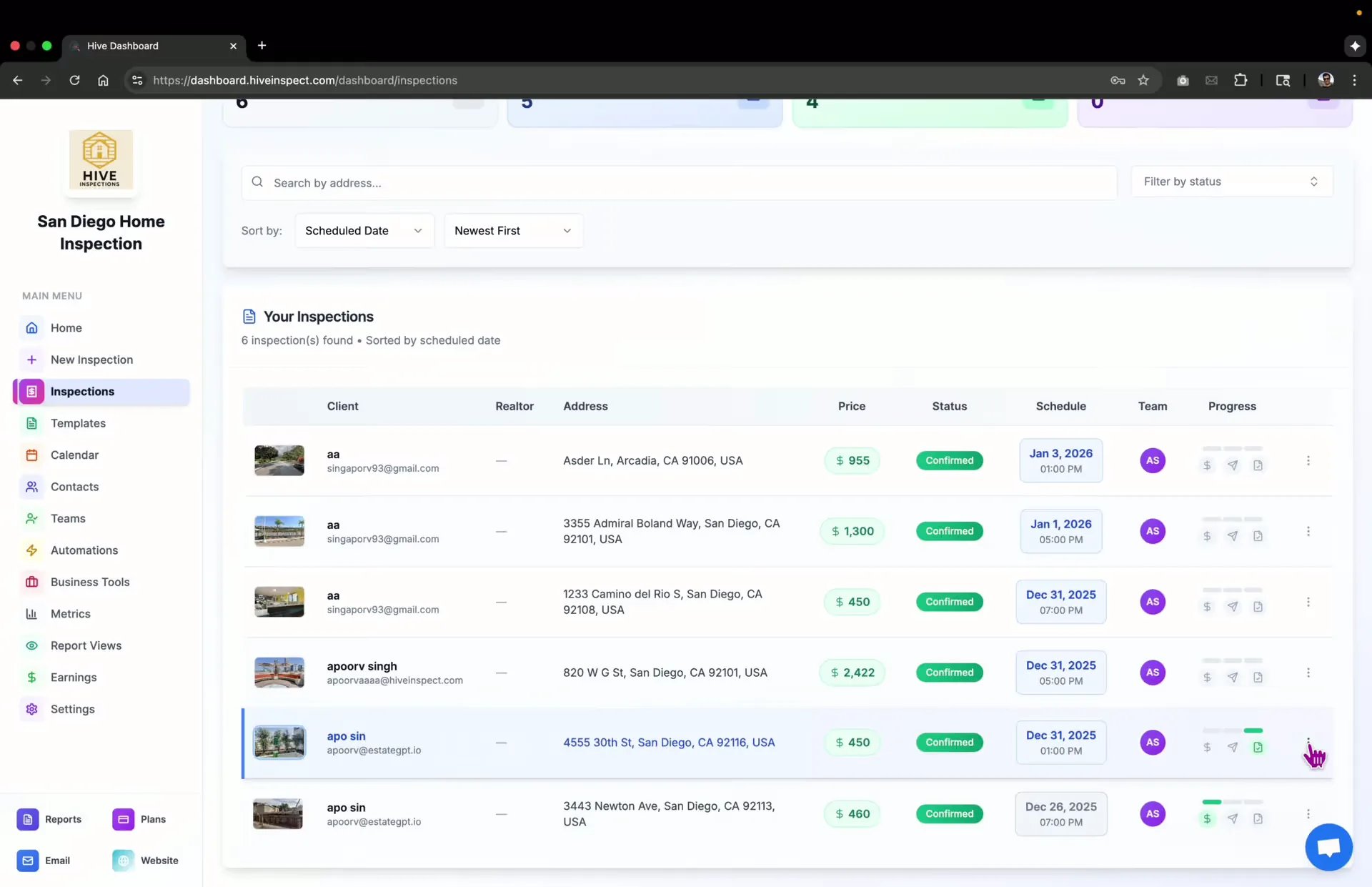
- Click on the report editing option
- View all templates associated with the inspection
- Options available:
- Publish or edit reports directly from the screen
- Add more reports from the template list
- Publish all reports at once
Report preview
0:33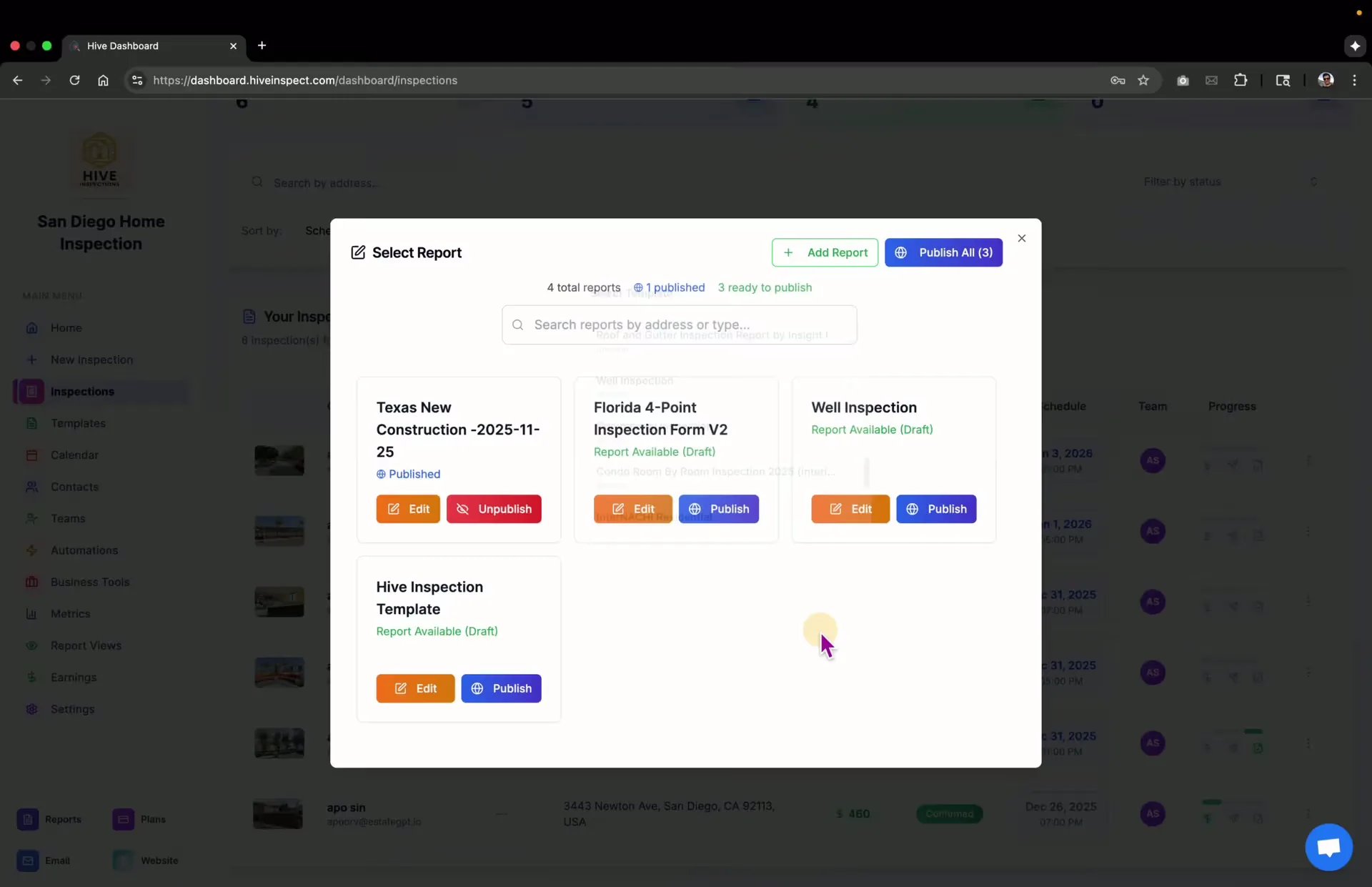
- Click on the Preview button to access the report preview screen
- View everything the client will see in the future, regardless of payment or agreement status
- Check the status of the report (e.g., in progress) and any additional reports
Client inspection review link
1:17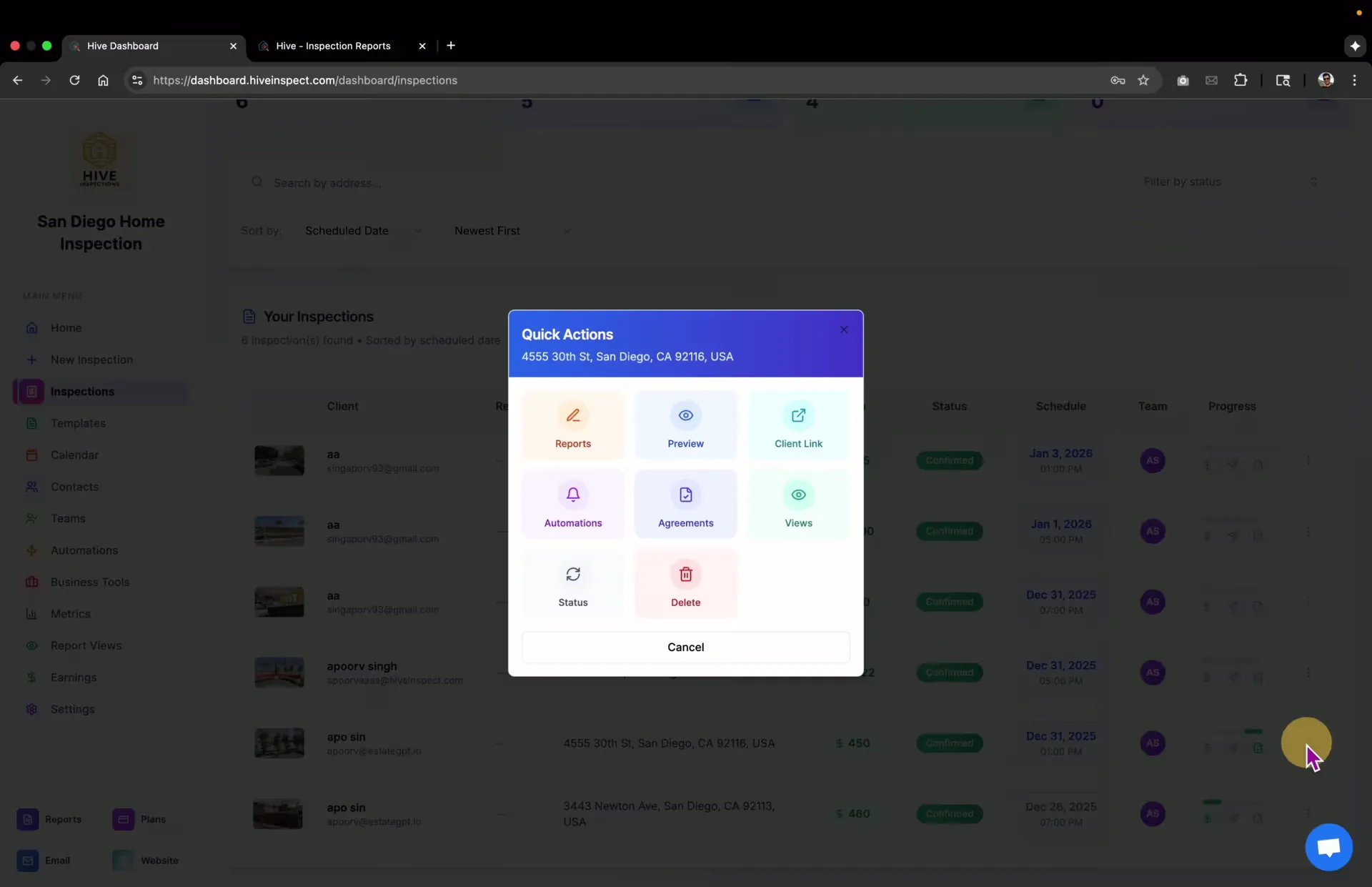
- Click on the client link to access the inspection review link
- Use this link in upsell placeholders for clients to review add-on services
- Clients can edit and add services, updating the invoice price
Automation tracking
1:43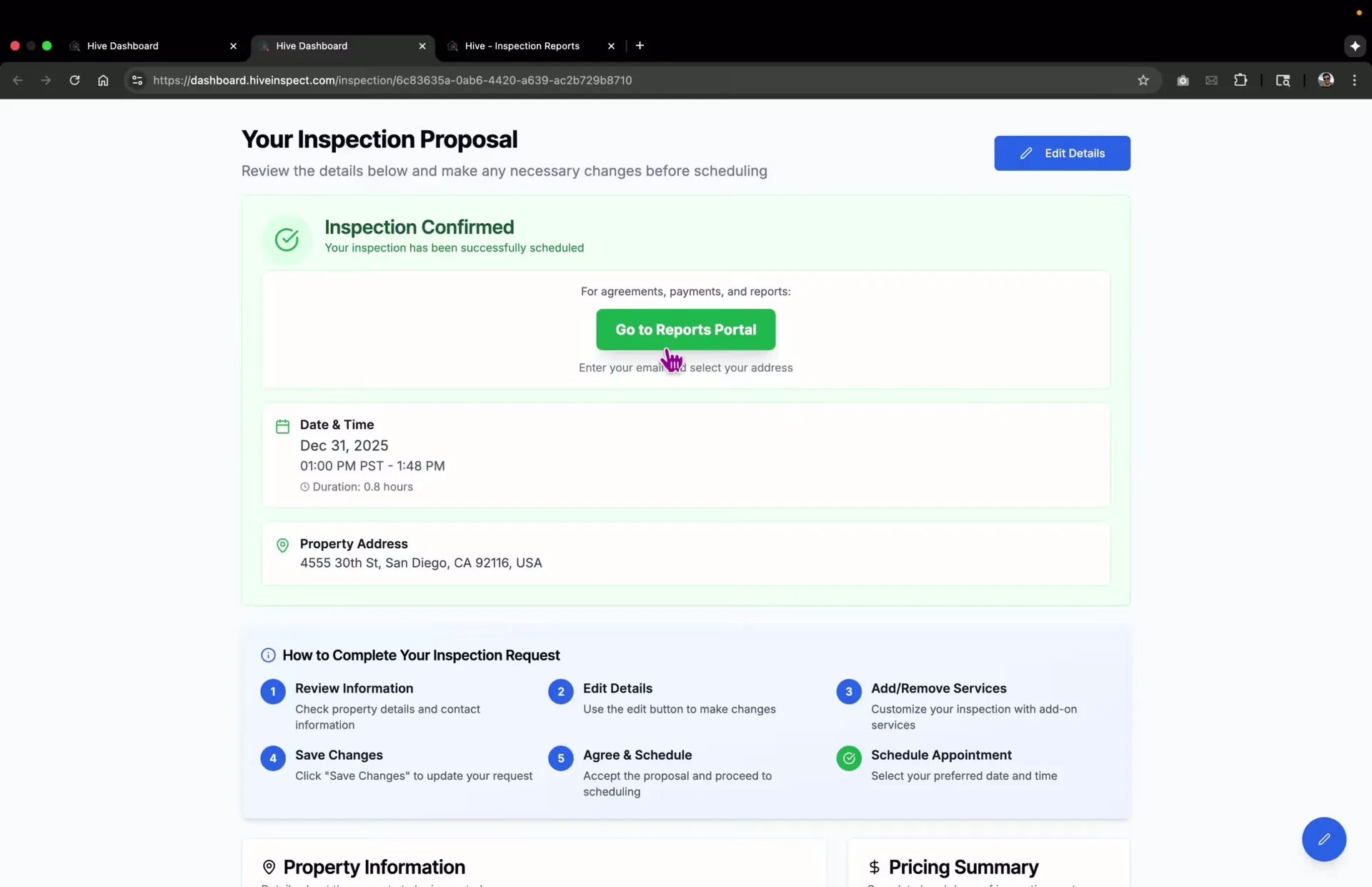
- Click on the automation option to track sent messages
- View whether automation was successful or failed
- Option to resend automation messages
- See Automation History for an inspection and Compose Email
Agreements management
2:11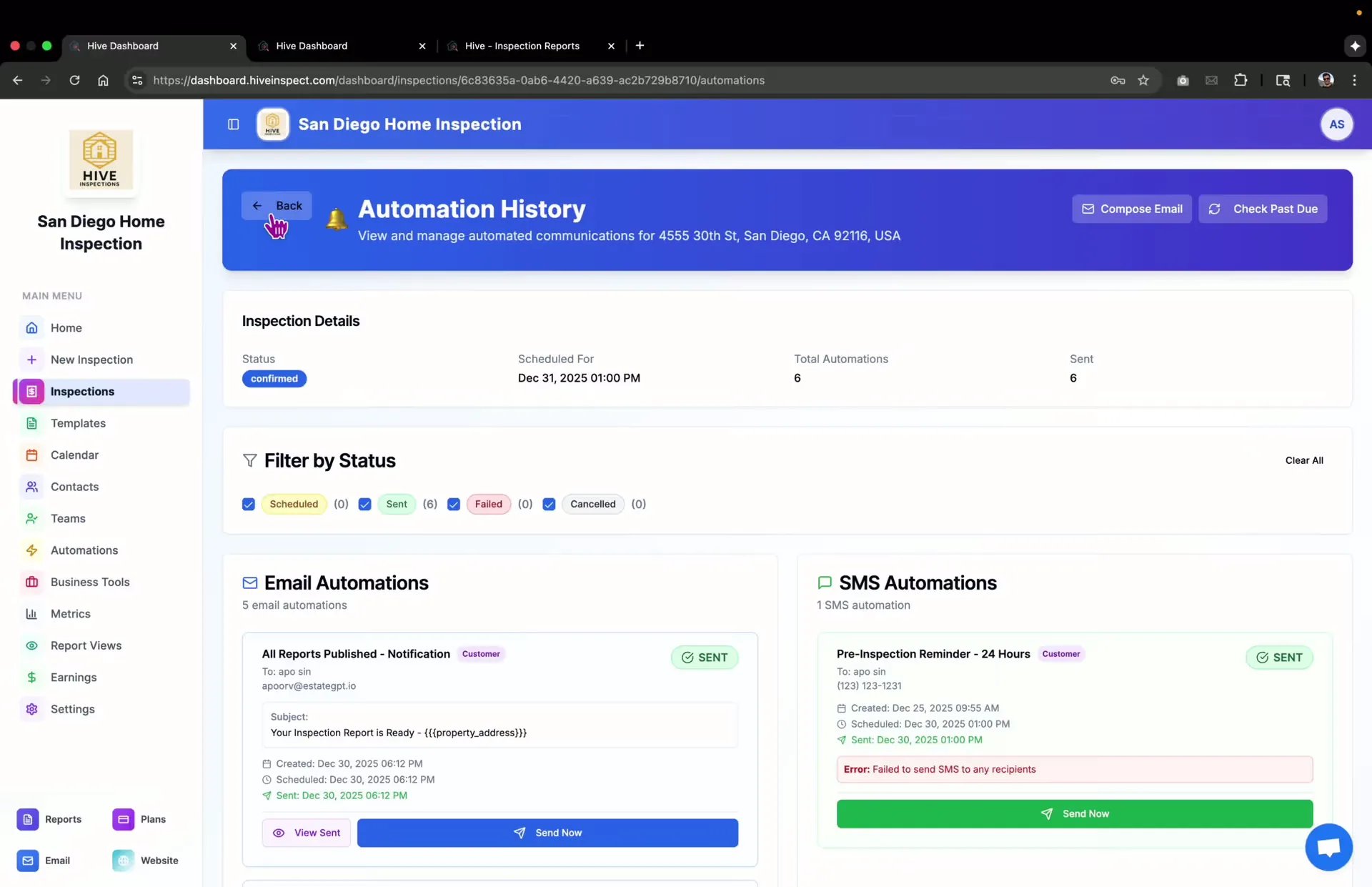
- Access signed agreements by clicking on the agreements option
- View or download signed agreements
Report views
2:24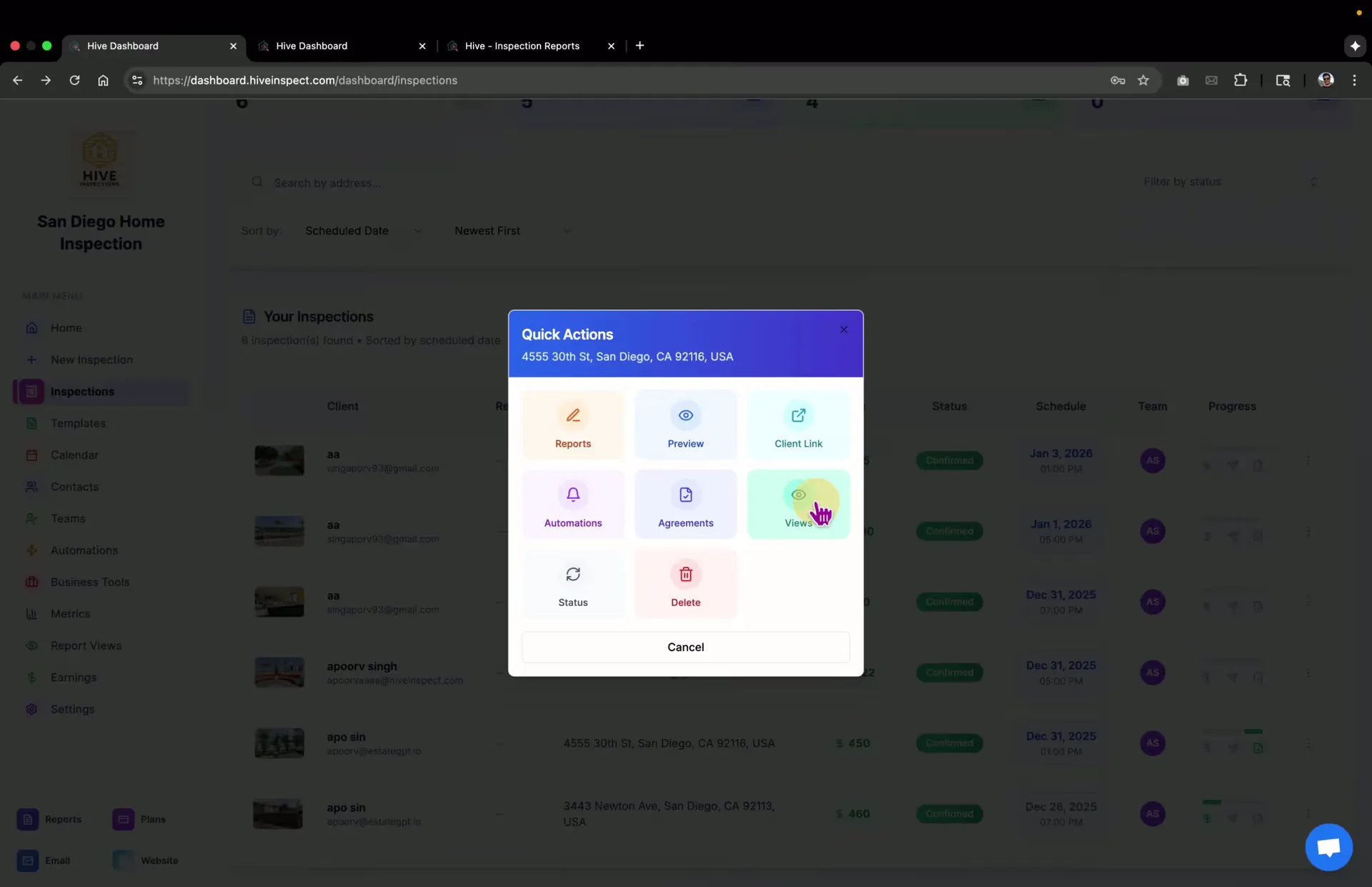
- Check report views to see who has logged into the reports portal for this inspection
- For a comprehensive view, visit the reports portal sidebar
Updating inspection status
2:42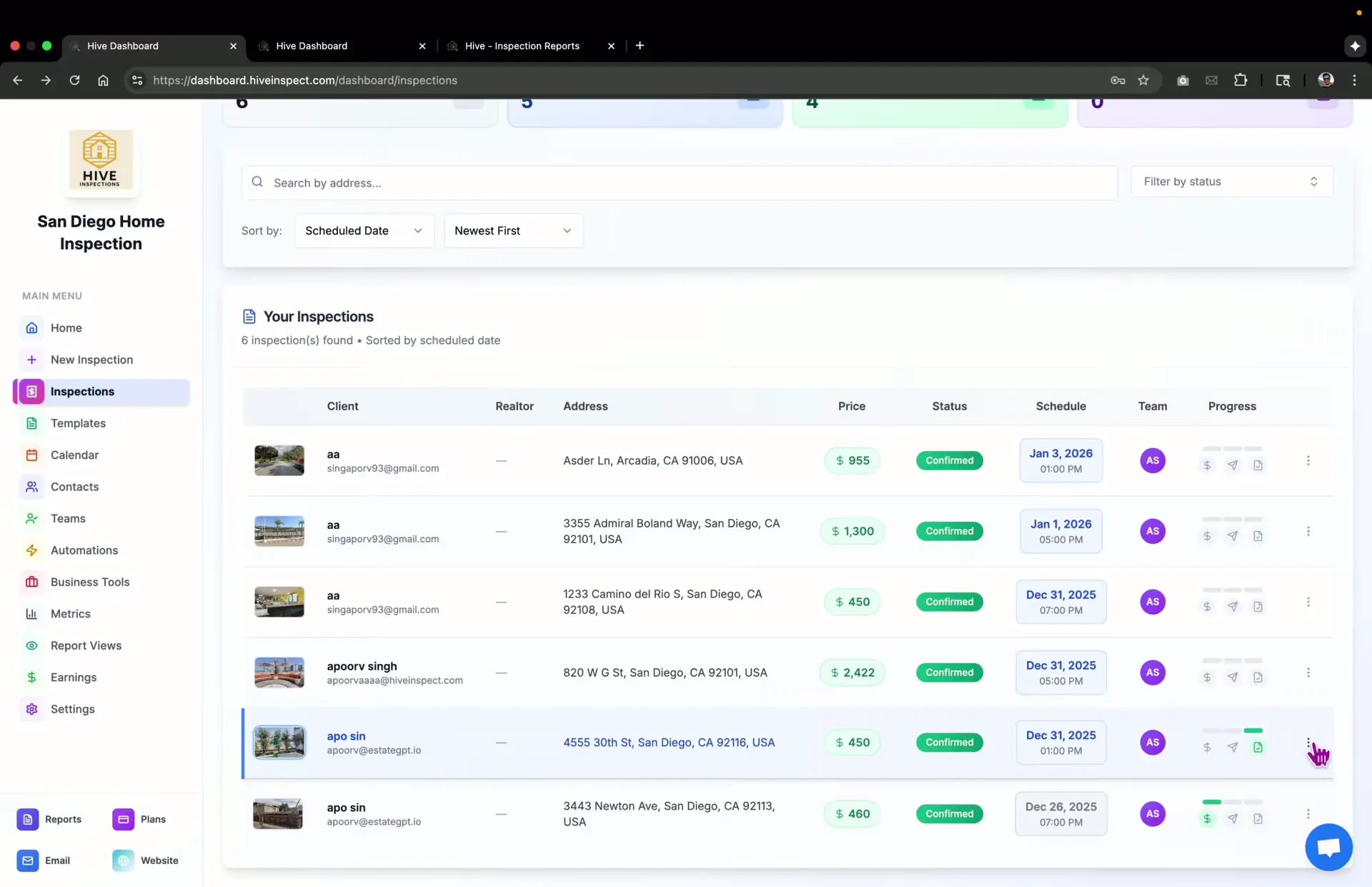
- Use the status option to update the inspection status without deleting it
- Options include:
- Review mode
- Draft mode
- Cancel inspection
- Confirm the status change
- See Inspection statuses for what each status sends and blocks
Deleting inspections
3:00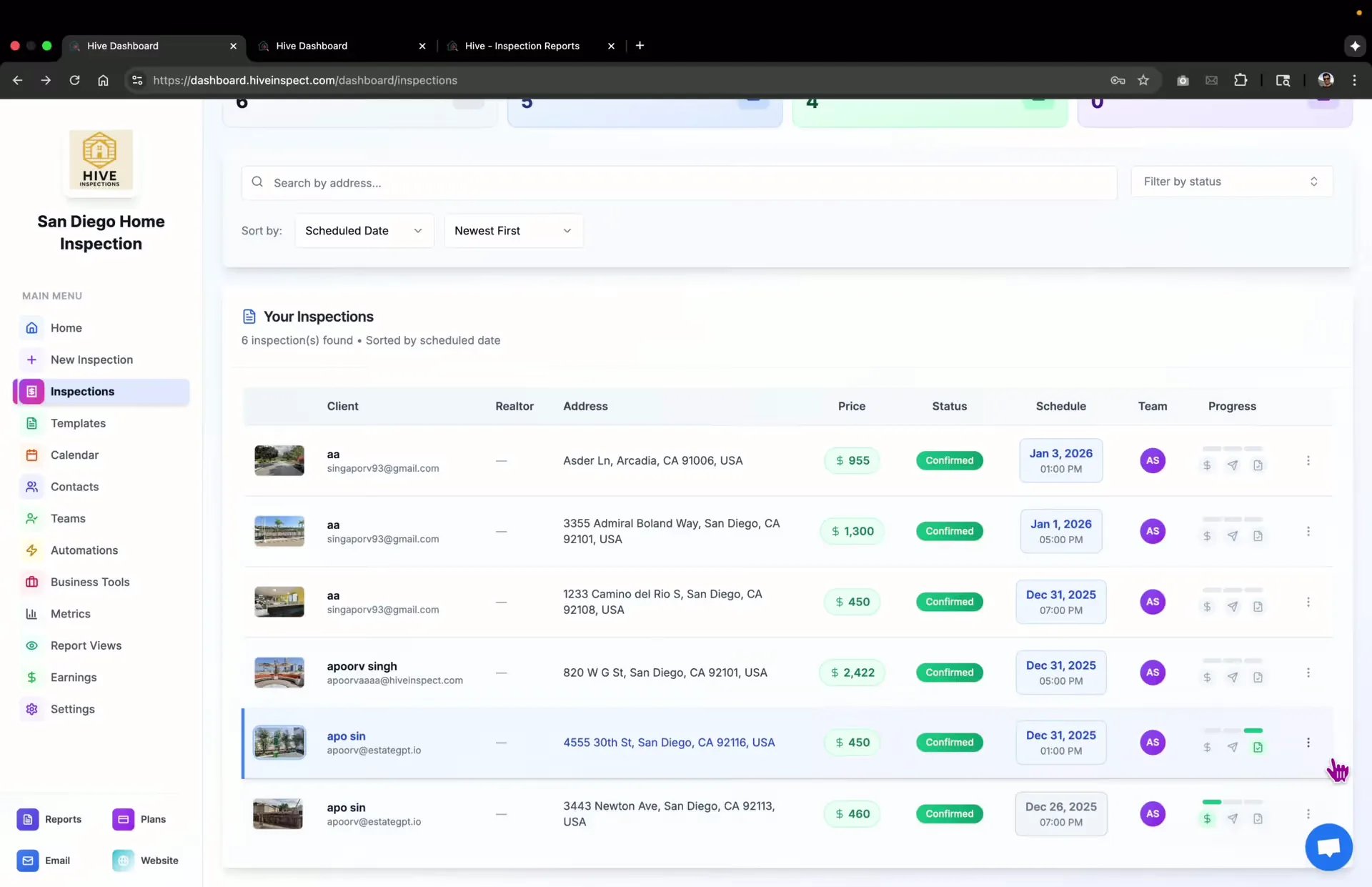
- Click delete, then confirm
- Deleting removes the inspection from your lists and calendar and stops its pending reminders
- Deleting does not send cancellation messages. To let your client and agent know, cancel the inspection with the status option instead
- See Delete an inspection, or cancel it instead
Manual override for reports
3:22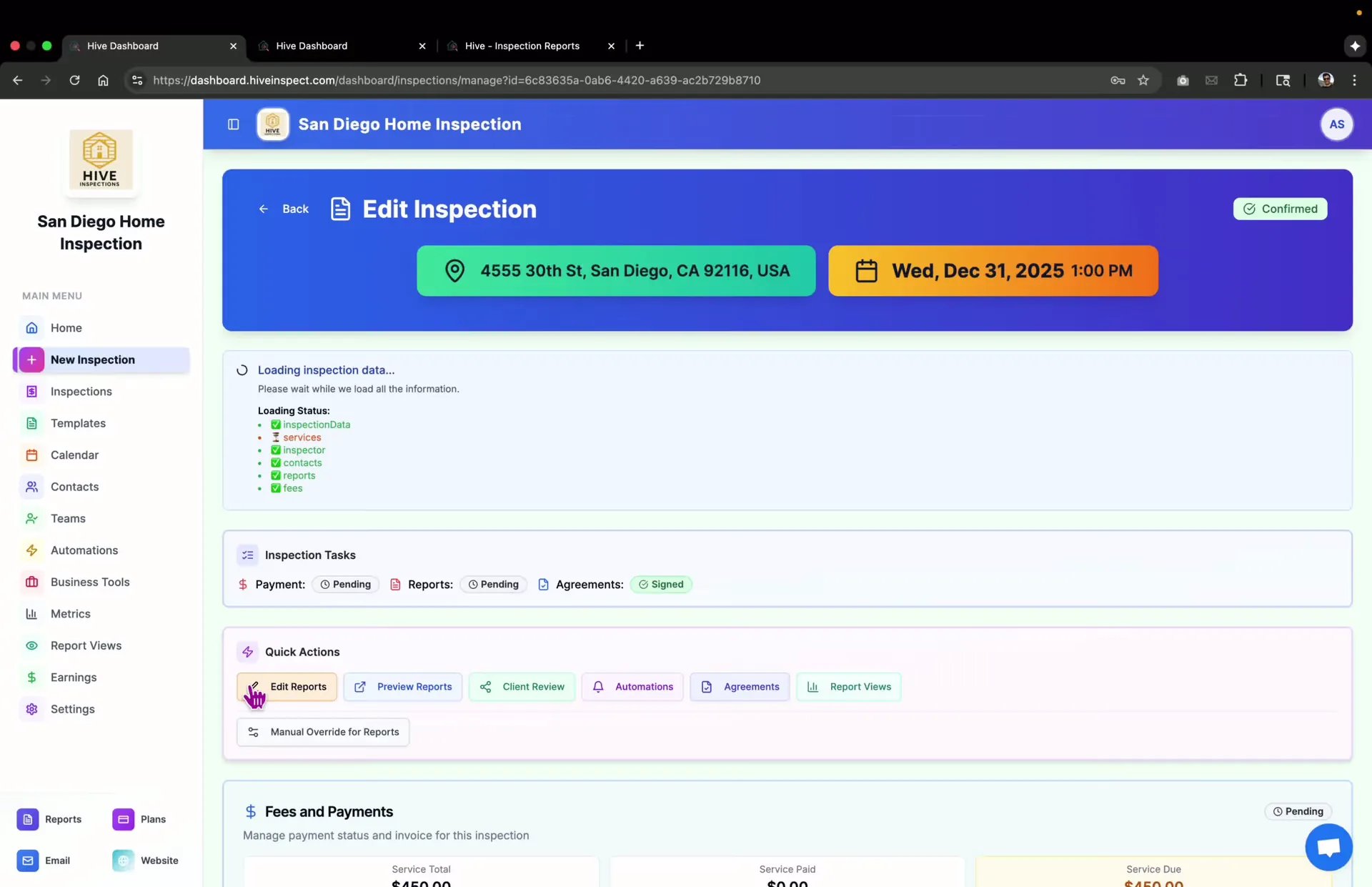
- Understand the process to unlock reports (payment and agreement required)
- Option to manually unlock or lock reports for clients
- Useful for cases where ACH payments are involved and reports need to be unlocked before payment settles
Congratulations! You’ve completed the Hive onboarding! You now have all the tools and knowledge to:
- Manage your business settings and calendar
- Create and customize inspection templates
- Configure services, pricing, and payments
- Automate client communications
- Schedule and conduct inspections
- Write and publish professional reports
- Understand the client experience
Next step
Related