

Creating a new inspection
Overview of inspections
0:01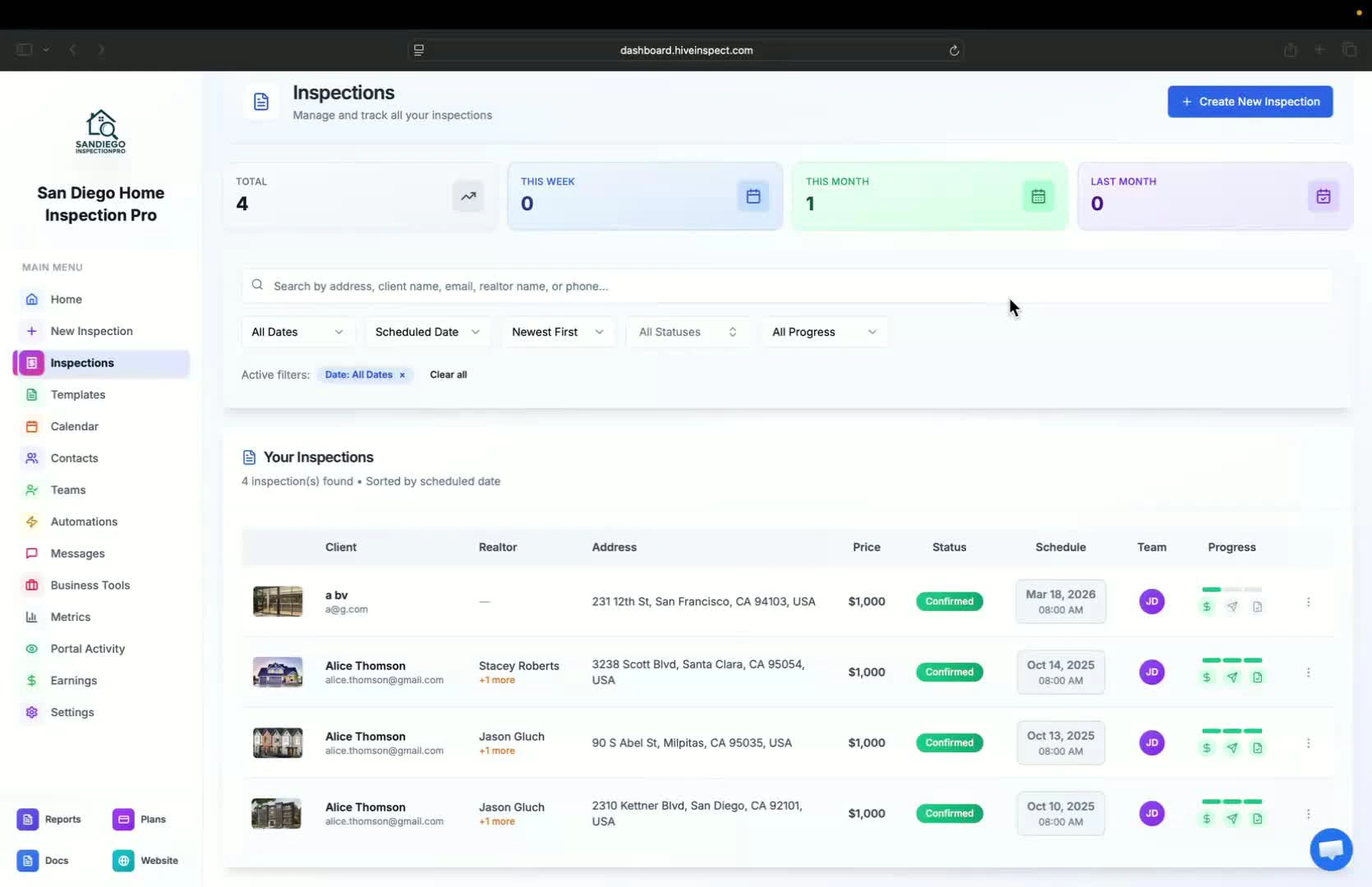
- Inspections are displayed in a list format, showing 50 inspections per page
- Filters are available to sort inspections by status (e.g., paid, published, agreement signed)
- Options available include editing, previewing reports, client review links, and report activity
Manual report sending
0:47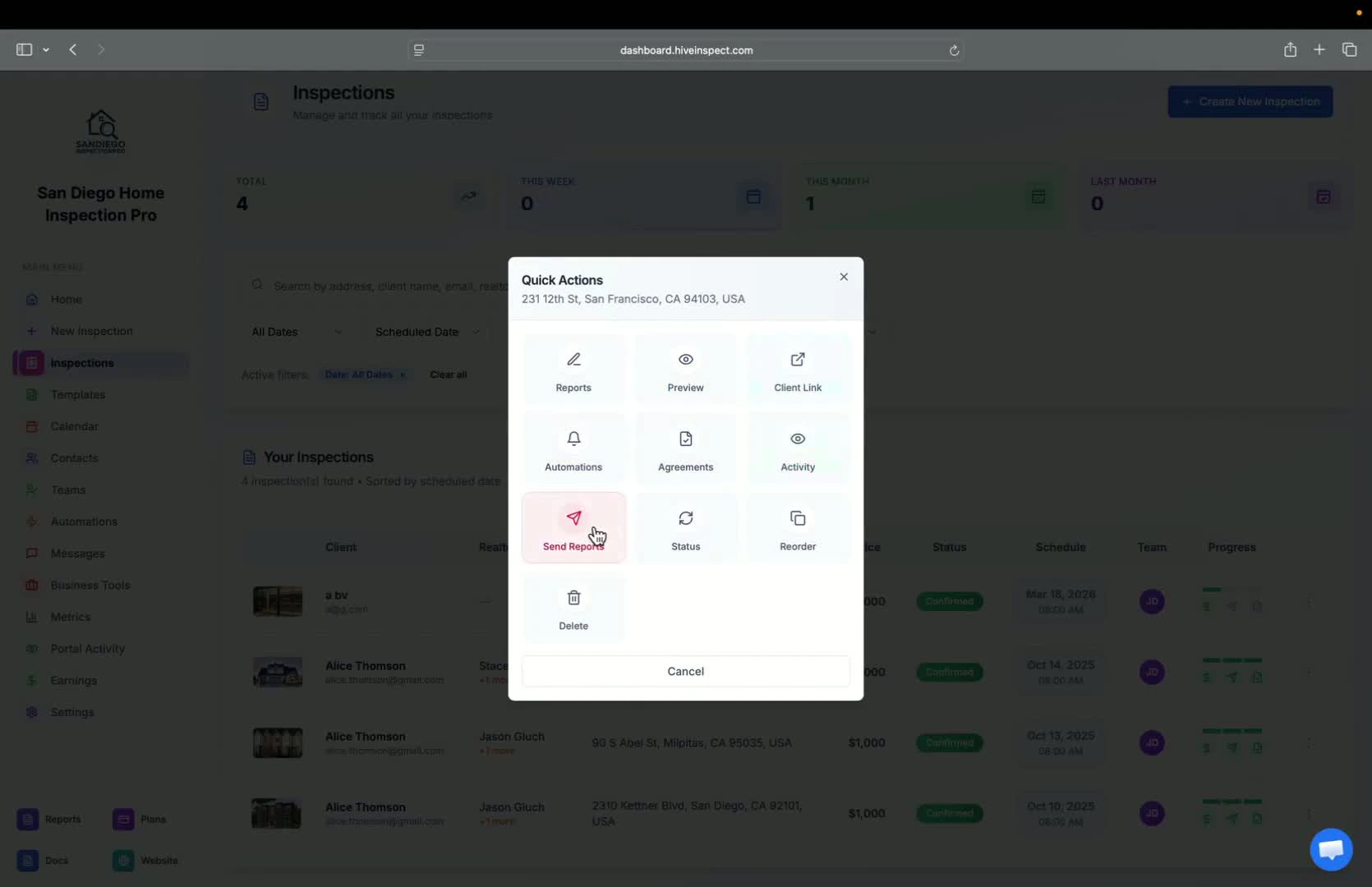
- A manual override button allows you to send reports directly to clients if they haven’t received them
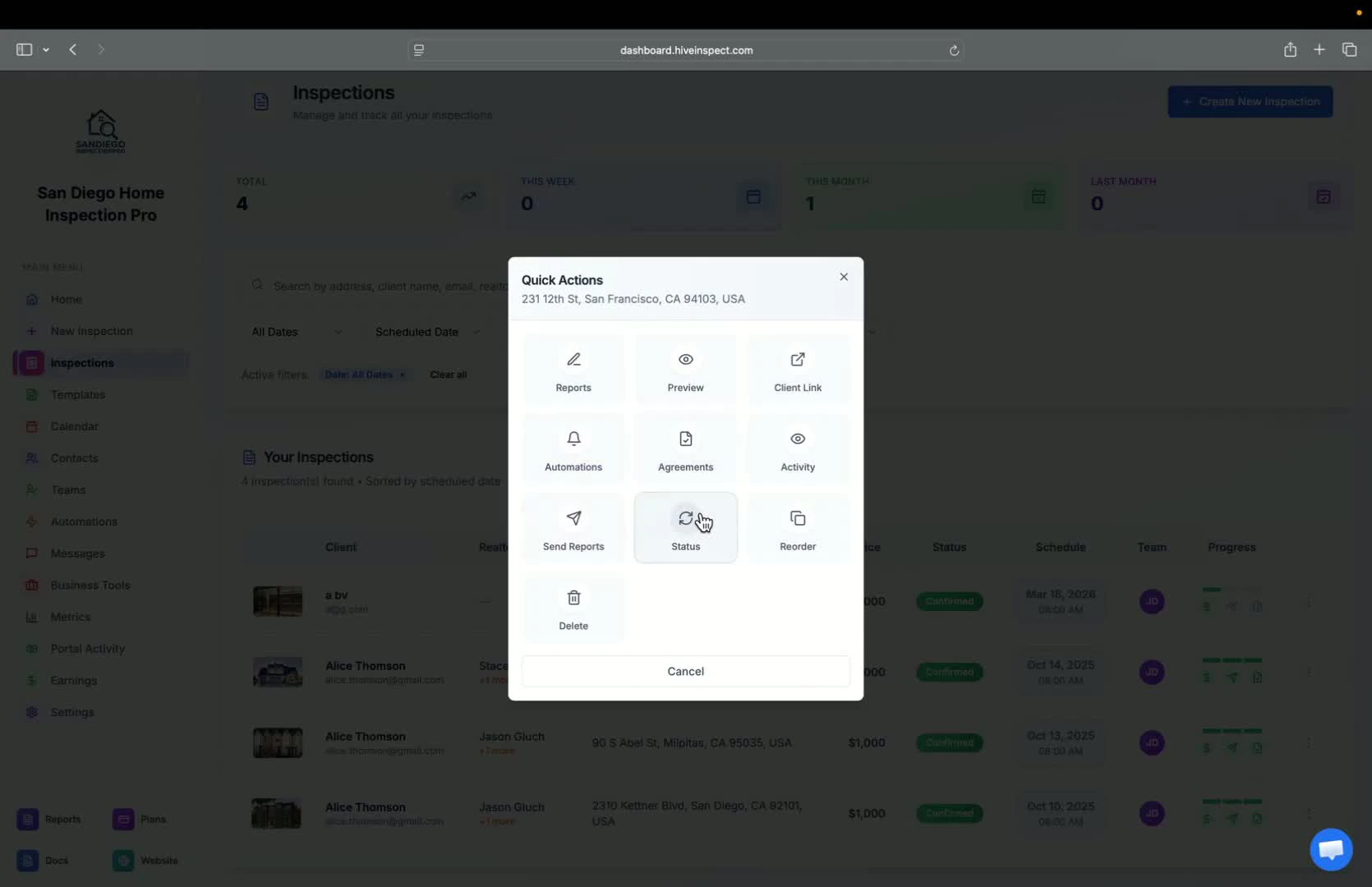
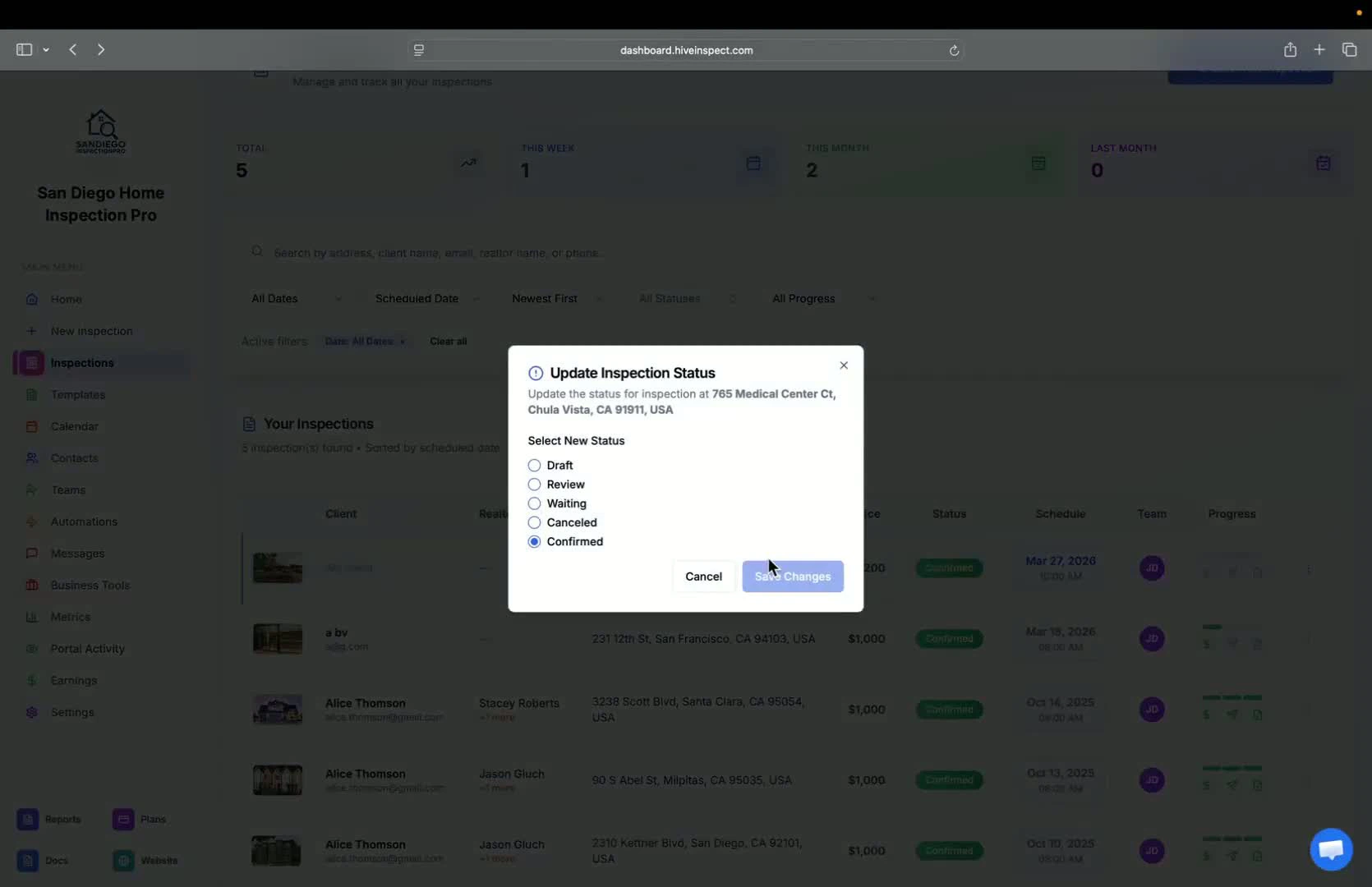
Changing inspection status
Creating a new inspection
1:20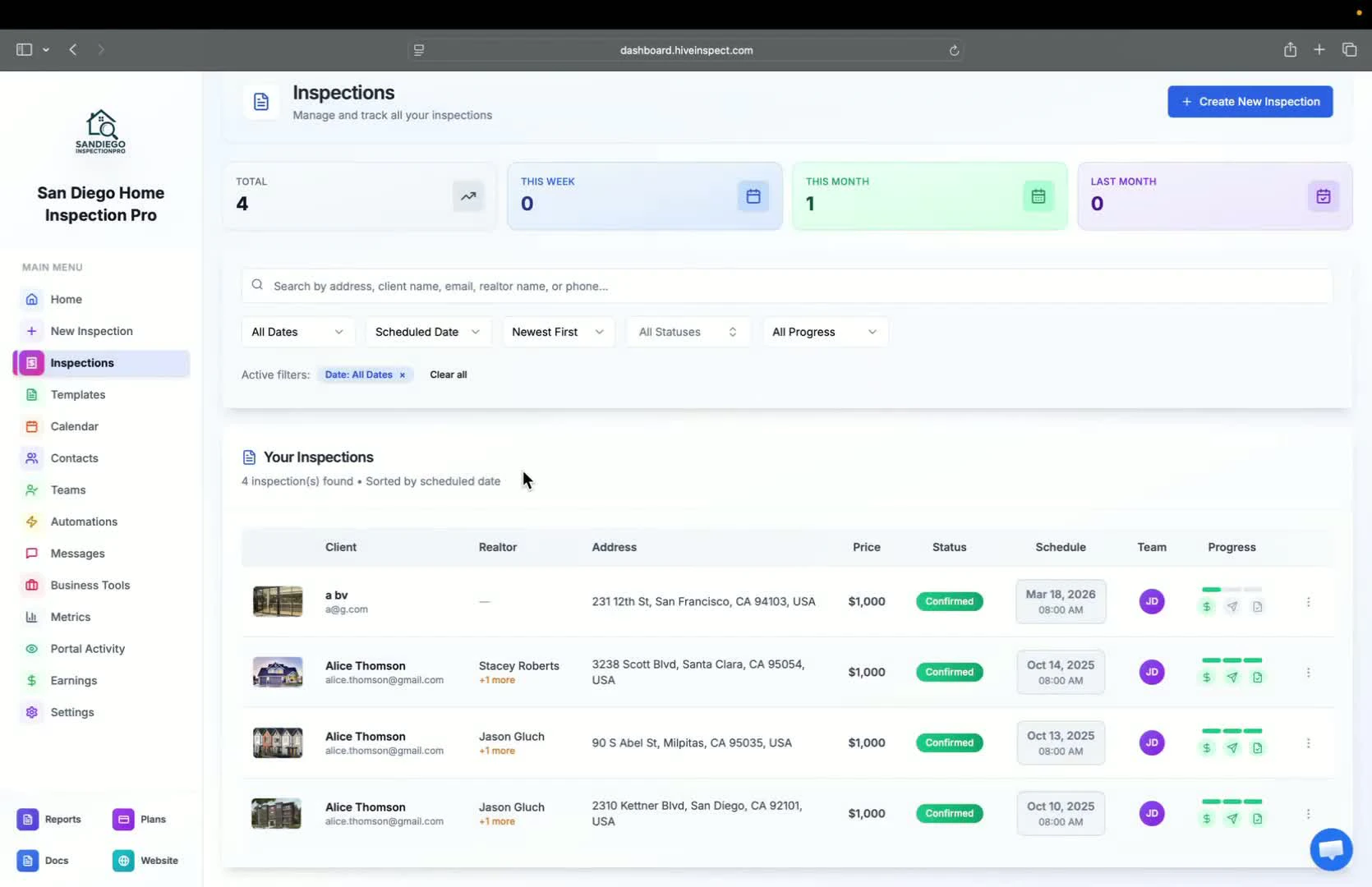
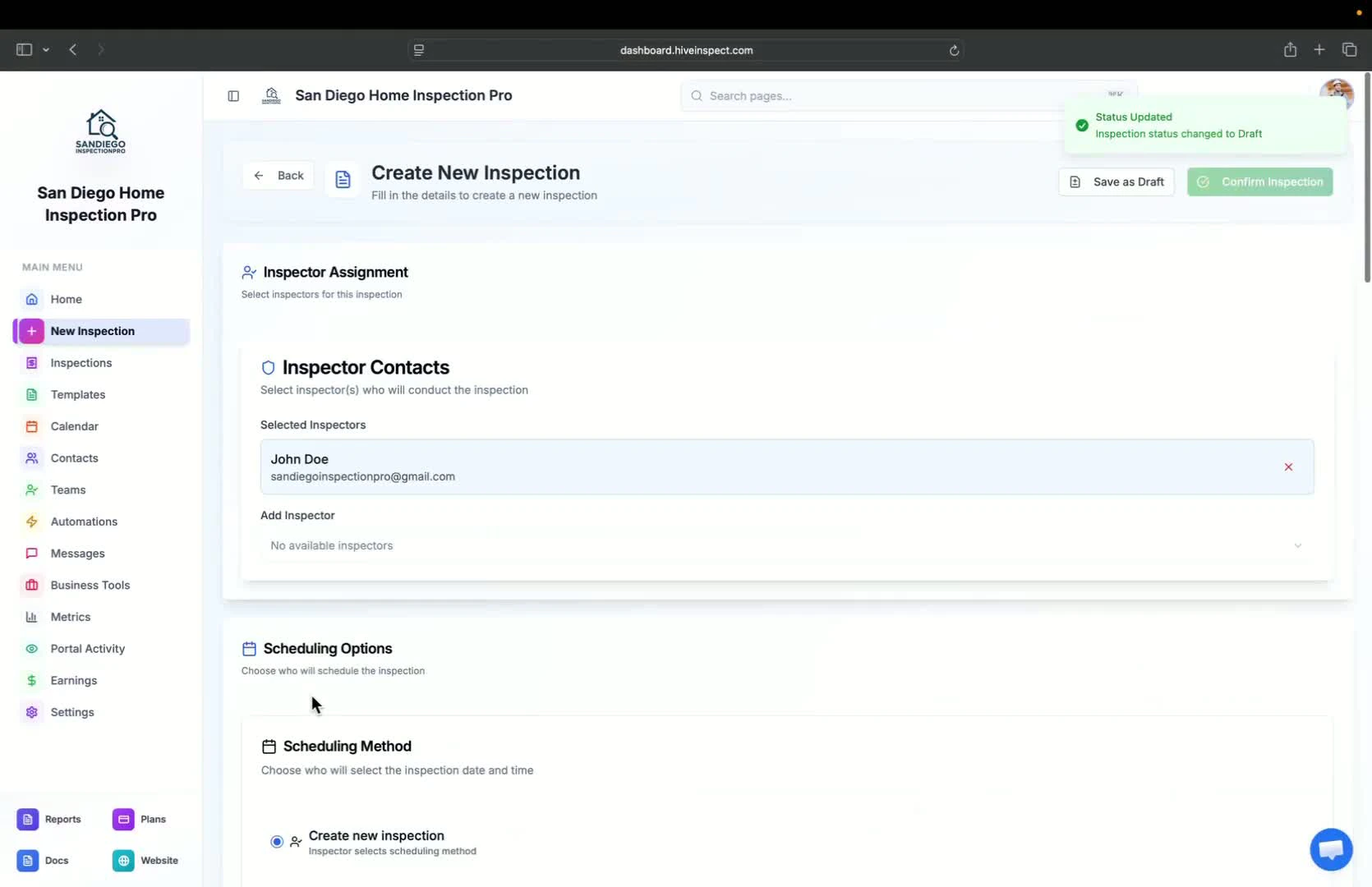
- Click the New Inspection button to start creating a new inspection
- You can select the default inspector or add multiple inspectors
Scheduling the inspection
1:34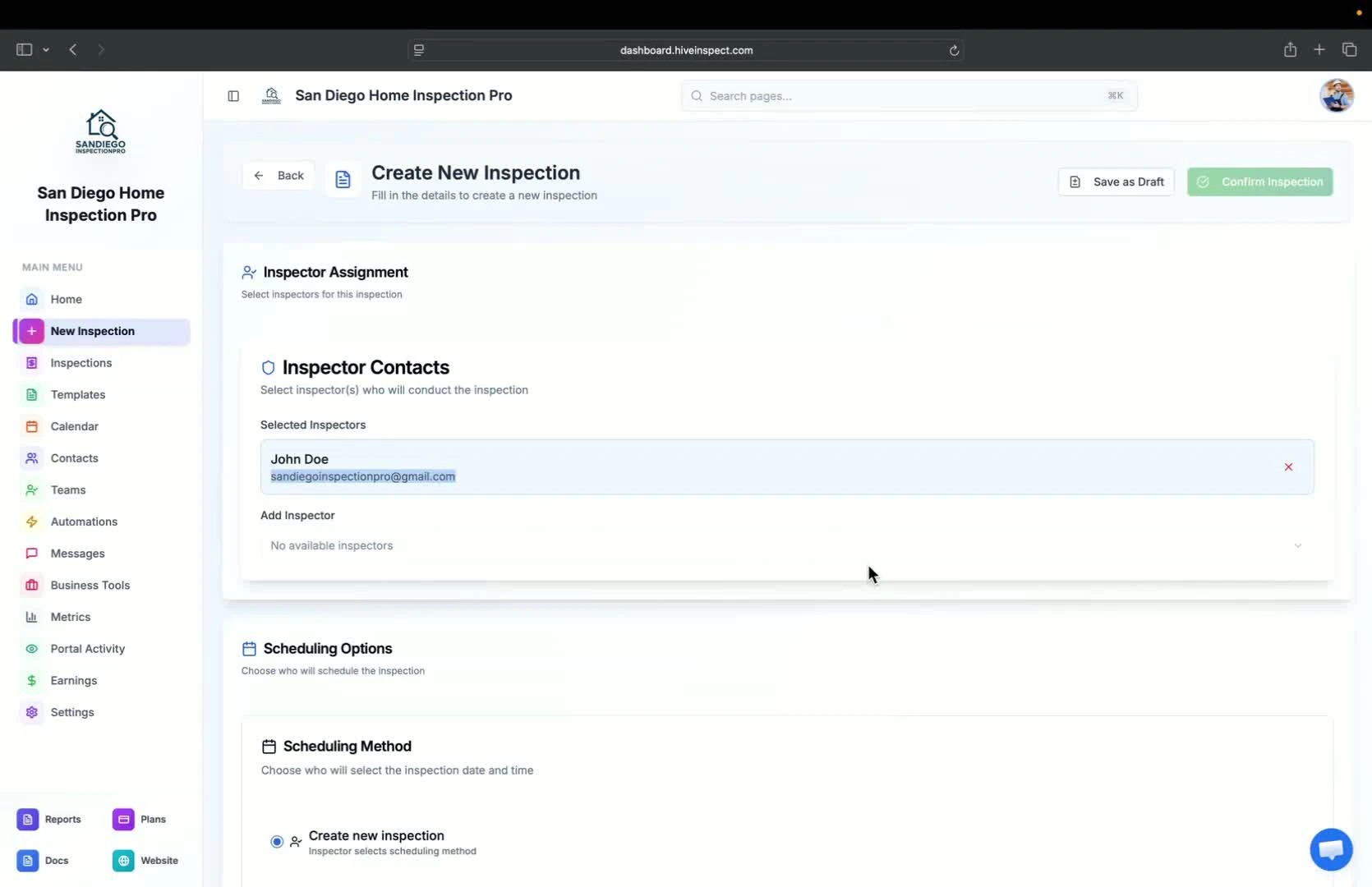
- Choose the scheduling method (default is creating a new inspection)
- Option to generate a code if automation is set up
Selecting date and address
1:56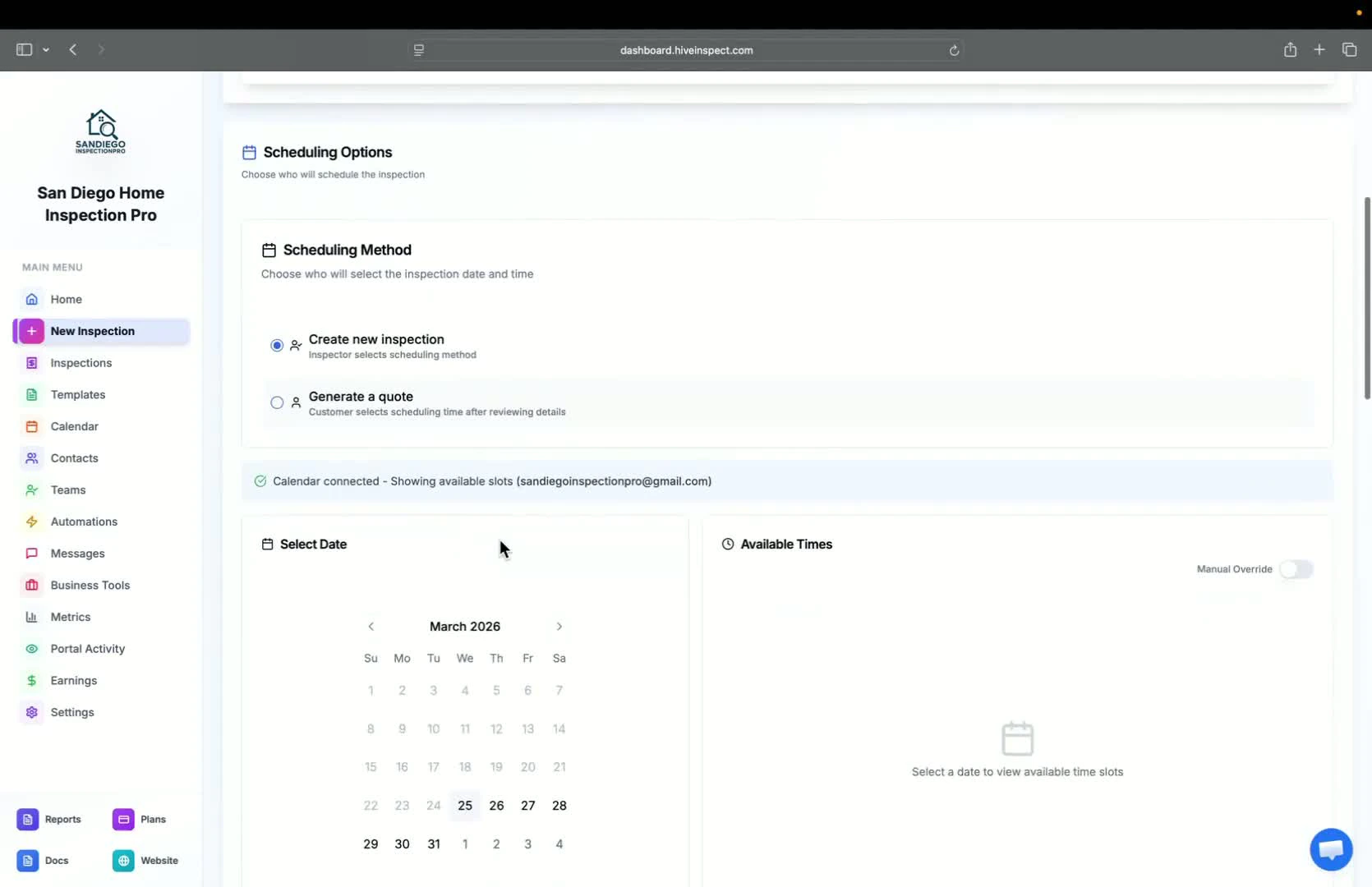
- Select the date and time for the inspection
- Enter the property address; Hive fills in the property details from public property records, and a Zillow button opens the listing so you can check it
Entering property details
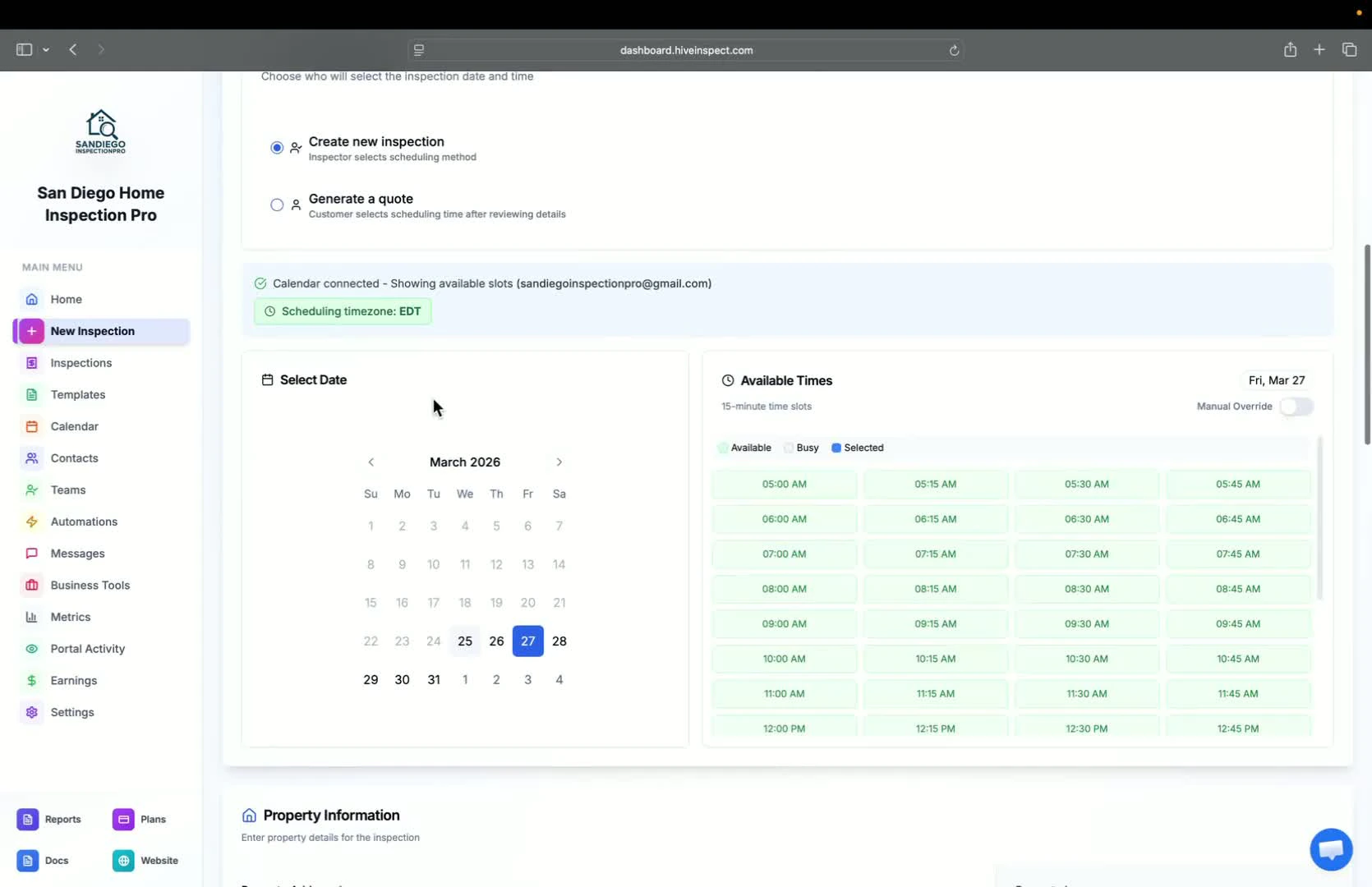
Adding contacts
2:29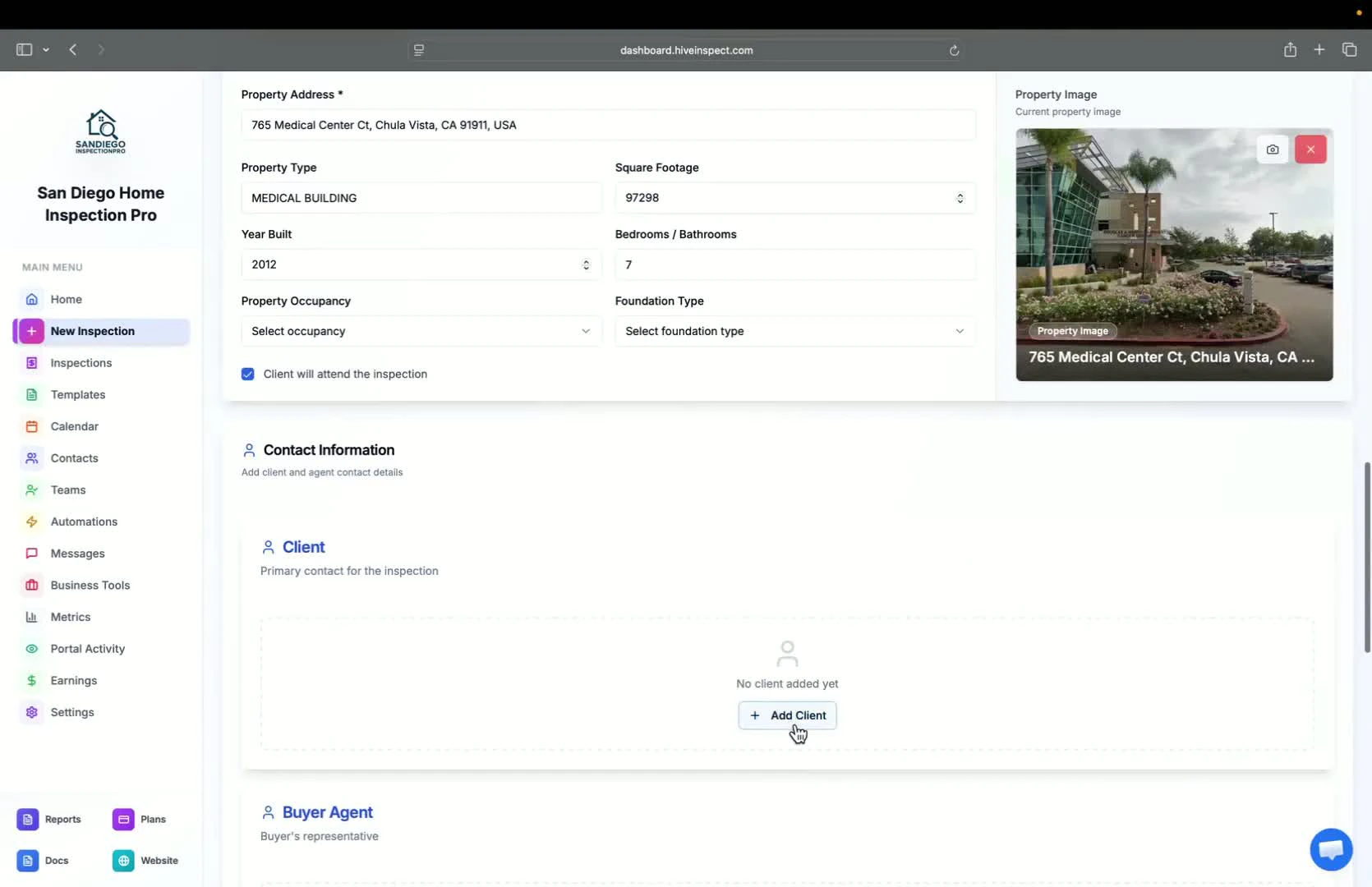
- Add client contact information (email is mandatory)
- Option to add CC emails, phone numbers, and tags
Adding agents and contractors
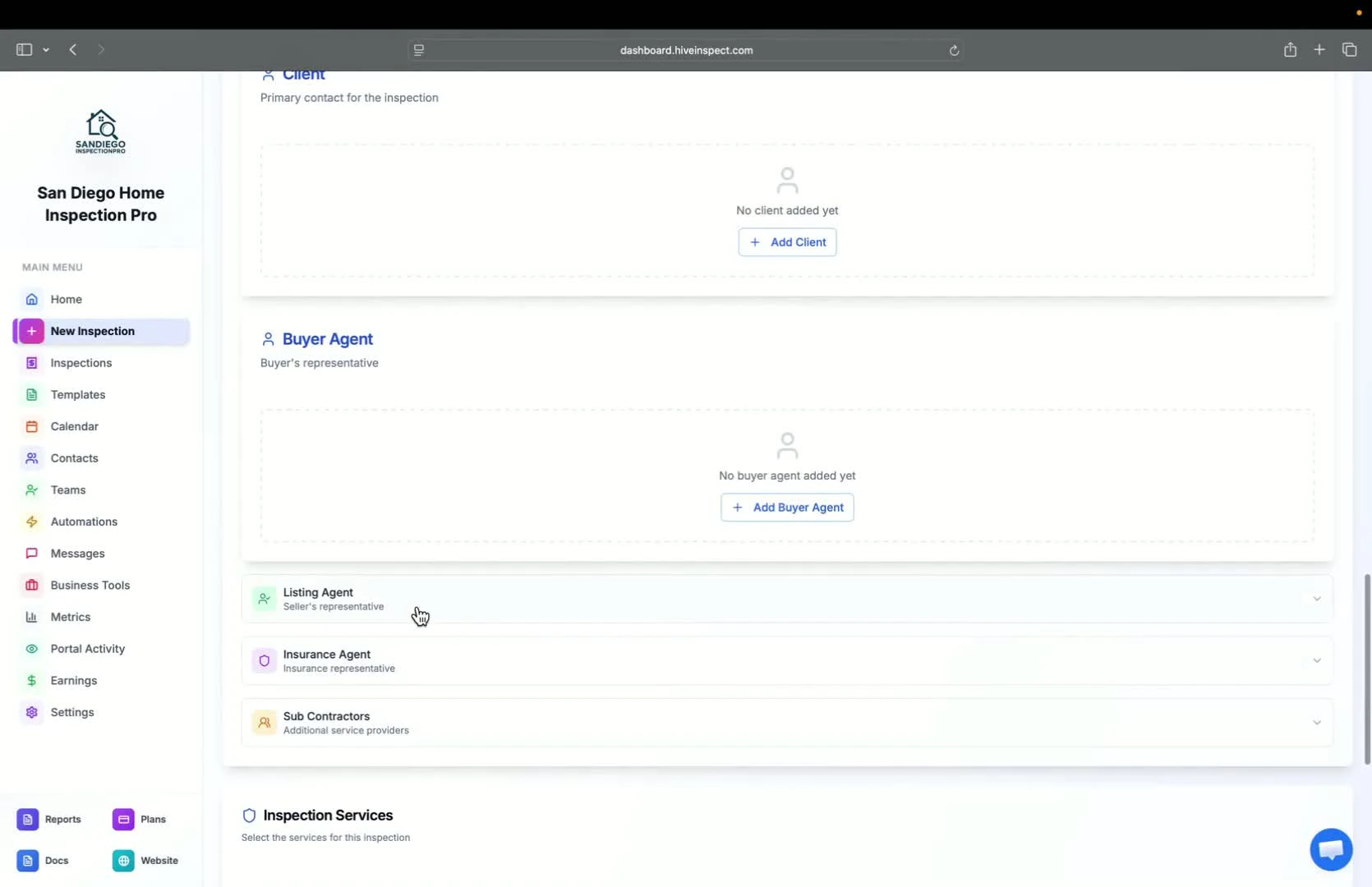
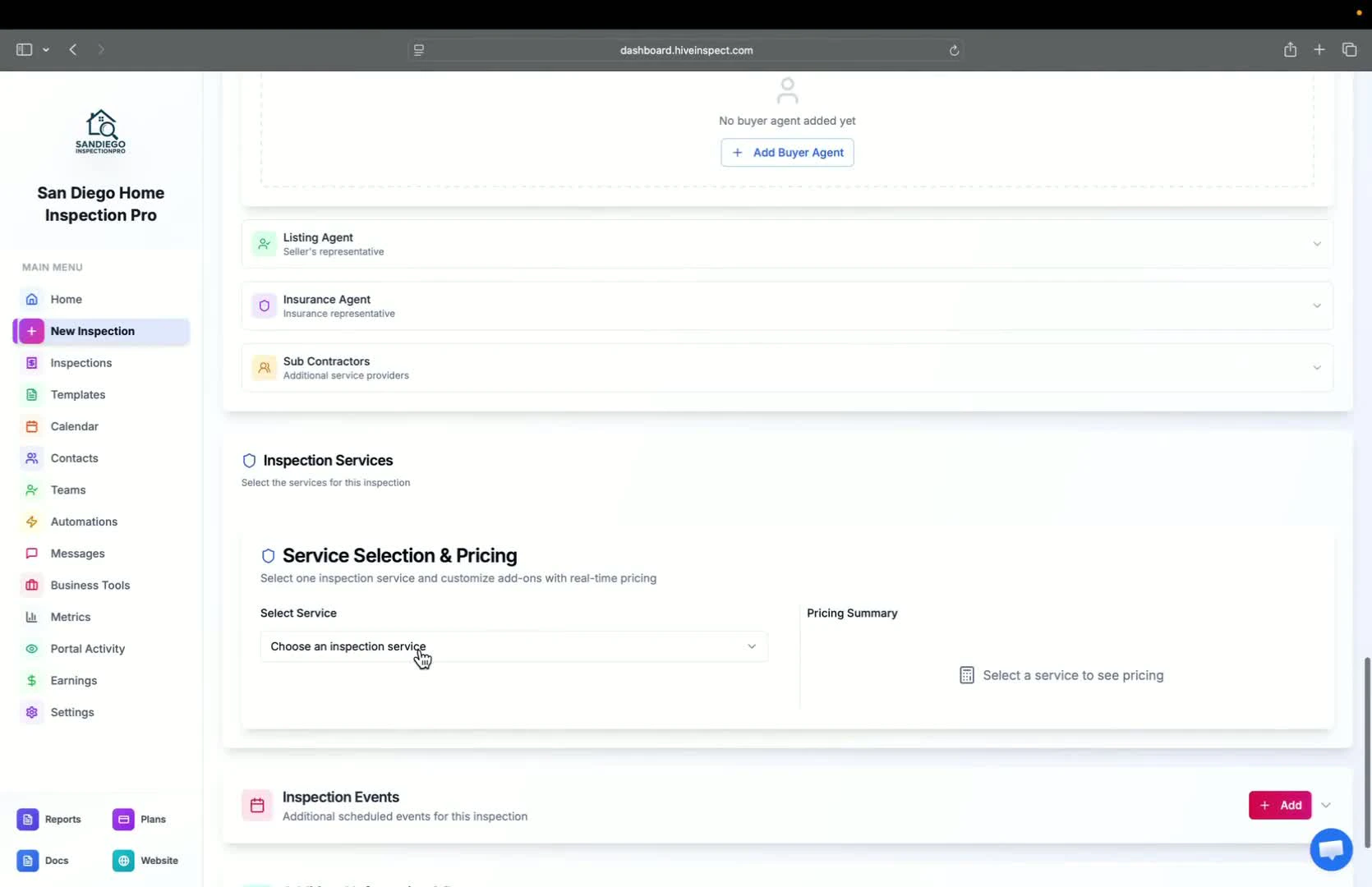
Selecting services and modifiers
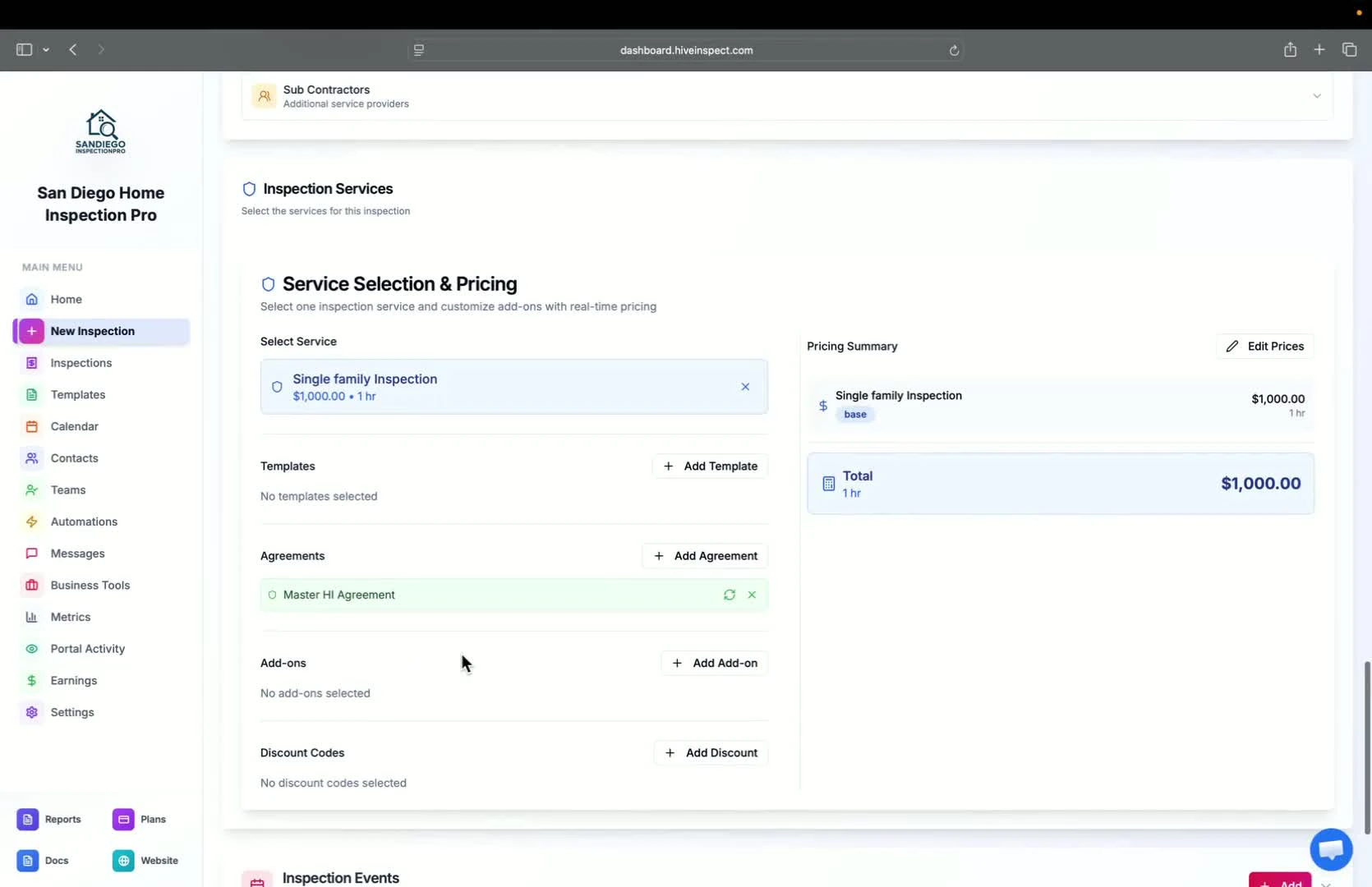
Adding templates and agreements
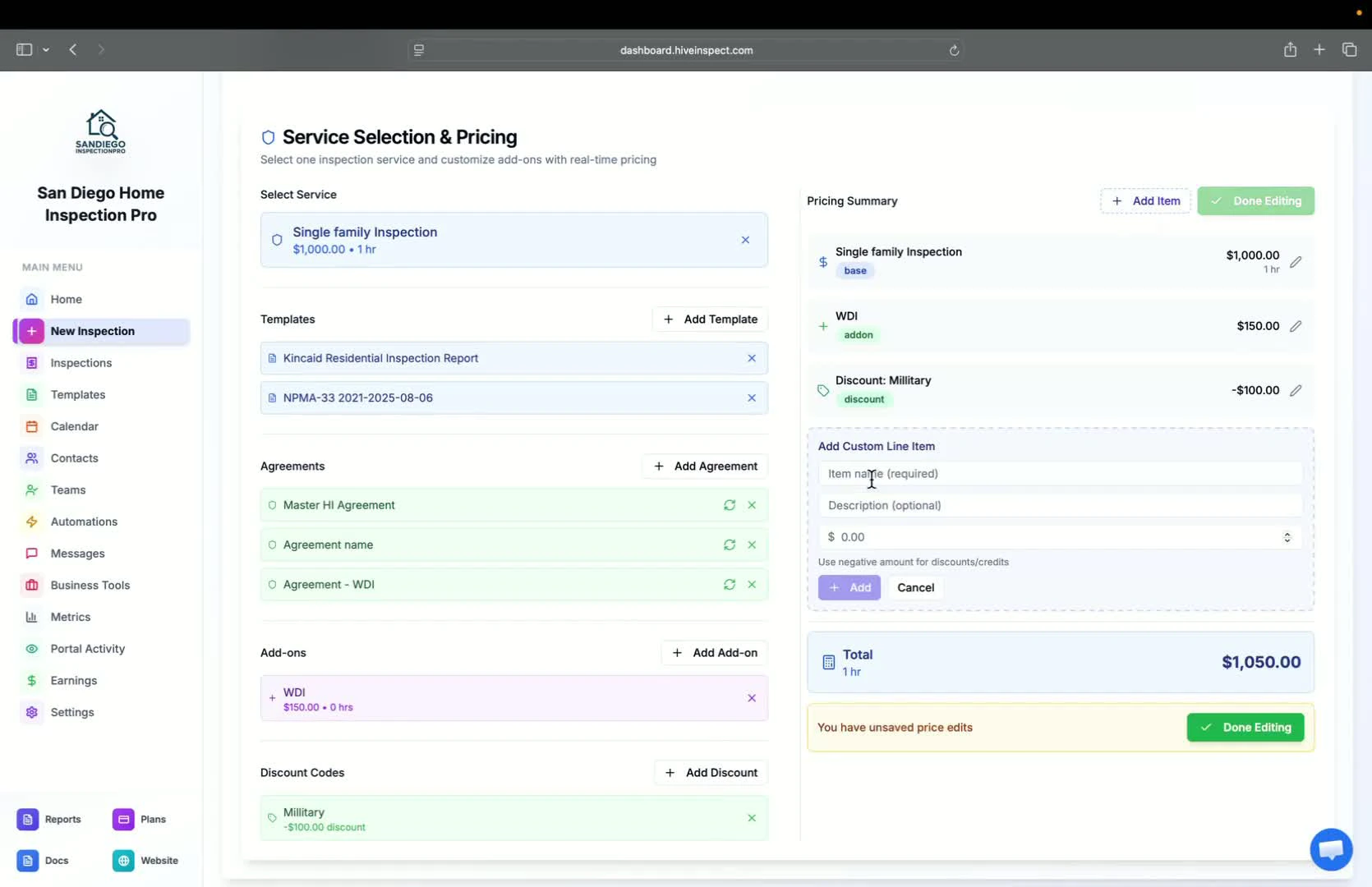
Custom line items
Adding inspection events
3:56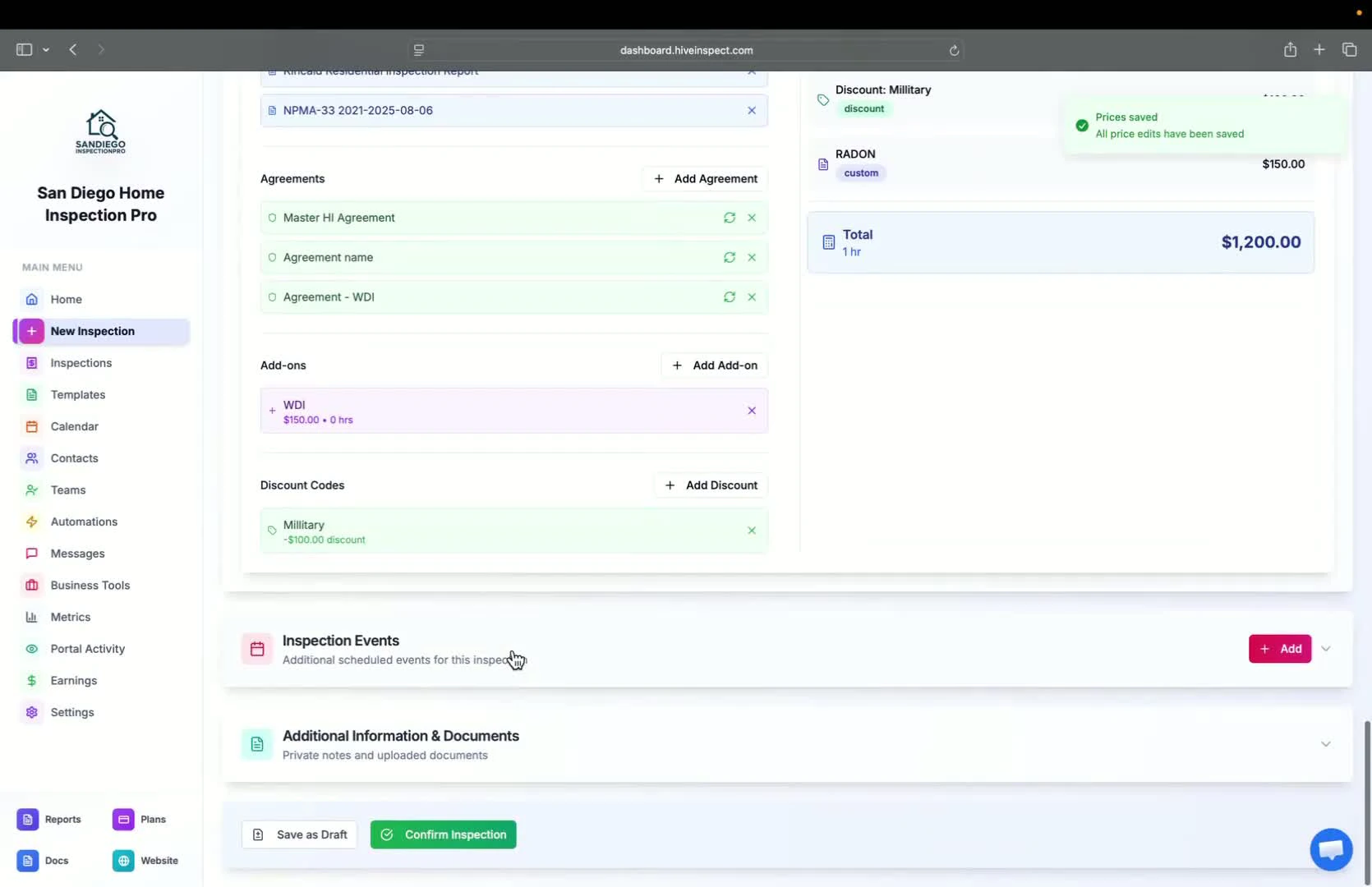
- You can add inspection events (e.g., radon pickup/drop off)
- Save the events you add often as presets and add them with one click. See Inspection Event Presets.
Adding notes and documents
4:02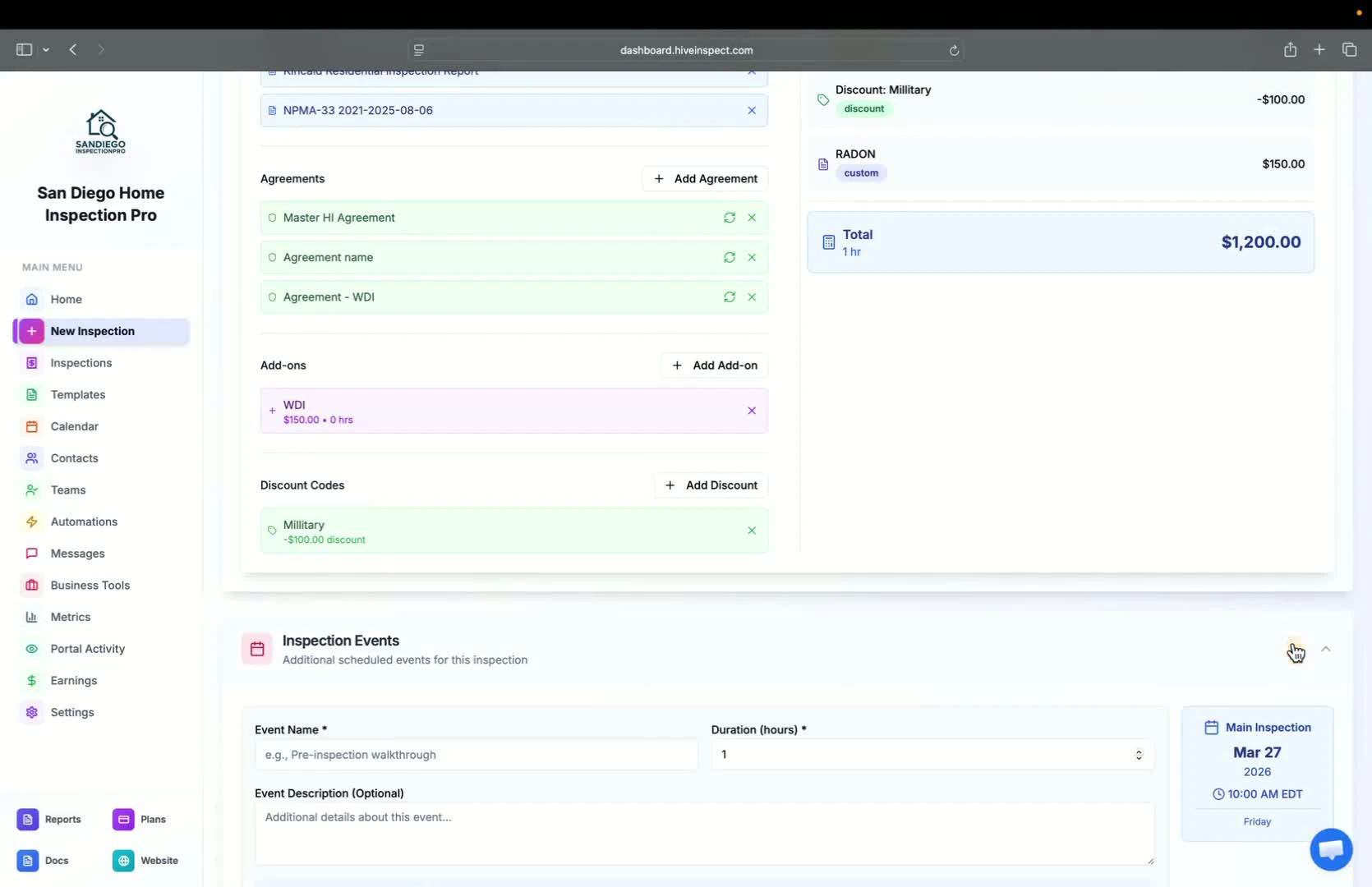
- Add private notes or documents for internal use
- Upload public documents available on the customer portal
Saving or confirming the inspection
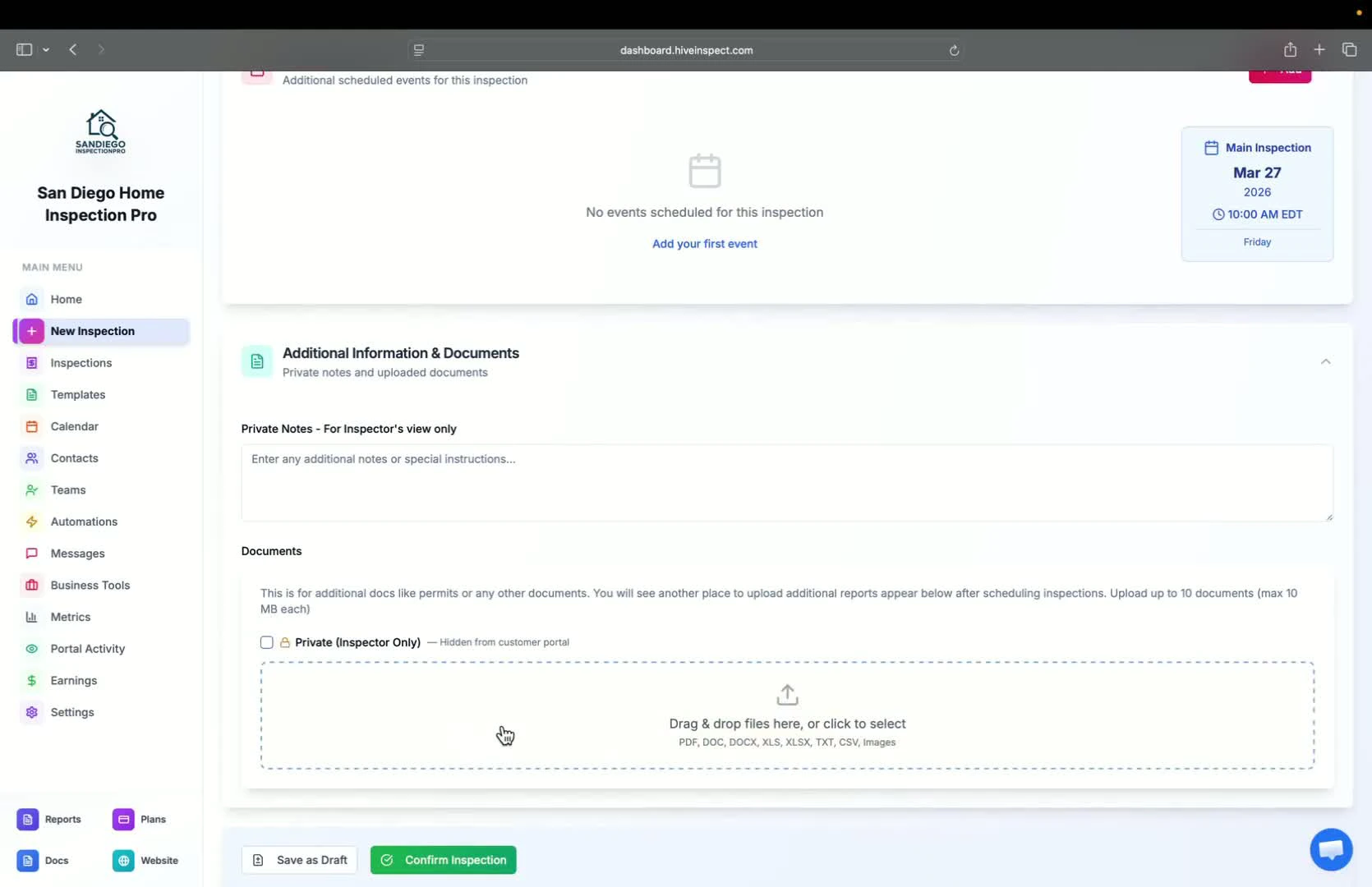
Reviewing automations
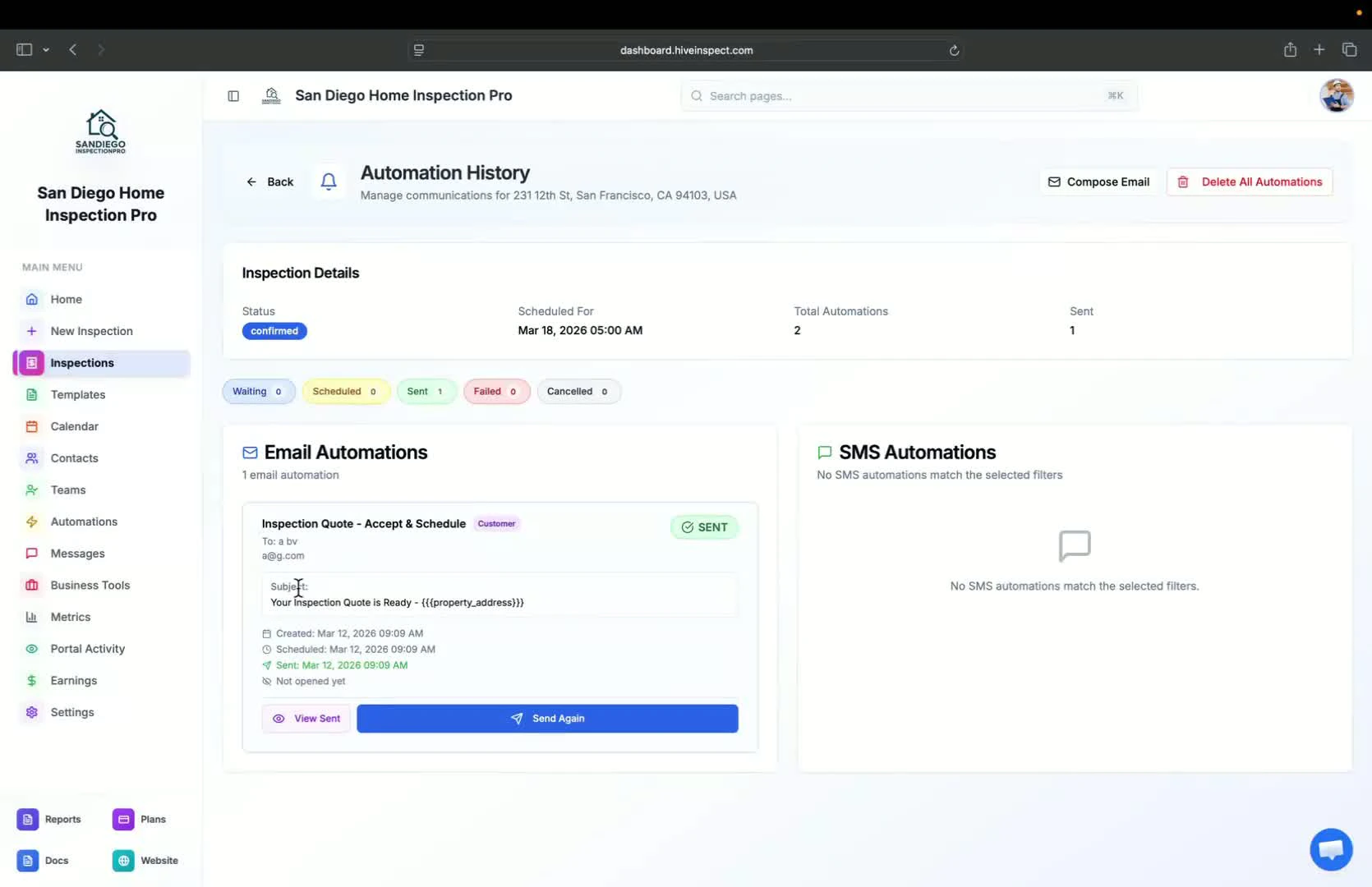
Changing inspection status again
Generating a code
Next step
Related