

In the dashboard: Business Tools → Pay-splits, or the Pay-splits button on the Teams page.
Pay splits tell Hive how much each inspector earns from the jobs they do. You set a rule for each inspector and each service or add-on, such as “Jordan gets 40% of a Home Inspection after the first $100” or “Sam gets $50 for every Radon Test”. From then on, Hive works out each inspector’s payout on every inspection they’re assigned to. You see the results on the Payout Report, on each inspection, and, if you allow it, your inspectors see their own pay on My Payouts and in the mobile app.Pay splits work out what you owe your inspectors. They don’t pay anyone: pay your inspectors the way you do today, then click Mark Paid on the Payout Report so Hive locks those payouts.
Who can set up pay splits
- The account owner always can.
- Anyone else needs the Manage Team permission (Teams → Manage). See What each permission does.
How a payout is worked out
Each rule covers one inspector and one service or add-on. A rule is one of two types.Flat Fee
The inspector gets a fixed amount whenever the inspection includes that service or add-on, whatever its price. Example: $50.00 flat fee for Radon Testing pays $50 on every inspection with Radon Testing.Percentage
The inspector gets a percentage of the service amount, after the company keeps a first share, called the threshold. The threshold is either a Fixed Amount or a Percentage:One inspection, several lines
Hive works out each service and add-on on the inspection separately, then adds them up. For example, Jordan’s rules are 40% after first $100 for Home Inspection and $50.00 flat fee for Radon Testing:
A service or add-on with no rule for that inspector pays $0 and is flagged No split configured, so you can spot it and add a rule.
What the service amount includes
The service amount is what the client pays for that line:- The service’s base price plus its modifiers, such as square footage, age of home or distance fees. Each modifier counts toward the service or add-on it belongs to. See Price modifiers.
- An add-on is its own line, with its own price, modifiers and rule. An add-on doesn’t count toward its service’s amount.
- Minus its share of any discount. A discount code or a negative custom line is spread over all the lines in proportion to their price. Turn on Ignore discounts to pay on the full price instead.
- Not included: tax, positive custom fees, urgent or rush fees, and the card technology fee. They never go to an inspector.
Two or more inspectors on one inspection
By default, a rule is the payout for the job, shared equally. With two inspectors, each gets half of what their own rule works out to. With three, a third. On a $600 Home Inspection where both inspectors have 40% after first $100, the job pays $200, so each inspector gets $100. If their rules differ, each one’s own rule is worked out on the full $600 and then divided by the number of inspectors. To pay every inspector their full rule instead, turn on Each inspector receives the full split on shared inspections.The Pay-splits page
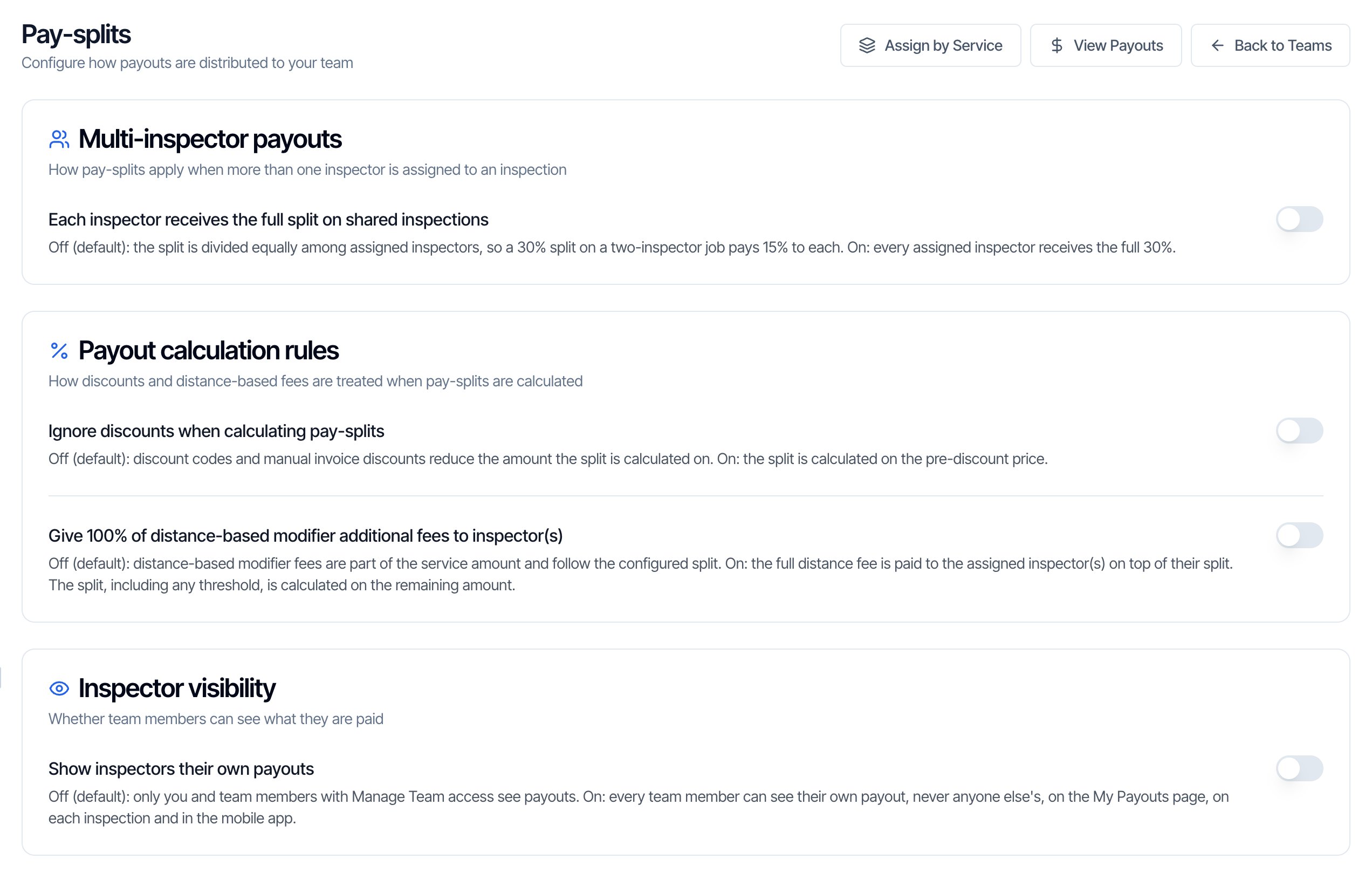
- Assign by Service gives the same rule to several inspectors at once. See Give several inspectors the same rule.
- View Payouts opens the Payout Report.
- Back to Teams returns to the Teams page.
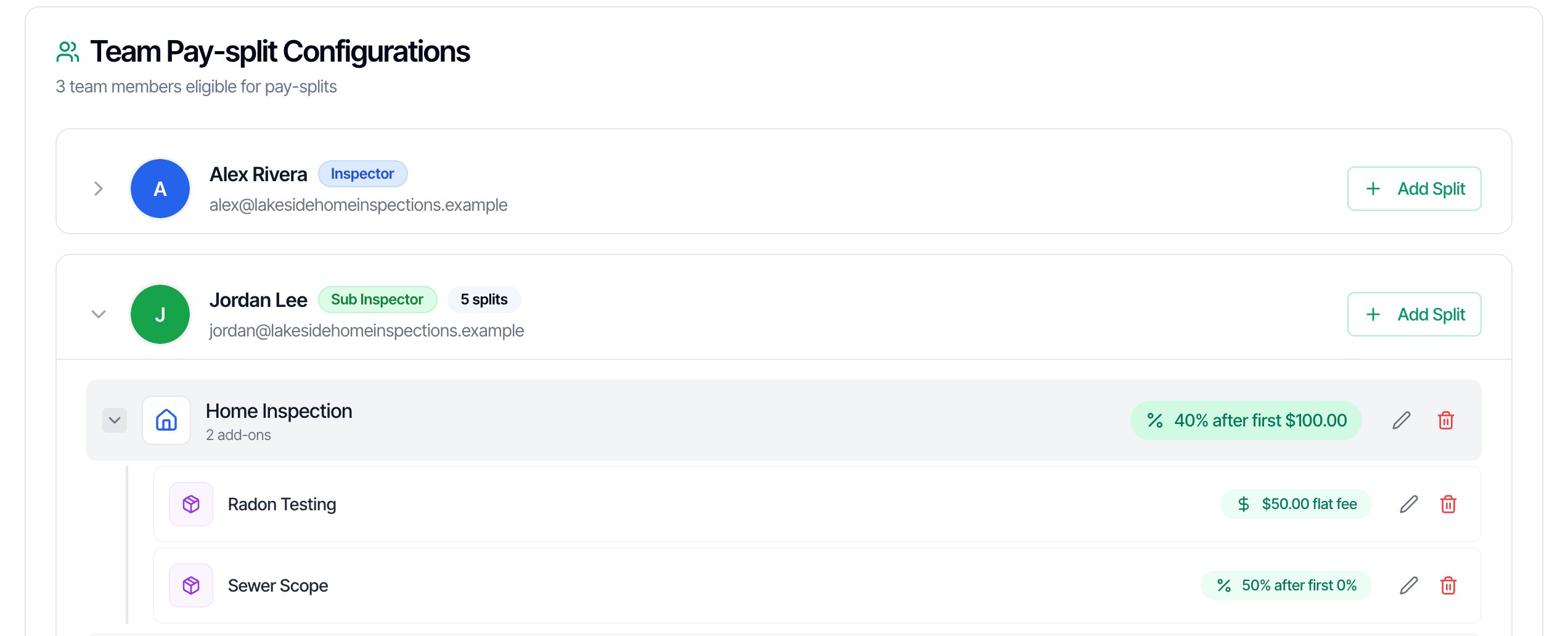
Add a rule for one inspector
- Click Add Split on the inspector’s row.
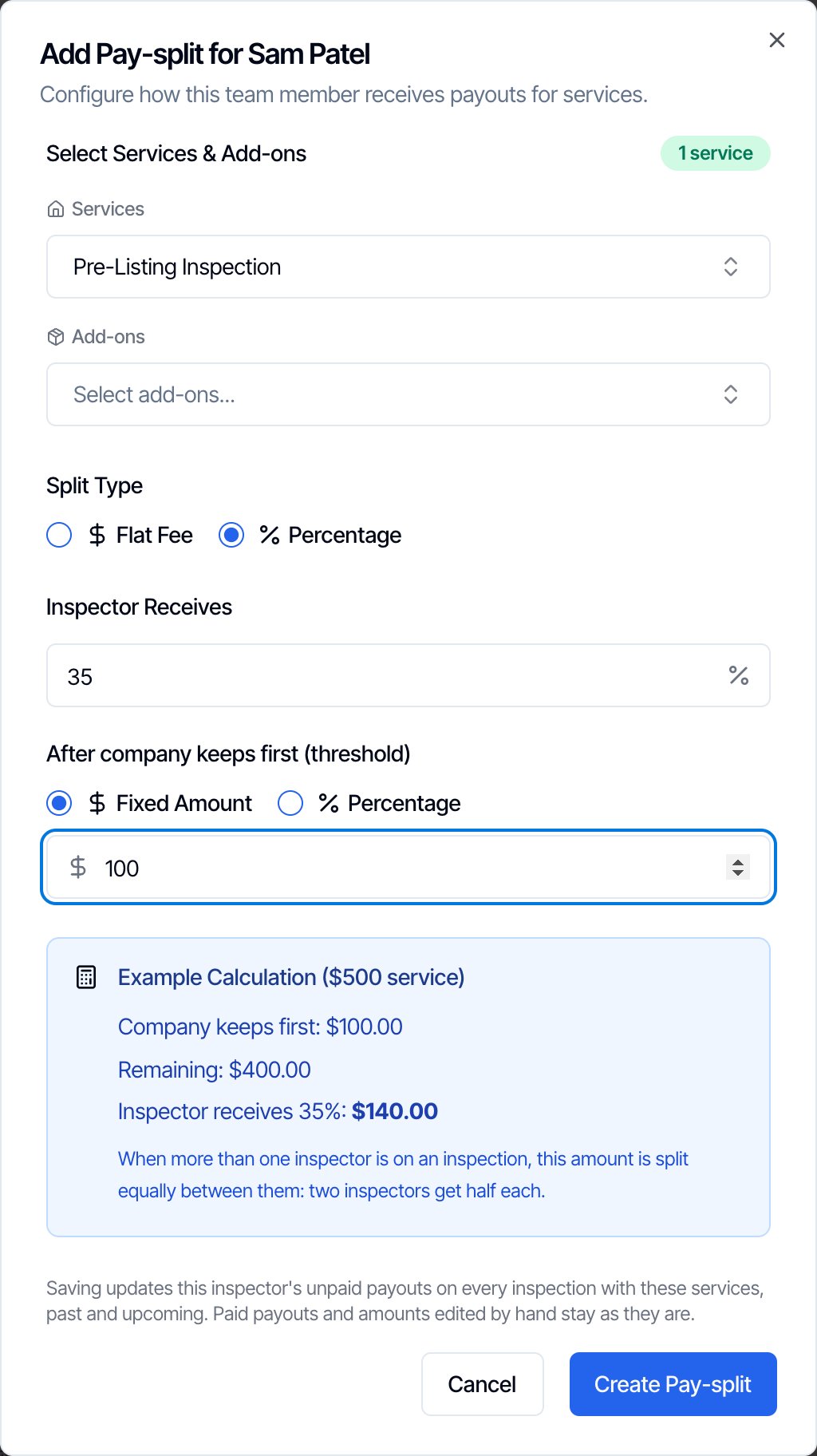
- Under Select Services & Add-ons, pick one or more Services and Add-ons. Each menu shows the names you picked, and a badge such as 1 service or 2 services, 1 add-on counts them. Services and add-ons that already have a rule for this inspector aren’t listed.
- Under Split Type, choose Flat Fee or Percentage.
- Flat Fee: type the Amount.
- Percentage: type what the Inspector Receives (0 to 100), then under After company keeps first (threshold) choose Fixed Amount or Percentage and type it. Use 0 for no threshold.
- Check the Example Calculation, which shows the payout on a $500 service.
- Click Create Pay-split (or Create 3 Pay-splits when you picked several). Every service and add-on you picked gets the same rule.
Give several inspectors the same rule
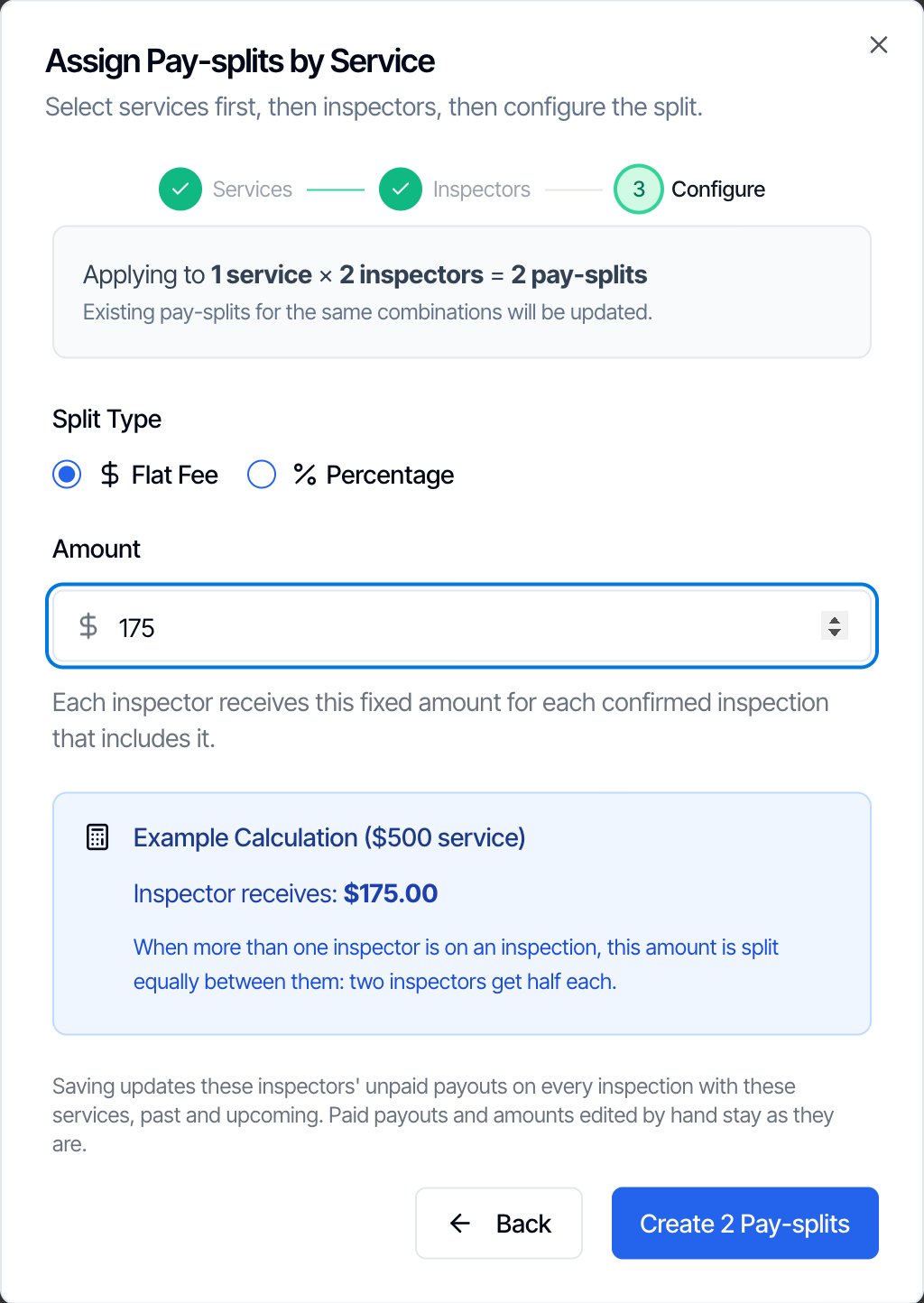
Assign by Service sets one rule for several inspectors and services in one go, for example $175 for every Home Inspection, for all your sub-inspectors.- Click Assign by Service at the top of the page.
- Services: pick the services and add-ons, then click Next.
- Inspectors: pick the team members, then click Next.
- Configure: choose Flat Fee or Percentage and fill it in like a single rule. The banner shows how many rules you’re about to save, such as Applying to 1 service × 2 inspectors = 2 pay-splits.
- Click Create 2 Pay-splits. You see Created 2 pay-splits, or Created 1 and updated 1 pay-splits.
Change or delete a rule
- Change: click the pencil next to the rule, change the type or amounts, and click Update Pay-split. You can’t move a rule to a different service; delete it and add a new one.
- Delete: click the trash can, then Delete in Delete Pay-split?. That service then pays this inspector $0.
Company-wide payout rules
Four switches at the top of the page apply to your whole company. All of them start off. Flipping one asks you to confirm.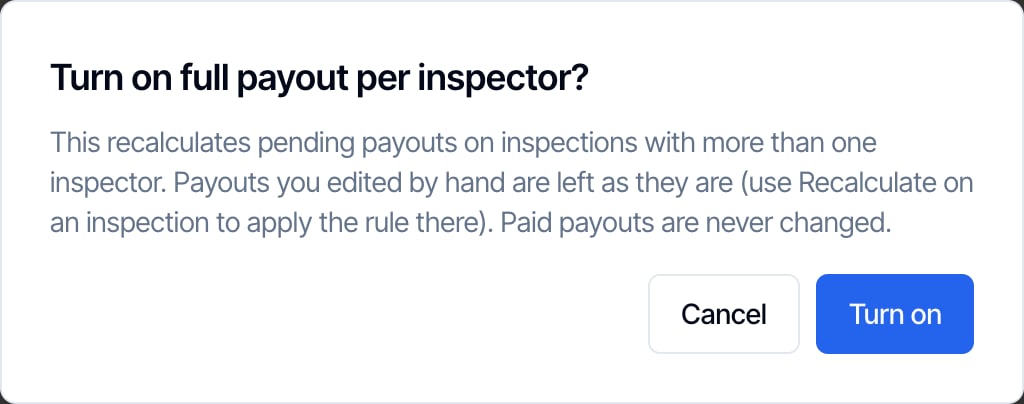
Each inspector receives the full split on shared inspections
Under Multi-inspector payouts.- Off (default): the rule is shared equally. A 30% rule on a two-inspector job pays 15% to each.
- On: every inspector on the job gets their full rule. A 30% rule pays 30% to each.
Ignore discounts when calculating pay-splits
Under Payout calculation rules.- Off (default): discount codes and negative custom lines lower the service amount, so the inspector shares the discount. A $500 inspection with a $50 discount pays on $450.
- On: the inspector is paid on the price before the discount, so the company absorbs the whole discount.
Give 100% of distance-based modifier additional fees to inspector(s)
Under Payout calculation rules. This is for travel fees from the four distance modifiers: miles or kilometers from your company address or from the inspector’s address. See Distance modifiers.- Off (default): the distance fee is part of the service amount and is split by the rule like the rest of the price.
- On: the inspector gets the whole distance fee on top of their rule. The rule, threshold included, runs on the rest of the price.
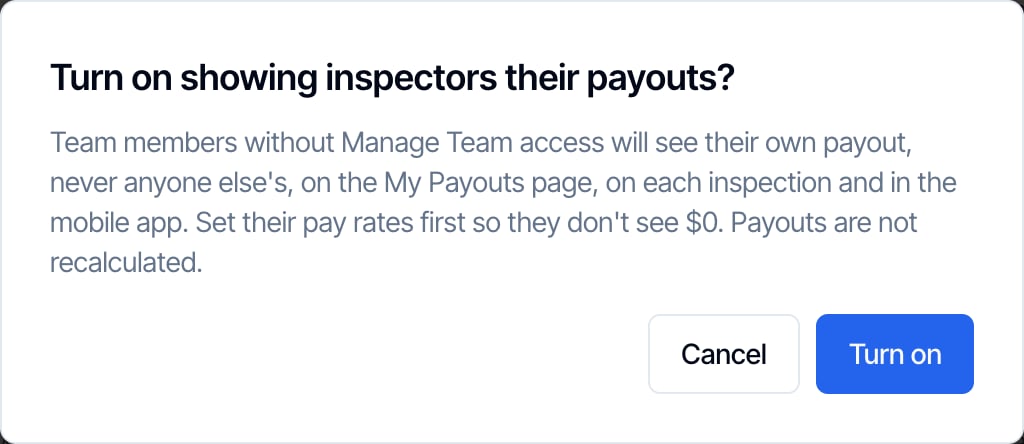
Show inspectors their own payouts
Under Inspector visibility.- Off (default): only you and team members with Manage Team see payouts.
- On: every team member can see their own payout, never anyone else’s: on the My Payouts page, on each inspection they’re on, and on the inspection summary in the mobile app. See My Payouts.
When Hive calculates payouts
Hive keeps each unpaid payout up to date on its own. It recalculates when:
What “keeps hand edits” means: an amount you typed for a service or add-on stays on that service or add-on. A line that’s new (for example an add-on the client just added) gets its calculated payout, and an edit on a line that’s no longer on the inspection goes away with it. An edit also goes when its share changes: the job is now split between a different number of inspectors, for example a second inspector joins, or the full-split rule is flipped on a job that has more than one. You set it for the old share. Otherwise only Recalculate replaces hand edits, and you can undo one yourself by typing the calculated amount back in.
Payouts marked paid are locked. None of the above changes or removes them. Mark one unpaid on the Payout Report if it needs to change. See Mark payouts paid.
Payouts are worked out for every inspection with an assigned inspector and a price, whatever its status, so drafts and quotes get one too. But only Confirmed inspections count on the Payout Report, My Payouts and the payout card: a draft, quote, waiting booking or canceled inspection isn’t owed. Canceling or deleting an inspection takes its unpaid payouts off the report; a payout you’d already marked paid stays there as a record.
Common questions
Who can set up pay splits?
Who can set up pay splits?
The account owner, and team members with the Manage Team permission. They also see the Payout Report and can edit payouts.
Why does an inspector show zero for a service?
Why does an inspector show zero for a service?
They have no rule for that service or add-on, so it shows No split configured. Add one with Add Split. A percentage rule also pays $0 when the threshold is higher than the service amount.
How is pay split when two inspectors do one inspection?
How is pay split when two inspectors do one inspection?
Each inspector’s rule is worked out on the full price, then divided by the number of inspectors. To pay each one their full rule, turn on Each inspector receives the full split on shared inspections.
Does the inspector's pay include travel or distance fees?
Does the inspector's pay include travel or distance fees?
By default, distance fees are part of the service amount, so they’re split by the rule. Turn on Give 100% of distance-based modifier additional fees to inspector(s) to pass the whole fee to the inspector.
Do discounts lower the inspector's pay?
Do discounts lower the inspector's pay?
Yes, by default. A discount is spread over every line of the inspection, so each inspector shares it. Turn on Ignore discounts when calculating pay-splits to pay on the full price.
Are tax and the card fee paid to inspectors?
Are tax and the card fee paid to inspectors?
No. Tax, the card technology fee, positive custom fees and rush fees are never part of a service amount.
Can I give one inspector a different rate for one inspection?
Can I give one inspector a different rate for one inspection?
Yes. Edit that payout on the Payout Report or on the inspection. The edit stays when the price or the rules change later; only Recalculate on that inspection replaces it. Marking the payout paid locks it completely.
I changed a rule. Do past payouts change?
I changed a rule. Do past payouts change?
Unpaid ones do. Adding, changing or deleting a rule recalculates that inspector’s unpaid payouts on every inspection they’re assigned to, past ones included. Amounts you edited by hand stay. Payouts marked paid never change, so mark your last pay run paid before you change rates.
Can I mark a payout as paid?
Can I mark a payout as paid?
Yes, on the Payout Report: Mark Paid for one inspector, Mark All Paid for everyone, or the pencil on a payout then Mark as Paid. Hive doesn’t send the money; it records that you paid and locks the payout. See Mark payouts paid.
Can my inspectors see what they earn?
Can my inspectors see what they earn?
Only if you turn on Show inspectors their own payouts. Each person then sees only their own payout, on My Payouts, on their inspections and in the mobile app.
Why can't I add a rule for a team member I deactivated?
Why can't I add a rule for a team member I deactivated?
Hive doesn’t take new rules for someone you deactivated: their row shows Deactivated and has no Add Split button, and they aren’t offered in Assign by Service. Their existing rules and past payouts stay. Reactivate them first if they’re coming back. See Team settings.