

In the dashboard: Business Tools → Payout Report, the Payout Report button on Earnings, or View Payouts on Pay-splits.
Once you’ve set up pay splits, Hive works out what each inspector earns on every inspection. You can see those payouts in four places:- The Payout Report: every inspector’s payouts for a period, with totals per inspector, what’s paid and unpaid, Mark Paid, and an Excel export. For the owner and team members with Manage Team.
- The payout card on an inspection: who earns what on that job. You can edit it there or recalculate it.
- My Payouts: a team member’s own payouts, if you allow it.
- The mobile app: a team member’s own payout on the inspection summary, if you allow it.
Who can see payouts
Show inspectors their own payouts is a switch on the Pay-splits page. It starts off. See Show inspectors their own payouts.
Someone without Manage Team who opens the Payout Report sees Access Denied: You don’t have permissions to view the payout report. If your company shares payouts, a View My Payouts button takes them to their own.
The Payout Report
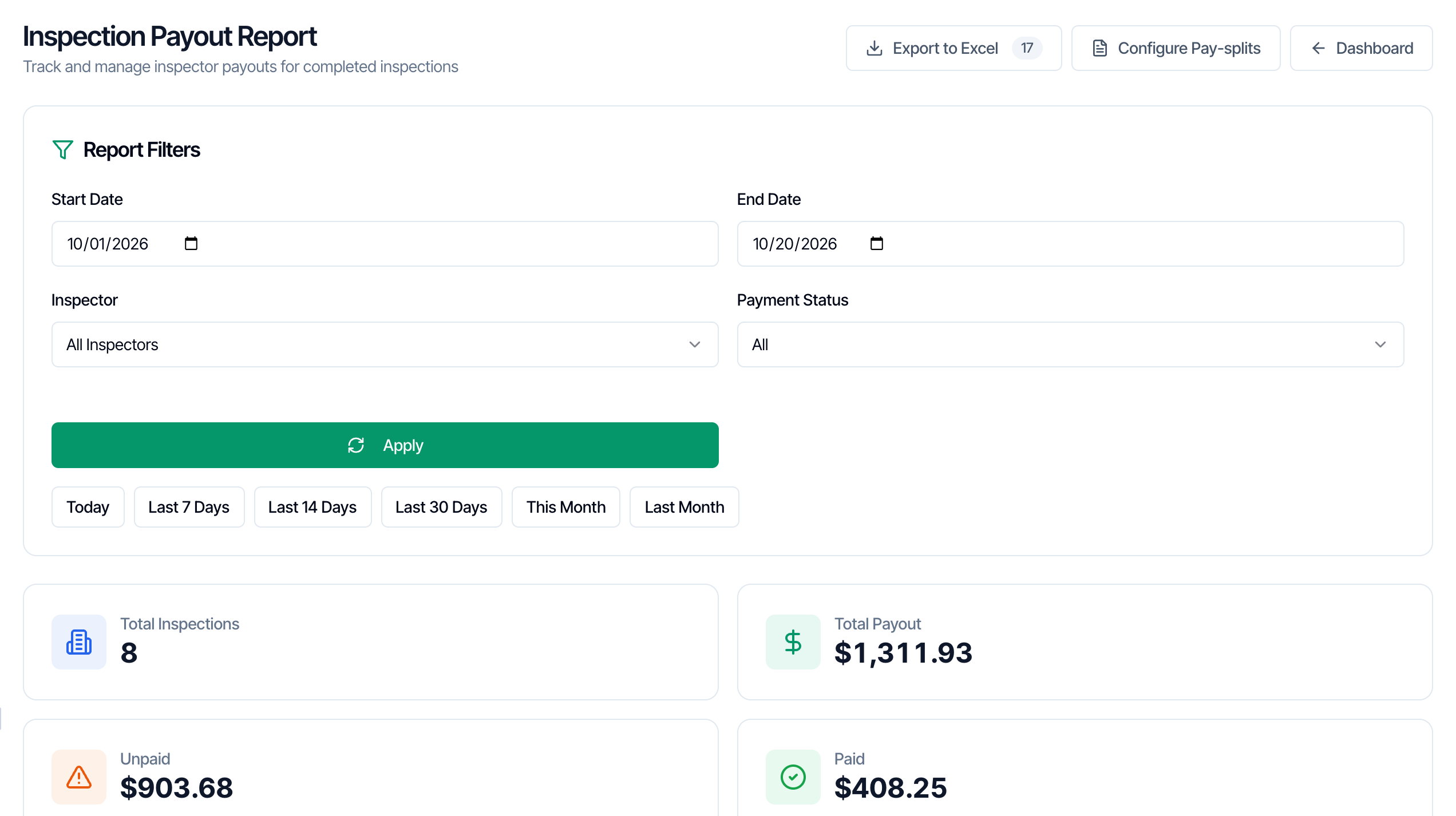
What the report counts
The report lists payouts for Confirmed inspections. Drafts, quotes, waiting bookings and canceled inspections have payouts behind the scenes (Hive works them out as soon as an inspector is assigned), but they aren’t owed, so they’re left out of the report, its totals and My Payouts. One exception: a payout you’ve marked paid always stays, even if the inspection is canceled or deleted later, because you did pay it. Its address shows Inspection canceled or Inspection deleted underneath (a deleted inspection’s address isn’t a link), and the export adds the same note after the address.Filters
- Start Date and End Date filter by inspection date, in your company’s time zone (Org Settings). Both days are included. The page opens on this month, from the 1st to today, so inspections later this month aren’t included until you move the End Date.
- Today, Last 7 Days, Last 14 Days, Last 30 Days, This Month and Last Month fill in the dates for you. “Today” is today in your company’s time zone, even if your computer is set to another one. The “Last” buttons include today: Last 7 Days is today and the 6 days before it.
- Inspector shows one person’s payouts, or All Inspectors.
- Payment Status shows All, only Unpaid payouts, or only Paid ones.
- The report updates when you change a filter. Apply reloads it with the latest numbers.
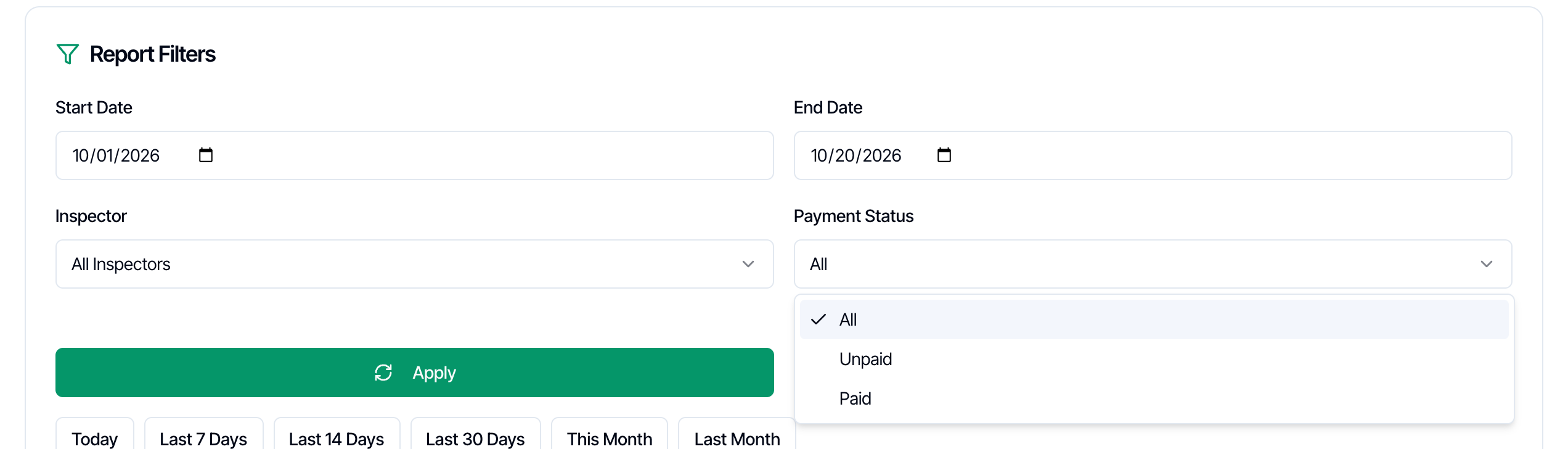
Summary cards
- Total Inspections: inspections in the period with at least one payout.
- Total Payout: everything your inspectors earned for the period, paid or not.
- Unpaid: what you still owe for the period.
- Paid: what you’ve already marked paid.
Payout Line Items
One row for each inspector on each service or add-on, newest inspection first. An inspection with two inspectors and three lines has six rows.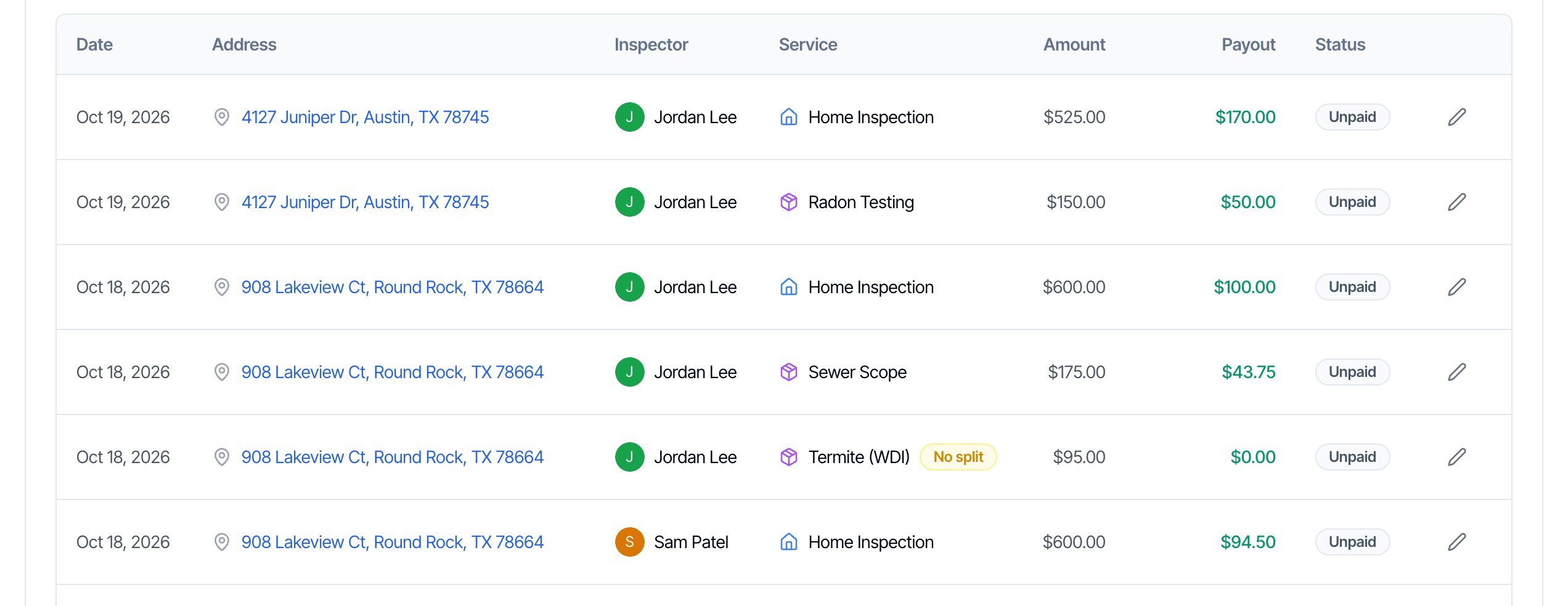
The pencil on any row opens that inspector’s payout for that inspection, where you can edit it or mark it paid. See Edit a payout.
Payout Summary by Inspector
Below the line items, each inspector’s number of inspections, Total Payout, Paid and Unpaid for the period, with a Total row. The footer shows the Report Period, the Total Service Amount (the full price of the inspections, each counted once, tax and fees included), what’s Paid, and the Total Payout Due: everything still unpaid. Use it as your pay run.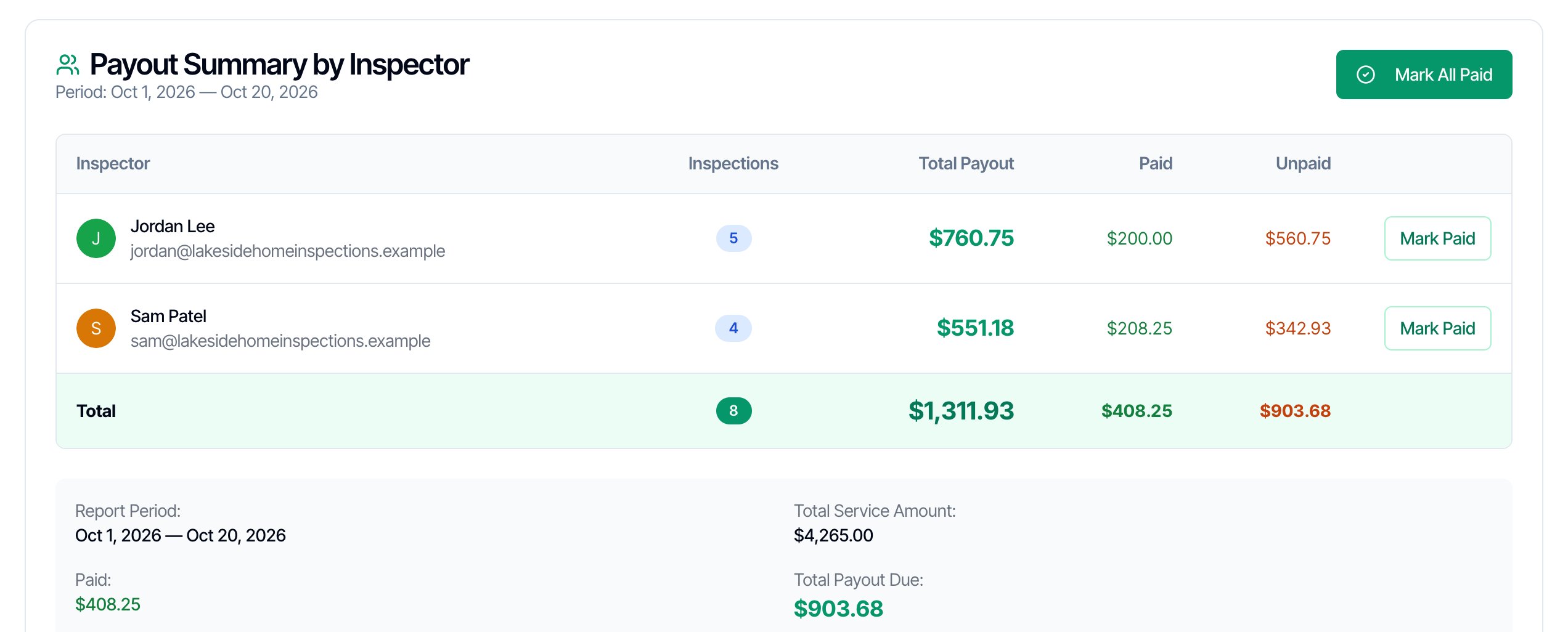
Mark payouts paid
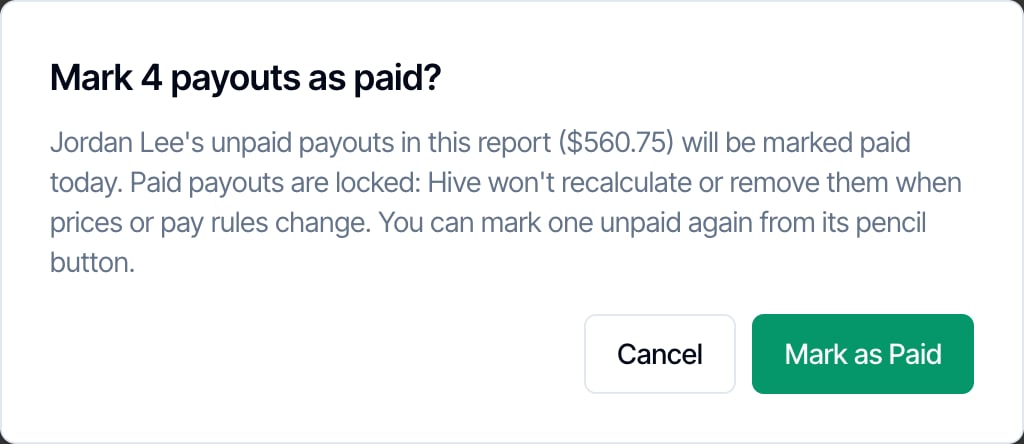
Hive doesn’t send money to your inspectors. Pay them the way you do today, then record it in Hive:- One inspector: click Mark Paid on their row in Payout Summary by Inspector. It marks every unpaid payout of theirs that’s in the report right now (your dates, inspector and status filters).
- Everyone: click Mark All Paid at the top of the summary to mark every unpaid payout in the report.
- One payout: click the pencil on any of its rows, then Mark as Paid.
What paid means
A paid payout is locked, so the amount you paid is the amount on record:- It’s never recalculated. A price change, a rule change or Recalculate leaves it as it is.
- It’s never removed. It stays on the report if you take the inspector off the job or cancel the inspection.
- You can’t edit it until you mark it unpaid.
Mark a payout unpaid
If you marked one paid by mistake, click the pencil on any of its rows. The window shows Paid Payout and Marked paid on with the date. Click Mark as Unpaid. It goes back to Unpaid, and its amounts can change again. If the inspection was canceled or deleted, the window warns you first: once unpaid, the payout leaves the report and can’t be marked paid again, because only payouts on confirmed inspections are owed. If the inspector has since been taken off the inspection, their paid payout can’t be marked unpaid: it’s kept as a record of what you paid. Hive says This inspector is no longer on the inspection, so their paid payout is kept as history and can’t be marked unpaid.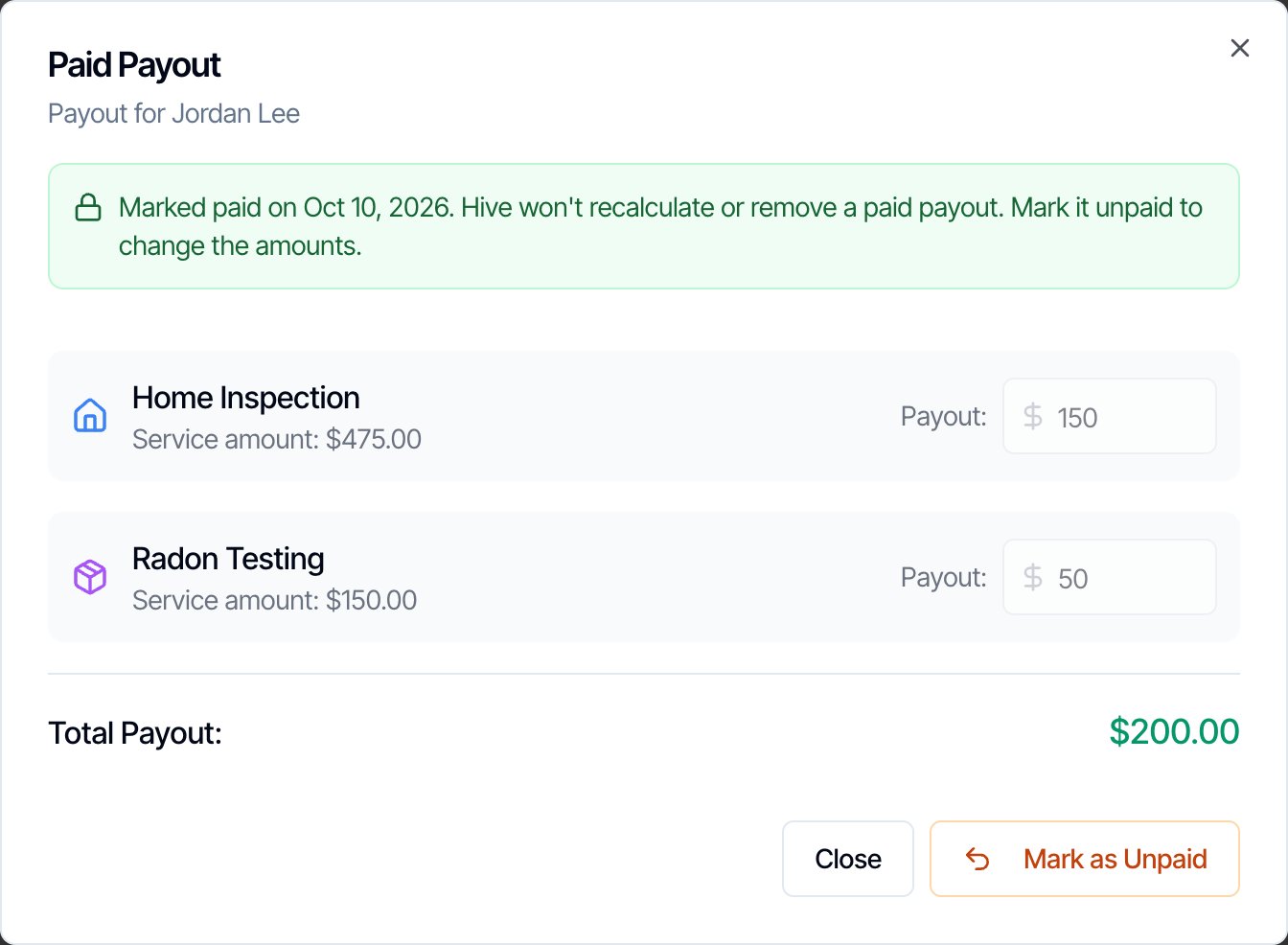
Export the report
Export to Excel downloads the report as an Excel workbook (.xlsx), named likeinspection-payout-report-2026-10-20.xlsx. The number on the button is how many line items it holds. It follows your filters, and it has three sheets:
The Service Amount total on the Line Items sheet counts a shared inspection’s lines once per inspector, so it can be higher than Total Service Amount on the page. Total Payout is the same in both.
Edit a payout
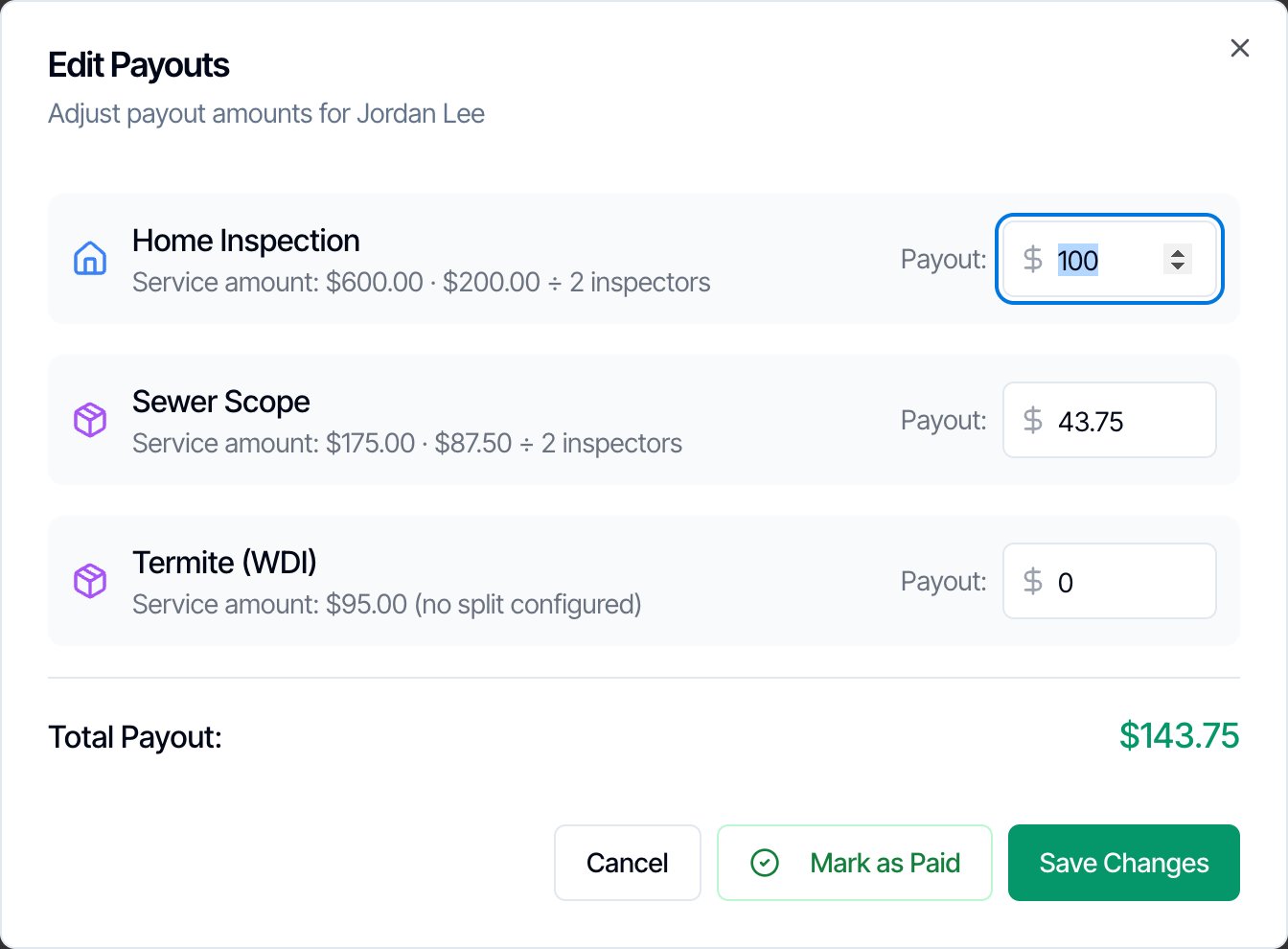
You can change any payout by hand, for example to add a bonus or pay a different rate on one job.- Click the pencil on any of that inspector’s rows on the Payout Report.
- In Edit Payouts, each line shows its service amount and how the payout was worked out, such as $200.00 ÷ 2 inspectors, after $45.00 discount or no split configured.
- Type the new Payout for any line. Total Payout updates as you type.
- Click Save Changes. You see Payout updated successfully, and the line shows Edited.
The payout card on an inspection
On a Confirmed inspection, the owner and team members with Manage Team see a collapsed Inspector Payouts card with the number of inspectors and the Total. Click it to open it.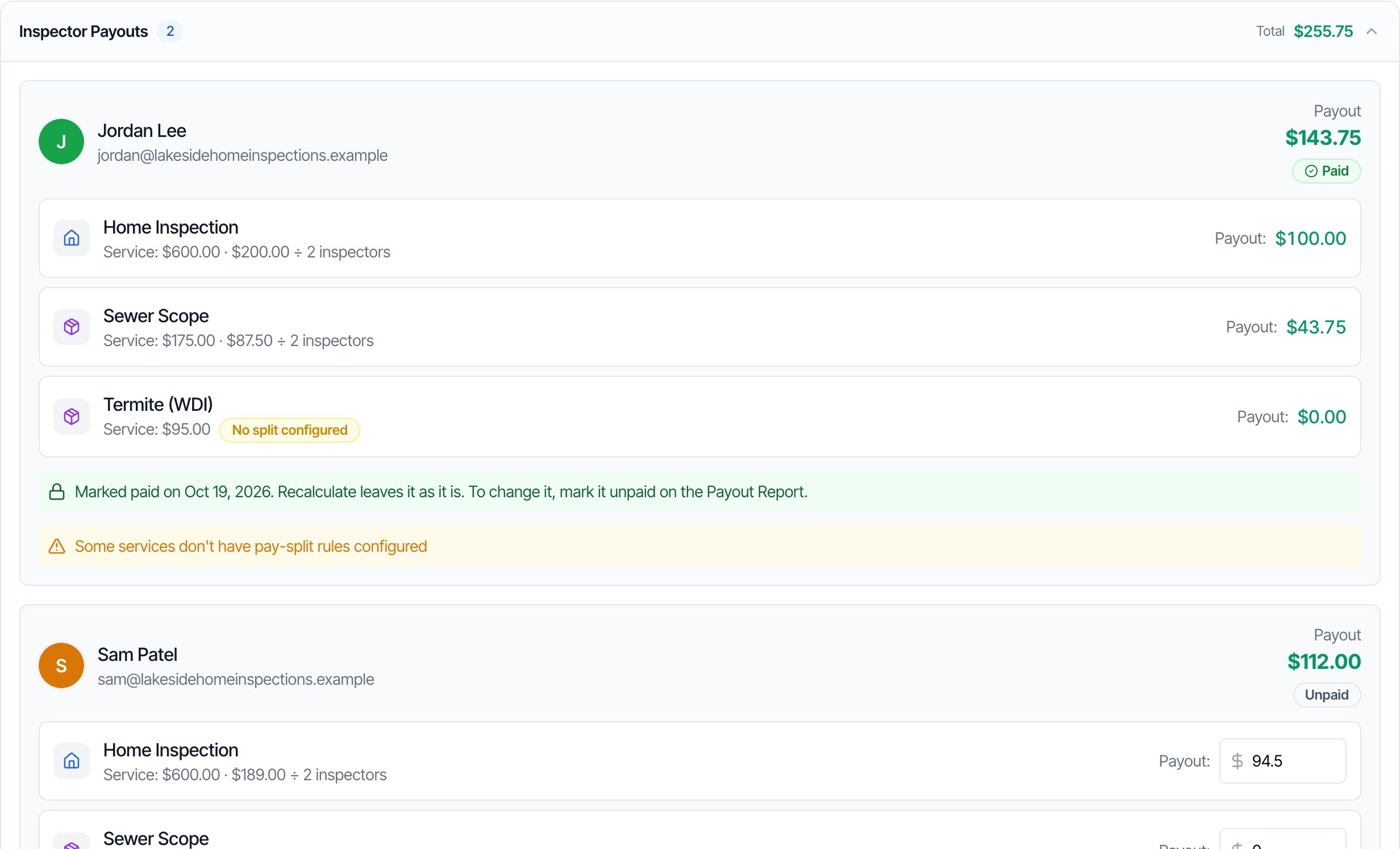
- Each inspector shows their total Payout, Paid or Unpaid, and one line per service or add-on.
- To edit an unpaid payout, type a new amount in a box. A Save button appears next to that inspector. Click it.
- A paid payout shows its amounts without boxes and the note Marked paid on with the date. Mark it unpaid on the Payout Report to change it.
- No split configured marks a line with no rule. Some services don’t have pay-split rules configured appears under that inspector.
- Recalculate at the bottom works out every payout on the inspection again. See below.
Recalculate an inspection
Recalculate works out every unpaid payout on this inspection again from the current price and rules, and shows Payouts recalculated successfully (or Payouts recalculated. Paid payouts were left as they are. when some are paid). Use it when:- you turned a company-wide payout rule on or off and want it applied to a payout you had edited, or
- you want to undo your hand edits.
What team members see on an inspection
When Show inspectors their own payouts is on, a team member without Manage Team sees a Your Payout card on Confirmed inspections they’re on, with their own lines only and Paid or Unpaid. They can’t edit it, and they never see anyone else’s pay. Lines without a rule show No split configured, with the note Some services don’t have a pay rate set for you yet. Ask your organization owner. A View all my payouts link opens My Payouts.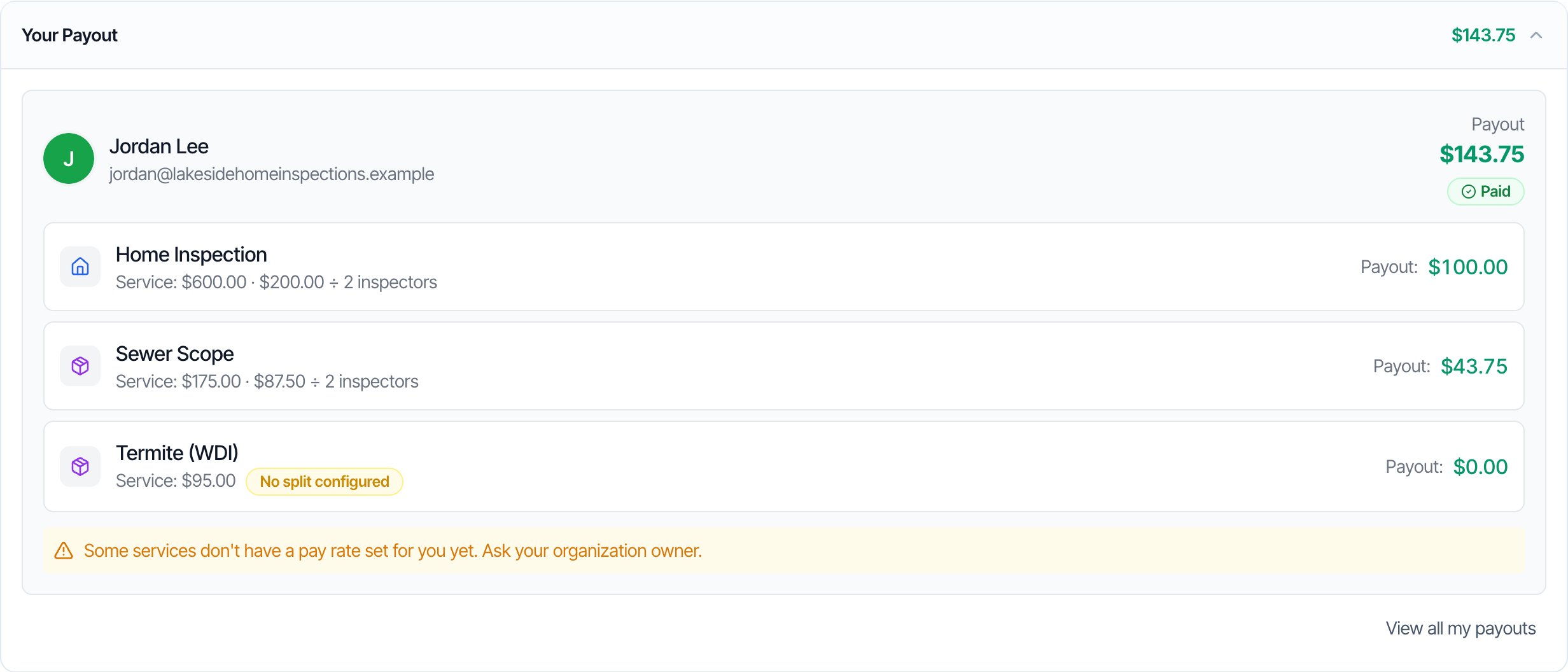
My Payouts
My Payouts shows a person’s own pay for each inspection they worked on. Team members open it from the My Payouts button on Earnings, the View My Payouts button on an Access Denied page, or View all my payouts on an inspection. The owner and managers can open it too, atdashboard.hiveinspect.com/dashboard/my-payouts (it isn’t linked for them), and see a Team Payout Report button there.
If your company hasn’t turned on Show inspectors their own payouts, team members see Payouts aren’t shared in your organization.
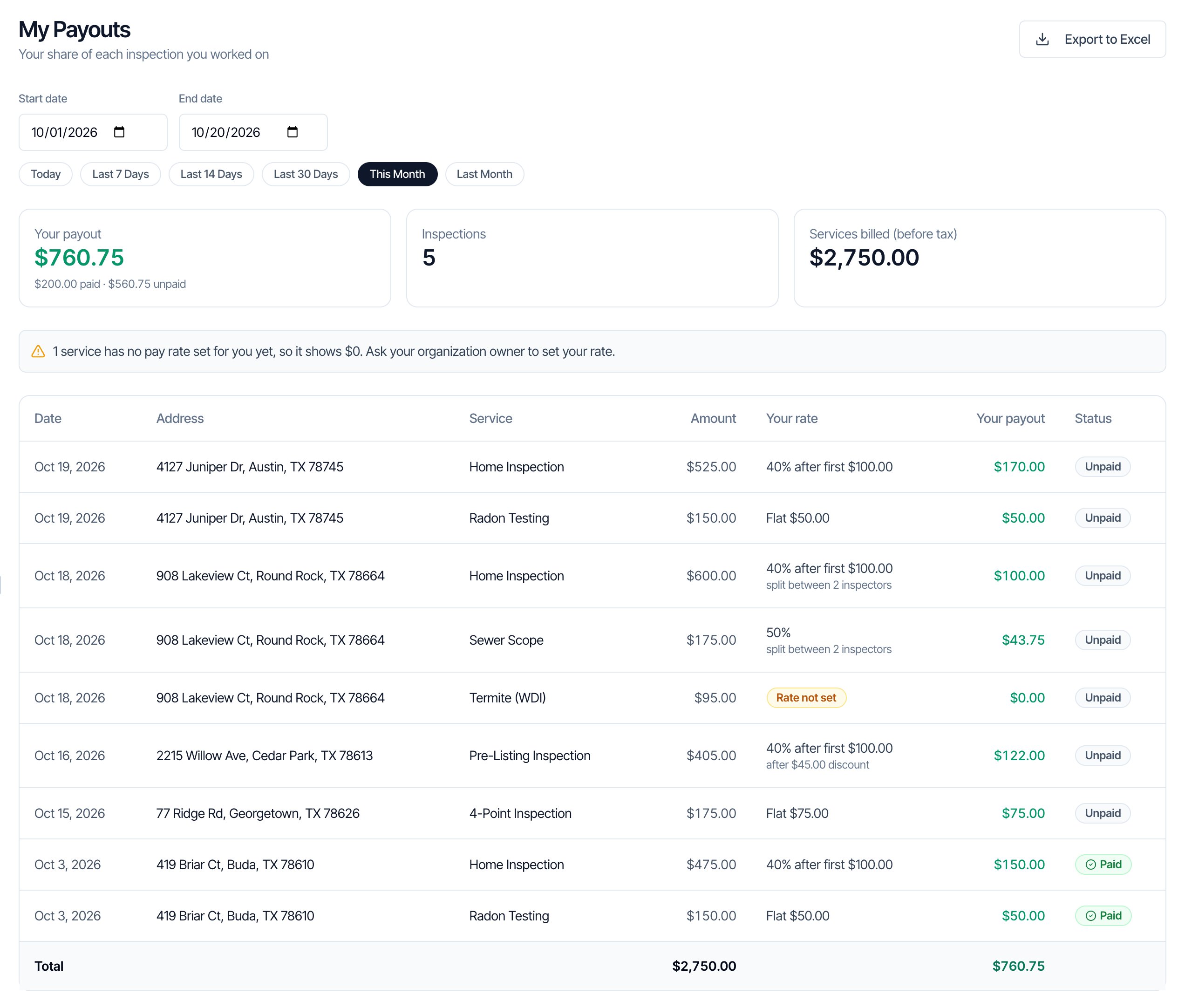
- Dates work like the Payout Report: inspection dates, starting on this month to today, with the same quick buttons. Start date must be on or before the end date appears if they’re reversed.
- The cards show Your payout, with how much of it is paid and unpaid underneath, the number of Inspections, and Services billed (before tax), the total of the service amounts behind your pay.
- Status shows Paid or Unpaid for each line. Hover over Paid to see when.
- Your rate shows the rule in plain words, such as 40% after first $100.00, 35% after 10% company share, 50% (no threshold), Flat $50.00 or Rate not set. Under it, notes such as split between 2 inspectors, after $45.00 discount or incl. $40.00 distance explain why the payout differs from the rate.
- Adjusted under a payout means your manager changed it by hand.
- Inspection canceled or Inspection deleted under an address marks a paid payout whose inspection was canceled or deleted later. A deleted inspection’s address isn’t a link.
- Rate not set lines pay $0 until the owner adds a rule. A notice at the top counts them.
- Export to Excel downloads
my-payouts-2026-10-01-to-2026-10-20.xlsxwith a My Payouts sheet (Date, Address, Service, Service Amount, Your Rate, Details, Your Payout, Adjusted, Status, Paid Date, and a Total row) and a Report Info sheet with the totals, paid and unpaid.
In the mobile app
When Show inspectors their own payouts is on, the inspection summary screen in the mobile app has a Your Payout section on Confirmed inspections. It shows the person’s Total with Paid or Unpaid (and the date it was paid), and each service or add-on with its payout. Rate not set, Split between 2 inspectors and Adjusted appear the same way as on the web. It refreshes each time the screen opens, so changes made on the web show up. It’s read-only, and it needs an internet connection: offline, the section is hidden. The section only appears when that switch is on, for the owner too, and only on inspections where the person has a payout.Paying your inspectors
A routine for each pay period:- Open the Payout Report, click Last Month (or set your dates) and set Payment Status to Unpaid.
- Check No split lines and fix them with Add Split or an edit.
- Pay each person their Unpaid total from Payout Summary by Inspector, the way you normally pay them. Hive doesn’t send the money.
- Click Mark Paid for each person you paid, or Mark All Paid.
- Optional: click Export to Excel to keep a file of the pay run.
Common questions
Who can see the Payout Report?
Who can see the Payout Report?
The account owner and team members with the Manage Team permission. Other team members can only see their own payouts, on My Payouts and their inspections, when Show inspectors their own payouts is on.
Why is an inspection missing from the Payout Report?
Why is an inspection missing from the Payout Report?
It isn’t Confirmed (drafts, quotes, waiting bookings and canceled inspections are left out unless the payout was marked paid), it’s outside your dates (the report opens on the 1st of this month to today, in your company’s time zone), Payment Status is set to Paid or Unpaid, no inspector is assigned, it has no price, or it was deleted (unless its payout was marked paid).
Why is a canceled or deleted inspection on the Payout Report?
Why is a canceled or deleted inspection on the Payout Report?
Its payout was marked paid before it was canceled or deleted. Paid payouts stay as a record of what you paid, with Inspection canceled or Inspection deleted under the address. A canceled or deleted inspection with an unpaid payout isn’t on the report. If you shouldn’t have paid it, mark it unpaid and it disappears from the report.
How do I mark payouts as paid?
How do I mark payouts as paid?
Click Mark Paid next to an inspector in Payout Summary by Inspector, Mark All Paid for everyone, or the pencil on a payout then Mark as Paid. Paid payouts are locked against recalculation and edits. To undo, open the payout with the pencil and click Mark as Unpaid.
Why does a line say No split?
Why does a line say No split?
That inspector has no rule for that service or add-on, so it pays $0. Add a rule on the Pay-splits page with Add Split.
Why did my edit to a payout disappear?
Why did my edit to a payout disappear?
Someone clicked Recalculate on the inspection, which replaces hand edits (it asks first), or the service or add-on you edited was removed from the inspection, or the job is now shared differently (another inspector joined or left, or the full-split rule was flipped). Price changes (including a reschedule or a client adding an add-on) and rule changes keep the amount you typed, and company-wide rule changes skip a hand-edited payout. Mark the payout paid to lock it.
Does a payout change when the client adds an add-on?
Does a payout change when the client adds an add-on?
Yes. When a client adds or removes services or add-ons on their review page, Hive recalculates the unpaid payouts on that inspection. Paid payouts stay as they are.
What format is the export?
What format is the export?
Export to Excel downloads an Excel workbook (.xlsx) with three sheets: Line Items, Inspector Summary and Report Info. Excel, Google Sheets and Numbers all open it.
Why can't I edit a payout?
Why can't I edit a payout?
It’s marked paid, so it’s locked. Open it with the pencil and click Mark as Unpaid, then edit it.
Why can't my inspector see their payouts?
Why can't my inspector see their payouts?
Show inspectors their own payouts is off. Turn it on under Pay-splits → Inspector visibility. They then see their own pay only on Confirmed inspections, on My Payouts and in the mobile app.
Why don't I see Your Payout in the mobile app?
Why don't I see Your Payout in the mobile app?
The section only shows when Show inspectors their own payouts is on, on a Confirmed inspection where you have a payout. That applies to the owner too.