

In the dashboard: Earnings in the left sidebar.
The Earnings page lists your inspections with what each one brought in: the client, property, services, revenue, subcontractor fees, the net amount, how it was paid and its invoice. Filter the list by date, payment status and service, see the totals for what you filtered, and download it all as a spreadsheet with Export to CSV. From here you also open the Pay At Close Tracker.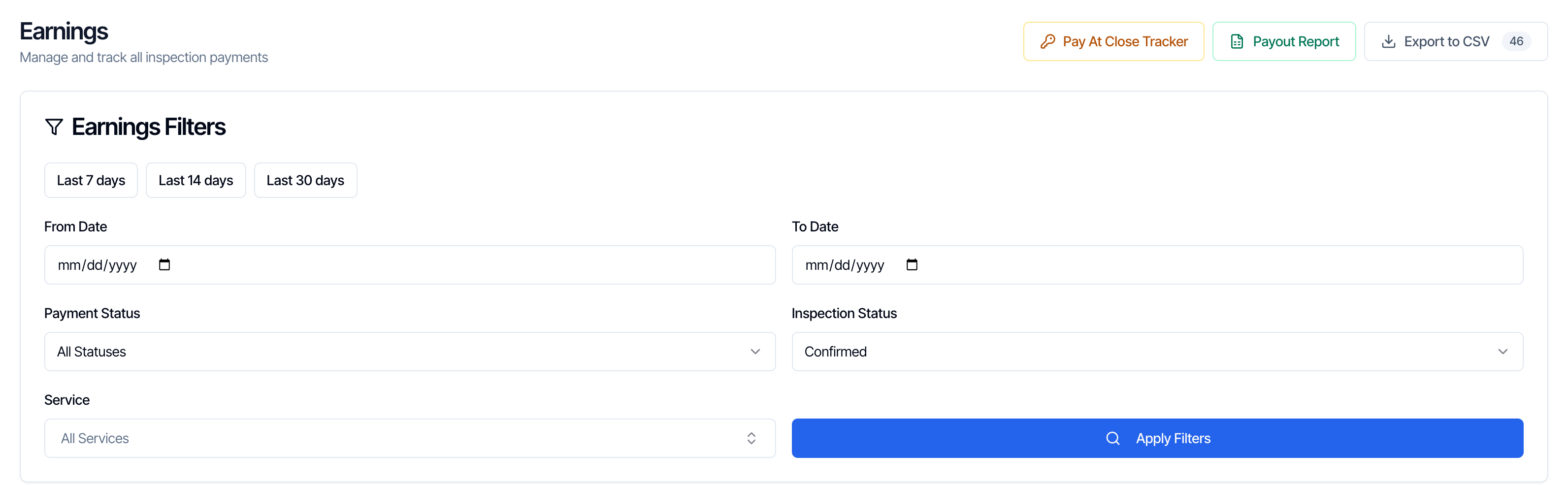
Who can see Earnings
- The account owner always can.
- Anyone else needs the Business Metrics permission, turned on by the owner under Teams → Manage. See What each permission does.
What’s on the list
Each row is one inspection that has an invoice. Hive creates the invoice when the inspection is confirmed, so drafts and quotes that were never confirmed don’t appear. Deleted inspections never appear. When you open the page, it shows every Confirmed inspection, newest inspection date first, 10 per page. The arrows at the bottom move between pages and show, for example, Showing 1–10 of 46. Above the table, Payment Records shows how many inspections match, such as 46 payments found, and three totals for everything that matches your filters, on every page:- Total Revenue: the revenue of all the matching inspections.
- Total Subcontractor Fees: what you owe subcontractors on them.
- Net Total Amount: revenue minus subcontractor fees.
The columns
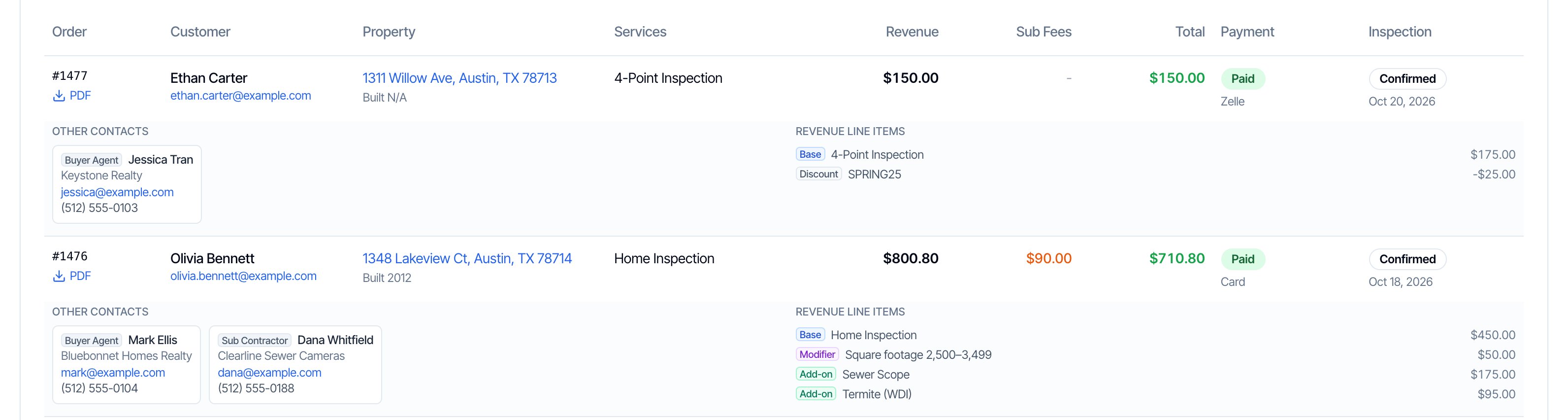
Under each inspection, a grey row shows two more things:
- Other Contacts: everyone else on the inspection, such as agents, a second client or a subcontractor, with their role, company, email and phone. Click an email or phone number to contact them.
- Revenue Line Items: what makes up the price, each tagged Base, Modifier, Add-on, Discount, Custom, Tax or Urgent, with its amount. Removed lines and $0 lines are left out.
How Revenue, Sub Fees and Total are worked out
- Revenue for a Paid inspection is the amount the client paid. When they paid by card and you pass the card fee on, that includes the 4% technology fee. For any other inspection, it’s the invoice total. See Technology Fee.
- Sub Fees adds up the Sub Contractor Fee of each subcontractor in the Sub Contractors section of the inspection page. Clients never see these fees.
- Total is Revenue minus Sub Fees: what’s left for your company.
Filter the list
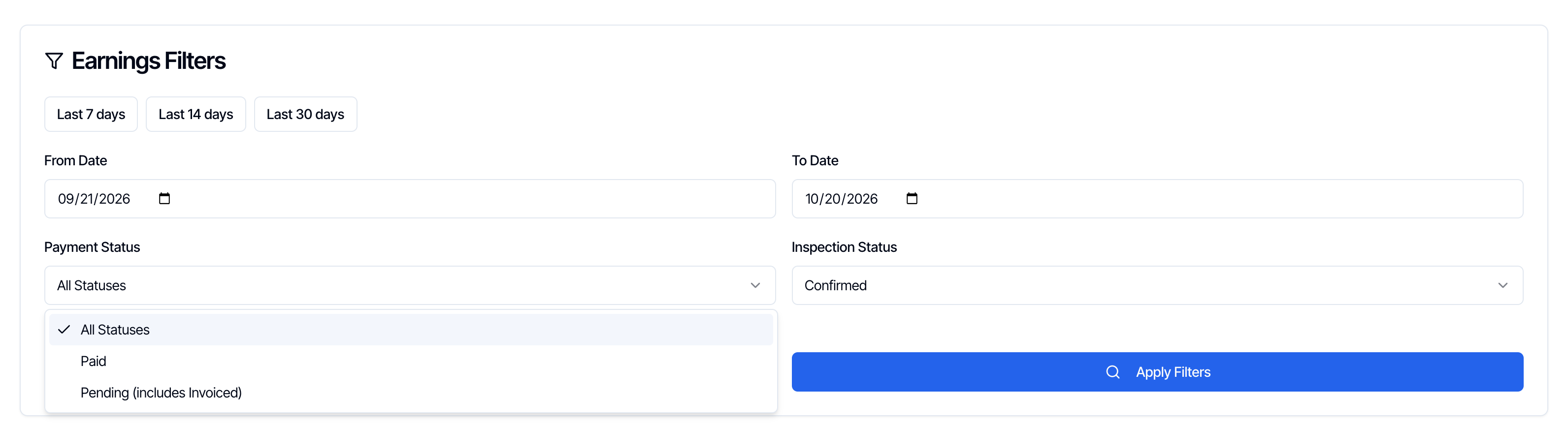
- Last 7 days, Last 14 days, Last 30 days fill in the dates for you, ending today.
- From Date and To Date keep inspections scheduled between those two days, both days included. The dates are inspection dates, not payment dates. Clear both boxes to see every date again.
- Payment Status: All Statuses, Paid (fully paid) or Pending (includes Invoiced), which shows everything not fully paid yet, including partly paid inspections.
- Inspection Status: Confirmed (the default) or All Statuses, which adds inspections that were confirmed and later canceled, or are in another status, as long as they have an invoice.
- Service: pick one or more services to keep only inspections that include at least one of them.
Export to CSV
Export to CSV downloads the list as a spreadsheet. The number on the button is how many inspections will be in the file.- It exports what you filtered, every page of it, not just the 10 rows on screen. Set your filters first, for example Last 30 days and Paid, then export.
- The file is named
payments-plus today’s date, such aspayments-2026-10-20.csv. It opens in Excel, Google Sheets or Numbers, and accented names display correctly. - The button is greyed out while the list is loading or empty, and shows Generating… while it builds the file.
Subtotal, Discounts and Tax are blank for inspections with no line items saved.
The Invoice PDF links in the file are temporary. They stop working after about 7 days. Export again for fresh links, or open the invoice from the inspection.
Pay At Close Tracker
Click Pay At Close Tracker at the top of Earnings to see every inspection your clients chose to pay at closing. See Pay at Close for how it works.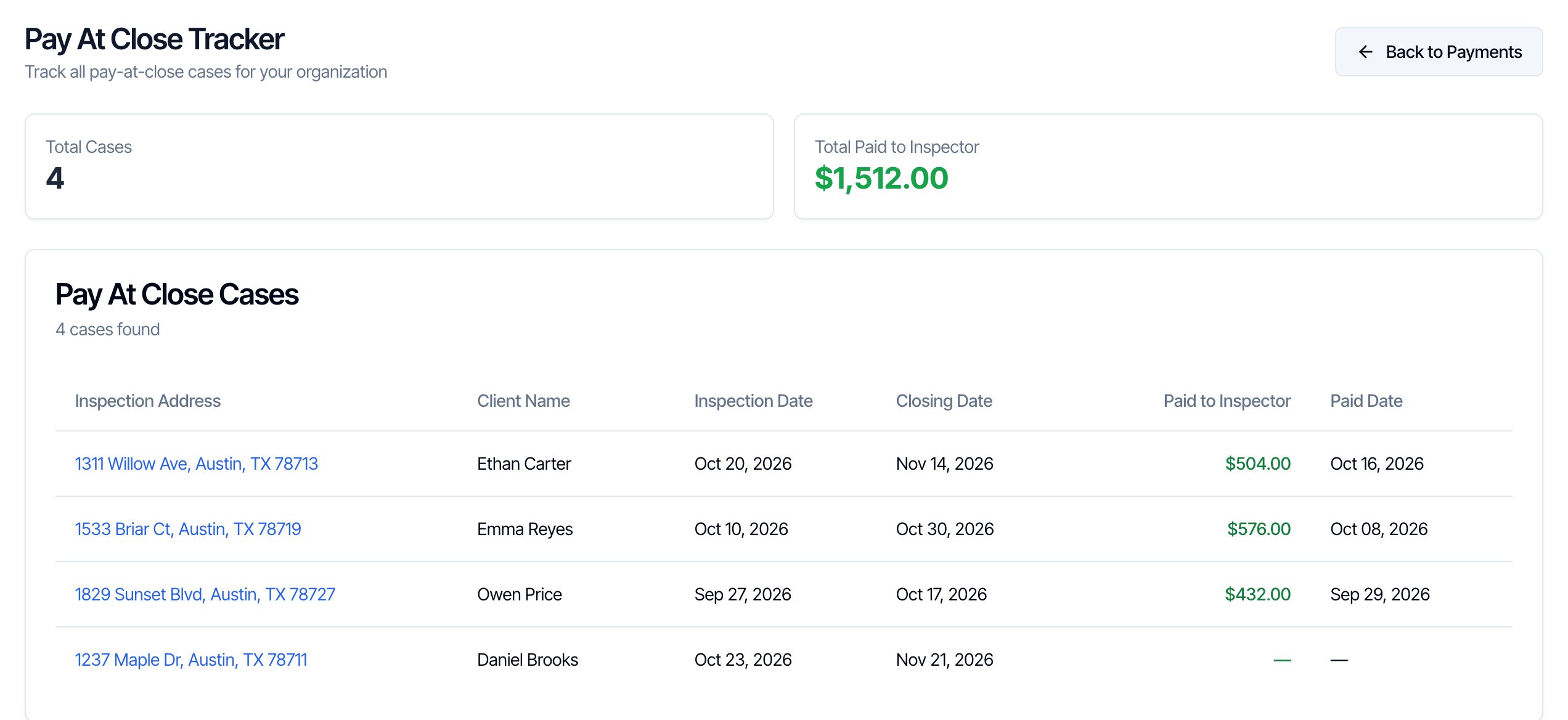
- Total Cases counts every Pay at Close inspection, and Total Paid to Inspector adds up what Hive has paid you.
- A dash (—) under Paid to Inspector means Hive hasn’t paid you for that case yet. Hive fills in the amount and date when it sends your payment.
- Cases are sorted by closing date, latest first, 15 per page. There is no export on this page.
- Back to Payments returns to Earnings.
Payout Report and My Payouts
If you use Pay Splits to pay your inspectors, a green Payout Report button appears at the top of Earnings for the owner and team members with the Manage Team permission. Team members without it see My Payouts instead, but only if your company turned on showing inspectors their own payouts. These pages are covered in their own guide.Common questions
Who can see the Earnings page?
Who can see the Earnings page?
The account owner, and team members with the Business Metrics permission (Teams → Manage). The same permission opens Metrics.
Why don't Earnings and Metrics match?
Why don't Earnings and Metrics match?
Earnings shows each invoice: the amount paid for paid inspections (including the card technology fee when you pass it on) or the invoice total. Metrics adds up the inspection price of Confirmed inspections, without the fee. Pick the same dates on both, and remember Earnings can also show canceled inspections if you choose All Statuses under Inspection Status.
Why is an inspection missing from Earnings?
Why is an inspection missing from Earnings?
It has no invoice yet (it was never confirmed), it was deleted, it isn’t Confirmed and Inspection Status is set to Confirmed, or it’s outside your date, payment status or service filters. Clear the filters to check.
Are the dates payment dates or inspection dates?
Are the dates payment dates or inspection dates?
Inspection dates. From Date, To Date and the Last 7/14/30 days buttons all filter by the day the inspection is scheduled for, not the day it was paid.
How do I see only unpaid inspections?
How do I see only unpaid inspections?
Set Payment Status to Pending (includes Invoiced). It shows every inspection not fully paid, including partly paid ones.
How do I export my earnings for my accountant or taxes?
How do I export my earnings for my accountant or taxes?
Set the dates, for example January 1 to December 31, choose Paid if you only want collected payments, then click Export to CSV. The file has revenue, subtotal, discounts, tax, technology fee, subcontractor fees and the net total for every inspection.
Does the CSV include every page or only what I see?
Does the CSV include every page or only what I see?
Every inspection that matches your filters, on every page. The number on the button tells you how many rows the file will have.
Where do subcontractor fees come from?
Where do subcontractor fees come from?
From the Sub Contractors section of the inspection page. When you add a subcontractor there, you enter their Sub Contractor Fee. Earnings adds those fees up per inspection and takes them off the revenue to give the Total. Clients never see them.
Why does the invoice link in my CSV not open?
Why does the invoice link in my CSV not open?
The links in the file are temporary and stop working after about 7 days. Export again, or open the invoice from the inspection page.
What does Paid to Inspector mean in the Pay At Close Tracker?
What does Paid to Inspector mean in the Pay At Close Tracker?
What Hive has paid you for that Pay at Close inspection, and when. A dash means that payment hasn’t been sent yet.