

In the dashboard: Business Tools → Services & Fees → Edit a service → Service Add-Ons
What an add-on is
An add-on is an extra service that is sold together with a main service, such as Radon Testing, Sewer Scope or WDO / Termite Inspection on top of a Home Inspection.- Every add-on belongs to one main service. It is offered only when that main service is on the inspection.
- An inspection has one main service. Everything else on the same inspection is an add-on of that service. See Main services vs add-on services.
- An add-on has its own price and time, and can bring its own templates, agreements and price modifiers.
- by your team, when scheduling in the dashboard
- by the client, when booking on your online scheduler or getting a price from your quote widget
- by the client after booking, from the inspection review link or the client portal, if you allow it
Add an add-on to a service
Open the main service
Click Business Tools in the sidebar, then Services & Fees. Click the pencil icon on the main service the add-on belongs to, or Add New Service to make a new one.
Click Add Add-On
Scroll to Service Add-Ons and click Add Add-On. The add-ons the service already has are listed here.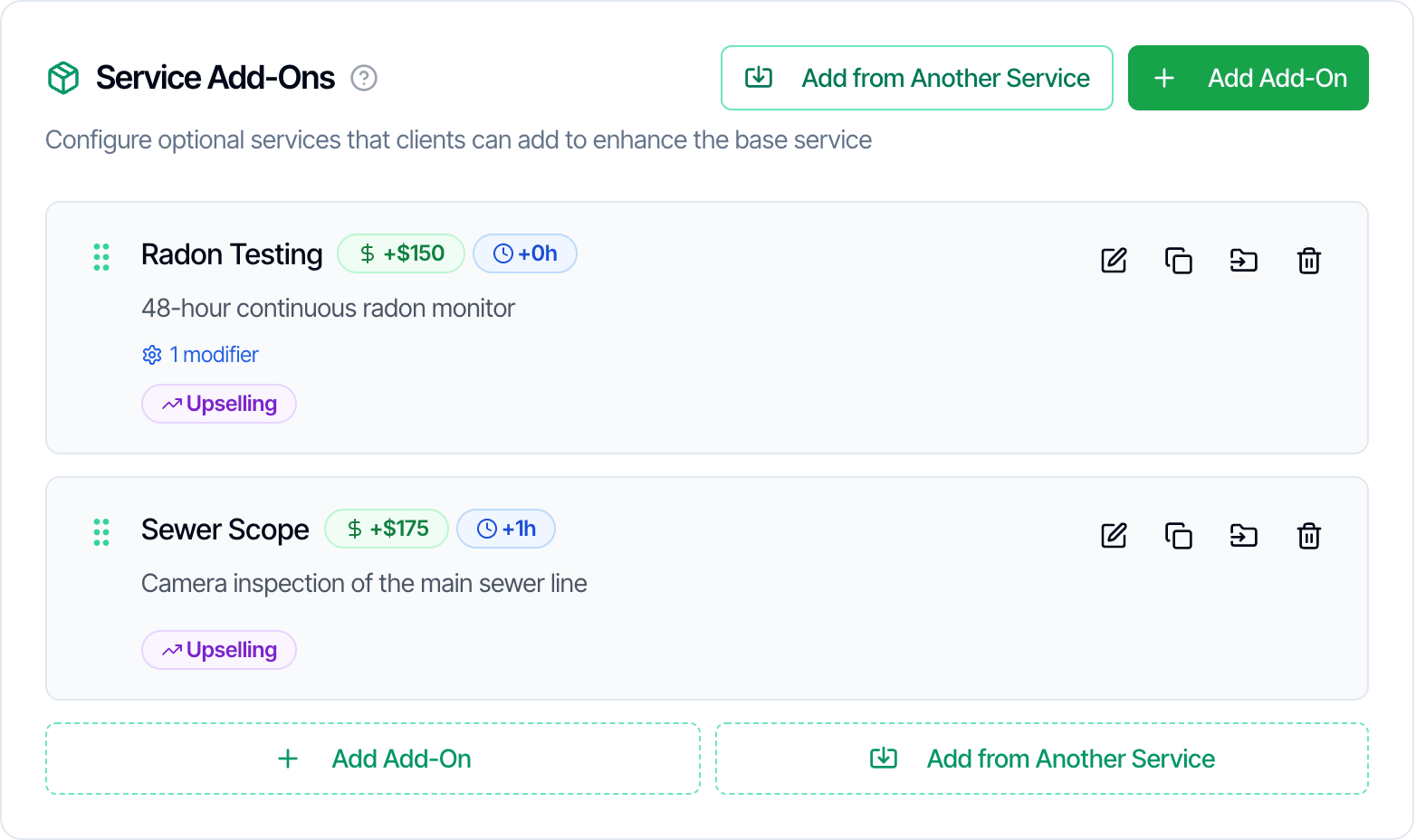
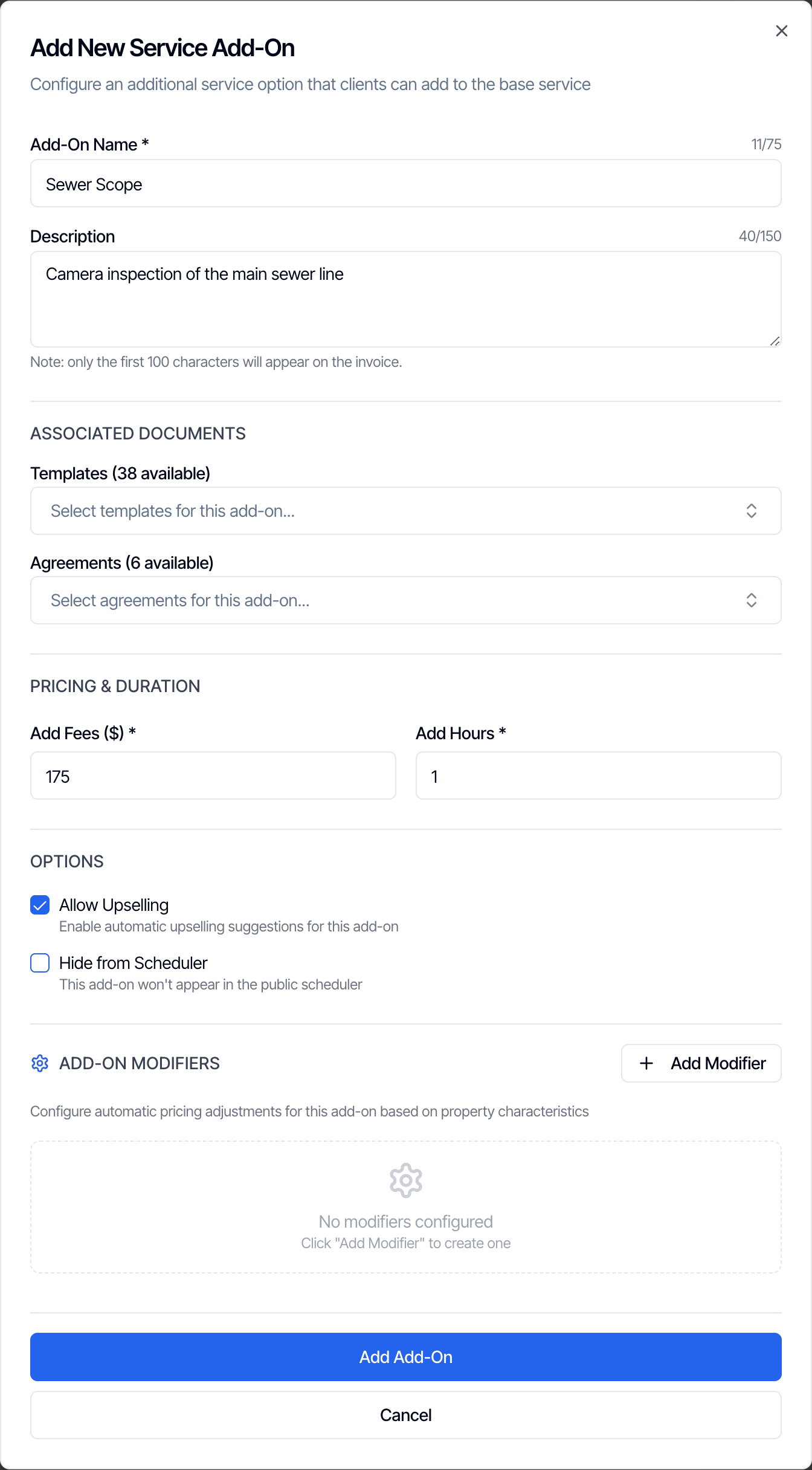
Allow Upselling and Hide from Scheduler
These two options control where the add-on is offered. They are independent: you can turn on both, one or neither.- Hide from Scheduler only affects the online scheduler and the quote widget. If every add-on of a service is hidden, the add-on step of the scheduler is skipped for that service.
- Allow Upselling is what lets clients add the add-on after the inspection is created. An add-on that is hidden from the scheduler but allows upselling can’t be picked while booking, but the client can still add it later from the review link or the client portal.
- Add-on upsell emails list every add-on the client hasn’t added yet, whatever these two options say. The link in those emails opens the review link, which only offers add-ons with Allow Upselling on. Turn on Allow Upselling for every add-on you promote by email.
Add-on price and time
- Price: the add-on’s Add Fees is added to the price of the inspection.
- Time: its Add Hours is added to the length of the inspection on the calendar.
- Add-on modifiers: an add-on can have its own modifiers, of any type: square feet, age, distance, foundation, day, time or custom fields. They apply only when the add-on is on the inspection. For example, “Radon Testing: $50 for each unit after the first”. See Modifiers on add-ons.
- Tax: add-ons have no tax of their own. The taxes of the main service are charged on the whole order, add-ons included. See Sales tax.
- Discount codes: a code can be limited to particular add-ons. See Discount codes.
Templates and agreements
When an add-on with templates or agreements is added to an inspection, those templates and agreements are added to the inspection too, unless they are already on it. This happens in the dashboard, on online bookings, and when a client adds the add-on from the review link or the client portal. Removing the add-on later doesn’t remove its templates or agreements. A report started or an agreement already sent stays on the inspection. To remove one, do it from the inspection.Add add-ons to an inspection
- Dashboard
- Online scheduler
- Review link
- Client portal
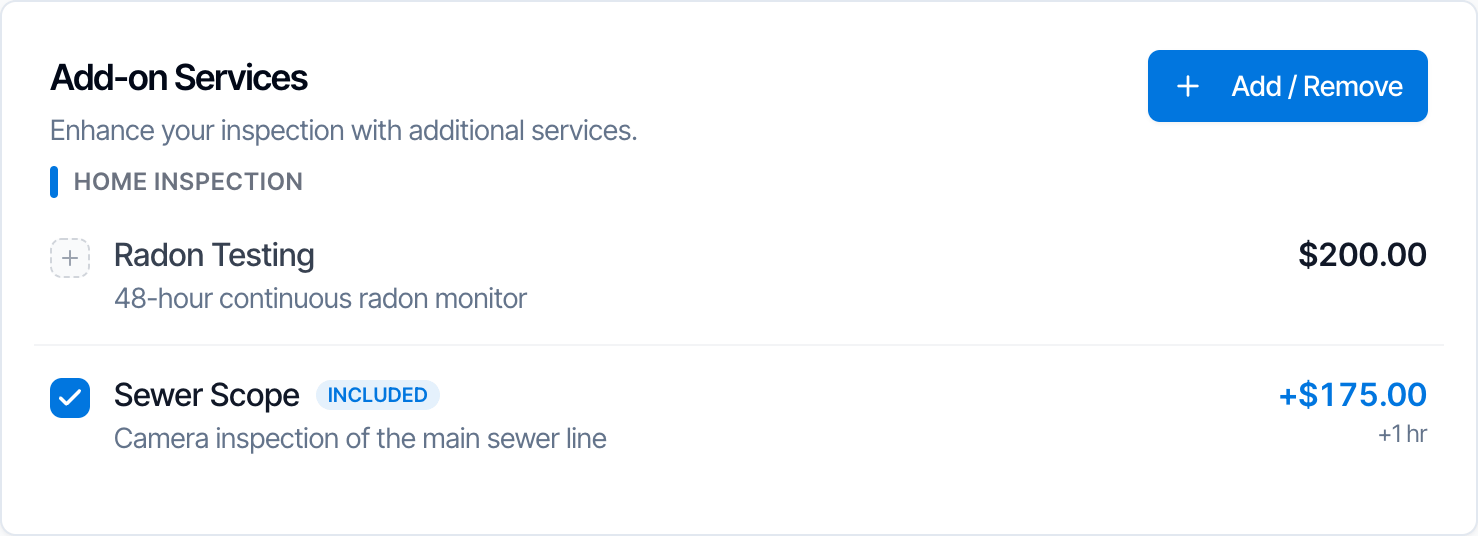
On a new or existing inspection, pick the main service under Select Service, then click Add Add-on under Add-ons. The list shows every add-on of that service with its price, including hidden ones.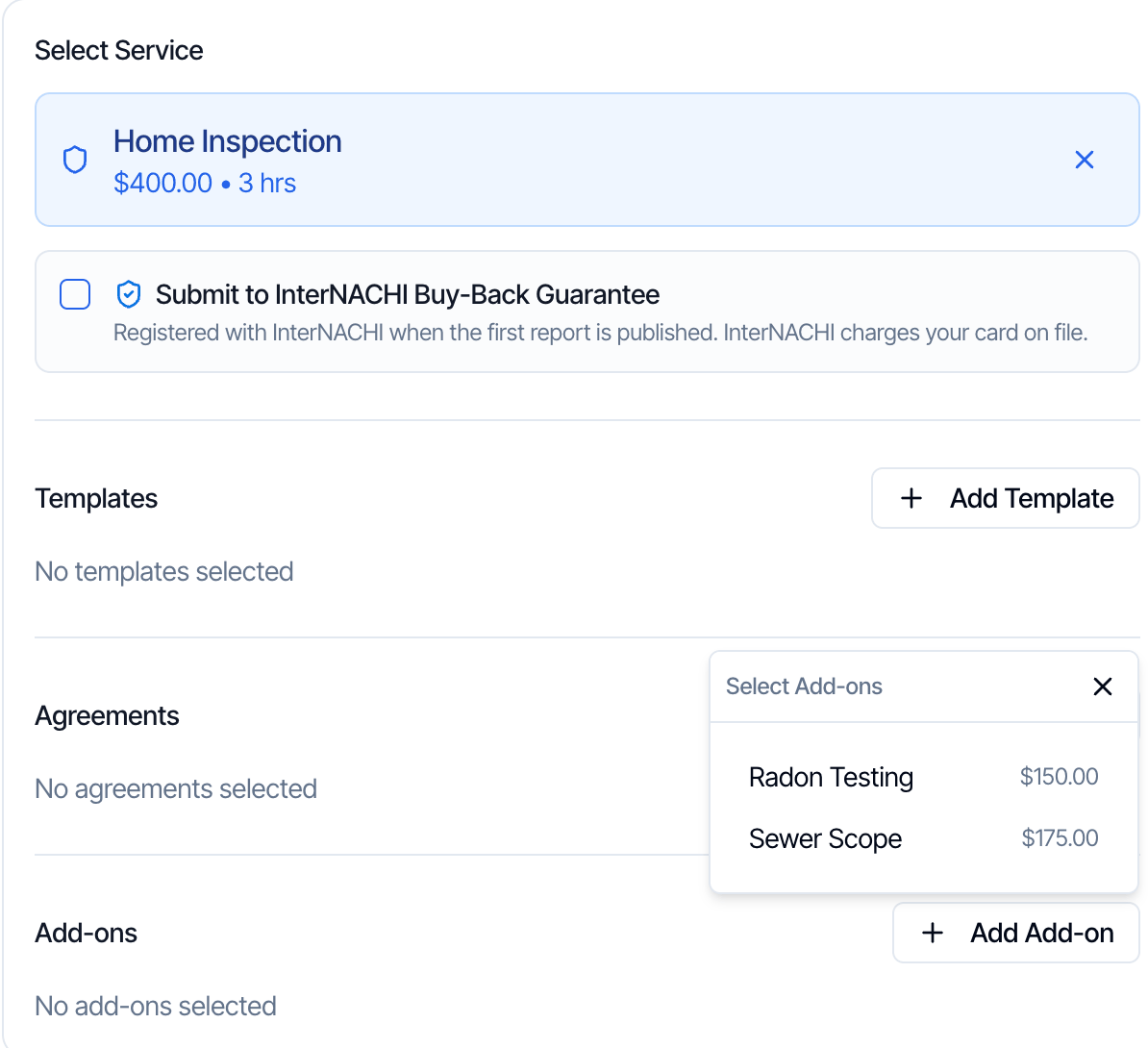
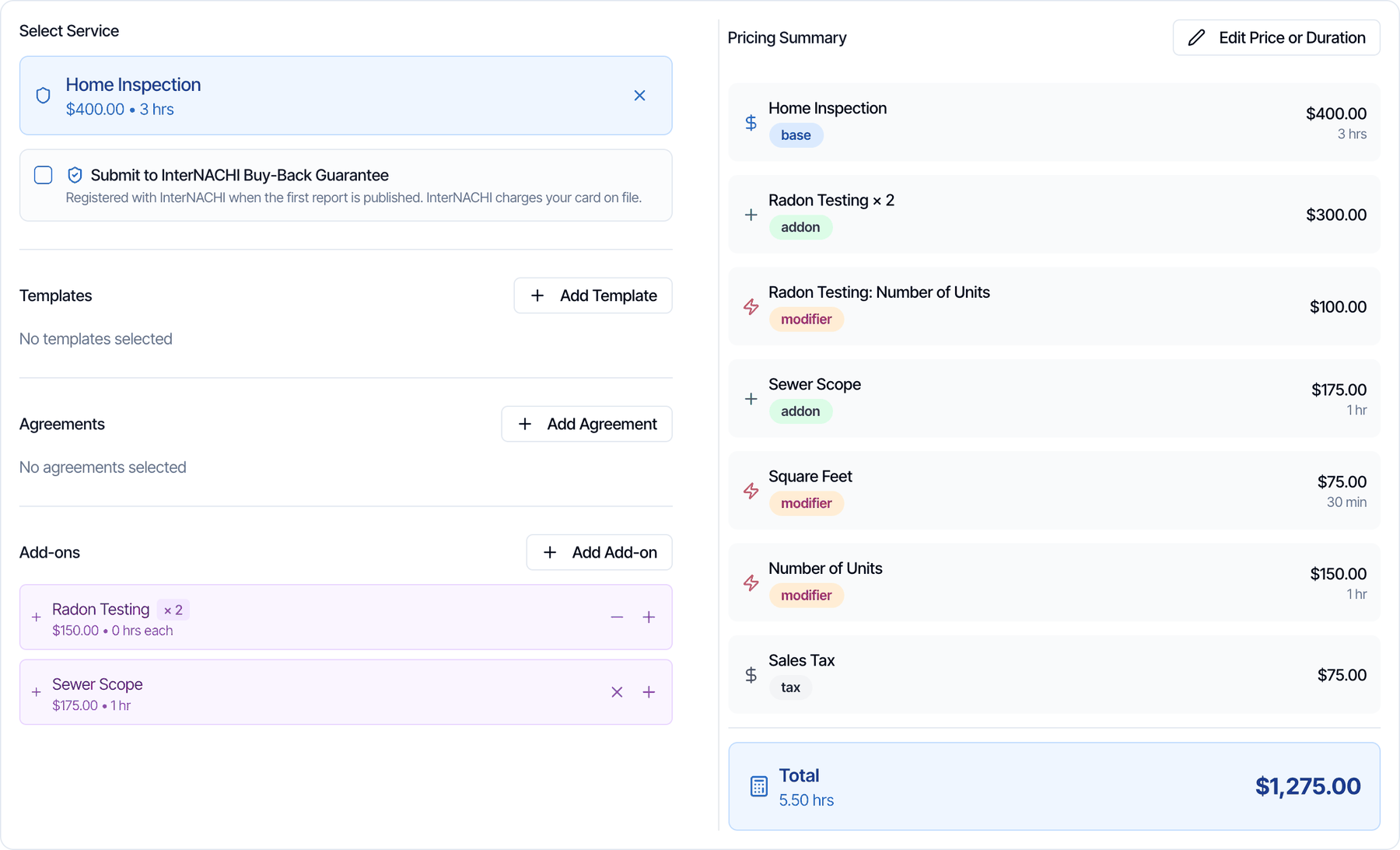
- + (Add another) adds one more of the same add-on. See Quantity.
- − (Decrease quantity) takes one away. At a quantity of 1 the button is an X (Remove add-on).
Lock client order changes
To stop clients from adding or removing add-ons themselves once an inspection is booked, go to Org Settings → Business Management → Client Order Changes and turn on Lock services and add-ons after booking. It is off by default.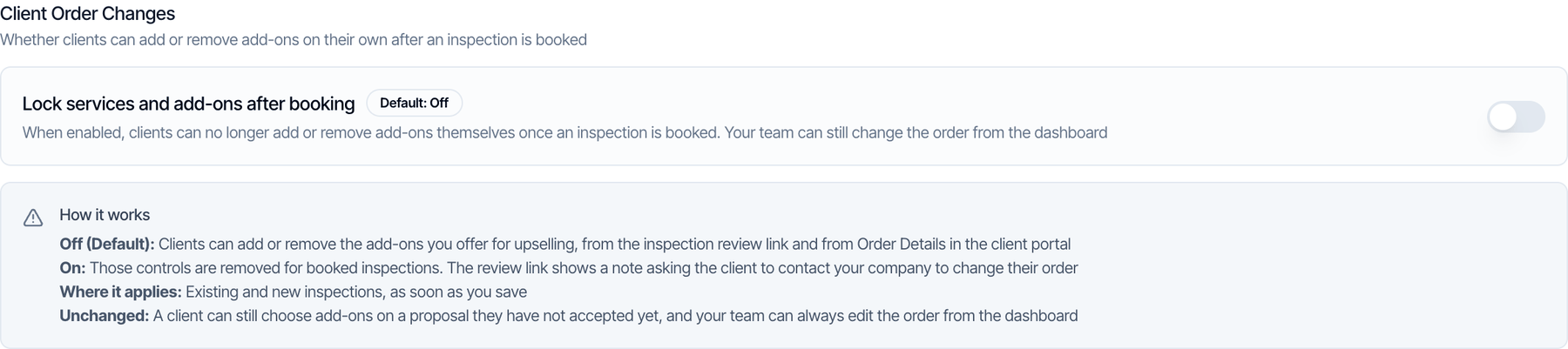
- It applies to existing and new inspections as soon as you save.
- Clients can still pick add-ons on a proposal they haven’t accepted yet.
- Your team can always change the order from the dashboard.
Quantity
In the dashboard, the same add-on can be added more than once, for example two radon monitors. Click + on the add-on’s row, or pick it again from Add Add-on.- The line shows the quantity, such as Radon Testing × 2, and the price and hours are multiplied: 2 × $150 = $300.
- The add-on’s modifiers are multiplied by the quantity too.
- Changing the quantity clears any price, name or hours you typed for that add-on’s lines with Edit Price or Duration.
- The add-on’s templates and agreements are added once, not once for each.
Use the same add-on on several services
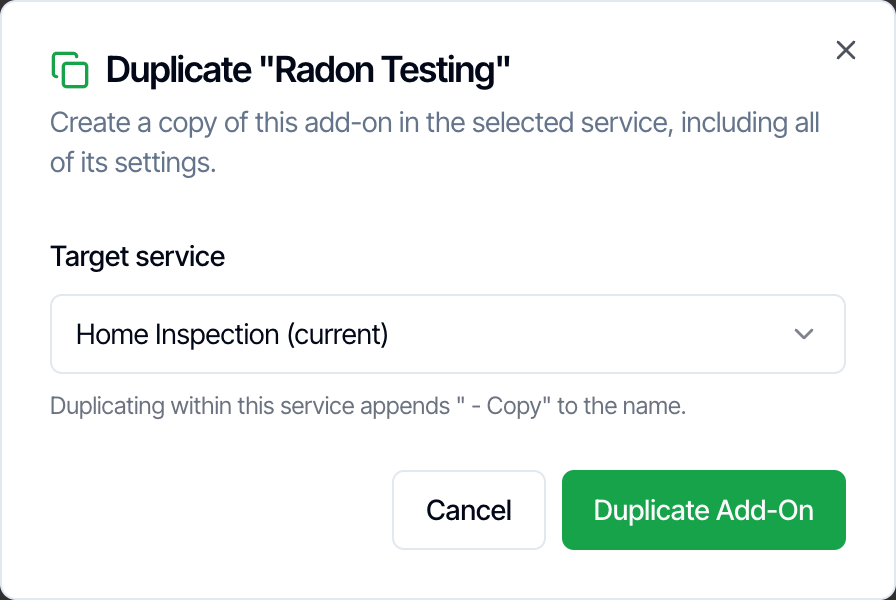
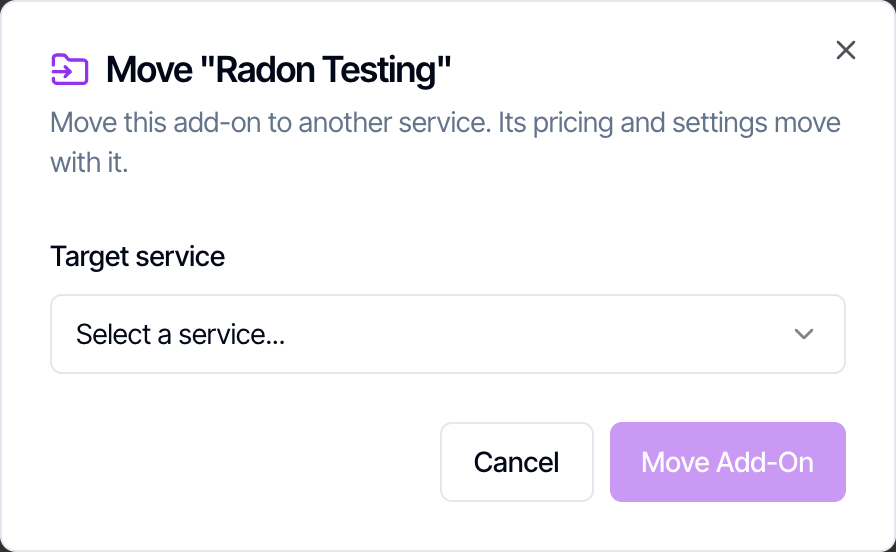
An add-on belongs to one service. To offer the same add-on with other services, copy it. Each copy is separate: changing one doesn’t change the others.- Add from Another Service
- Duplicate
- Move
On the service that should get the add-ons, click Add from Another Service under Service Add-Ons. Tick the add-ons you want, or a whole service to take all of its add-ons, and click Add Add-Ons.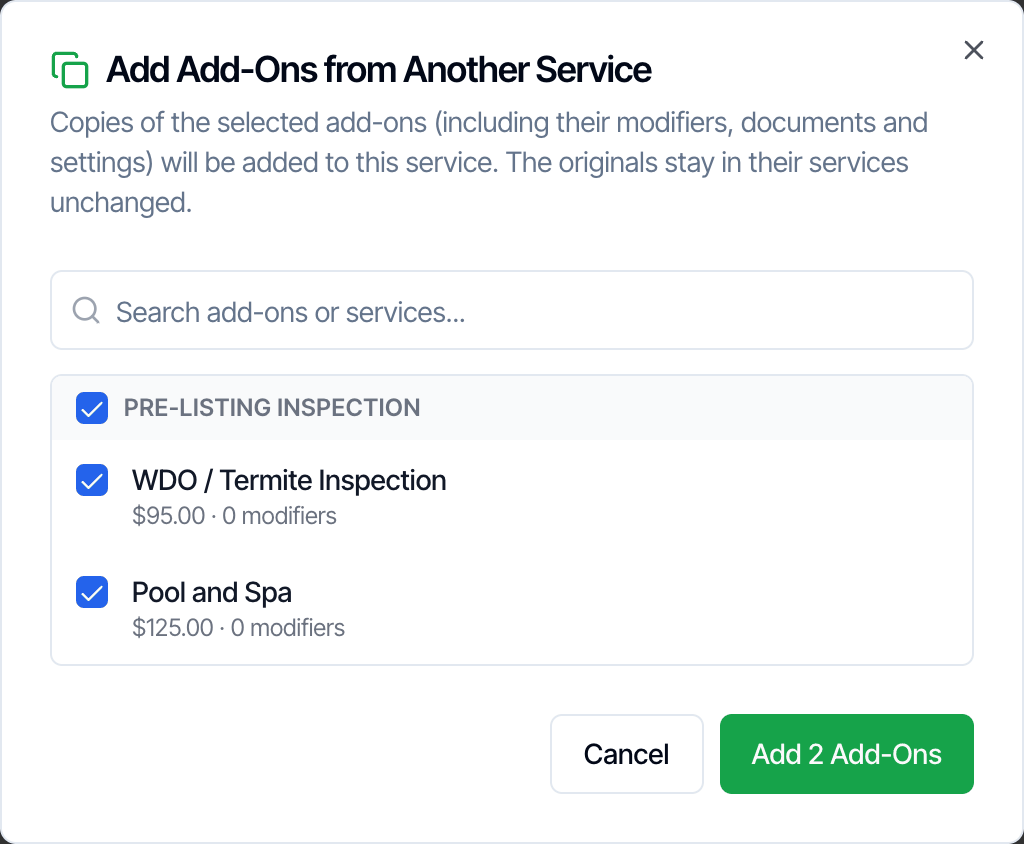
Reorder, edit or delete an add-on
- Reorder: drag an add-on by its handle. Add-ons are listed in this order in the dashboard, on the online scheduler and for clients.
- Edit: click the pencil icon. Inspections that already have the add-on keep the name and price they were booked with on their pricing lines.
- Delete: click the trash icon and confirm. The add-on and its modifiers are deleted and can’t be brought back.
What clients see
- Online scheduler and quote widget: each add-on with its description and its price, rounded to the whole dollar.
- Review link and invoice: each add-on as its own line, with its modifiers included in its price.
- Client portal: the add-ons on the order under Order Details.
Frequently asked questions
Can a client book an add-on without a main service?
Can a client book an add-on without a main service?
No. An add-on is always added together with its main service. To sell something on its own as well, such as a radon test with no home inspection, also create it as a main service. See Main services vs add-on services.
Why isn't my add-on showing on my online scheduler?
Why isn't my add-on showing on my online scheduler?
Check three things: Hide from Scheduler is off on the add-on, the client picked the main service the add-on belongs to, and the add-on is on that main service (add-ons aren’t shared between services). If prices are missing rather than the add-on, turn on Show Pricing on Online Scheduler under Org Settings → Scheduling.
Why can't my client add an add-on after booking?
Why can't my client add an add-on after booking?
The add-on needs Allow Upselling turned on. Also check that Lock services and add-ons after booking is off under Org Settings → Business Management → Client Order Changes, and that the inspection isn’t canceled.
Can I sell the same add-on with several services?
Can I sell the same add-on with several services?
Yes, by copying it to each service with Add from Another Service or Duplicate. Each copy has its own price and settings, so a change to one isn’t made to the others.
Can I add an add-on twice to one inspection?
Can I add an add-on twice to one inspection?
Yes, in the dashboard. Click + on the add-on’s row and the price, hours and add-on modifiers are multiplied by the quantity. Clients can add each add-on only once.
Does removing an add-on remove its report template or agreement?
Does removing an add-on remove its report template or agreement?
No. Templates and agreements added with an add-on stay on the inspection when the add-on is removed. Remove them from the inspection if you no longer need them.
I changed an add-on's price. Why didn't my booked inspections change?
I changed an add-on's price. Why didn't my booked inspections change?
Inspections keep the price they were booked at. The new price applies to inspections you create, or add the add-on to, from then on. To change a booked inspection, use Edit Price or Duration on the inspection.
Is tax charged on add-ons?
Is tax charged on add-ons?
Yes, when the main service has a tax. Add-ons have no tax of their own; the main service’s tax is charged on the whole order. See Sales tax.
Can I charge an extra fee on one inspection without creating an add-on?
Can I charge an extra fee on one inspection without creating an add-on?
Yes. On the inspection, click Edit Price or Duration in the Pricing Summary, then Add Item to add a line with your own name and price.
Next step
Related
Main services vs add-on servicesOne main service per inspection, everything else as an add-onPrice modifiersAdjust prices by size, age, distance, day and timeSend add-on upsell emailsOne email per add-on, only to clients who haven’t booked itSet up services and feesCreate services, link templates and agreements, add taxes