

Setting up your inspection workflow
Accessing templates
0:01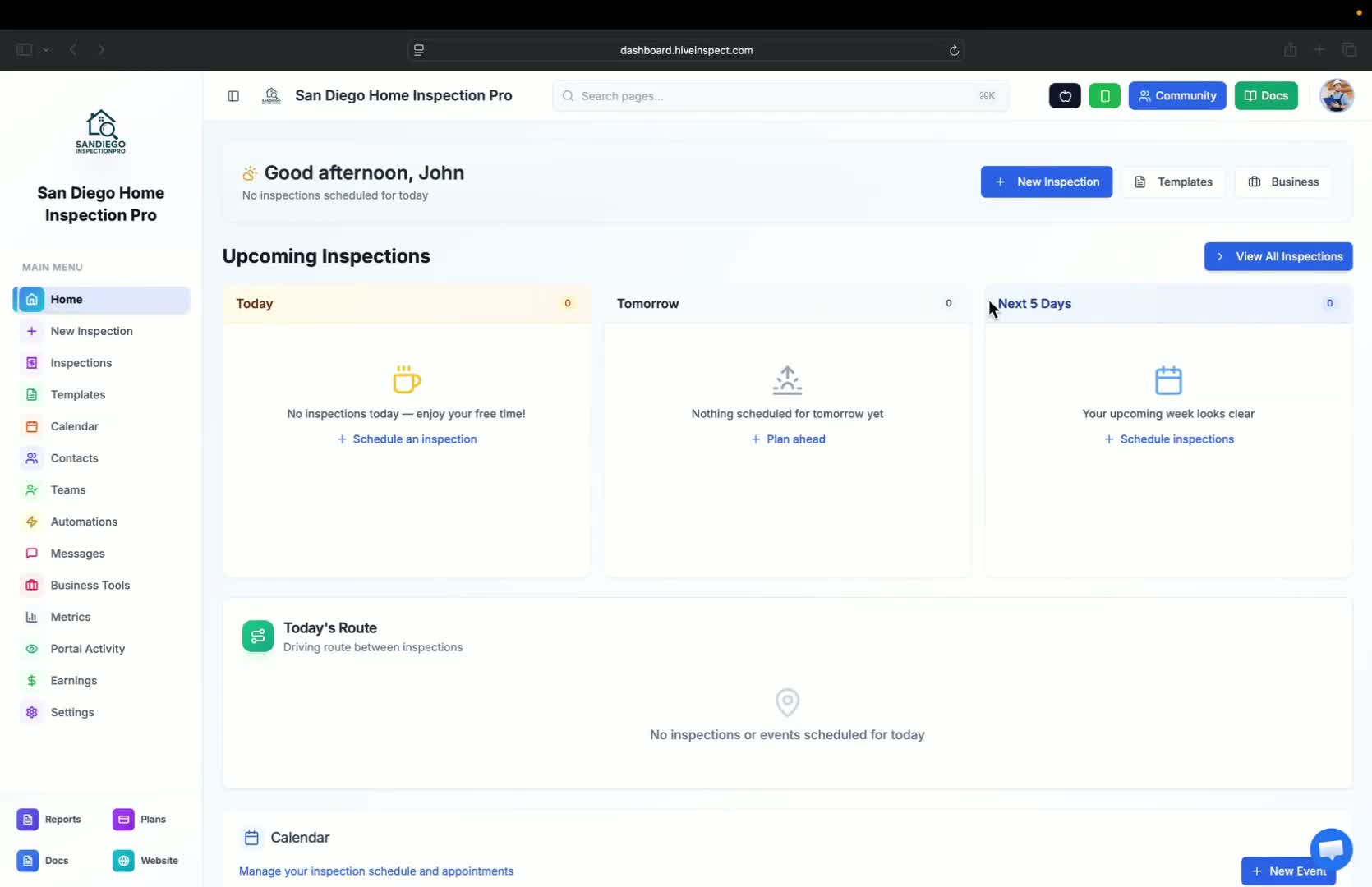
- Navigate to the templates tab after setting up your account settings
- Initially, there will be no templates available
Adding templates
0:19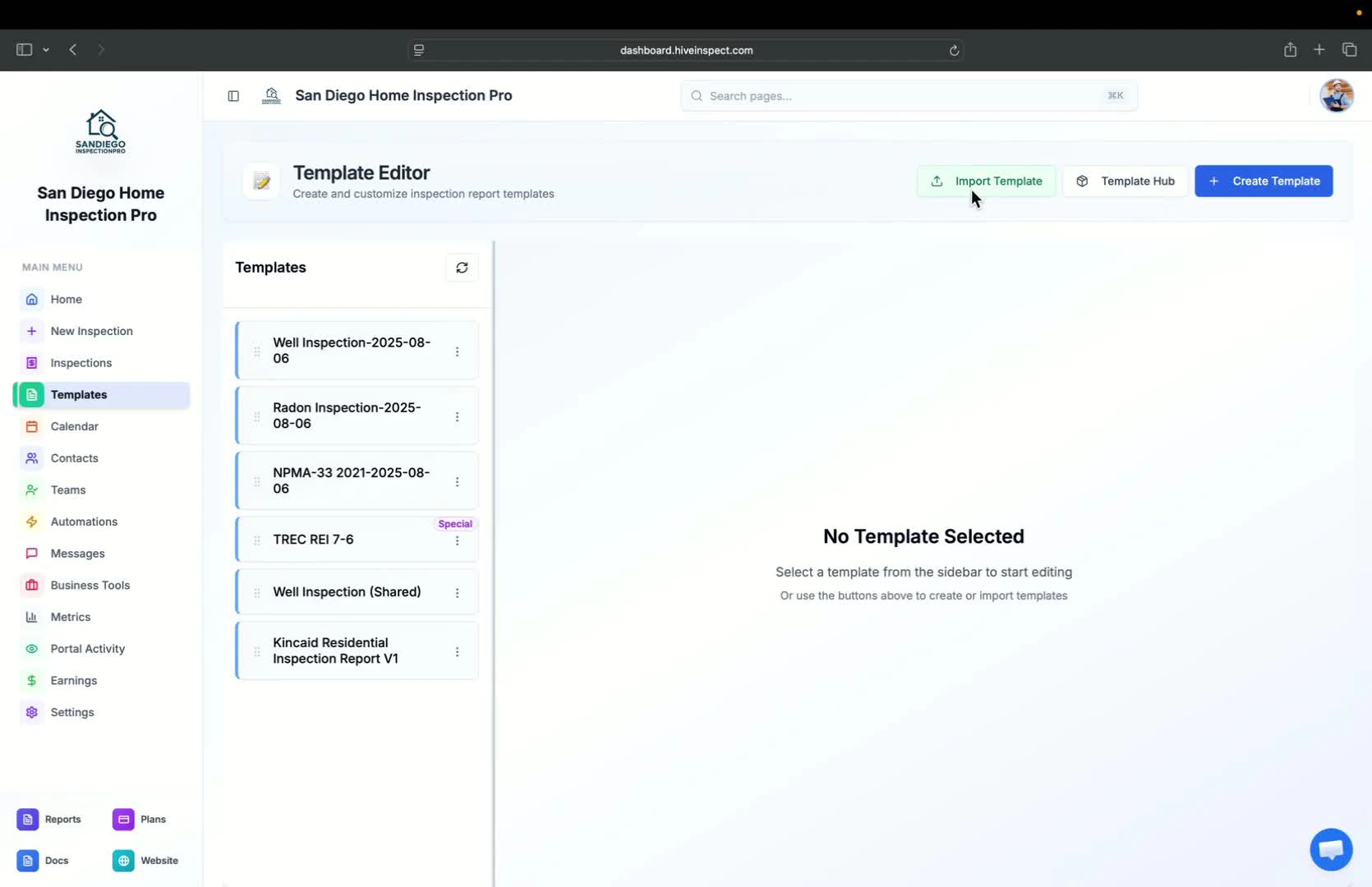
- There are three ways to add templates:
- Import from existing software
- Download from the template hub
- Users typically use the first two methods
Importing templates from the Template Hub
0:38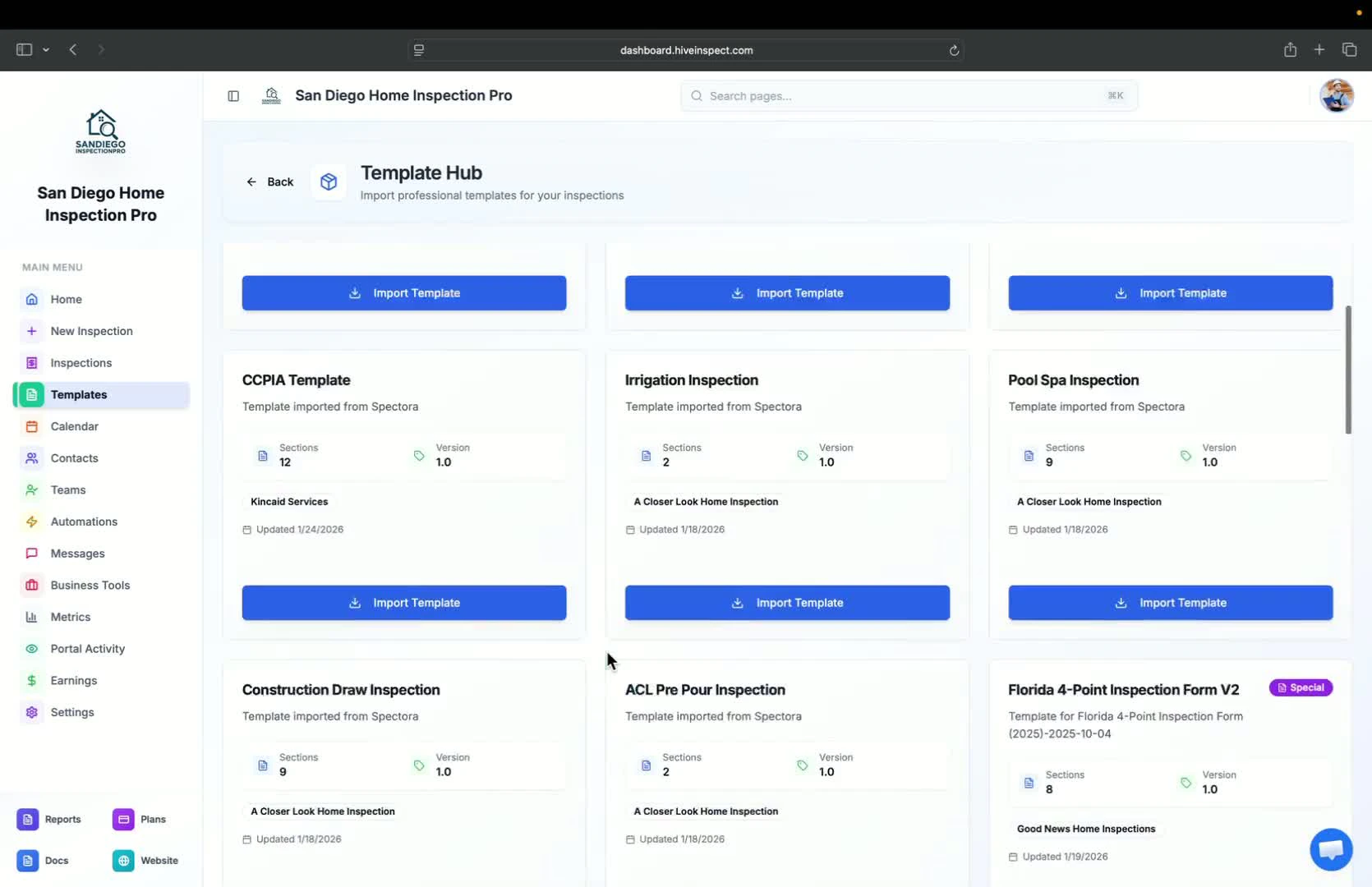
- Browse through various templates created by expert inspectors
- Examples include:
- Hive Inspection Residential
- Concave Residential Inspection Report
- Sewer Lateral from All-Star Home Inspection
- Click Import to add a selected template to your account
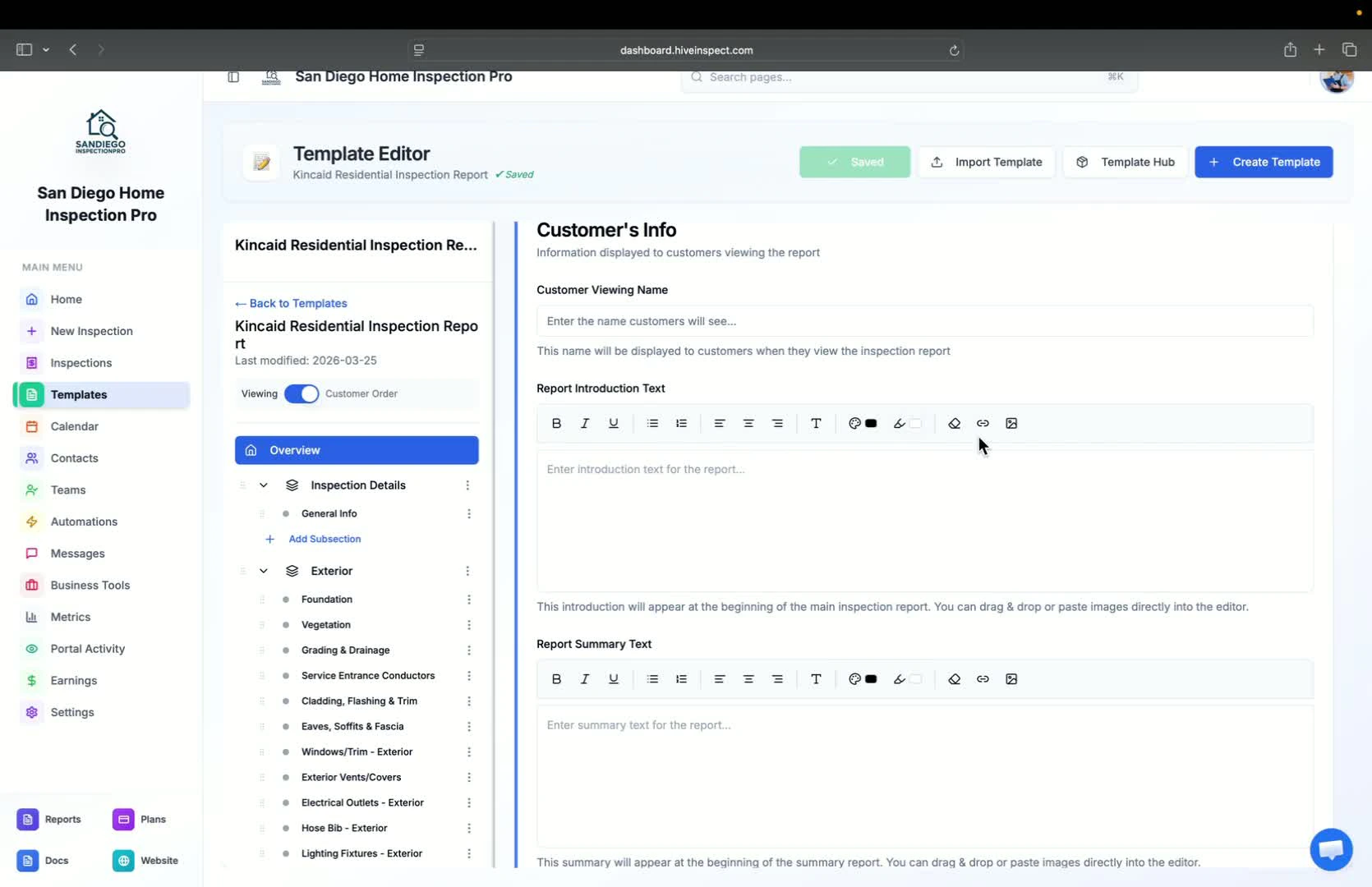
Editing the template
Customizing template details
1:17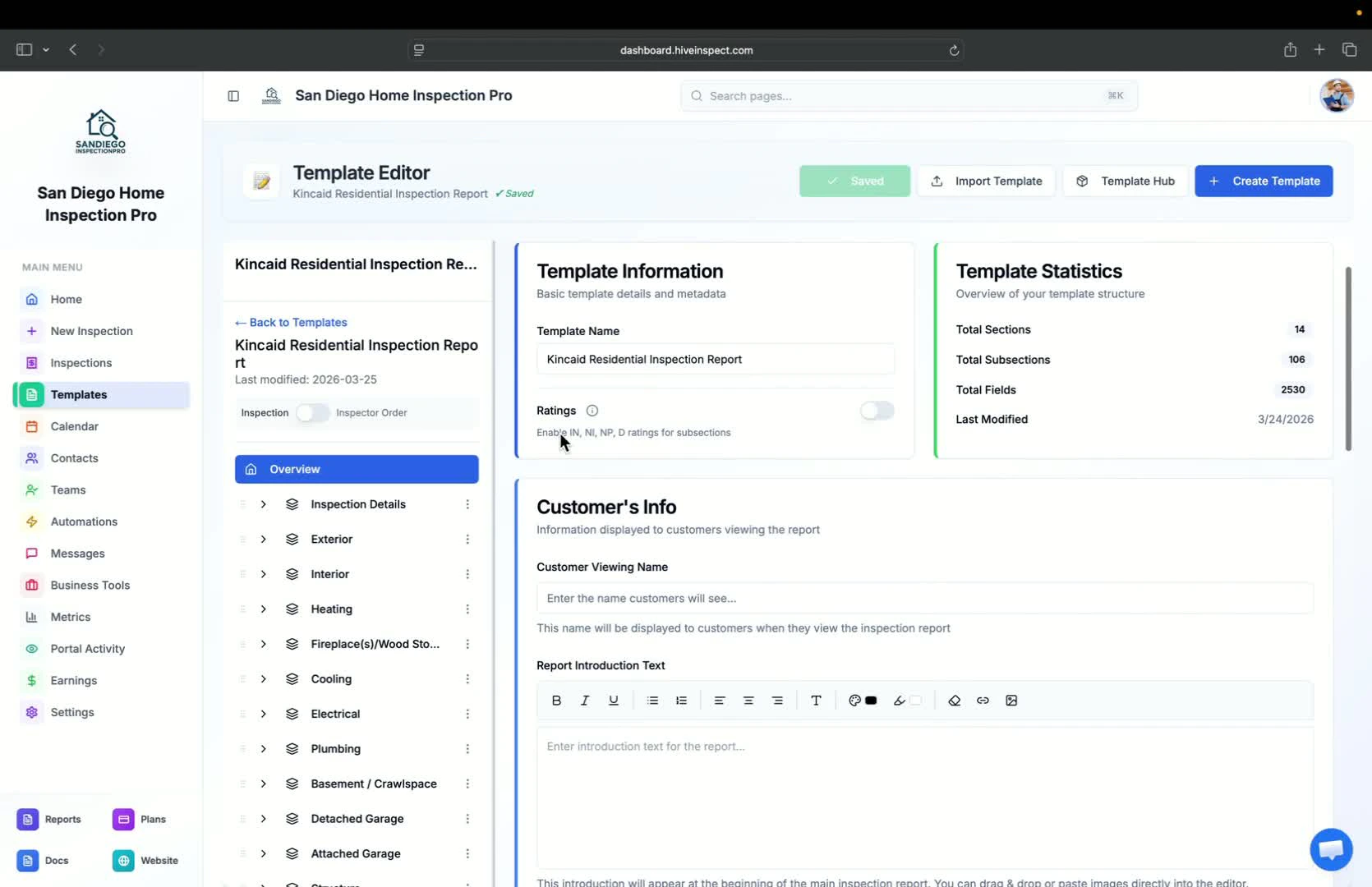
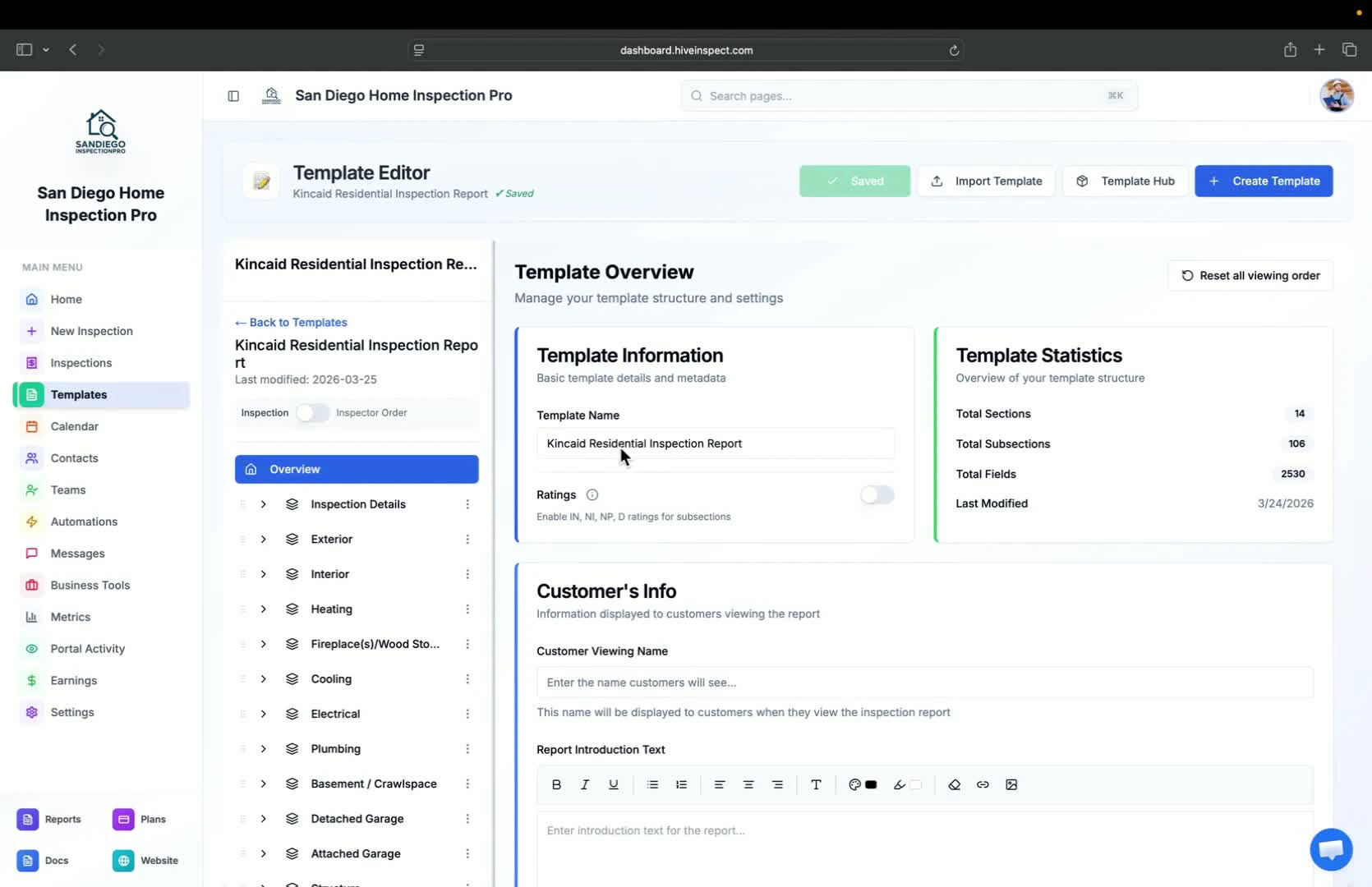
- The Overview section includes:
- Template name
- Enable/disable rating flags (IN and INP)
- Customer viewing name
- Report introduction text (main inspection)
- Report summary text (summary report)
Adding documents to the template
1:59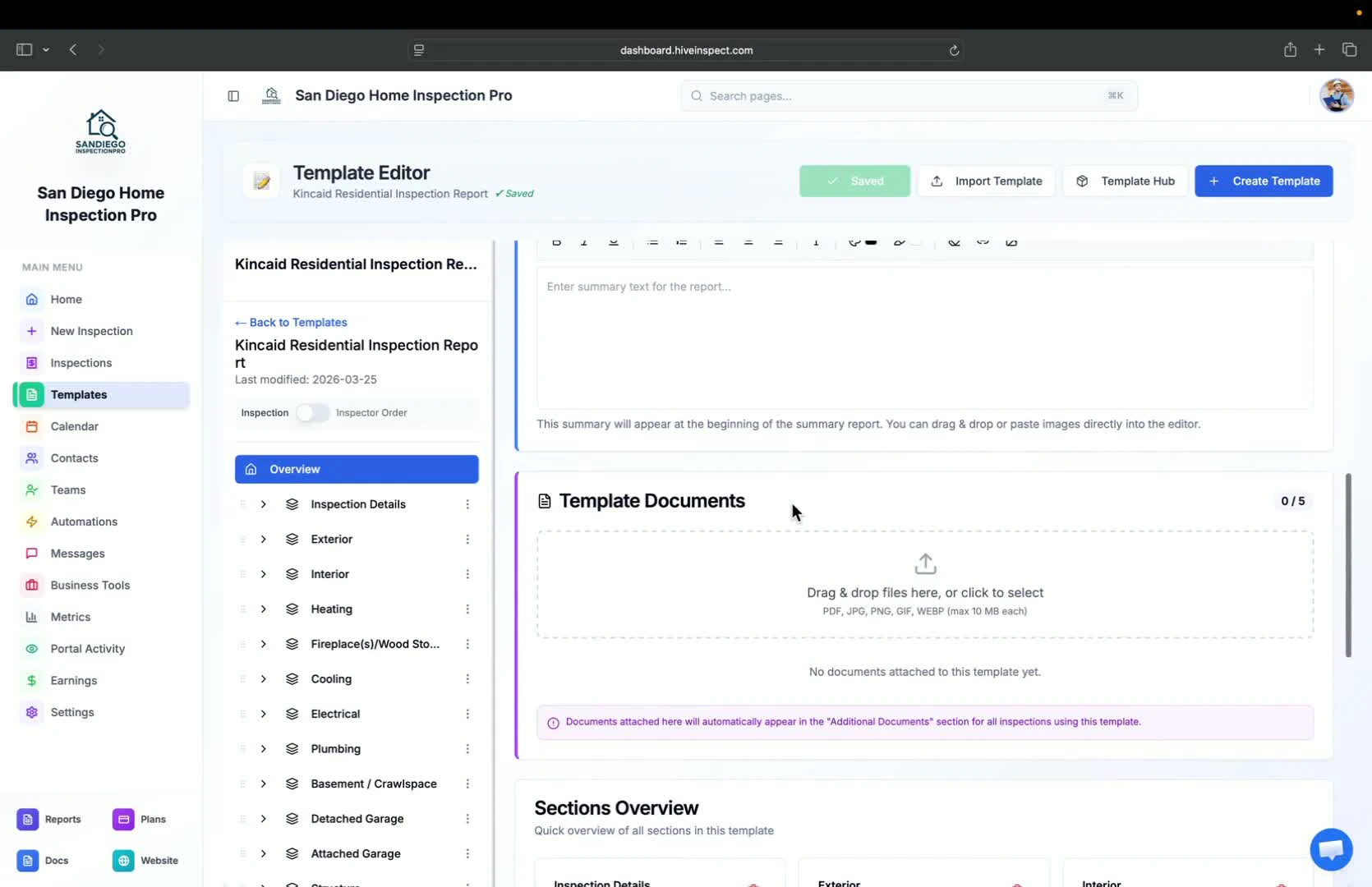
- Attach PDFs, PNGs, or other files to the template
- These documents will be visible to customers in their reports
Organizing inspection order
2:16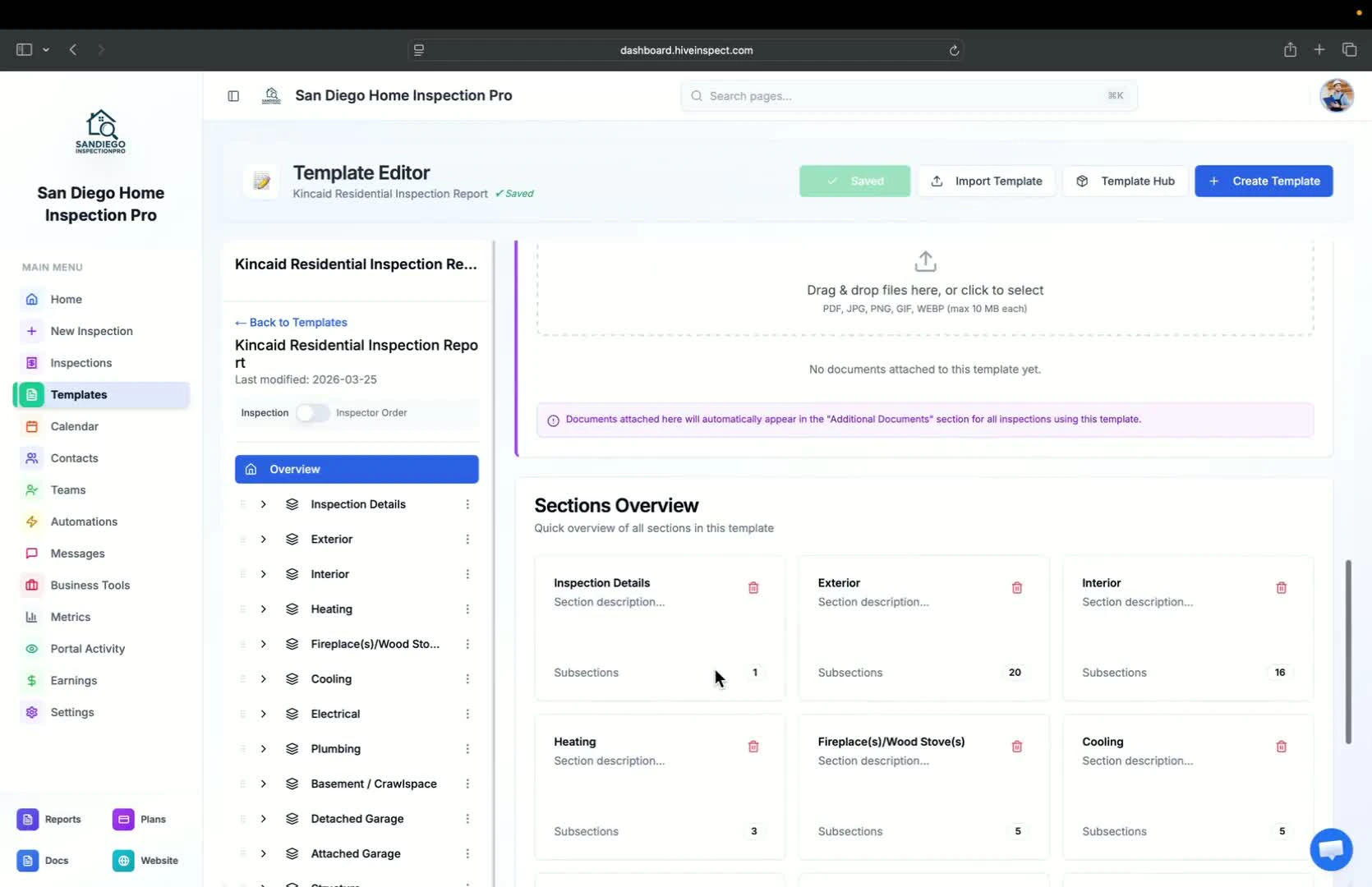
- Adjust the sequence of sections in the report for customer viewing
- Drag and drop sections to reorder them
Saving changes
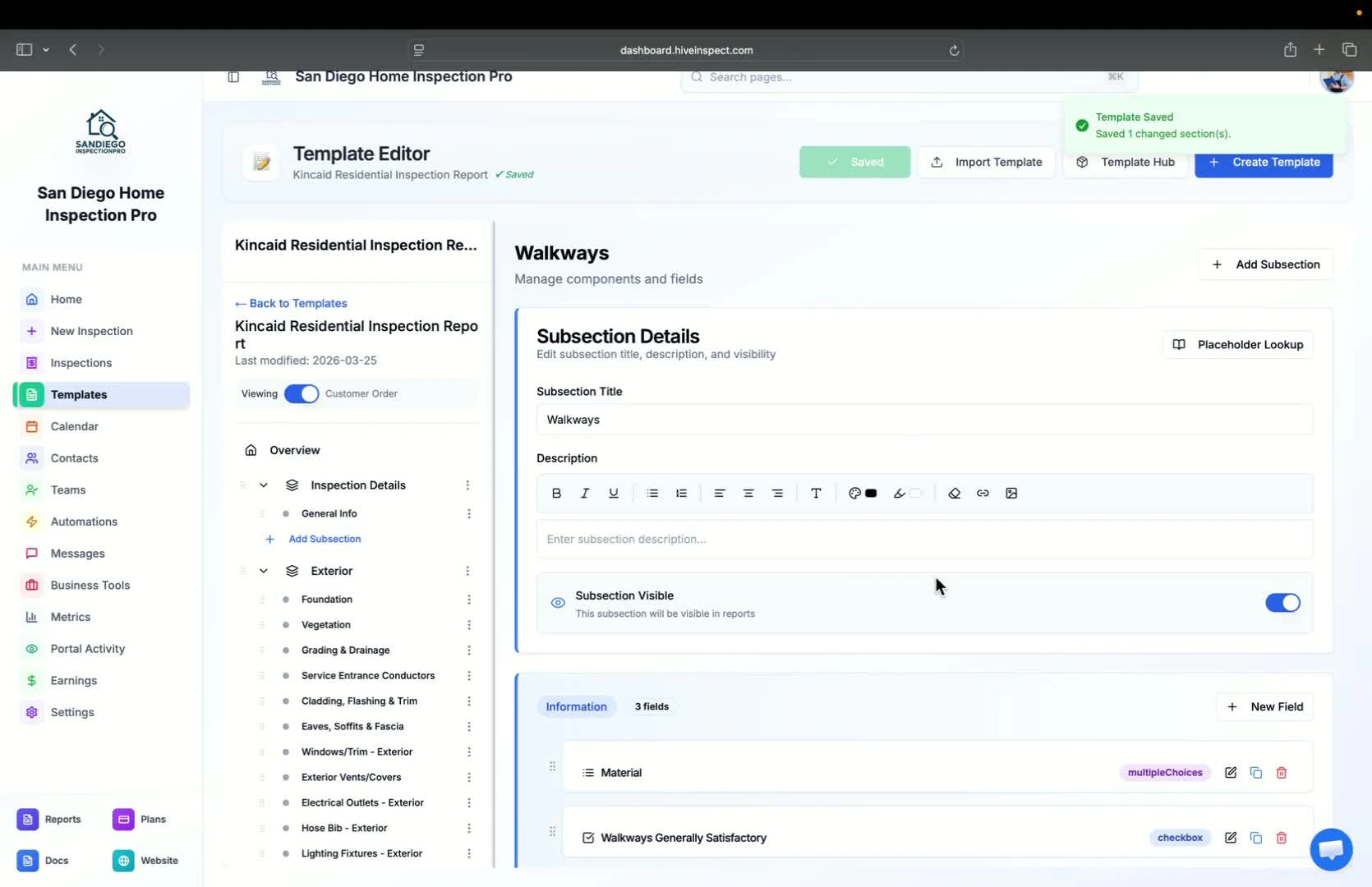
Text editing options
Adding comments to the template
3:27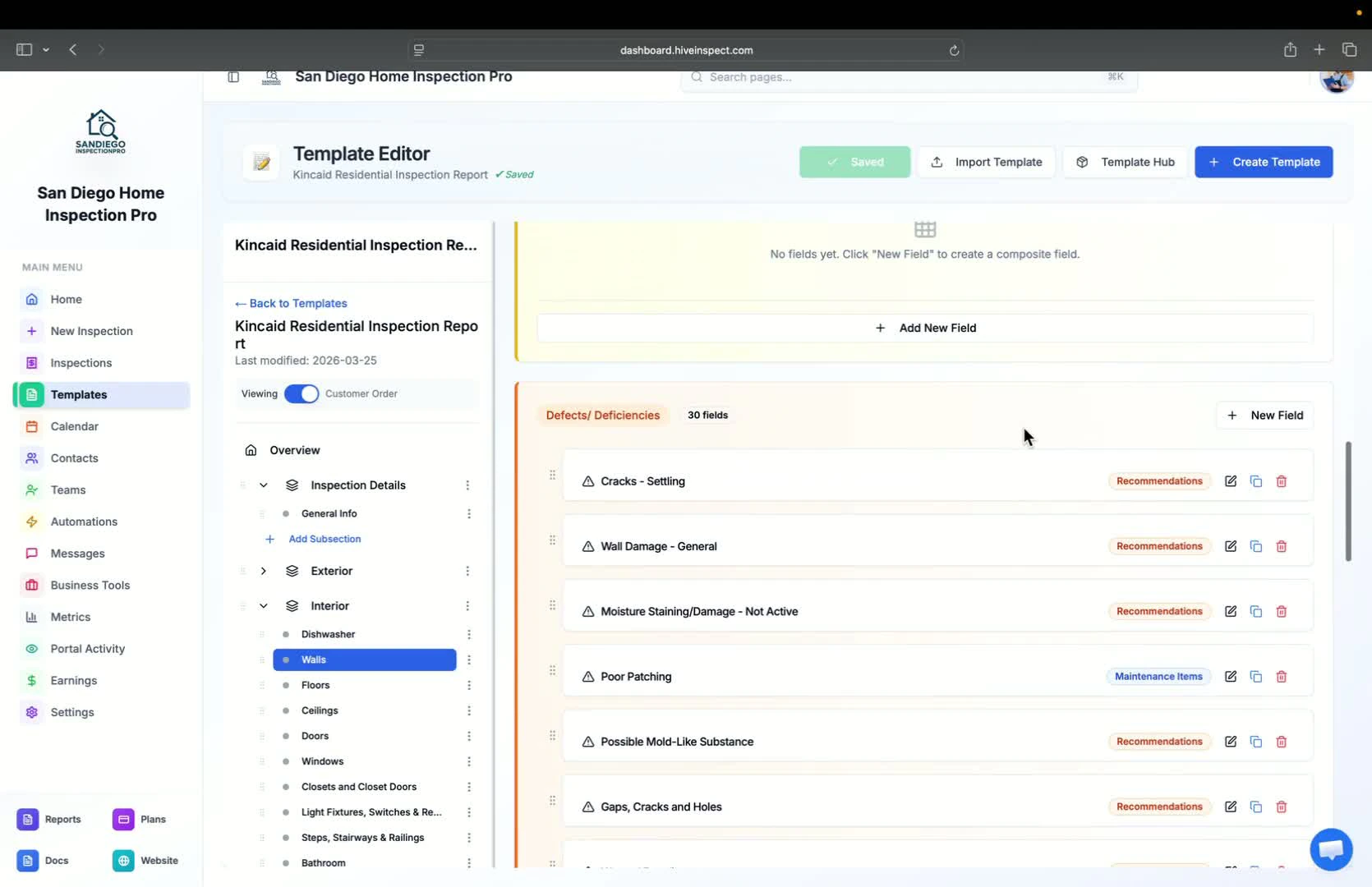
- Three types of comments can be added:
- Information
- Limitations
- Defects or deficiencies
- Use New Field to add comments and descriptions
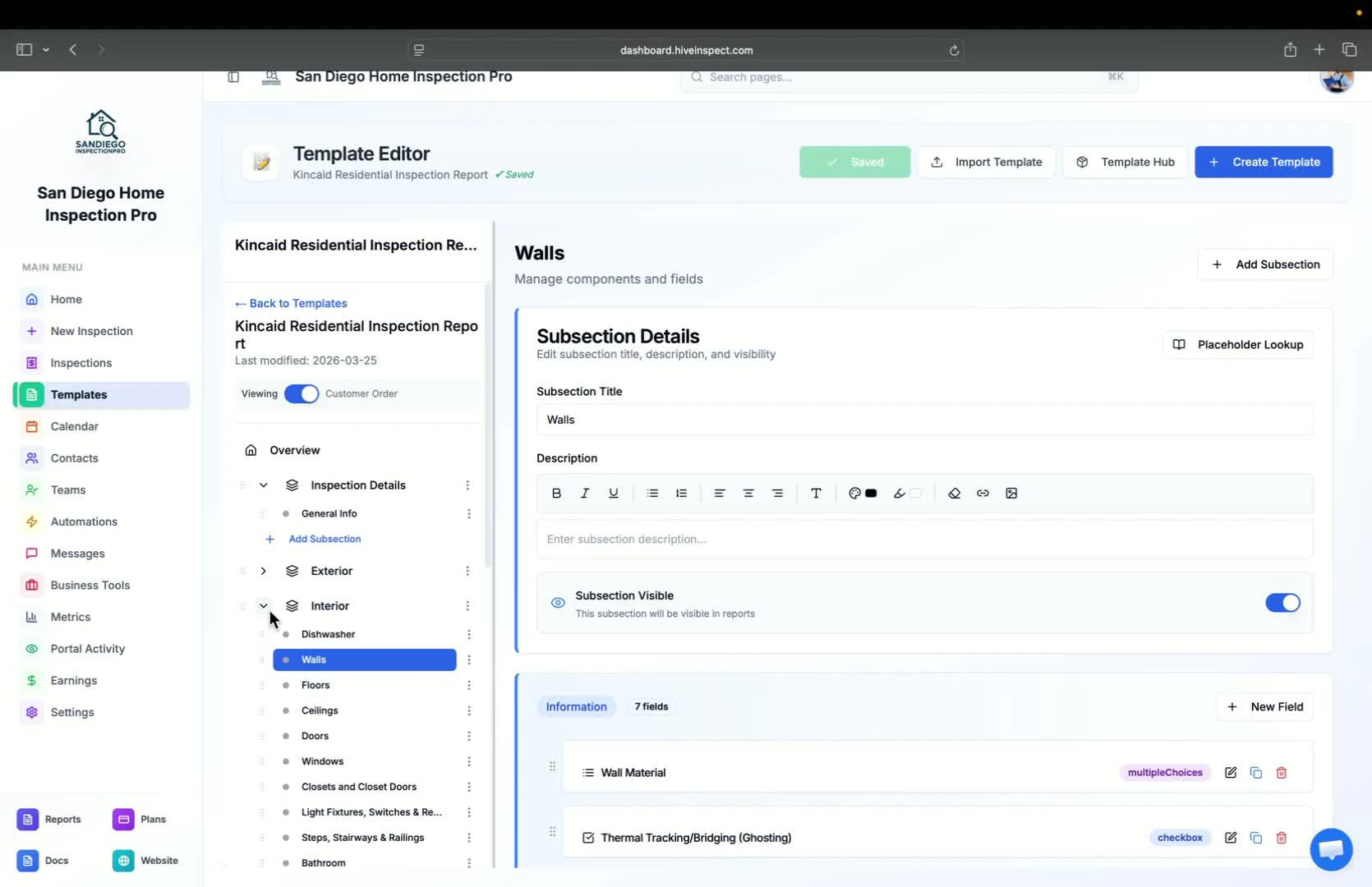
Saving comments to the template
Importing from other software
4:16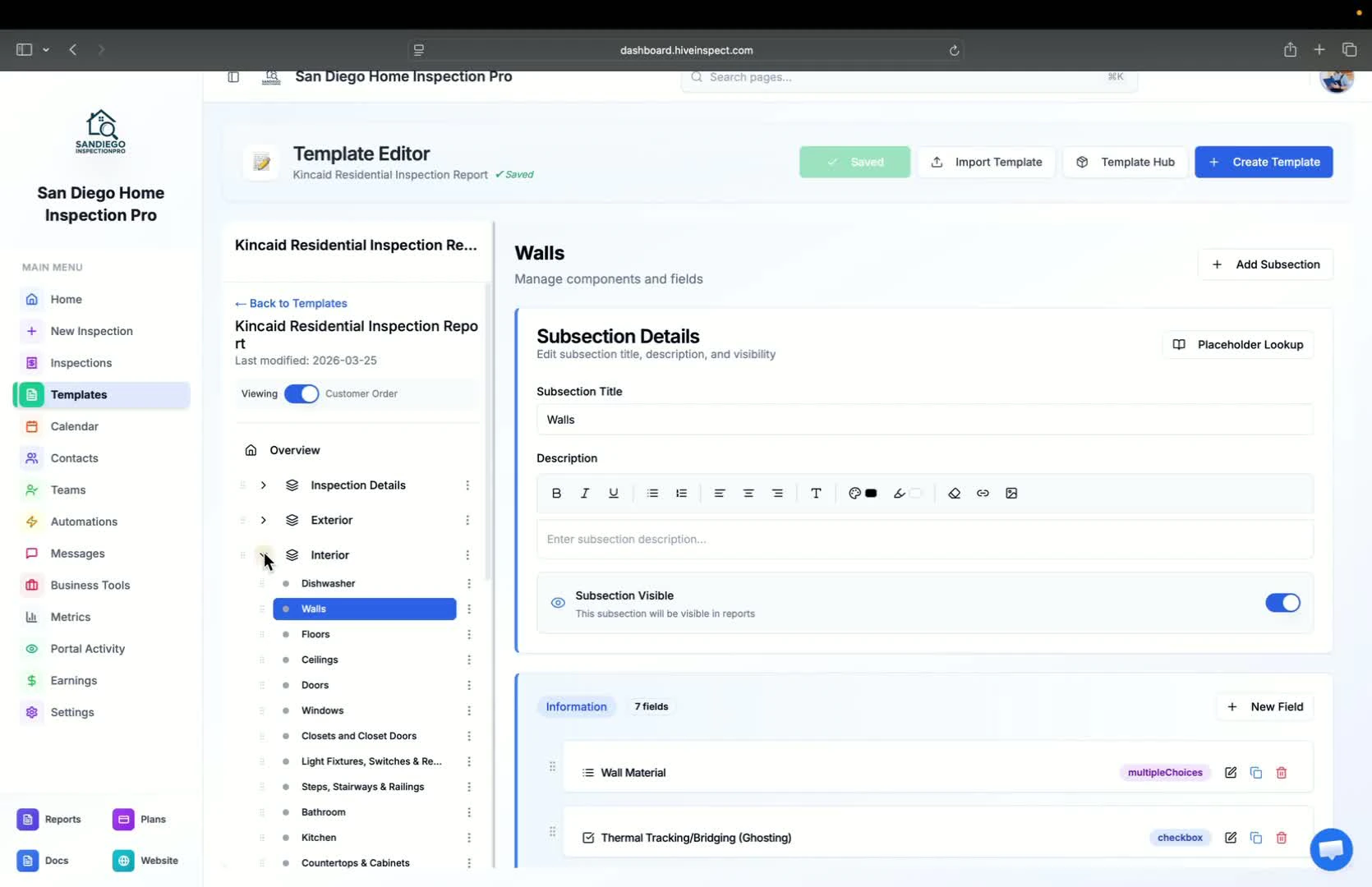
- If transitioning from Spectora or another company, select the option to import
- Ensure to export files in HTML format for proper text formatting
Next step
Related
Importing templatesUpload from Spectora, HIP, HomeGauge or Horizon, or import from the Template HubTemplate structureSections, subsections, comment groups and comment typesEditing templatesAdd, move and duplicate sections, subsections and commentsTurn ratings on or offShow or hide IN and INP ratings per templateSave a comment to a templateReuse a comment you wrote on site on every future reportCustom fieldsCapture the extra details your reports need