

What Comment Assist does
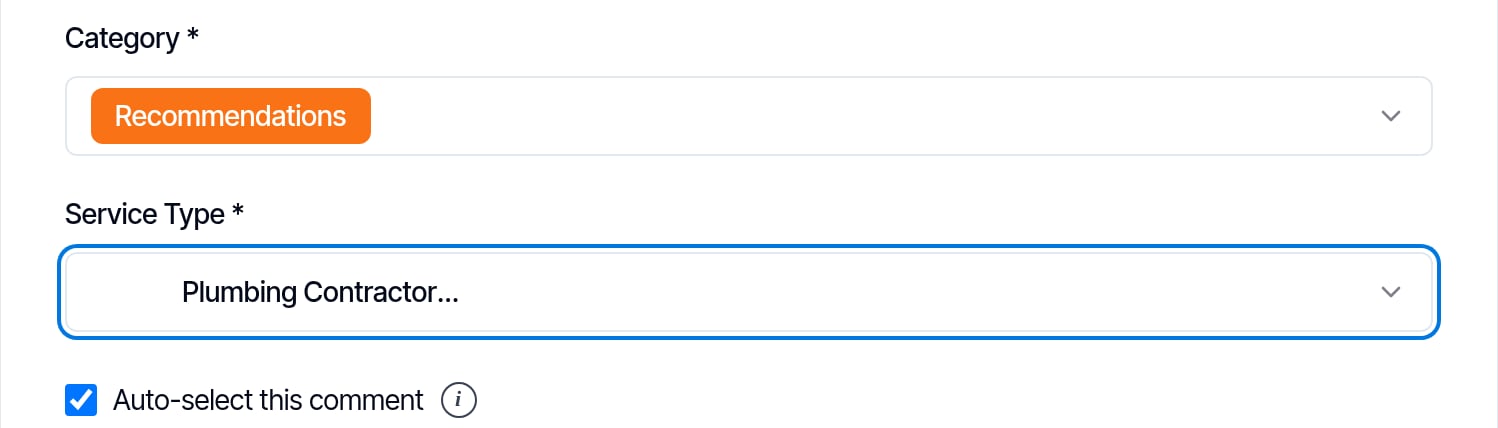
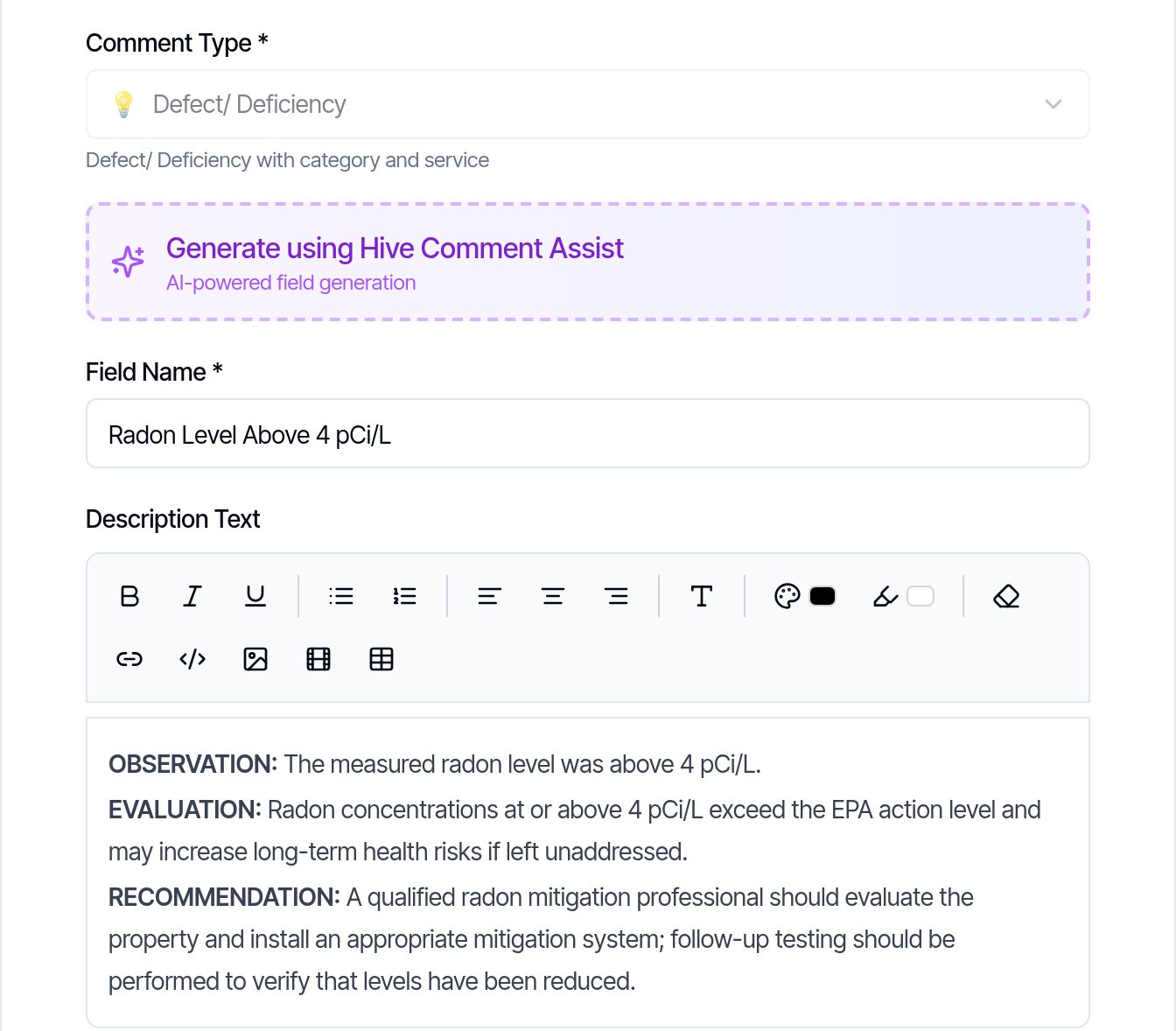
Comment Assist writes a report comment from a short note. Type a few words, such as “leaky faucet under kitchen sink”, pick how long the description should be, and click Generate. Hive fills in the comment name and description. For a defect it also fills in the category and the service type. Nothing goes into the report or template until you check the draft and click Create Field. Hive uses the section and subsection you are adding the comment to, and writes in the style set by your company’s prompt. Inspectors report saving about 20 minutes per inspection with Comment Assist. You can use it in three places:- Web Editor: the Add Comment dialog in any subsection of a report.
- Template editor: the New Comment dialog in any subsection of a template.
- Mobile app: inside Smart Add, when you tap Create new comment with Hive Comment Assist.
How to write a comment with Comment Assist
Set your company's wording once
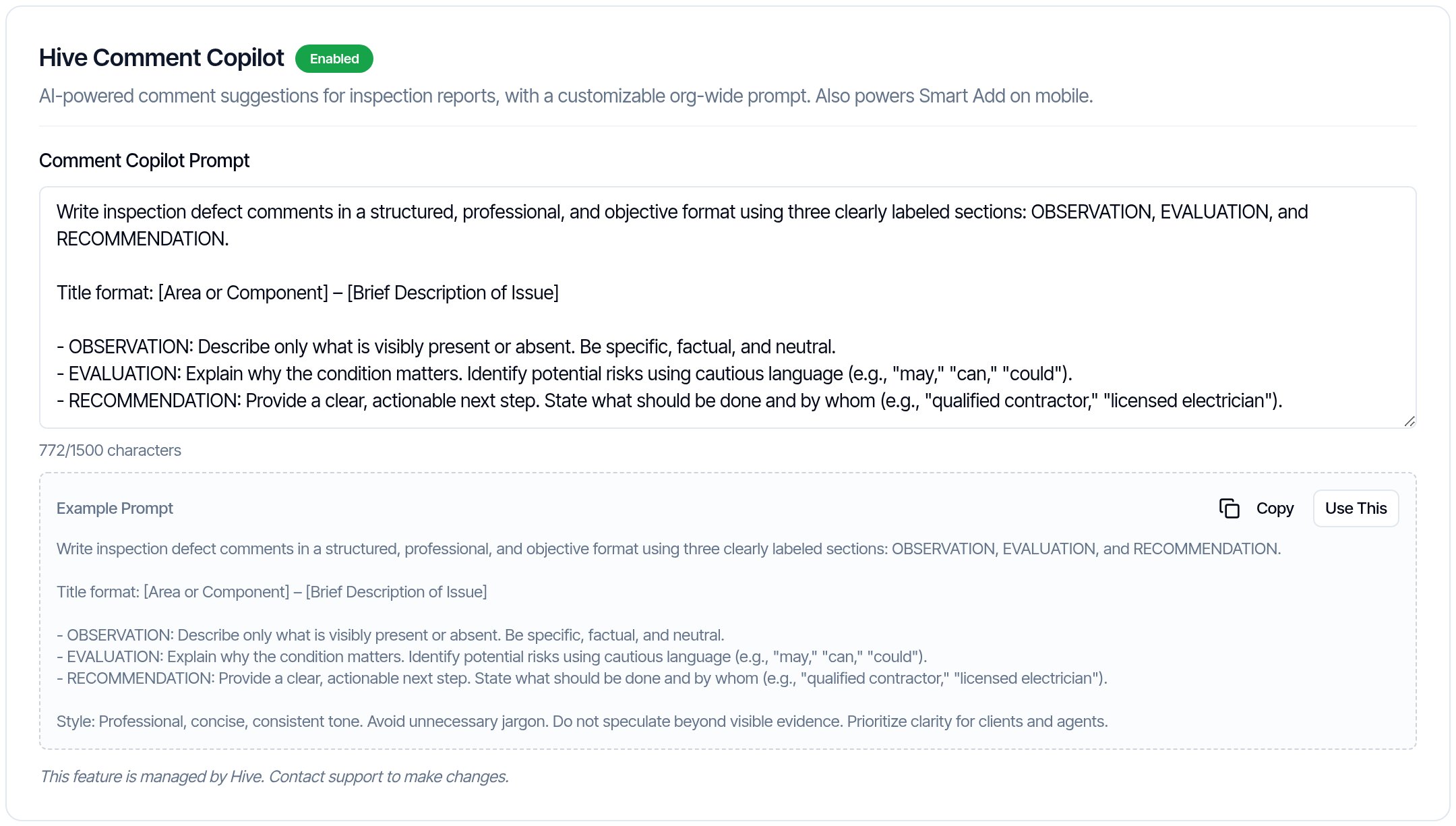
- Go to Business Tools → Hive AI. The Hive Comment Copilot card shows Enabled.
- Write how your comments should read in the Comment Copilot Prompt box, up to 1,500 characters. Include any liability wording you always use.
- To start from Hive’s example, click Use This under Example Prompt, then change it to match how you inspect.
- Click Save. The prompt applies to everyone in your company, on the web and in the mobile app.
Open Add Comment in the report
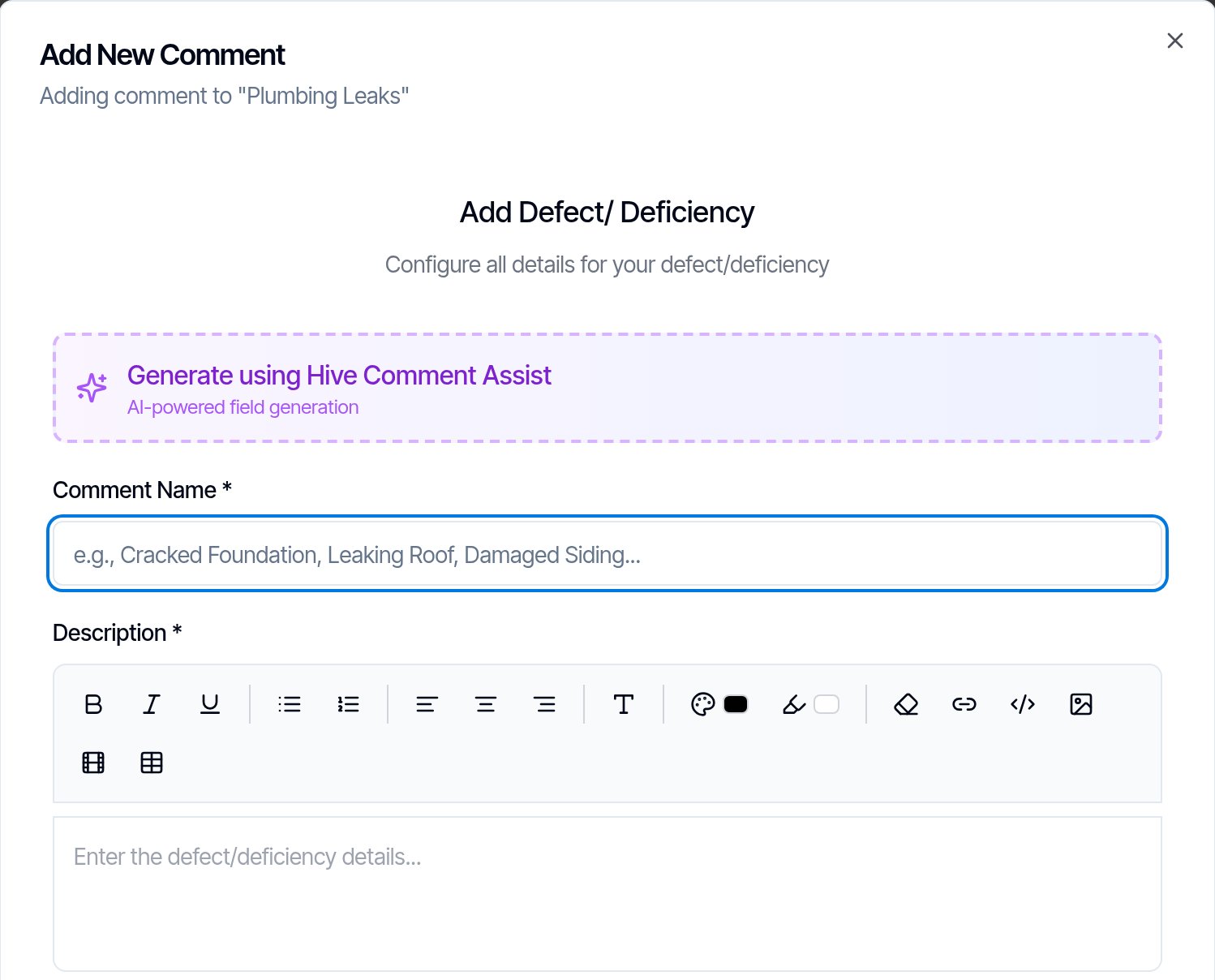
- Open the report in the Web Editor and go to the subsection where the comment belongs, for example Plumbing → Plumbing Leaks.
- Click Add Comment next to Defects/ Deficiencies, Information or Limitations.
- Click Generate using Hive Comment Assist at the top of the dialog.
Pick a length and describe the issue
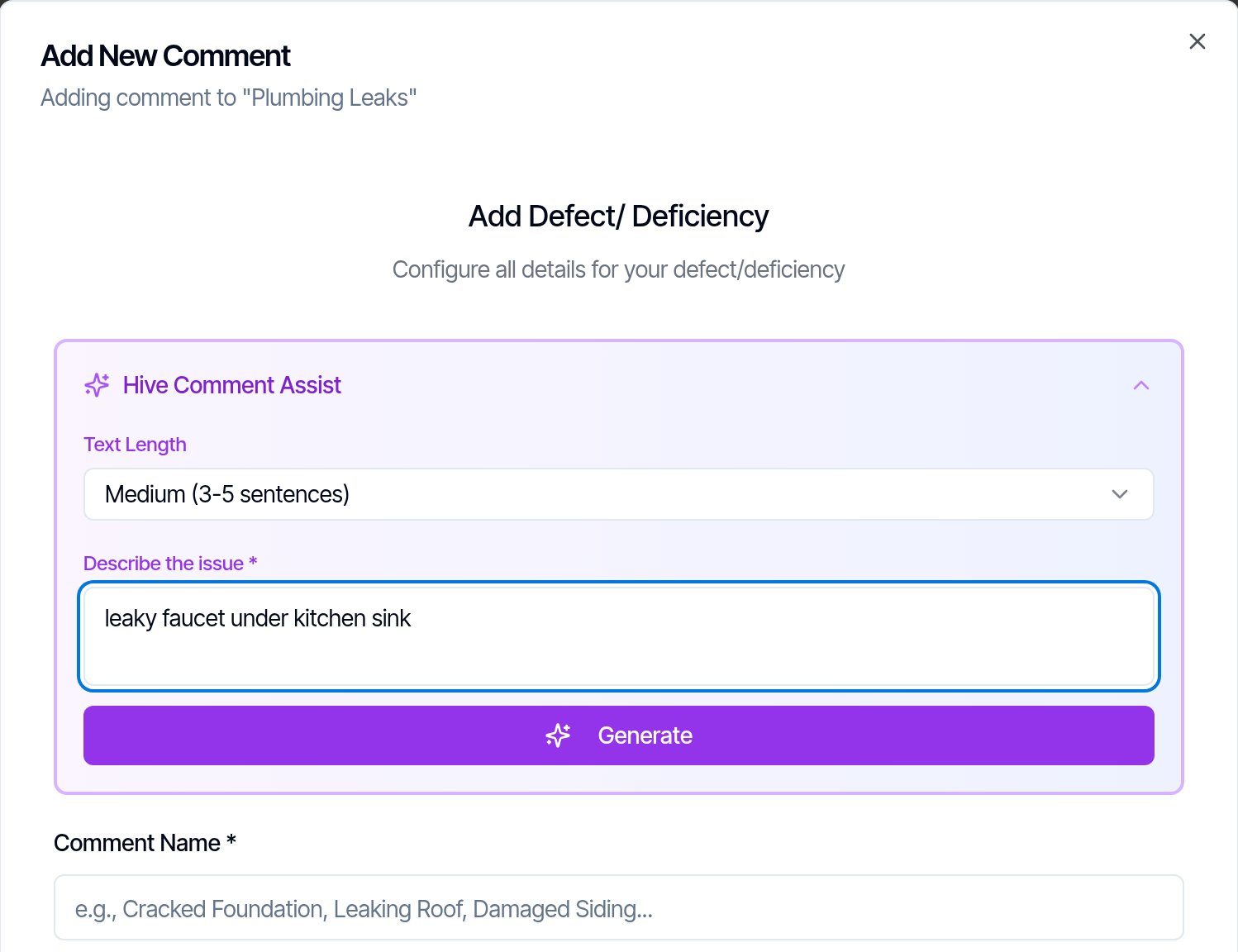
- Under Text Length, choose Small (1-2 sentences), Medium (3-5 sentences) or Large (6-10 sentences).
- Type what you found in Describe the issue. A few words are enough.
- Click Generate. It takes a few seconds.
Check the draft
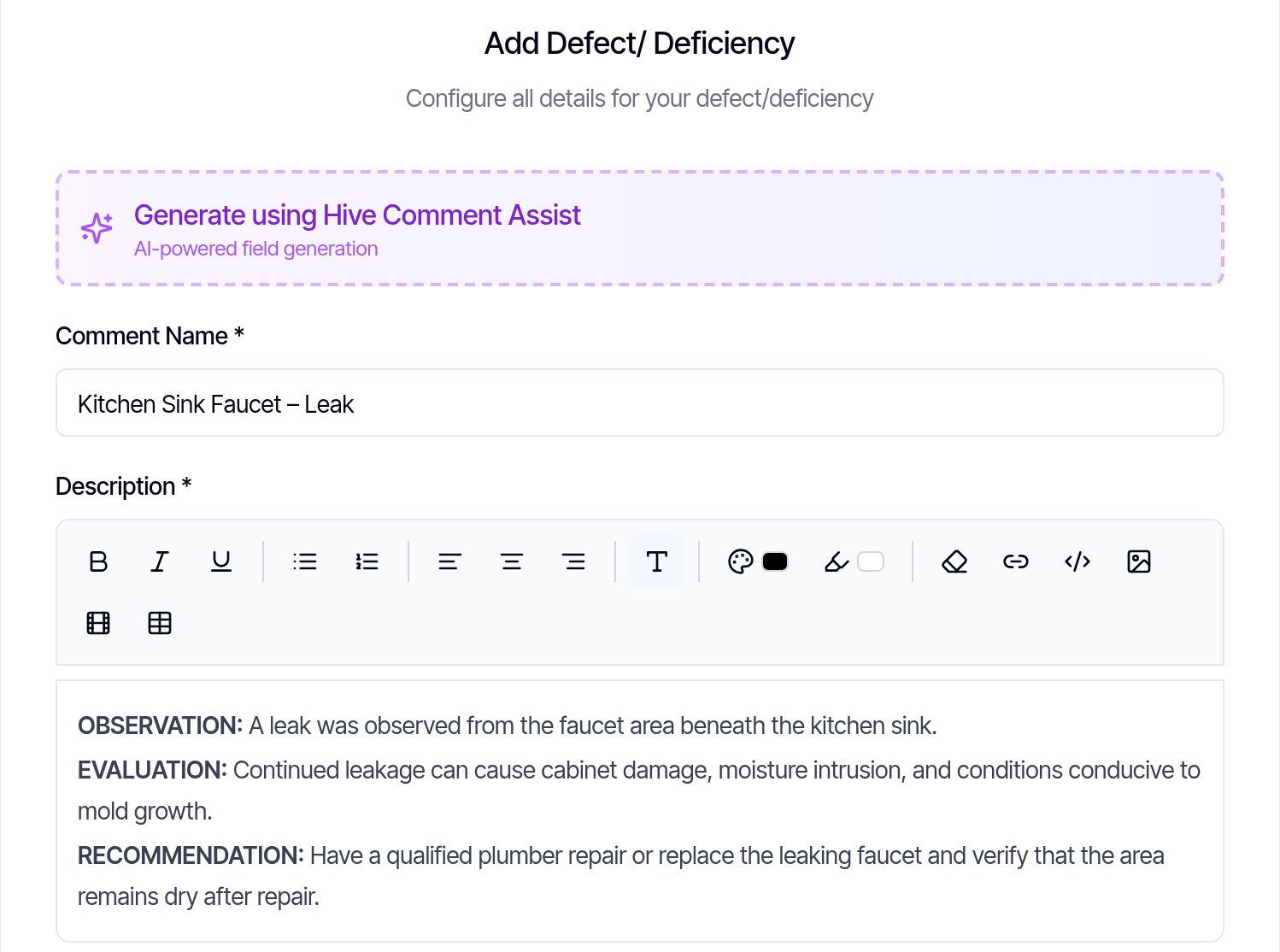
- Hive fills in Comment Name and Description, written in the style of your company prompt.
- Edit any of the text. It is a normal comment form.
- Not happy with it? Open Generate using Hive Comment Assist again and click Generate for a new draft.
Rewrite the description of an existing comment
Open the comment
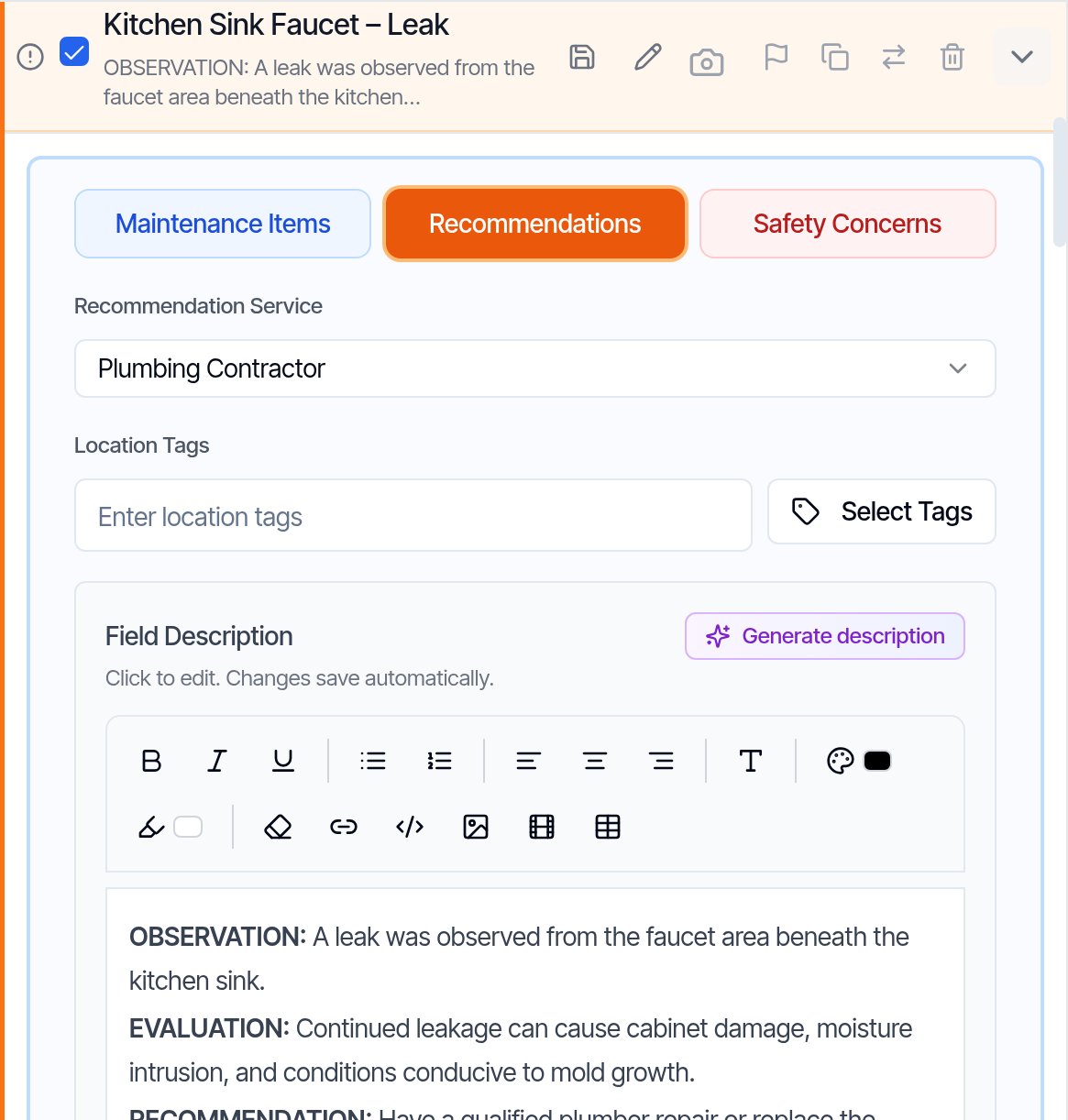
- In the Web Editor, click the arrow at the right end of the comment’s row to expand it.
Click Generate description
- Click Generate description above Field Description.
- Hive writes a new description from the comment name, using your company prompt and the Medium length. It doesn’t read the current description.
- The new text replaces the old text, and changes in the Web Editor save automatically. Copy the old text first if you might want it back.
Use Comment Assist in a template
Add a new template comment
- Go to Templates, open the template, then the section and subsection.
- Click New Comment next to Information, Limitations or Defects/ Deficiencies.
- Click Generate using Hive Comment Assist, pick a length, describe the issue and click Generate, the same as in a report.
- Click Create Field, then Save Changes in the bar at the bottom of the template editor.
Worth knowing
- You approve everything. Generating fills in the form. Nothing is added until you click Create Field or save.
- Needs an internet connection, like the other Hive AI tools. The rest of the app works offline and syncs when you’re back online.
- Included on every plan, with no usage cap.
- Enabled for your company by Hive. If you don’t see Generate using Hive Comment Assist, check that Hive Comment Copilot shows Enabled under Business Tools → Hive AI, or ask support through the chat bubble.
FAQ
Can I control how the comments are worded?
Can I control how the comments are worded?
Yes. The Comment Copilot Prompt under Business Tools → Hive AI sets the wording for every comment Hive drafts for your company, including any liability language you use.
Does Comment Assist add anything to the report on its own?
Does Comment Assist add anything to the report on its own?
No. It fills in the comment form. The comment is only added when you click Create Field.
Does it work offline?
Does it work offline?
No. Comment Assist needs an internet connection. The rest of the Hive app works offline and syncs the report when you’re back online.
Next step
Related