

In the mobile app: the report editor → the menu button (bottom left) → the two CYA buttons.
CYA (“cover your assets”) photos are your own record of the property: the condition on arrival, every side of the house, items you couldn’t move, or anything you might need to show later. They’re saved to Hive with the report but clients never see them. They’re not in the report or the PDF. The two CYA buttons are in the report editor’s menu bar. The one with a photo icon opens your CYA Photo Bank (the number is how many photos it has). The one with a camera icon adds new ones.Add CYA photos
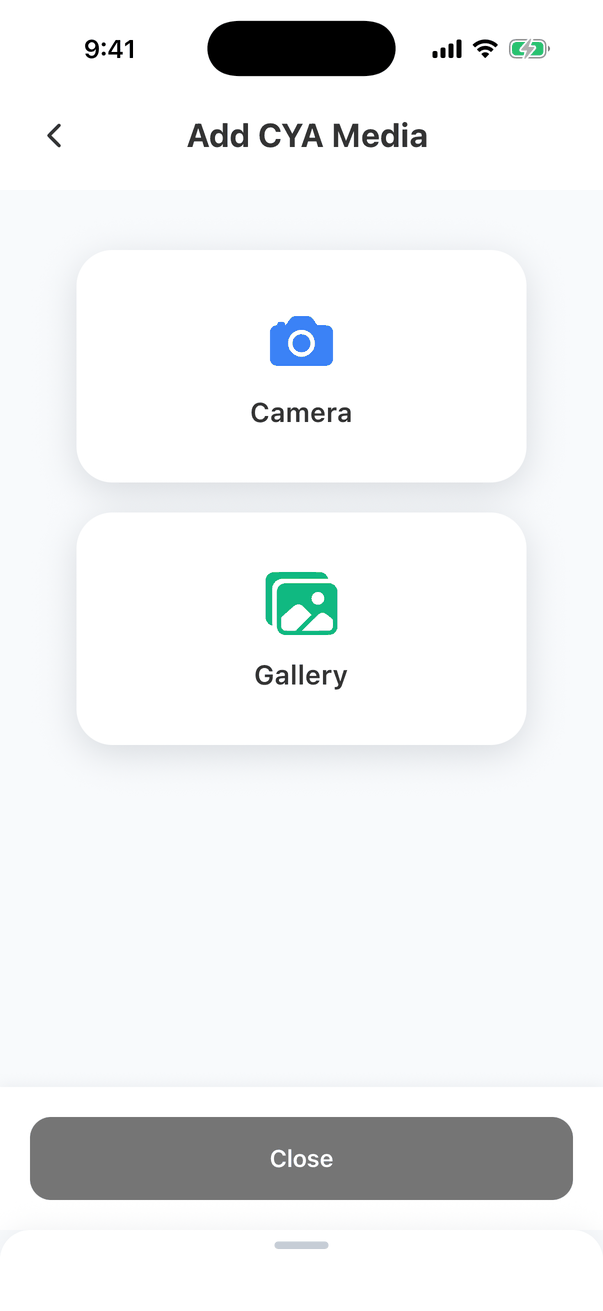
- Open the menu bar and tap the CYA camera button.
- Tap Camera to take photos with the Hive camera (you can take several in a row), or Gallery to pick up to 150 from your phone.
- Your photos show under Selected Media. Tap one to annotate it, or tap its x to leave it out.
- Tap Add 3 Items (or however many) to add them. Close leaves without adding anything.
The CYA Photo Bank
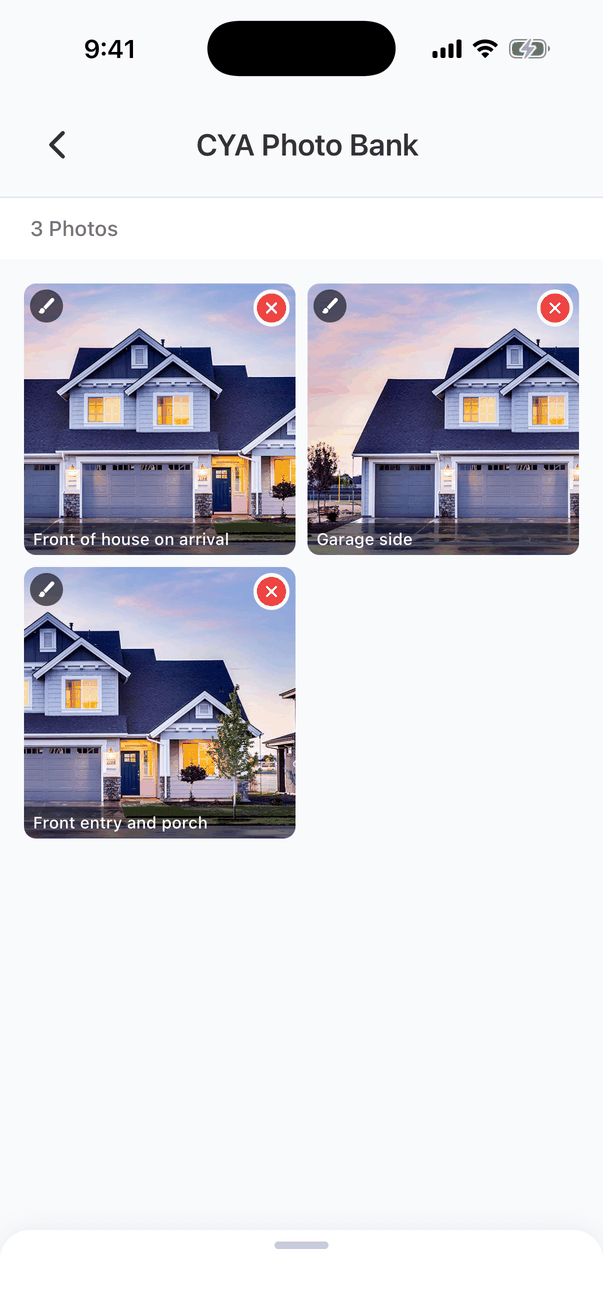
- Tap a photo to annotate it, add a caption or add location tags, using the same tools as comment photos. See Annotate a photo.
- A brush badge means the photo has annotations or a caption. The caption shows along its bottom.
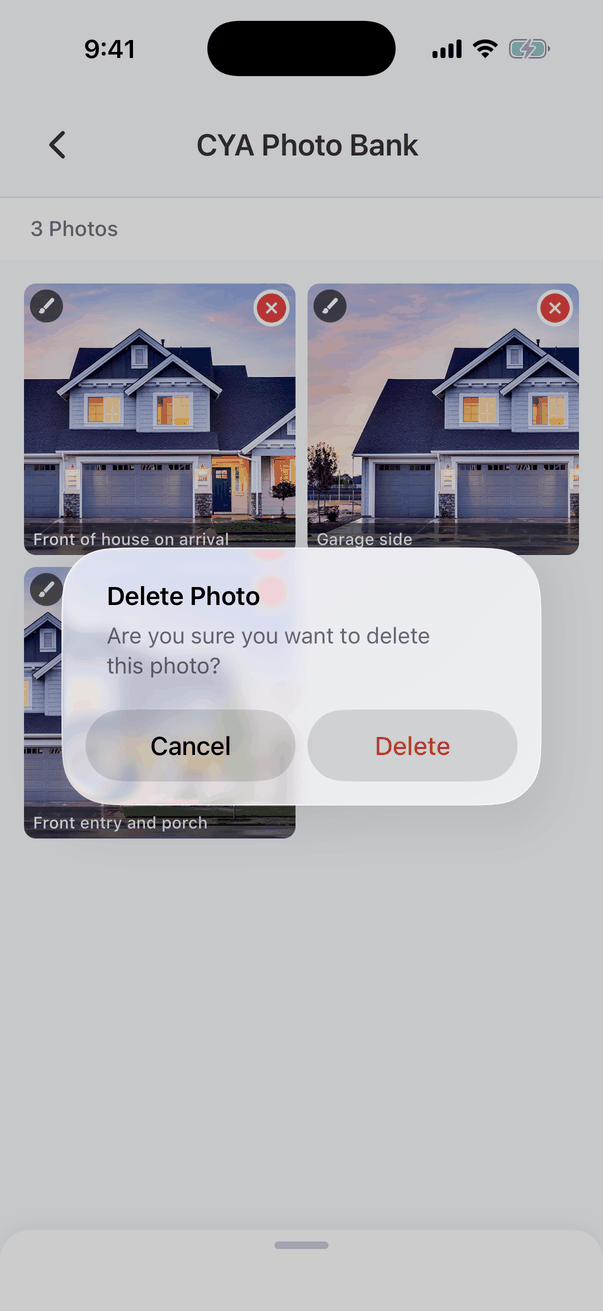
- Tap the red x to delete a photo. The app asks “Delete Photo: Are you sure you want to delete this photo?”
Use a CYA photo in the report
On the dashboard, open the report in the report editor and click CYA. Drag a CYA photo onto a comment to put it in the report. You can also upload CYA photos there.Common questions
Do clients see CYA photos?
Do clients see CYA photos?
No. They’re saved to Hive with the report, but they’re not in the client’s report, portal or PDF.
Where do CYA photos go after I sync?
Where do CYA photos go after I sync?
To Hive, with the report. You and your team can see them in the dashboard’s report editor under CYA.
Can I move a CYA photo into a comment on my phone?
Can I move a CYA photo into a comment on my phone?
Not in the app. Do it on the dashboard by dragging the photo onto the comment.
Where to go next
- Photos, videos and annotations: the camera and drawing on photos.
- Report editor basics: the menu bar and the rest of the editor.