

In the mobile app: open an inspection → Report Editor → tap a report.
The report editor is where you write the report on site. It has three levels:- Sections, such as Roof, Exterior or Electrical.
- Subsections inside each section, such as Coverings, Flashings and Roof Drainage Systems. Each one has a rating.
- Comments inside each subsection, grouped as Information, Limitations and Defects/ Deficiencies.
The Sections screen
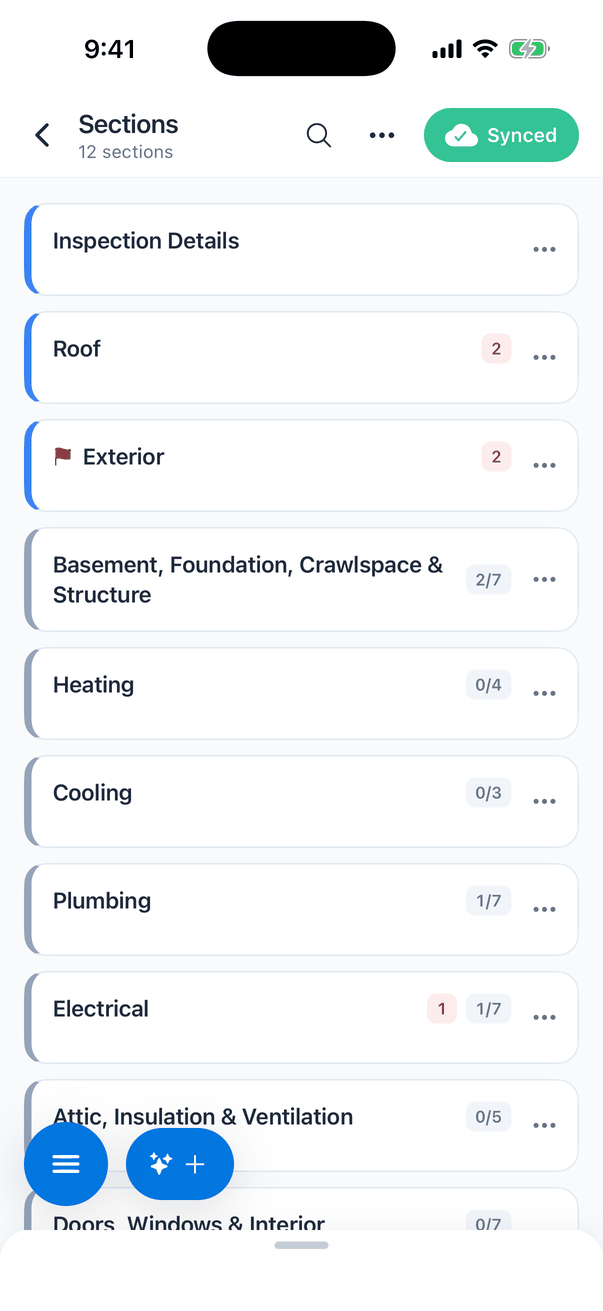
The header
What each section row shows
Tap a section to open its subsections.
When a section counts as visited
A subsection is visited when you’ve opened it and answered every multiple-choice and text question in its Information group. Checkboxes don’t count. A subsection with no such questions is visited as soon as you open it. A section is visited when all of its subsections are visited. If you clear an answer later, the subsection goes back to not visited. The ring in the menu bar shows how many sections are visited, as a percentage.Subsections and ratings
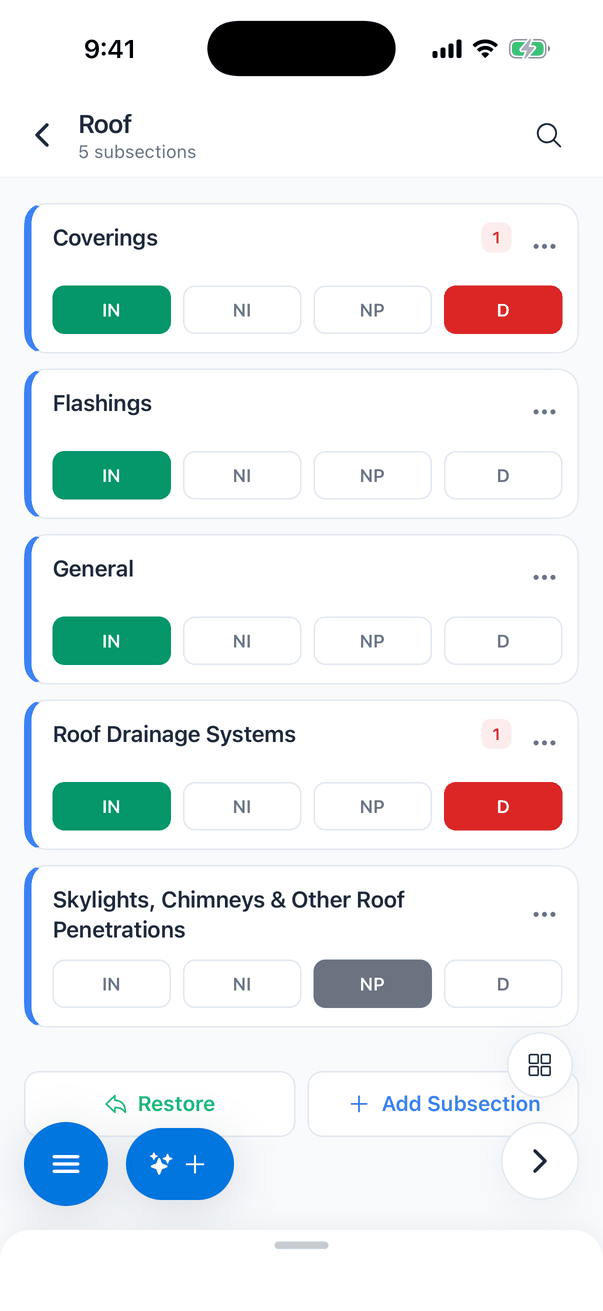
Tap a button to turn it on or off. You can pick more than one, for example IN and D when you inspected something and found a defect. Your company can change the buttons in the template’s settings, so yours may differ. The rating also shows on the client’s report.
When you turn on a defect, the app can turn on D for you, if your template is set up to do that.
The other buttons on this screen:
- Three dots on a row: Edit, Copy or Delete the subsection.
- Restore and Add Subsection: work like the section buttons below.
- Private Notes (a document icon in the header): shows the template’s private notes for this section, such as reminders of what to check. It only appears when there are notes. You can’t change them in the app; they’re set in the template on the dashboard.
- Grid button: back to the Sections screen.
- Arrow button: the next section, in report order.
The comment list
Tap a subsection to open its comments. They’re grouped in coloured cards: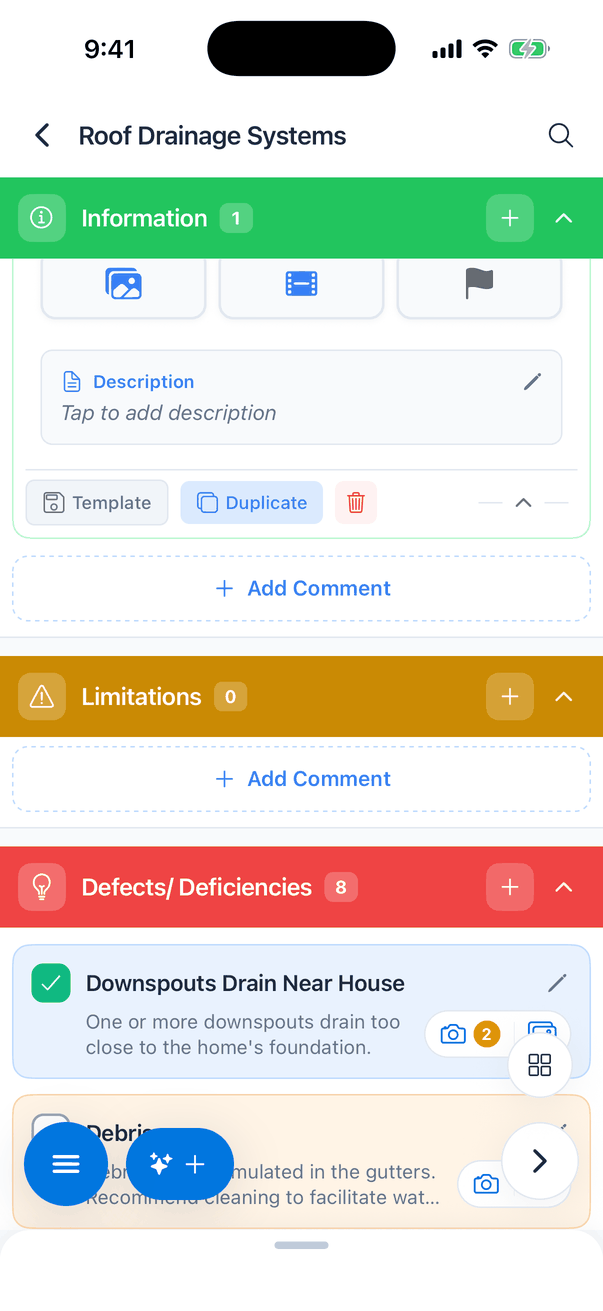
- The number on each card is how many comments it has.
- + on a card, or Add Comment at its bottom, adds a comment of that type. See Add a comment.
- Tap a card’s title to fold it away.
- When you open a subsection, the defects you’ve turned on move to the top of the list. The order then stays put while you work, so the list doesn’t jump when you check things.
- The rating buttons for the subsection are at the top of the list too.
- The arrow button goes to the next subsection, and the grid button goes back to the Sections screen.
The menu bar
The round blue menu button at the bottom left opens the menu bar: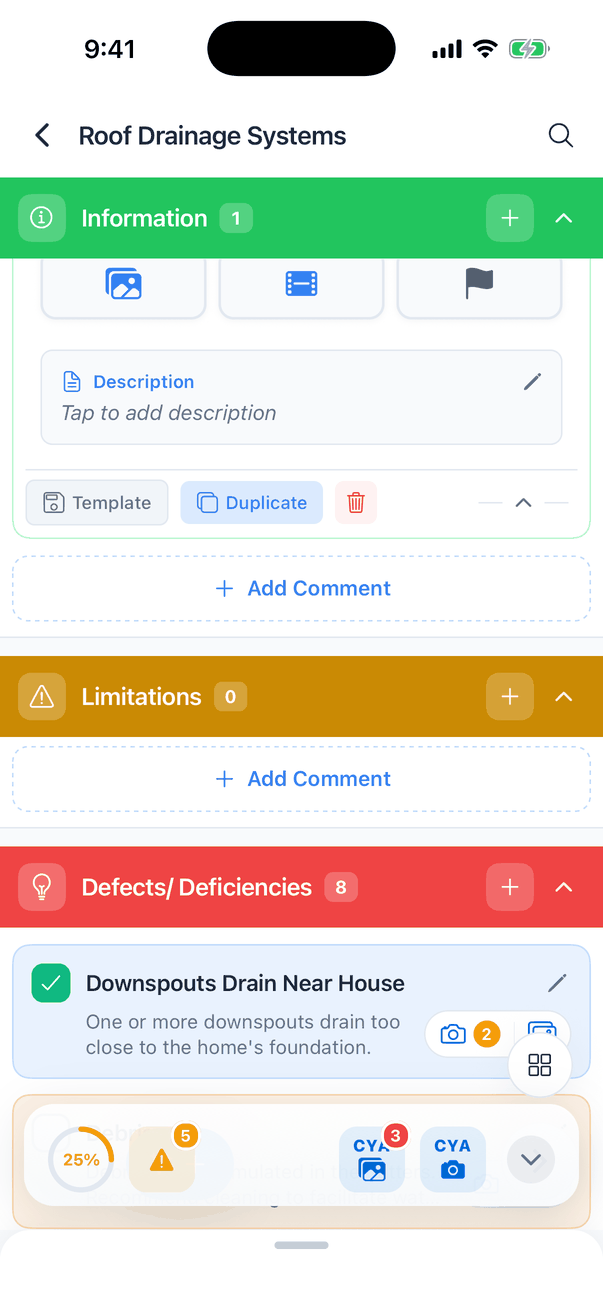
Next to the menu button is the Smart Add button, to add a comment by describing what you found. See Smart Add.
Add, rename, copy and delete sections
Add a section
At the bottom of the Sections screen: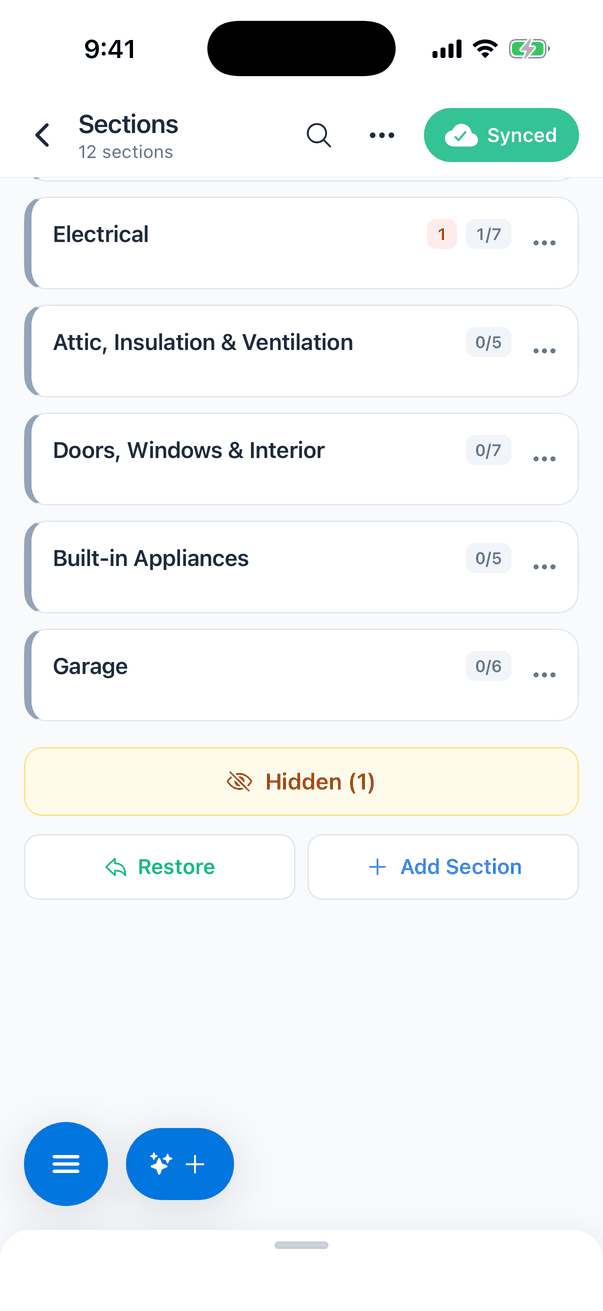
- Tap Add Section.
- Type the Section Name (up to 100 characters).
- Tap Create Section.
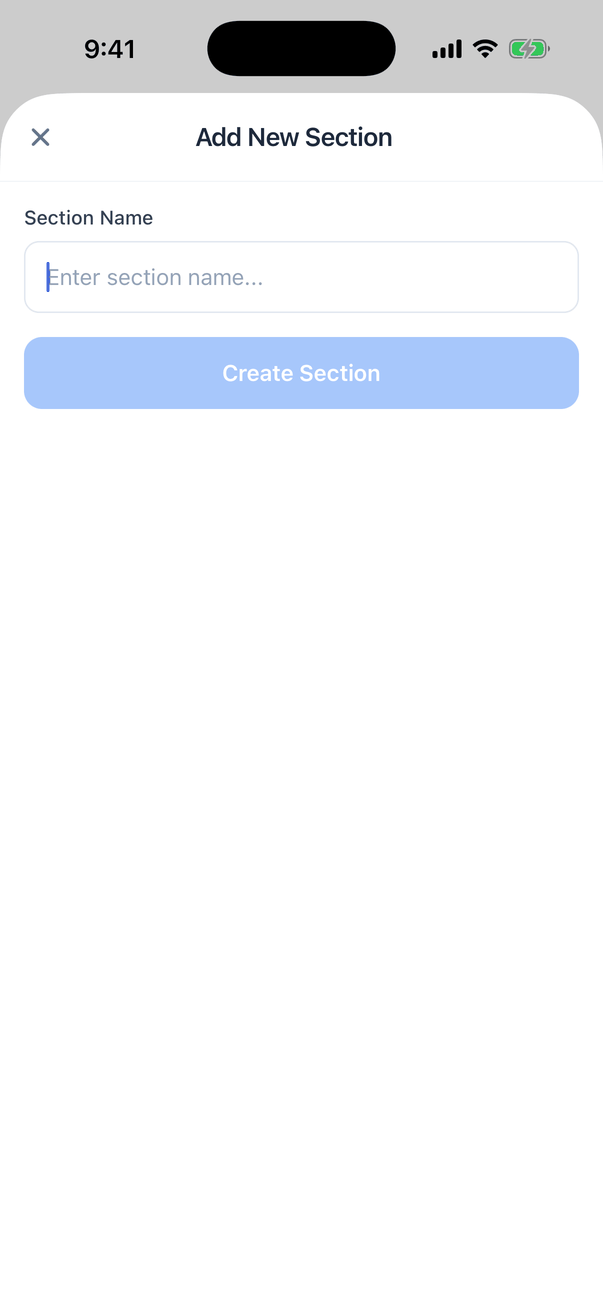
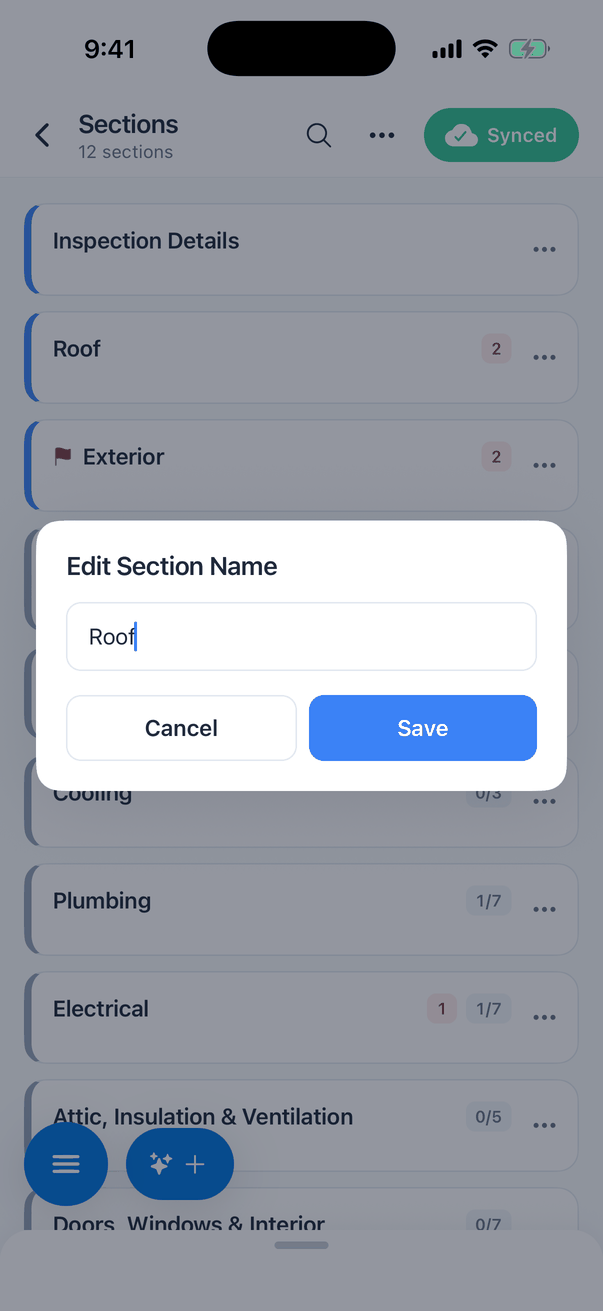
Rename, copy or delete
Tap the three dots on a section (or subsection) row. The row slides open: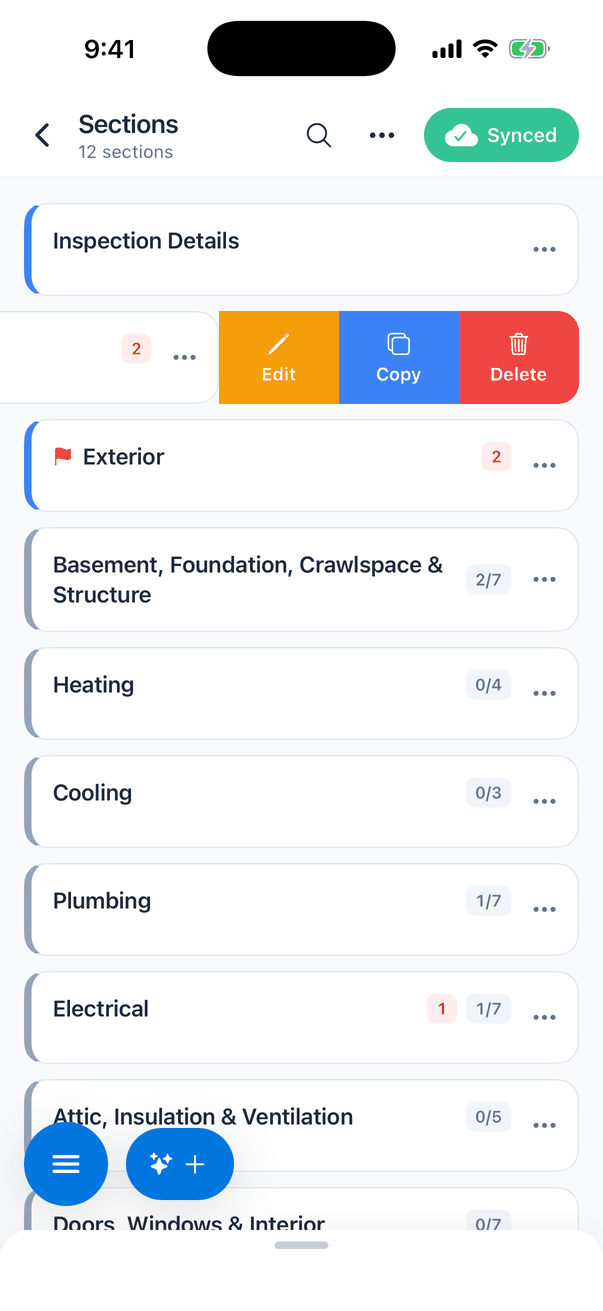
Restore a deleted section
Tap Restore at the bottom of the screen, pick the section and tap Restore Selected. It comes back with everything that was in it. When nothing has been deleted, the window says “No Deleted Items: There are no deleted sections to restore.”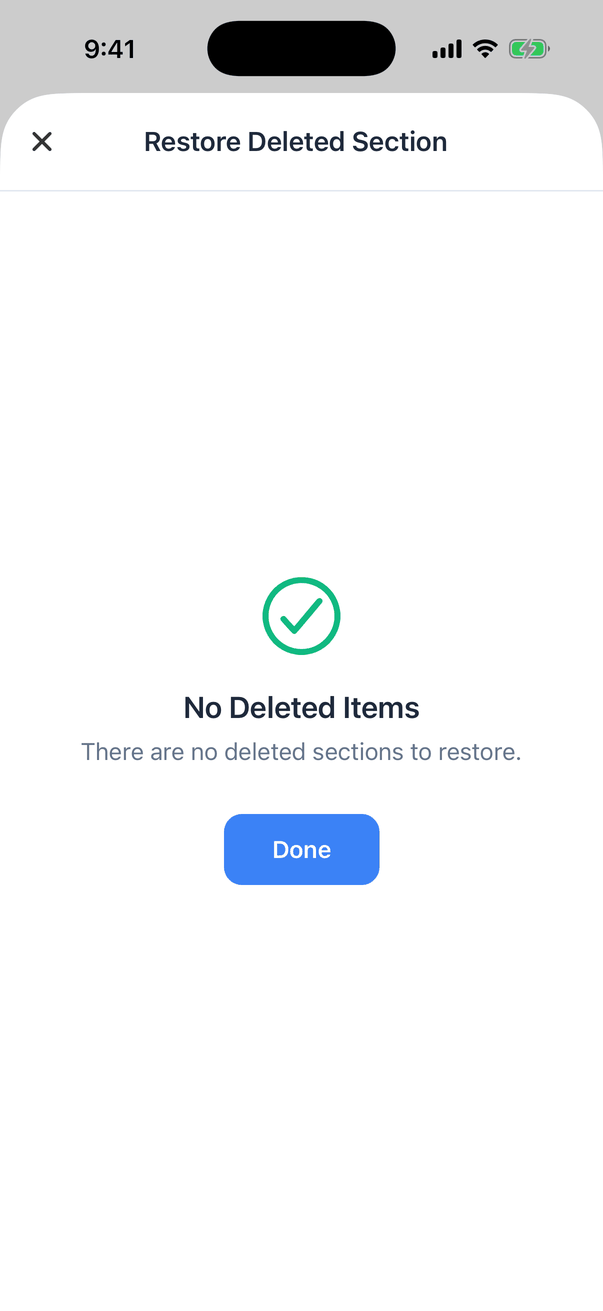
Reorder sections
Press and hold a section, then drag it up or down. Subsections reorder the same way. The new order is the order the client sees in the report.Hidden sections
Sections can be hidden in a template or on the dashboard when they don’t apply, for example Fireplace in a house without one. Hidden sections don’t show in the list or in the client’s report, and the completion ring leaves them out. When a report has hidden sections, a yellow Hidden (1) button shows at the bottom of the Sections screen. Tap it to see them: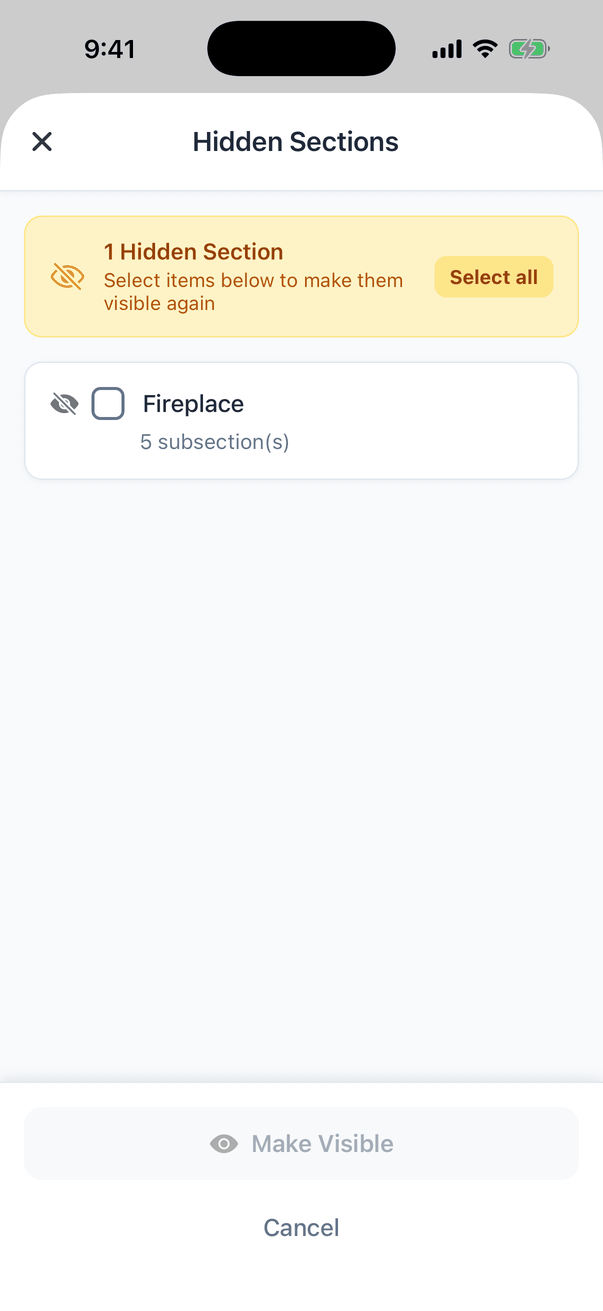
The Sync button
Everything you do in the report is saved on your phone straight away. The Sync button sends it to Hive.
With Auto Sync on (the default), the app also syncs on its own about every minute while a report is open. See Syncing and offline use for what each sync message means and what to do when a sync fails.
Leaving with unsynced changes
When you leave the report with changes that haven’t synced, the app saves them on the phone and tells you: “Your unsynced changes have been saved locally and will be available when you return to this inspection.” Tap Stay Here to stay in the report (then tap Sync on the Sections screen), or OK to leave. They sync the next time you open the report, or with Auto Sync.Re-inspection reports
On a re-inspection report:- Add Section and Add Subsection don’t show.
- Each subsection has a purple Reinspection card with the items carried over from the original report, and its footer reads Add Item.
- Smart Add isn’t available.
Common questions
Why is a section still grey after I opened it?
Why is a section still grey after I opened it?
Grey means none of its subsections are visited yet. Open each subsection and answer every multiple-choice and text question in its Information group.
Why does the number next to a section say 2/7?
Why does the number next to a section say 2/7?
The section has seven subsections and two are visited. Finish the other five and the number goes away.
I deleted a section by mistake
I deleted a section by mistake
Tap Restore at the bottom of the Sections screen and restore it. Everything that was in it comes back.
Does adding a section change my template?
Does adding a section change my template?
No. Sections you add, rename, copy or delete in a report only change that report. Change the template on the dashboard.
Why can't I hide a section on my phone?
Why can't I hide a section on my phone?
The app can only show hidden sections again. Hide sections in the report editor on the dashboard, or in the template.
Can I change the IN, NI, NP and D buttons?
Can I change the IN, NI, NP and D buttons?
Yes, in the template’s settings on the dashboard. You can also turn ratings off for a template. See Disabling ratings.
Where to go next
- Comments on mobile: checkboxes, multiple choice, text and defects.
- Add a comment: add your own comment on site.
- Syncing and offline use: how your work reaches Hive.