

In the mobile app: open a Confirmed inspection → the Fees & Payments tile.
Fees and Payments lets you take payment at the property: open the card payment page, text the client a payment link, or record a check or cash. It opens only on a Confirmed inspection with a price. The tile shows Paid, Partially Paid, Pending or Overdue.The Fees and Payments screen
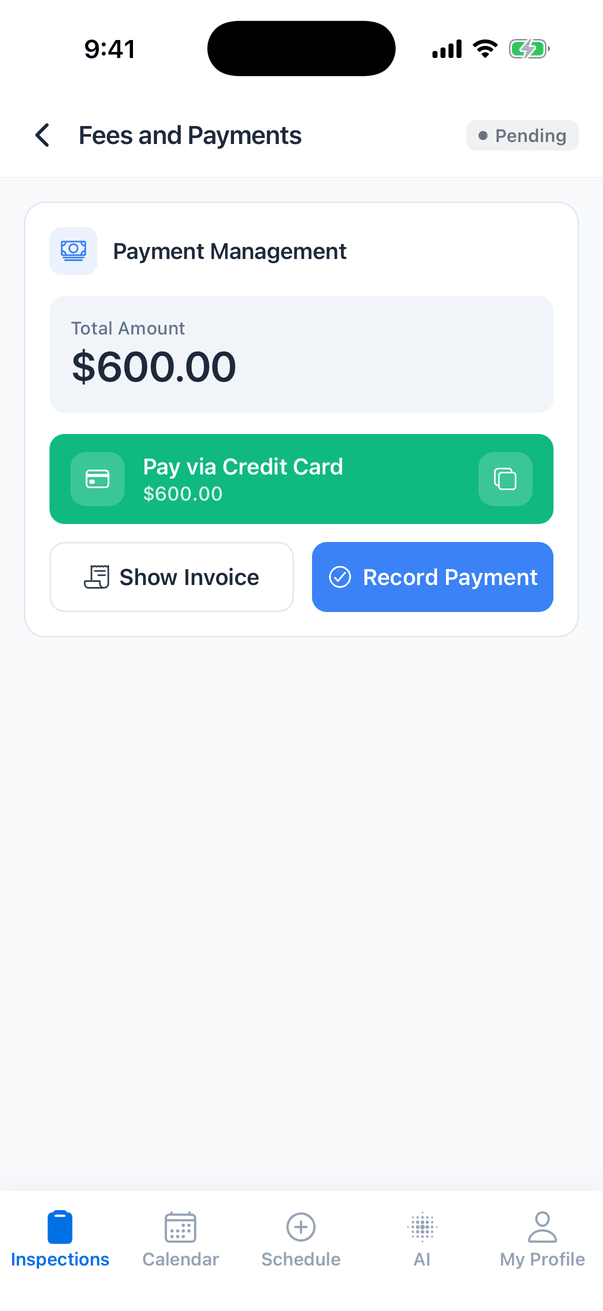
While a bank transfer is clearing, the card button shows Payment Processing: ACH transfer in progress.
After a payment
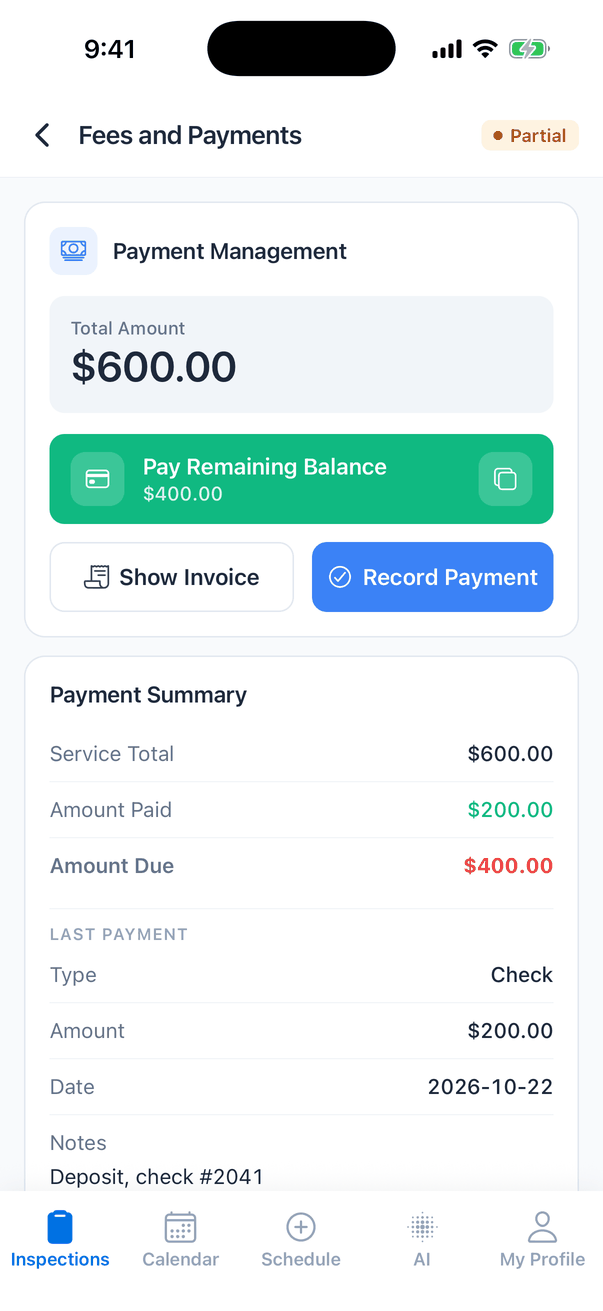
Record a payment
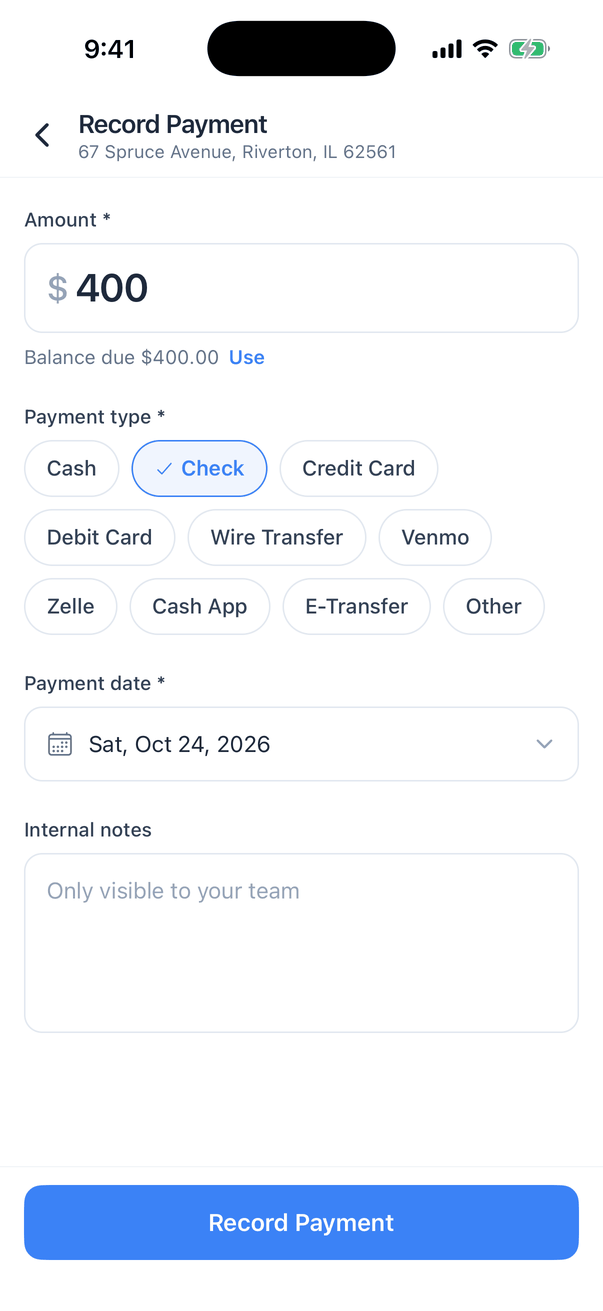
- Tap Record Payment.
- Type the Amount, or tap Use to fill in the balance due.
- Pick the Payment type: Cash, Check, Credit Card, Debit Card, Wire Transfer, Venmo, Zelle, Cash App, E-Transfer or Other.
- Check the Payment date.
- Add Internal notes if you like, such as a check number. Only your team sees them.
- Tap Record Payment.
Edit a payment
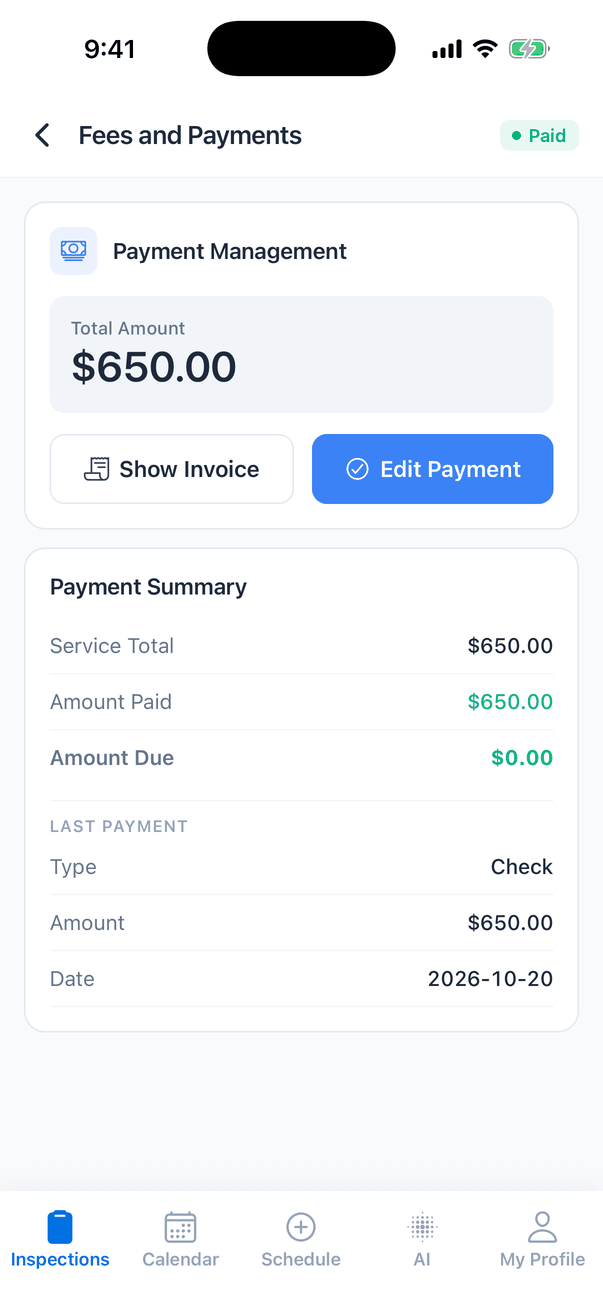
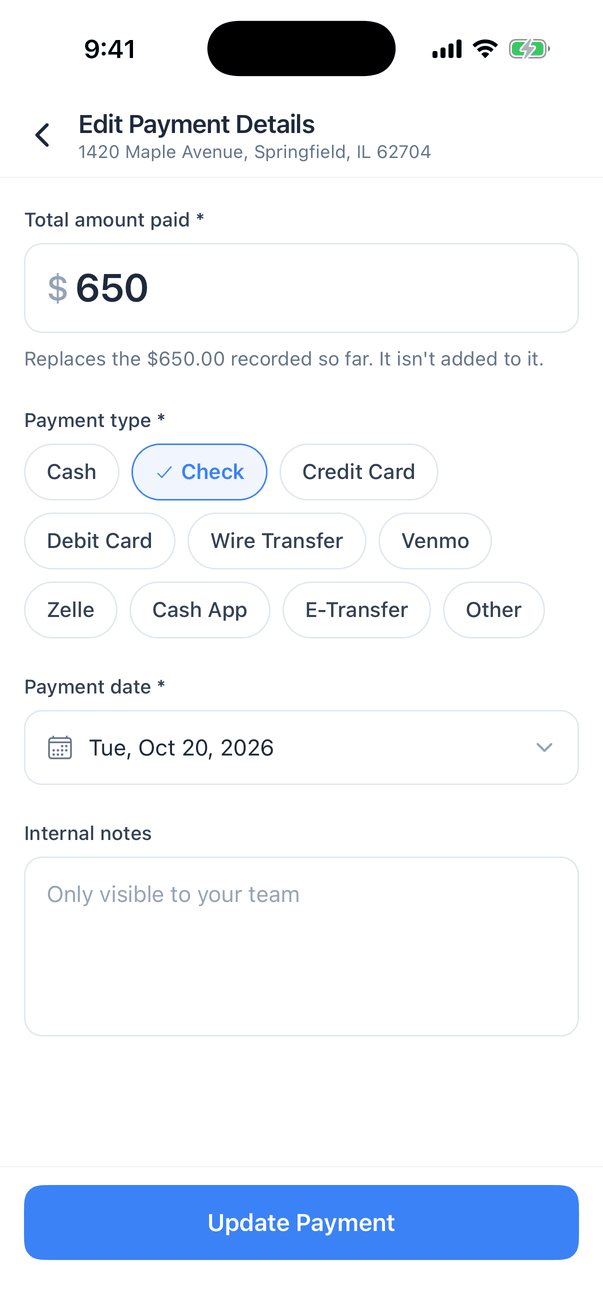
- it was paid online by card through Stripe (use Refund Payment on the dashboard to give money back);
- it has a refund on it;
- part of it was paid by another contact (a split payment).
What you do on the dashboard
Refunds, clearing a payment, requesting the balance by email and splitting the bill with an agent are on the dashboard’s Fees and Payments card. See Fees and payments, Refund an inspection and Split payment.Common questions
Why is the Fees & Payments tile greyed out?
Why is the Fees & Payments tile greyed out?
It opens only on a Confirmed inspection with a price above $0. Others read **Not Available**, and a $0 inspection reads N/A.
The client paid by check. How do I mark it paid?
The client paid by check. How do I mark it paid?
Tap Record Payment, tap Use to fill in the balance, pick Check, add the check number in Internal notes and tap Record Payment.
How do I send the client a payment link from my phone?
How do I send the client a payment link from my phone?
Tap the copy button on Pay via Credit Card and paste the link into a text or email.
Can I refund in the app?
Can I refund in the app?
No. Refunds are on the dashboard. See Refund an inspection.
Where to go next
- Fees and payments: the full payment tools on the dashboard.
- Inspection Summary: the rest of the job.