

In the mobile app: the report editor → a subsection → + or Add Comment on a card.
When the template doesn’t have the comment you need, add one on site. You can write it yourself, or describe what you found and let Hive Comment Assist write it for you.Open the Add screen
In a subsection, tap + on the card you want the comment in, or Add Comment at the bottom of that card:Add an Information or Limitations comment
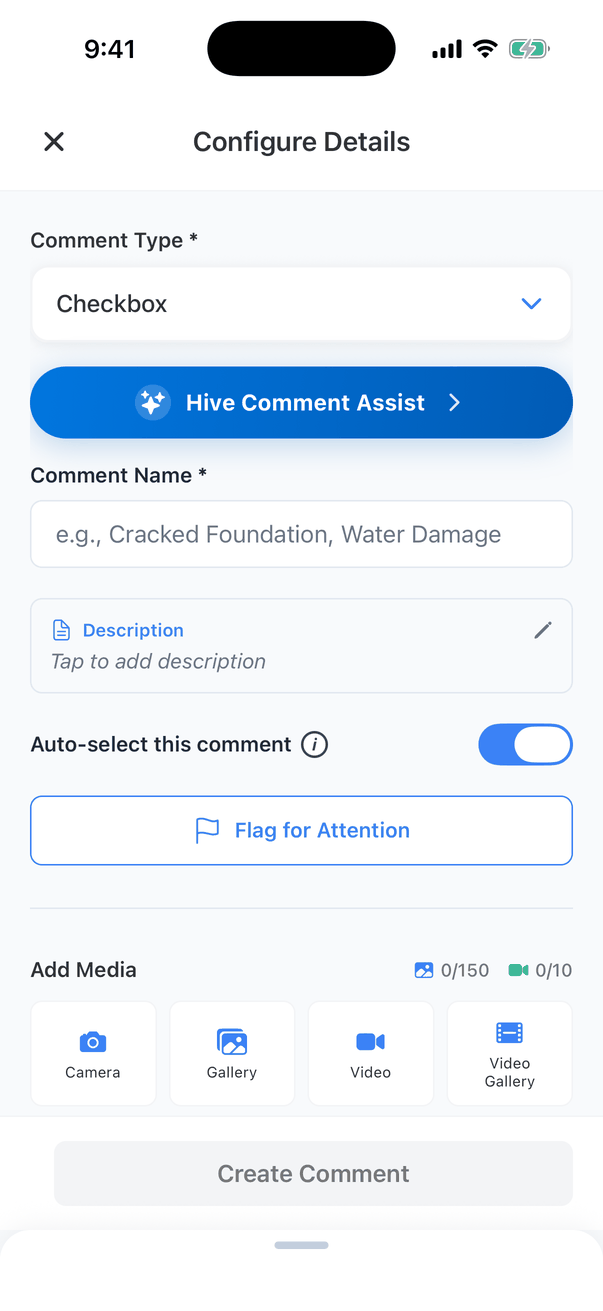
Pick the Comment Type
Tap Comment Type and choose: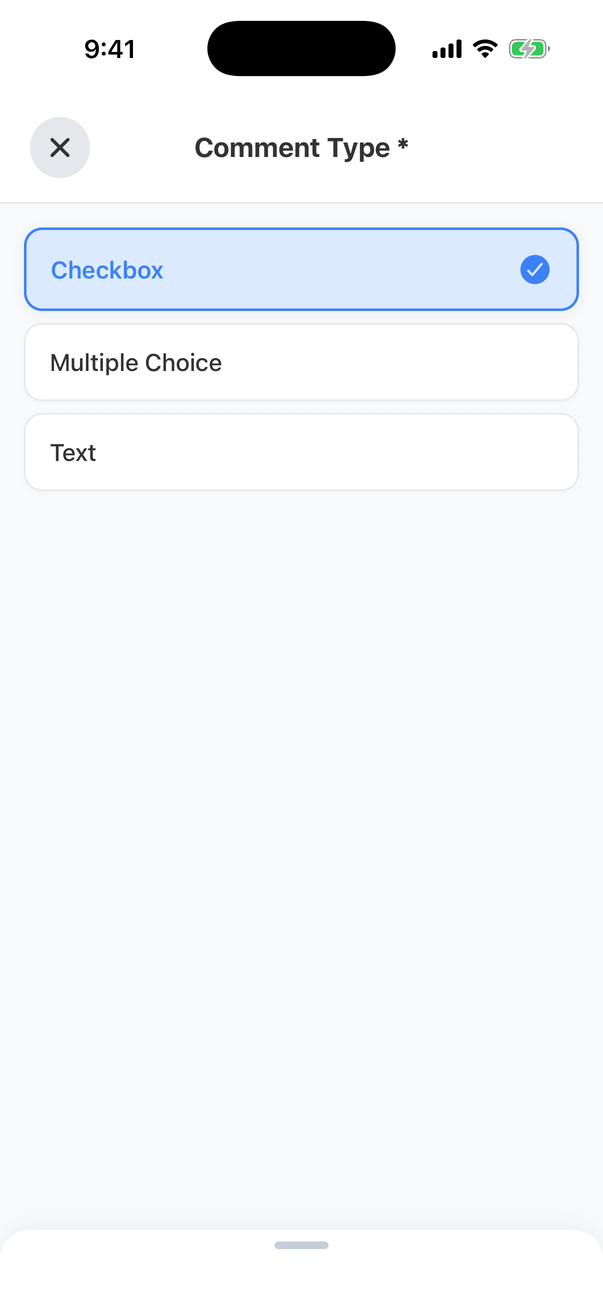
- Checkbox: a comment you tick on or off, such as “Gate code provided”.
- Multiple Choice: a question with options, such as a material.
- Text: a free-text answer, such as a model number.
Fill in the details for its type
- Description: the text the client reads. Tap it to write it in the editor.
- Checkbox: Auto-select this comment ticks it in this report straight away.
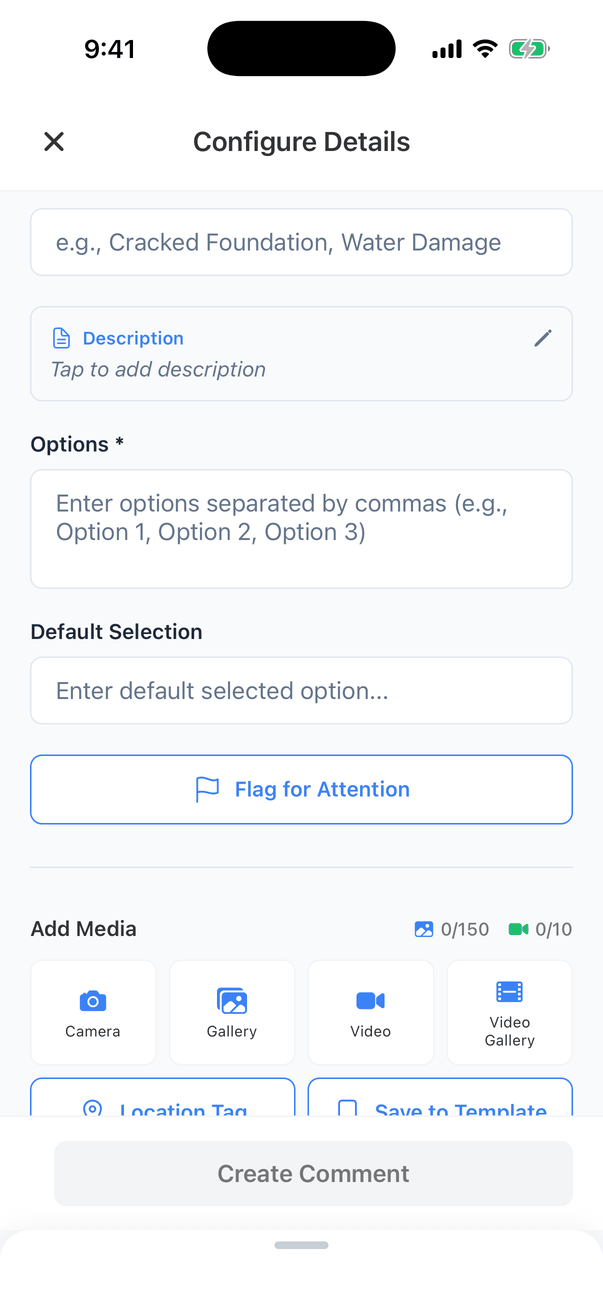
- Multiple Choice: type the Options separated by commas, for example “Copper, PEX, Galvanized”. Default Selection is the option to start with, if any.
- Text: a Default Text Value to start with, if any.
Add a defect
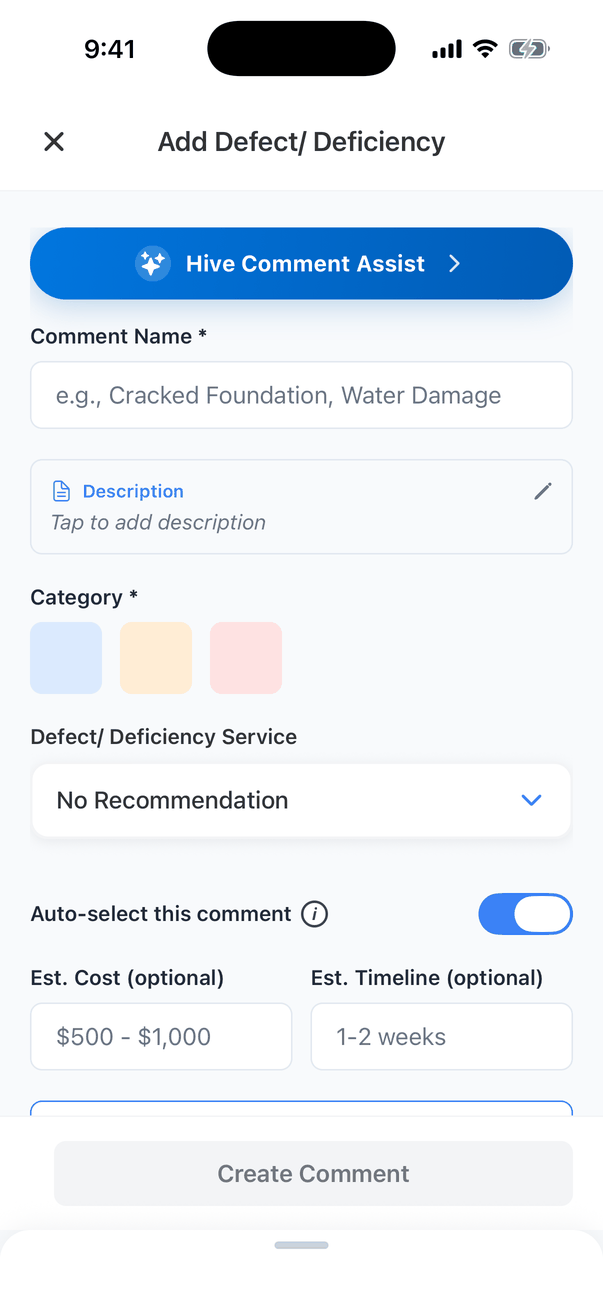
- Type the Comment Name, for example “Missing GFCI Protection”.
- Write the Description.
- Pick a Category: tap the blue, orange or red square. Your company names these in Report Customization, for example Maintenance Items, Recommendations and Safety Concerns.
- Pick the Defect/ Deficiency Service: who should fix it, for example Electrical Contractor. Leave No Recommendation if you don’t want to name one.
- Optionally type Est. Cost and Est. Timeline.
- Auto-select this comment is on, so the defect is turned on in this report.
- Add photos and tap Create Comment.
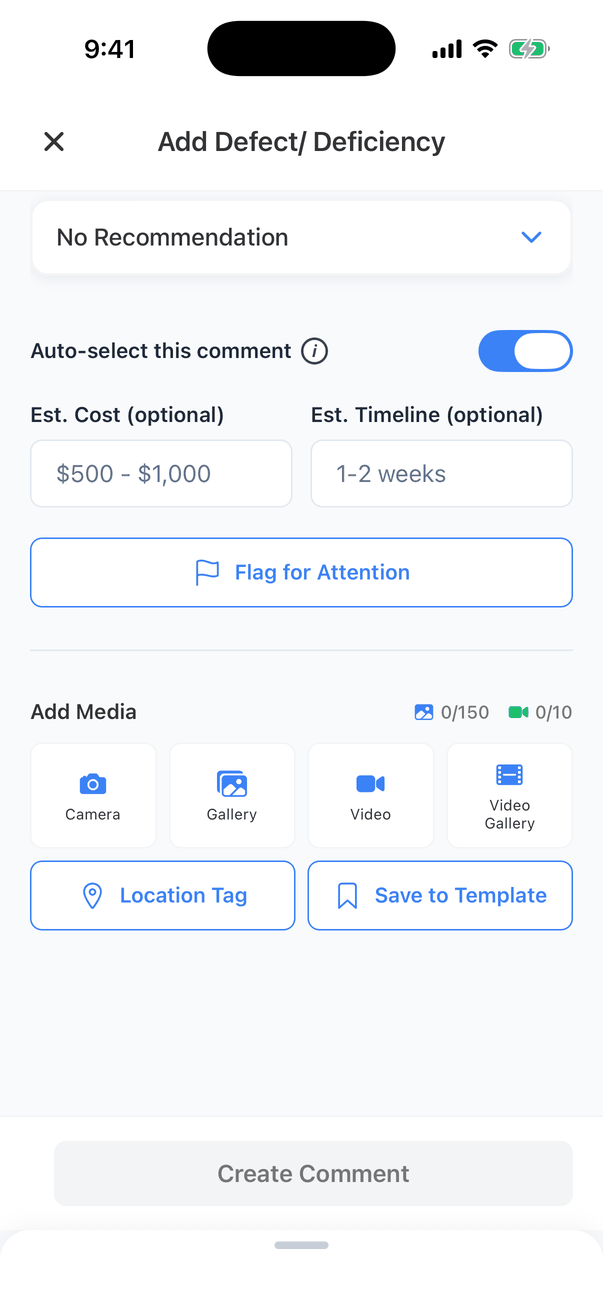
The buttons at the bottom of every Add screen
About Auto-select, the app says: “Auto-select applies only to this comment in the current report. It marks the comment as selected here and does not change your template.” To keep the comment for future reports, use Save to Template.
Hive Comment Assist
Hive Comment Assist writes the comment for you from a short description. It fills in the name, the description and, for a defect, the category and the service. Your company needs Hive AI turned on.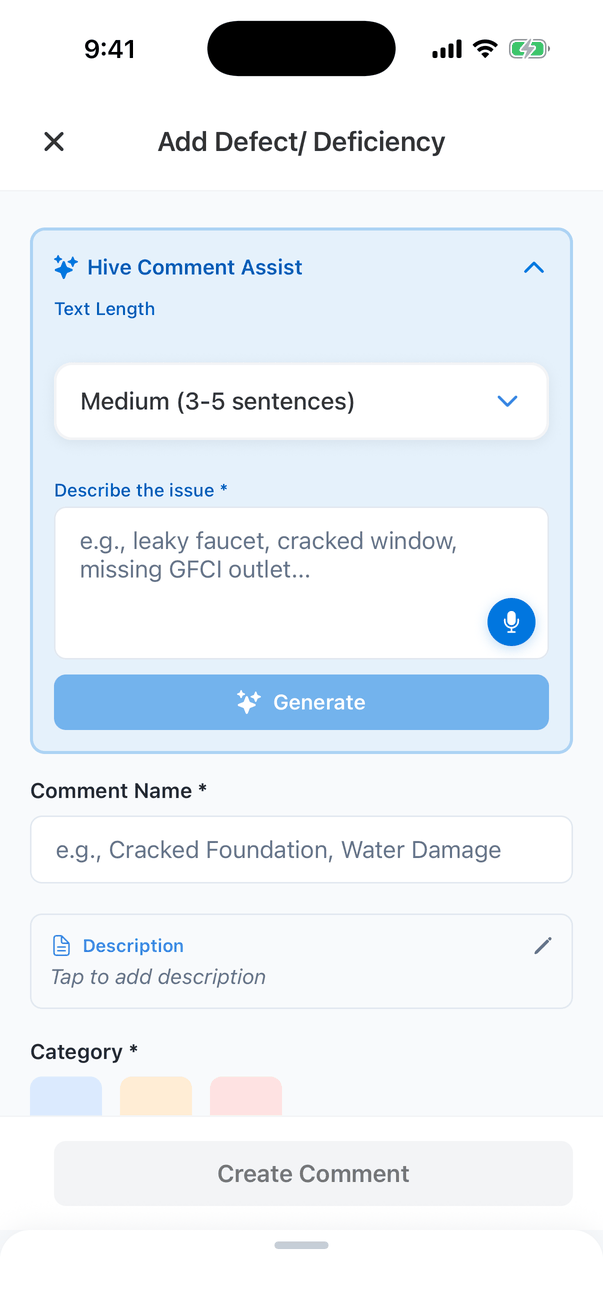
Pick the length
Small (1-2 sentences), Medium (3-5 sentences) or Large (6-10 sentences). The default comes from My Profile → Hive AI Settings.
Describe what you found
Type a few words in Describe the issue, or tap the microphone and say it. For example: “double tapped breaker in the main panel”.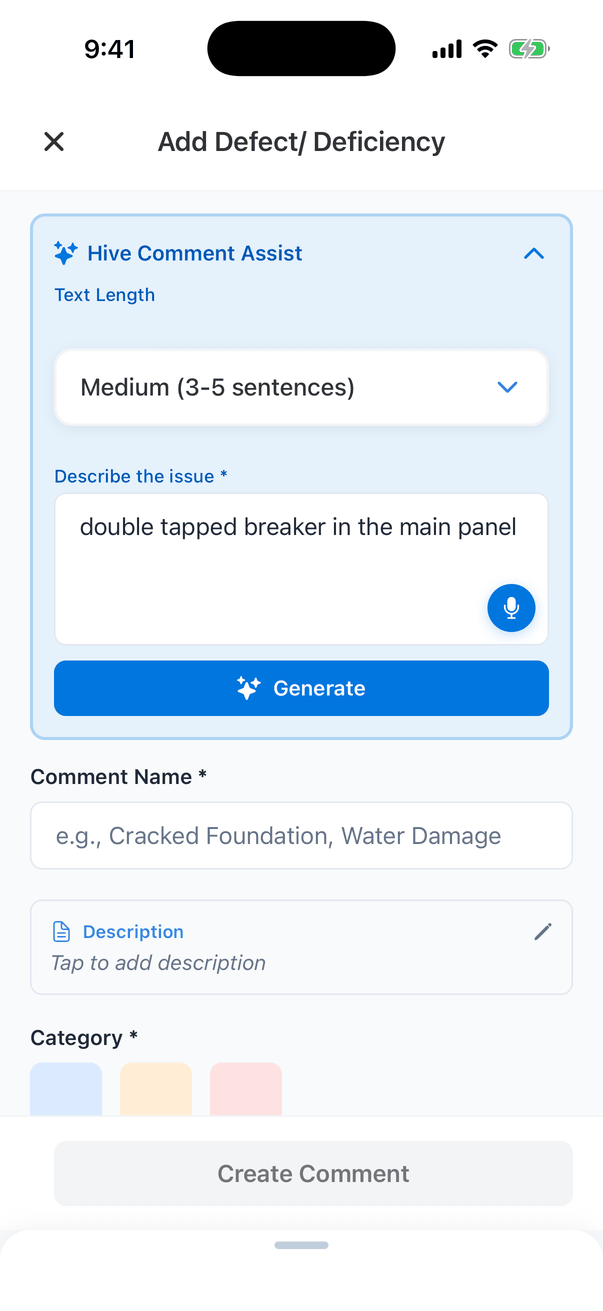
Tap Generate
After a few seconds the app shows “Field generated successfully” and fills in the form.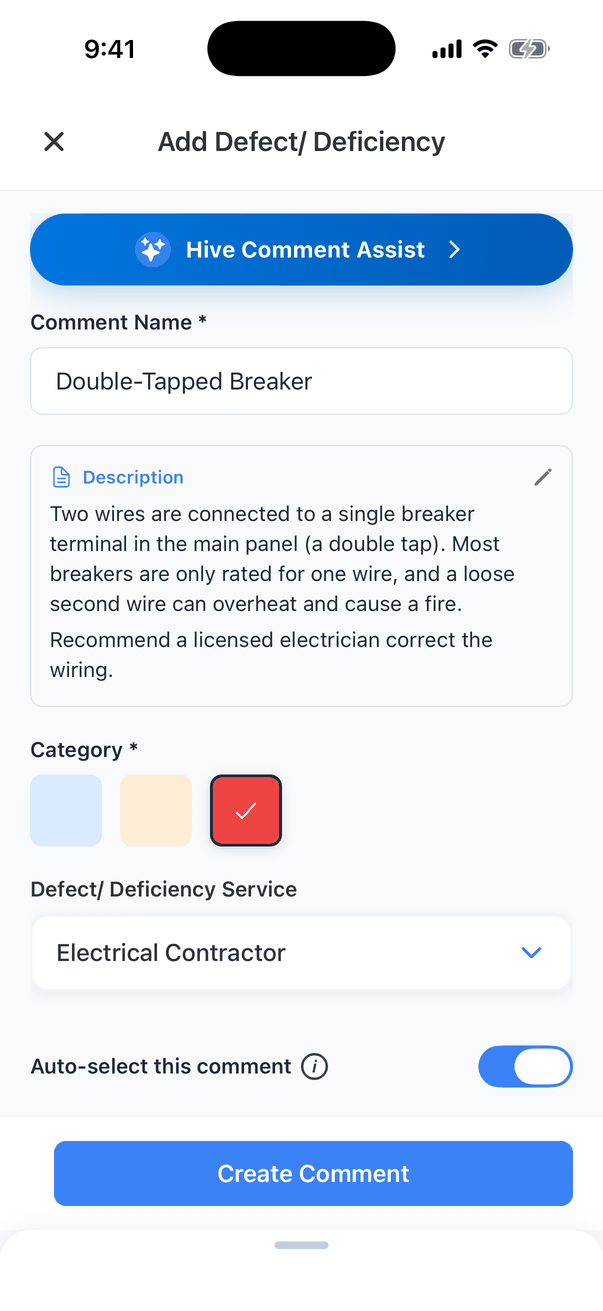
- Comment Assist needs an internet connection. Offline, the app says “No Internet: Please check your internet connection and try again.”
- Dictation also needs a connection on most phones.
- You can also use Comment Assist on an existing comment: open its description and tap the blue sparkle button. See Edit a description.
Leaving without saving
Tap X to leave. If you’ve typed anything, the app asks “Discard Changes: Are you sure you want to discard your changes?” Tap Discard to throw it away, or Cancel to keep editing.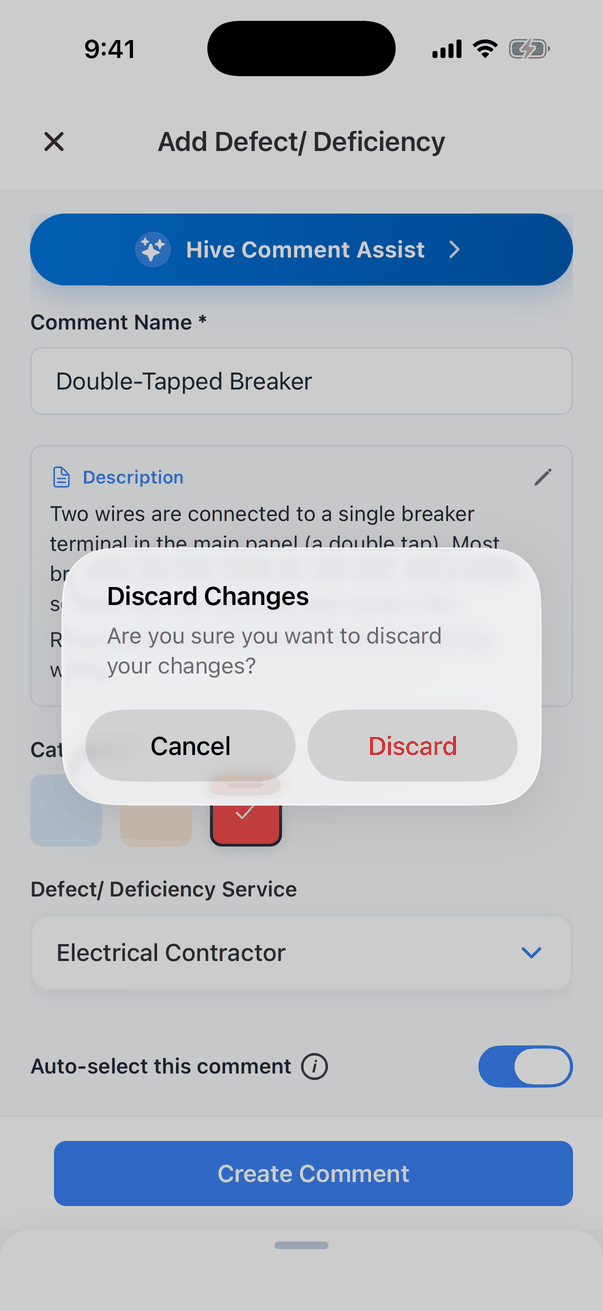
Add a re-inspection item
On a re-inspection report, tap Add Item on the purple Reinspection card. Add Reinspection Item works like adding a defect, plus a Resolution Status: Resolved, Unsatisfactory or Unresolved. Comment Assist and Save to Template aren’t available for re-inspection items.Common questions
Why is Create Comment greyed out?
Why is Create Comment greyed out?
Something required is missing. Every comment needs a name. A defect also needs a category, a multiple-choice comment needs options, and a text comment needs a description.
Will the comment be in my next report?
Will the comment be in my next report?
Only if you turned on Save to Template before you created it, and then synced. Otherwise it’s only in this report.
I don't see Hive Comment Assist
I don't see Hive Comment Assist
Your company needs Hive AI turned on. It also doesn’t show for re-inspection items.
Can I change what Comment Assist wrote?
Can I change what Comment Assist wrote?
Yes. Everything it fills in is a normal field you can change before, or after, you tap Create Comment.
Where to go next
- Comments on mobile: every part of a comment card.
- Smart Add: describe what you found and let Hive find the right comment.
- Saving comments to the template: keep comments for future reports.