

In the mobile app: open an inspection → the Agreements tile.
When a client hasn’t signed the inspection agreement before you arrive, they can sign it on your phone or tablet at the property. The Agreements tile on the Inspection Summary shows how many are signed: All Signed, 1/2 Signed, Pending Signature or No Agreements.The Agreements list
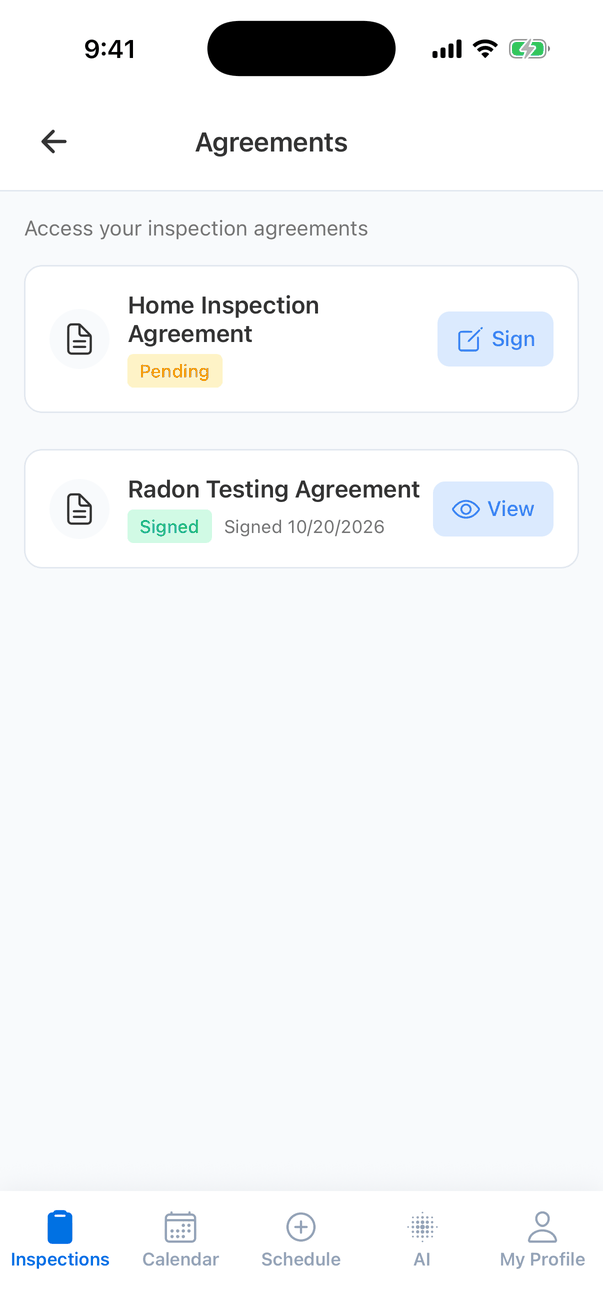
- Pending with a Sign button: not signed yet. Tap Sign to sign it on this phone.
- Signed with the date and a View button: tap View to open the signed PDF in your browser.
Have the client sign
Tap Sign next to the agreement
The Sign Agreement screen shows the agreement with your company’s details and the client’s name, address and prices already filled in.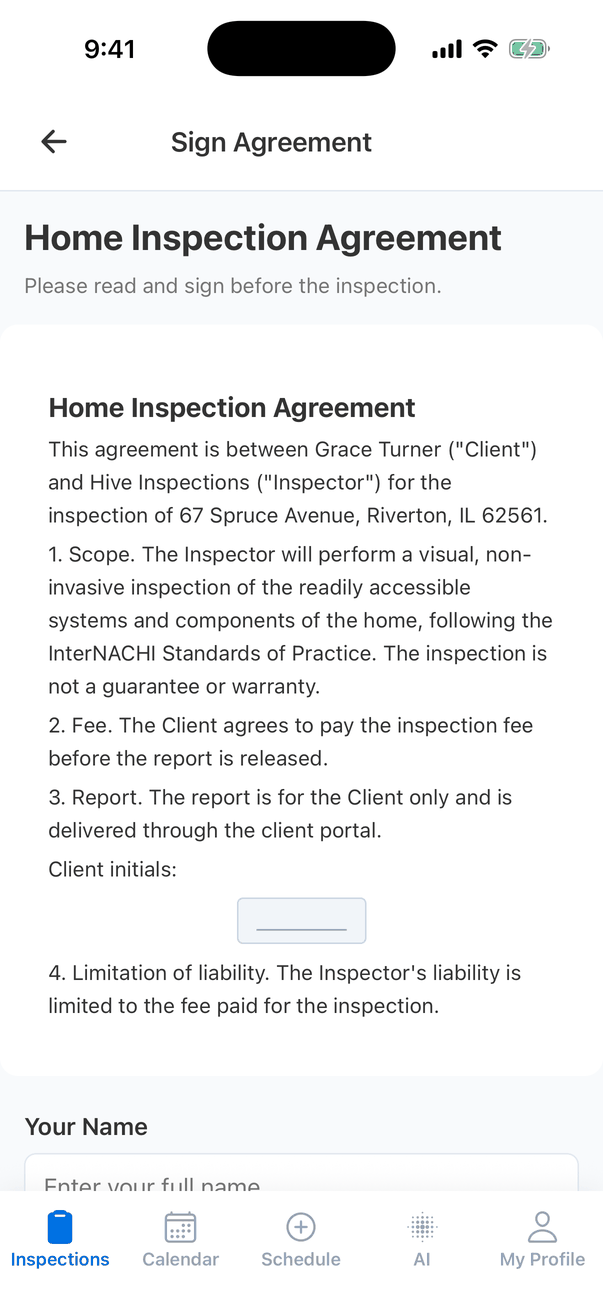
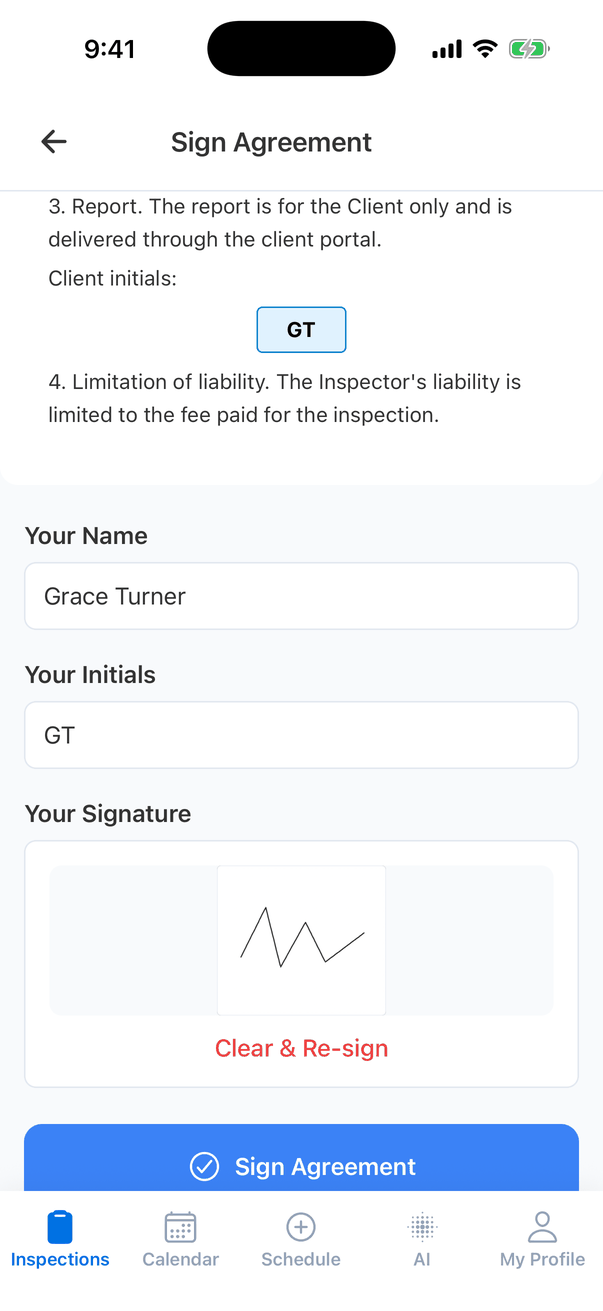
The client fills in Your Name and Your Initials
Your Initials only shows when the agreement has places to initial. As they type, their initials appear in each of those places in the agreement.
The client signs
Tap Tap to sign, draw the signature with a finger, and tap Save Signature. Clear starts the drawing again.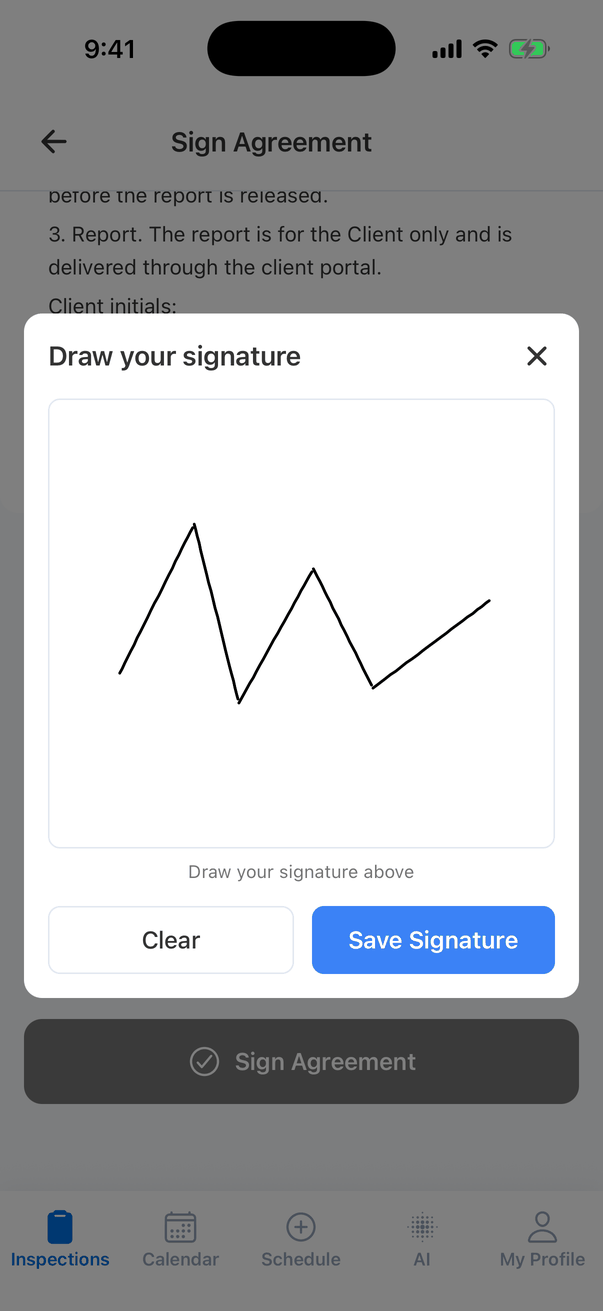
Common questions
Why is Sign Agreement greyed out?
Why is Sign Agreement greyed out?
Something is missing: the name, the signature, or the initials when the agreement asks for them.
The client already signed by email. Why does the app say Pending?
The client already signed by email. Why does the app say Pending?
Pull down on the Agreements screen to refresh it.
Can I add or change an agreement in the app?
Can I add or change an agreement in the app?
No. Agreements are set up and attached on the dashboard. See Set up inspection agreements.
Where to go next
- Inspection Summary: the Agreements tile and the rest of the job.
- Fees and payments on mobile: take payment on site.