

In the mobile app: the Inspections tab → tap an inspection card.
The Inspection Summary is the screen you see when you tap an inspection in the list. It holds everything about the job in one place: the property, the client and agents, payments, agreements and status. From here you open the report editor to start inspecting. The screen scrolls. From top to bottom it shows the property photo, the job details, the Report Editor button, four tiles, Quick Links, the contacts, Property Information, Service Info, Your Payout, Private Notes, Additional Documents, Additional Reports and Custom Fields. Pull the screen down to refresh it.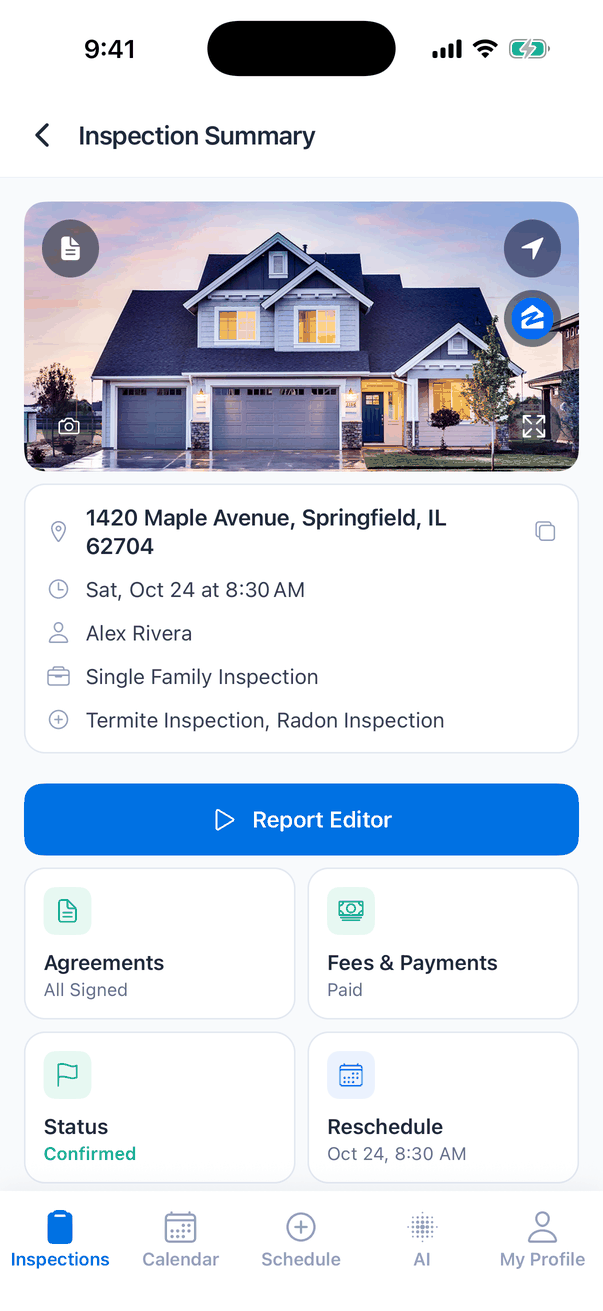
The property photo
The photo at the top is the inspection’s banner image, the same one clients see in their report portal.
When an inspection has no photo, the box reads No banner image with an Add Image button.
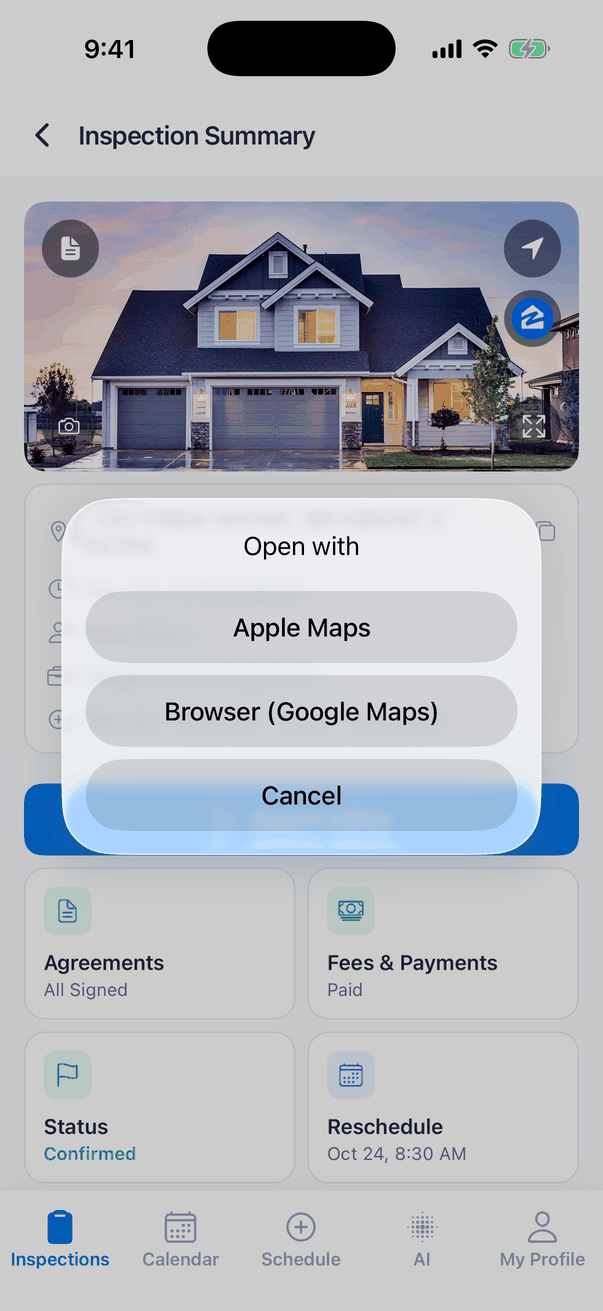
A new photo replaces the banner for the whole inspection: it shows on the dashboard and in the client’s report portal too. The app needs an internet connection to upload it.
The job details card
Under the photo:- Address, with a copy button. Tap it to copy the full address.
- Date and start time, in your company’s time zone.
- Inspector, everyone assigned to the inspection.
- Service and Add-ons booked for this inspection.
Report Editor and Send to Client
The big blue button changes with the inspection’s status: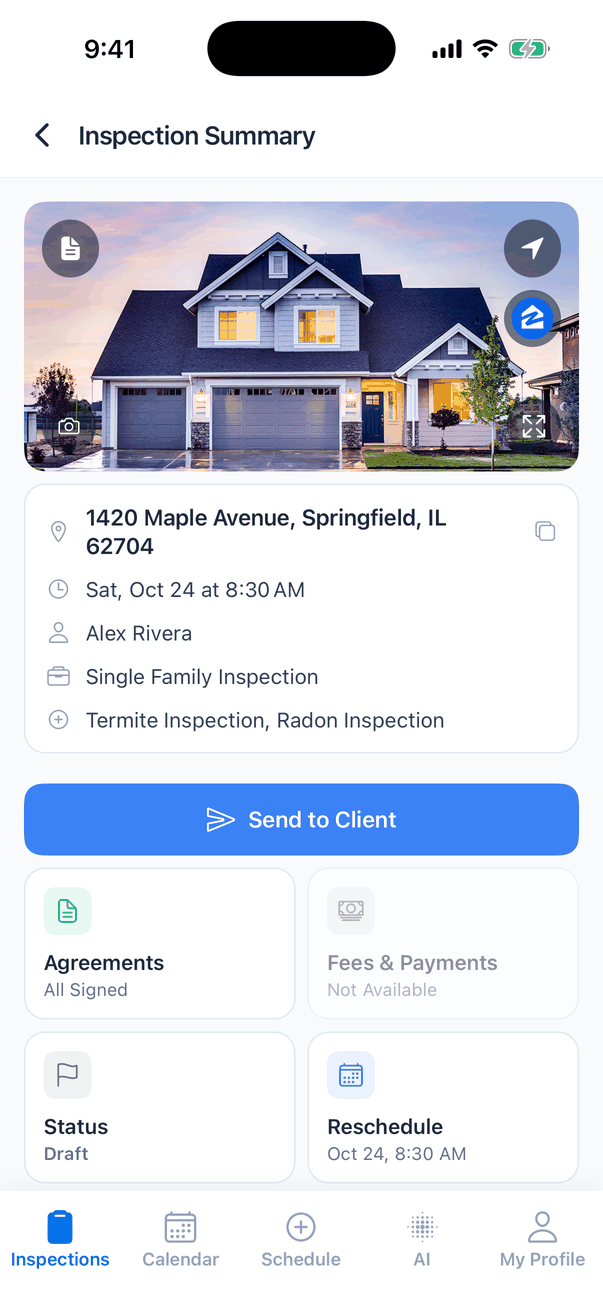
The four tiles
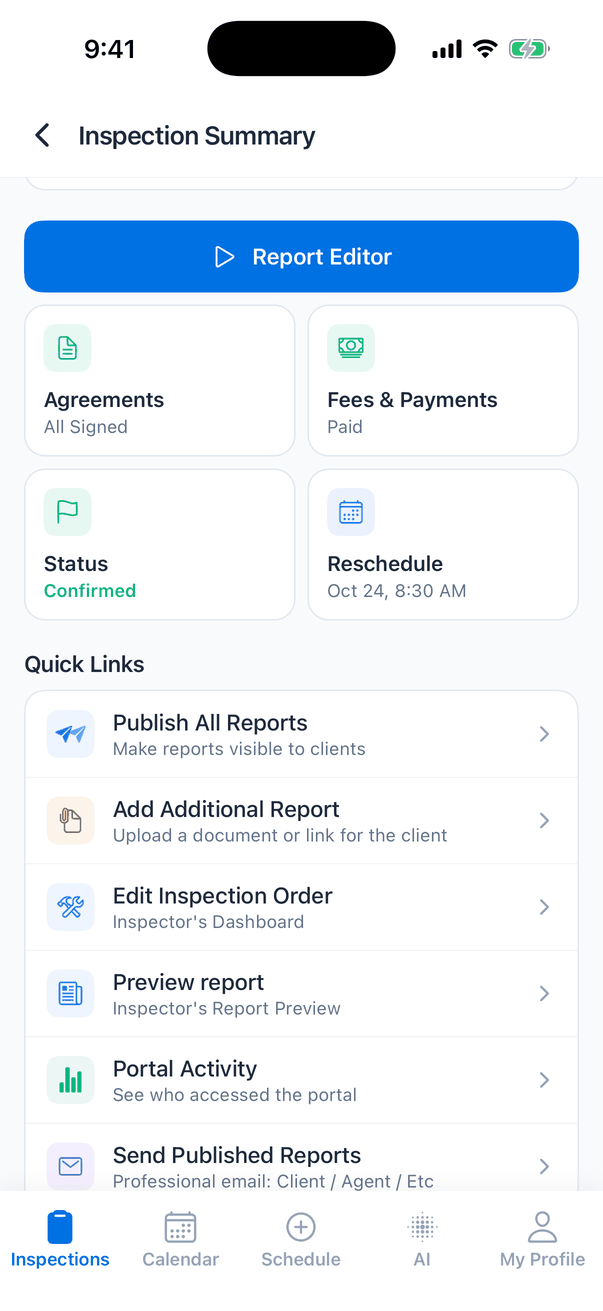
Fees & Payments only opens on a Confirmed inspection with a price. On any other status it’s greyed out and reads Not Available.
Change the status
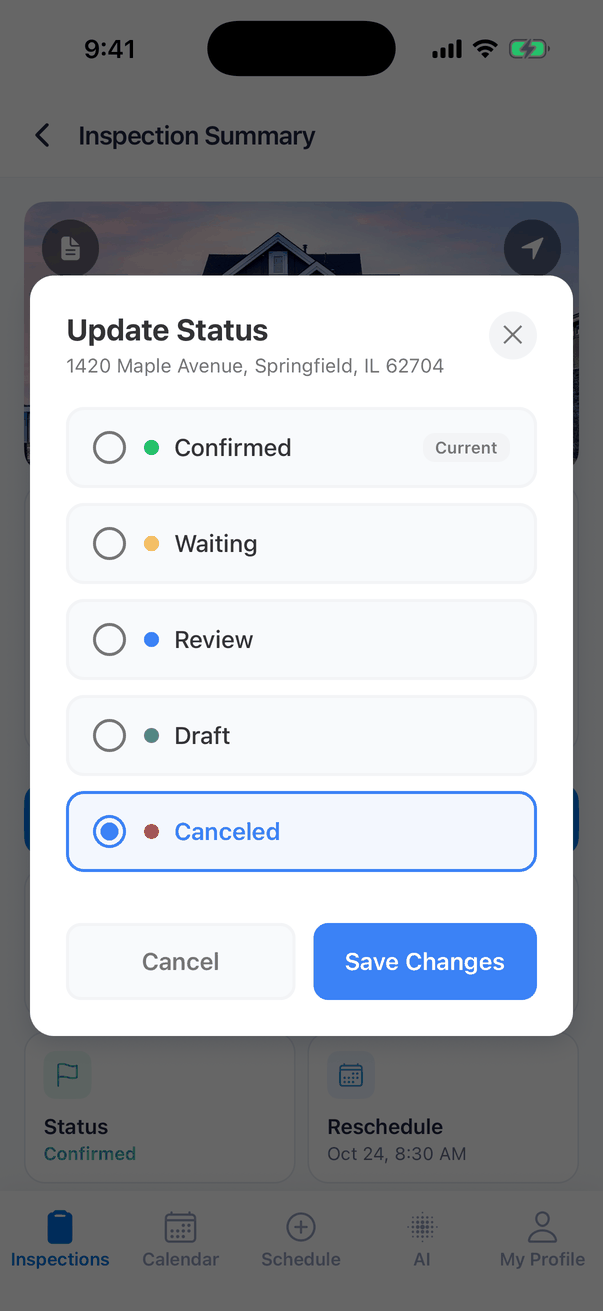
Tap the Status tile
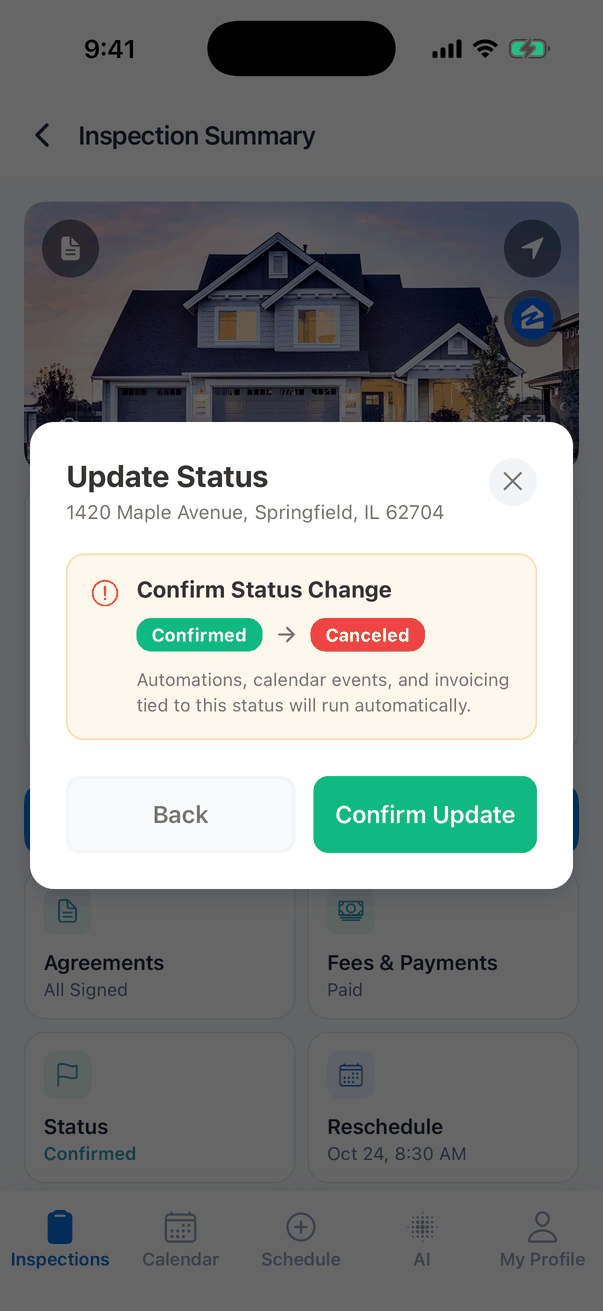
The Update Status window lists Confirmed, Waiting, Review, Draft and Canceled. The current one is marked Current.
Reschedule the inspection
Tap the Reschedule tile
The Reschedule Inspection sheet shows the current time (“Currently: Sat, Oct 24, 2026 · 8:30 AM”) and a row of dates. Swipe the dates to see later days.
Pick a day, then a time
The app shows the times the assigned inspector is free that day, based on the inspection’s length. Tap a time. The bar at the bottom shows New time, for example “Mon, Oct 26 · 9:00 AM”.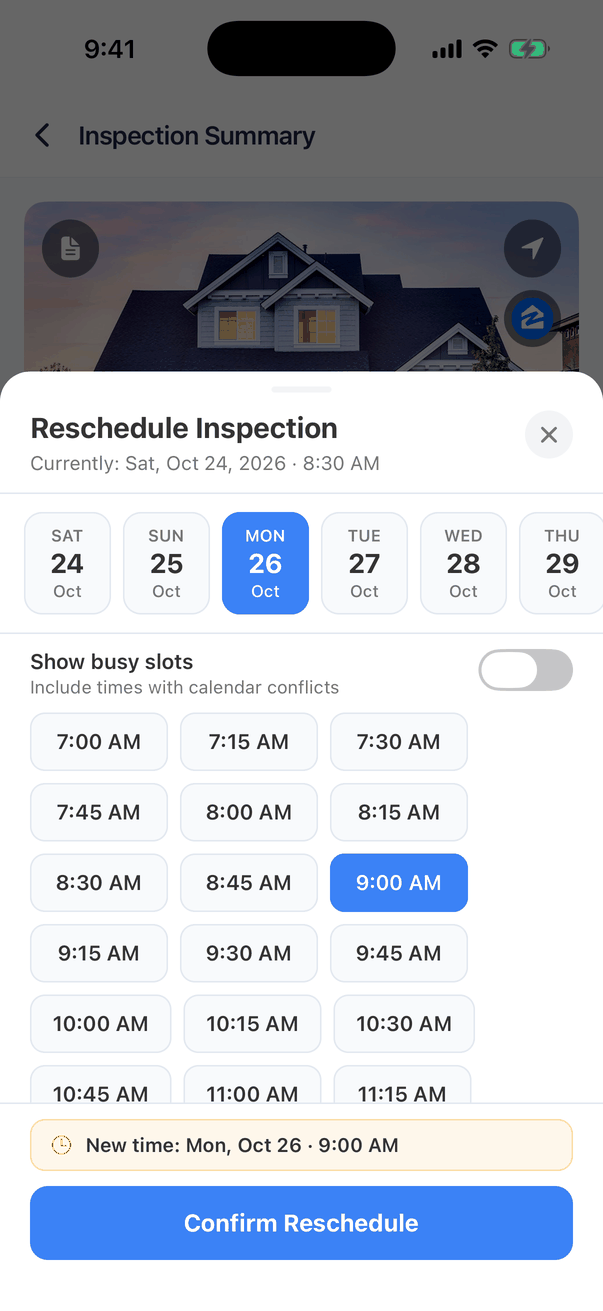
- Show busy slots adds the times that clash with something on the inspector’s calendar. Turn it on when you know the clash is fine.
- If a day has no free times, the sheet says “No open times this day. Turn on “Show busy slots” to pick anyway.”
- Times are shown in your company’s time zone. The sheet says which one under the times.
- Rescheduling needs an internet connection.
Quick Links
Publish all reports
Tap Publish All Reports, then Publish All to confirm. The app shows “2 reports published. Reports are generating in the background and will be ready shortly.” Publishing makes the reports visible to your clients and runs your “reports published” automations, the same as on the dashboard. A report isn’t published if:- it has flagged comments. The app lists the reports with flagged fields to fix first;
- your company requires every section to be finished before publishing, and some subsections aren’t done. The app lists each report with the number of unfinished subsections.
Add an additional report
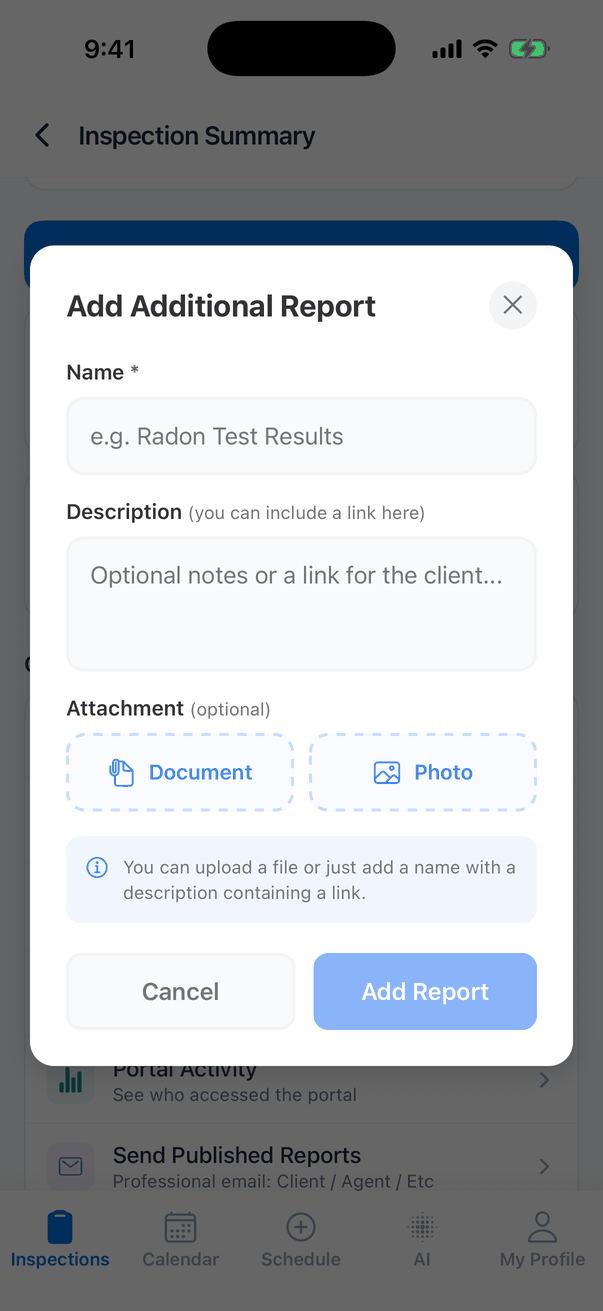
- Tap Add Additional Report.
- Type a Name, for example “Radon Test Results”. This is what the client sees.
- Add a Description. You can paste a link here, for example to a lab’s results page.
- Attach a file if you have one: Document (PDF, Word or Excel) or Photo (JPEG, PNG or GIF), up to 100 MB.
- Tap Add Report (or Upload Report when a file is attached).
Portal Activity
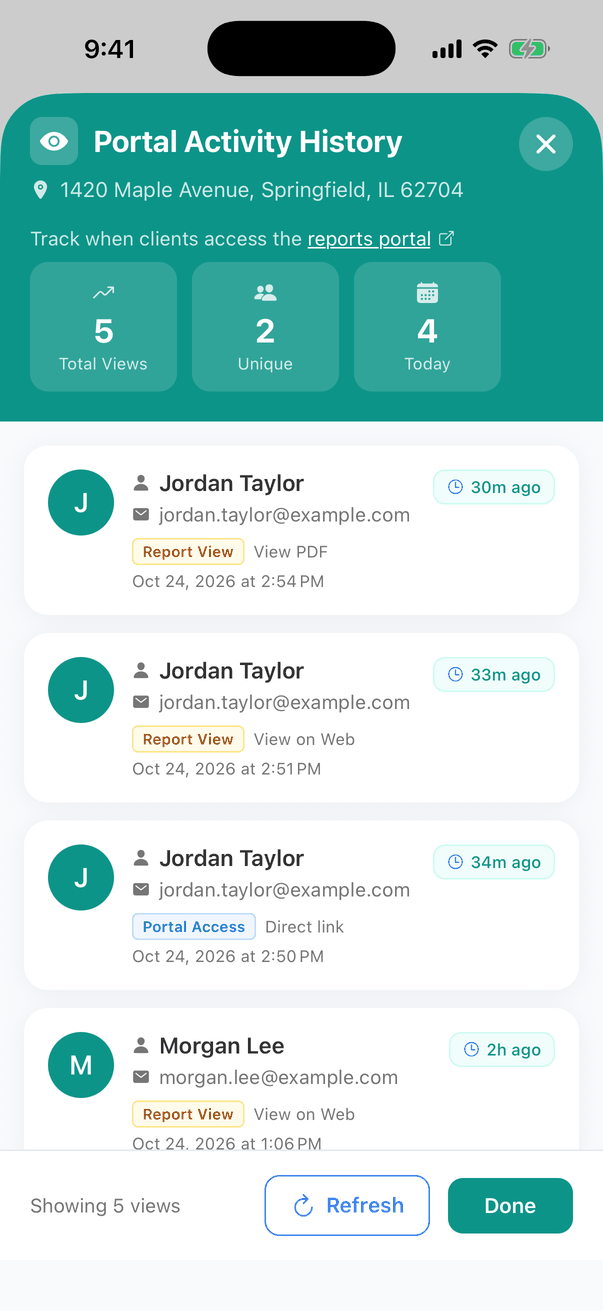
- Portal Access: they opened the client portal, for example from a Direct link in an email.
- Report View: they opened a report, as View on Web or View PDF, or an additional report such as “Additional: Radon Test Results”.
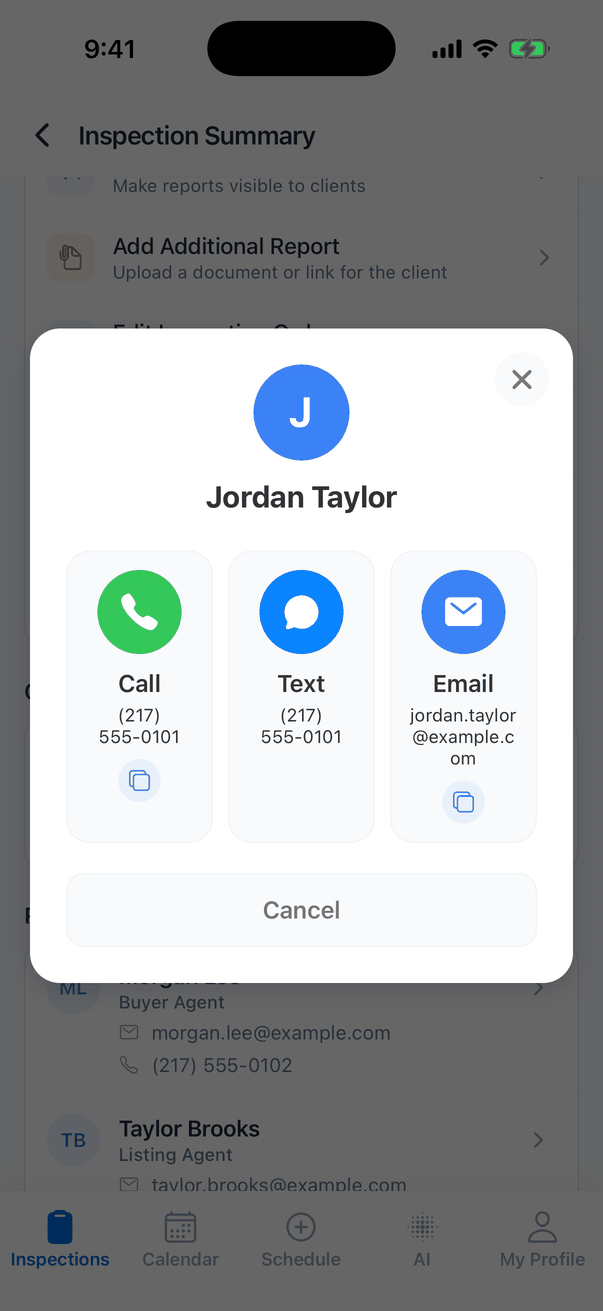
Contacts
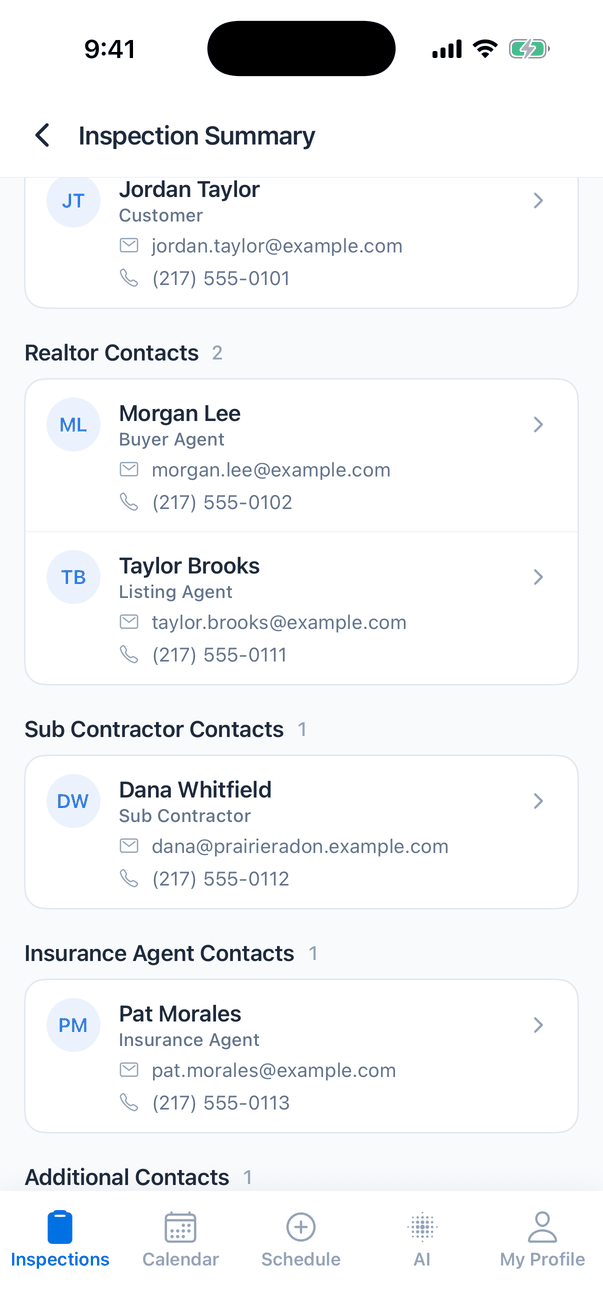
- Customer Contacts: the clients.
- Realtor Contacts: buyer’s agents first, then listing agents.
- Sub Contractor Contacts: partners on the job, such as a radon tester.
- Insurance Agent Contacts.
- Additional Contacts: everyone else, such as a transaction coordinator, attorney, title company or lender.
- Inspector Contacts.
Property Information
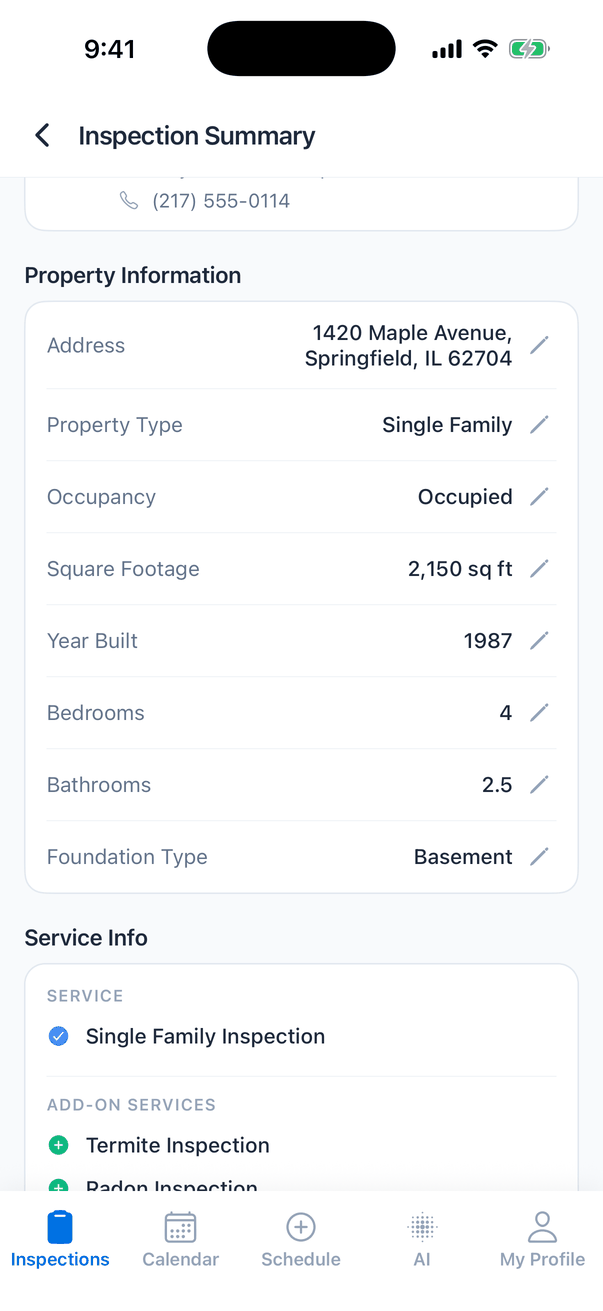
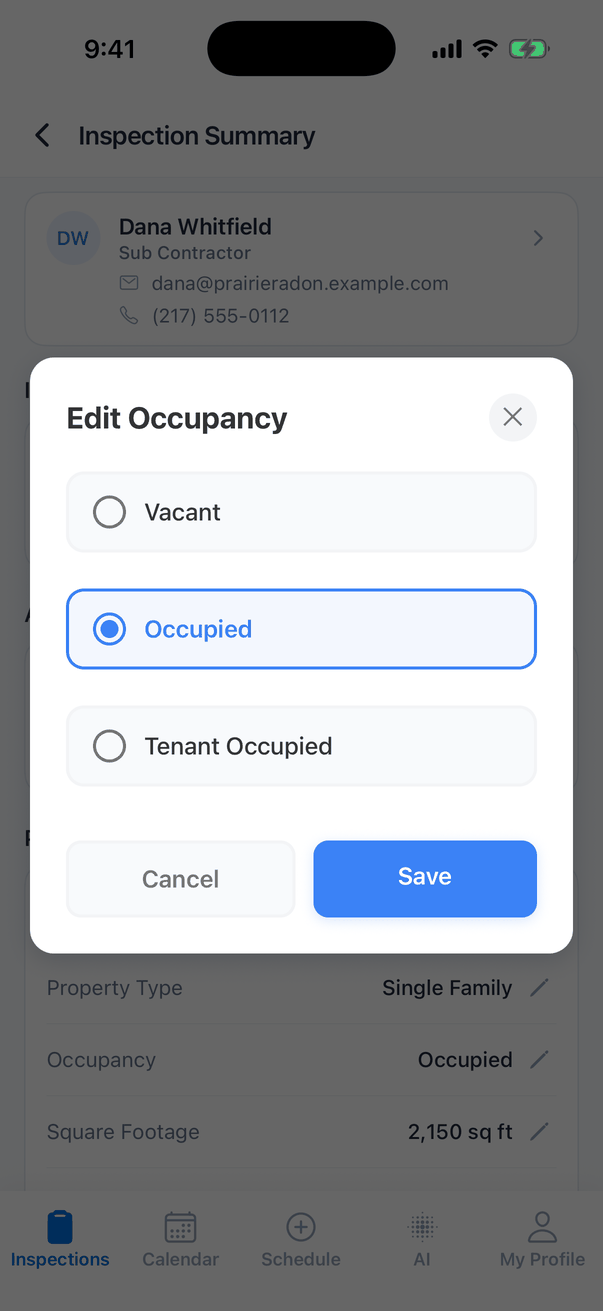
Changing these details doesn’t change the price. Prices are worked out when the inspection is booked. To reprice, use Edit Inspection Order on the dashboard.
Service Info and Your Payout
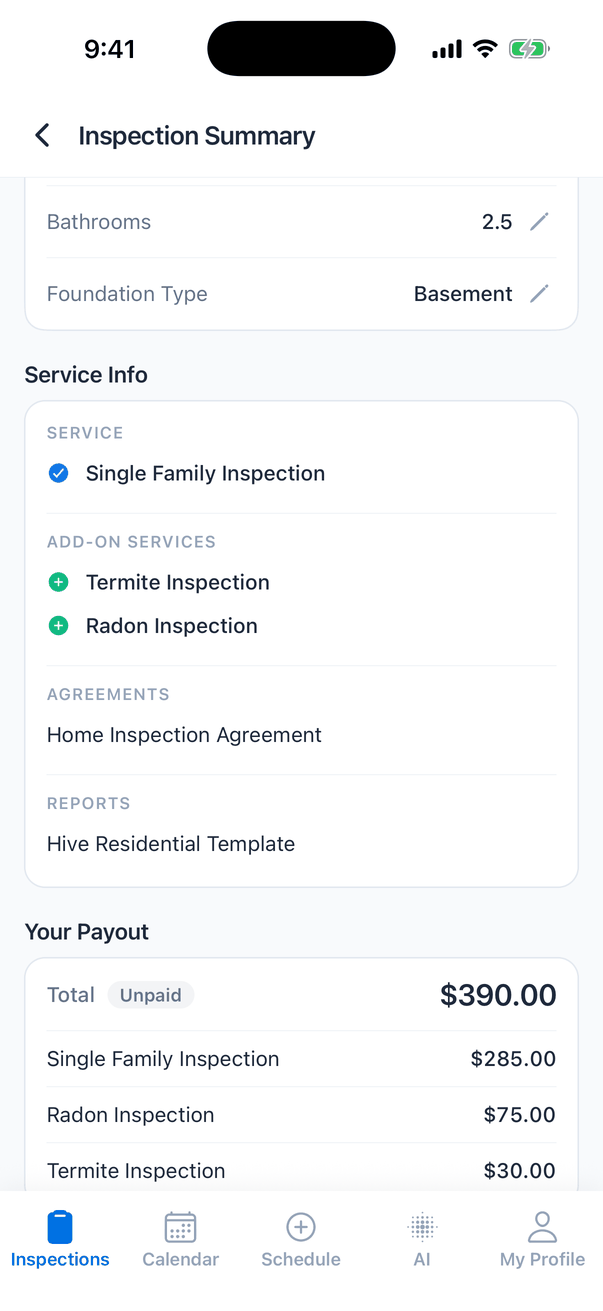
- the inspection is Confirmed;
- your company shows payouts to inspectors and lets you see your own (set on the web, see Pay splits);
- you have payout lines on this inspection.
Private Notes, documents and additional reports
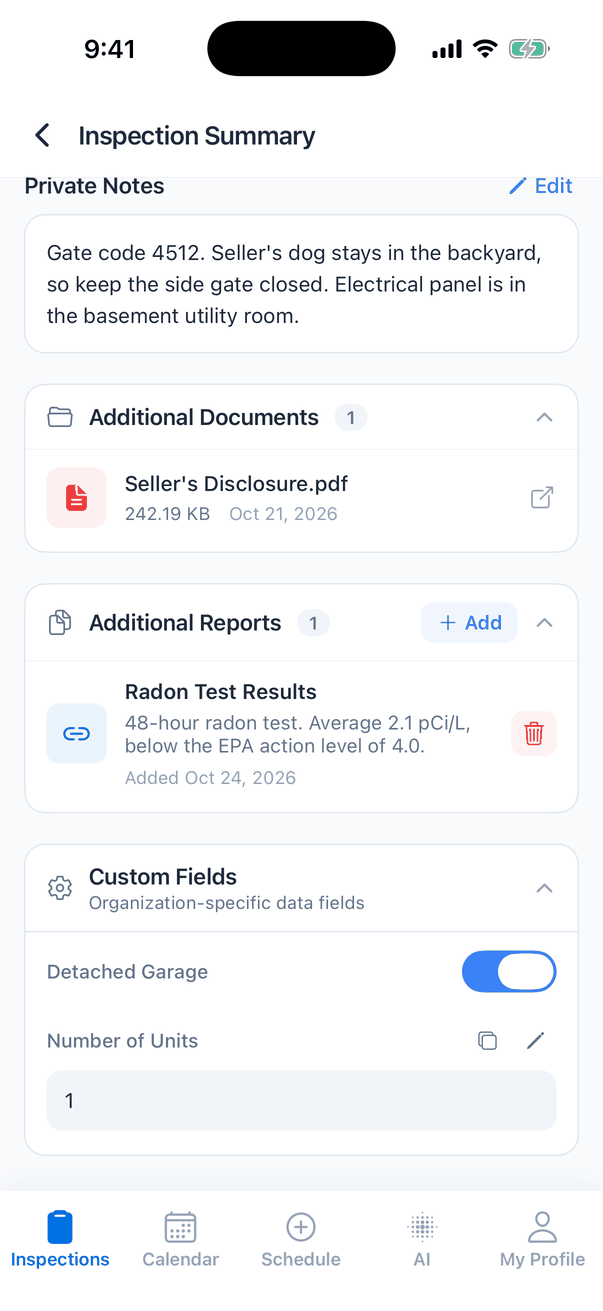
- Private Notes: notes for the inspector only, such as a gate code or lockbox. Clients never see them. Tap Edit, type, then tap Save. They’re the same notes as the dashboard’s Private Notes box on the inspection order.
- Additional Documents: files attached to the inspection on the dashboard, such as a seller’s disclosure. Tap one to open it. This section only shows when there are documents and you’re online.
- Additional Reports: the extra reports on the client’s portal. Tap one to open it, the trash button to delete it (you’re asked first), or Add to add another.
Custom Fields
Custom Fields shows your company’s own questions, such as “Number of Units” or “Gate or Lockbox Code”. Only fields with Display on mobile app turned on show here. See Custom inspection fields.
Tap the copy button, or press and hold a value, to copy it.
Offline
Without signal, the summary shows the last copy saved on your phone with an Offline Mode banner: “Showing cached data. Connect to internet for latest updates.” You can still read everything and open the report editor for a downloaded inspection. Changing the status, rescheduling, editing details, adding reports and publishing need a connection.Common questions
Why is there no Report Editor button?
Why is there no Report Editor button?
The Report Editor button only shows on Confirmed inspections. A Draft shows Send to Client instead. Confirm the inspection with the Status tile, or on the dashboard, then open the report editor.
Why is Fees & Payments greyed out?
Why is Fees & Payments greyed out?
It only opens on a Confirmed inspection with a price above $0. A draft, quote, waiting or canceled inspection reads **Not Available**, and a $0 inspection reads N/A.
Does changing the status in the app email the client?
Does changing the status in the app email the client?
It can. A status change in the app runs the same automations as on the dashboard. Moving to Review sends the quote, Confirmed runs your booking automations and Canceled runs your cancellation automations. Check your automations before you change a status on site.
Why don't I see Your Payout?
Why don't I see Your Payout?
It shows only on Confirmed inspections, when you’re online, when your company has turned on payouts for inspectors and lets you see your own, and when you have pay on this inspection. Ask your company owner if you expect to see it.
Can I add or change contacts in the app?
Can I add or change contacts in the app?
Not on this screen. Tap Edit Inspection Order to open the inspection on the dashboard, change the contacts there, then pull the summary down to refresh it.
A custom field is missing in the app
A custom field is missing in the app
On the dashboard, open Business Tools → Custom Fields, edit the field and turn on Display on mobile app.
Can the client sign the agreement on my phone?
Can the client sign the agreement on my phone?
Yes. Tap Agreements, then Sign next to the agreement, and hand the phone to the client. See Agreements and signing.
Where to go next
- Inspections list: the first screen in the app.
- Inspection statuses: what each status means and what it triggers.
- Reschedule an inspection: what changes when an inspection moves.
- Portal Activity: who opened the reports.
- Custom inspection fields: add your own questions.