

In the mobile app: the report editor → open a comment → the camera, video and library buttons.
Every comment in the report editor can hold photos and videos. Take them with the Hive camera or add them from your phone’s library, then draw on them to point out what matters.Add photos and videos to a comment
Open the comment. The six buttons under its name are:
Press and hold any of them to see its name. The camera and library buttons on a folded comment card do the same as the first and fourth.
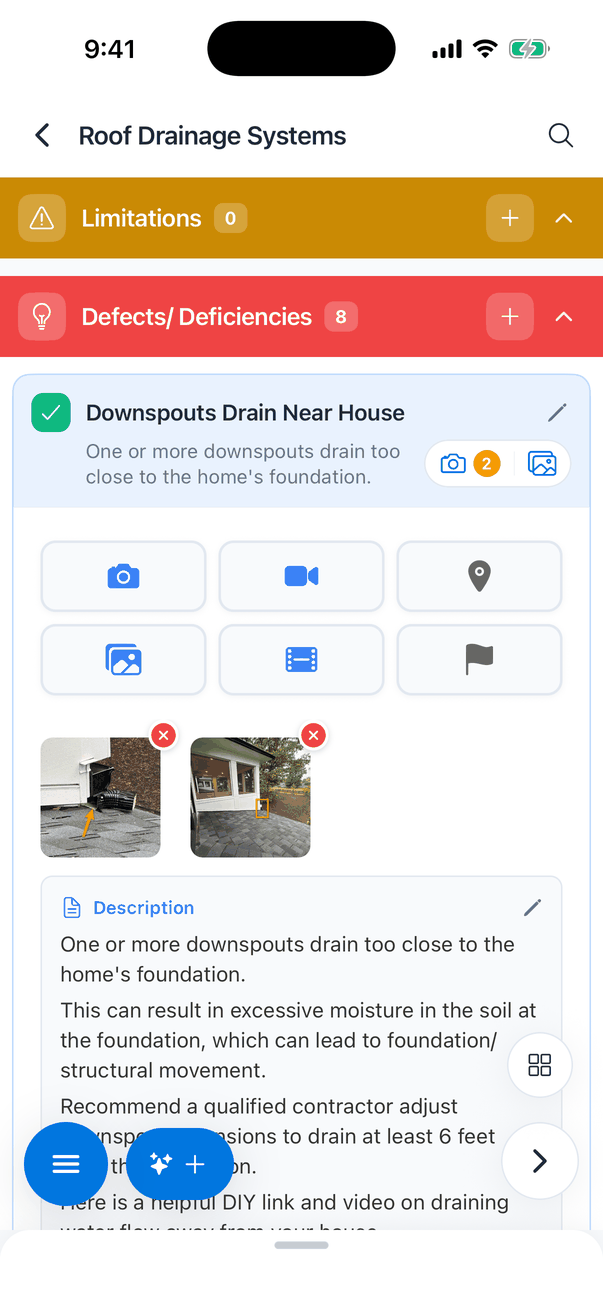
- Tap a photo to open it for annotating.
- Tap a video to play it. You can add a caption and location tags, then tap Save.
- Press and drag a thumbnail to change the order. The report uses the same order.
- Tap the red x to remove one. The app asks “Remove Media: Are you sure you want to remove this item?”
- A thumbnail can show Pending (waiting to upload), Syncing… or Processing… (a video being prepared). Photos upload when the report syncs.
The Hive camera
The camera opens full screen:
On a tablet the controls sit in a column on the right, and you can drag a second, floating shutter button wherever is easiest to reach.
Your camera defaults (aspect ratio, flash, grid, locking the orientation to portrait or landscape, a date and time stamp on each photo, shutter sound and Voice Shutter) are in My Profile → Camera Settings. With Voice Shutter on, say “capture”, “shoot” or “cheese” to take a photo; tap the microphone in the camera to pause it.
After you tap Done
- If your company has Show Multi-Image Preview on, you see your photos first. Remove any you don’t want, then tap Confirm, or Back to Camera to take more.
- If your company asks for annotations on this kind of comment, each photo opens for annotating. Defects ask by default; Information and Limitations don’t. Tap Skip All to skip.
- The photos are added to the comment.
Photos you take with the Hive camera are also saved to your phone’s photo library, in an album named after the property address, so you have a backup until they sync. You can turn this off in My Profile → Gallery Save Settings, but it’s safer to leave it on.
Annotate a photo
Tap a photo’s thumbnail. The annotation screen opens: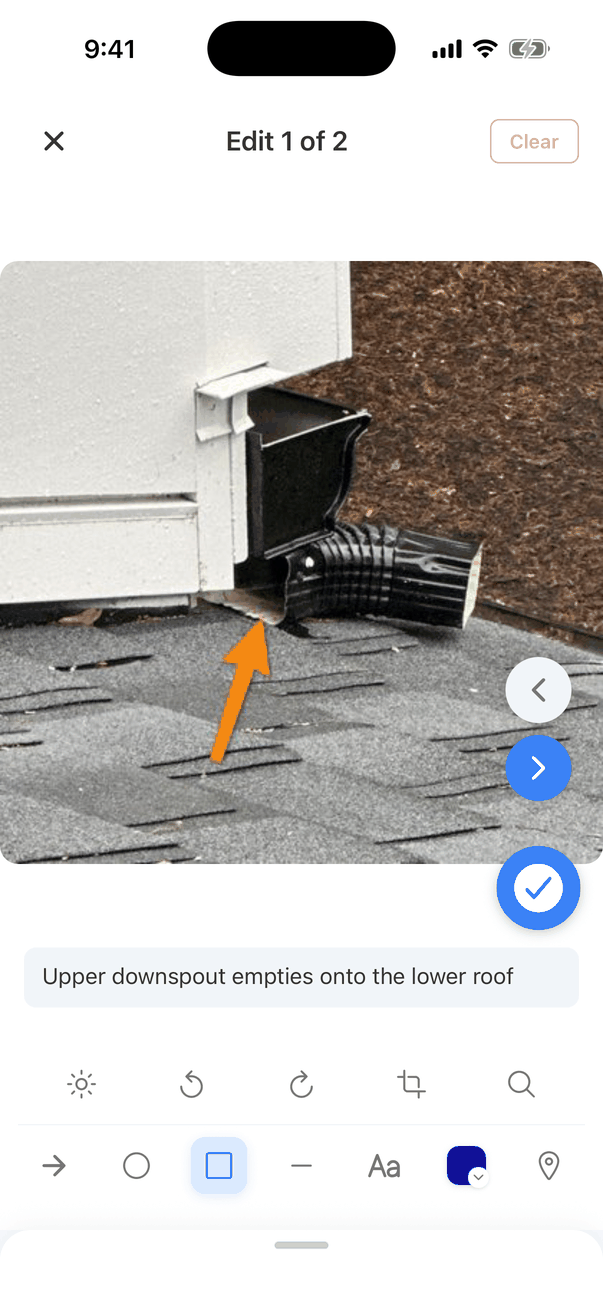
The drawing tools
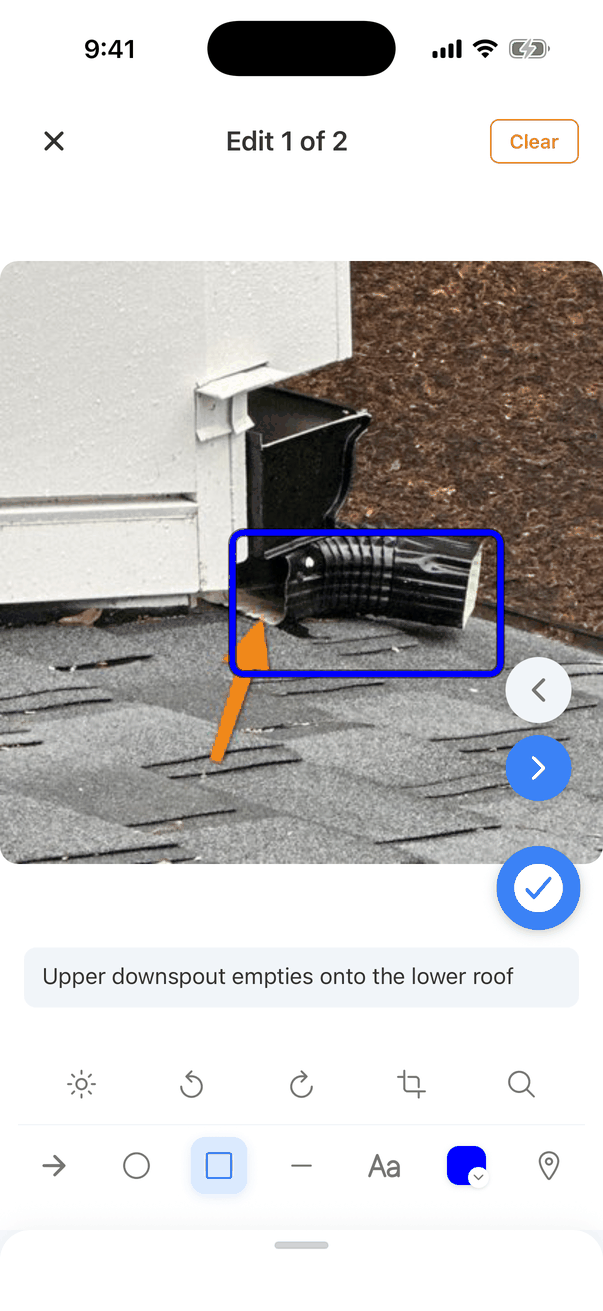
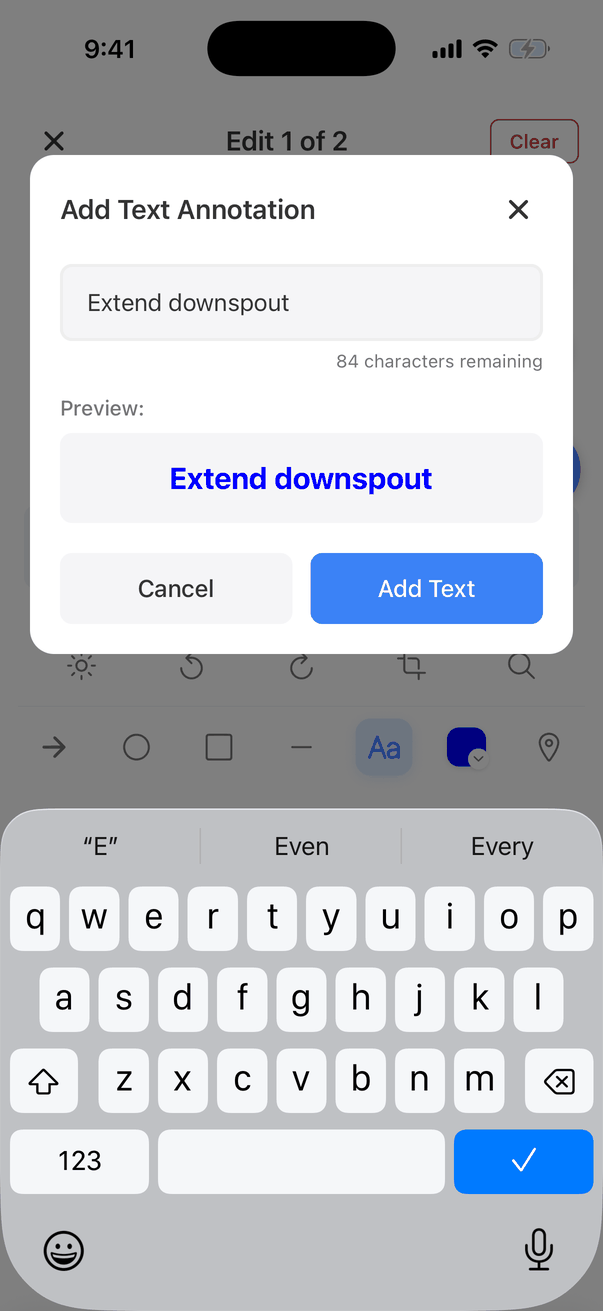
Change or delete an annotation
Tap an annotation to select it. Drag it to move it, use the handles to resize or turn it, or tap the red trash button to delete it. Double-press a text label to change its text. Clear at the top removes every annotation on the photo, after you confirm.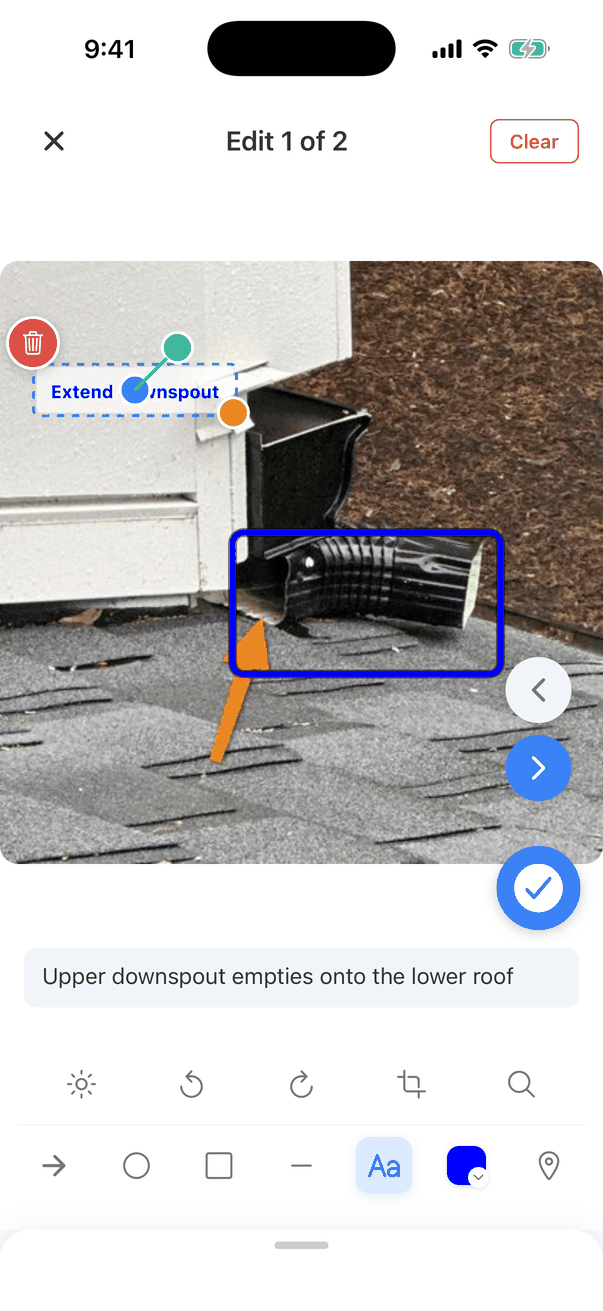
Colour
Tap the coloured square to pick a colour: green, mustard yellow, blue, orange, red, yellow, white or black. The palette button below them opens Custom Color, where you type any colour code, such as #1E40AF.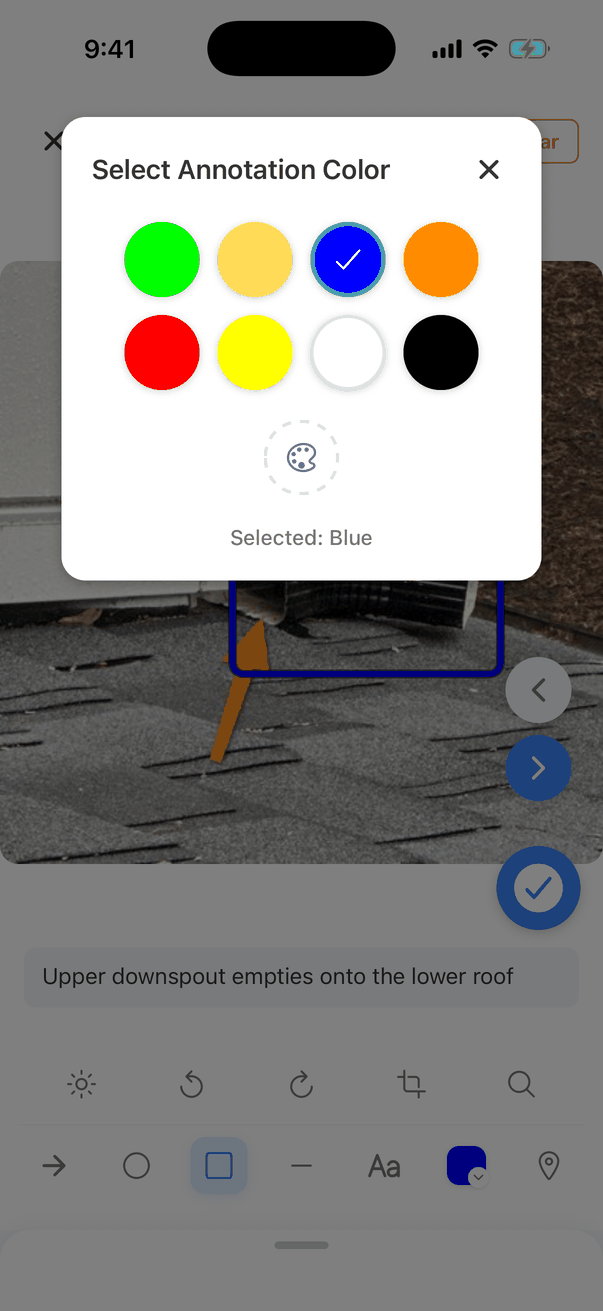
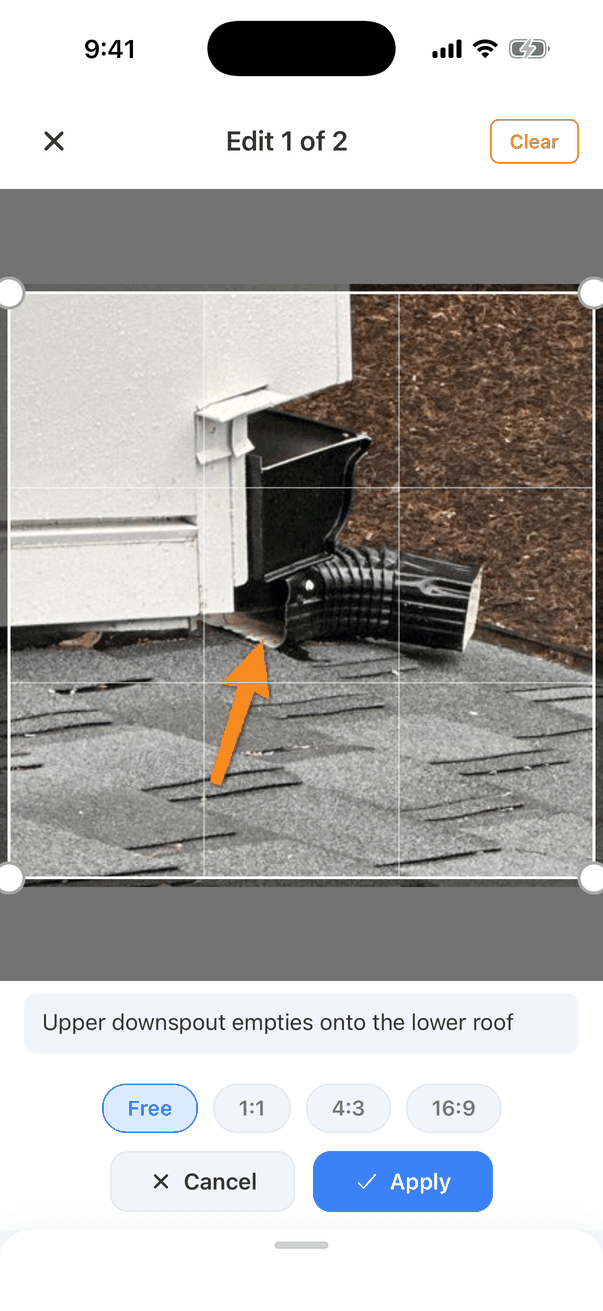
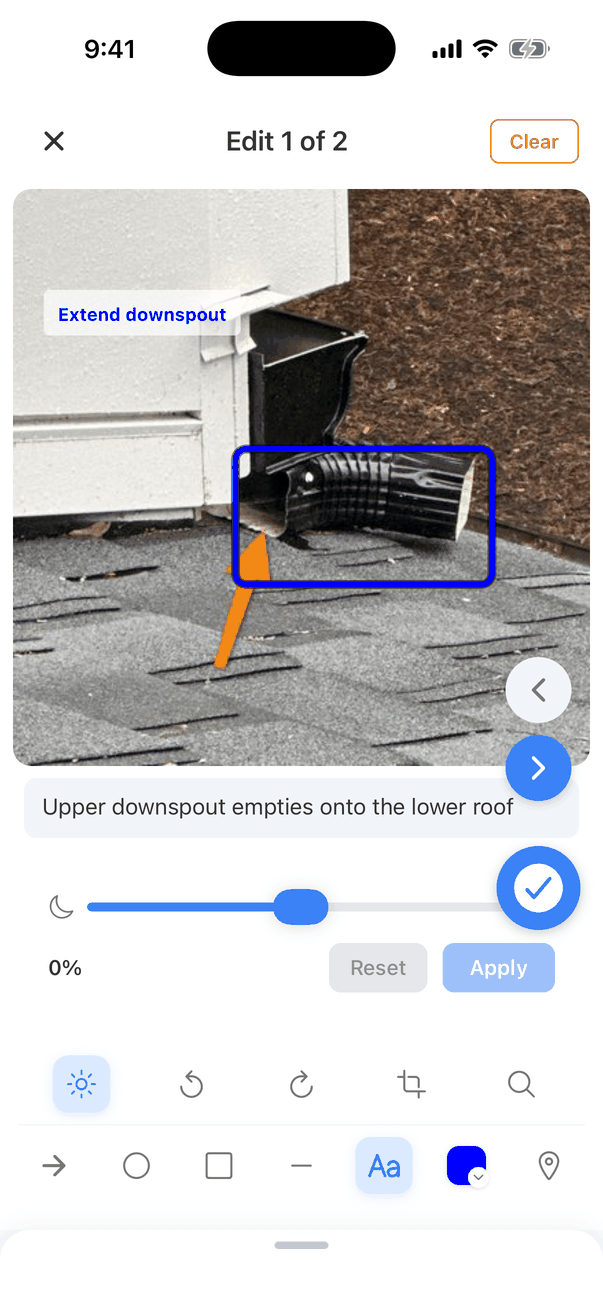
Crop, rotate and brightness
Caption and location tags
- Type a caption in the box under the photo. It shows under the photo in the report.
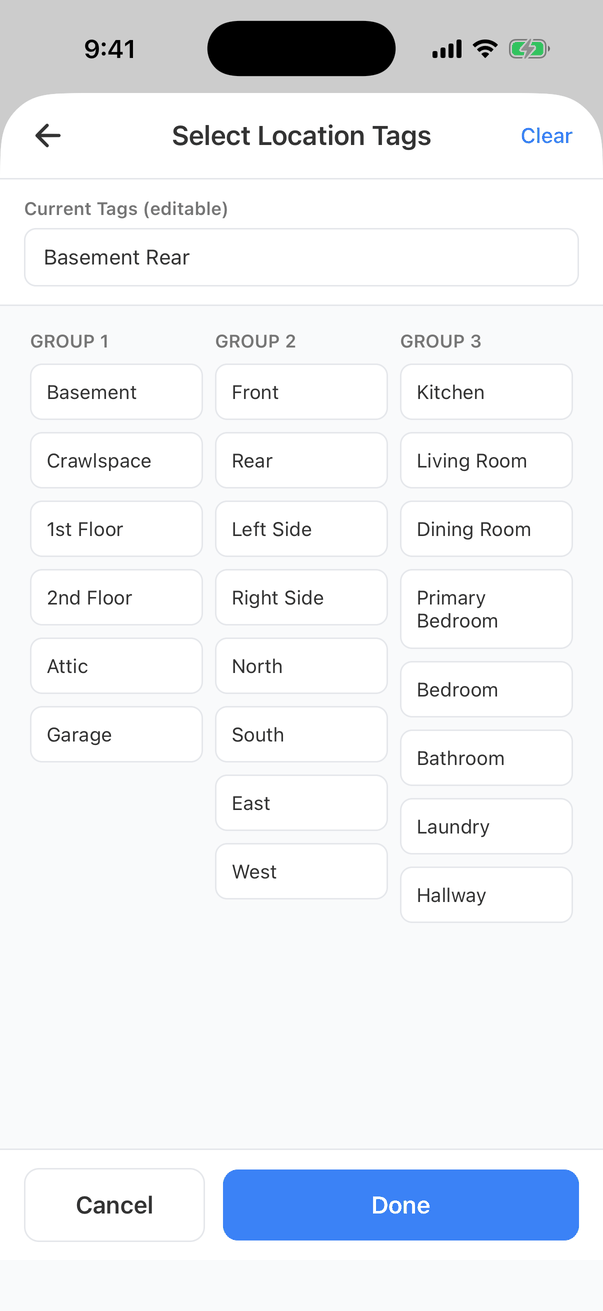
- Tap the location pin to tag where the photo was taken. Tap tags to add them, or type your own in Current Tags, then tap Done. The tags show on the photo.
Save or leave
- Tap the blue tick to save the photo with your annotations.
- The left and right arrows move to the other photos on the comment. Your changes to the current photo are kept when you move.
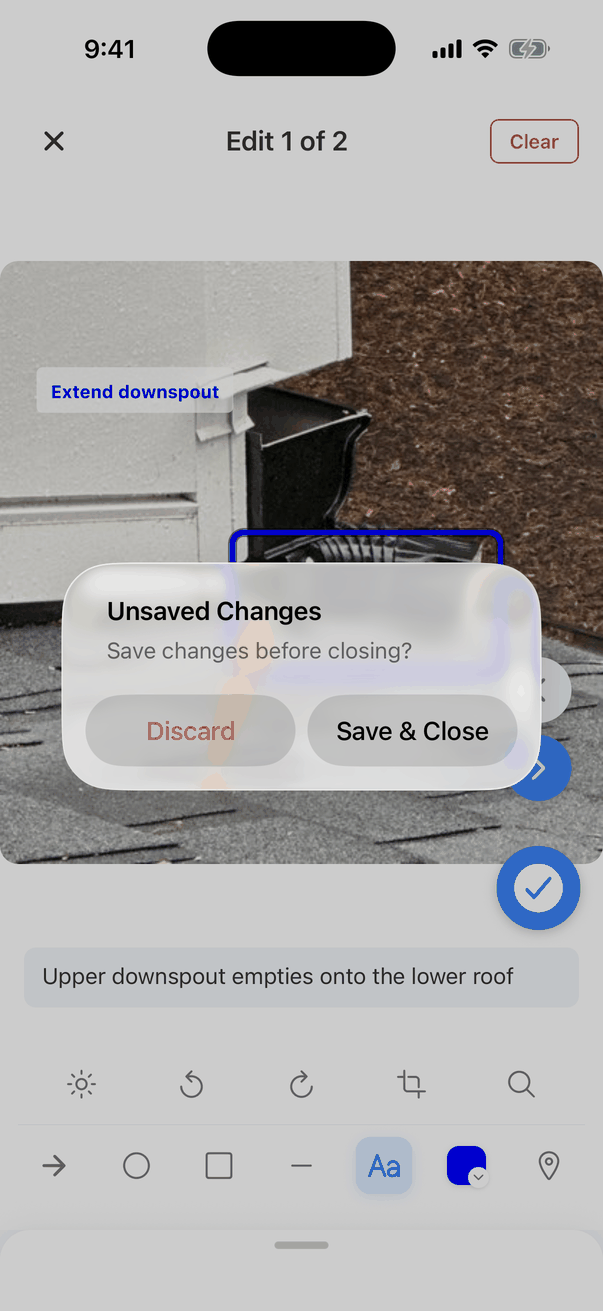
- X leaves. If you changed something, the app asks “Unsaved Changes: Save changes before closing?” Tap Save & Close or Discard.
Common questions
Why does the annotation screen open after every photo?
Why does the annotation screen open after every photo?
Your company asks for annotations on that kind of comment. Defects ask by default. Change it in My Profile → Annotation Settings (it applies to everyone in your company), or tap Skip All.
How do I change the starting tool or colour?
How do I change the starting tool or colour?
In My Profile → Annotation Settings: Default Shape and Default Annotation Color. They apply to your whole company.
My arrows disappeared after I rotated the photo
My arrows disappeared after I rotated the photo
Rotating or cropping removes annotations. Rotate and crop first, then draw.
Are my photos safe if my phone dies before I sync?
Are my photos safe if my phone dies before I sync?
The app saves them on the phone straight away, and the Hive camera also saves a copy to your photo library unless you turned Save Captured Photos off. Sync as soon as you have signal. See Syncing and offline use.
Where to go next
- Comments on mobile: every part of a comment card.
- CYA photos: overview photos that aren’t tied to a comment.
- Add photos and videos: a quick walkthrough, and how to move a photo to another comment on the dashboard.