

In the mobile app: the report editor → the menu button (bottom left) → the orange warning button.
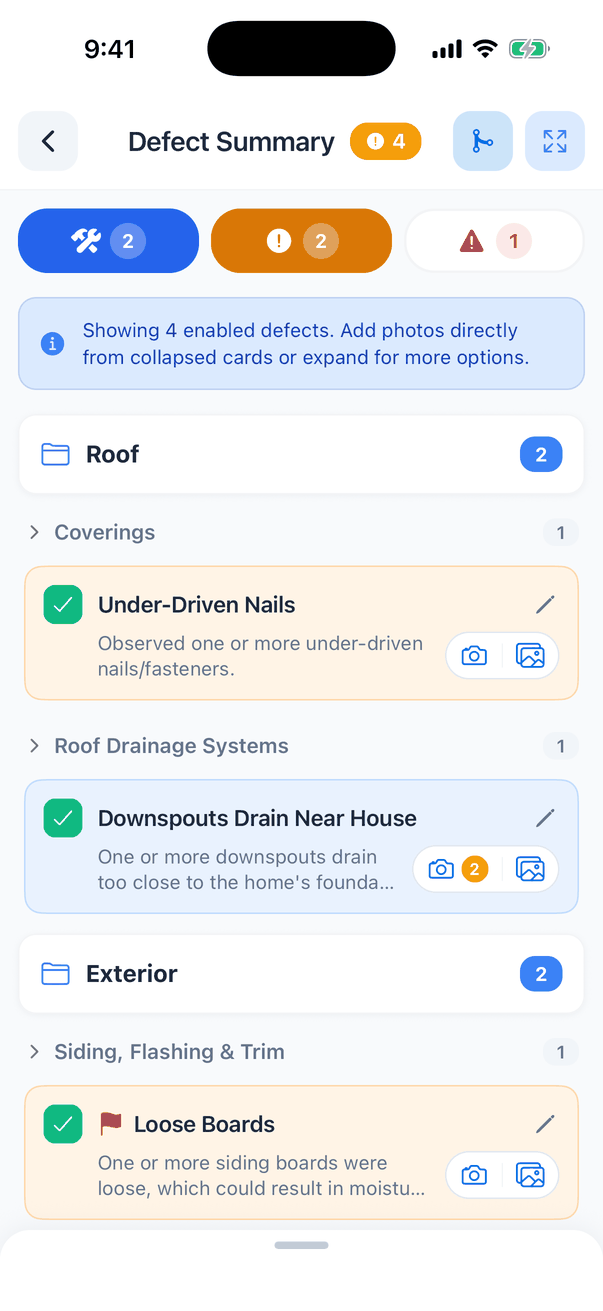
The Defect Summary lists every defect you’ve turned on in the report, grouped by section and subsection. Use it before you leave the property to check every defect has photos, the right category and a service.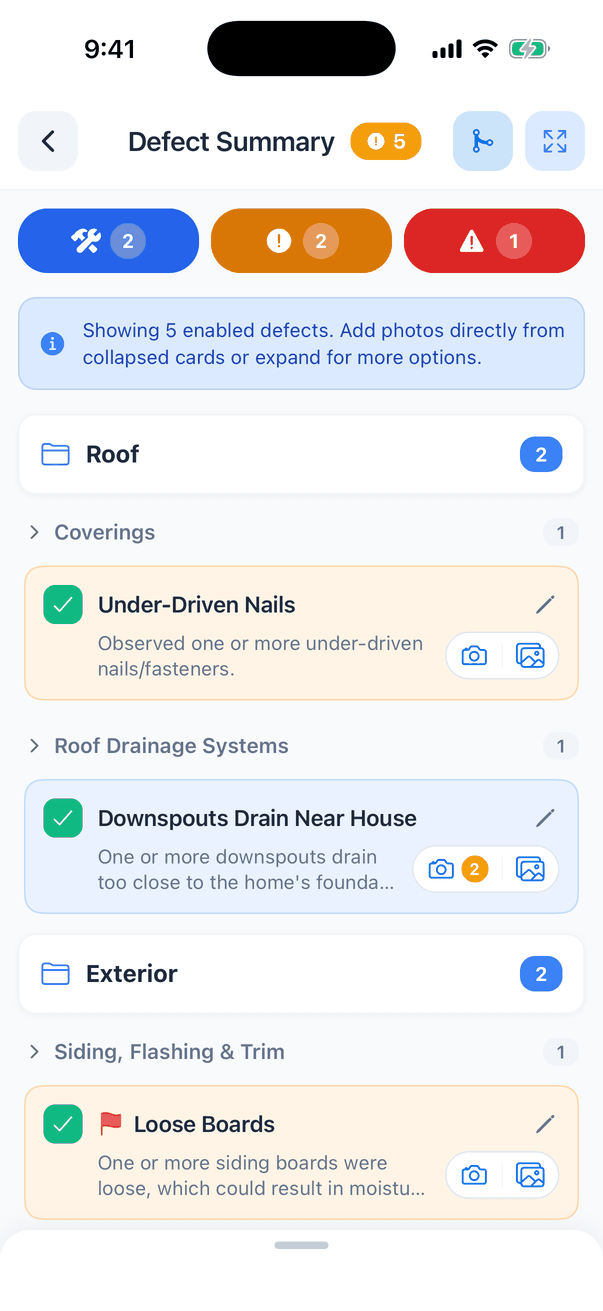
What’s on the screen
Changes you make here are the same as making them in the subsection itself.
Merge comments
When you’ve turned on two or three defects that describe the same problem, merge them into one comment. Hive AI writes a single, combined comment.Tap the merge button
Merge mode starts: “Select 2 or 3 comments from the same subsection. Once you have 2, tap Confirm at the bottom.” A counter shows how many you’ve picked (0/3).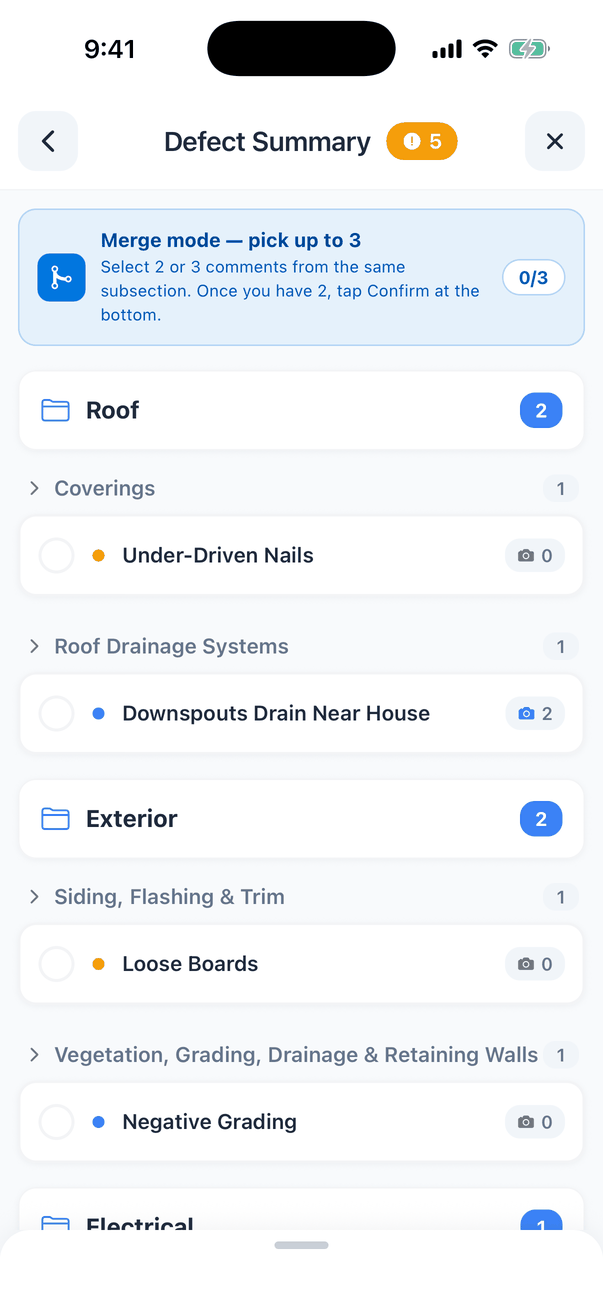
Tap Confirm and merge
The Merge Comments window shows the comments you picked and asks “Are you sure you want to merge these comments?” Tap Confirm and merge.
- Merging needs an internet connection. Offline, the app says No Internet.
- Your company needs Hive AI turned on.
- The merge button doesn’t show on re-inspection reports.
- Tap X to leave merge mode without merging.
Common questions
Why can't I select a comment in merge mode?
Why can't I select a comment in merge mode?
You can only merge comments in the same subsection. Pick comments under the same subsection heading.
After merging, the report shows the old comments too
After merging, the report shows the old comments too
Merging doesn’t uncheck the originals. Open the subsection and uncheck them.
Is the Defect Summary what the client sees?
Is the Defect Summary what the client sees?
No. It’s your working list in the app. The client’s summary is built from the same defects when you publish. See Customize your reports.
Where to go next
- Comments on mobile: every part of a defect card.
- Reports, publishing and PDFs: publish when you’re done.