

In the mobile app: the Inspections tab. It’s the first screen you see after you sign in.
The Inspections list shows the jobs you have coming up, grouped by day. Each card tells you at a glance when the job is, who the client is, the price, and whether the agreement is signed, the fee is paid and the report is published. Tap a card to open the inspection.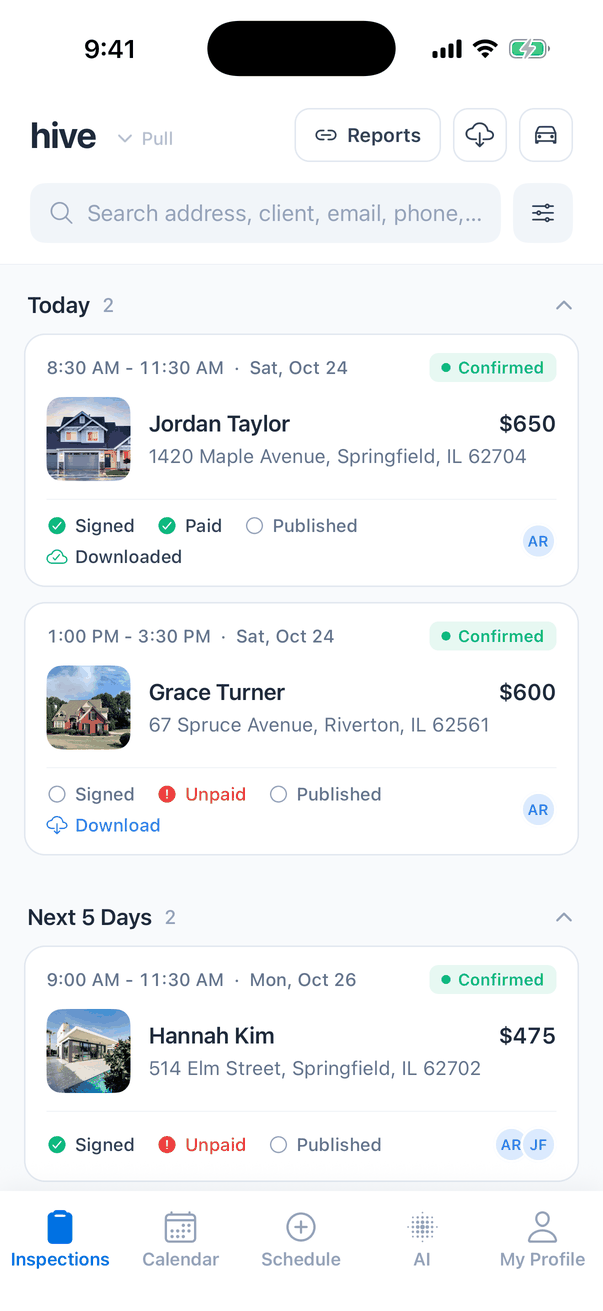
The top of the screen
How the list is grouped
Inspections are grouped by the day they’re scheduled, in your company’s time zone. Within a day they’re in time order. Tap a heading to collapse or expand it. The number next to a heading is how many cards it holds.
A heading with nothing in it doesn’t show. In the screenshot above there’s nothing tomorrow, so Tomorrow is missing.
Previous and older inspections
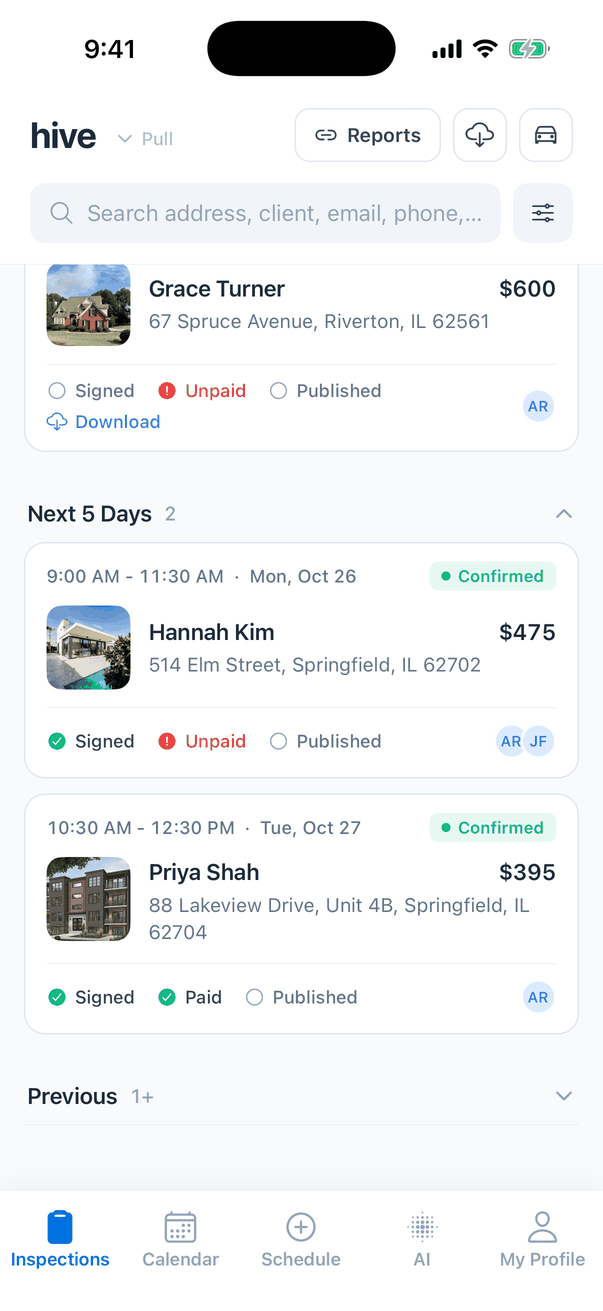
Previous starts collapsed. Tap it to open it.- It first shows the inspections from roughly the last two weeks, which are already on your phone.
- Older inspections load from Hive when you ask for them. Tap Show older inspections at the bottom of Previous, then Show more for the next page. No older inspections means you’ve reached the end.
- 1+ next to the heading means there are more older inspections you haven’t loaded yet.
- Loading older inspections needs an internet connection.
What each card shows
Tap anywhere on a card to open the inspection’s summary screen, where you start or continue the report. See Mobile app basics.
Inspection events, such as a radon pickup or a re-inspection visit, show as their own cards on the day of the event. Tap one to see the event’s details.
Download inspections for offline use
Today’s inspections have a download status on their card:
To download all of today’s inspections at once, tap the cloud button at the top. The app tells you how many are ready, for example “2 inspections ready for offline use”, or “No inspections for you today”.
While the app is open, it also downloads today’s inspections on its own. You can change that, or limit it to Wi-Fi, in My Profile → Offline Download. For how offline work syncs back, see Syncing and offline use.
If the phone loses signal, an Offline Mode banner shows at the top: “Showing cached data from” and the time the list was last loaded. The list refreshes on its own when you’re back online.
Search
Type in Search address, client, email, phone, or event… It matches:- the property address;
- the name, email, phone or business name of the inspection’s clients and agents, so a full name like
Jordan Taylorworks; - inspection events, by their name or description.
Show other statuses
The list shows only Confirmed inspections until you change it.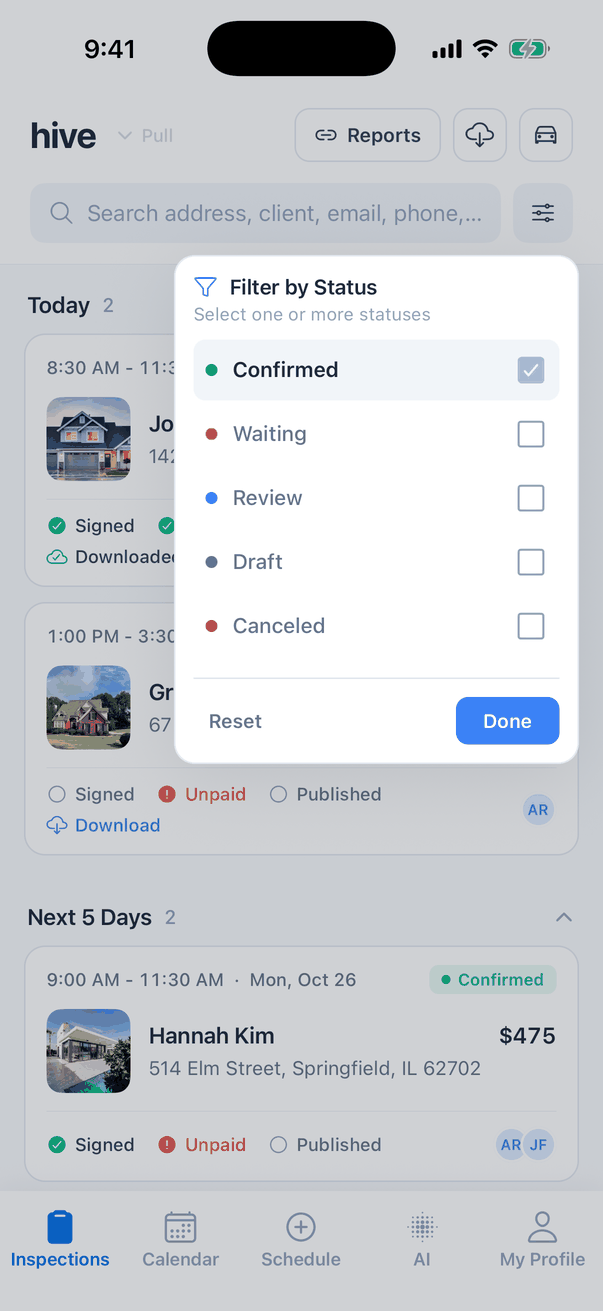
Tick the statuses you want
Tick any of Confirmed, Waiting, Review, Draft and Canceled. At least one must stay ticked.
Whose inspections you see
By default, the list shows the inspections assigned to you, plus any with no inspector. To see the whole team’s, go to My Profile → Inspection List View and turn on Show All Inspections. On the same screen, Show Inspection Events shows or hides event cards. It’s on by default. These settings are saved on that phone only. Show All Inspections can’t show inspections your account isn’t allowed to see. Without the Schedule Management permission you only ever see your own. See Team permissions.Common questions
Why can't I see an inspection that's on the dashboard?
Why can't I see an inspection that's on the dashboard?
Check these in order:
- Status. The list shows only Confirmed at first. Waiting, Review, Draft and Canceled inspections need the status filter.
- Date. Inspections more than about two weeks old are under Previous. Open it and tap Show older inspections, or search for the client or address.
- Assigned to someone else. Turn on Show All Inspections in My Profile → Inspection List View.
- Not refreshed. Pull the list down to refresh it.
Why does an inspection say Unpaid when the client paid part of it?
Why does an inspection say Unpaid when the client paid part of it?
The card shows Paid only when nothing is left to pay. A part-paid inspection still shows Unpaid. Open the inspection to see what’s due.
Why is Published ticked on an inspection I haven't started?
Why is Published ticked on an inspection I haven't started?
Published is ticked when every report is published, and also when the inspection has no reports at all. The same goes for Signed and agreements.
Why don't tomorrow's inspections have a Download button?
Why don't tomorrow's inspections have a Download button?
Download is only for today’s inspections. Tomorrow’s get it on the day. You can still open any inspection while you’re online.
The list says No Scheduled Inspections. What now?
The list says No Scheduled Inspections. What now?
You have no confirmed inspections coming up, and none from the last two weeks. Book one from the Schedule tab or the dashboard. If you expected to see some, check the status filter and Show All Inspections.
Where to go next
- Mobile app basics: open a job and start the inspection.
- Syncing and offline use: how your work reaches Hive.
- Inspection list filters: the dashboard’s Inspections page.
- Inspection statuses: what each status means.