

In the mobile app: the report editor → a section → a subsection.
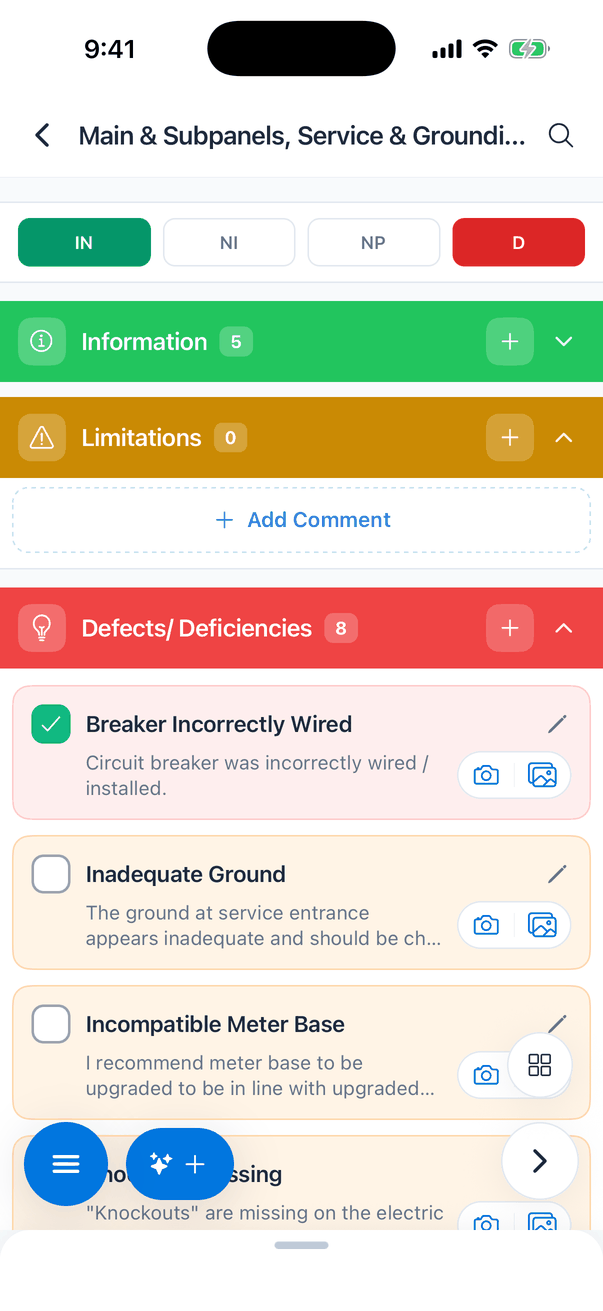
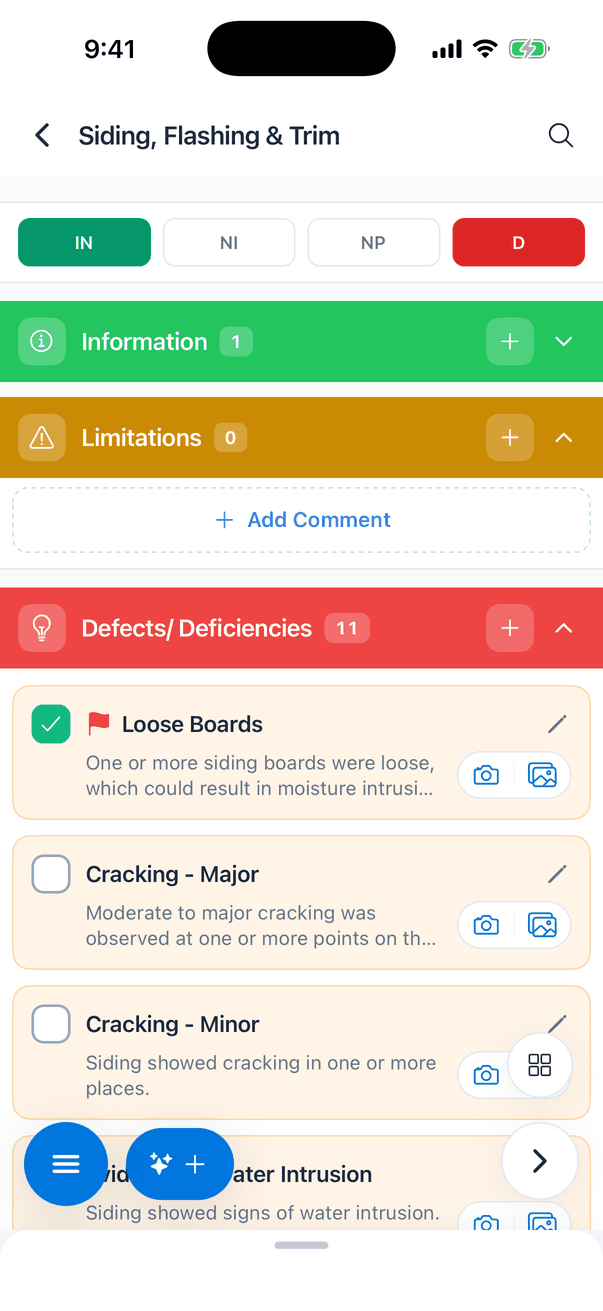
Every subsection holds comments, grouped in three coloured cards: Information (green), Limitations (yellow) and Defects/ Deficiencies (red). Each comment is a card you can check, expand, fill in and add photos to. This page explains every part of a comment card.A comment card, folded
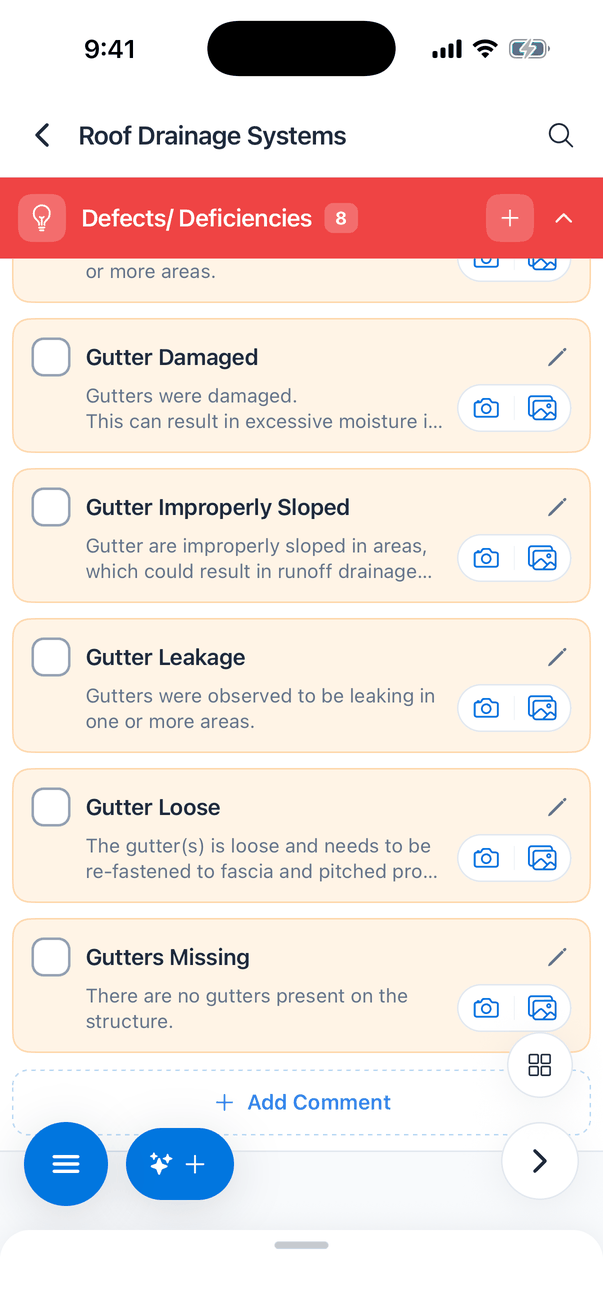
Adding a photo or video to a comment turns it on for you.
When you tick a checkbox, the comment opens so you can add photos straight away. You can turn that off in My Profile → Comment Auto-Expand.
Card colours
Your company names the three defect categories in Report Customization on the dashboard. The app shows them by colour. See Customize your reports.
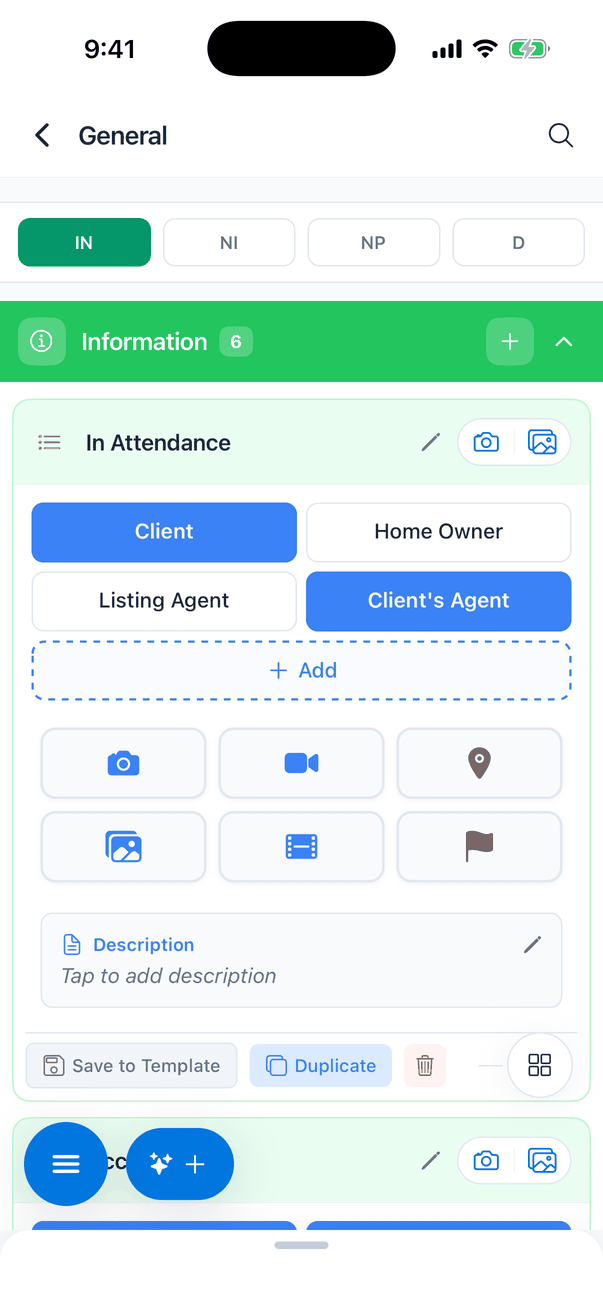
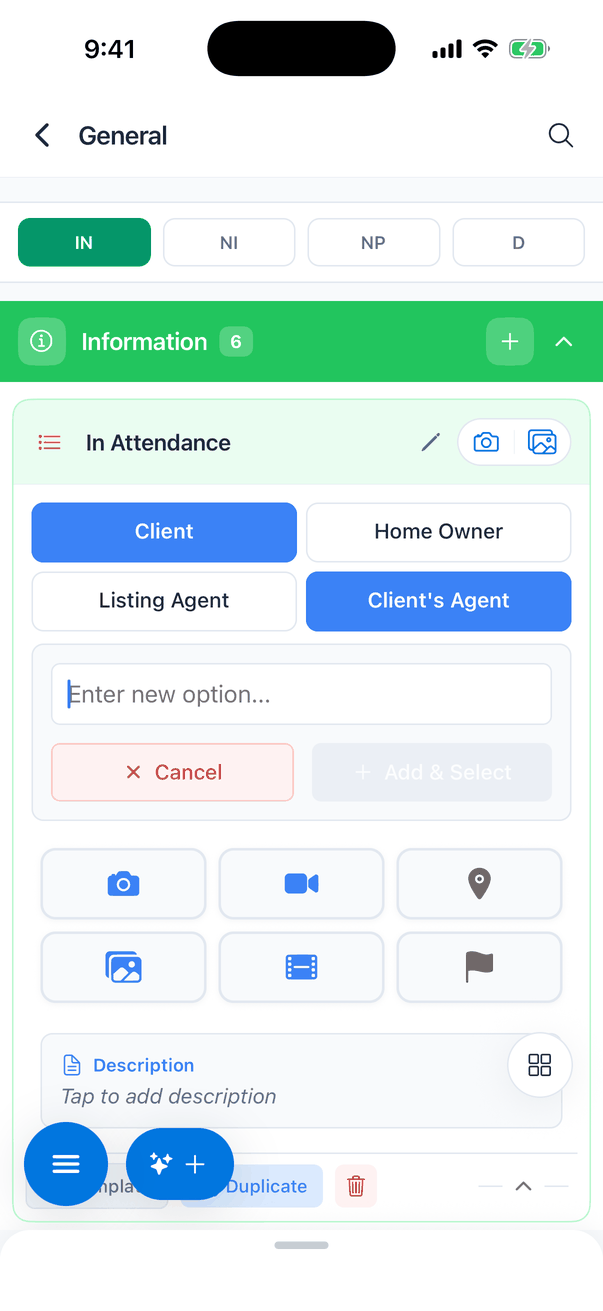
Multiple choice
Text answers
A text comment shows its answer in a box, for example the temperature on the day.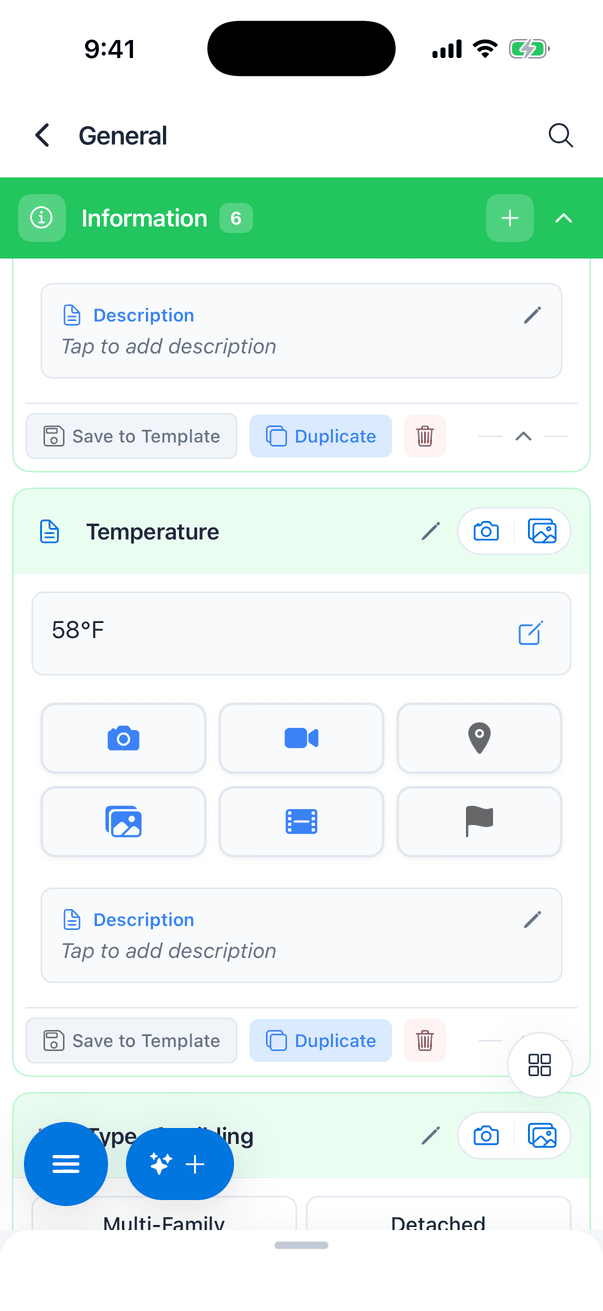
Defects
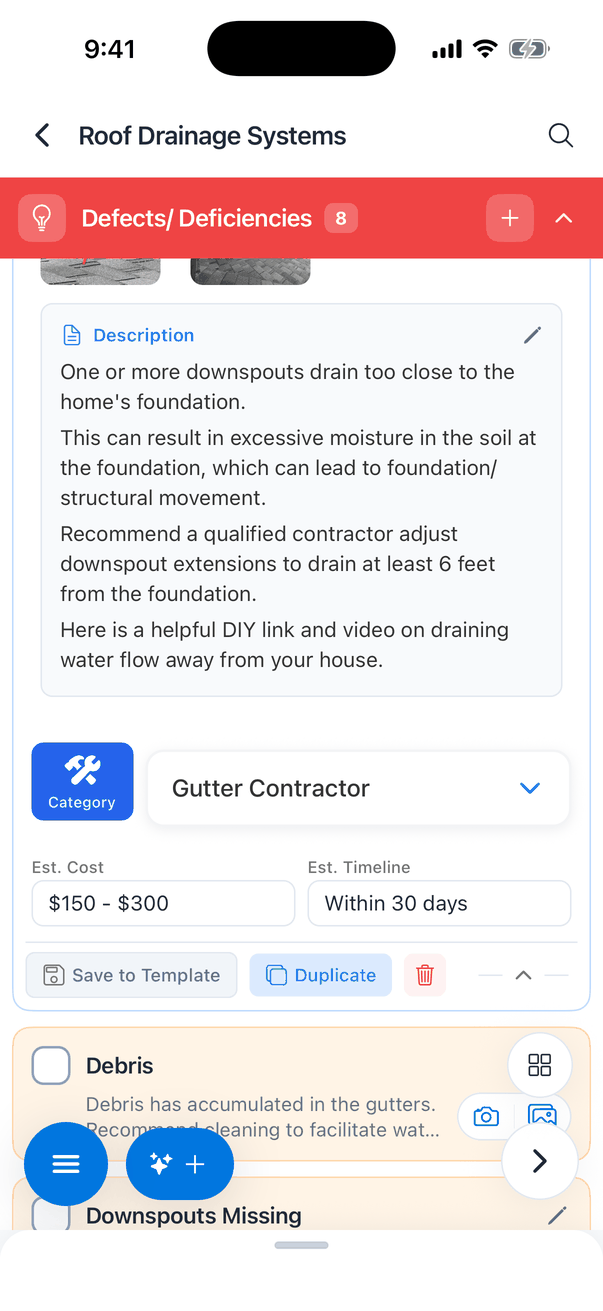
A defect has more parts than other comments. Tick it, then tap its name to open it: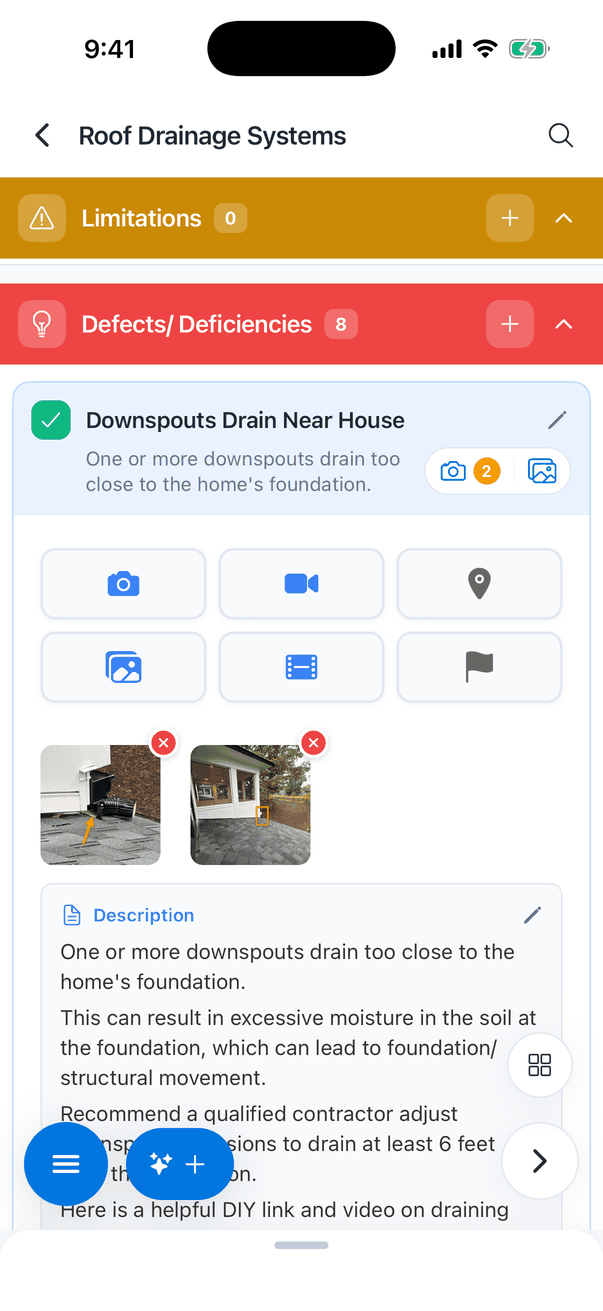
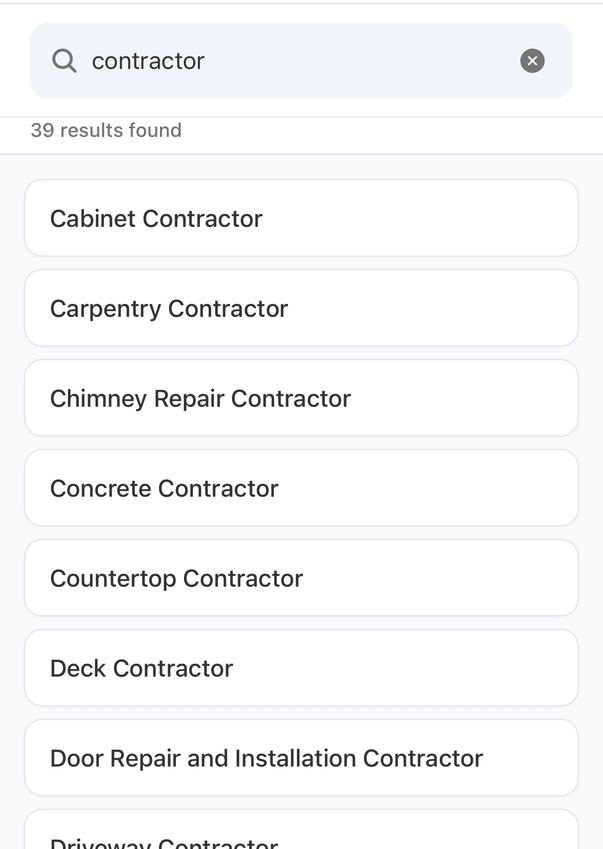
Edit a description
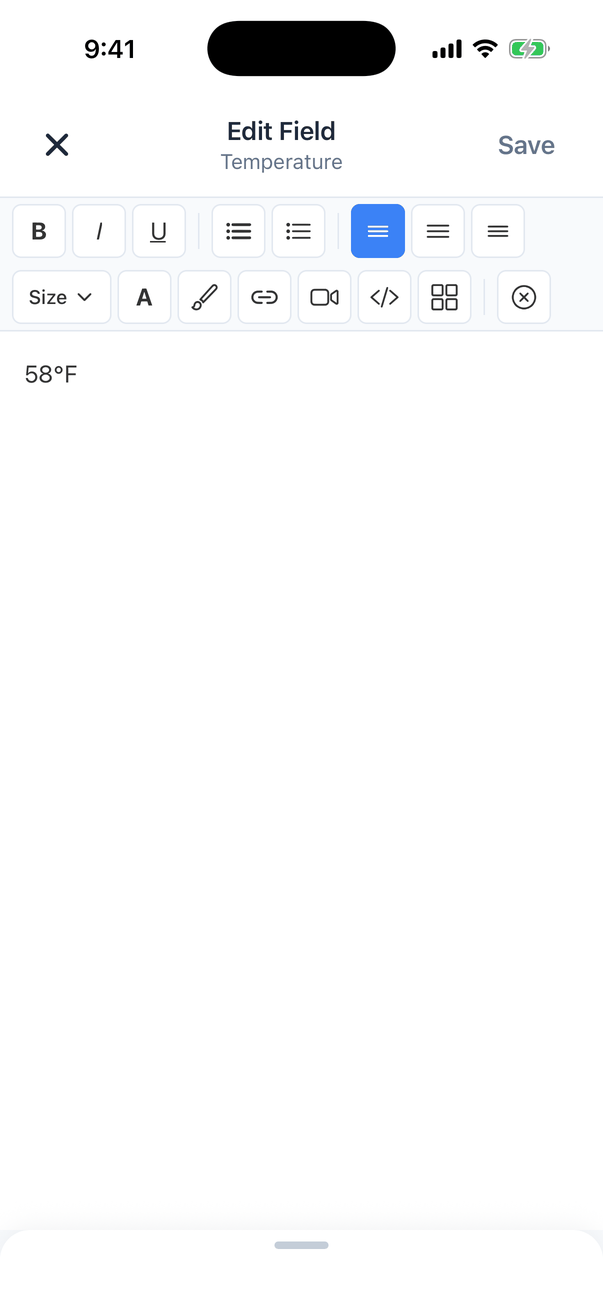
Tap Description on any comment to open the editor: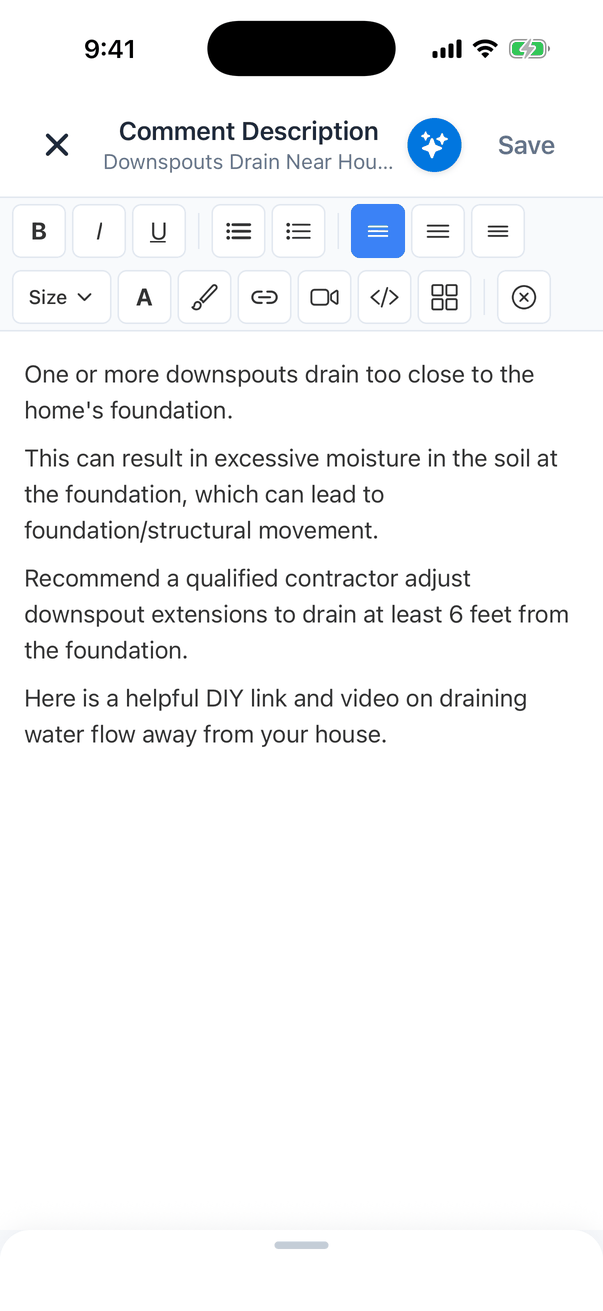
- Type and format the text with the toolbar: bold, italic, underline, lists, alignment, text size, colour, highlight, links, videos, tables and clear formatting.
- Tap Save to keep it, or X to close without saving.
- The blue sparkle button writes a new description with Hive Comment Assist, based on the comment’s name. It replaces the text in the editor, so check it before you tap Save. See Add a comment.
Photos and media
An open comment has six buttons for photos and videos. Press and hold a button to see its name.
A comment can hold up to 150 photos and 10 videos. Under the buttons you’ll see each one as a thumbnail:
- Tap a photo to annotate it. See Photos, videos and annotations.
- Tap a video to play it and add a caption.
- Press and drag a thumbnail to change the order.
- Tap the red x to remove one (you’re asked first).
Flag a comment
Flag a comment you need to come back to, such as something to check with a specialist or a photo to retake.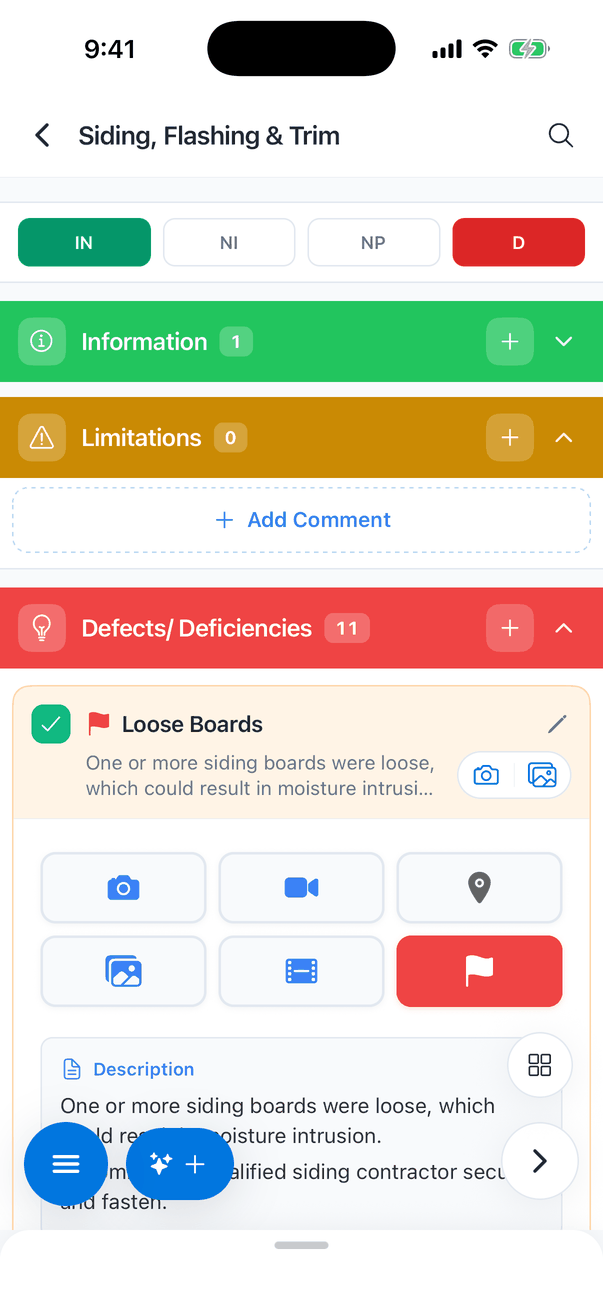
- Open the comment.
- Tap the flag button. It turns red and a red flag shows next to the comment’s name, its section and the Sections list.
- Tap it again to remove the flag.
Save to Template, Duplicate and Delete
At the bottom of an open comment: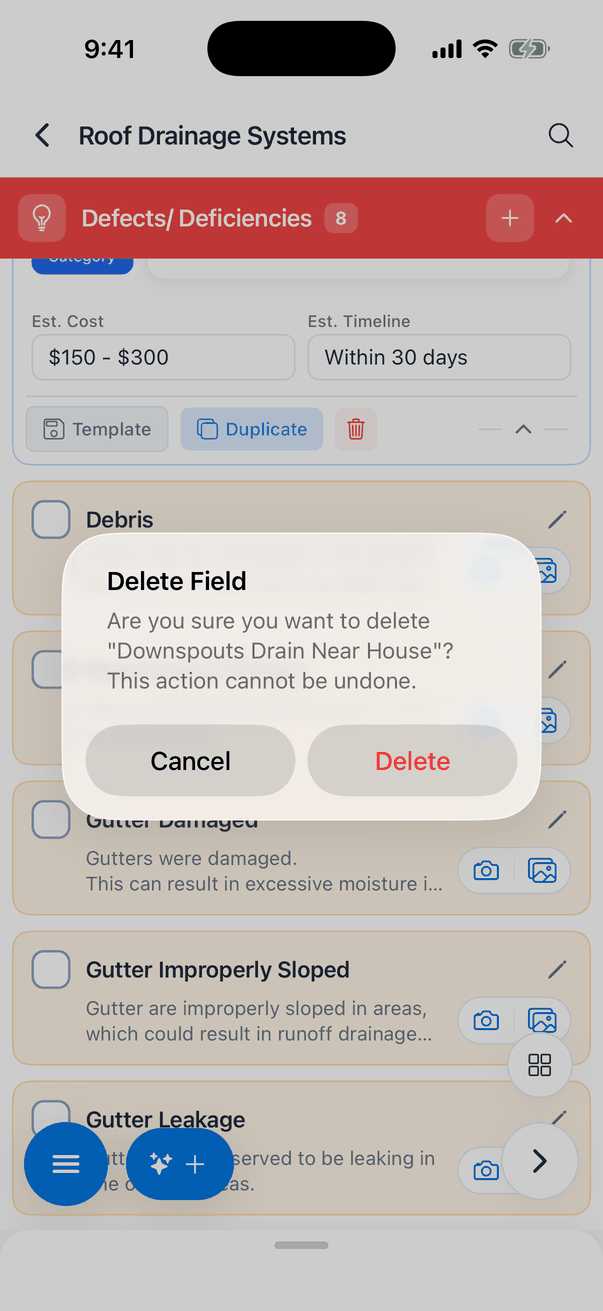
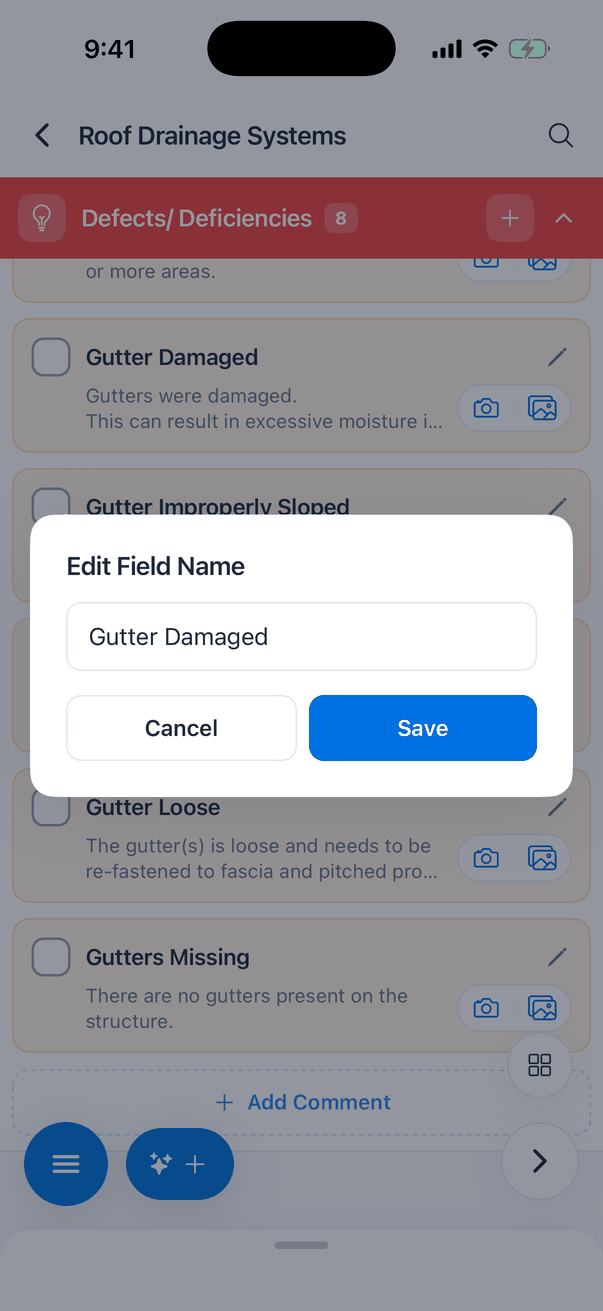
Illustrations
Some template comments come with illustrations, for example a diagram of proper downspout drainage. They show at the bottom of the open comment. Tap one to view it full screen, pinch or double-tap to zoom, and swipe between them.Re-inspection items
On a re-inspection report, each subsection has a purple Reinspection card with the defects from the original report:- Original Description and Original Photos show what the original report said. The original photos are view only.
- Tick an item to work on it. Then set its Status: Resolved, Unsatisfactory or Unresolved, add Reinspection Notes and add new Reinspection Photos.
- The item’s name turns green when resolved and yellow when unsatisfactory.
- Add Item adds an item that wasn’t in the original report. Only items you added can be renamed or deleted.
Common questions
Why did a comment turn on by itself?
Why did a comment turn on by itself?
Adding a photo or video to a comment turns it on. Untick it if you don’t want it in the report; the photos stay.
How do I change a defect's category on my phone?
How do I change a defect's category on my phone?
Open the defect and tap the coloured Category button under the description. Each tap moves it to the next of your blue, orange and red categories, and the card’s colour changes with it.
Where do I set the defect category names?
Where do I set the defect category names?
On the dashboard, in Report Customization. The app shows the three categories by colour (blue, orange, red).
I changed a description. Will my next report have it?
I changed a description. Will my next report have it?
No, only this report. Turn on Save to Template on the comment and sync, and the template gets it too.
Why can't I publish the report?
Why can't I publish the report?
It probably has flagged comments. Find them with the flag filter in search, then tap each flag to remove it.
How do I stop comments opening when I tick them?
How do I stop comments opening when I tick them?
Turn off Auto-Expand on Check in My Profile → Comment Auto-Expand.
Where to go next
- Add a comment: write your own comment on site.
- Photos, videos and annotations: the camera and drawing on photos.
- Defect Summary: every defect in one list.