

In the mobile app: open an inspection → Report Editor.
The Reports screen lists the reports on an inspection. Most inspections have one, such as a home inspection report. Some have more, for example a home inspection and a well inspection. From here you open a report to inspect, publish it to the client, and open its PDF.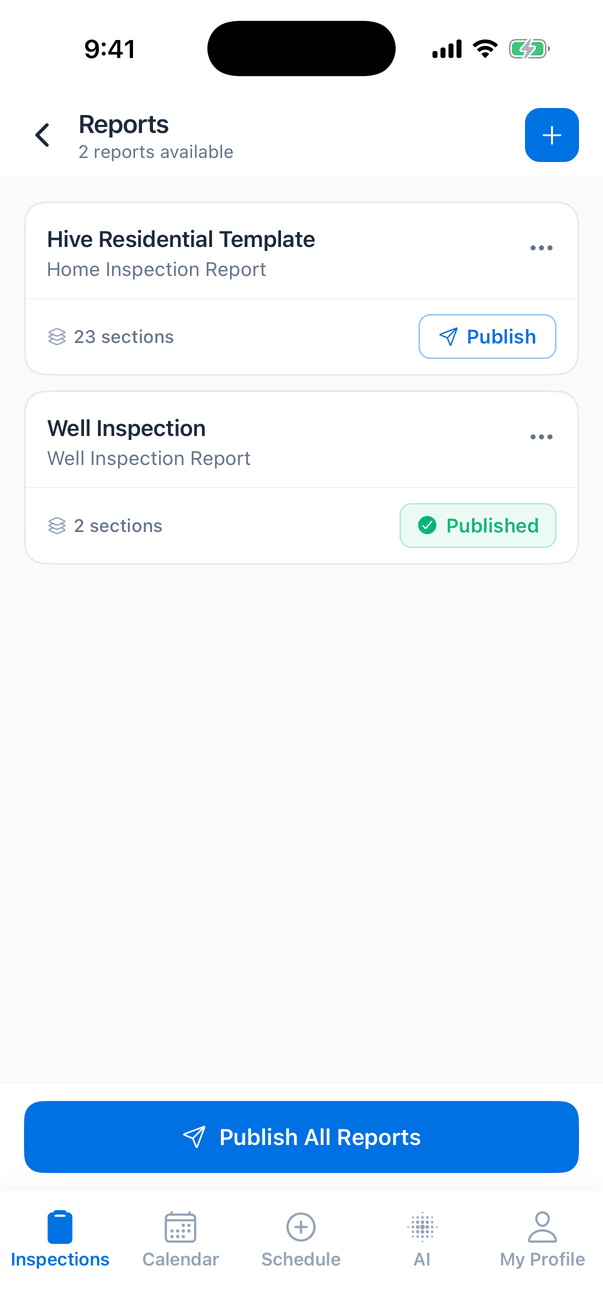
What each report card shows
Tap anywhere else on a card to open the report and start or continue the inspection.
Open a report
Tap the report card. The first time you open a report on a phone, the app shows Preparing Report while it downloads it (“Loading inspection data…”). After that the report is saved on your phone, opens straight away and works without signal. Today’s inspections are usually downloaded already. See Download inspections for offline use.Publish a report
Tap Publish on the report card
The app asks: “Are you sure you want to publish this report? Once published, it will be visible to clients.”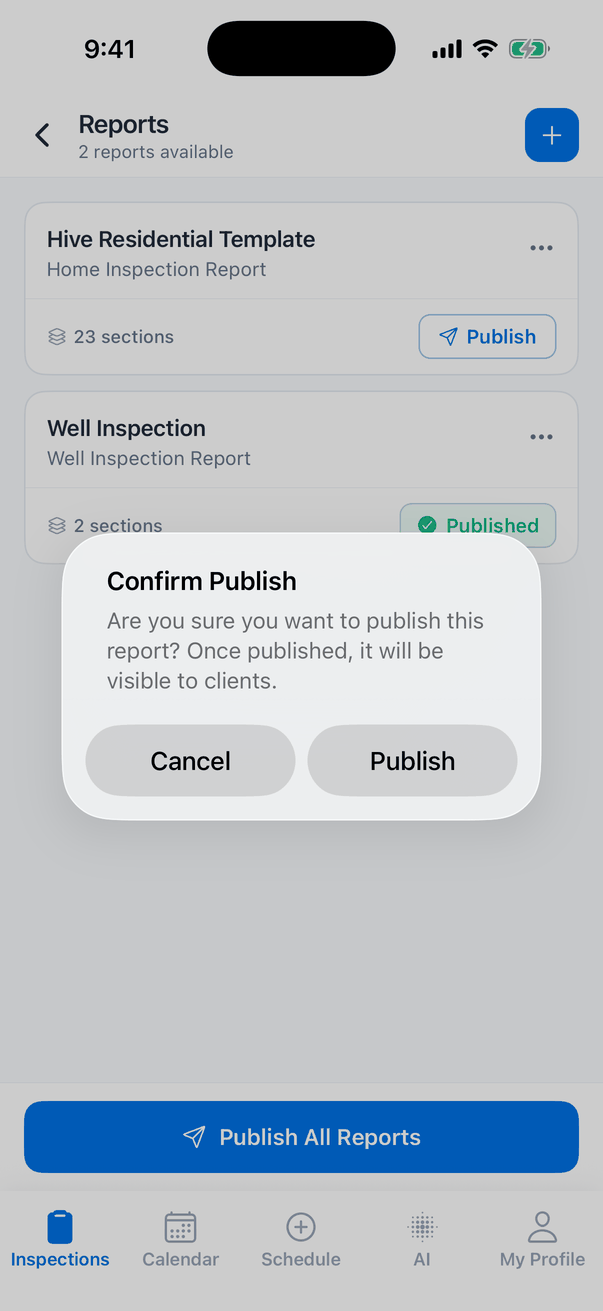
Sync before you publish. The app publishes what’s on Hive, so changes still waiting on your phone wouldn’t be in the client’s report. Check that the report editor shows Synced.
When the app won’t publish
The app stops and tells you why:- Flagged fields. “Cannot Publish Report” says the report has flagged fields that need attention. Tap Review Fields to open the report, find them with the search screen’s flag filter, fix them and remove the flag, then publish again.
- Unfinished sections. If your company requires every section to be finished before publishing, “Cannot Publish Report” lists the unfinished subsections. Tap Review Sections to open the report and finish them.
Unpublish a report
Tap the green Published badge. The report goes back to unpublished straight away (“Status Updated: Report has been unpublished.”) and clients can no longer see it.Publish all reports
Publish All Reports at the bottom publishes every report on the inspection at once, after one confirmation. When every report is published it changes to Unpublish All. The same rules apply: reports with flagged fields or unfinished sections are left out, and the app offers to publish the rest. The same button is under Quick Links on the Inspection Summary.Report options
Tap the three dots on a report card.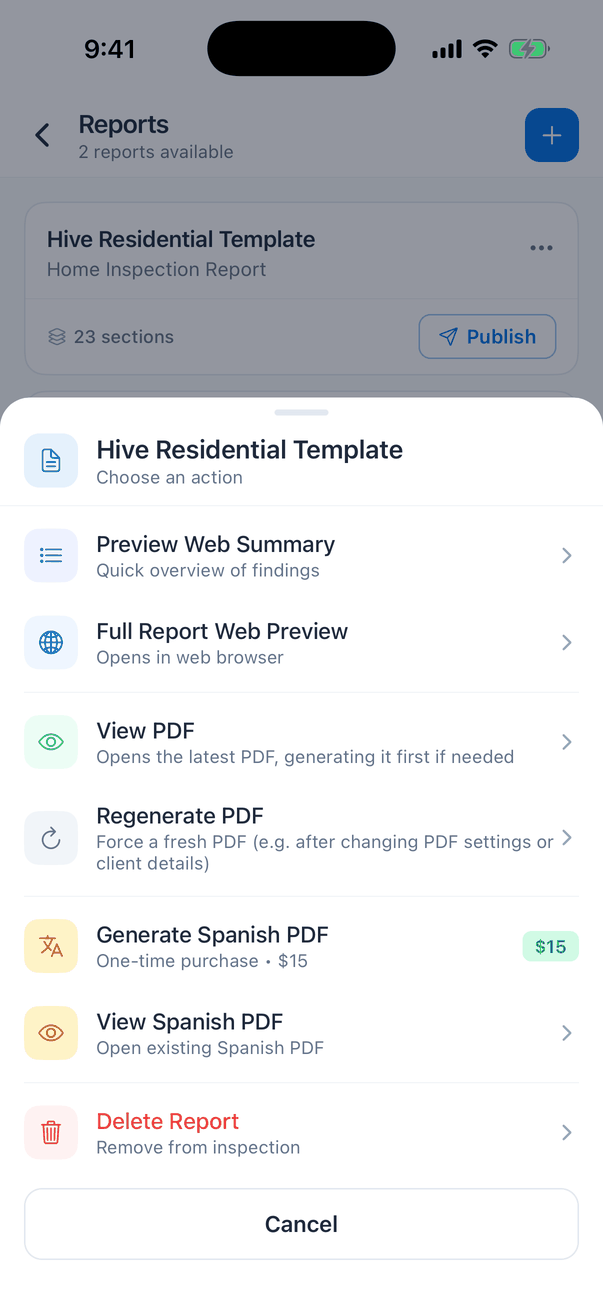
Previews show the report the way it is on Hive, so sync your changes first.
View or regenerate the PDF
When you tap View PDF or Regenerate PDF:- If the report has changes on your phone that haven’t synced, the app syncs them first (“Syncing your changes…”). If it can’t, it tells you, for example Unsynced changes or Photos still uploading, and lets you View anyway (the PDF won’t have those changes) or wait.
- The app checks for a current PDF (“Checking PDF…”). If there is one, it opens.
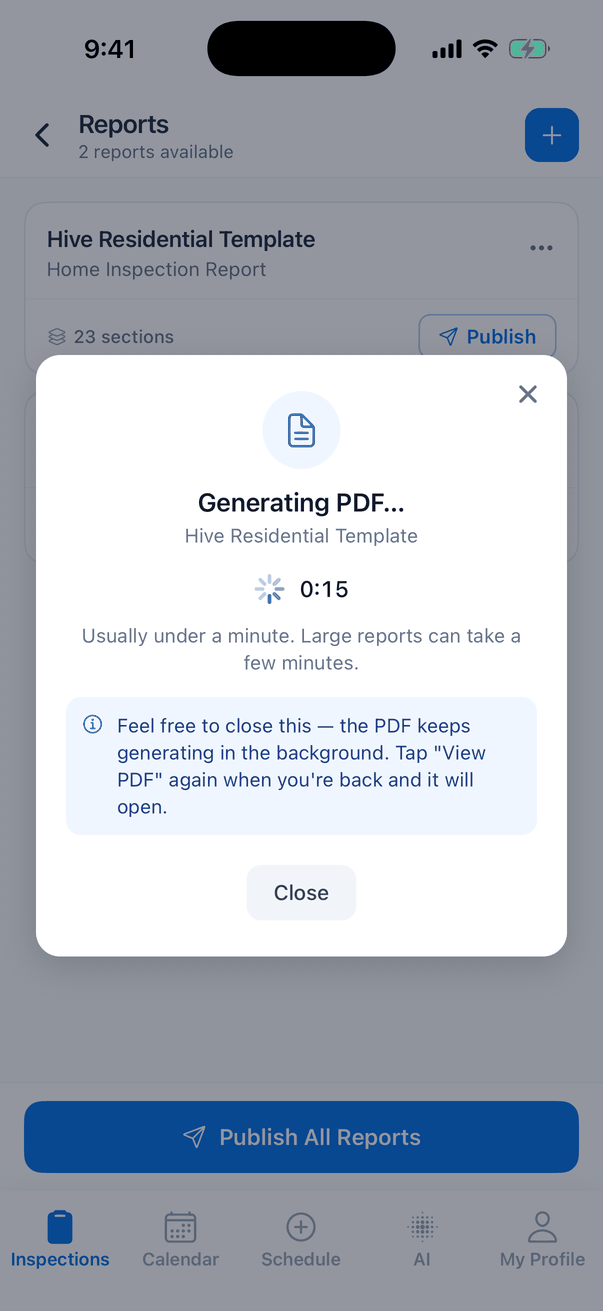
- Otherwise Hive makes one. The window shows Generating PDF… with a timer: “Usually under a minute. Large reports can take a few minutes.”
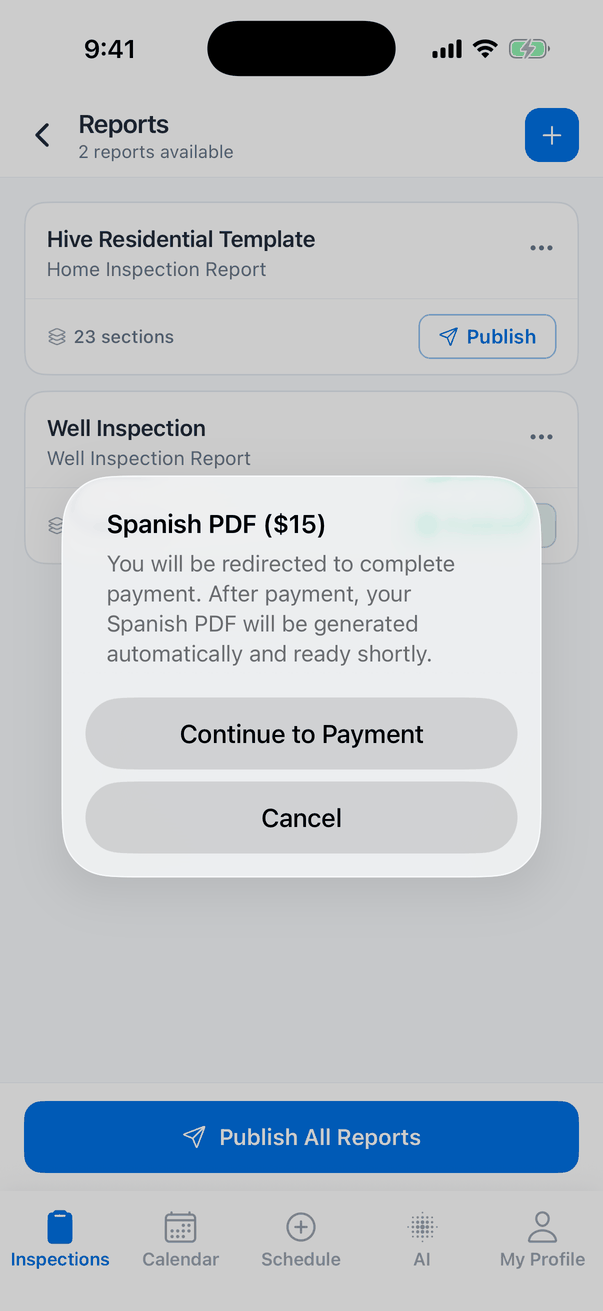
Spanish PDF
Delete a report
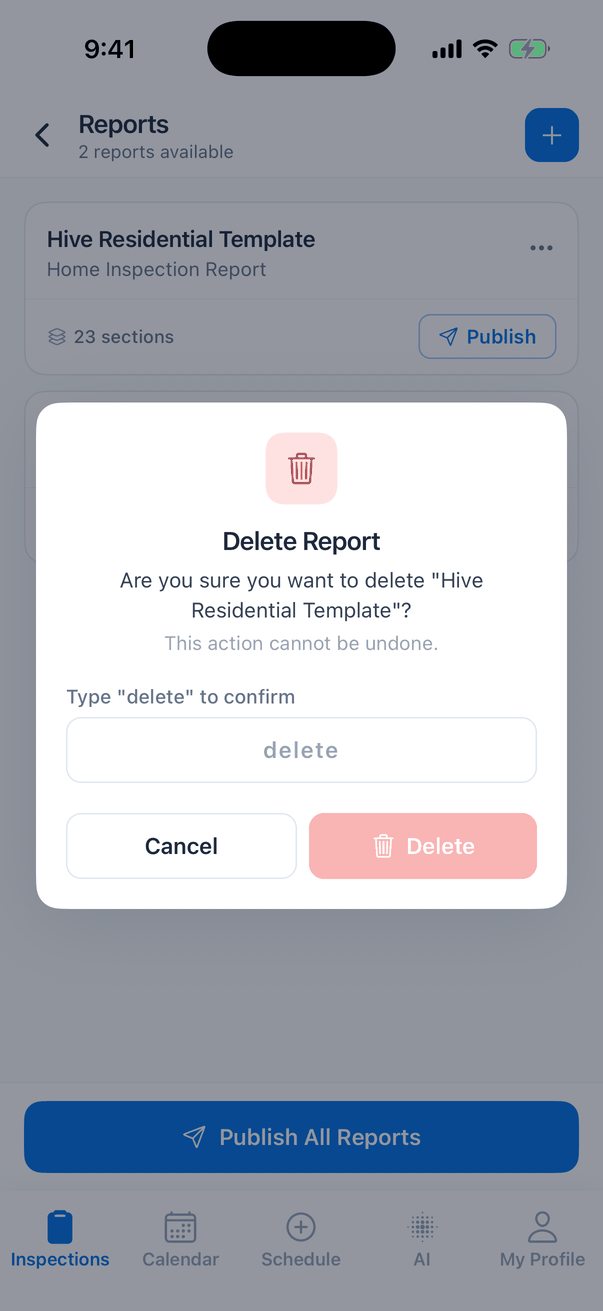
- Tap the three dots, then Delete Report.
- Read the warning. If the report has changes that never synced, the window says how many. They’re lost too.
- Type delete in the box and tap Delete.
Add another report
Tap the blue + at the top. The Add Template list shows your company’s report templates. Tap one to add it to the inspection as a new report. The app shows “Template added successfully” and the new report appears in the list. Use it when the client adds a service on site, for example a well or pool inspection with its own report.Offline
Without signal, the screen shows the reports saved on your phone with an Offline Mode banner (“Showing cached data”). You can open any report that’s already on your phone. Publishing, PDFs, previews, adding and deleting reports need a connection.Common questions
Why does the PDF not show my latest changes?
Why does the PDF not show my latest changes?
The PDF is made from what’s on Hive. Sync the report first (the report editor should say Synced), then tap View PDF. If you changed PDF settings on the dashboard or the client’s details, tap Regenerate PDF.
Why can't I publish?
Why can't I publish?
The app tells you: either the report has flagged fields (tap Review Fields, then fix them and remove the flags) or your company requires every section to be finished (tap Review Sections).
Does publishing from the app email the client?
Does publishing from the app email the client?
Publishing runs the same automations as on the dashboard. If you have a “reports published” automation, the client gets it. The client can open the report once their portal unlocks it.
Where's the Report Editor button?
Where's the Report Editor button?
It’s on the Inspection Summary and only shows on Confirmed inspections.
I deleted a report by mistake
I deleted a report by mistake
Contact support straight away from My Profile → Need Help? and tell them the inspection’s address and which report you deleted.
Where to go next
- Inspection Summary: the screen before this one.
- Syncing and offline use: how your work reaches Hive.
- Customize your reports: PDF settings and branding.